
 (1).svg)
 (1).png)


 (1).svg)
.svg)
Plesk is a powerful and user-friendly hosting control panel designed to simplify web management tasks through its intuitive graphical user interface and extensive features.
This article provides a detailed guide on how to effectively use Plesk, helping you navigate its functionalities from initial setup to advanced management. You will learn how to install and utilize Plesk for managing your websites, domains, and email accounts with ease.
Beyond the basics, this tutorial will also delve into best practices for leveraging the control panel to significantly enhance your website management efficiency and security.
How to Use Plesk: Understanding the Control Panel for Easy Website Management
In this section, we will walk you through the process of installing Plesk on your Virtual Private Server (VPS), specifically using Hostinger’s custom-built control panel, hPanel. You will gain insight into how to install and integrate Plesk with your VPS hosting to seamlessly manage your websites, domains, and email accounts.
1. Getting Started with Plesk
As Plesk operates on a license-based model, it is essential to acquire both the control panel license and a suitable web hosting plan before proceeding with its installation on your servers. At Hostinger, this process is streamlined, allowing you to purchase both directly from the VPS plan management menu within hPanel.
Important: Prior to making any changes to your VPS operating system, ensure you create a comprehensive backup of all your VPS files. The subsequent installation steps will erase all existing data on your server.
If you have already purchased a Plesk hosting plan from Hostinger, you can conveniently select Plesk during the initial setup process. However, if your existing plan did not include Plesk, follow these detailed steps to change your VPS operating system:
- On hPanel, click VPS in the left-hand menu.
- Select the specific VPS you wish to manage and click on Manage.
- From the sidebar, navigate to OS & Panel → Operating System.
- Locate and select Plesk, either by searching for it or choosing it under the OS with Panel tab. Afterward, click on Change OS at the bottom of the page.
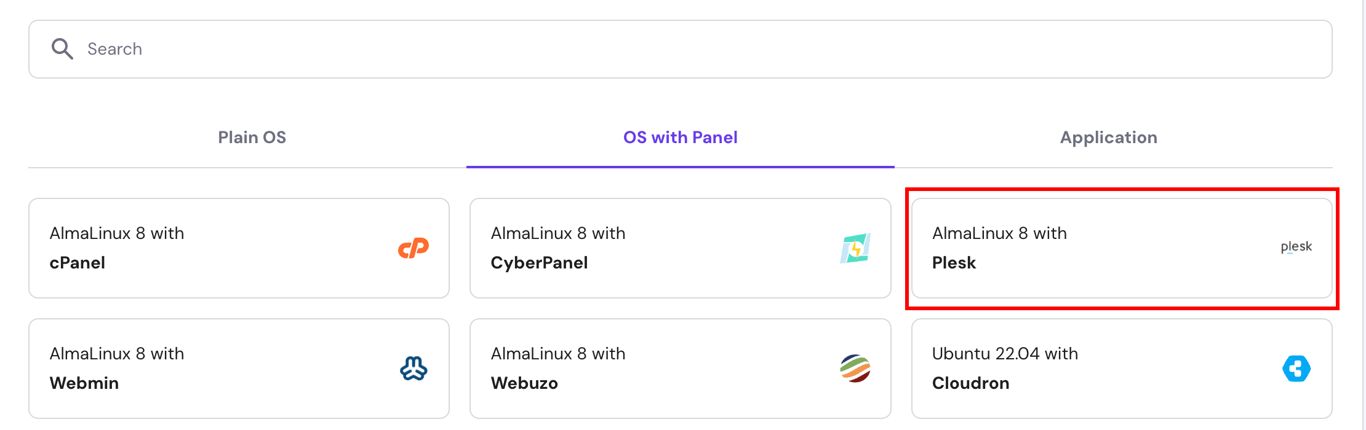
Should you need to purchase a Plesk license, you can do so by navigating to OS & Panel → Licenses in the left sidebar. Once purchased, you can verify proper license configuration by asking Kodee, our AI assistant, “Check if the Plesk control panel license is assigned to my current VPS.” Kodee can also assist with resetting your control panel password via chat.
Upon successful installation, access your Plesk control panel by entering https://example:8443 into your browser’s address bar. Remember to replace example with your server’s actual domain name or IP address. This critical information is readily available on the hPanel’s VPS list menu.
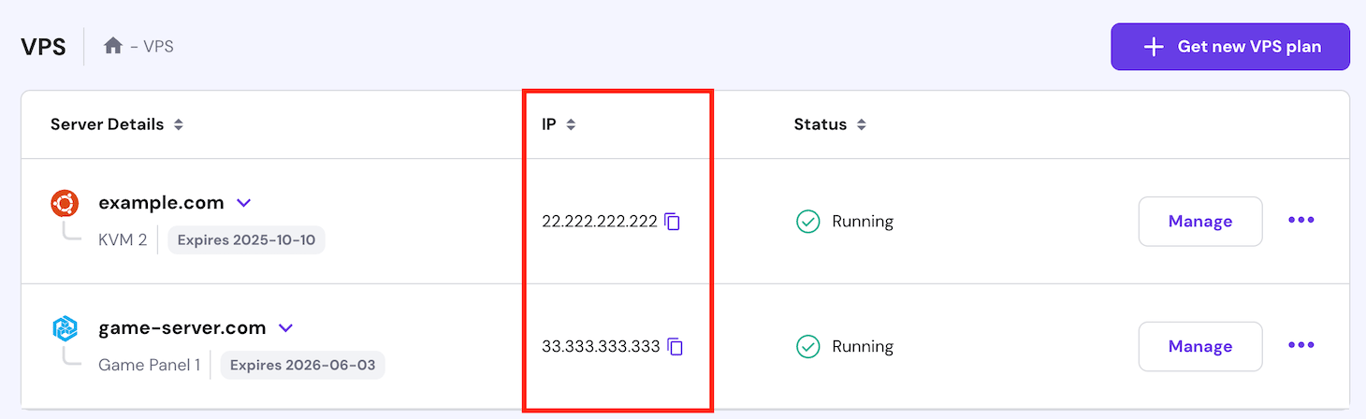
After successfully entering your VPS username and password, you will be directed to the main Plesk dashboard. The Plesk interface offers two distinct viewing modes, which can be selected from the Interface Management menu:
- The Service Provider view is ideal for web hosting providers, allowing the management of customers, service plans, and reseller accounts.
- For personal use, this tutorial will focus on the Power User interface, which is designed for individual website management.
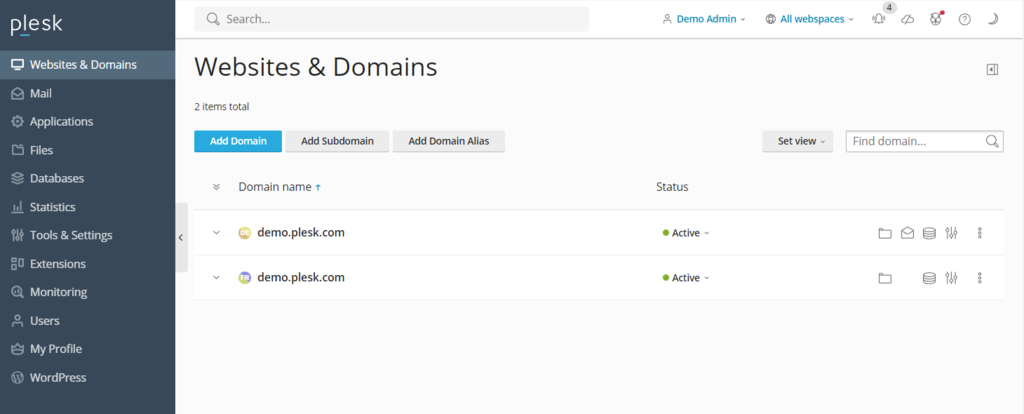
Regardless of the chosen interface, the dashboard consistently features three primary areas:
- Sidebar: This presents a comprehensive list of all items you can manage, including websites, domains, email accounts, and various Plesk settings.
- Main menu: This section displays the specific settings for the currently selected item, such as shortcuts to the database and file manager for your website.
- Top bar: Located at the top, this bar includes a search function, the logged-in username, notifications, and a quick-access help button.
2. Managing Domains and Emails in Plesk
Once your Plesk server is set up, the next crucial step is to add a new domain. If you do not yet own a domain, Hostinger, as an ICANN-accredited registrar, makes it simple to purchase a new domain directly from us. Before making a purchase, utilize our convenient domain name checker tool to ascertain availability:
Domain Name Checker
Instantly check domain name availability and secure your online identity.
After selecting your desired domain name, click Add to Cart and complete the purchase. Then, open your Plesk control panel and follow these steps to add your new domain:
- On the sidebar, click Websites & Domain.
- Click Add domain → Blank website.
- Enter the necessary information, such as your domain name and webspace settings. Confirm by clicking Add Domain.
- Plesk will then display your new domain’s configuration menu. Click on Hosting & DNS → DNS.
- Point your domain to your VPS hosting using the information provided in the Records tab. Your domain should become fully accessible within 24 hours once the DNS propagation process is complete.
Managing multiple domains is straightforward, as Plesk allows users to configure them from a single, centralized screen. Simply click on a domain name to access its specific management options, including SSH access, security features, and domain-based email accounts.
To create a new email account, navigate to the Mail tab → Mail Accounts → Create Email Address. Enter your desired local part (the username before the @ symbol), set a strong password, and click Ok to finalize the creation process.
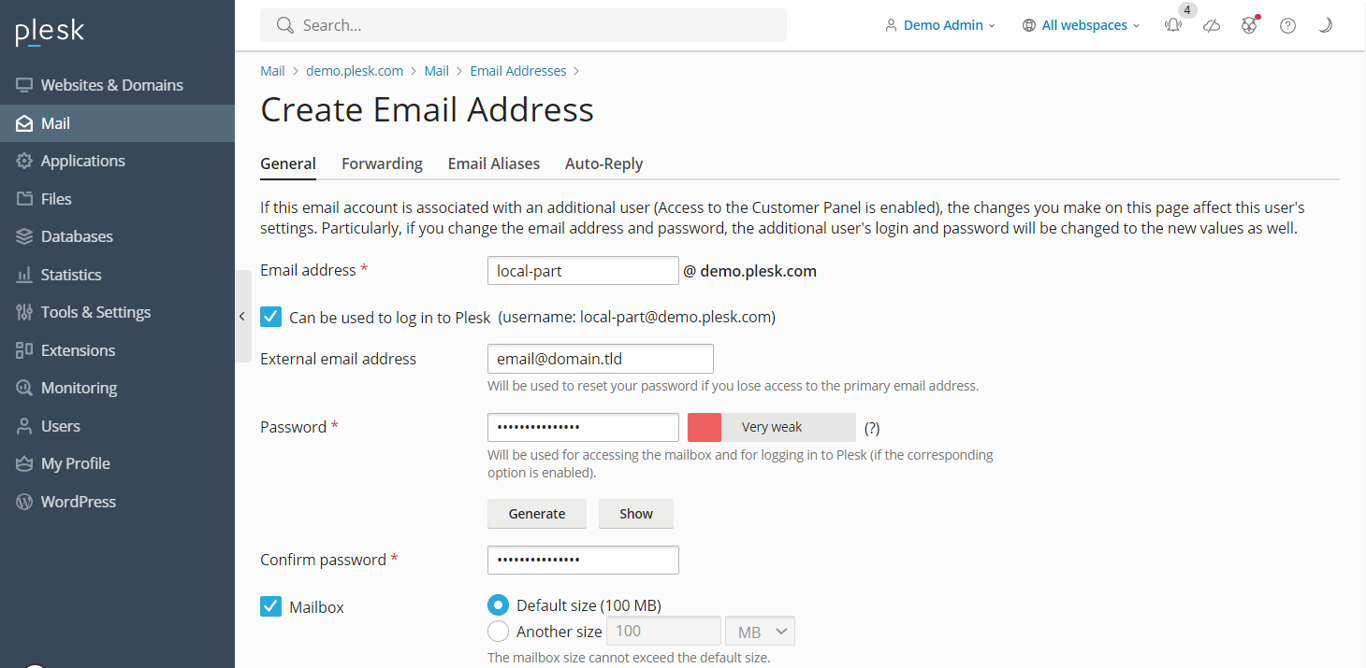
From the same menu, you can also adjust various mail settings, such as enabling or disabling the email service and applying Secure Sockets Layer (SSL) certificates for enhanced security. To create emails for other domain names, simply navigate back to Mail on the sidebar.
3. Managing Websites in Plesk
The process of setting up a website using Plesk varies depending on your chosen development method: whether you prefer manual coding, using a built-in editor, or leveraging robust content management systems (CMSs).
Plesk offers broad support for various content management systems, including popular options like WordPress, Joomla, and Drupal. For the purpose of this guide, we will focus on WordPress due to Plesk’s integrated toolkit, which simplifies the setup process by generating databases and administrator accounts automatically.
If you prefer a different CMS, you can install it via the Applications section on the sidebar. Otherwise, follow these steps to create a new WordPress website on your Plesk server:
- From the sidebar, select Websites & Domains. Then, choose the specific domain name on which you wish to build your website.
- Click PHP settings and ensure the PHP support box is checked. Click Apply and then OK. You can skip this step if PHP support is already enabled.
- Return to the domain settings menu and select Install Application → WordPress.
- Enter the required installation details and click Install.
- Once the installation process is complete, you will be redirected to the WordPress configuration page. Click Log in to access your website’s admin area.
To access the comprehensive WordPress toolkit, simply click the WordPress icon associated with your domain name. This dedicated menu allows you to efficiently manage databases, plugins, themes, and SSL certificates directly from Plesk.

Furthermore, Plesk includes a robust File Manager that enables seamless modification of your website's files without the need for an external FTP client. It also features a convenient website staging tool, which is invaluable for testing changes in a secure environment before deploying them to your live website.
Pro Tip
Instead of creating a brand new website, Plesk also facilitates the transfer of existing websites. Refer to Plesk’s website migration guide for detailed instructions on this process.
4. Managing Server Settings in Plesk
Plesk provides extensive capabilities for server management, allowing you to modify various settings directly from the control panel. For instance, you can fine-tune user permissions through Restricted Mode Settings, a crucial feature for preventing unauthorized alterations to your Plesk server.
This setting offers granular control, enabling you to allow or restrict specific features for the administrator, such as action logs, remote API access, server reboots, and IP restriction management. You can also configure permissions related to hosting, PHP, web server, mailing, and DNS management.
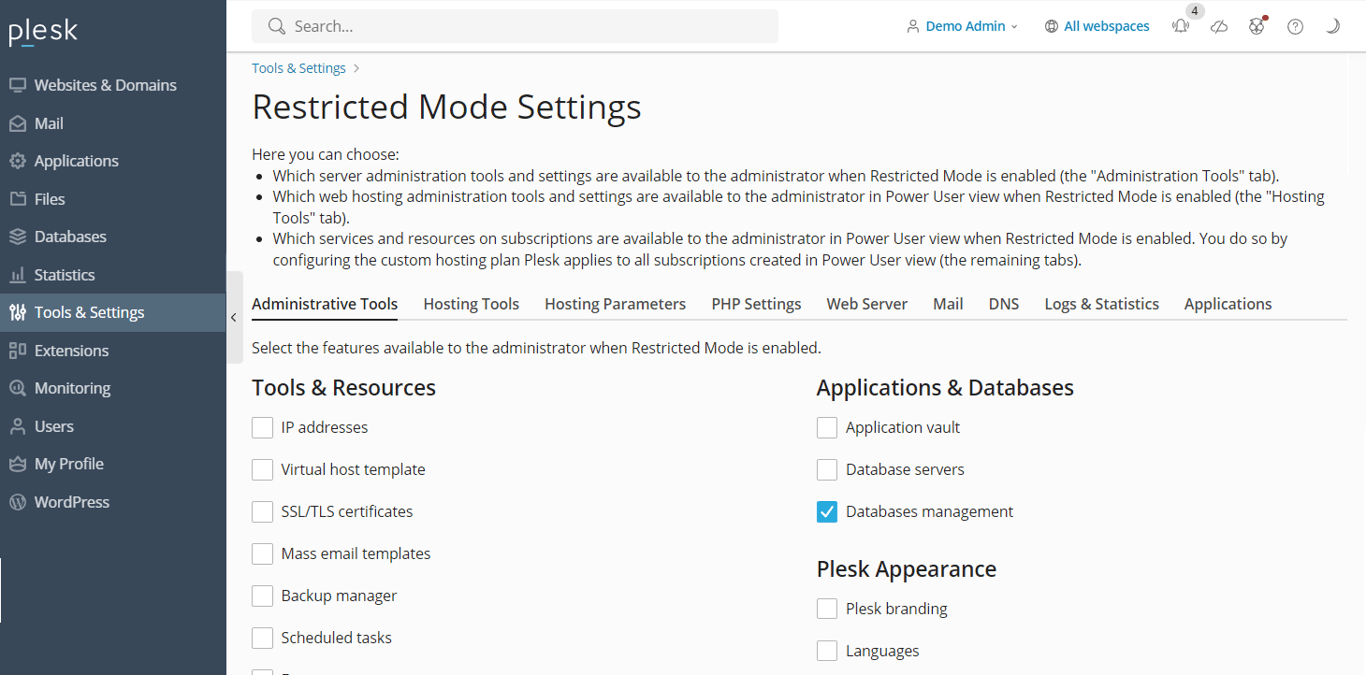
To enable this mode, navigate to Tools & Settings on the sidebar and select Restricted Mode Settings under the Plesk category. Check the boxes next to the features you wish to permit for the administrator, and then select the Enable Restricted Mode box.
Plesk also simplifies data protection with its Backup Manager, which allows you to effortlessly create backups of your server's settings and user data. To access this feature, go to Tools & Settings → Tools & Resources → Backup Manager.
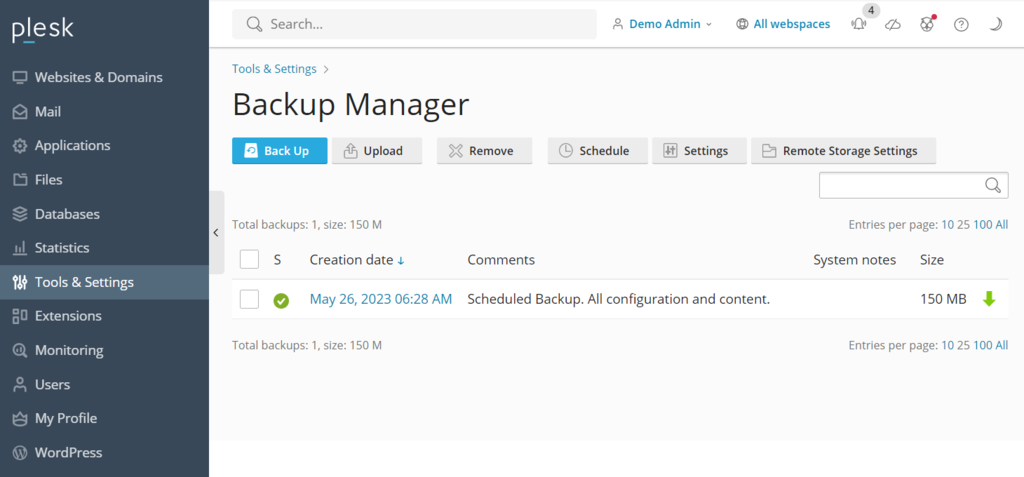
Here, you will find a list of your previous backups, which you can click to restore data as needed. To initiate a new backup, click Back Up, specify the data you wish to include, choose the storage directory, and select the backup type. Click OK to confirm your choices.
For server optimization and performance monitoring, Plesk offers two powerful website analytics tools: Grafana and Plesk 360. While Plesk 360 requires you to sign in and connect your account, Grafana can be installed directly from your Plesk server dashboard.
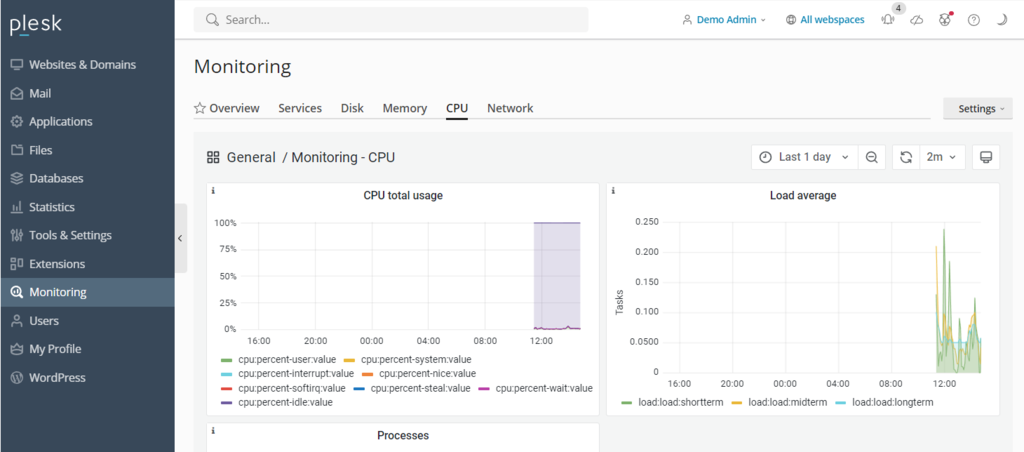
To install Grafana, navigate to Monitoring on the sidebar and select Use Built-In Monitoring at the bottom of the screen. From this dashboard, you can gain valuable insights into your server’s performance by monitoring disk usage, running services, memory consumption, and network load.
5. Integrating Advanced Plesk Features
The Plesk extensions catalog is a rich resource, offering over a hundred add-ons that enable users to significantly expand the control panel’s native functionality. These extensions span diverse categories, including web development tools, security enhancements, server utilities, and site editing capabilities.
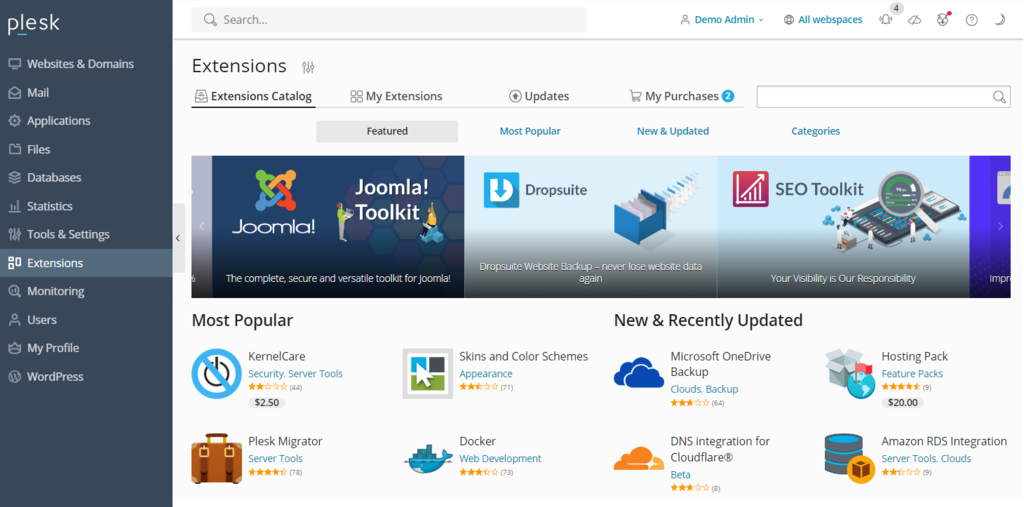
To install an add-on, simply navigate to Extensions on the sidebar, search for the tool you require, and click Get it Free for complimentary options. For paid extensions, you can conveniently purchase them directly through the Plesk dashboard.
Plesk also incorporates a robust command-line interface (CLI), which is invaluable for integrating and managing third-party applications. This CLI is frequently used for advanced management of server settings, user accounts, websites, and services.
On Linux servers, such as Hostinger’s VPS, the CLI executable is located in the /usr/local/psa/bin directory. To utilize it, establish an SSH connection to your Plesk server and execute the command utility using the following syntax:
plesk bin <utility name> [parameters] [options]Alternatively, you can run the utility from any directory using this command:
/usr/local/psa/bin/<utility name> [parameters] [options]For example, to display all action log entries from a specific date until today in JSON format, you would use the following command:
plesk bin action-log --show -since YYYY-MM-DD -jsonBest Practices for Using Plesk
In this section, we will outline essential best practices designed to help you leverage Plesk more effectively and efficiently manage your websites.
- Keep Your Plesk Installation Up to Date: Plesk regularly releases security patches, new features, and performance improvements. Ensuring your installation is always up to date offers several significant benefits:
- Eliminates the need for annual major version upgrades.
- Provides immediate access to the latest features, tools, and enhancements.
- Ensures that security vulnerabilities are promptly addressed and patched.
- Delivers consistent speed and performance improvements.
- Enhances the overall protection of user data.
Depending on your web hosting provider, you might be using Plesk Onyx or Obsidian. Compared to the now-deprecated Onyx, Obsidian boasts an improved user interface, more robust features, and receives regular updates. At Hostinger, we utilize Plesk Obsidian to guarantee optimal security and performance. Existing Plesk Onyx users can typically reuse their licenses to upgrade to Obsidian at no additional cost.
- Utilize Plesk’s Automation Features: Plesk’s automation capabilities allow users to schedule cron jobs for various server management tasks. This includes running PHP scripts, executing custom commands, and fetching URLs, ultimately saving valuable time and effort, enabling you to concentrate on other critical responsibilities.
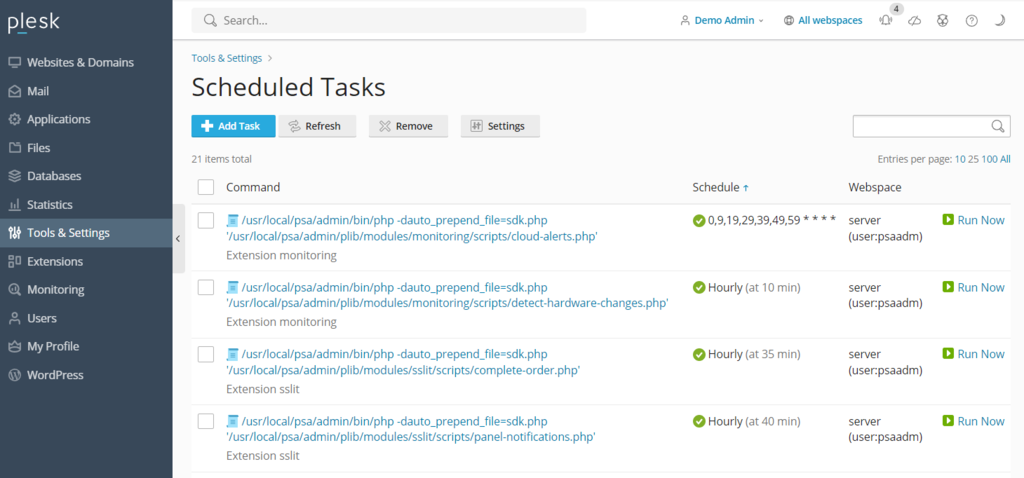
Beyond cron jobs, Plesk also facilitates the automation of tasks such as updating software and backing up data. Automating these processes ensures that you consistently have the latest security patches installed and reliable data reserves available in the event of cyberattacks or other unforeseen issues.
In addition to control panel functions, Plesk allows for automatic updates of other software within your VPS environment, including WordPress plugins and themes.
- Take Advantage of Plesk’s Security Features: When not properly managed, a virtual private server can be susceptible to security vulnerabilities. Plesk mitigates this risk by offering an array of features that empower users to strengthen their server security with minimal effort. Notable security features include:
- SSL it!: This feature enables users to easily purchase and install SSL certificates directly from the Plesk control panel, encrypting data transmission.
- Firewall: The integrated firewall actively blocks unauthorized connections to your VPS, thereby safeguarding against potential security compromises.
- Server Name Indication (SNI): SNI helps secure users’ email communications, preventing unauthorized parties from intercepting or spying on sensitive information.
- Self-repair kit: This tool is designed to detect and automatically resolve common issues related to your VPS, mailing clients, DNS, and databases, ensuring continuous system integrity.
- Customize Your Plesk Dashboard to Suit Your Needs: Plesk offers an intuitive and beginner-friendly user interface right out of the box. However, it also provides extensive customization options, allowing you to tailor the dashboard to better align with your specific needs and workflow. To customize your Plesk environment, navigate to Tools & Settings → Plesk Appearance.
For a truly personalized user experience, Plesk offers several key customization options:
- Changing the default language of the administrator interface.
- Adding custom buttons that can redirect users to other web pages or applications.
- Replacing the default Plesk logo and title with your own branding elements.
You can also modify Plesk’s CSS stylesheet to alter decorative elements such as the color scheme, background, and fonts. For more details, refer to the using custom theme guide.
- Use Plesk’s Community Resources: If you encounter questions or challenges while using Plesk, its community forum is an excellent resource. Here, users can ask questions, share insights, and find solutions to common issues. The forum covers a wide range of discussion topics, including Plesk for different operating systems, WP toolkits, and various extensions.
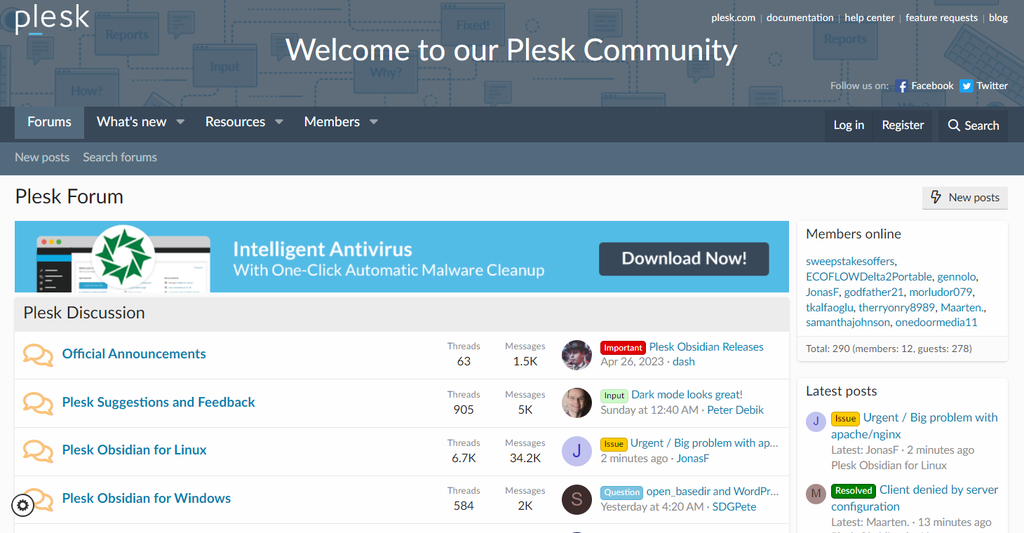
These community resources provide valuable assets and instructions for numerous management tasks within Plesk. Additionally, Plesk maintains official documentation that thoroughly explains how to effectively use the control panel's features and functionalities.
Conclusion
Plesk stands out as a highly effective web hosting control panel, providing a comprehensive suite of features designed to streamline and simplify website management tasks. For Hostinger users, the convenience of purchasing and installing this powerful control panel directly from their VPS operating system management menu makes getting started exceptionally easy.
To access the Plesk dashboard, simply open your web browser and enter https://example:8443, ensuring you replace example with your specific VPS domain or IP address. Following this, you will be prompted to enter your username and password to gain entry into the control panel.
Once inside, the intuitive sidebar guides you to various configurable items, such as websites, domains, and email accounts. You can then efficiently modify their settings and save your changes directly from the dashboard’s main menu, providing a centralized management experience.
Beyond its built-in functionalities, Plesk further enhances its capabilities by allowing users to install a wide range of extensions directly from the dashboard or, for more advanced integration, utilize the command-line interface (CLI) to install third-party applications.
To maximize your website management efficiency, it is highly recommended to leverage Plesk’s automation features and customize its appearance to perfectly suit your individual needs and workflow. Furthermore, in case of any troubleshooting requirements, the vibrant Plesk community forum serves as an invaluable resource for support and solutions.
How to Use Plesk FAQ
In this section, we address several frequently asked questions about using Plesk, aiming to provide a deeper understanding of the control panel and its capabilities.
Do I need technical skills to use Plesk?
While managing a Virtual Private Server (VPS) typically benefits from some knowledge of hosting and server management, regardless of the control panel used, Plesk is designed with an intuitive and straightforward graphical user interface. Its dedicated file manager further simplifies tasks, making it more accessible for users with minimal prior server management experience.
Can I manage multiple websites with Plesk?
Absolutely, website management with Plesk is exceptionally easy and efficient for multiple sites. By navigating to the Websites & Domains section, you can view a comprehensive list of all your current websites. Clicking on any specific domain will open its dedicated management menu, allowing you to configure all aspects from a single, centralized dashboard.
What applications can I install with Plesk?
Plesk offers the flexibility to install a wide array of official and third-party applications, covering categories such as analytics, web development tools, and security enhancements. These applications can be installed either through the user-friendly extensions catalog or, for more advanced users, via the Plesk CLI using an SSH client like PuTTY.
Is it possible to monitor server health with Plesk?
Yes, server health monitoring is possible with Plesk. While the direct server health monitoring feature was more prominent in the older version, Plesk Onyx, the newer Plesk Obsidian integrates with Grafana. This allows you to effectively monitor your server’s resource usage and running services, providing crucial insights into its overall performance and health.
