
 (1).svg)
 (1).png)


 (1).svg)
.svg)
An Odoo database upgrade involves migrating a database from an older version to a newer, supported version (for example, from Odoo 16.0 to Odoo 18.0). Regular upgrades are essential as each new version introduces valuable features, critical bug fixes, and vital security patches. It is strongly recommended to always operate on a supported version, as each major version typically receives support for three years.
The necessity of a database upgrade can be mandatory, depending on your hosting type and the specific Odoo version in use:
- If your database is on a major version (e.g., 16.0, 17.0, 18.0), an upgrade is typically mandatory every two years.
- If your database is on a minor version (e.g., 17.1, 17.2, 17.4), an upgrade becomes mandatory a few weeks after the subsequent minor version is released. Minor versions are generally released approximately every two months.
You will receive an in-database notification several weeks before a mandatory upgrade is automatically carried out, giving you ample time to prepare. You retain full control over the upgrade process as long as the specified deadline has not been reached.
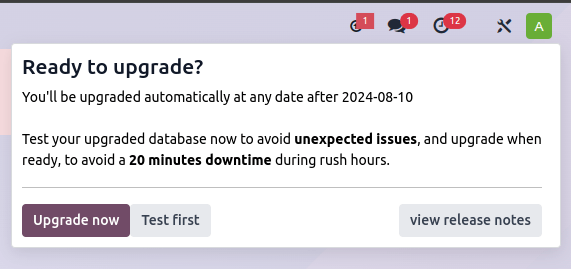
In practice, Odoo's dedicated Upgrade Team conducts a silent test upgrade for every database scheduled for an upgrade. If this test is successful and completes within 20 minutes, you can directly initiate the upgrade from your database interface. Should the test encounter issues, you have the option to perform an upgrade test using the database manager.
When you are prompted to upgrade, it is highly recommended to first request an upgraded test database. Dedicate sufficient time to thoroughly test this environment before proceeding with your live database.
An automatic upgrade to the next available version will be triggered if no action is taken by the specified due date.
It's important to note that an Odoo upgrade does not cover the following scenarios:
- Downgrading to a previous version of Odoo.
- Switching editions (e.g., transitioning from Community to Enterprise).
- Changing hosting types (e.g., migrating from an on-premise setup to Odoo Online).
- Migrating data from another ERP system to Odoo.
If your database incorporates custom modules, it cannot be upgraded until a compatible version of these custom modules is available for the target Odoo version. For customers who maintain their own custom modules, we strongly advise parallelizing the process by requesting an upgraded database while simultaneously upgrading the source code of your custom modules to ensure a smooth transition.
Understanding Odoo Database Upgrades
The Upgrade Process in Brief
Successfully upgrading your Odoo database involves a series of critical steps. Following this structured approach will help ensure a smooth and effective transition to the new version:
- Initiate a request for an upgraded test database (refer to the section on obtaining an upgraded test database for detailed instructions).
- If applicable, update the source code of your custom modules to ensure full compatibility with the new Odoo version (see Upgrade a customized database).
- Thoroughly test the upgraded database to identify and resolve any potential issues (detailed guidance is available in testing the new version of the database).
- Report any issues encountered during your testing phase to Odoo Support. You can do this by visiting the Support page and selecting “An issue related to my future upgrade (I am testing an upgrade)”.
- Once all issues are satisfactorily resolved and you are confident that the upgraded database is stable for production use, proceed with planning the upgrade of your live production database.
- Request the upgrade for your production database. Be aware that the database will be temporarily unavailable while the upgrade process completes (further details can be found in upgrading the production database).
- Should any issues arise during or immediately after the production upgrade, report them to Odoo Support via the Support page, selecting “An issue related to my upgrade (production)”.
Obtaining an Upgraded Test Database
The primary platform for initiating a database upgrade request is the Upgrade page. However, the method for upgrading can vary based on your hosting environment. Options include upgrading from the command line (for on-premise installations), through the Odoo Online database manager, or directly from your Odoo.sh project.
To upgrade an Odoo Online database, follow these steps:
- Access the database manager.
- Select the specific database you wish to upgrade and click on the "Manage" button.
- Within the Database section, click on "Upgrade".
- In the subsequent pop-up window, configure the following options:
- Select the version of Odoo you want to upgrade to: Typically, you will choose the latest available version.
- Enter the Email to notify: Provide an email address that will receive a link to the newly upgraded database.
- Select the Purpose of the upgrade: For your initial upgrade request, this will automatically be set to "Test".
- Finally, click "Upgrade".
In the database manager, the "Connect" button will be replaced by an "Upgrading…" button, which will remain unclickable until the process is complete. Once successful, an email containing a link to your upgraded test database will be sent to the address you provided. This test database can also be accessed directly from the database manager by clicking the caret down button next to the database name to reveal the test database, and then clicking "Connect".
You have the flexibility to request multiple test databases if you wish to conduct several upgrade tests.
Upon completion of an upgrade request, an upgrade report is included with the successful upgrade email. This report also becomes accessible within the Discuss app for users belonging to the “Administration / Settings” group. The report provides crucial information regarding the changes introduced by the new version of Odoo.
Testing the New Version of the Database
Thoroughly testing the upgraded test database is paramount. This crucial step ensures that your daily operations will not be disrupted by changes in views, altered behaviors, or unexpected error messages once the upgrade to your production environment goes live. Comprehensive testing allows you to familiarize yourself with the new version and proactively address any potential issues.
Understanding Neutralized Test Databases
It is important to be aware that test databases are neutralized environments. Certain features are temporarily disabled to prevent them from inadvertently impacting your live production database. These neutralized features typically include:
- Scheduled actions are deactivated.
- Outgoing mail servers are disabled by archiving existing ones and setting up a placeholder.
- Payment providers and delivery carriers are reset to their test environment configurations.
- Bank synchronization is disabled. If you need to test bank synchronization, you should contact your bank synchronization provider to obtain sandbox credentials.
To ensure a robust transition, it is highly recommended to test as many of your critical business flows as possible. This approach helps confirm that they are functioning correctly in the new version and helps your team adapt to any interface or process changes.
Essential Test Scenarios: A Basic Checklist
Consider the following basic checklist to guide your initial testing:
- Verify if any views that are active in your production database are unexpectedly deactivated in your test database.
- Confirm that your commonly used views are still displayed and function correctly.
- Ensure that your standard reports (e.g., invoices, sales orders) are generated accurately.
- Check that your website pages are working as expected.
- Confirm you can successfully create and modify various records (e.g., sales orders, invoices, purchases, users, contacts, companies).
- Identify any issues with your existing mail templates.
- Check for any problems with saved translations.
- Ensure your preferred search filters are still present and functional.
- Confirm that you can export your data without issues.
Comprehensive Testing Checklist: Key Business Flows
Beyond the basic checks, a more detailed testing approach involving key business flows is essential:
- Select a random product from your product catalog and compare its data in both the test and production environments to verify consistency across all attributes (e.g., product category, selling price, cost price, vendor, accounts, routes).
- Simulate purchasing this product using the Purchase app.
- Confirm the reception of this product within the Inventory app.
- Verify that the route used to receive this product is identical to the one in your production database (within the Inventory app).
- Simulate selling this product to a random customer via the Sales app.
- Open your customer database (Contacts app), select a customer (or company), and thoroughly check its data.
- Simulate shipping this product using the Inventory app.
- Verify that the route used to ship this product matches the configuration in your production database (within the Inventory app).
- Validate a customer invoice using either the Invoicing or Accounting app.
- Credit the invoice (issue a credit note) and confirm that its behavior mirrors that in your production database.
- Review your reports' results within the Accounting app.
- Randomly check your taxes, currencies, bank accounts, and fiscal year settings within the Accounting app.
- Perform an end-to-end online order simulation (using the Website apps), from product selection in your shop through the checkout process, and confirm everything behaves as it does in your production database.
Please note that this list serves as a guideline and is by no means exhaustive. You should expand upon these examples to cover all relevant applications and specific Odoo usages within your organization.
If you encounter any issues while testing your upgraded test database, you can seek assistance from Odoo Support. Navigate to the Support page and selecting “An issue related to my future upgrade (I am testing an upgrade)”. It is crucial to report all problems identified during testing to ensure they are rectified before your production database is upgraded.
During testing, you might observe significant differences in standard views, features, fields, and models. Such changes cannot be individually reverted. However, if a new version introduces a change that disrupts a customization, it is the responsibility of the custom module's maintainer to update it for compatibility with the new Odoo version.
Remember to extend your testing to include:
- Integrations with external software (e.g., EDI, APIs).
- Complex workflows spanning multiple applications (e.g., online sales with eCommerce, converting a lead through to a sales order, product delivery).
- Data export functionalities.
- Automated actions.
- Server actions accessible from the action menu on form views, as well as actions performed by selecting multiple records in list views.
Upgrading the Production Database
Once your tests are thoroughly completed, and you are fully confident that the upgraded database is stable and ready for use as your primary system without any issues, it is time to plan your go-live day for the production upgrade.
Your production database will be temporarily unavailable during its upgrade process. Therefore, it is highly recommended to schedule the upgrade during a period when database usage is at its absolute minimum to minimize disruption to your operations.
Given that standard upgrade scripts and your database are continuously evolving, it is also advisable to frequently request another upgraded test database. This practice helps ensure that the upgrade process remains successful, especially if a considerable amount of time has passed since your last test. It is also strongly recommended to conduct a full rehearsal of the entire upgrade process the day before you intend to upgrade your production database.
Proceeding with a production upgrade without prior thorough testing can lead to significant negative consequences, including:
- Users struggling to adapt to new features and changes.
- Business interruptions (e.g., inability to validate critical actions).
- A poor customer experience (e.g., a malfunctioning eCommerce website).
The process for upgrading a production database largely mirrors that of upgrading a test database, with a few crucial distinctions.
The procedure is similar to obtaining an upgraded test database, with the key difference being that the "Purpose" option must be set to "Production" instead of "Test".
Once the upgrade for the production database is requested, the database will become unavailable until the upgrade process concludes. It is critical to understand that once the process is complete, it is impossible to revert to the previous version of your database.
In the event of any issues with your production database post-upgrade, you can obtain assistance from Odoo Support by navigating to the Support page and selecting “An issue related to my upgrade (production)”.
Service-Level Agreement (SLA) for Odoo Upgrades
With an Odoo Enterprise subscription, the upgrade of your database to the most recent Odoo version is provided free of charge. This includes any necessary support required to rectify potential discrepancies or issues identified within the upgraded database.
While comprehensive information regarding the upgrade services covered by the Enterprise License is available in the Odoo Enterprise Subscription Agreement, this section aims to clarify precisely what upgrade services you can expect.
Upgrade Services Covered by the SLA
Databases hosted on Odoo’s cloud platforms (Odoo Online and Odoo.sh), as well as self-hosted (On-Premise) installations, are eligible for upgrade services at all times. These services specifically cover:
- The upgrade of all standard Odoo applications.
- The upgrade of all customizations created using the Studio app, provided that Studio remains installed and the corresponding subscription is active.
- The upgrade of all developments and customizations that are covered by an active maintenance of customizations subscription.
It is important to understand that upgrade services are limited to the technical conversion and adaptation of a database (including standard modules and data) to ensure its compatibility with the target version of Odoo.
Upgrade Services Not Covered by the SLA
The following upgrade-related services are explicitly not included within the scope of the Odoo Enterprise SLA:
- The cleaning of pre-existing data and configurations during the upgrade process.
- The upgrade of additional modules not covered by a separate maintenance contract, which includes modules developed in-house or by third parties, such as Odoo partners.
- Training on how to use the features and workflows introduced in the upgraded version.
