
 (1).svg)
 (1).png)


 (1).svg)
.svg)
cPanel stands as the most widely used web hosting control panel, serving as the central hub for managing the backend operations of your website. A thorough understanding of cPanel is crucial for effective website management, much like selecting a reliable web hosting service forms the cornerstone of a successful online presence.
While cPanel is designed for user-friendliness, it’s natural to encounter questions or seek guidance on specific functionalities. This comprehensive cPanel tutorial series aims to address all common inquiries related to cPanel, providing you with an all-in-one resource for mastering this powerful tool.
Before diving into the specifics, consider exploring resources like the eBook below to further enhance your website's performance.

Hostinger cPanel Hosting – Video Tutorial
For those who prefer visual learning, we invite you to watch our detailed video tutorial on Hostinger cPanel Hosting. It provides a step-by-step walkthrough of various cPanel features.
How to Use cPanel’s File Manager
The File Manager is an indispensable tool within cPanel that facilitates fundamental file management tasks for your website. Beyond simply uploading and extracting files, it allows you to create new files and folders, set permissions, and organize your website's directory structure. While it offers similar functionalities to an FTP client, it's generally more accessible for basic operations.
Step 1. How to Locate the File Manager
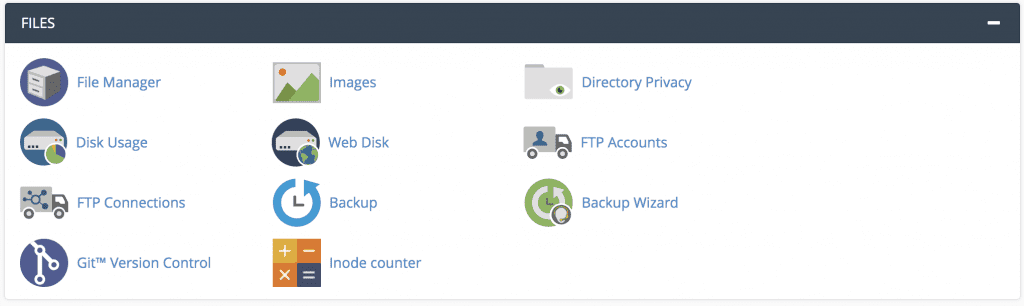
- Upon successfully logging into your cPanel account, the File Manager can be found under the Files section. Alternatively, you can efficiently locate it by using the search bar, as demonstrated in our previous guides.
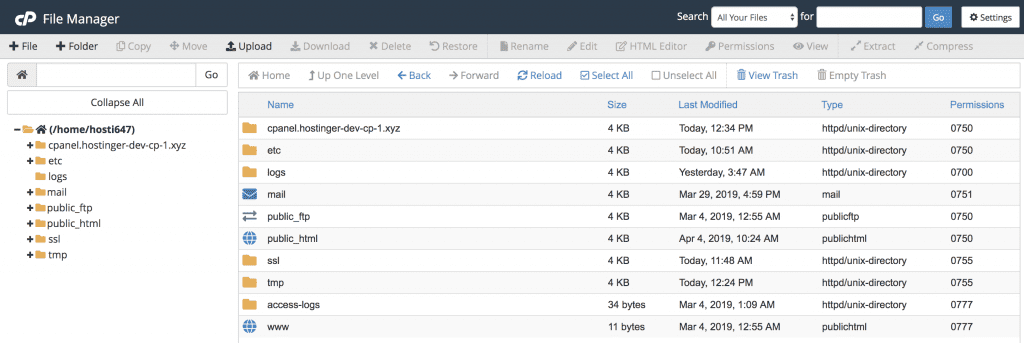
Important! For the scope of this tutorial, we will primarily focus on operations within the public_html folder. The other system-level folders are typically required for the proper functioning of cPanel services and should generally not be altered unless you have a clear understanding of their purpose.
Step 2. How to Navigate the File Manager
The File Manager interface is logically divided, with a folder tree displayed on the left and the contents of the selected folder on the right. You can easily navigate to any folder by clicking on its name. For instance, clicking on the public_html folder will reveal its contents, such as .well-known, cgi-bin, robots.txt, and other associated files.
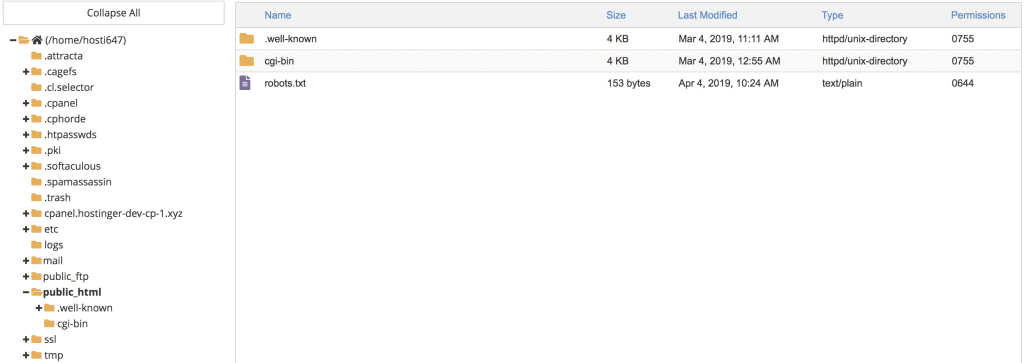
As an alternative, for quicker access, you can navigate directly to a specific folder by entering its full path into the search bar within the folder tree and clicking Go.

Several navigation functions are available to enhance your file management experience:
- Home — Clicking this option will take you back to your primary Home directory, displaying its contents.
- Up One Level — This function allows you to move up one directory level from your current location. For example, if you are in the cgi-bin folder and click this, you will return to the public_html folder, which is its parent directory.
- Back/Forward — These buttons operate much like the back and forward navigation controls in your web browser, allowing you to retrace or advance your steps through previously viewed directories.
- Reload — Use this to refresh the page and ensure all recent changes are reflected.
- Select/Unselect All — This feature enables you to quickly select or deselect all files and folders within the current directory.
- View Trash — This displays the Trash folder, where all deleted files are temporarily stored before permanent removal.
- Empty Trash — This option permanently clears the contents of the Trash folder. This feature is only active when you are currently viewing the Trash folder.
Step 3. Using the File Management Features
Beyond navigation, understanding the core file management features is paramount. A convenient toolbar at the top provides quick access to these functions, and most can also be accessed by right-clicking on a specific file or folder.

- File – This feature allows you to create a new file within the currently selected folder. For example, you can create an index.php file directly within your public_html folder.
- Folder – Use this feature to create a new directory. For instance, you can create a new folder named test-folder.
- Copy – This enables you to duplicate a selected file to a specified destination. You could copy the index.php file you just created into the test-folder.
- Move – Similar to the Copy function, Move relocates the selected file to a new destination, removing it from its original location.
- Upload – This allows you to upload files from your local computer to your hosting account. Note that direct folder uploads are not supported through this interface. For uploading folders or larger files, it's recommended to use an FTP client like FileZilla. You can either drag and drop files or manually select them from your computer. After the upload is complete, click the Go Back to link.
- Download – This feature downloads the selected files from your hosting account to your computer.
- Delete – This option moves the selected file to the Trash folder. To permanently remove the file without sending it to the Trash, check the "Skip the trash and permanently delete the files" box.
- Restore – This feature is exclusively available when you are in the Trash folder. It allows you to restore a deleted file back to its original directory.
- Rename/Edit/HTML Editor – These features are crucial for modifying your files. They function similarly to basic text editor software and are particularly useful for quick, on-the-fly edits. While the HTML Editor utilizes a WYSIWYG (What You See Is What You Get) interface, it may not be as feature-rich as dedicated HTML editor software.
- Permissions – Use this feature to assign specific permissions to a file or folder. It is strongly advised not to alter these settings unless you have a complete understanding of their implications, as incorrect permissions can lead to significant website issues.
- View – This allows you to view the contents of a file, such as opening an image or reviewing the code within an index.php file.
- Extract/Compress – The Compress feature lets you archive selected content into Zip, Gzip, or Bzip2 formats. The Extract function performs the reverse operation, decompressing an archive.
- Settings – This feature allows you to customize your File Manager preferences. For example, you can set a default folder to open automatically whenever you access the File Manager. You can also choose to Show Hidden Files (dotfiles), which is essential if you need to edit files like .htaccess to restrict access to certain areas of your website.
This covers the fundamental navigation and management features within the File Manager. Next, we will delve into understanding bandwidth usage, another critical aspect of your hosting plan.

How to Check Bandwidth
Bandwidth refers to all incoming and outgoing traffic, or the total amount of data transferred on your hosting account. Its usage is influenced by various factors, including website visitors, email communication, and even FTP connections. Monitoring bandwidth usage is essential because it directly correlates with your subscribed hosting plan. cPanel is designed to send automated email notifications when your bandwidth usage approaches its allocated limit.
Step 1. Access a Short Summary of Bandwidth Usage
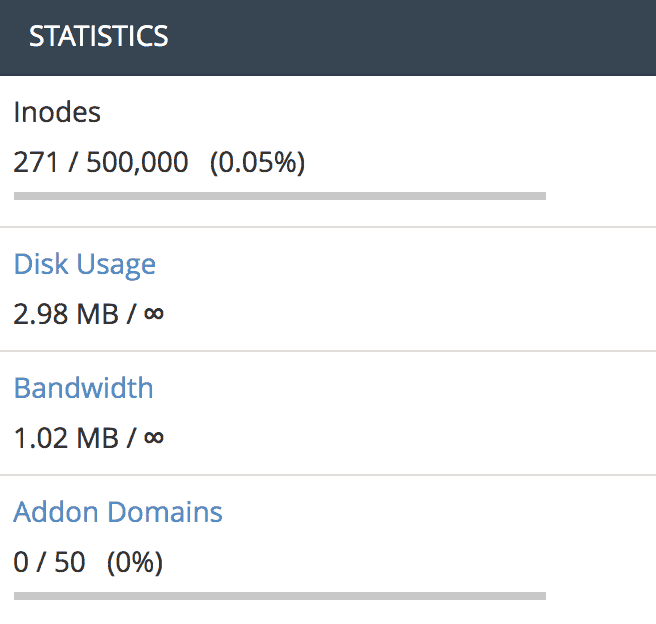
Upon logging into your cPanel account, you can quickly view a summary of your bandwidth usage conveniently located in the right-hand panel, within the statistics section.
Step 2. Access the Bandwidth Statistics in cPanel
For a detailed breakdown of your bandwidth consumption, click on the Bandwidth link from the summary section mentioned in the previous step. Alternatively, you can use the search feature to find "Bandwidth" by name.

Selecting either option will direct you to a new window that presents comprehensive usage statistics, categorized on a daily, weekly, and monthly basis, along with the total sum of your account's bandwidth consumption. For illustration, observe our development site's daily bandwidth usage as an example:
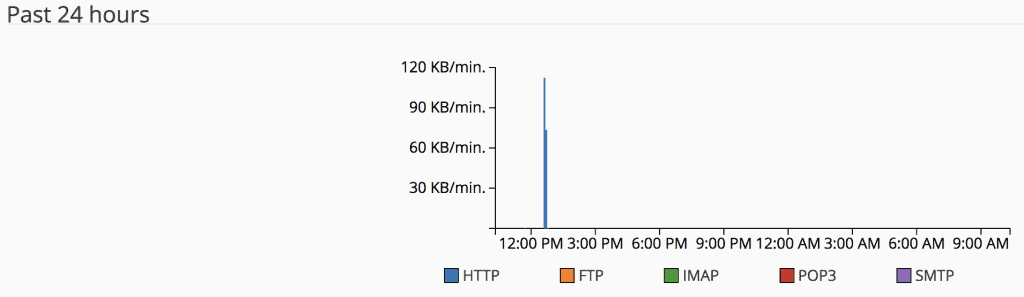
As you can see, cPanel diligently monitors traffic from the following key sources:
- HTTP Traffic – This represents data transmitted and received over the Hypertext Transfer Protocol, which is fundamental for web browsing.
- FTP Traffic – This tracks data transfers using the File Transfer Protocol, used for accessing and sharing files between your computer and the web server.
- IMAP/POP3/SMTP Traffic – These protocols account for email communication occurring between your server and a computer or mail client.
With this information, you now have a complete understanding of bandwidth usage. This knowledge is incredibly helpful for identifying potential causes of reaching your quota limit and taking appropriate action to manage your resources effectively.
How to Check Disk Space Usage
Your disk space usage represents the total amount of data stored within your account. This includes all website files, MySQL databases, and email messages. To keep you informed, cPanel automatically sends disk space warning notifications to your registered email address when your usage reaches 80%, 90%, 98%, and 100% of your allocated limit. You can update your contact email address within the Preferences section of your cPanel.
Checking the Short Summary of Disk Space Usage
Upon logging into your cPanel, a concise summary of your Disk Space Usage is immediately visible in the right-hand panel, within the statistics section.
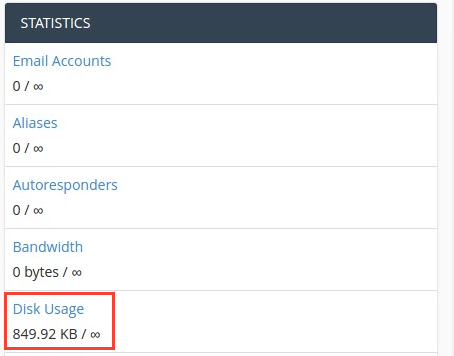
Step 2 — Checking Disk Space Usage Statistics in Detail
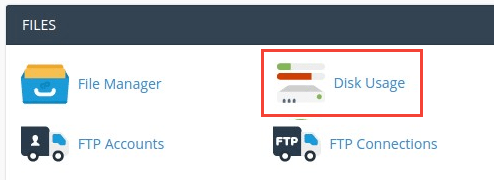
For a comprehensive breakdown of your Disk Space Usage, click on the Disk Usage button located under the Files section of your cPanel dashboard.
Once on the Disk Usage page, scroll down and expand individual folders by clicking the > sign to their left. This action will reveal the exact allocation of your disk space, showing precisely where your data is being stored.
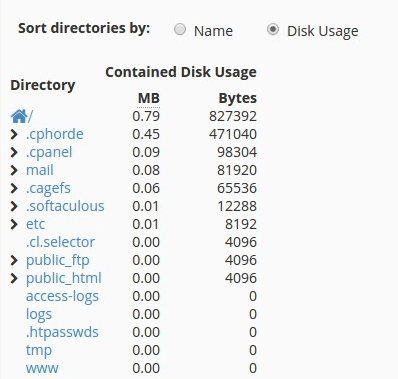
Should you wish to remove any unwanted files, simply click on the desired folder, and the File Manager will open in your browser, allowing you to manage its contents directly.
Congratulations, you have now mastered how to check your Disk Space Usage in cPanel. This skill is invaluable for understanding what might be causing you to reach your disk space quota limit and for proactively managing your hosting resources. Now, let’s enhance your cPanel account's security by implementing two-factor authentication.
How to Set Up Two-Factor Authentication
Given the critical importance of the data stored within your cPanel account, adding two-factor authentication (2FA) provides a significant boost to your account's security. This method involves using a software application to generate a time-based one-time password (TOTP), which provides a unique, temporary code that you must input in addition to your regular password before gaining access to your account.
Step 1. Enabling Two-Factor Authentication in cPanel
- After logging into your cPanel account, locate and open the Two-Factor Authentication tool. Then, click the Set Up Two-Factor Authentication button to begin the setup process.

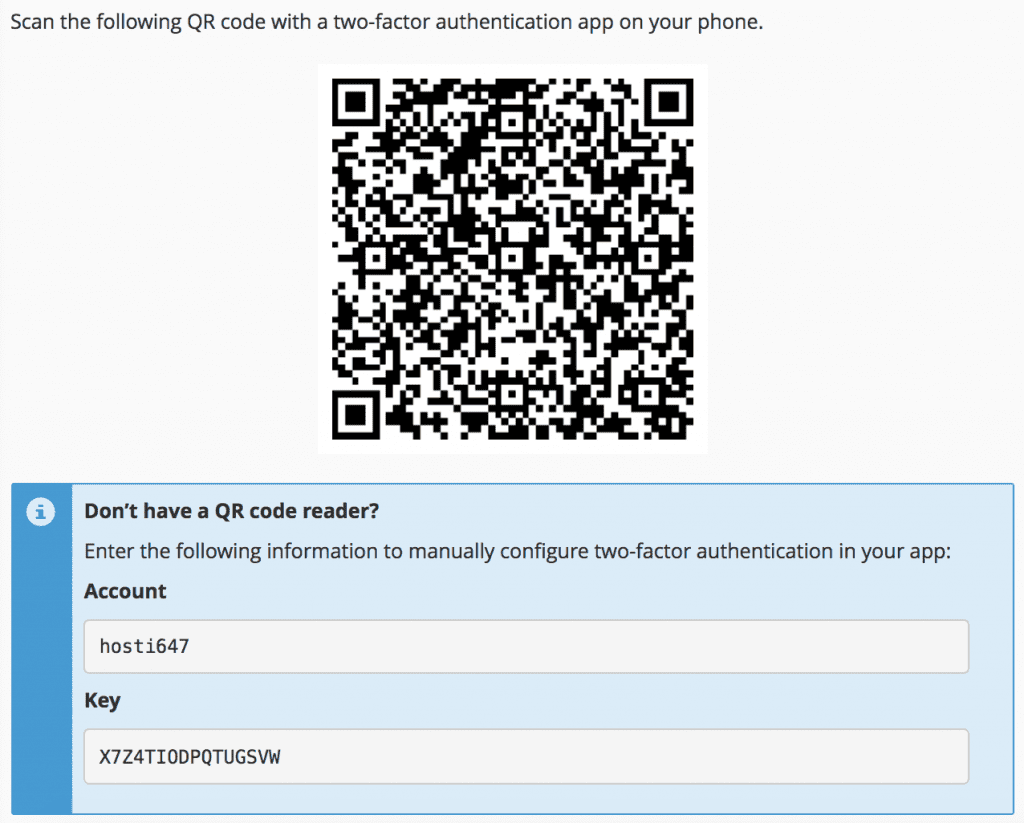
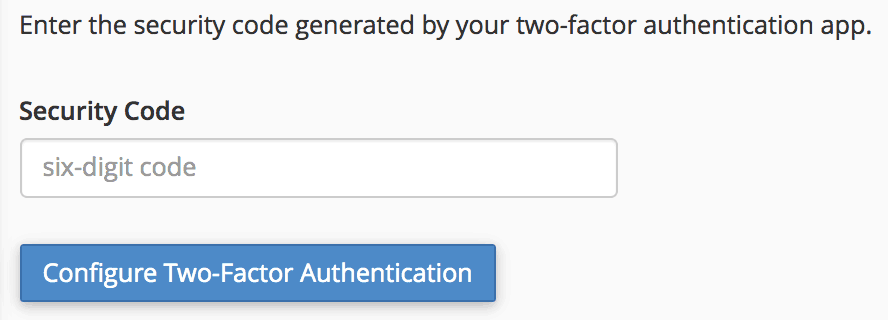
Step 2. Logging Back into cPanel with 2FA
After successfully configuring 2FA, clicking Go Back will return you to the cPanel login screen. From this point forward, you will need to enter the six-digit token generated by your Authenticator app each time you attempt to log in. This additional step ensures a significantly higher level of security for your account.
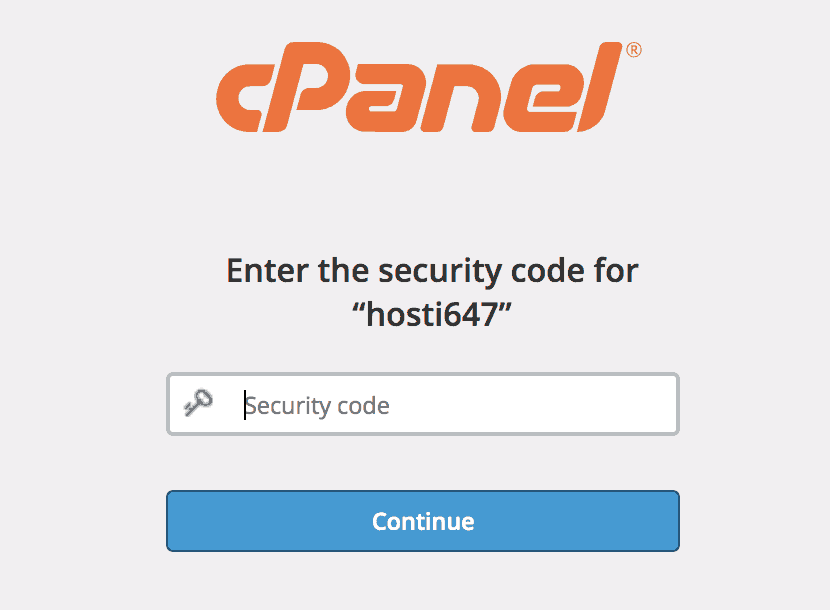
You have now successfully implemented an extra layer of security, making your cPanel account much safer, even in scenarios where an unauthorized individual might gain access to your account's password. In the next section of our cPanel tutorial, we will guide you through the process of creating an Add-on Domain.
How to Create an Add-On Domain
Add-on domains are essentially additional domains that are hosted as subdomains of your primary website. cPanel offers the convenience of creating and managing multiple domains from a single account. This is easily achieved using the Addon Domains tool. Let's get started with the process.
Things needed:
- Access to your cPanel account
Step 1. Access the Addon Domains Tool
From your cPanel's main dashboard, use the search function or navigate to find and open the Addon Domains tool, typically located within the "Domains" section.

Step 2. Create an Addon Domain
Upon opening the tool, you will be presented with a form that requires specific information. Here’s a detailed explanation for each field:
- New Domain Name — Simply enter the full domain name you wish to add as an addon domain. For this example, we will use hostinger-dev-cp-2.tech.
- Subdomain — cPanel will automatically generate a subdomain name based on your new domain. If you plan to add only one domain with a unique name, you can generally leave this as is. However, if you intend to add multiple domains with the same name but different TLDs (e.g., samedomainname.com and samedomainname.net), you will need to modify this field to ensure unique subdomain identifiers.
- Document Root — This field will also be automatically populated by cPanel. It defines the file path on your server where the content for your addon domain will be stored.
- Create an FTP Account (Optional) — This option allows you to create a dedicated FTP account specifically for the new addon domain. If you will be managing the domain yourself, creating a separate FTP account isn't strictly necessary. However, if you are setting up the addon domain for another user or a developer, checking "Create an FTP account associated with this Addon Domain" will grant them access solely to the files pertinent to that particular addon domain.
Once you have accurately filled in all the required fields, click the Add Domain button to proceed.
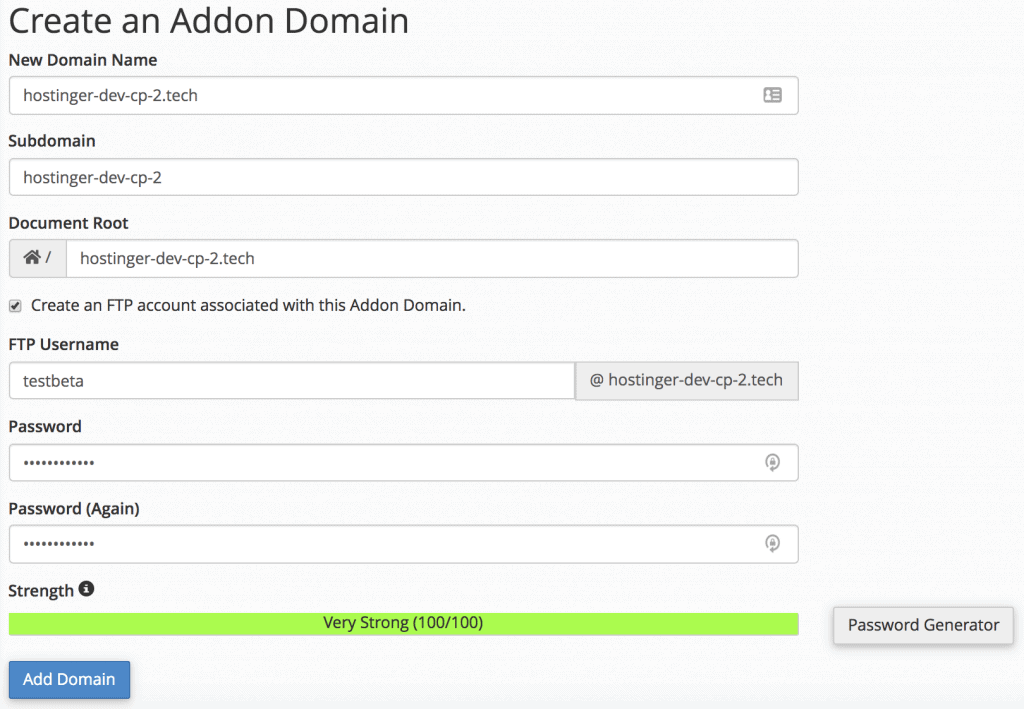
With the addon domain successfully created, you can now begin uploading your website's files to the newly created subfolder directly from the File Manager in your cPanel account.
Step 3. Manage the Addon Domains
After the domain has been added, it will appear in the Modify Addon Domain list. Here’s a description of the key elements within this section:

- Addon Domains — This column lists all the additional domains you have added to your account.
- Document Root — Displays the folder path for that specific domain. Clicking this link will directly open the File Manager to that directory.
- Subdomain — Shows the automatically generated subdomain name that was created during the setup process.
- Redirects to — This indicates whether the domain is configured to redirect to another URL. It functions similarly to the Aliases feature. If no redirection is set, it will display not redirected. To set up a redirection, simply click the Manage Redirection button, which will open a new window where you can specify the target path for the redirection.

You have now successfully learned how to create and manage addon domains from your cPanel account. This functionality allows you to upload files and perform backend management for multiple distinct domains, all while using a single hosting account.
How to Create a Subdomain
Subdomains are essentially extensions of a main domain. They operate independently from the primary domain, making them ideal for hosting additional websites or distinct sections of your main site. The typical format for a subdomain is: subdomain.domain.com.
For example, if you have a primary domain like mywebsite.com and wish to create a dedicated forum and a blog for it, you could host them at forum.mywebsite.com and blog.mywebsite.com, respectively. These subdomains can also often be accessed via paths like mywebsite.com/forum and mywebsite.com/blog.
To create a subdomain, navigate to the "Subdomains" section in your cPanel dashboard. Here's how to fill in the necessary fields:
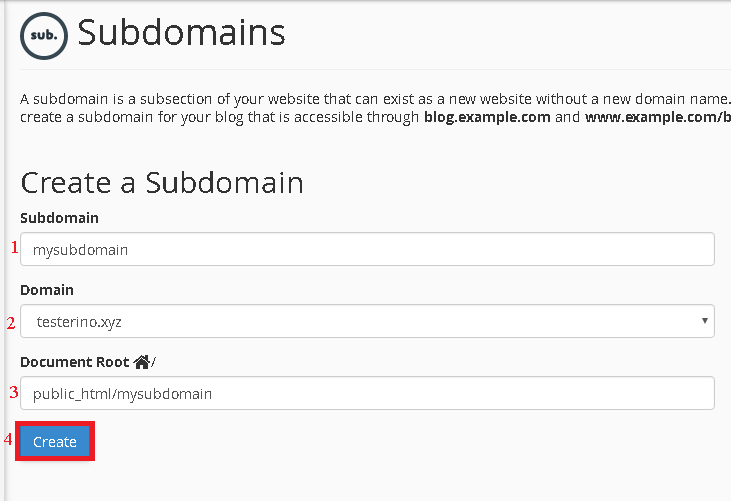
- The Subdomain field requires you to enter only the desired extension for your subdomain (e.g., "blog" or "forum").
- The Domain field allows you to select the primary domain under which your new subdomain will be created.
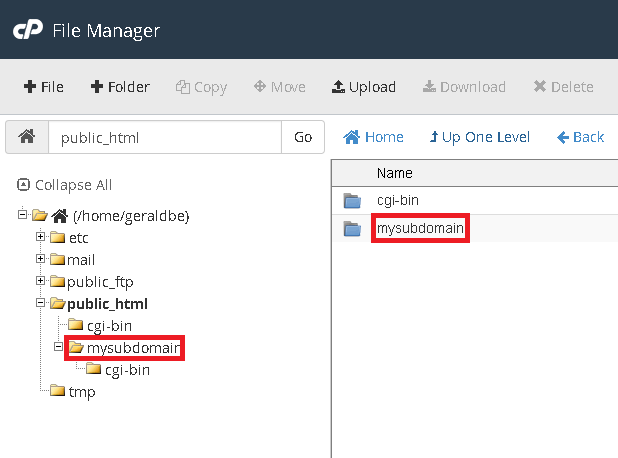
- The Document Root specifies the root directory for your subdomain. By default, this folder is automatically created within your public_html directory.
- After you click Create, a confirmation message will appear on your screen, indicating that the subdomain has been successfully generated.

If you encounter any errors or issues during this process, it is recommended to contact your hosting provider for assistance.
Uploading Files to the Subdomain Document Root
All website files and scripts intended for your subdomain should be uploaded to the Document Root directory that was specified during its creation. This directory is automatically established within your public_html folder and can be easily accessed and managed using the File Manager section of cPanel. If a subdomain is created as part of an Addon Domain, its Document Root will typically be located inside the root directory of the addon domain, following a structure like: public_html/addon_domain_root/subdomain_root.
Deleting a Subdomain
If a subdomain is no longer required or was created with an incorrect name, it can always be removed. To delete a subdomain, simply click the Remove button located in the cPanel -> Subdomains section.
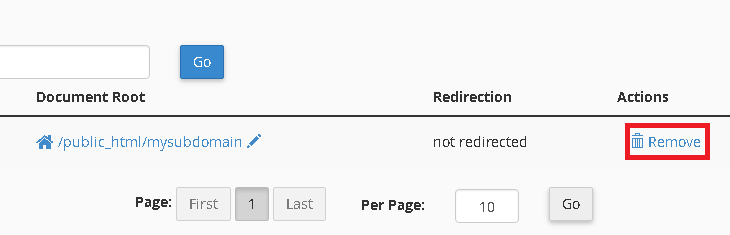
Important! Deleting a subdomain through this interface will not automatically remove its root directory or any associated files. A manual deletion will need to be performed using the File Manager or any FTP client.
Should your objective be to create a subdomain with a different name but display the same content, the most effective approach is to delete the existing subdomain and then create a new one, ensuring it points to the same root directory as the previously deleted subdomain.
In summary, subdomains offer a swift, cost-effective, and efficient method for creating additional websites, eliminating the need to purchase entirely new domain names. They are also highly versatile, allowing you to establish specific sections or specialized areas for your main website, such as a forum, blog, or online store.
- Subdomains function as independently operating extensions of your primary domain.
- The DNS configuration of a subdomain can be modified without affecting the main domain.
How to Park a Domain
Acquiring various domain extensions (TLDs) for your brand is an excellent strategy for "protecting" your online identity and ensuring comprehensive coverage. For instance, when you launch your brand under yourdomain.com, it’s often wise to also purchase other popular TLDs such as .org, .net, and relevant country code options (e.g., .us for United States webmasters or .jp for Japan). This ensures that if visitors inadvertently type yourdomain.org, they will be seamlessly redirected to your primary domain, yourdomain.com.
This redirection is achieved through domain parking, and cPanel provides a dedicated tool called Aliases to facilitate this process.
Things needed:
- Access to your cPanel account
- Multiple domain names that you own
Step 1. Access Aliases
From your cPanel’s main dashboard, navigate to the Domains section and open the Aliases tool.

Step 2. Create a New Parked Domain
Under the Create a New Alias section, enter the domain name you wish to park and then click Add Domain. For this example, we are adding hostinger-dev-cp-1.tech as an alias. This means that visiting hostinger-dev-cp-1.tech will yield the same content as visiting hostinger-dev-cp-1.xyz (assuming the latter is your primary domain).
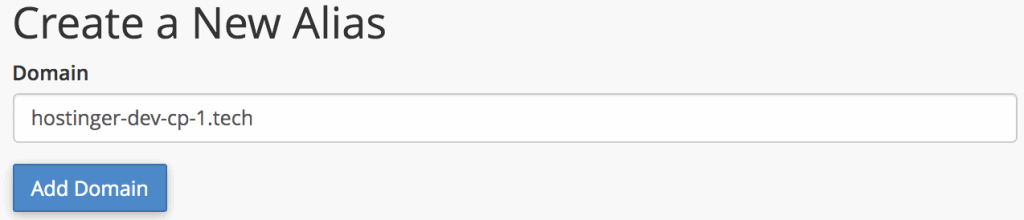
It's crucial to add a domain from a valid domain registrar. Failing to do so will result in an error message. You will also find necessary nameserver information and instructions to point the DNS from your registrar to ensure proper functioning.
Step 3. Manage Redirection
Once the alias domain is successfully added, it will appear in your aliases list. From there, click Manage Redirection next to the newly added domain.

Step 4. Alias Redirection
In the form that appears, enter the primary domain you want the alias to point to, and then click Save.
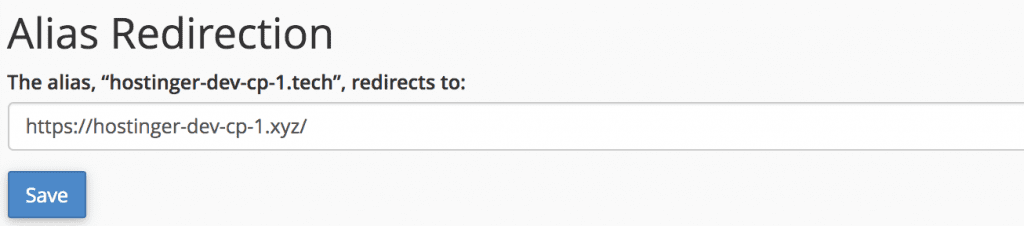
After successfully setting up the redirection, please be aware that it may take up to 24 hours for the changes to fully propagate worldwide due to DNS propagation.
How to Edit DNS Zone Using cPanel’s DNS Zone Editor
Having previously learned how to create an SRV record, you should already be quite familiar with the DNS Zone Editor interface. In this section, we will delve into additional functionalities and record types you can manage within it.
cPanel actually provides two distinct versions of the Zone Editor: the Simple DNS Zone Editor and the Advanced DNS Zone Editor. Let's start by exploring the capabilities of the first option.
Option 1. Simple DNS Zone Editor
Upon opening the Simple DNS Zone Editor tool, you will be presented with options to perform four primary actions using its straightforward interface.

A Record
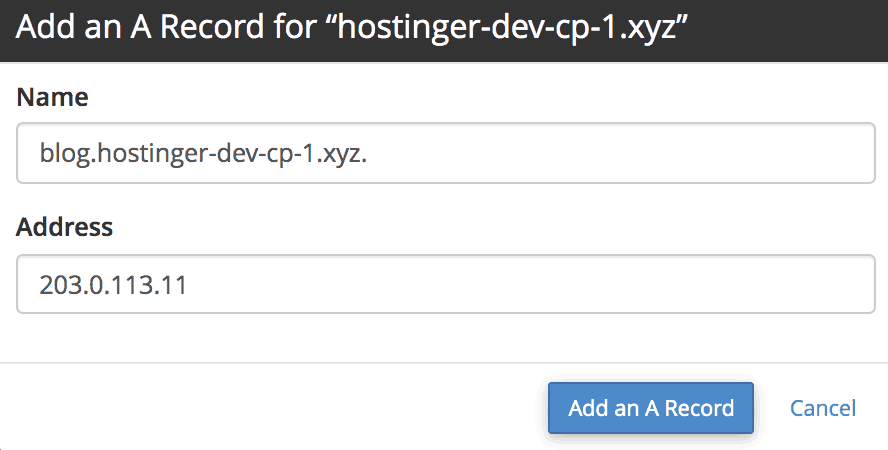
The first action allows you to add an A Record for your domain name. This type of record is used to map a domain to an IPv4 address from a hosting service. Additionally, A Records can be leveraged to provide domain redundancy by adding multiple A Records for the same domain, directing traffic to different IP addresses.
To add an A Record, simply click the corresponding button and fill in all the required fields. In the Name field, enter the hostname for the record (e.g., "www" or your domain itself). In the Address field, input the IPv4 address to which you want the domain to point. Once completed, click Add an A Record.
CNAME Record
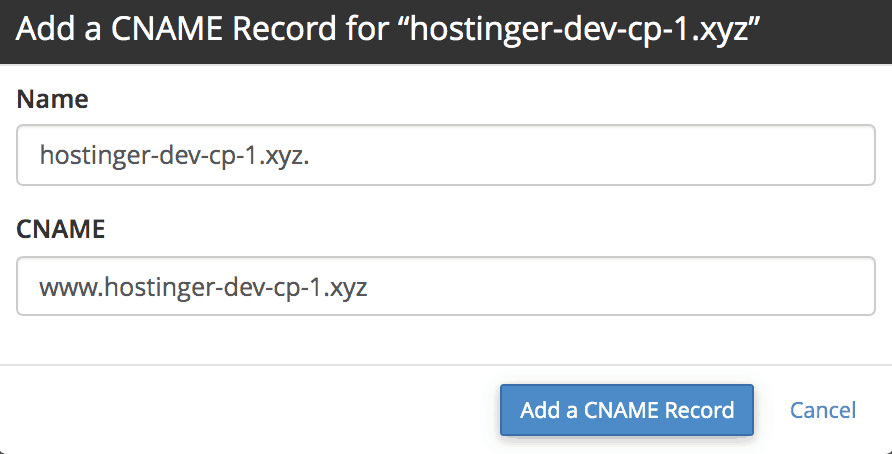
A Canonical Name, or CNAME Record, is used to map an alias name to a true or canonical domain name. This is particularly useful for mapping subdomains, such as "www" or "mail," to their content hosted on the main domain. If you utilize Google Workspace (formerly G Suite), you would also typically configure your CNAME Records for various services.
To add a CNAME Record, click the CNAME Record button. In the Name field, enter the hostname for the record (e.g., "blog"). In the CNAME field, enter the subdomain name or destination you wish to map (e.g., "yourdomain.com").
MX Record
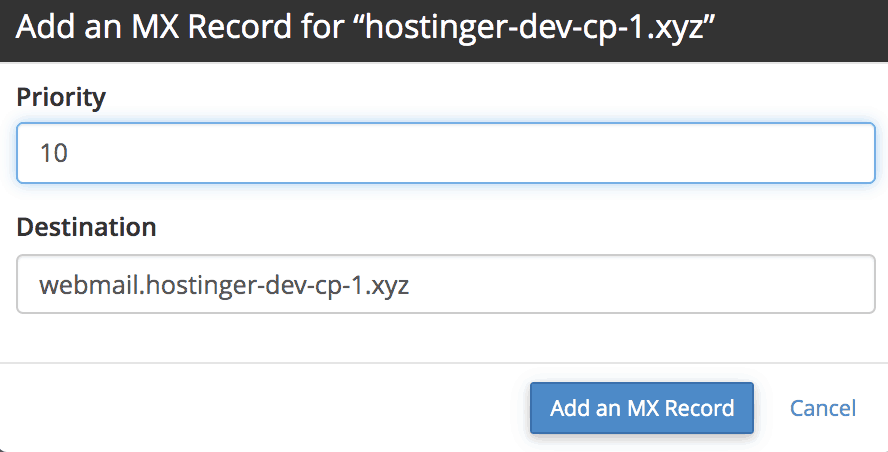
Mail Exchange (MX) Records are utilized by mail servers to determine the proper destination for email delivery for a given domain. It is often recommended to provide the same value for both your MX Record and your A Record, as they frequently work in conjunction.
To add an MX Record, click the MX Record button. For Priority, a lower value indicates a higher preference. For the Destination, you can often use the same value as the corresponding A Record for your mail server.
Option 2. Advanced DNS Zone Editor
The Manage option within the Simple DNS Zone Editor acts as a gateway to the Advanced DNS Zone Editor. This advanced interface provides a comprehensive list of all DNS records associated with your domain and offers more granular control, including the ability to edit and set custom TTL (Time to Live) values for each record. This functionality is especially useful when managing records for inactive domains or for specific advanced configurations. In addition to editing the three record types previously mentioned (A, CNAME, MX), the advanced editor allows you to create several other types of records, including:
- AAAA Record — Maps a domain name to an IPv6 Address, supporting the next generation of internet protocols.
- Certification Authority Authorization (CAA) Record — Specifies which Certificate Authorities (CAs) are authorized to issue SSL/TLS certificates for your domain, enhancing security.
- Domain-based Message Authentication, Reporting, and Conformance (DMARC) Record — Improves email security by protecting against email spoofing, phishing, and other fraudulent attempts. Google Workspace users may find this tutorial helpful for DMARC setup.
- SRV Record — Maps one domain to another to specify the location of various services, as demonstrated in our previous tutorial.
- TXT Record — Used to hold any type of text information. For instance, it is commonly used to store DMARC content, domain verification codes, or SPF (Sender Policy Framework) records.
You have now gained proficiency in using the Zone Editor, enabling you to effortlessly add, edit, or remove any DNS records for your domain, whether for basic configurations or more advanced requirements.
How to Add SRV Record
SRV records (Service Records) are crucial for defining the location of specific services and pointing them to a different host. They are commonly employed for connecting websites and various services that might be hosted separately. Services that frequently utilize SRV records include IMAP/POP3/SMTP email servers, Minecraft game servers, Teamspeak 3, and many others.
SRV Record Details
When configuring an SRV record, you will need to input several specific details, which should be provided according to the particular service, protocol, and host you are using:
- Name — This is the domain name utilized by the service. It must conclude with a dot (e.g., _minecraft._tcp.yourdomain.com.). Note: It is essential to use underscores only before the service and protocol components.
- TTL (Time to Live) — This value specifies how long a DNS resolver should cache the record. The default value is typically 14400 seconds.
- Priority — Defines the preference for this record among others. A lower numerical value indicates a higher preference.
- Weight — For records with the same Priority, Weight determines which record should be prioritized first. A higher value here indicates a greater preference.
- Port — This is the specific port number used by the service (e.g., 25565 for Minecraft).
- Target — This field specifies the destination hostname where the SRV record will point (e.g., minecraft.server.com).
For this cPanel tutorial, we will use Minecraft as a practical example. Typically, you will obtain the exact value details directly from your service provider, who will generate the SRV record information for you. Now, let’s proceed with adding these records.
Step 1. Find the DNS Zone Editor
Once you are logged into cPanel, locate the DNS Zone Editor tool. It is readily available under the Domains section of your dashboard.

Step 2. Add an SRV Record
- Select the domain for which you intend to add the SRV record and click Manage. To the right of the filter search bar, click the dropdown menu next to the Add Record button, and then choose Add SRV Record.
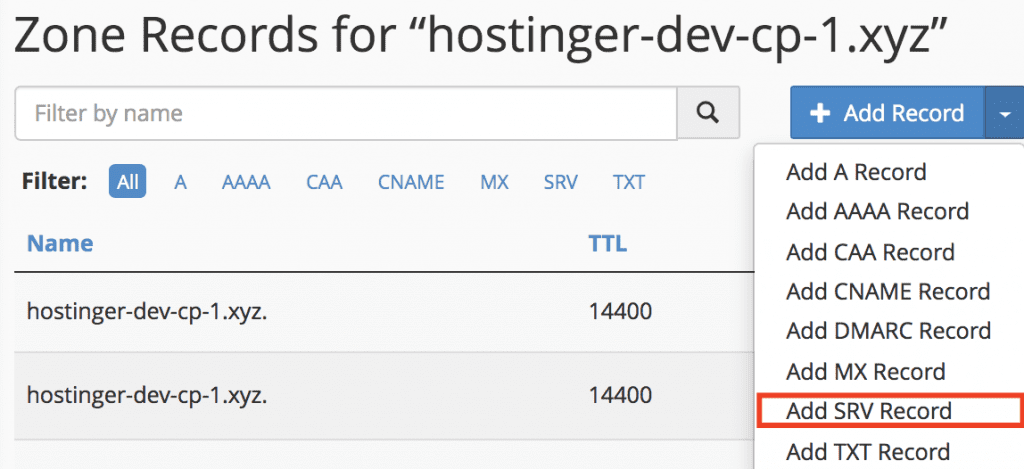

Upon completion, the newly created SRV record should promptly appear in the Zone Record list. Typically, SRV records take less than 15 minutes to become effective, but in some cases, global DNS propagation may extend this period to up to 24 hours.
If your SRV Record does not become active within 24 hours, it is advisable to contact your hosting provider. They can assist in verifying that the details are in the correct format and confirm that the specified port number is not blocked.
For the next segment of our cPanel guide, we will explore the creation and management of MySQL databases.
How to Create a MySQL Database
Every dynamic website requires a robust database to store its critical data, including user information, content, and settings. In this section, we will guide you through the process of creating a database for your website, establishing a user, and assigning the necessary permissions for that user to access the database effectively.
Step 1. Access the MySQL Databases Tool
Once you are logged into your cPanel account, navigate to and open the MySQL Databases tool, which is typically found within the "Databases" section.

Step 2. Create a New MySQL Database
You will be directed to the MySQL Databases management window. To create a new database, simply input your desired name (ensuring there are no spaces) into the appropriate field and click Create Database. After the database is created, click Go Back to return to the main management screen.
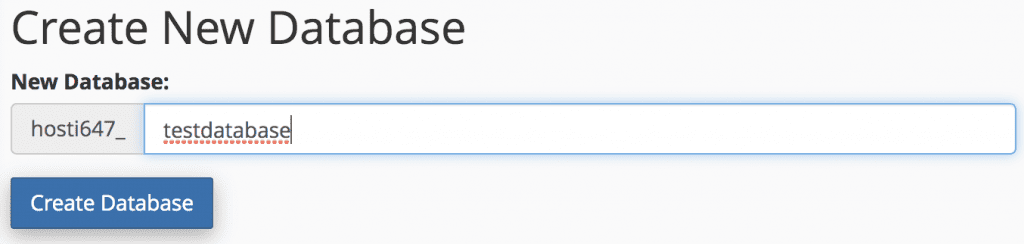
Step 3. Create and Add a New MySQL User
Scrolling down the page, you will find the Add New User form. When completing this form, enter the desired username without any spaces. Then, input your chosen password and re-enter it for confirmation.
For enhanced security, it is highly recommended to use the Password Generator to create a strong, complex password combination. If you opt to use the generator, be sure to click I have copied this password in a safe place before clicking Use Password.
Once all details are entered, click Create User.
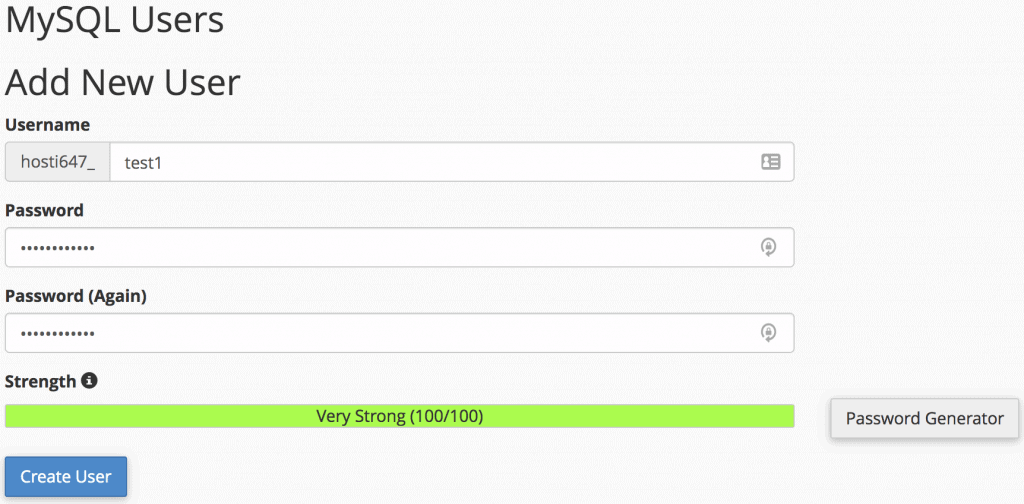
After clicking Go Back, proceed to the Add User To Database form. Select the newly created user from the dropdown list, and then choose the database to which this user will be assigned.
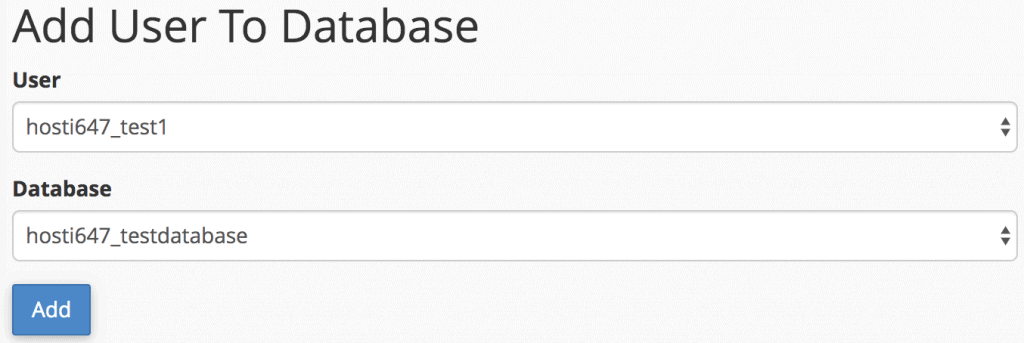
Upon clicking Add, you will be directed to the Manage User Privileges window.
Step 4. Provide Privileges to the New User
In this crucial step, you will grant specific privileges to the newly created user. If you are creating an administrator user with full control, you can simply check the ALL PRIVILEGES box and then click the Make Changes button to apply these permissions.
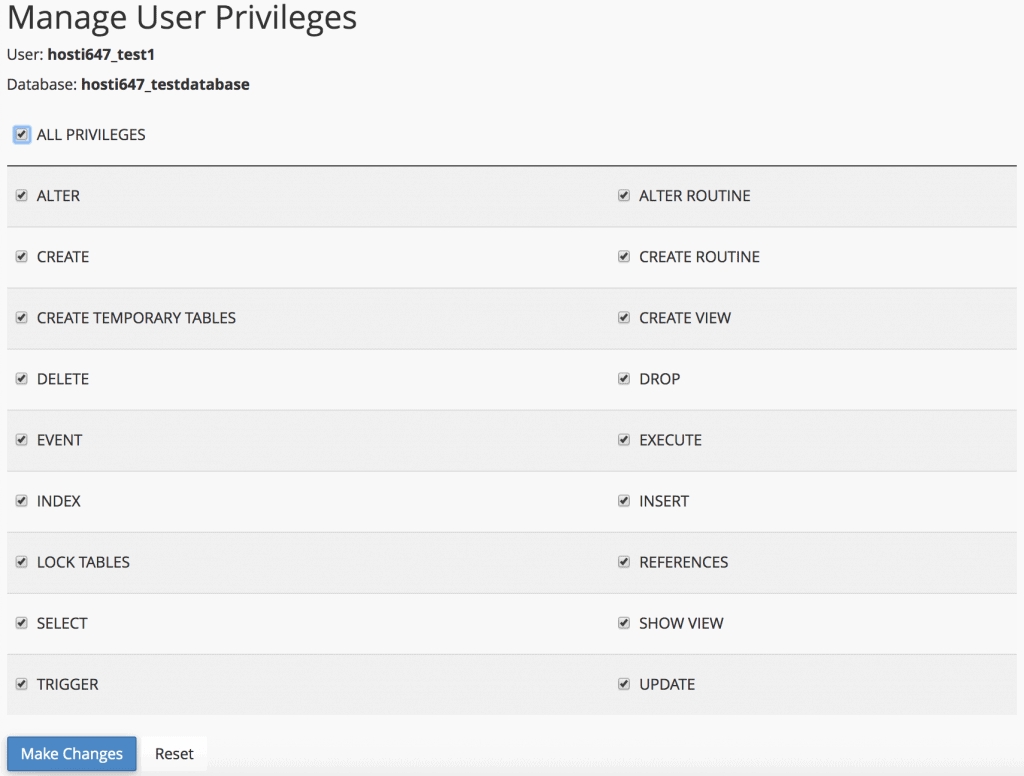
There you have it! You have successfully created a MySQL database, established a new user, and granted the necessary privileges for that user to access your website's database. Please remember that this tutorial focuses on creating an empty database; you will still need to manually create or import all tables and entries into it for your website to function completely. For the next tutorial, we will be exploring the Site Publisher, a popular tool for quickly deploying temporary websites.
How to Use Remote MySQL Feature
Enabling remote MySQL access offers several significant advantages. This feature allows remote hosts (servers different from your primary web server) to connect to and interact with your MySQL database. This is particularly useful if you need to allow a third-party application, such as an external shopping cart system or a data analysis tool, to directly utilize your database.
Things needed:
- Access to your cPanel account
- The IP address or domain name of the remote host you want to grant access to
Step 1. Find and Access the Remote MySQL Feature
Locate and open the Remote MySQL® tool, which is situated under the Databases section of your cPanel dashboard.

Step 2. Allow Remote Server Access to Your Databases
Enter the hostname or IP address of the remote server into the Host field. If you intend to access the database from your localhost, you can use your public IP address, which can be found here. Alternatively, you can simply enter a fully qualified domain name, such as "www.3dcart.com". Once the host information is entered, click Add Host.
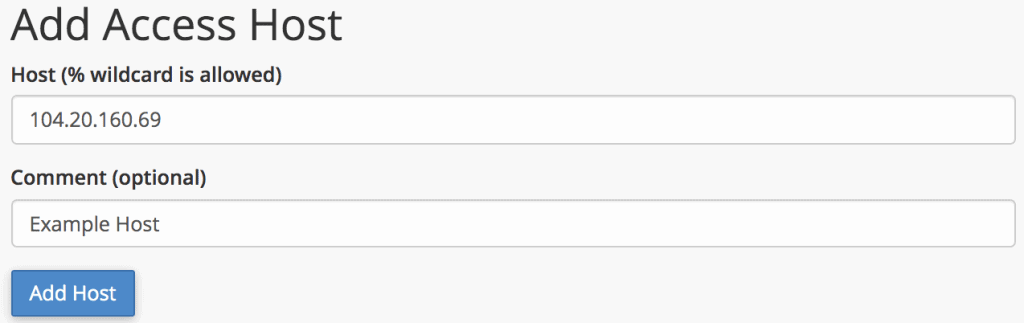
Pro Tip: You can use the percentage (%) character as a wildcard. For example, to grant access to all IP addresses that begin with 192.168.0, simply enter 192.168.0.% in the Host field. This is useful for networks with dynamic IPs or a range of internal IPs.
Step 3. Delete Remote Server Access to Your Databases
To revoke previously granted remote access, follow these steps:
- Find the hostname you wish to remove within the Manage Access Hosts list, and then click the Delete button next to it.

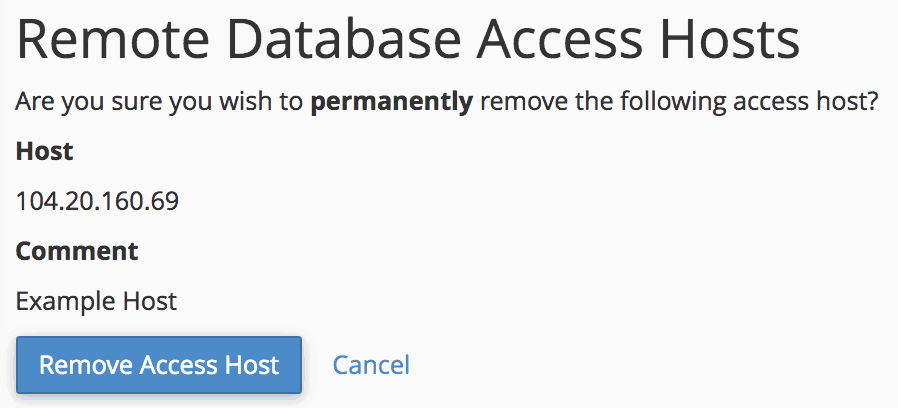
And with these steps, you can easily manage and control remote access to your MySQL databases. For security reasons, it is crucial to only grant permissions to authorized individuals or services.
How to Set Up an Email Account
Creating a professional email account associated with your domain directly through cPanel is a straightforward and essential process for your online presence.
Step 1. Locate and Enter the Email Accounts Section
From your cPanel’s main dashboard, navigate to the Email section. You can also efficiently find the Email Accounts tool by using the search bar.

Step 2. Creating an Email Account Using cPanel
- Once the Email Accounts section is open, click the Create button. A new window will appear, prompting you to enter the necessary details for your new email account.

- Username — This specifies the local part of the email address you wish to create. For example, if you aim for info@yourdomain.com, simply enter info in this field.
- Security — Here, you are required to set a strong password for the email account. A combination of uppercase and lowercase letters, numbers, and symbols is highly recommended for robust security. You can utilize the cPanel password generator for this purpose.
- (Optional) Provide an alternate email — If you wish to have a recovery option for resetting the email password using another email account, you can enter that alternative email address here.
- Storage Space — This section offers two options: limited or unlimited. With limited storage, once the email account reaches the predefined capacity, it will no longer be able to receive new messages. Conversely, choosing unlimited storage provides peace of mind, as you generally won't need to worry about storage constraints.
Once all details have been accurately set up, click the Create button to finalize the email account creation.
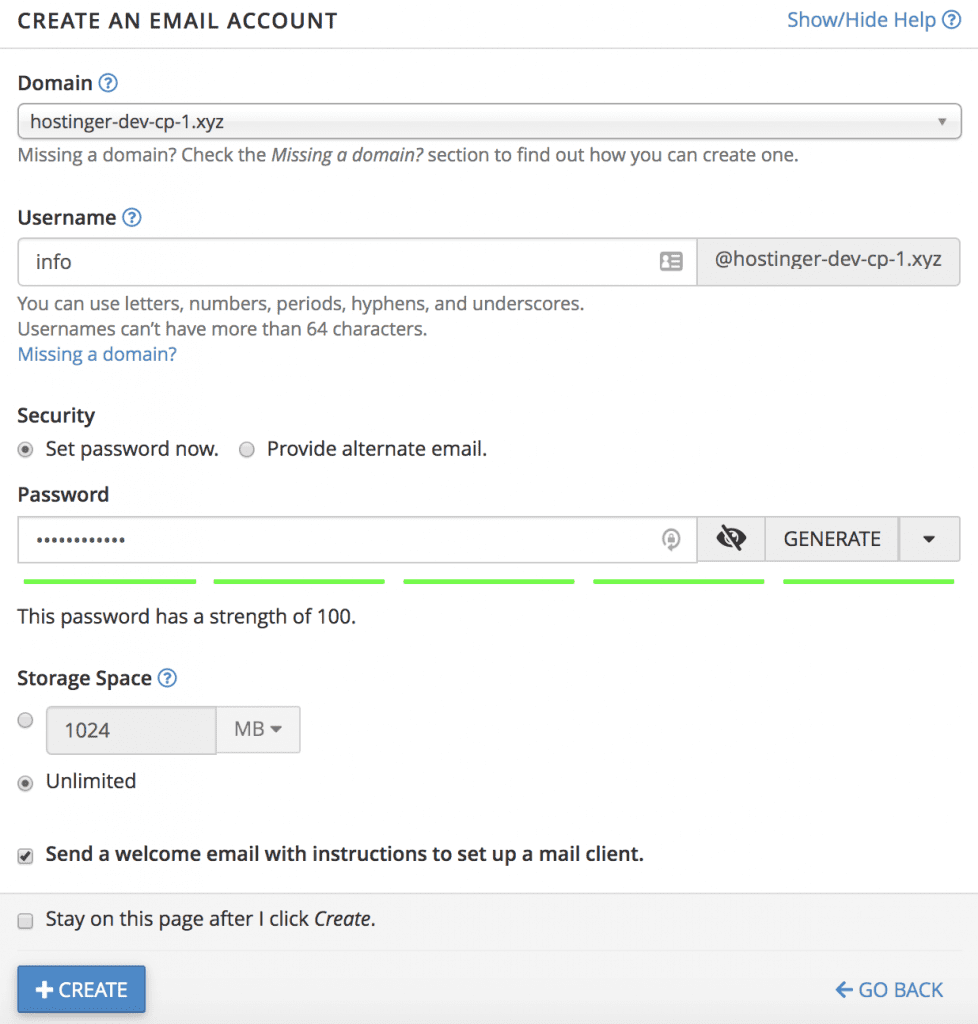
If you checked the option to Send a welcome email with instructions to set up a mail client, you will receive an email containing configuration details. These details are essential for setting up your new email address through various mail clients such as Apple Mail, Microsoft Outlook, Mozilla Thunderbird, or others.
And just like that, you can now use your newly created professional email address to correspond effectively with your audience and manage your communications.
How to Create a Website via cPanel’s Site Publisher
The Site Publisher is an incredibly useful tool, designed to enable you to quickly create a simple, temporary website, even if you have no prior experience in web development. This user-friendly interface offers a selection of templates, allowing you to easily add appropriate information to publish your site rapidly.
Step 1. Access the Site Publisher
The Site Publisher tool is conveniently located under the Domains section of your cPanel dashboard. Find and open it to begin.

Step 2. Choosing Website Location and the Template
- Once you click the tool, you will first need to select which domain or subdomain the publisher should utilize for your new website.
- After selecting the domain, you will be presented with several templates from which to choose. For this tutorial, we will opt for the Under Construction template.
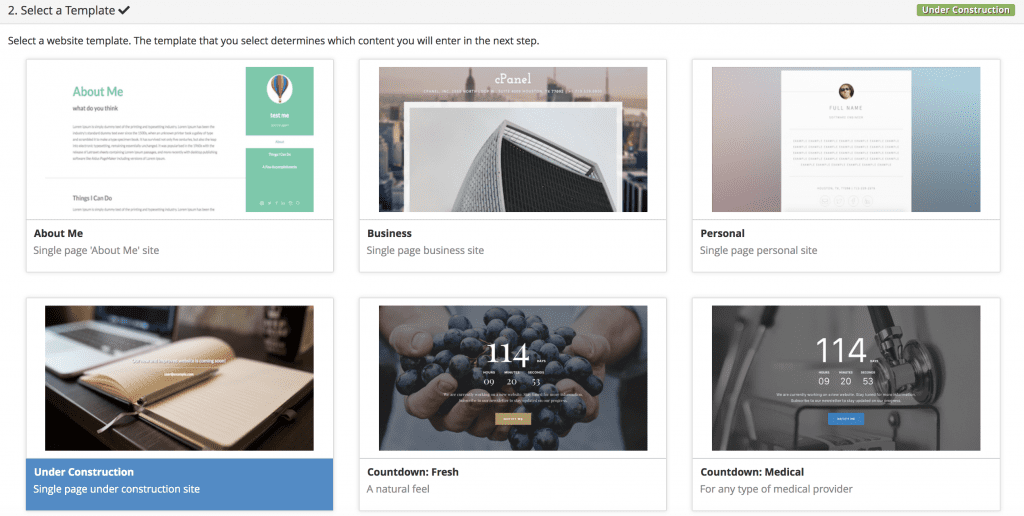
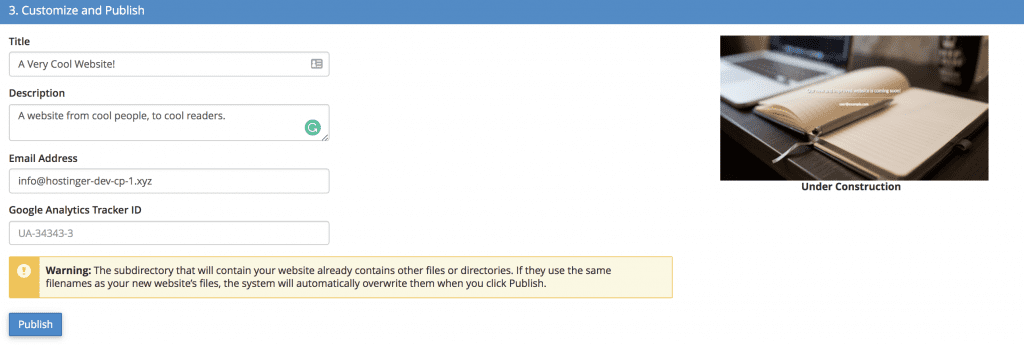
Important! If your website does not appear correctly after publishing, you may need to delete the index.php file located in the public_html folder. This file might have been created during an earlier part of this tutorial and could be conflicting with your new Site Publisher page.
You have now successfully created a new temporary website, effectively informing your visitors about your progress or intentions. Here’s an example of how our development site appears after this process.

While you continue developing your full website, creating an official email account, as shown in a previous section, will allow your eager audience to easily get in touch. Next, we will demonstrate how to effectively back up your website data.
How to Backup Your Website
The importance of regular backups cannot be overstated. Keeping your website data in a secure location is paramount, whether to safeguard against unforeseen issues or to facilitate data migration. Even if your hosting provider offers automated backups, it is highly recommended to perform your own backups. With cPanel, this process is surprisingly straightforward.
Understanding Types of Backups in cPanel
cPanel offers several distinct backup options tailored to different needs:
- Full Account Backup — This option allows you to download a comprehensive backup of all details associated with your cPanel account, including website files, DNS Zones, databases, email configurations, and more.
- Full Website Backup — This specifically downloads a backup of your website’s data, encompassing your home directory, MySQL databases, email forwarders, and filter configurations. This type of backup is particularly useful when you intend to transfer your cPanel account to a new hosting provider.
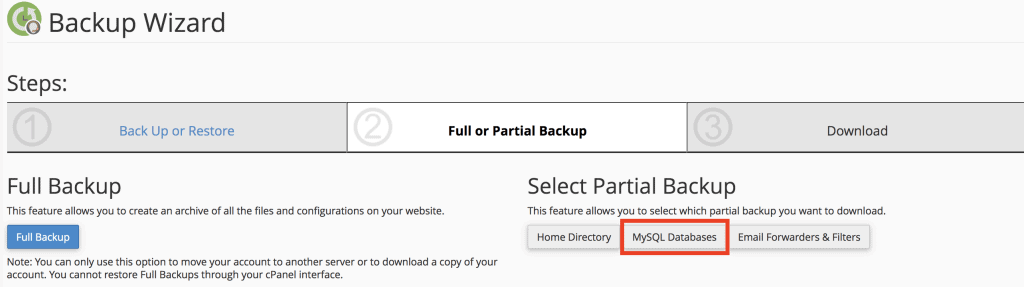
- Partial Website Backup — With this option, you can selectively choose which specific data components you wish to back up. For example, if you only need to back up your MySQL databases, this is the ideal choice.
Full Account Backup Using cPanel
- From your cPanel main dashboard, use the search function to find and open the Full Account Backups tool.




Full Website Backup Using cPanel
- Search for and open the Backup Wizard tool from your cPanel dashboard.

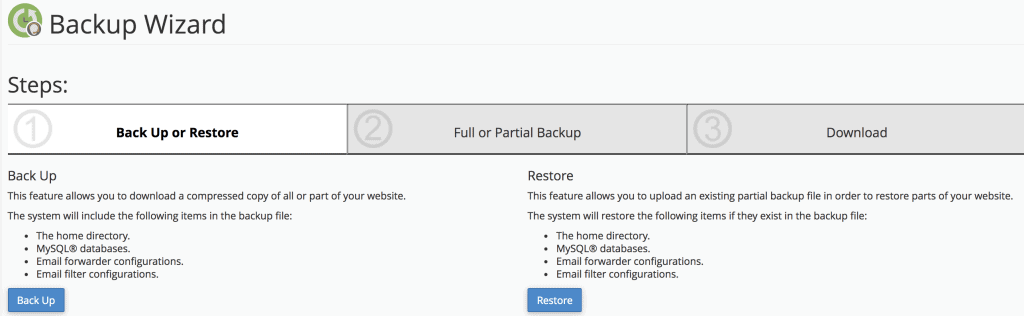
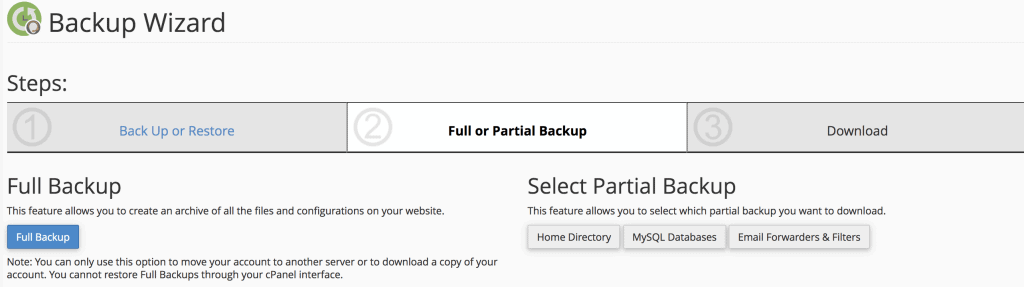
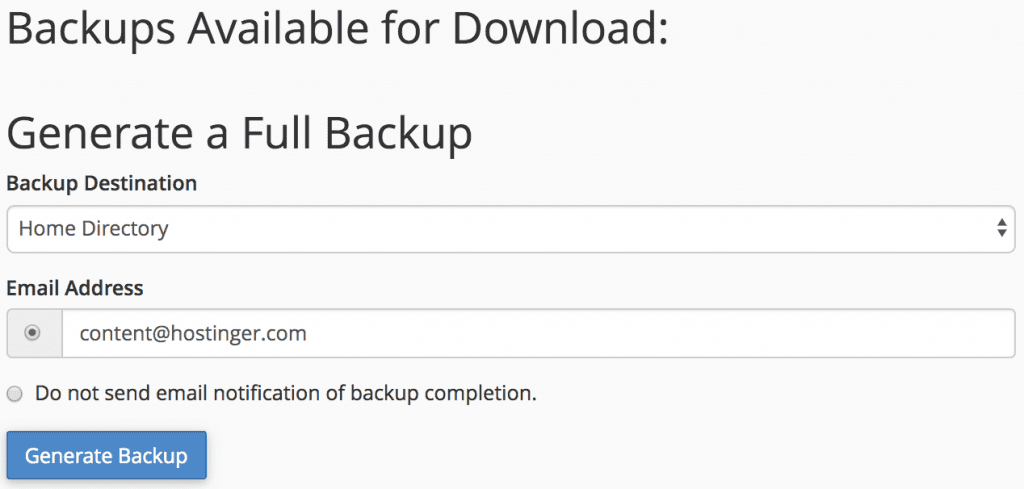
- Home Directory — Saves the backup file directly on your current server's home directory.
- Remote FTP Server — Uses FTP to save the backup file on a specified remote server.
- Remote FTP Server (Passive Mode Transfer) — Similar to the above, but utilizes passive FTP mode for the transfer.
- SCP (Secure Copy Protocol) — Uses SCP to securely transfer the file to another server.
In this tutorial, we will opt to save the backup file directly to our Home Directory.
Click Generate Backup. Depending on the size of your account and website data, generating the backup file may take some time.

Partial Website Backup Using cPanel
- From the Backup Wizard window, select the option for a partial backup. For this example, we will focus on downloading MySQL Databases.
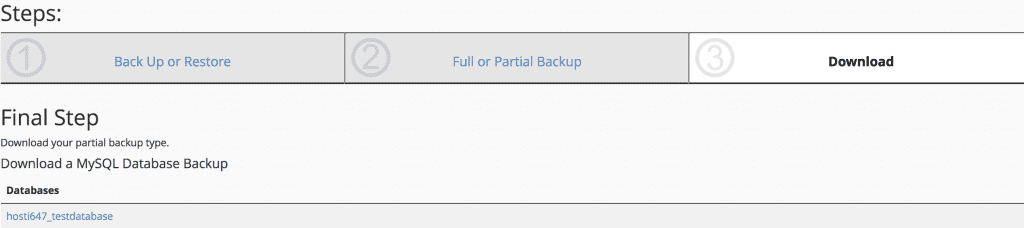
This concludes our overview of backup procedures with cPanel. You now understand the three available options, each tailored to meet different backup requirements. Next, we will explore cPanel’s implemented Optimize Website feature, which allows you to compress specific file types to enhance your website's performance.
How to Optimize Your Website Using cPanel
cPanel's integrated Optimize Website feature is a valuable tool for improving your site's performance. It allows you to compress certain types of files before they are served to visitors' browsers, which can significantly reduce load times and provide a faster, more efficient browsing experience.
Step 1 — Accessing the Optimize Website Tool
First, log in to your cPanel account. Once inside, you can either utilize cPanel's search feature or manually locate the Optimize Website tool, which is usually found under the "Software" or "Advanced" sections.
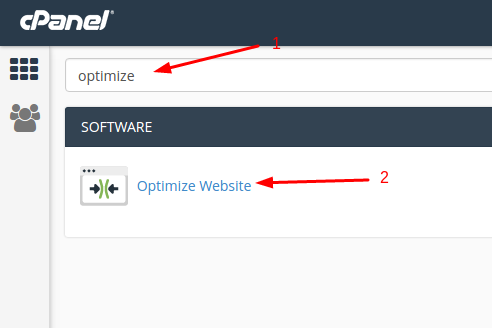
After accessing the tool's page, you should see a window similar to this:
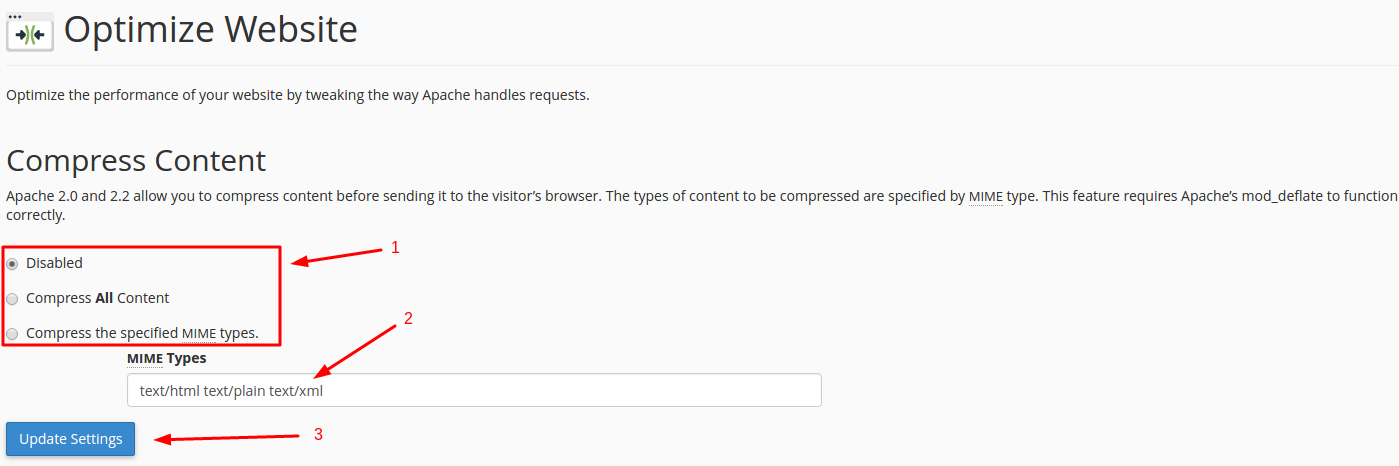
Step 2 — Working with the Optimize Website Tool
Referring to the image above, follow these instructions to configure the Optimize Website tool:
- Here, you can choose your preferred compression option:
- Disabled: This option will deactivate the feature, and no compression actions will be performed.
- Compress All Content: Selecting this will enable compression for all compatible content on your website.
- Compress the specified MIME types: This allows you to selectively choose which specific types of content will be compressed, giving you more granular control.

Important! Avoid adding image types, such as
.jpgor.png, to the MIME types field. These file formats are typically already compressed by default and do not benefit from further compression via this tool.
Congratulations, you have successfully enabled cPanel’s Optimize Website feature for your website. This feature plays a crucial role in providing your site visitors with a noticeably better and faster browsing experience, as your website’s content is compressed before being sent to their browsers, significantly reducing load times.
How to Create Custom Error Pages
Custom error pages are essential for providing a professional and user-friendly experience, informing visitors when there’s an issue with the webpage they are attempting to reach. Each error is typically represented by a specific HTTP status code. For example, if a visitor attempts to access a nonexistent URL, they will encounter a 404 error. Similarly, unauthorized attempts to access restricted areas of your website will result in a 401 Unauthorized error.
While your web server software usually provides basic error pages, this tutorial will teach you how to create custom ones using cPanel. This allows you to tailor messages for HTTP status codes ranging from 400 to 510, enhancing user retention and branding.
Step 1. Locate and Enter the Error Pages Tool
The Error Pages tool is conveniently located under the Advanced section of your cPanel dashboard. Find and open it to begin customizing your error messages.

Step 2. Select an Error Page for Editing
Once the E
