
 (1).svg)
 (1).png)


 (1).svg)
.svg)
This guide outlines the essential steps for installing and managing Docker images on your Plesk server, empowering you to deploy containerized applications efficiently. We will cover both deploying images directly from the Docker Image Catalog and uploading your custom images.
Important Note: Please be aware that Docker functionality is not supported in Plesk installations running on Windows Server 2008. Similarly, Plesk instances installed directly inside a Docker container do not support this feature.
Installing a Docker Image from the Catalog
To deploy a Docker image directly from the extensive Docker Image Catalog, follow these detailed steps within your Plesk environment:
- Ensure you are securely logged in to your Plesk control panel.
- Verify that the Docker extension is installed and active in your Plesk instance. If it's not, proceed with its installation.
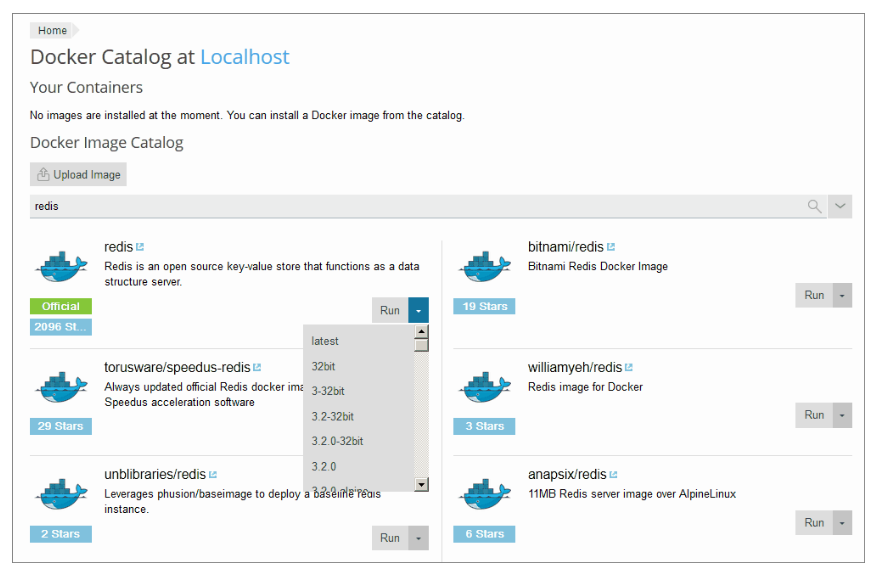
- Navigate to the Docker section and then select Docker Image Catalog from the sidebar menu.
- Utilize the provided search box to efficiently find specific Docker images available within the catalog. You can search by image name or keywords.
- For detailed information, including the application description and official documentation hosted on Docker Hub, simply click on the desired image name.
- Should you require a particular version of an application, click the arrow located adjacent to the Run button and choose the precise version from the dropdown list.
- Alternatively, to deploy the most recent stable version of the chosen application, directly click the Run button.
- Plesk will then proceed to create the container. You will be prompted to configure its essential settings, such as environment variables, memory limits, port mappings, and other parameters, before the container is launched.
After successful configuration, the newly created container will be visible and manageable within the list of containers displayed at the top of the Docker Catalog page.
Uploading and Running a Custom Docker Image
If you have a custom Docker image you wish to deploy, you can easily upload it to your Plesk server by following these steps:
- First, ensure you are properly logged into your Plesk control panel with administrative privileges.
- Confirm that the Docker extension is successfully installed and enabled within your Plesk environment.
- Navigate to the Docker section and then click on Upload Image. This option allows you to import your Docker image.
- Once your application image has been successfully uploaded, select it from the list of available images and then click the Run button to initiate its deployment.
- Plesk will then proceed with container creation. You will be prompted to define various container settings, such as environment variables, allocated memory limits, and other crucial configurations, before the container is launched and fully operational.
Upon successful deployment, your custom Docker container will be listed among other active containers at the top of the Docker Catalog page, ready for management.
Additional Resources
For more comprehensive details on managing Docker within Plesk, refer to the official documentation:
