
 (1).svg)
 (1).png)


 (1).svg)
.svg)
Overview
WordPress websites are unfortunately frequent targets for various types of cyber attacks, making robust security measures absolutely critical. The WordPress Manager by Softaculous offers a comprehensive suite of security features specifically designed to help maintain the integrity and safety of your WordPress site. This guide will walk you through these essential security enhancements, detailing how to implement and manage them effectively to fortify your website against potential threats.
The security measures provided by WordPress Manager offer detailed insights into each recommended update or configuration change, empowering you to apply them directly without the need for additional plugins. A significant advantage is the ability to revert any security measure at any time, providing flexibility and peace of mind should a change inadvertently affect your website's functionality.
Note: This feature was introduced in Softaculous version 5.9.2, ensuring that users with this version or higher can leverage these advanced security capabilities.
Accessing the WordPress Manager
To begin securing your WordPress installation, you first need to access the WordPress Manager within your Softaculous end-user panel. There are two primary methods to do this, catering to your workflow preferences.
Step-by-Step Guide
-
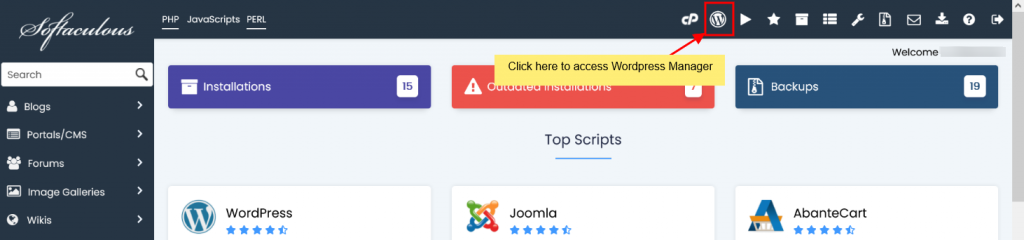
You can conveniently access the WordPress Manager by clicking on the "WordPress" icon located in the upper right corner of your Softaculous end-user panel, as illustrated in the screenshot below.
-
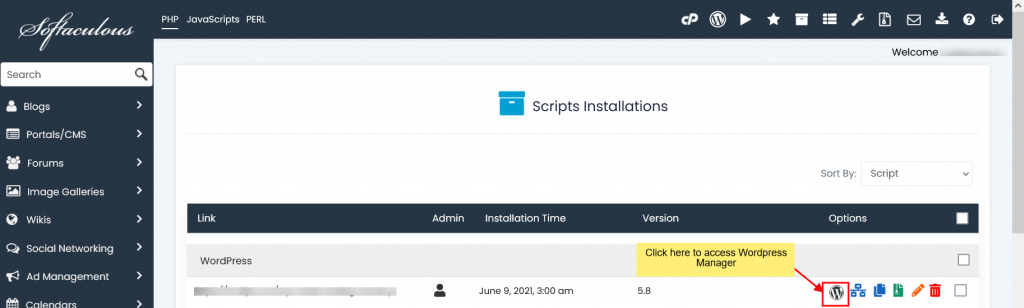
Alternatively, if you have multiple WordPress installations, you can navigate to the "All Installations" page. From there, locate the specific WordPress installation you wish to manage and click on the dedicated "WordPress" icon positioned next to it, as demonstrated in the following screenshot.
Understanding WordPress Manager Security Features
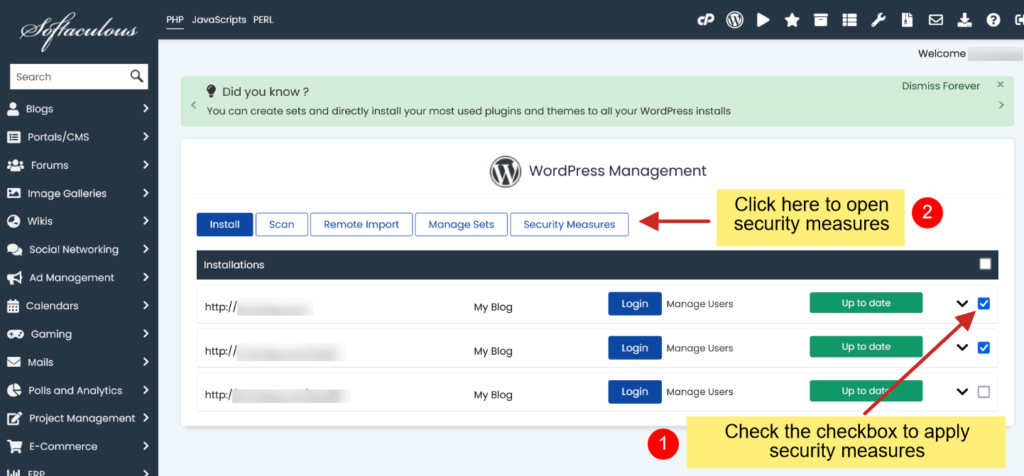
Once inside the WordPress Manager, you will find the Security Measures section, which allows you to apply protective configurations to one or more of your WordPress sites. Simply select the checkbox on the right-most side next to each desired WordPress installation to enable these critical security enhancements.
The WordPress Manager provides a comprehensive array of security options designed to mitigate common vulnerabilities and protect your website. Below is a detailed explanation of each security measure available:
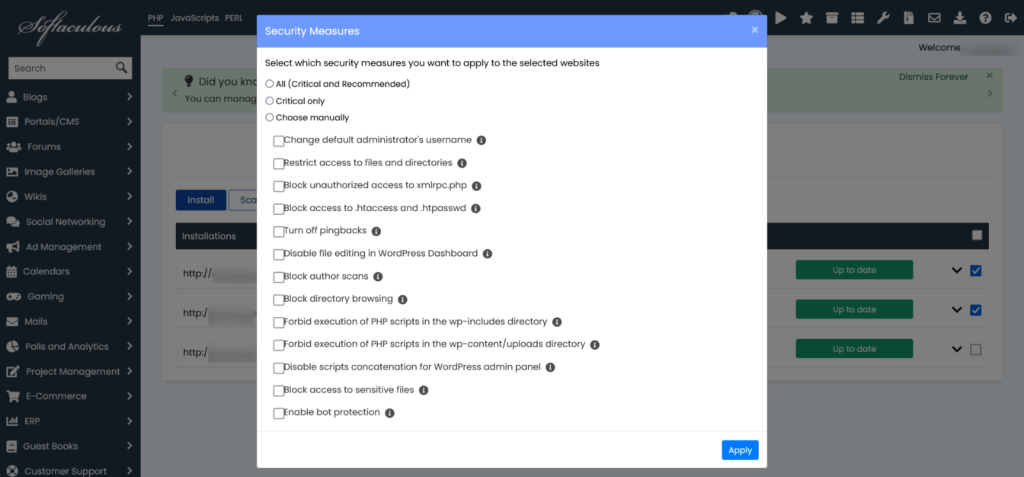
Change Default Administrator's Username
A common vulnerability in WordPress installations is the use of the default 'admin' username. Since WordPress does not natively allow changing this username post-installation, many sites remain exposed to brute-force attacks where hackers repeatedly try to guess the password for 'admin'. This security option effectively mitigates this risk by changing the default 'admin' username to a randomly generated, more secure username. After applying this measure, you can use the convenient Login button within WordPress Manager to access your site with the newly created administrator account.
Restrict Access to Files and Directories
Incorrect file and directory permissions can create serious security loopholes, allowing unauthorized access or even site compromise by malicious actors. This crucial security option ensures that critical files and directories have appropriate, secure permissions. Specifically, it sets the permissions for the highly sensitive `wp-config.php` file to 0600, other essential files to 0644, and all directories to 0755. These settings significantly reduce the risk of unauthorized viewing or modification of your website's core components.
Block Unauthorized Access to xmlrpc.php
The `xmlrpc.php` file in WordPress has historically been a target for various attacks, including brute-force login attempts and DDoS amplification. This security measure prevents unauthorized public access to `xmlrpc.php`, effectively closing a potential attack vector and enhancing your site's overall security posture.
Note: Be aware that any custom directives or rules previously configured in your `.htaccess` file might override this security measure. It is advisable to review your `.htaccess` file if you encounter unexpected behavior.
Block Access to .htaccess and .htpasswd
Gaining access to your `.htaccess` and `.htpasswd` files can grant attackers significant control over your website, leading to a wide range of exploits and security breaches. These files often contain critical configuration data and authentication details. This security option ensures that these sensitive configuration files cannot be accessed over the web by unauthorized users or potential abusers, safeguarding your website's foundational security.
Turn Off Pingbacks
Pingbacks are a legacy WordPress feature that allows other WordPress websites to automatically leave comments under your posts when they link to your content. While seemingly innocuous, pingbacks can be exploited for malicious purposes, such as using your website to launch Distributed Denial of Service (DDoS) attacks against other sites. This security option completely disables XML-RPC pingbacks for your entire website and also deactivates pingbacks for any posts created prior to this setting, effectively preventing your site from being unwitting participants in such attacks.
Disable File Editing in WordPress Dashboard
The WordPress dashboard includes a built-in file editor that allows administrators to directly modify plugin and theme source files. While convenient, this feature presents a significant security risk. If a WordPress administrator account is compromised, an attacker could easily inject malicious executable code into your plugins or themes through this editor. Disabling file editing through this security measure adds an essential layer of protection, preventing compromised accounts from making such detrimental changes directly within the WordPress interface.
Block Author Scans
Author scans are a reconnaissance technique used by attackers to discover usernames of registered users, especially administrator accounts, by enumerating author archives. Once usernames are identified, these can then be used to perform brute-force attacks on your website's login page to gain unauthorized access. This security option actively prevents such scans from exposing usernames, making it significantly harder for attackers to gather the necessary information for a targeted brute-force attempt.
Note: Depending on your website's permalink configuration, implementing this option might inadvertently prevent legitimate visitors from accessing pages that list all articles written by a particular author. It's recommended to test your author archive pages after enabling this setting.
Block Directory Browsing
If directory browsing is enabled on your server, visitors (including potential attackers) can view the contents of directories that do not have an index file. This exposure can provide hackers with valuable information about your website's structure, installed plugins, themes, and other assets, which can then be exploited to compromise security. While directory browsing is typically turned off by default, this security option ensures it is explicitly blocked, preventing the disclosure of sensitive website information.
Forbid Execution of PHP Scripts in the wp-includes Directory
The `wp-includes` directory is a core WordPress directory that should primarily contain static files and libraries, not executable PHP scripts from untrusted sources. Malicious PHP files placed in this directory could be executed to take control of or exploit your website. This security option prevents the execution of PHP files within the `wp-includes` directory, significantly reducing the attack surface and safeguarding a critical part of your WordPress installation.
Note: Custom directives within your `.htaccess` files may override this security setting. Always review your `.htaccess` configurations for any conflicting rules.
Forbid Execution of PHP Scripts in the wp-content/uploads Directory
The `wp-content/uploads` directory is designed to store media files uploaded to your WordPress site. It is not intended for executable PHP scripts. If an attacker manages to upload a malicious PHP file into this directory (e.g., via a compromised plugin or theme vulnerability), its execution could lead to a full website takeover. This security option explicitly prevents the execution of PHP files within the `wp-content/uploads` directory, effectively neutralizing a common method for attackers to gain control.
Note: As with other `.htaccess` based rules, custom directives in your `.htaccess` file might override this specific security measure. Periodic checks of your `.htaccess` file are recommended.
Disable Scripts Concatenation for WordPress Admin Panel
WordPress typically concatenates (combines) multiple script files into a single request within the admin panel to optimize loading times. However, this process can, in some specific scenarios, make your website vulnerable to certain types of Denial-of-Service (DoS) attacks. This security option turns off script concatenation specifically for the WordPress admin panel, thus preventing your website from being affected by such DoS vulnerabilities. While this might slightly affect the performance and loading time of the WordPress administration interface, it will not impact the experience of your website's visitors.
Block Access to Sensitive Files
Many WordPress installations contain files that, while necessary for the site's operation, should never be publicly accessible as they might harbor sensitive information. These could include configuration backups, log files, or files that reveal details about your server environment or installed software versions. Public access to such files could provide attackers with connection credentials, server specifics, or vulnerability indicators. This security option prevents public access to a range of commonly targeted sensitive files, thereby protecting critical data and preventing reconnaissance efforts that could lead to exploits.
Enable Bot Protection
Malicious bots are a constant threat to websites, relentlessly scanning for vulnerabilities, attempting brute-force attacks, and generating unwanted requests that consume server resources. This security option provides robust protection against useless, malicious, or otherwise harmful bots. It effectively blocks bots known for scanning websites for weaknesses, performing automated attacks, and overloading servers with excessive requests, thereby helping to conserve your website's resources and improve performance.
Note: If you plan to use an online service to scan your website for security vulnerabilities or performance issues, you might need to temporarily disable this bot protection measure. Many legitimate scanning services employ bots that could be inadvertently blocked by this security feature.
