
 (1).svg)
 (1).png)


 (1).svg)
.svg)
Access rights in Odoo define the specific permissions that determine which content and applications users can access and modify within the system. These critical permissions can be assigned to individual user profiles or to predefined groups of users. By strategically limiting permissions to only those who genuinely require them, organizations can enhance data security and integrity, preventing unauthorized modifications or deletions of sensitive information.
It is important to note that only an administrator with the appropriate privileges can modify access rights within Odoo. This control ensures that changes to system permissions are handled responsibly.
Caution: Impact of Access Rights Modifications
Modifying access rights can have significant and potentially detrimental consequences for your Odoo database. A critical risk is the creation of an "impotent admin" situation, where no user in the database retains the ability to make further changes to access rights or settings. To mitigate such risks, Odoo strongly advises consulting with an Odoo Business Analyst or the Odoo Support Team before implementing any changes to access rights.
Prerequisite for Managing Access Rights
To modify another user's access rights, the managing user must possess specific Administration access rights within their own user profile. This ensures that only authorized personnel can configure permissions for others.
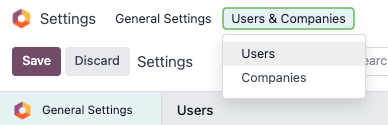
To enable a user to manage access rights, an existing administrator must first navigate to Settings → Users & Companies → Users. Select the target user's profile and, within the Administration field under the Access Rights tab, change the setting to Access Rights. After making this crucial adjustment, remember to click Save to apply the changes and grant the user administrator privileges for managing permissions.
Individual User Access Rights
Access rights for individual users are initially configured when a new user is added to the Odoo database. However, these permissions are not static and can be precisely adjusted or updated at any time by an administrator through the user's profile settings, providing flexibility in managing individual roles and responsibilities.
To modify a user's access rights, navigate to Settings → Users & Companies → Users and click on the specific user you wish to edit from the list. This action will open their detailed user profile.
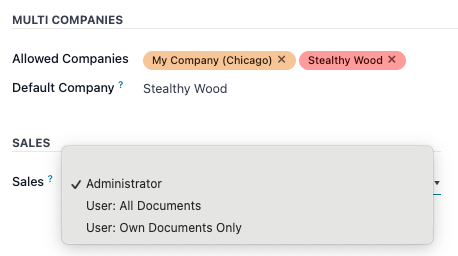
Once on the user’s profile page, locate and select the Access Rights tab. Within this section, you can scroll down to review all the currently assigned permissions for that user across various Odoo applications.
For each Odoo application listed, an administrator can utilize the corresponding drop-down menu to define the user's specific permission level. While options may vary by application, common selections include:
- Blank/None: Denies all access to the application.
- User: Own Documents: Allows the user to only view and manage documents they have created or are explicitly assigned to.
- User: All Documents: Grants the user access to view and manage all documents within that application.
- Administrator: Provides full administrative control over the application, including configuration and advanced settings.
Within the Access Rights tab, pay particular attention to the Administration field, which offers two critical options:
- Settings: Grants comprehensive access to general Odoo settings.
- Access Rights: Specifically empowers the user to manage and modify other users' access rights, a crucial role for system administrators.
Create and Modify Access Groups
Access groups in Odoo are powerful, application-specific collections of permissions designed to efficiently manage common access rights for a large number of users. Administrators have the flexibility to either modify existing groups within Odoo or create entirely new ones to establish granular rules for various models and functionalities within a specific application.
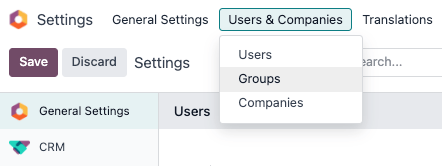
To manage groups, you must first activate Odoo’s developer mode. Once activated, navigate to Settings → Users & Companies → Groups.
To establish a new access group, begin by clicking the Create button on the Groups page. This will present a blank group form where you must first select an Application to associate the group with. Afterward, proceed to complete the remaining fields and tabs of the group form, as detailed in the subsequent sections.
Conversely, to modify an existing group, simply click on its entry within the list on the Groups page. This will open the group's configuration form, allowing you to edit its current settings and associated permissions.
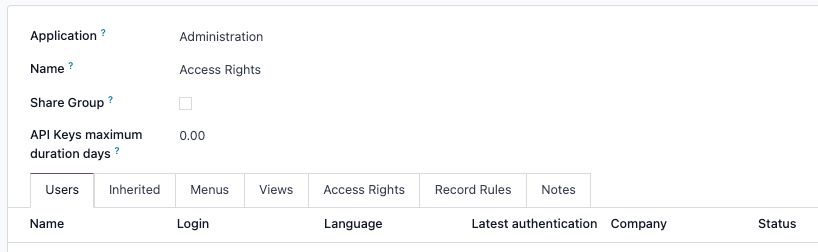
On the group form, provide a descriptive Name for the group. If the purpose of this group is to define access rights for sharing data with specific users, ensure you tick the checkbox labeled Share Group. This setting is crucial for collaborative data access scenarios.
Important: Validate Group Settings
It is paramount to thoroughly test any changes made to group settings. Always verify that the modified permissions are being correctly applied to the intended users and that no unintended access issues or security vulnerabilities have been introduced.
The group configuration form is organized into several tabs, each dedicated to managing different aspects of the group's permissions and membership. Within each tab, you can easily add new entries, such as users or specific rules, by clicking Add a line. To remove an existing entry, simply click the (cancel) icon located next to the respective row.
Users Tab
The Users tab displays a comprehensive list of all users currently assigned to this group. Users with administrative rights within the group are typically highlighted in black, while those without administrative access are shown in blue. To include additional users in this group, click Add a line and select the desired user profiles.
Inherited Tab
The Inherited tab allows you to define group inheritance. When a user is added to the current group, they will automatically gain membership and permissions from all groups listed in this tab. This feature streamlines permission management for complex organizational structures. To add an inherited group, click Add a line.
Example of Group Inheritance
Consider a scenario where the Sales/Administrator group includes the Website/Restricted Editor group in its Inherited tab. In this case, any user assigned to the Sales/Administrator group will automatically acquire all the access rights associated with the Website/Restricted Editor group.
Menus Tab
The Menus tab is where you configure which specific menus (representing different modules or functionalities) the users within this group will have access to. This controls their visibility of various Odoo features. Click Add a line to grant access to a specific menu item.
Views Tab
The Views tab dictates which Odoo views (such as tree views, form views, kanban views, etc.) are accessible to the members of this group. This allows for fine-grained control over how data is presented. To add a specific view to the group's permissions, click Add a line.
Access Rights Tab
The Access Rights tab defines the foundational level of permissions for the group, primarily focusing on access to specific data models. The Name column serves to identify the particular access right granted to the selected model. To establish a new access right for a group, click Add a line. From the Model drop-down menu, select the relevant data model, and then provide a clear, descriptive name for this access right in the Name column. For each model, you can enable a combination of the following permissions:
- Read: Users can view the existing values and records of the object.
- Write: Users are permitted to edit and modify the existing values of the object.
- Create: Users have the ability to create new instances or records for the object.
- Delete: Users can remove or delete existing values and records of the object.
Best Practice: Naming Access Rights
Although Odoo does not enforce strict naming conventions for access rights, it is highly recommended to choose names that clearly indicate their purpose and the group they apply to. For instance, an access right defining the permissions purchase managers have on the Contact model could be aptly named res.partner.purchase.manager. This structure typically combines the technical name of the model with an identifier for the user group, enhancing clarity and maintainability.

To easily ascertain a model's technical name from your current view, first input some placeholder text into the Name field. Subsequently, click on the Model field itself, and then select the (Internal link) icon that appears. This action will reveal the technical identifier of the selected model, which is essential for precise configuration.
Record Rules Tab
The Record Rules tab introduces a second, more granular layer of editing and visibility rights. Record rules serve to either overwrite or further refine the broader access rights defined in the previous tab, allowing for highly specific data filtering. To add a new record rule to this group, click Add a line. For each rule, you can specify its application by selecting the following options:
- Apply for Read: The rule affects whether users can view specific records.
- Apply for Write: The rule impacts whether users can edit specific records.
- Apply for Create: The rule determines whether users can create new records under specific conditions.
- Apply for Delete: The rule controls whether users can delete specific records.
Critical Note: Understanding Record Rule Domains
Record rules are constructed using a domain, which is a set of conditions designed to filter data. A domain expression is essentially a list of these conditions. For example:
[('mrp_production_ids', 'in', user.partner_id.commercial_partner_id.production_ids.ids)]This particular record rule is engineered to activate MRP consumption warnings specifically for subcontractors. Odoo provides a comprehensive library of preconfigured record rules to facilitate common use cases. However, for users who lack a thorough understanding of domain syntax and expressions, it is strongly advised to consult an Odoo Business Analyst or the Odoo Support Team before attempting to make any modifications to record rules, due to their profound impact on data visibility and integrity.
Superuser Mode
Superuser mode in Odoo is an elevated privilege level that enables a user to bypass all existing record rules and standard access rights. To activate this powerful mode, you must first ensure that developer mode is enabled. Once developer mode is active, locate and click on the debug menu (often represented by a bug icon) in the top right banner of your Odoo interface.
Within the debug menu, scroll towards the bottom of the options and select Become Superuser to activate this special mode.
Prerequisite for Superuser Access
Access to Superuser mode is strictly limited. Only users whose profiles have Settings access enabled for the Administration section within their Access Rights are authorized to activate and utilize Superuser mode.
Extreme Caution: Risks of Superuser Mode
Superuser mode grants the ability to circumvent all record rules and access rights, making it an extremely powerful tool that must be used with the utmost caution. Misuse can lead to severe consequences, including users being inadvertently locked out of the database upon exiting the mode due to unmanaged changes. This can result in an "impotent admin" scenario, where no administrator can modify access rights or system settings, effectively paralyzing database management.
If you encounter such a situation, immediately contact Odoo Support by creating a new help ticket. The Odoo support team possesses the necessary tools and support login capabilities to restore access and resolve critical database issues.
To safely exit Superuser mode, navigate to the upper-right corner of the interface, click on the OdooBot username (or your own user name if configured differently), and then select the Log out option from the drop-down menu. This will revert your session to standard access rights.
Alternative Superuser Login Method
An alternative method to activate Superuser mode involves a direct login. When you reach the Odoo login screen, enter your designated email and password. Instead of clicking the standard Login button, look for and click the Log in as superuser option. This provides immediate elevated access upon session initiation.
