
 (1).svg)
 (1).png)


 (1).svg)
.svg)
Effectively managing applications and modules is crucial for optimizing your Odoo 18.0 environment. This guide details the processes for installing, upgrading, and uninstalling these components directly from your Odoo dashboard, ensuring your system is tailored to your organizational needs.
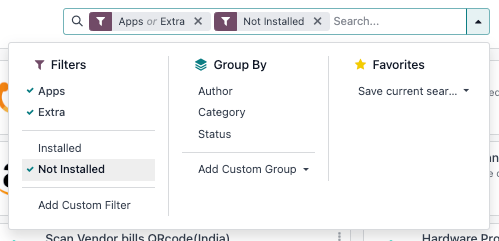
By default, the Odoo dashboard applies an "Apps" filter when browsing available components. To broaden your search and include all modules, simply select the "Extra" filter option.
Important Considerations for App Management
Modifying the installed applications or modules can have significant repercussions on other functionalities within your Odoo database, and may also impact subscription costs. It is highly recommended to thoroughly evaluate these changes and ideally test them within a staging environment before implementing them in a production database.
- Database Administrator Responsibilities: The database administrator holds primary responsibility for its usage and configuration, possessing the most comprehensive understanding of the organization's operational requirements.
- Understanding Odoo App Dependencies: Many Odoo applications have inherent dependencies. Installing certain apps or features might automatically install additional apps and modules that are technically essential for their operation, even if these supplementary modules are not directly utilized by end-users.
- Testing Apps on a Duplicate Database: To mitigate risks and understand potential impacts, it is advisable to test new app installations or removals on a duplicated database. This practice helps reveal any required app dependencies or potential data erasures. For detailed instructions, refer to documentation on how to duplicate an Odoo Online database or an Odoo On-premise database.
Installing Apps and Modules
To install a new application or module, navigate to the main Odoo dashboard. From there, you can either utilize the search bar to locate the specific component you wish to install or browse through the available options. Once you have identified the desired app, simply click the "Activate" button on its card to initiate the installation process.
Note: If the app or module you intend to install does not appear in the list, you may need to update the app list. This can be done by activating developer mode, then going to [the Apps menu or equivalent section in developer mode], and clicking "Update."
Upgrading Apps and Modules
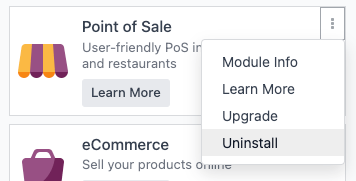
Odoo continually introduces improvements and new features with each new release. To leverage these enhancements and ensure your applications are up-to-date, it is important to upgrade your installed apps and modules periodically. To perform an upgrade, access your installed apps. Locate the app you wish to upgrade, click the vertical ellipsis (three dots) icon on its card, and then select "Upgrade" from the contextual menu.
Uninstalling Apps and Modules
Caution: Data Loss Imminent
Uninstalling applications irrevocably deletes their associated database records. It is imperative to test the uninstallation process on a duplicated database before attempting to remove any applications from a live production database to prevent unintended data loss.
Note on Dependencies: Due to the interconnected nature of Odoo applications, some modules have dependencies, meaning one app relies on another to function correctly. Consequently, uninstalling a single app may trigger the uninstallation of multiple related apps and modules that are dependent upon it.
To uninstall an application, navigate to your installed apps. On the card of the app you wish to remove, click the vertical ellipsis (three dots) icon and select "Uninstall." This action will open a confirmation pop-up window titled "Uninstall module."
The "Apps to Uninstall" section within this window provides a clear list of all applications scheduled for removal. For a comprehensive view, including all module dependencies, you can select the "Show All" checkbox.
Furthermore, the "Documents to Delete" section details all database records that will be permanently removed as part of the uninstallation process.
To finalize the process and remove the app, its dependencies, and all associated database records, click the "Uninstall" button.
Example: Understanding Uninstallation Dependencies
Consider the Restaurant app, which fundamentally requires the Point of Sale app to operate. If you decide to uninstall the Point of Sale app, Odoo will also automatically uninstall the Restaurant app, along with all their related records, to maintain database integrity and prevent broken functionalities.

