
 (1).svg)
 (1).png)


 (1).svg)
.svg)
Odoo's modular architecture allows users to customize their system by installing, upgrading, and uninstalling various applications and modules directly from the dashboard. This comprehensive guide provides detailed instructions and best practices for managing these components efficiently within Odoo 18.0.
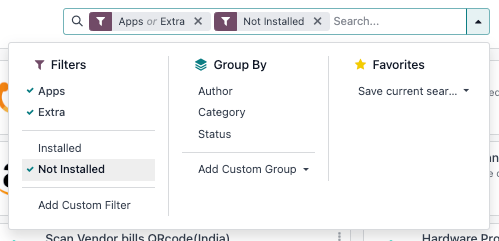
By default, the Odoo dashboard displays a filtered view showing only applications. To broaden your search and include individual modules, simply select "Extra" from the available Filters option within the Apps dashboard.
Important Consideration: Managing Odoo applications and modules can significantly impact the functionality of other installed apps within your database and may also affect subscription costs. It is highly recommended to carefully evaluate any changes or test them thoroughly in a dedicated staging environment before implementing them in a live production database.
- Database Administrators' Role: The primary administrator of the Odoo database holds the ultimate responsibility for its usage and configuration. Their deep understanding of the organization's workflows makes them best suited to manage app installations and removals, ensuring database integrity and operational efficiency.
- Understanding Odoo App Dependencies: Many Odoo applications and features have inherent dependencies. This means that installing a particular app may automatically install additional underlying apps or modules that are technically required for its operation, even if these are not directly used by database users. Always be aware of these linked installations.
- Testing Apps with Duplicate Databases: Before making any irreversible changes to your production environment, it is a crucial best practice to test app installations, upgrades, or uninstallation processes on a duplicate database. This approach helps in identifying any unforeseen app dependencies or potential data loss scenarios, safeguarding your live data. You can learn more about duplicating an Odoo Online database or an Odoo On-premise database.
Installing Apps and Modules
To install a new application or module, navigate to the main Odoo dashboard. Open the 'Apps' section, and then utilize the search bar to locate the desired application, or simply scroll through the available options. Once you find the app, click on the "Activate" button located on its respective card to initiate the installation process. The system will then proceed with installing the chosen application along with any necessary dependencies.
Note: If you are unable to find a specific app or module in the list, it might be necessary to update your app list. This can be done by first activating developer mode. Once developer mode is active, return to the Apps menu and click on the "Update Apps List" button. This action refreshes the module manifest and makes newly added or custom modules visible and ready for installation.
Upgrading Apps and Modules
Odoo regularly releases new versions and updates, introducing significant improvements and enhanced features for its applications. To leverage these latest functionalities and ensure your system is running optimally, it is essential to regularly upgrade your installed applications and modules. Staying current with upgrades ensures compatibility, access to the newest capabilities, and often includes important security patches and performance enhancements.
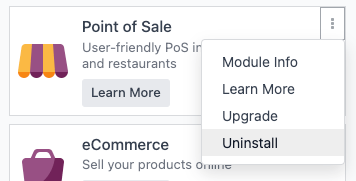
To upgrade an app, go to the Apps dashboard. On the card of the app you wish to upgrade, click the vertical ellipsis icon (⋮) and then select "Upgrade" from the contextual menu. This process updates the chosen application to its latest compatible version, bringing all the new features and improvements to your Odoo instance.
Uninstalling Apps and Modules
Danger: It is imperative to understand that uninstalling applications will also result in the permanent deletion of their associated database records. Due to this irreversible action, always perform uninstallation tests on a duplicated database first before proceeding to remove apps from a live production database. This precaution helps prevent unintended data loss and ensures the stability of your operational environment.
Note: Some applications are designed with dependencies, meaning one app relies on another for its functionality. Consequently, uninstalling a primary app might lead to the automatic uninstallation of multiple other dependent applications and modules. Always review the list of affected components carefully to understand the full scope of an uninstallation.
To uninstall an app, navigate to the Apps dashboard. Locate the application you intend to remove, click the vertical ellipsis icon (⋮) on its card, and then select "Uninstall". This action will open a confirmation pop-up window titled "Uninstall module", providing a summary of the impending changes.
The "Apps to Uninstall" section within this pop-up clearly lists all applications that will be removed as part of the process, including any dependencies. This allows for a clear understanding of what will be affected.
Tip: For a comprehensive overview of all module dependencies involved in the uninstallation, select the "Show All" checkbox within the "Uninstall module" pop-up. This will reveal all underlying modules that will be affected by the uninstallation.
The "Documents to Delete" section provides a detailed list of all database records that are slated for deletion alongside the apps. This transparency allows for a final review before confirmation, ensuring no critical data is removed unintentionally.
To finalize the process and permanently remove the selected app, its dependencies, and all related database records, carefully click the "Uninstall" button.
Example: Understanding Uninstallation Dependencies
Consider an instance where the Restaurant application is installed. This app fundamentally requires the Point of Sale application to operate correctly. Therefore, if you decide to uninstall the Point of Sale app, the system will also automatically uninstall the Restaurant app, along with any database records associated with both applications. This illustrates the critical importance of understanding module interdependencies before proceeding with any uninstallation, as it can have wider implications across your Odoo system.

