
 (1).svg)
 (1).png)


 (1).svg)
.svg)
Access rights are fundamental permissions within Odoo that dictate which content and applications users are authorized to view, access, and modify. In Odoo, these granular permissions can be assigned to individual users or to predefined groups of users. Implementing a policy of least privilege—where users are granted only the permissions essential for their roles—is crucial. This practice safeguards the integrity of your database by preventing unauthorized modifications or deletions of critical data and system configurations.
It is important to note that only an administrator possesses the authority to modify access rights within Odoo. This restriction is a security measure to maintain control over system permissions.
Warning: Database Integrity
Modifying access rights can have significant and potentially detrimental consequences for your Odoo database. A critical risk is the creation of an "impotent admin" scenario, where no user within the database retains the ability to alter access rights. To mitigate such risks, Odoo strongly advises consulting with an Odoo Business Analyst or their dedicated Support Team before implementing any changes to access rights.
Tip: Granting Administration Rights
For a user to be able to modify the access rights of other users, their own user profile must explicitly have the "Administration" access rights configured. To enable this, an existing administrator needs to navigate to the user's profile settings, specifically within the Access Rights tab. Locate the Administration field and change its setting to Access Rights. After making this crucial change, remember to click Save to apply the new settings, thereby granting the user administrative privileges over access rights.
Managing Access Rights for Individual Users
Access rights for individual users are initially configured when a new user account is created and added to the Odoo database. However, these permissions are not static and can be reviewed and adjusted at any time through the user's dedicated profile settings. This flexibility allows administrators to adapt permissions as user roles and responsibilities evolve.
To modify a user's access rights, an administrator must first navigate to the list of users and select the specific user whose profile needs editing. This action opens their detailed user profile page.
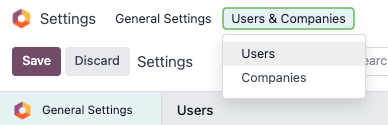
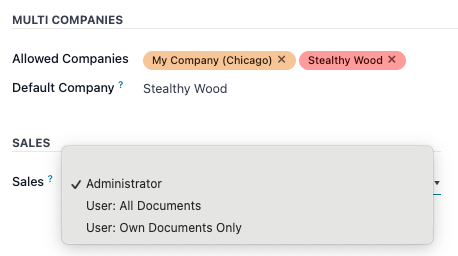
Once on the user’s profile page, locate and select the Access Rights tab. Within this tab, you will find a comprehensive overview of the current permissions assigned to that user. The permissions are categorized by application.
For each Odoo application listed, a convenient drop-down menu allows you to precisely select the desired level of access for the user. The available options vary depending on the specific application, but commonly include granular choices such as: "Blank/None" (no access), "User: Own Documents" (access only to documents created or owned by the user), "User: All Documents" (access to all documents within that application), or "Administrator" (full administrative control over that specific application).
Additionally, within the Access Rights tab, a dedicated Administration field offers two critical options: "Settings" or "Access Rights". Selecting "Access Rights" here grants the user the ability to manage access rights for other users, as discussed in the introductory section.
Creating and Modifying User Groups for Efficient Access Management
Groups in Odoo represent app-specific collections of permissions, designed to streamline the management of common access rights for a large number of users. Administrators possess the capability to either modify existing groups or establish entirely new ones, enabling them to precisely define rules for data models within specific Odoo applications. This hierarchical approach to permissions greatly enhances efficiency and consistency.
To access and manage groups, it is first necessary to activate Odoo’s developer mode. Once activated, navigate to Settings > Users & Companies > Groups. This section provides a central hub for all group-related configurations.
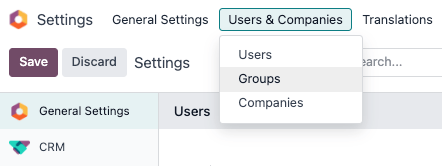
To create a brand-new group, click the Create button on the Groups page. This will open a blank group form where you must first select an associated Application, and then proceed to complete the various fields and tabs detailed below. For modifying an existing group, simply click on its name from the list displayed on the Groups page to open its form for editing.
Start by providing a clear Name for the group. If this group is intended to define access rights for sharing data with external or specific internal users, ensure you tick the checkbox next to Share Group.
Important: Testing Group Settings
It is paramount to thoroughly test any changes made to group settings. This ensures that the applied permissions function as intended and are correctly distributed to the designated users. Proactive testing prevents unexpected access issues and maintains data security.
The group configuration form is structured with multiple tabs, each dedicated to managing different facets of the group's permissions. Within each tab, you can easily manage entries: click Add a line to introduce a new row for users, rules, or other elements, and click the (cancel) icon (often represented by an 'X') to remove an existing row.
-
Users tab: This tab displays a list of all users currently assigned to the group. Users with administrative rights within the group are typically highlighted in black, while standard users appear in blue. To include additional users, click Add a line and select the desired individuals.
-
Inherited tab: The concept of "Inherited" groups means that any user added to the current group will automatically inherit membership and, consequently, all access rights from the groups listed on this tab. This feature allows for the creation of complex, layered permission structures. To add groups to be inherited, click Add a line.
Example of Inherited Groups:
Consider a scenario where the Sales/Administrator group includes the Website/Restricted Editor group in its Inherited tab. In this case, any user assigned to the Sales/Administrator group will automatically gain access and permissions associated with the Website/Restricted Editor group, in addition to their sales administration rights.
-
Menus tab: This tab is used to define which specific Odoo menus (and consequently, the underlying models) the group members are permitted to access. By carefully selecting menus here, you control the navigational visibility for users within this group. Click Add a line to associate specific menus.
-
Views tab: Here, administrators can specify which particular views within Odoo (e.g., list views, form views, kanban views) the group has access to. This offers fine-grained control over how data is presented and interacted with by group members. Use Add a line to include relevant views.
-
Access Rights tab: This crucial tab defines the initial layer of access rights for the group, primarily concerning data models. The Name column typically identifies the purpose of the group’s access to the model selected in the Model column.
To establish a new access right for the group, click Add a line. From the Model drop-down menu, select the appropriate data model. Then, provide a descriptive name for this access right in the Name column. For each chosen model, you can enable specific permissions:
- Read: Allows users to view the existing values of the object or record.
- Write: Grants users the ability to modify the existing values of the object or record.
- Create: Permits users to generate new instances or records of the object.
- Delete: Authorizes users to remove existing instances or records of the object.
Tip: Naming Access Rights
While Odoo does not enforce strict naming conventions for access rights, adopting a clear, descriptive naming strategy is highly recommended. A well-chosen name should clearly communicate the right's purpose. For instance, an access right governing how purchase managers interact with the Contact model could be logically named
res.partner.purchase.manager. This format often combines the technical name of the model with an identifier for the user group involved.
To assist in finding the technical name of a model directly from the current view, you can first enter placeholder text in the Name field, then click on the Model name itself, and finally, click the (Internal link) icon which will reveal the technical identifier.
-
Record Rules: This tab introduces the second, more refined layer of editing and visibility rights. Record rules serve to either override or further restrict the group’s general access rights defined in the Access Rights tab. To add a new record rule to this group, click Add a line. For each rule, you must specify its application for different operations:
- Apply for Read: Determines if the rule affects viewing records.
- Apply for Write: Determines if the rule affects modifying records.
- Apply for Create: Determines if the rule affects creating new records.
- Apply for Delete: Determines if the rule affects deleting records.
Important: Understanding Record Rule Domains
Record rules are constructed using a concept known as a "domain," which consists of specific conditions that filter data. A domain expression is essentially a list of these conditions. For example, the domain:
[('mrp_production_ids', 'in', user.partner_id.commercial_partner_id.production_ids.ids)]is designed to enable MRP consumption warnings specifically for subcontractors.Odoo provides a library of preconfigured record rules to simplify their implementation. However, due to the complexity and potential impact of domain expressions, users unfamiliar with their syntax or logic are strongly advised to consult with an Odoo Business Analyst or the Odoo Support Team before making any modifications to record rules.
Understanding and Activating Superuser Mode
Superuser mode in Odoo provides an elevated level of access, allowing a user to bypass all standard record rules and access rights restrictions. This powerful feature is primarily intended for advanced debugging, system configuration, and resolving critical issues that normal access rights might prevent.
To activate Superuser mode, you must first ensure that developer mode is enabled in your Odoo instance. Once developer mode is active, locate the _debug_ menu, which is typically represented by a small (debug) icon situated in the top banner of your Odoo interface. From this menu, scroll down to the bottom and select the option Become Superuser.
Important: Superuser Access Prerequisites
Access to Superuser mode is strictly limited. Only users whose profiles are configured with "Settings" access within the "Administration" section of their "Access Rights" are authorized to log in as a Superuser. This restriction ensures that only highly privileged users can utilize this powerful function.
Critical Warning: Use Superuser Mode with Extreme Caution
Given that Superuser mode circumvents all established record rules and access rights, its use demands the utmost caution. Inappropriate or careless actions within Superuser mode can lead to severe database inconsistencies or even render the system unusable. A common and dangerous outcome is the "impotent admin" situation, where an administrator loses the ability to modify access rights or system settings, effectively locking themselves out of critical administrative functions. If such an event occurs, immediately contact Odoo Support by submitting a new help ticket; the support team is equipped to restore access using a support login.
To safely exit Superuser mode, you must log out of your current Odoo session. Navigate to the upper-right corner of the interface, click on the OdooBot username (or your own username if it's not OdooBot), and then select the Log out option.
Tip: Alternative Superuser Login
An alternative method for activating Superuser mode is available directly from the Odoo login screen. Instead of clicking the standard "Login" button after entering your Email and Password, select the Log in as superuser option. This provides a direct entry into Superuser mode for authorized users.
