
 (1).svg)
 (1).png)


 (1).svg)
.svg)
Odoo's modular design allows users to efficiently manage their business processes by installing, upgrading, and uninstalling specific applications and modules directly from the dashboard. This guide outlines the essential steps and important considerations for database administrators.
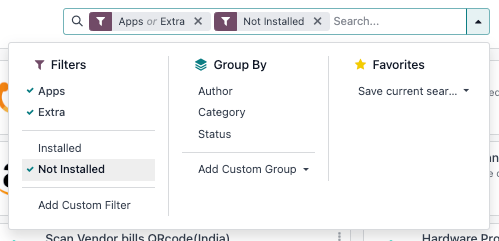
By default, only applications are displayed in the Odoo Apps dashboard. To view and search for individual modules as well, navigate to the "Filters" option and select "Extra". This will expand your search results to include all available modules.
Important Considerations for App Management
Modifying apps and modules can significantly impact other functionalities within your database and may affect subscription costs. It is highly recommended to carefully evaluate any changes or to test them in a staging environment before implementing them on a live production database.
- Database Administrators' Responsibility: The database administrator is ultimately responsible for its usage and configuration, as they possess the most comprehensive understanding of their organization's operational needs and structure.
- Understanding App Dependencies: Many Odoo applications and features have inherent dependencies. Installing a specific app may automatically install additional underlying apps or modules that are technically required for its operation, even if these are not directly used by database users.
- Testing Changes on Duplicate Databases: Before making significant changes, it is advisable to test app installations or uninstalls on a duplicate database. This practice helps reveal any required app dependencies or potential data loss scenarios. Detailed instructions on how to duplicate an Odoo Online database or an Odoo On-premise database are available in the Odoo documentation.
Installing Apps and Modules
To install a new application or module, begin by accessing the main Odoo dashboard. Navigate to the Apps section. You can either use the search bar to locate a specific app by name or scroll through the available options. Once you have found the desired app, simply click the "Activate" button located on its respective card to initiate the installation process.
Note on Missing Apps: If the app or module you intend to install is not visible in the list, you may need to update your app list. This can be achieved by first activating developer mode. After activation, return to the Apps section, click on the "Update Apps List" option (usually found in the developer tools or a specific menu), and then refresh the page.
Upgrading Apps and Modules
Odoo regularly releases new versions, bringing with them enhanced features, performance improvements, and bug fixes for existing applications and modules. To leverage these latest advancements and ensure your system is up-to-date, it is important to regularly upgrade your installed apps.
To upgrade an application, go to the Apps dashboard. Locate the app you wish to upgrade. On the app's card, click on the vertical ellipsis icon (⋮), which typically indicates more options, and then select "Upgrade" from the dropdown menu.
Uninstalling Apps and Modules
Caution Regarding Uninstallation
Uninstalling applications in Odoo permanently deletes their associated database records. This action is irreversible. Therefore, it is critically important to test any uninstallation process on a duplicated database before performing it on your live production environment to prevent unintended data loss.
Understanding Dependencies During Uninstallation: Due to the interconnected nature of Odoo applications, some apps have dependencies on others. This means that uninstalling one primary app might consequently lead to the uninstallation of multiple other dependent applications and modules. Be aware of these potential cascading effects.
To uninstall an application, navigate to the Apps dashboard. Find the application you intend to remove. Click on the vertical ellipsis icon (⋮) on the app's card and choose "Uninstall". This action will open a dedicated pop-up window titled "Uninstall module" (or similar), which guides you through the process.
The "Apps to Uninstall" section within this window clearly lists all applications that will be removed as part of this operation, including any dependencies.
Tip: To gain a full understanding of all module dependencies involved in the uninstallation, select the "Show All" checkbox within the pop-up window.
Furthermore, the "Documents to Delete" section provides a detailed list of all database records that are directly associated with the apps being uninstalled and will be permanently deleted.
To finalize the process and remove the chosen app, its dependencies, and all related database records, confirm your action by clicking the "Uninstall" button.
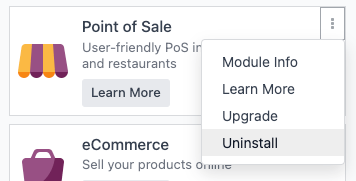
Example: Consider the relationship between the Restaurant app and the Point of Sale app. The Restaurant application fundamentally relies on the functionalities provided by the Point of Sale app. Consequently, if the Point of Sale app is uninstalled, the Restaurant app will also be automatically uninstalled, along with any associated operational records.

