
 (1).svg)
 (1).png)


 (1).svg)
.svg)
Overview
WordPress Manager is a powerful utility designed to centralize the management of all your WordPress installations. It provides a convenient interface to update various settings for your WordPress sites without the need to log into each WordPress admin panel individually.
Note: This essential feature was introduced in Softaculous version 5.6.1.
Accessing WordPress Manager
There are two primary methods to access the WordPress Manager within your Softaculous end-user panel, providing flexibility based on your preference:
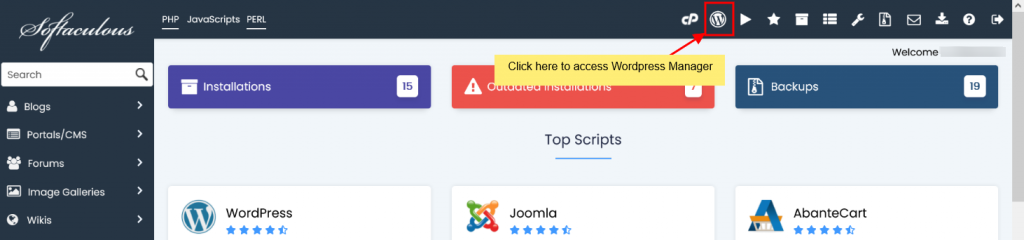
- To access the general WordPress Manager interface, locate and click the "WordPress" icon situated in the upper-right corner of your Softaculous control panel. Refer to the screenshot below for visual guidance.
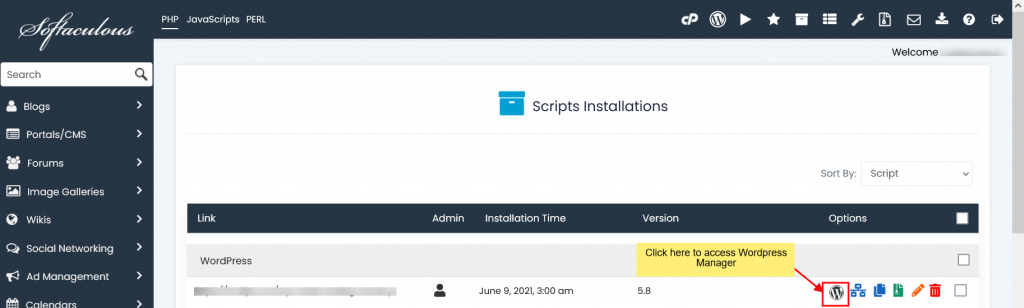
- Alternatively, you can directly access the WordPress Manager for a specific installation. Navigate to the All Installations page and click the "WordPress" icon positioned next to the particular WordPress installation you wish to manage. The following screenshot illustrates this option.
Installing WordPress
Softaculous makes installing WordPress straightforward. Follow these steps to deploy a new WordPress site:
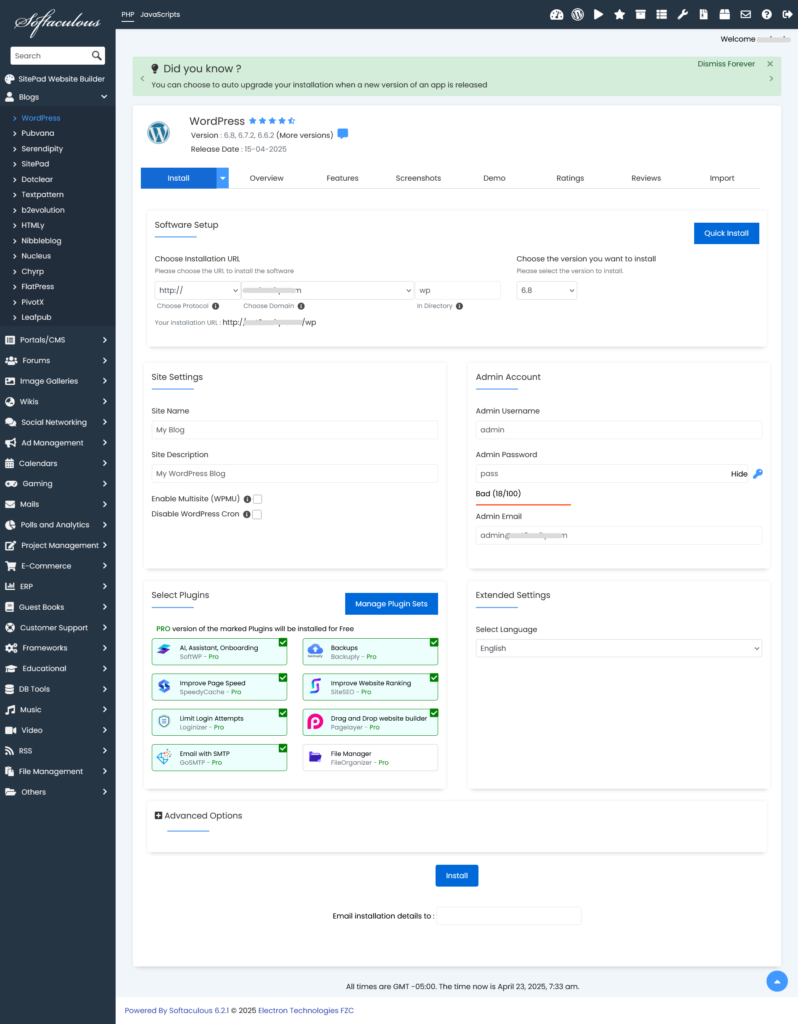
- Begin by clicking the Install button, which will initiate the installation process.

- A detailed form will appear, prompting you to enter essential information for your new WordPress installation. This includes selecting the protocol (http/https), specifying your domain name, choosing a directory (if not the root), defining the database name, setting up administrative login credentials, and selecting your preferred language.
- During this step, you also have the option to pre-select any desired plugins for automatic installation with your new WordPress site.
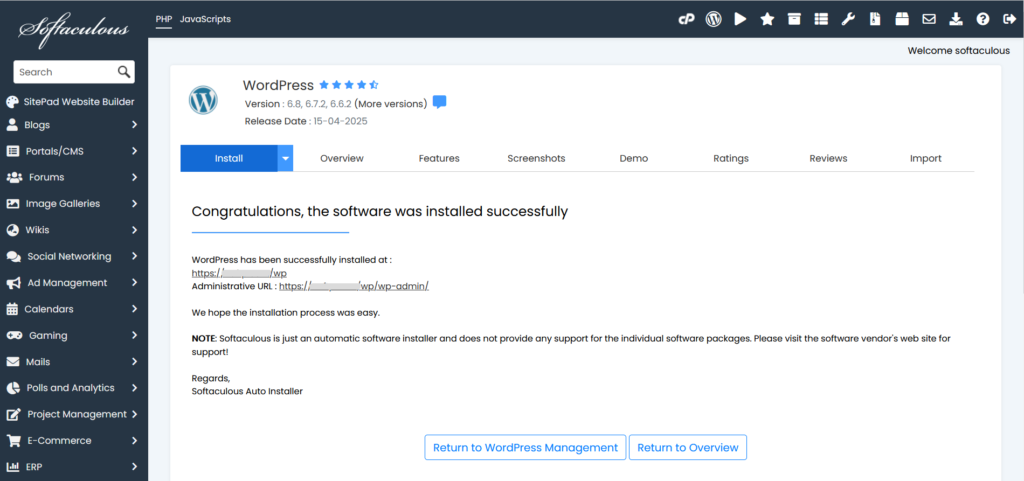
- Once the installation is successfully completed, Softaculous will provide direct links to your newly created WordPress installation.
- Simply click on the provided links. You will be redirected either to your website's front end or directly to the WordPress administrator homepage, depending on your choice or the default setup.
Automatic Login to WordPress Admin Panel
For seamless access, WordPress Manager offers an automatic login feature. By clicking the "Login" button located next to your site's URL, you can instantly log into your WordPress admin panel as an administrator, bypassing the need to manually enter your password. This saves time and simplifies site management.

Upgrading Your WordPress Installation
Keeping your WordPress installation updated is crucial for security and performance. When an update is available for your site, the WordPress Manager will display an "Upgrade Now" button conveniently located next to your current WordPress version number. Clicking this button will direct you to the dedicated upgrade page, where you can initiate the update process.

Configuring Automatic Core Updates
WordPress Manager provides flexible options for managing automatic updates to your WordPress core files. You can select your preferred setting from the following choices, and Softaculous will handle updates accordingly:
- Do not Auto Upgrade: This option prevents any automatic updates to your WordPress core. You will need to manually initiate all updates.
- Upgrade to Minor versions only: With this setting, your WordPress installation will only be upgraded to minor versions (e.g., WordPress 5.5.1 will update to 5.5.x, but not to 5.6.x). This provides stability by avoiding major version changes automatically.
- Upgrade to latest version available (Major as well as Minor): Selecting this option ensures your WordPress site is always running the latest available version, including both minor updates (e.g., 5.5.1 to 5.5.x) and major version upgrades (e.g., to 5.6.x when released). This keeps your site at the cutting edge with the newest features and security patches.
Once you've made your selection, your preference will be automatically saved, and a success message will confirm the change.

Managing Automatic Plugin and Theme Updates
Beyond core updates, WordPress Manager also allows you to control automatic updates for your plugins and themes. You can easily enable or disable this feature with a simple toggle.
When automatic updates are enabled for plugins or themes, Softaculous will perform a check for new versions every 24 hours. Any available updates will then be automatically applied, ensuring your site components remain current. Simply click the "Enable/Disable" button to set your preference, and a success message will confirm that your setting has been saved.

Controlling Search Engine Visibility
The Search Engine Visibility setting, typically found within the WordPress Reading options, can also be conveniently managed directly from WordPress Manager. This feature is particularly useful for development environments or websites that are not yet ready for public indexing.
- If you are working on a development site, cloning a live site for testing, or your website is still under construction, you might want to disable this setting. Disabling it prevents search engines from indexing your site prematurely.
- Conversely, once your website is complete and ready for public exposure, you should enable this setting to allow search engines to crawl and index your content, making it discoverable to a wider audience.
Simply click the "Enable/Disable" button to apply your desired visibility preference. Your choice will be immediately saved, and a confirmation message will be displayed.

Enabling/Disabling WordPress CRON
WordPress includes a built-in CRON job system (wp-cron.php) that is enabled by default. This system is responsible for scheduling and executing various routine tasks on your website, such as publishing scheduled posts, checking for updates, and performing maintenance operations.
However, on large websites with significant traffic, the default WordPress CRON behavior can sometimes consume considerable server resources. WordPress Manager provides the option to enable or disable this wp-cron setting, giving you greater control over your server's performance. By clicking the "Enable/Disable" button, your preference will be saved, and a success notification will appear.

Managing WordPress Debug Mode
The WordPress debug mode, which is disabled by default, is an invaluable tool for troubleshooting and identifying issues on your website. When activated, it helps display errors, warnings, and notices, providing critical insights into potential problems.
WordPress Manager allows you to easily enable or disable this debug mode. Simply click the "Enable/Disable" button to toggle the setting, which will then be automatically saved, and a success message will confirm your action.
Important Note: It is strongly advised not to leave debugging mode enabled on a live production website. Debugging information can potentially expose sensitive details. Always ensure debug mode is disabled on your production site once you have completed your troubleshooting.

Changing Your Website URL
Incorrectly modifying your WordPress site's URL can lead to being locked out of your admin panel. The WordPress Manager provides a crucial safeguard by allowing you to safely change your website's URL directly, even if you're unable to access your WordPress dashboard.
To change your website URL, simply update the "Website URL" field with the correct address and click the "Save Site Info" button. This action will automatically update the URL within your WordPress database, restoring proper access and functionality.
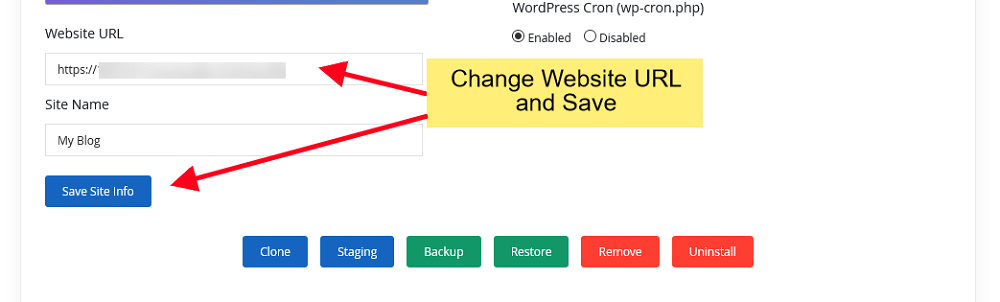
Modifying Your Site Name
Just as easily as managing the URL, you can also modify your website's name through the Softaculous WordPress Manager. This allows you to update your site's display name without needing to log into the WordPress admin area.
To change your site's name, enter the new "Site Name" value into the designated field and then click the "Save Site Info" button. The updated site name will be automatically reflected in your WordPress database.

Resetting User Passwords
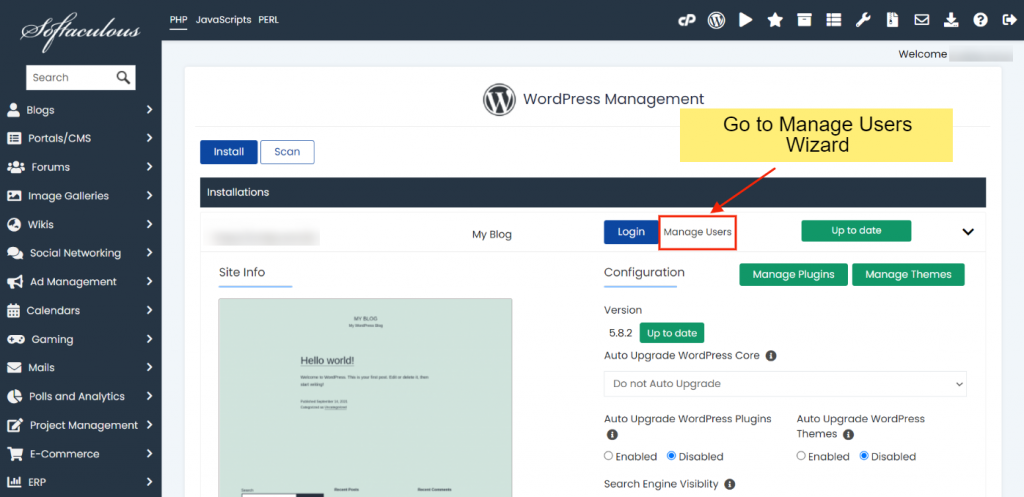
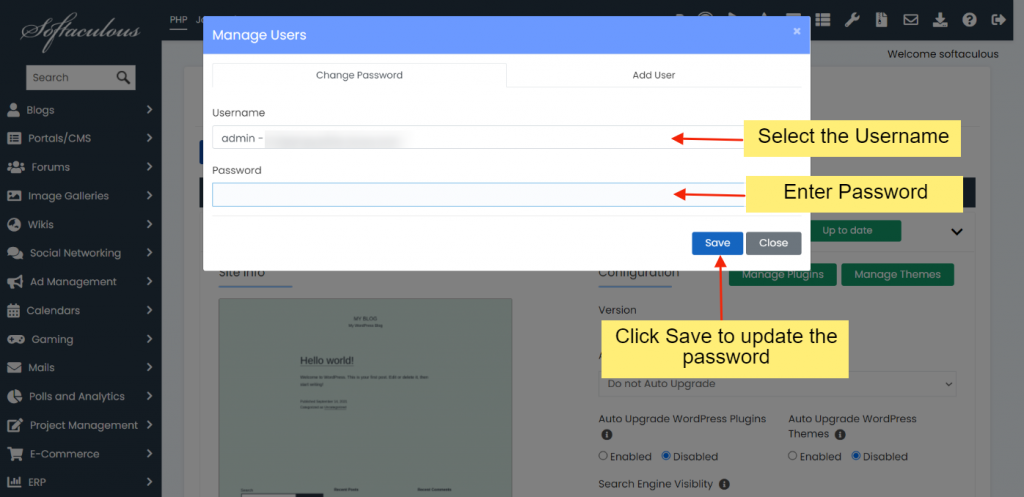
Whether you've forgotten your own WordPress account password or need to reset the password for another user, Softaculous WordPress Manager offers a straightforward solution.
Follow these simple steps to change a user's password:
- Navigate to the "Manage Users Utility" section within the WordPress Manager.
- From the list of users, select the desired username. Then, enter the new password you wish to assign in the designated field.
Managing Plugins
WordPress Manager offers comprehensive tools for handling your WordPress plugins, giving you full control over your site's functionality.
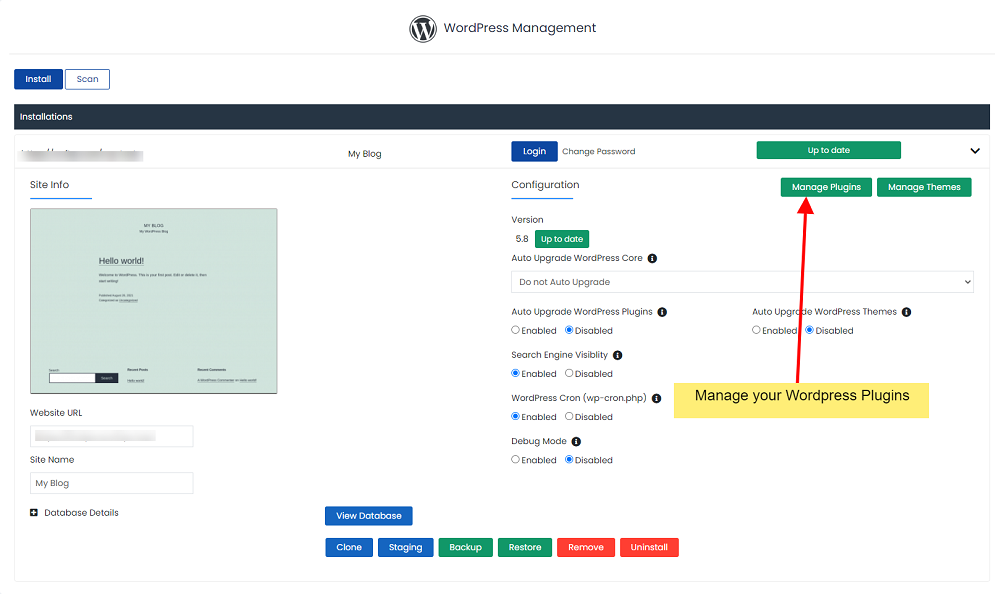
Installed Plugins
The "Installed" section provides a clear list of all plugins currently installed on your WordPress installation. From this interface, you can effortlessly activate, deactivate, or delete plugins as needed to manage your site's features and performance.

Adding New Plugins
Through the "Add Plugins" section, you can conveniently search for and install any plugin available from the official WordPress.org plugin directory. Plugins selected through this method are automatically activated immediately upon successful installation, streamlining your workflow.

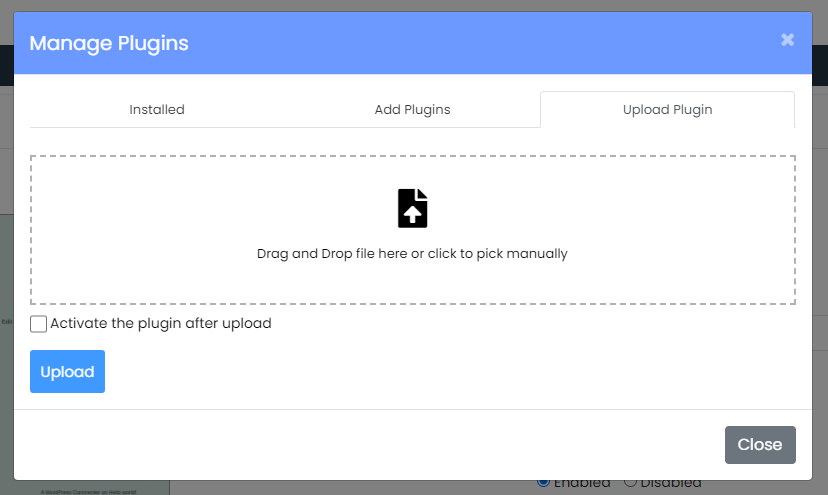
Uploading Plugins
For plugins not available on WordPress.org, or for custom plugins, the "Upload Plugin" section allows you to install new plugins by simply uploading their .zip file directly. This provides flexibility for installing premium or custom-developed solutions.
Managing Themes
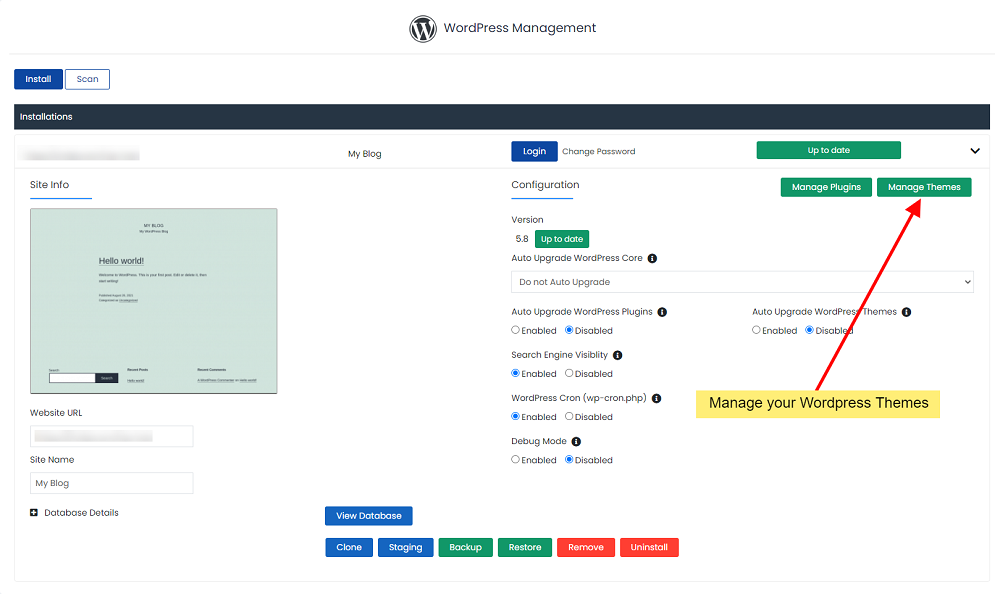
Just like with plugins, the WordPress Manager provides robust capabilities for managing your WordPress themes, allowing you to control the visual design and layout of your website.
Installed Themes
In the "Installed" section, you'll find a complete list of all themes currently installed on your WordPress site. From here, you have the flexibility to activate, deactivate, or delete themes, enabling you to switch designs or remove unused options efficiently.

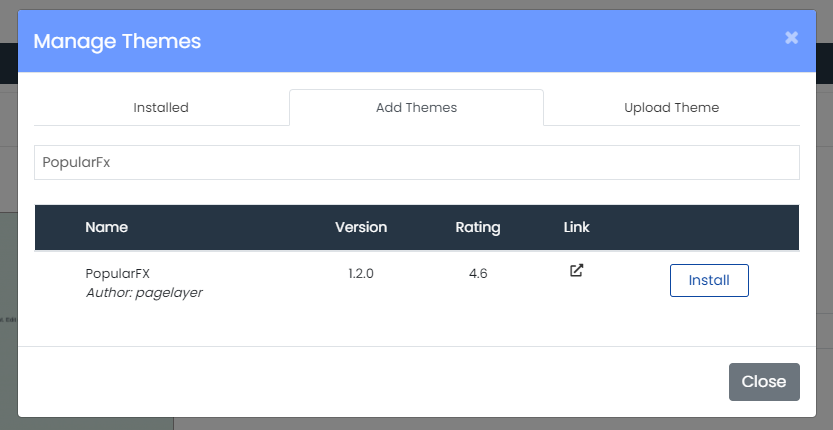
Adding New Themes
The "Add Themes" section enables you to easily browse, search, and install any theme available from the vast WordPress.org theme directory. When you install a new theme through this method, it is automatically activated, replacing any previously active theme and applying its design to your site.
Uploading Themes
Should you have a custom theme or a premium theme not found on WordPress.org, the "Upload Theme" section facilitates its installation. You can simply upload the theme's .zip file, and the WordPress Manager will handle the installation process.

Adding New Users
Expanding your team or contributors is easy with WordPress Manager. It includes a built-in tool that simplifies the process of adding new WordPress users with various roles, such as Editors, Authors, or Subscribers, directly from the Softaculous interface.
To add a new user to your WordPress site, follow these steps:
- Access the "Manage Users Utility" within the WordPress Manager.
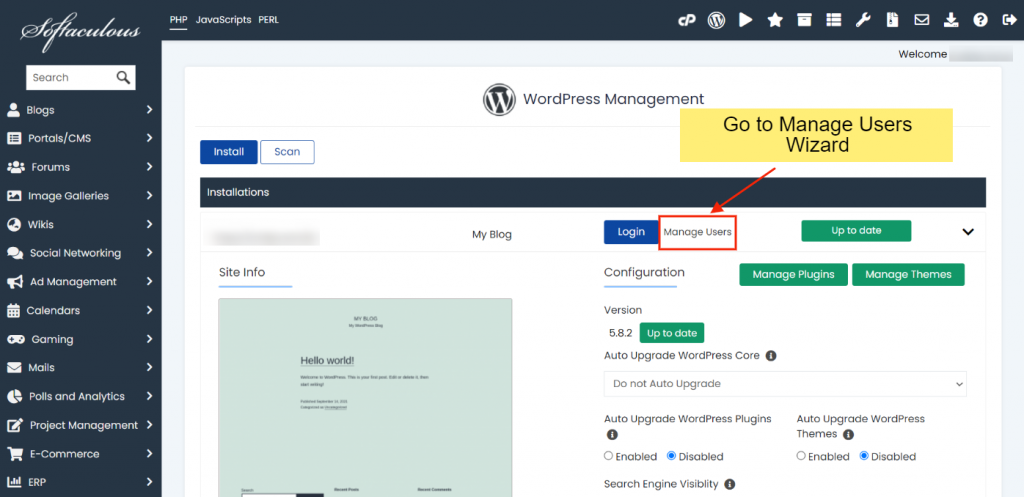
- Click on the "Add user" tab to open the user creation form.

- Select the appropriate user role for the new account and diligently fill in all the required details, including username, email, and password.

- Finally, click the "Add user" button. The new user account will be successfully created and added to your WordPress installation.
Installing Featured Plugins
The Softaculous team has developed a suite of powerful WordPress plugins and themes designed to enhance your website's functionality. These include essential tools for Security, Backups, SEO, Cache, Page Building, SMTP, File Management, and a versatile theme with over 600+ templates.
A significant advantage is that the Pro versions of these plugins and themes are included with your Softaculous license. If you or your hosting provider has an active Softaculous license, you can enjoy these premium features at no additional cost.
To install these valuable plugins, follow these steps:
- Open Softaculous from your hosting control panel.
- Click on the "WordPress Manager" option.
- Select all the WordPress installations where you wish to install these plugins, then click the Featured Plugins button.
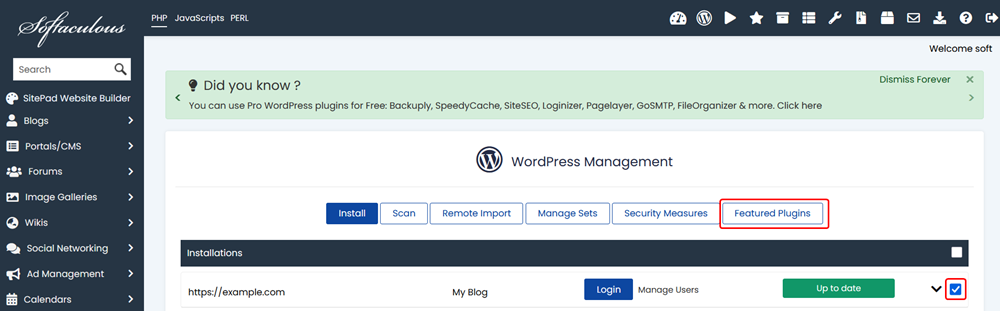
Select WordPress Installations and click on Featured Plugins button.
Next to each plugin you desire to install, click the Install button. The plugin will be automatically installed across all the WordPress installations you selected in the previous step.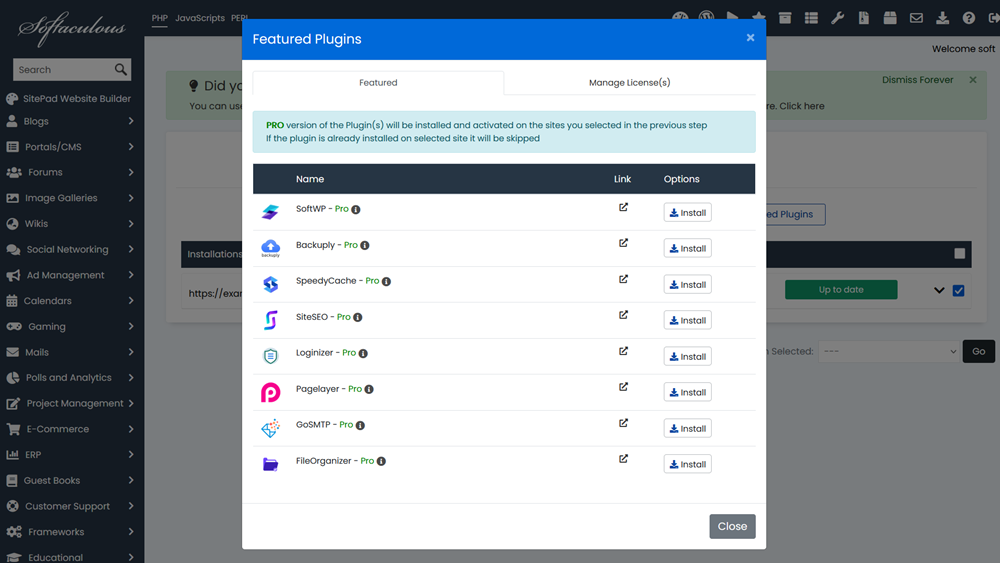
Click on Install button to install the plugins you wish to use.
Note: A unique license key, starting with "SOFTWP-", will be automatically generated for each WordPress site. This same license will be utilized for all the Pro plugins mentioned above. The validity of this license is synchronized with your Softaculous license expiry date.
The WordPress Manager is continuously evolving, and more features will be integrated into upcoming versions to further enhance your WordPress management experience.
