
 (1).svg)
 (1).png)


 (1).svg)
.svg)
Automating repetitive tasks is crucial for efficient server management. Plesk Obsidian provides a robust task scheduler, often referred to as cron jobs, allowing you to execute scripts or commands automatically at predefined intervals. This functionality is indispensable for routine maintenance, data backups, and running custom applications without manual intervention.
Understanding and Managing Scheduled Tasks
The Plesk task scheduler offers a centralized location to oversee all automated operations across your server and its subscriptions. This ensures you have a comprehensive view of all scheduled activities, enabling better resource management and troubleshooting.
Accessing the Scheduled Task Interface
To review all scheduled tasks configured for every subscription, as well as those established at the server level, navigate to Tools & Settings, then select Scheduled Tasks (Cron jobs). This central interface provides a complete overview of all automated processes running on your server.
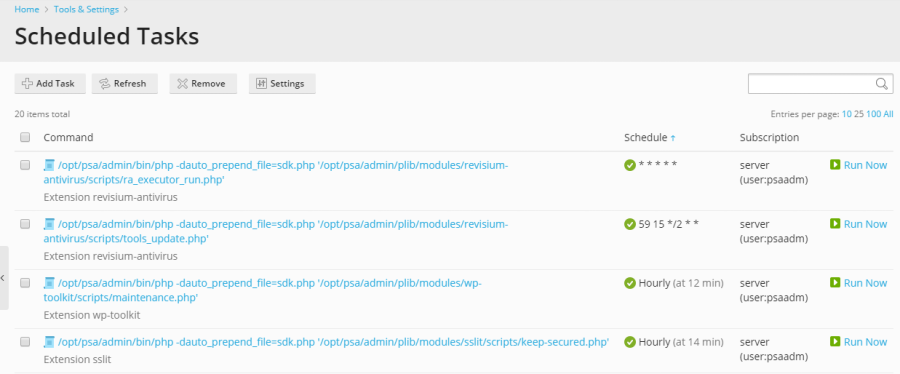
Managing Existing Cron Jobs
Within the scheduled tasks list, you have several options for managing your existing cron jobs. Tasks can be easily sorted by command, by the associated subscription, or by their schedule. Sorting by schedule is particularly useful for diagnosing periods of high server load, as it can help identify resource-intensive tasks that might be spiking at specific times. For each task listed, you can:
- Edit Properties: Click on the task's name to modify its configuration, including the command, schedule, and user context.
- Activate/Deactivate: Toggle the task's active status using the
 (activate) or
  (deactivate) icons.
 - Run Immediately: Execute the task on demand, without waiting for its scheduled time, which is useful for testing or immediate execution.
These management capabilities ensure full control over your server's automated processes, allowing for fine-tuning and quick adjustments as needed.
Important Note for Plesk for Linux Users
Note: In Plesk for Linux environments, scheduled tasks initiated by Plesk users are executed within a chrooted shell by default. This means that the file system root is effectively changed to the corresponding system user’s home directory. While this enhances server security by isolating user environments, it may limit the operational scope and available options for Plesk users' tasks. To adjust the shell environment used for scheduled tasks across all Plesk users, navigate to Tools & Settings > Scheduled Tasks > Settings. For a more comprehensive understanding of these shell settings and their implications, please refer to the dedicated documentation on Scheduled tasks shell setting.
Creating New Scheduled Tasks
Adding a new scheduled task is a straightforward process that allows you to define custom automation based on your specific needs. Follow these steps to set up a new cron job:
Defining Task Types
To begin creating a new scheduled task, go to Tools & Settings > Scheduled Tasks > Add Task. The first step involves selecting the appropriate task type that aligns with your automation objective:
-
Run a Command: This option is for executing any executable file present on your server. You will need to specify the full, absolute path to the executable. This includes a wide range of files such as binary programs, custom shell scripts, or batch files designed for specific operations. For example, to run a custom script located at
/usr/local/bin/myscript.sh, you would enter this path. -
Fetch a URL: Ideal for triggering web-based actions or external services, this type simply requires you to specify the target URL. Plesk will then send an HTTP request to this URL, eliminating the need for you to manually construct commands like
curlorwget. This is perfect for calling webhooks, triggering remote APIs, or executing scripts accessible via HTTP. -
Run a PHP Script: Specifically designed for PHP applications, this task type allows you to execute PHP scripts directly. Provide the full path to your PHP script, for instance,
/var/www/vhosts/example.com/httpdocs/cron.php. Plesk will handle the PHP interpreter execution, ensuring your PHP-based automation runs smoothly.
Configuring Schedule and Advanced Settings
Once the task type is selected, proceed to configure when and how often your task will run. You can define specific times, days of the week, or even custom cron expressions for precise scheduling. By default, the task execution time adheres to the server's local time zone. Should you require a different time zone for your tasks, this can be adjusted under Tools & Settings > Scheduled Tasks > Settings.
Additionally, you can configure several advanced options to further customize your scheduled task:
- Description: Add a clear, concise description to help you identify the purpose of the task at a glance.
- System User: Select the specific system user under whose security context the task will be executed. This is vital for ensuring proper file permissions and access rights for the script or command.
- Notifications: Configure email notifications to be sent upon task completion or failure, keeping you informed of its operational status.
Testing Your Scheduled Task
Before finalizing and saving your new scheduled task, it is highly recommended to perform a test run. This crucial step verifies that the task is configured correctly and functions as expected in its intended environment. Click the Run Now button and observe the task's execution. If the task completes without errors, it is likely to perform reliably when executed by the scheduler. Conversely, if the test run indicates an error, it is imperative to identify and resolve the underlying issue before saving, as the task would otherwise consistently fail during scheduled executions.
Thorough testing ensures that your automated processes are dependable and contribute positively to your server's operation.
