(1).svg)
 (1).png)


 (1).svg)
.svg)
In Odoo, a user is defined as an individual with access to a specific database. Administrators possess the flexibility to add as many users as their organization requires. To ensure data security and maintain operational efficiency, various rules and access rights can be applied to each user, thereby restricting the type of information they can view or modify. User accounts and their associated access rights can be easily managed and adjusted at any time to adapt to evolving business needs. This comprehensive guide will walk you through the process of user management in Odoo 17.0, from adding new users to handling password resets and multi-company configurations.
Add Individual Users
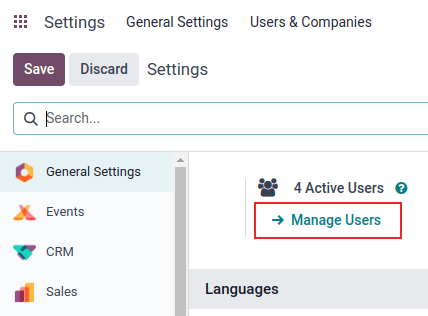
To onboard new users into your Odoo database, navigate to the Settings module, then select Users & Companies, and click on Users. From there, click the New button to create a new user entry.
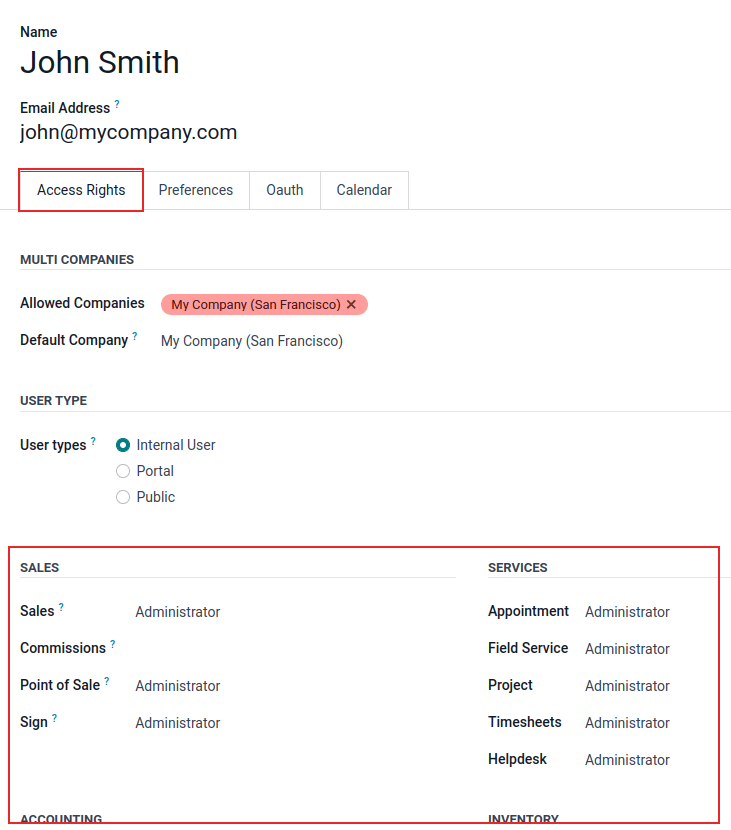
Proceed to fill in the required information on the user form. Crucially, under the Access Rights tab, you must carefully select the appropriate group within each installed application to define the user's permissible access levels. The specific applications displayed for selection are dynamically generated based on the applications currently installed on your Odoo database.
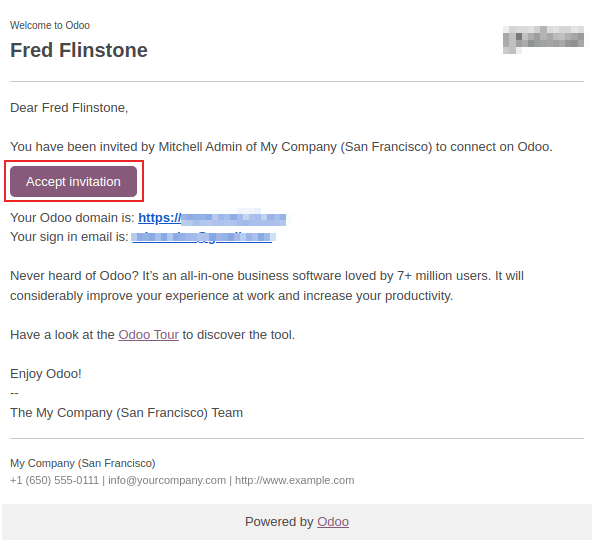
Once all the necessary fields on the user form have been completed, manually click Save. An invitation email will be automatically dispatched to the email address provided in the Email Address field. The new user must then click on the unique link embedded within this email to accept the invitation and successfully create their database login credentials.
Warning: If your company is operating on a monthly subscription plan, the Odoo database will automatically update to reflect the newly added users. However, for companies on a yearly or multi-year subscription plan, an expiration banner will appear within the database. To update your subscription and accommodate the new users, an upsell quotation can be generated by clicking this banner. Alternatively, you may choose to send a support ticket to the Odoo team for assistance in resolving the issue.
User Types
The User Type field, which determines the nature of a user's interaction with the Odoo database, can be selected from the Access Rights tab on the user form. This form is accessible by navigating to Settings --> Users & Companies --> Users.
Odoo categorizes users into three distinct types:
- Internal User: These are typical database users who have full access to the Odoo backend based on their assigned access rights.
- Portal: Portal users are external individuals who are granted limited access, primarily to a dedicated database portal where they can view specific records pertinent to them. For more detailed information, refer to the documentation on Portal access.
- Public: Public users represent anonymous visitors interacting with your Odoo-powered website's frontend.
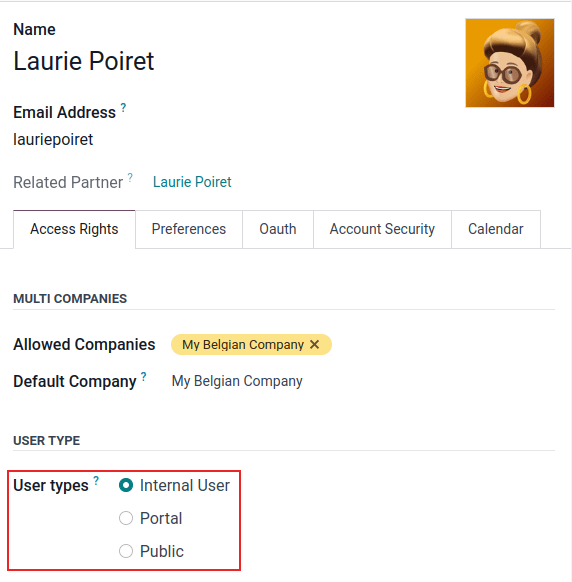
Tip: While Internal Users are considered integral members of the database, Portal users are external and have restricted access to the database portal for viewing specific records. Public users are essentially website visitors on the frontend.
It is important to note that the Portal and Public user options do not permit the administrator to manually configure specific access rights. These user types come with predefined access rights, including specific record rules and restricted menu access, and typically do not belong to the standard Odoo user groups. This streamlined approach ensures their interactions are confined to their intended scope.
Deactivating Users
To deactivate, or archive, a user within Odoo, begin by navigating to Settings --> Users & Companies --> Users. On the list of users, locate the user(s) you wish to deactivate and tick the checkbox positioned to the left of their name.
After selecting the appropriate user(s) for archiving, click on the ⚙️ Actions icon. From the resulting drop-down menu, choose Archive. A Confirmation pop-up window will then appear; click OK to finalize the deactivation process.
Danger: It is critically important to never deactivate the main administrator user (admin). Modifying or deactivating admin users can lead to severe and detrimental impacts on your database, including an "impotent admin" state where no user in the database can alter access rights. For these reasons, Odoo strongly advises contacting an Odoo Business Analyst or the Odoo Support Team before attempting any changes to administrator users.
Resolving "Too Many Users" Errors
Should the number of active users in your Odoo database exceed the provisioned count stipulated in your Odoo Enterprise subscription, the following alert message will be displayed:

Upon the appearance of this message, the database administrator is granted a 30-day grace period to address the situation before the database potentially expires. The countdown displayed in the message is updated daily.
To effectively resolve this issue, you have two primary options:
- Increase Subscription Users: Click the "Upgrade your subscription" link presented in the message. This action will allow you to validate an upsell quotation and process payment for the additional users required.
- Deactivate Excess Users: Deactivate existing users to bring the total user count in line with your current subscription, and subsequently reject any pending upsell quotations.
Warning: If your company is on a monthly subscription plan, the database automatically updates to reflect any added users. However, for yearly or multi-year plans, an expiration banner will appear. An upsell quotation can be generated by clicking this banner to update your subscription. Alternatively, users can send a support ticket to Odoo Support for assistance.
Once the database accurately reflects the correct number of users as per your subscription, the expiration message will automatically disappear within a few days, following the next system verification cycle.
Password Management
Effective password management is paramount for ensuring that users can autonomously and securely access the Odoo database at all times. Odoo provides several convenient methods for users and administrators to reset passwords, enhancing both security and usability.
Tip: Odoo allows you to specify a minimum password length for enhanced security. This setting can be accessed by navigating to Settings --> General Settings, scrolling to the Permissions section, and entering the desired minimum password length in the Minimum Password Length field. By default, this value is set to 8 characters.
Resetting User Passwords
Users may occasionally need or wish to reset their personal passwords for enhanced security. Odoo offers two distinct options for password resets: one initiated directly by the user from the login page, and another triggered by an administrator.
Enabling Password Reset from the Login Page
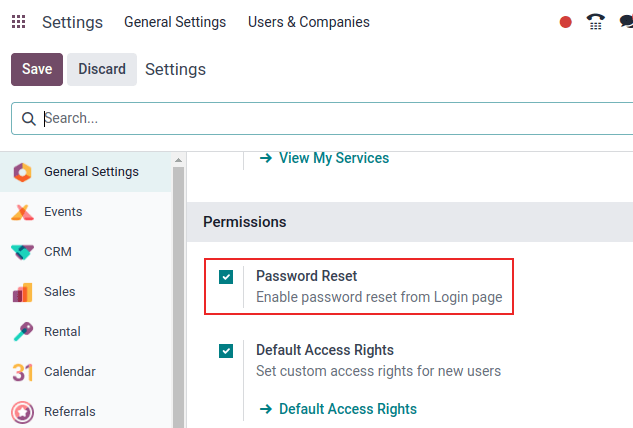
The ability for users to reset their passwords directly from the Odoo login page can be enabled or disabled as required. This setting is typically enabled by default, empowering individual users to manage their own password resets.
To modify this setting, navigate to Settings --> General Settings, locate the Permissions section, activate the Password Reset option, and then click Save.
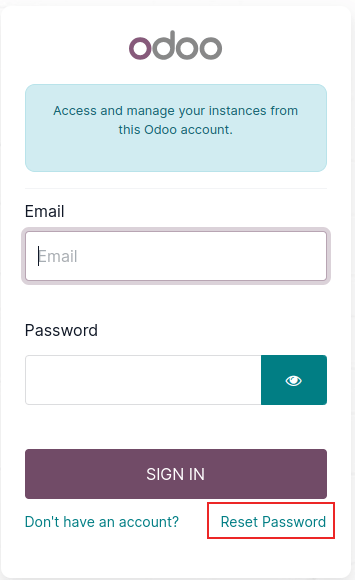
On the Odoo login page, users can click the Reset Password link. This action initiates the password reset process, and a unique reset token will be sent to the email address associated with their account.
Sending Password Reset Instructions
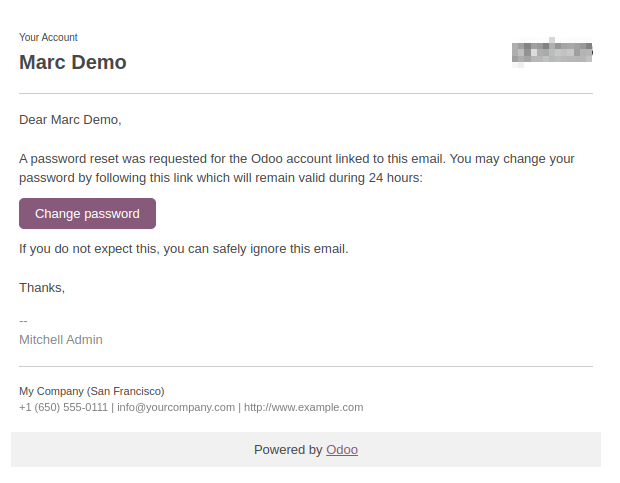
Administrators can also initiate a password reset for a specific user. To do this, go to Settings --> Users & Companies --> Users, select the desired user from the list, and then click on the Send Password Reset Instructions button located on their user form. An email containing detailed password reset instructions will be automatically sent to the user.
Note: The Send Password Reset Instructions button will only appear if the Odoo invitation email has previously been confirmed by the user. If the invitation has not yet been accepted, a Re-send Invitation Email button will be displayed instead.
This email provides all the necessary instructions for resetting the password, along with a direct link that redirects the user to an Odoo login page where they can set a new password.
Changing a User's Password
For administrative control, you can directly change a user's password from their user form. To do so, navigate to Settings --> Users & Companies --> Users, and select the user whose password you wish to change to access their detailed form. Click on the ⚙️ Actions icon, and then choose Change Password from the subsequent drop-down menu.
In the Change Password pop-up window that appears, enter the new password in the New Password column. Confirm this change by clicking the Change Password button.
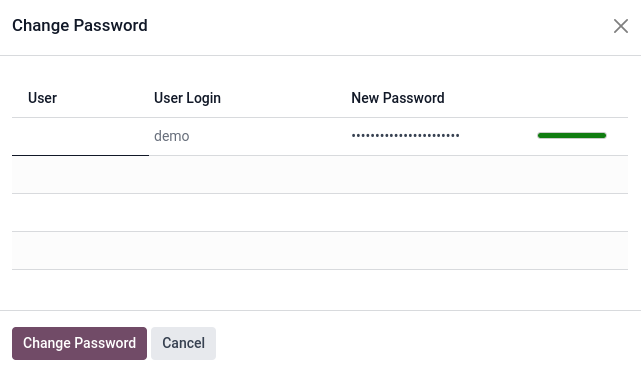
Note: This operation exclusively modifies the user's password within the local Odoo database and does not impact their odoo.com account password. If the odoo.com password needs to be changed, users should utilize the send password reset instructions method. Odoo.com passwords grant access to the My Databases page and other portal features.
Following a successful password change, the page will redirect to an Odoo login screen, allowing the user to re-access the database using their newly set password.
Configuring Multi-Company Access
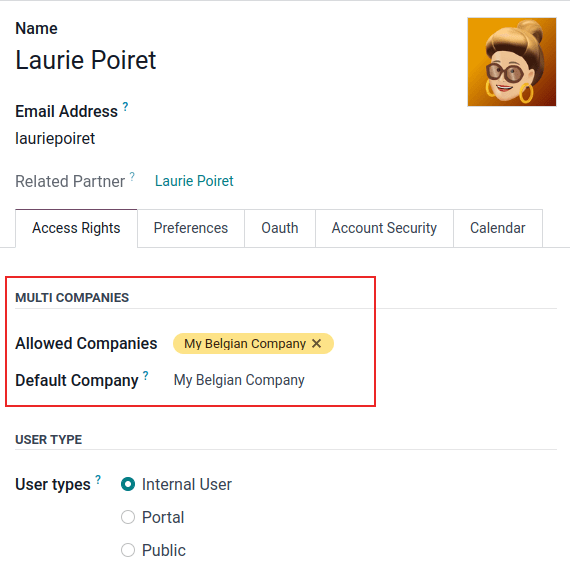
The Multi Companies field on a user form is a powerful feature that enables an administrator to grant specific users access to multiple companies within a single Odoo instance. To configure a multi-company environment for a user, begin by navigating to Settings --> Users & Companies --> Users. Select the desired user to open their user form, where you can then proceed to configure their multi-company access settings.
Within the Access Rights tab, under the Multi Companies section, you will find two crucial fields to configure: Allowed Companies and Default Company.
- The Allowed Companies field permits the selection of multiple companies. These are all the companies that the user is authorized to access and modify, subject to their assigned access rights.
- The Default Company field, however, can only contain a single company. This specified company will be the one the user automatically defaults to upon logging into Odoo each time.
Warning: Incorrect configuration of multi-company access can lead to inconsistent and unpredictable multi-company behaviors within your Odoo database. Due to the complexity and potential ramifications, it is strongly recommended that only experienced Odoo users make access rights changes to users in databases with a multi-company configuration. For detailed technical explanations and best practices, please refer to the developer documentation on Multi-company Guidelines.