
 (1).svg)
 (1).png)


 (1).svg)
.svg)
To ensure your server runs scripts and commands automatically at predefined intervals, Plesk Obsidian offers a robust task scheduler facility. This feature, often referred to as cron jobs on Linux systems, allows you to automate a wide range of administrative and operational tasks, significantly enhancing server management efficiency.
Managing Existing Scheduled Tasks
For a comprehensive overview of all scheduled tasks, including those created at the server level and for individual subscriptions, navigate to Tools & Settings > Scheduled Tasks (Cron jobs). This central location provides a consolidated view of all automated processes configured on your Plesk server.
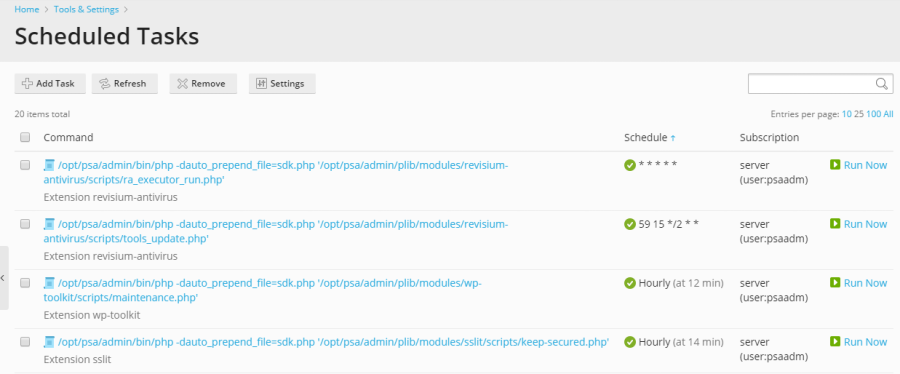
The interface allows for flexible management of these tasks. You can easily sort tasks by command, subscription, or schedule. Sorting by schedule is particularly useful for diagnostic purposes, enabling you to identify potential causes of server load spikes that might be linked to resource-intensive scheduled operations. For each task listed, you have several options:
- Edit Properties: Click on a task’s name to modify its configuration, schedule, or associated settings.
- Activate: Enable a deactivated task by clicking the
 icon, making it active and ready to execute according to its defined schedule.
 - Deactivate: Temporarily disable a running task by clicking the
 icon. This is useful for troubleshooting or when a task is no longer needed.
 - Run Immediately: Execute the task on demand, outside of its scheduled time, which is ideal for testing or urgent operations.
Note: In Plesk for Linux environments, scheduled tasks initiated by Plesk users are executed within a chrooted shell by default. This security measure changes the file system root to the respective system user’s home directory, enhancing isolation and protection. While this improves overall server security, it may impose certain limitations on Plesk users regarding accessible paths and commands. To adjust the shell used for scheduled tasks across all Plesk users, navigate to Tools & Settings > Scheduled Tasks > Settings. For a more detailed understanding of these shell configurations and their implications, please refer to the dedicated documentation on Scheduled tasks shell setting.
Creating New Scheduled Tasks
To establish a new automated task, proceed to Tools & Settings > Scheduled Tasks > Add Task. The initial step involves selecting the appropriate task type that aligns with your specific objective:
Understanding Task Types
- Run a command: This option allows you to execute any executable file present on your server. This can include binary applications, custom shell scripts designed for automation, or batch files for Windows servers. You must provide the complete and absolute path to the executable file.
- Fetch a URL: Ideal for triggering web-based scripts or actions, this type enables the server to make an HTTP request to a specified URL. You simply provide the URL, eliminating the need to specify commands like
curlorwget, as Plesk handles the underlying process. - Run a PHP script: Specifically designed for PHP applications, this option allows you to execute PHP scripts directly. Similar to running a command, you will need to specify the full path to your PHP script, for instance:
/tmp/script.php.
Configuring Task Details
Once the task type is selected, you will define the execution schedule. This includes setting the frequency (e.g., hourly, daily, weekly), and specifying the exact time and date for the task to run. By default, the task execution time is based on the server's local time zone. Should you require a different time zone for your scheduled tasks, this can be adjusted under Tools & Settings > Scheduled Tasks > Settings.
Further configuration options include providing a descriptive name or explanation for the task, which aids in organization and clarity. You can also specify the system user under whose security context the task will be executed, ensuring appropriate permissions and resource access. Additionally, Plesk allows you to configure notifications, so you can be informed of task completion or any encountered errors.
Testing Your Scheduled Task
Before finalizing and saving your new scheduled task, it is highly recommended to perform a test run. Click the Run Now button to execute the task immediately and observe its outcome. This crucial step verifies that the task is configured correctly and functions as expected. If the test run concludes with an error, it indicates that the task will also fail when executed by the scheduler. Therefore, it is essential to identify and resolve any issues discovered during the test phase before relying on the automated schedule.
By leveraging Plesk's scheduled tasks feature, you can effectively automate routine maintenance, data backups, report generation, and other critical operations, ensuring your server environment remains robust and efficient.
