
 (1).svg)
 (1).png)


 (1).svg)
.svg)
The MySQL database server is a core component of millions of content management systems and ecommerce applications. It provides the secure and reliable data storage and retrieval capabilities that make dynamic, personalized websites and sophisticated online platforms possible. cPanel & WHM offers a comprehensive MySQL management solution, automating many common web hosting database tasks while providing fine-grained control to web hosts and administrators who require it.
Typically, web applications and cPanel’s MySQL instance are co-located on the same server. However, there are compelling reasons to separate these components, allowing websites to utilize a remote MySQL database hosted on a distinct server.
Employing a remote MySQL server can yield several strategic benefits:
- **Performance Optimization:** Offload intensive database workloads from the webserver, significantly improving the performance of busy sites and the overall responsiveness of the database itself.
- **Specialized Hosting:** Utilize a server specifically configured and optimized for database hosting, ensuring maximum efficiency and reliability for data operations.
- **Centralized Management:** Consolidate database management for multiple web servers, streamlining administrative tasks and enhancing consistency across your infrastructure.
- **Enhanced Security:** Isolate the database from servers directly accessible via a public IP address, creating an additional layer of security and reducing potential attack vectors.
It is crucial to emphasize that the incorrect approach to achieving remote database access involves exposing the MySQL server directly to the internet and permitting connections from untrusted IP addresses. This method inherently creates a critical security vulnerability that is frequently exploited to compromise sensitive data. In this article, we will guide you through the correct and secure methodology, demonstrating how to use cPanel to properly configure MySQL to accept connections from web applications hosted on different servers.
Establishing Secure Remote Database Connections with cPanel & WHM
Utilizing a remote database to host your site's data offers numerous advantages, from performance optimization to enhanced security. However, setting up these connections requires careful consideration to maintain data integrity and protect against vulnerabilities. This section outlines the essential prerequisites and explains how cPanel empowers you to securely integrate a remote MySQL database with your web applications.
Prerequisites for Remote Database Setup
To successfully follow this guide and configure your remote MySQL database, you will need the following components and information:
- **A Server with cPanel & WHM Installed:** This server will serve as your dedicated remote database server, hosting the MySQL instance. Ensure it is properly configured, accessible, and has the necessary resources to handle database operations.
- **Database Server Access Details:** You will require the IP address or domain name of your database server, along with valid cPanel authentication credentials (username and password) and the specific MySQL username and password for the database you intend to utilize.
- **A Server for Web Applications:** This is the server where your web applications (such as WordPress, Joomla, or custom applications) will be installed and run. While manual setup is always an option, utilizing a cPanel-equipped server for your web applications can significantly streamline and simplify the configuration process.
Initially, we will focus on how individual cPanel users can configure a remote MySQL database to grant access to their web applications. Following that, we will explore the more advanced MySQL Profile management tools available within WHM, which cater to system administrators managing larger environments.
Configuring Remote MySQL Access via cPanel
For cPanel users, granting remote access to a MySQL database is a straightforward process designed to enhance security while enabling distributed architectures. Follow these detailed steps to allow your web application to connect to a MySQL instance residing on a different server:
- **Log In to cPanel:** Access your cPanel interface on the server that hosts the MySQL instance you wish to grant remote access to. This is your primary database server.
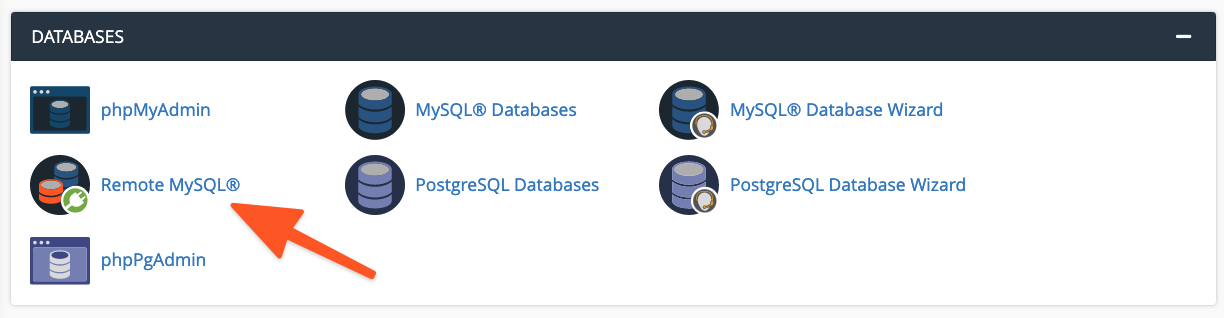
- **Navigate to Remote MySQL®:** From the main page menu within cPanel, locate and select the Remote MySQL® tool. This dedicated interface allows you to manage and configure which external hosts are permitted to connect to your MySQL databases.
For situations demanding access from multiple IP addresses within a defined range, you have the option to employ a wildcard character (%). For example, entering 192.68.0.% would grant permission for connections originating from any IP address starting with 192.68.0.. When utilizing wildcards, it is imperative to exercise extreme caution and strictly limit their scope to IP addresses that are unequivocally under your direct control or are confidently secured, thereby minimizing potential security risks and unauthorized access.
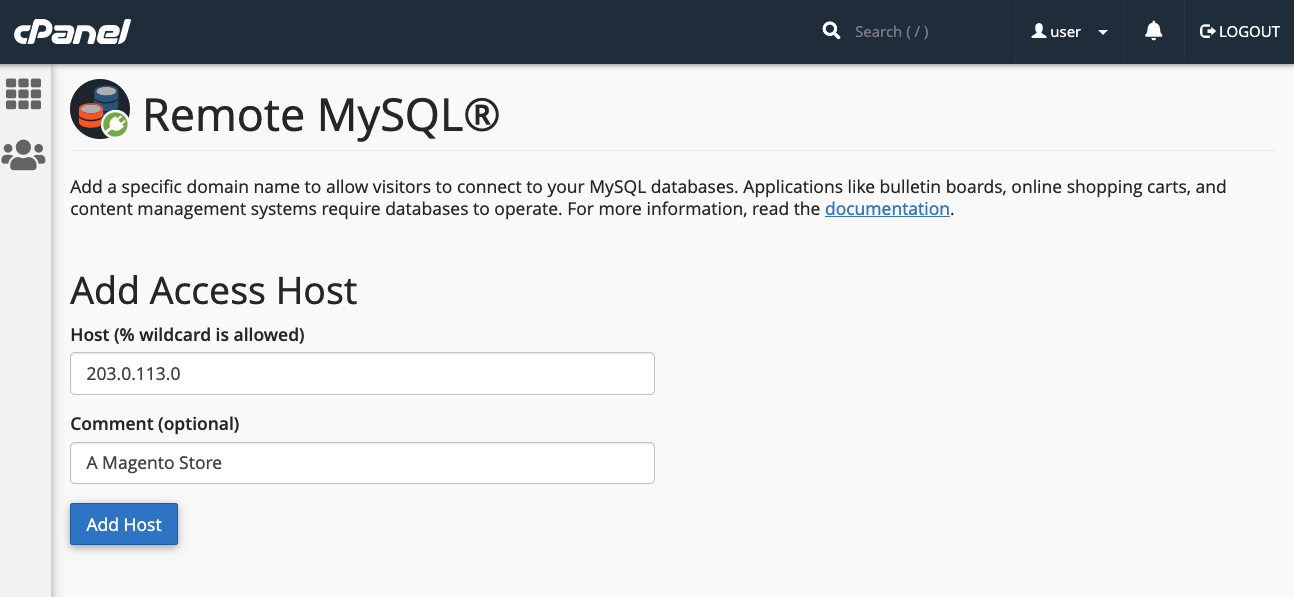
Once the access host is successfully added in cPanel, the next critical step involves configuring your web application to properly utilize this remote database. The precise procedure will vary depending on the specific application you are running. For example, with a newly installed WordPress site, the process typically involves:
- **Database Creation:** First, create the database using cPanel’s intuitive MySQL® Database Wizard, which guides you through the creation of both the database and an associated user with appropriate privileges.
- **Configuration File Update:** Subsequently, you would edit the WordPress site’s
wp-config.phpfile. This crucial configuration file requires updates to include the newly created database name, the database user’s authentication credentials (username and a secure password), and most importantly, the remote database server’s domain name or IP address as the `DB_HOST` value.
An illustrative example of how these settings would appear within your wp-config.php file is provided below:
define( 'DB_NAME', 'wp_database' );
define( 'DB_USER', 'user' );
define( 'DB_PASSWORD', 'a-secure-password' );
define( 'DB_HOST', '203.0.113.0' );
It is essential to ensure that the DB_HOST value accurately reflects the IP address or domain name of your remote MySQL server to establish a successful connection.
Managing Global MySQL Access Hosts in WHM
For system administrators overseeing larger hosting environments, cPanel & WHM offers a centralized and powerful approach to managing MySQL access through the WebHost Manager (WHM) interface. This method enables broader configuration, as any host added here will universally affect all cPanel user accounts and their associated MySQL users on that server. This functionality is particularly valuable for scenarios where multiple cPanel accounts on a single server need to access a consistent set of remote database servers.
It is important to understand some key distinctions when configuring remote database access in WHM compared to the cPanel user interface:
- **Universal Application:** Hosts configured and added via WHM are applied universally to all cPanel user accounts and their respective MySQL users residing on that particular server.
- **Administrator Control:** cPanel users do not possess the ability to permanently remove hosts that have been previously configured and added by system administrators in WHM. This ensures consistent policy enforcement and prevents unauthorized removal of critical access permissions.
To enable remote hosts to securely connect to MySQL databases across your entire server, navigate to the Additional MySQL Access Hosts option, which is conveniently located within the SQL Services section of the WHM sidebar menu.
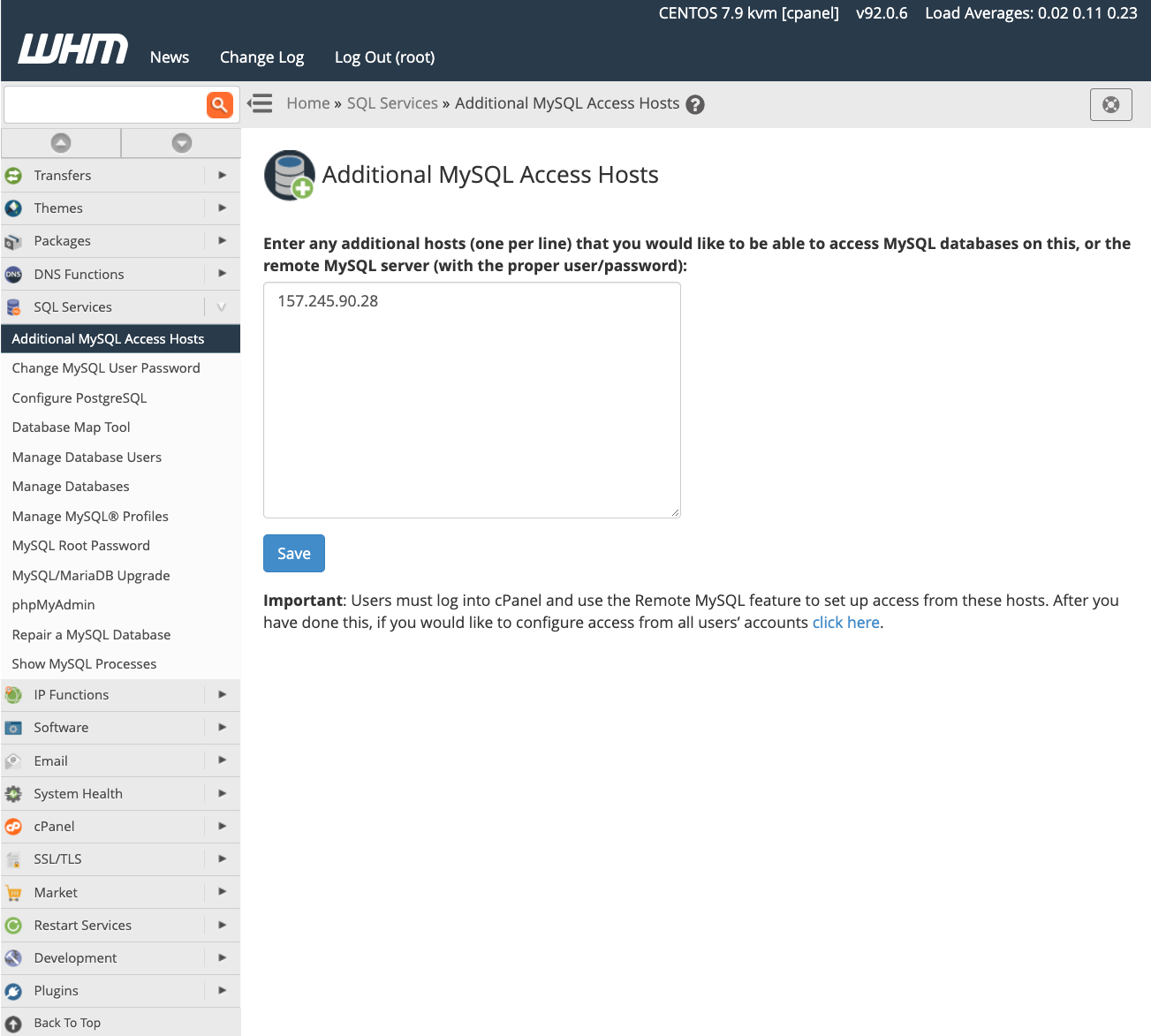
In this interface, you will input the domain names or IP addresses of the remote hosts that require explicit permission to establish connections with the databases hosted on your server. After accurately entering all necessary information, click the save button to apply your changes across the server. Following this configuration, you must proceed to configure your individual web applications with the appropriate remote server IP address and authentication credentials, as comprehensively detailed in the preceding section, to begin effectively utilizing the server’s databases.
For a more comprehensive and in-depth understanding of managing database access hosts and their various parameters, we recommend referring to the official feature documentation page provided by cPanel.
Advanced MySQL Management: Profiles in WHM
Beyond simply granting individual host access, WHM equips server administrators with powerful tools to define and manage intricate MySQL profiles. A MySQL Profile fundamentally allows administrators to specify and control which remote database server is used throughout the entire cPanel & WHM environment. This even extends to managing the default local database instance, which itself is configured and managed via a profile. This advanced functionality is absolutely crucial for sophisticated deployments, complex database architecture planning, and ensuring consistency across diverse server infrastructures.
MySQL profiles offer unparalleled versatility, providing robust support for connections to various types of remote database solutions. These capabilities include seamless integration with databases running on other cPanel & WHM servers, dedicated standalone MySQL servers, and even managed database services such as Amazon’s Relational Database™ Service (RDS). This extensive flexibility empowers administrators to tailor their database infrastructure precisely to their operational needs.
Before proceeding with the creation and subsequent activation of a new profile, it is paramount to understand that WHM enforces a strict policy: only one MySQL profile can be active at any given time. To initiate the process of adding a new profile, log in to your WHM interface and navigate to the Manage MySQL® Profiles section, which can be found conveniently under SQL Services in the sidebar menu.
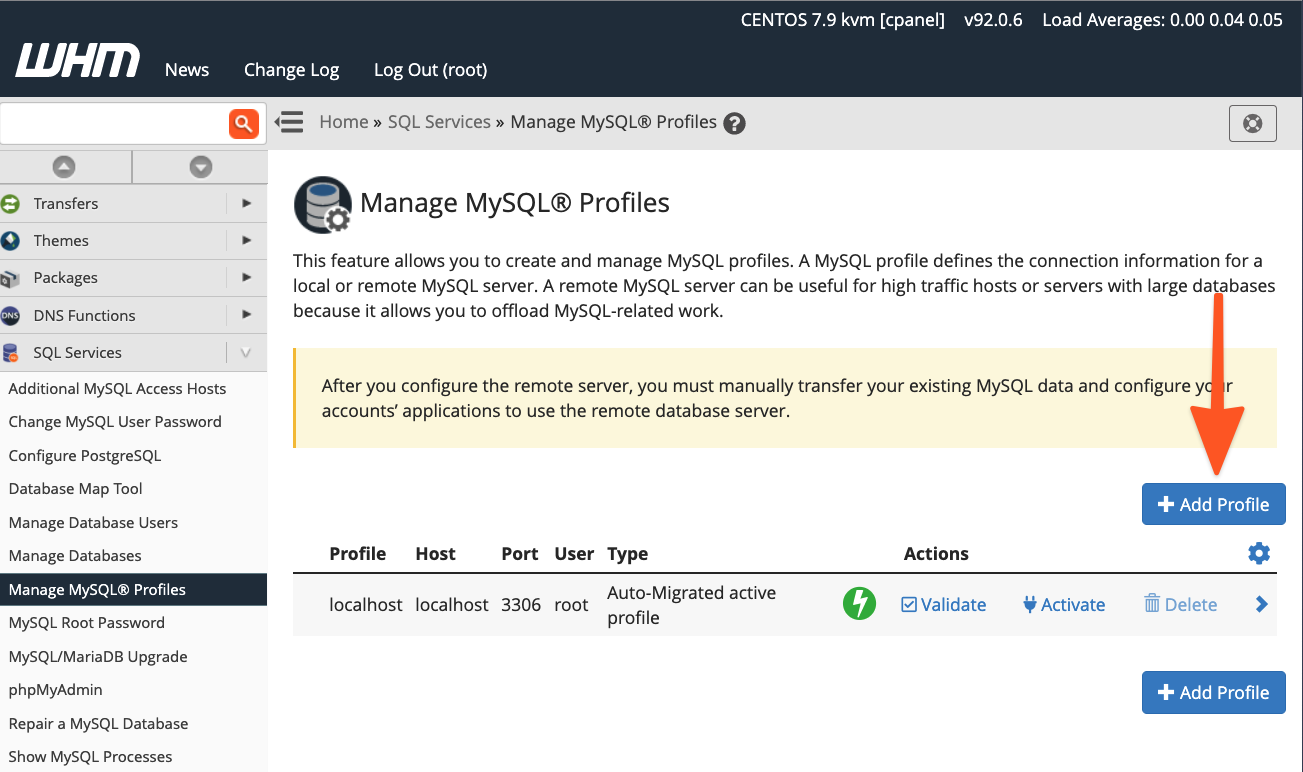
WHM offers the remarkable convenience of automatically logging into the specified remote server, creating a new MySQL superuser specifically dedicated to managing databases, and seamlessly configuring all necessary MySQL settings. Alternatively, if you already possess an existing MySQL installation with a pre-configured superuser, you have the flexibility to simply input those existing details directly into the profile setup, integrating your current setup effortlessly.
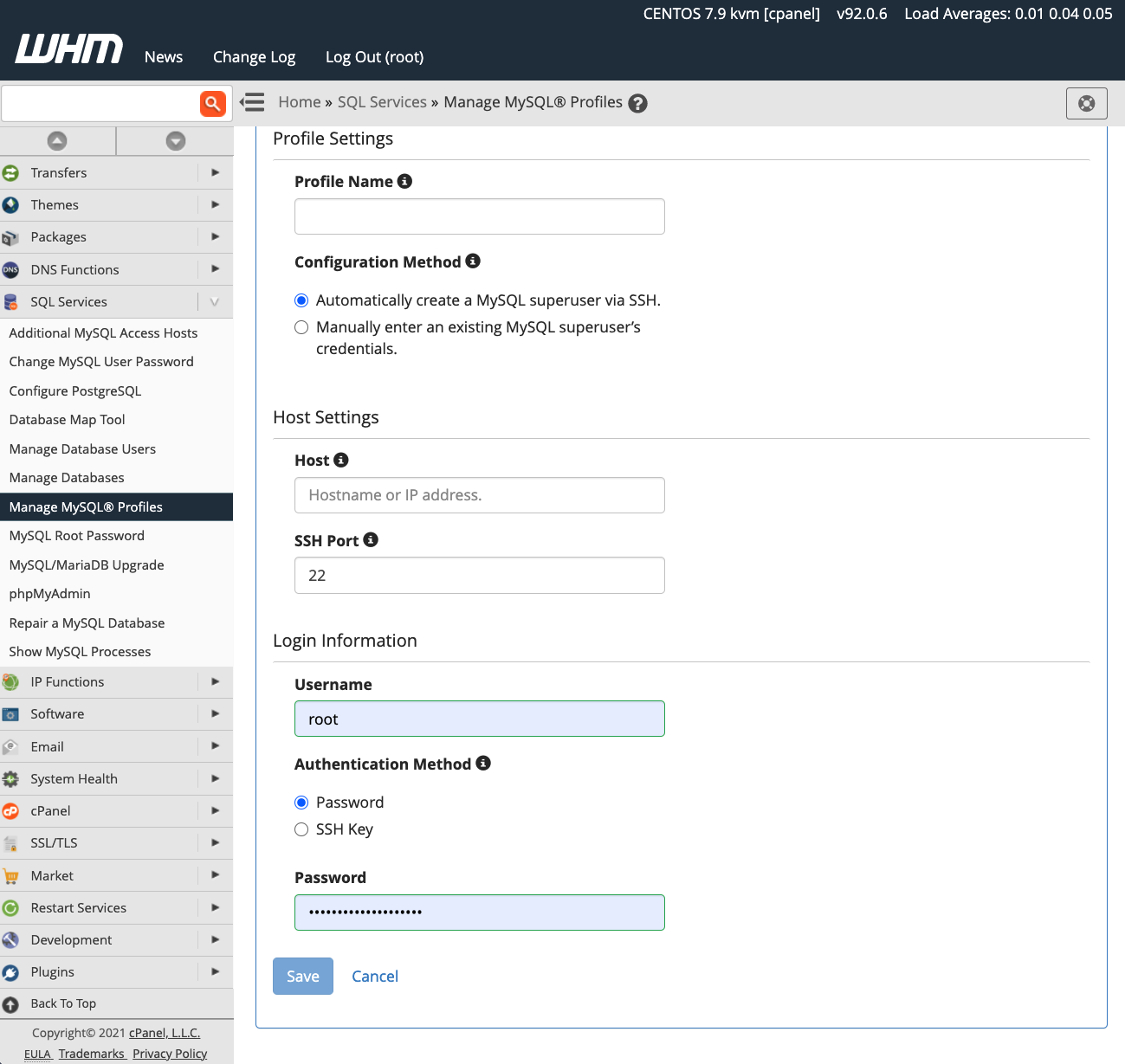
Once a new MySQL profile has been successfully activated within WHM, it's important to note that all subsequent database creation operations initiated through cPanel & WHM will occur on the newly designated remote server. However, it is crucial to understand that existing databases are not automatically migrated to the new remote server. For these pre-existing databases, you will need to perform a manual data transfer, which involves exporting them from their old location and subsequently importing them into your newly configured remote MySQL instance.
Conclusion: Enhancing Database Flexibility with cPanel & WHM
cPanel & WHM provides an unparalleled level of flexibility, robust control, and advanced management capabilities for web hosts and their clients when it comes to configuring and managing MySQL databases. This powerful platform empowers users to optimize their database infrastructure in a multitude of ways, effectively catering to diverse operational needs and complex hosting environments. Key advantages and features include:
- **Optimized Local Hosting Defaults:** Benefit from outstanding, ready-to-use default configurations for hosting MySQL databases directly on the local server, ensuring optimal performance and ease of setup for standard deployments.
- **Seamless Remote Database Integration:** Facilitate easy, secure, and efficient database configuration for websites and online stores hosted on external, remote servers, thereby extending your operational reach and enhancing scalability.
- **Comprehensive Administrator Control:** Leverage powerful system administrator tools that grant complete command and oversight over MySQL, allowing for precise control over where databases are hosted, how they are accessed, and how they perform.
By effectively utilizing the comprehensive capabilities of cPanel & WHM, you can expertly manage database workloads, significantly enhance overall security postures, and seamlessly scale your web applications with unwavering confidence, ultimately ensuring reliable and highly efficient data handling across your entire infrastructure.
