
 (1).svg)
 (1).png)


 (1).svg)
.svg)
Subdomains are valuable additional third-level domain names that, when included in your hosting package, offer significant flexibility for your online presence. They allow you to effectively organize your website's structure or host supplementary content without the need to register entirely new domain names.
- Organize the logical structure of your website more efficiently.
- Host additional websites or distinct sections of an existing website on the same server, thereby avoiding the cost and effort of registering new domain names.
Consider an example: if you operate a primary website, your-product.com, dedicated to marketing and selling your products. To provide dedicated information related to customer service or facilitate online order tracking, you can establish an "orders" subdomain. This enables your users to directly access this specific information by navigating to orders.your-product.com.
Subdomains are treated with the same capabilities and status as your main domain. This means you can leverage the full suite of tools and services available for your primary domain, such as robust SSL/TLS protection, the intuitive Sitejet Builder, comprehensive web statistics, and many other features, all applied to your subdomains.
Setting Up a Subdomain
To configure a new subdomain for a particular site division or an entirely separate website, follow these straightforward steps:
- Navigate to the Websites & Domains section within your Plesk control panel.
- Click on the Add Subdomain option.
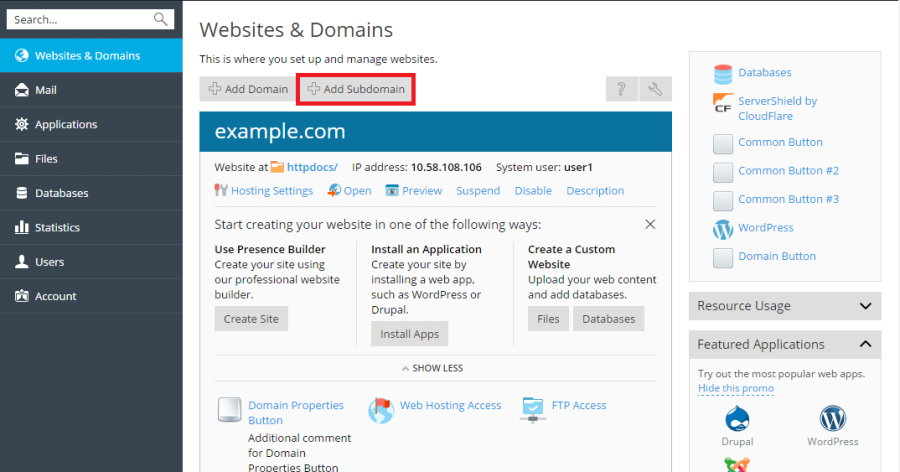
- Provide the necessary details in the fields below:
- In the Subdomain name box, enter the specific portion of the address that you wish to prepend to your main domain name. For instance, for
orders.your-product.com, you would type "orders". - In the Document root box, specify the preferred location for the directory where all website files and subdirectories for this new subdomain will be stored. You have the flexibility to either utilize the default
httpdocsdirectory of your main site or define an alternative, custom directory.
- In the Subdomain name box, enter the specific portion of the address that you wish to prepend to your main domain name. For instance, for
- Once you have entered the details, click OK to finalize the creation.
Upon successful creation, the newly configured subdomain name will appear in the list at the bottom of your screen, indicating it is ready for use. You can then proceed to upload your web content to this dedicated subdomain directory on the server. For detailed guidance on content uploading, refer to the Website Content section, specifically the Uploading Content Using FTP subsection.
Understanding Wildcard Subdomains
By entering an asterisk (*) symbol in the subdomain name field during creation, Plesk enables you to establish a wildcard subdomain. This special type of subdomain serves as a catch-all; if a site visitor attempts to access any subdomain name that has not been explicitly registered within Plesk, they will be automatically redirected to this designated wildcard subdomain. This functionality can be implemented across various domain name levels. For example, you could create *.mystore.example.com to cover all unspecified subdomains at that level. To delve deeper into the capabilities and configuration of wildcard subdomains, especially on Linux systems, please consult the dedicated section on Adding Wildcard Subdomains (Linux).
