
 (1).svg)
 (1).png)


 (1).svg)
.svg)
The Plesk firewall is a powerful tool designed to enhance the security posture of your Plesk for Linux server by enabling you to restrict network connections to and from the server. This guide will walk you through the process of adding and removing firewall rules and policies, blocking incoming connections from specific countries, and efficiently replicating firewall configurations across multiple servers via export and import functions.
Caution: Both the Plesk firewall and firewalld are mechanisms for managing the iptables firewall. Employing both tools simultaneously can lead to conflicts and inadvertently close ports critical for Plesk's operational stability. It is strongly recommended to use only one of these tools at any given time to avoid such issues.
Managing Firewall Rules and Policies
By default, the Plesk firewall configuration is structured around both policies and rules, each serving a distinct purpose in controlling network traffic:
- Policies: These possess a broad scope, influencing all connections to or from the server, depending on the specific policy. For instance, the “System policy for incoming traffic” can be utilized to comprehensively block all incoming connections to the server.
- Rules: These are more granular in their application, governing incoming connections to individual Plesk services, such as SMTP or MySQL/MariaDB.
It is important to understand that rules take precedence over policies. For example, if a global policy is configured to deny all incoming traffic, but a specific rule permits incoming traffic from a designated IP address, that rule will override the policy. This hierarchical mechanism provides flexibility to either tighten or relax the server's security as needed.
Consider an example: configuring policies to prohibit all connections to and from the server, with exceptions only for a few explicitly allowed IP addresses or ports, will significantly enhance security. However, this rigorous approach might prevent some applications from functioning correctly due to network restrictions. Conversely, allowing all connections by default and then using specific rules to block access to individual services or from particular IP addresses offers greater usability but may render your server less secure. It is crucial to experiment and find the optimal balance between server usability and robust security.
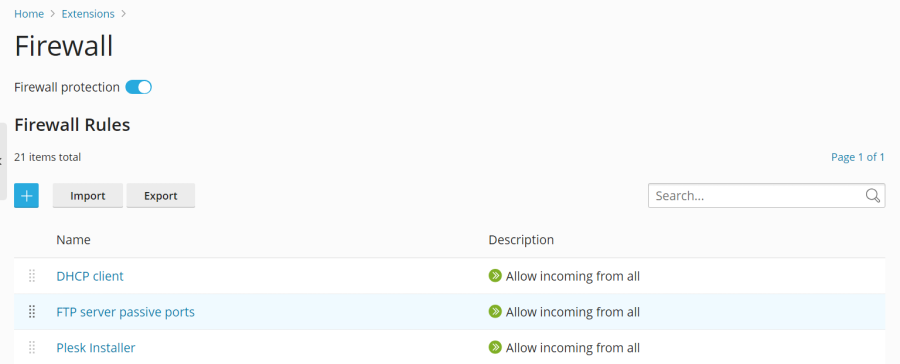
The firewall can be managed through two primary methods:
- Modifying existing policies and rules, including the default configurations.
- Creating and removing custom rules tailored to specific security requirements.
Modifying an Existing Policy or Rule:
- Log in to Plesk.
- Navigate to Tools & Settings > Firewall (located under “Security”).
- Ensure the “Firewall protection” toggle button displays “Enabled”. If it is already enabled, you may skip this step.
- Click on the specific policy or rule you wish to modify.
- Implement your desired changes, then click Save, followed by Apply Changes, and finally Apply to confirm.
The updated firewall configuration will now be in effect.
Creating a Custom Rule:
- Log in to Plesk.
- Navigate to Tools & Settings > Firewall (under “Security”).
- Verify that the “Firewall protection” toggle button shows “Enabled”. If it is already enabled, proceed to the next step.
- Click the
 button to add a new rule.
 - (Optional) Assign a descriptive name to your rule for easier identification.
- Configure the rule according to your needs. For example, to block all incoming connections to the SSH service from IP address 198.51.100.1 (assuming the default SSH port 22 is in use), you would set “Match direction” to “Incoming”, “Action” to “Deny”, “Port” to “TCP 22”, and then enter “198.51.100.1” in the “Sources” field.
- Once the rule is configured, click Save, then Apply Changes, and finally Apply.
The new firewall rule will now be active. When creating custom rules, exercise caution to avoid inadvertently blocking connections to ports utilized by Plesk services, which could disrupt server operations.
Note: If you are utilizing Docker containers, it's important to be aware that Docker firewall rules are managed separately and will not be automatically integrated into the Plesk firewall rules.
Removing Custom Rules:
- Log in to Plesk.
- Navigate to Tools & Settings > Firewall (under “Security”).
- Ensure “Firewall protection” is “Enabled”. If it is already enabled, you can skip this step.
- Select one or more custom rules that you wish to remove. Only custom rules can be deleted.
- Click Remove, confirm by clicking Yes, remove, then click Apply Changes, and finally Apply.
The firewall configuration changes will now be in effect, with the selected custom rules removed.
Country Blocking
The Plesk firewall provides a robust feature allowing you to block network access to or from IP addresses originating from specific countries. This can be particularly useful for mitigating threats from known malicious regions or enforcing geographical access restrictions.
Blocking Access from a Specific Country:
- Log in to Plesk.
- Navigate to Tools & Settings > Firewall (under “Security”).
- Confirm that the “Firewall protection” toggle button shows “Enabled”. If it is already enabled, proceed to the next step.
- Click the button.
- (Optional) Provide a meaningful name for your rule.
- Set the “Action” to “Deny”.
- Under “Sources”, input the two-letter ISO 3166 country code for the country you intend to block. For instance, to block all incoming connections from Afghanistan, you would enter "AF".
- (Optional) To block additional countries, click “Add one more” and repeat the previous step. You have the flexibility to block as many countries as required.
- Once all desired countries are added, click Save.
- Finally, click Apply Changes, and then Apply to activate the new configuration.
After the firewall configuration has been successfully applied, all incoming connections to your server originating from the specified blocked country or countries will be denied.
By default, Plesk utilizes the free “IP to Country Lite” database from DB-IP for country blocking. For enhanced accuracy and features, you can opt to use a free or paid database from MaxMind. Before making this switch, you will need to obtain a license (either free or paid) from MaxMind and receive your unique license key.
Switching to a MaxMind Database (GeoLite2 or GeoIP2):
- Add the appropriate lines to your
panel.inifile:- For the free GeoLite2 database:
[ext-firewall] geoipDataSource = maxmind-lite - For the paid GeoIP2 database:
[ext-firewall]
geoipDataSource = maxmind
- For the free GeoLite2 database:
- Log in to your server via SSH and execute the following command, replacing
<enter your license key here>with your actual MaxMind license key:- To use the free GeoLite2 database:
LICENSE_KEY=<enter your license key here> plesk sbin modules/firewall/ipsets --configure --data-source maxmind-lite --force - To use the paid GeoIP2 database:
LICENSE_KEY=<enter your license key here> plesk sbin modules/firewall/ipsets --configure --data-source maxmind --force
Note: The command might conclude with a
Set cannot be destroyedwarning. This warning is generally safe to ignore and does not indicate an issue. - To use the free GeoLite2 database:
- Log in to Plesk.
- Navigate to Tools & Settings > Firewall (under “Security”).
- Click Apply Changes, and then click Apply.
Note: If the Apply Changes button is not visible, you may need to create a temporary new firewall rule to trigger its appearance. This rule can be removed after the changes are applied.
Once the firewall configuration has been applied, your Plesk server will begin utilizing the specified MaxMind GeoIP2 or GeoLite2 database for country blocking.
To revert to the default free database from DB-IP, simply remove the geoipDataSource = maxmind-lite or geoipDataSource = maxmind line from your panel.ini file, and then reapply the firewall configuration within Plesk.
Importing and Exporting Firewall Configuration
For administrators managing multiple Plesk for Linux servers, duplicating a firewall configuration across them is a common requirement. The most efficient method for achieving this is to export the existing firewall configuration from one server to a file and then import it onto the other target servers. Both the graphical user interface (GUI) and the command-line interface (CLI) offer functionalities for importing and exporting firewall configurations.
Exporting the Firewall Configuration via the GUI:
- Log in to Plesk on the source server, which holds the firewall configuration you wish to copy.
- Navigate to Tools & Settings > Firewall (under “Security”).
- Ensure the “Firewall protection” toggle button shows “Enabled”, and then click Apply. If firewall protection is already enabled, you may skip this step.
- Click Export.
The firewall configuration will be saved as a .json file, typically found in your web browser’s default downloads directory.
Importing the Firewall Configuration via the GUI:
- Log in to Plesk on the destination server where you intend to apply the copied firewall configuration.
- Navigate to Tools & Settings > Firewall (under “Security”).
- Verify that the “Firewall protection” toggle button displays “Enabled”, and then click Apply. If firewall protection is already enabled, you can skip this step.
- Click Import, and then browse to locate the
.jsonfile that was previously exported from the source server.
The firewall configuration contained within the selected file will now be applied to the server.
Exporting the Firewall Configuration via the CLI:
- Log in to the source server via SSH, the server whose firewall configuration you intend to duplicate.
- Execute the following command to export the firewall configuration:
plesk ext firewall --export > rules.jsonYou have the flexibility to assign any desired name to the output file; “rules.json” is provided here as an illustrative example.
The firewall configuration will be successfully saved to the specified file.
Importing the Firewall Configuration via the CLI:
- Log in via SSH to the destination server where you wish to apply the firewall configuration. Note that you will need to open two separate SSH sessions for this process.
- In the first SSH session, execute the following command to enable firewall protection. If firewall protection is already enabled, you may skip this step.
plesk ext firewall --enable - In the second SSH session, run the following command to confirm that firewall protection is enabled. Again, if it is already enabled, this step can be skipped.
plesk ext firewall --confirm - Back in the first SSH session, execute the command below to import and apply the firewall configuration. Ensure you replace
<the file's URL or local path>with the actual URL or local path to your.jsonconfiguration file.For example, using a URL:
plesk ext firewall --import -config https://example.com/rules.json && plesk ext firewall --applyOr using a local path:
plesk ext firewall --import -config /tmp/rules.json && plesk ext firewall --apply - After applying the new firewall configuration, it is crucial to verify that you can still connect to the server via SSH. If connectivity is successful, proceed to the second SSH session and run the following command to definitively confirm the imported firewall configuration:
plesk ext firewall --confirmNote: If the imported firewall configuration is not confirmed within 60 seconds of executing the
plesk ext firewall --applycommand, the changes will be automatically rolled back, and the previous firewall configuration will be restored for safety.
The firewall configuration from the specified file will now be successfully applied to your server.
