
 (1).svg)
 (1).png)


 (1).svg)
.svg)
While WordPress is a beloved platform, a common challenge users face is managing the substantial volume of comment spam it can attract. Regardless of the type of blog your business operates, developing an effective strategy to combat WordPress comment spam is crucial for maintaining a clean and secure website.
Fortunately, numerous effective plugins, clever tricks, and simple settings are available that can drastically reduce spam, often by as much as 99%. By implementing these solutions, you can significantly cut down the time spent on spam management, allowing you to concentrate more on growing your blog and business.
Excessive comment spam can seriously damage your website. It may negatively affect your search engine rankings, diminish the credibility of discussions among legitimate commenters, and even pose a security risk. Therefore, investing time in stopping spam is highly beneficial for your site's overall health and reputation.
So, how do you effectively stop WordPress comment spam?
7 Ways to Stop WordPress Spam Comments with Built-In Features
The first and often most straightforward approach to combatting WordPress comment spam involves utilizing the platform's native discussion settings, which are accessible via Settings > Discussion.
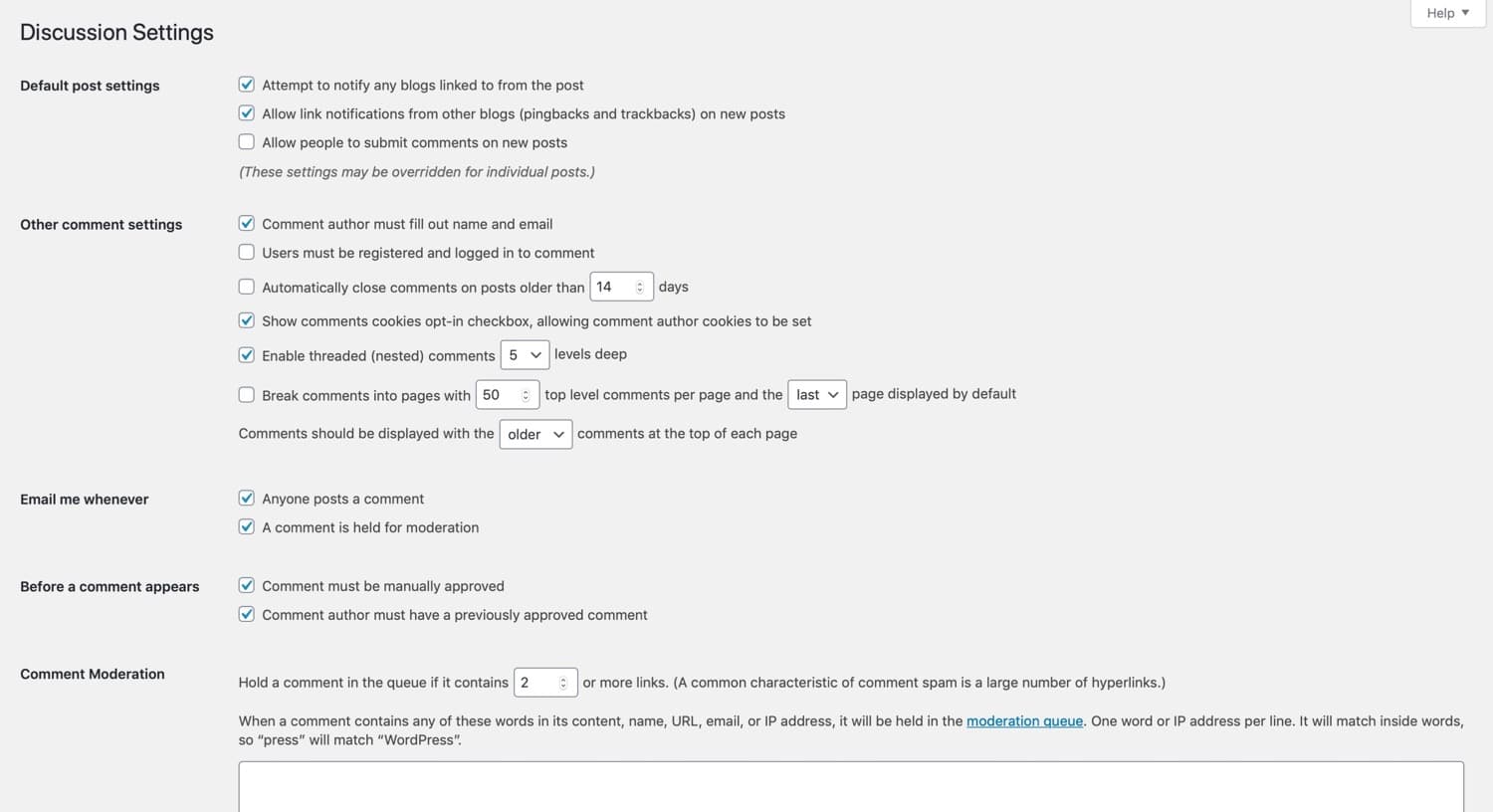
Here, within the discussion settings screen, you have several powerful options at your disposal:
- You can entirely disable comments across your site or for specific posts.
- You can require comment authors to provide their name and email, reducing anonymous spam.
- You can enable comment moderation, allowing you to review comments before they go live.
- You can restrict commenting to only logged-in users.
- You can create a blacklist of words, phrases, and IPs to automatically filter unwanted content.
- You can control the number of links allowed in comments.
Let’s explore each of these methods in more detail.
1. Disable Comments Entirely
The most absolute solution to prevent any spam is to disable WordPress comments altogether. If your website or business model does not rely on or require user comments, this method can completely eliminate the problem of comment spam. One of the simplest ways to achieve this is by unchecking the Allow people to post comments on new articles option, found under Settings > Discussion.
To disable comments entirely for all new content, navigate to the Default post settings section at the top of the Discussion settings screen and uncheck the relevant options. This action will effectively turn off comments for all future posts published on your site. Additionally, you can also opt to turn off pingbacks at the same time.
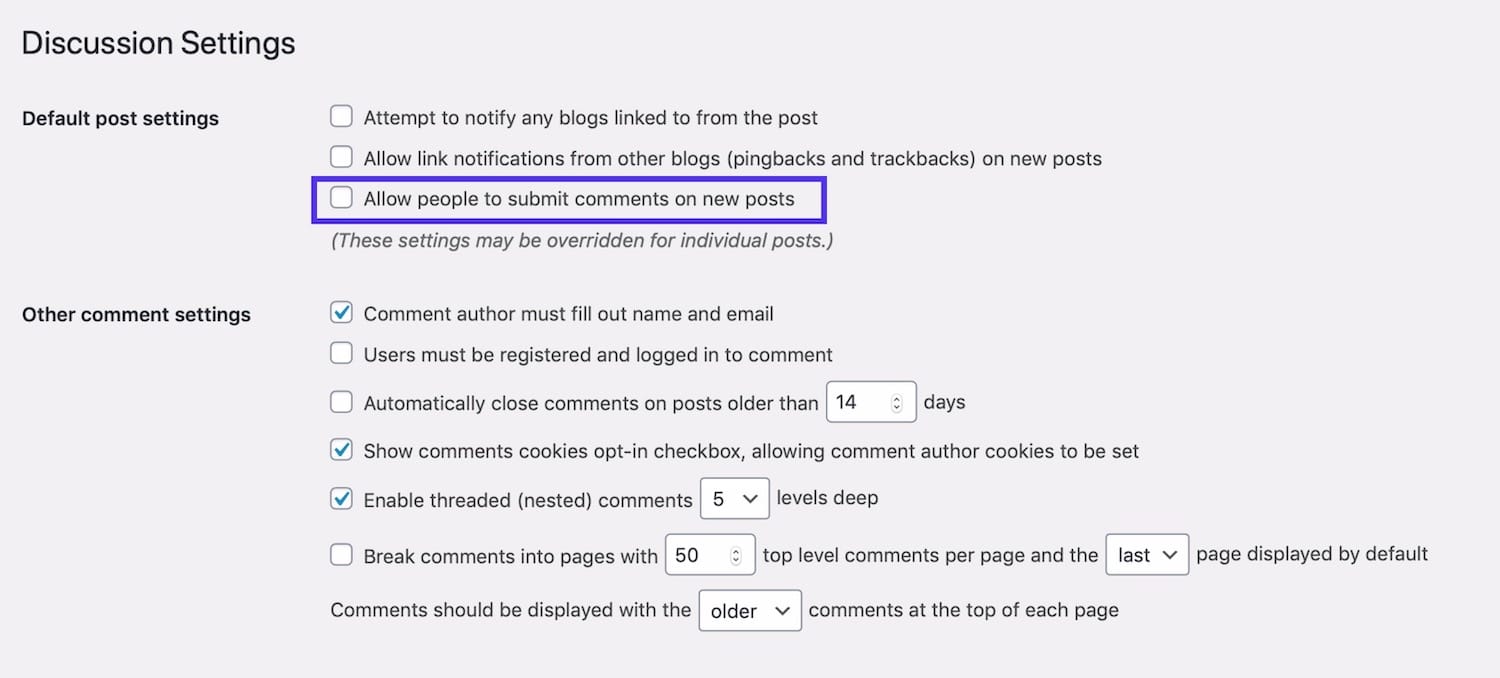
It's important to note that this setting only applies to new posts. Comments on articles you have already published will remain enabled. If you wish to disable comments on existing posts, you will need to do this for each of those posts individually, a process we will cover shortly. After making your selections, scroll to the bottom of the screen and click the Save Changes button to apply these settings. All commenting will then be globally disabled for new content.
2. Turn off Anonymous Comments
Another effective strategy is to disallow anonymous comments. By default, native WordPress comments request four pieces of information from visitors: comment content, name, email address, and website URL. If anonymous comments are permitted, these fields may not be mandatory, instantly opening your site to a deluge of spambots that constantly crawl for open comment forms.
To disable anonymous comments in WordPress, simply check the Comment author must fill out name and email option under Settings > Discussion.
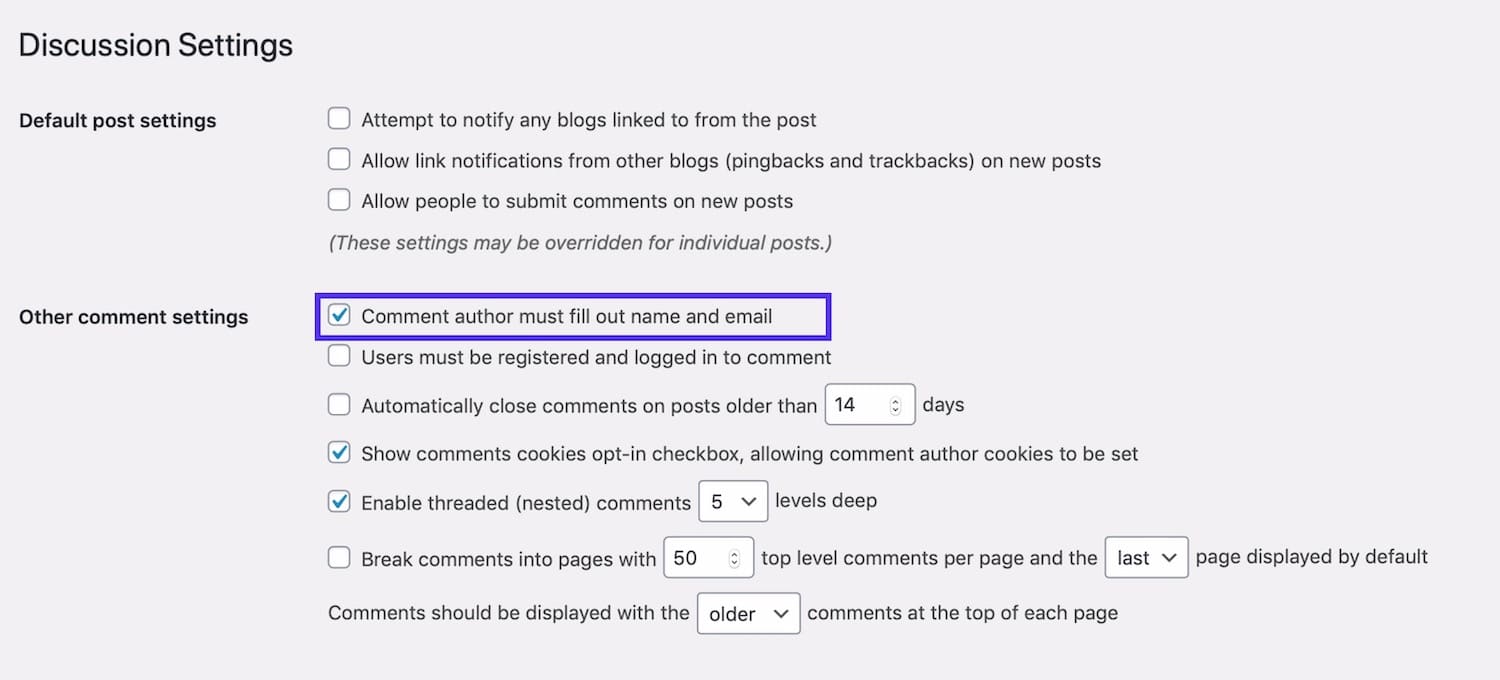
This measure significantly raises the barrier for bots attempting to leave automated comments, which constitute the vast majority of comment spam. While it may not eliminate all spam, it makes it considerably harder for automated systems. It can also subtly discourage individuals from leaving malicious or trolling comments on your site, promoting a more responsible commenting environment.
3. Enable Comment Moderation
Utilizing WordPress's built-in moderation features offers another powerful layer of defense against comment spam. This approach allows you to maintain an active comment section while retaining full control over what appears on your site.
The first feature is the ability to manually approve each comment. While this method won't reduce the volume of incoming spam, it is highly effective in ensuring that visitors to your site only see high-quality, relevant comments that you have personally sanctioned.
The second feature is the comment moderation queue. This allows you to set specific criteria for comments to be automatically held for moderation. For instance, you can configure the system to hold any comment containing a certain number of links. You can also compile a comprehensive list of words, names, URLs, or IP addresses that, if detected, will cause a comment to be held for review.
To configure these settings, navigate to the Email me whenever and the Before a comment appears sections:
- To moderate every single comment before it's published, check the Comment must be manually approved option.
- To moderate comments specifically from new contributors, check the Comment author must have a previously approved comment option. This helps build trust with established commenters.
- To receive a prompt notification when a comment is awaiting moderation (crucial for quick review and approval or deletion), ensure the Email me whenever… A comment is held for moderation option is checked.
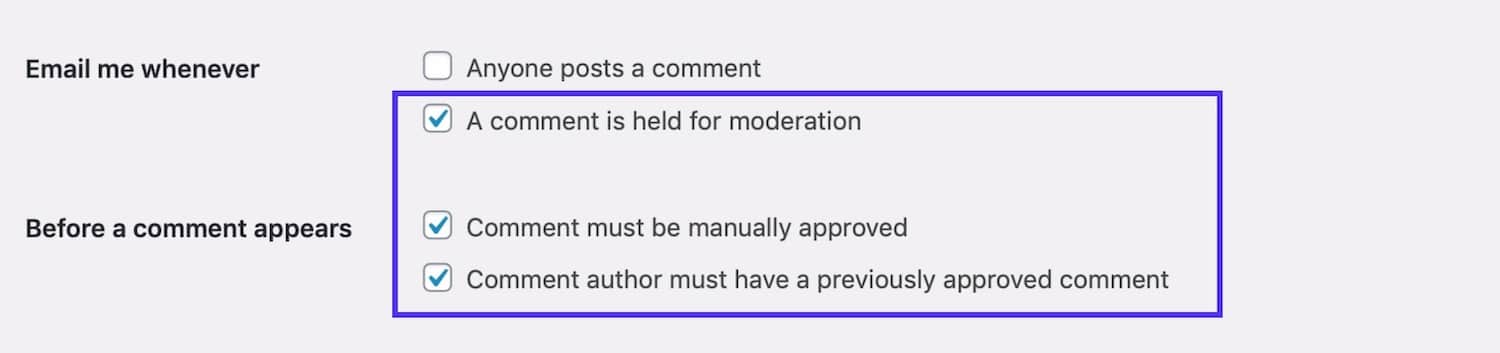
Implementing these moderation settings allows you to curate your comment section, fostering a positive and relevant discussion space while intercepting unwanted spam or inappropriate content.
4. Only Allow Comments from Logged In Users
For websites seeking even tighter control over who can comment, WordPress provides an option to restrict commenting privileges exclusively to registered and logged-in users. This feature is particularly useful for sites that function as membership communities, where the goal is to encourage vibrant debate and interaction among existing members while keeping external commenters at bay.
To enable this, locate the Other comment settings section within Settings > Discussion, and check the Users must be registered and logged in to comment option.
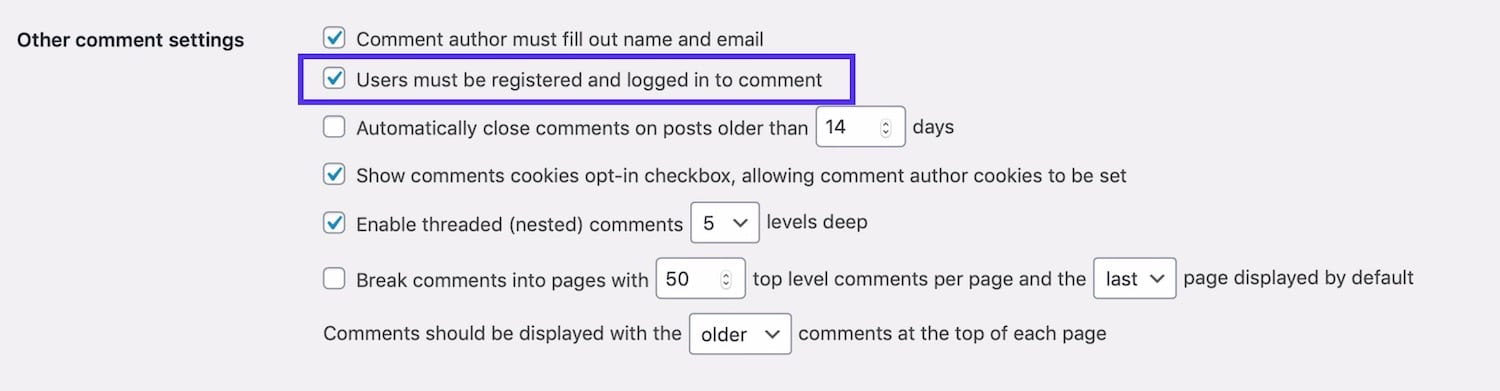
When enabling this setting, you will also need to consider your site's user registration policies. Will registration be open to everyone, or will there be a moderation process for new user accounts? You can manage these registration settings by going to Settings > General. This approach creates a more closed, curated commenting environment, ideal for private communities or platforms requiring user authentication.
5. Create a List of Blacklisted Words
If your aim is to allow comments but prevent the appearance of content relating to specific subjects or containing undesirable language, establishing a blacklist of words is an excellent solution. This list can include terms commonly associated with spammers, as well as any profanity or other words you deem inappropriate for your site's audience. You might also consider adding competitor products or websites if you wish to avoid mentions or links to them, though this should be used judiciously to avoid stifling legitimate discussion.
To create your blacklist, navigate to the Comment Blacklist field in Settings > Discussion. Here, you can type in the blacklisted words or phrases, ensuring each entry occupies its own line. This list isn't limited to just words; it can also include email addresses, website URLs, IP addresses, or any other identifiers you wish to block.
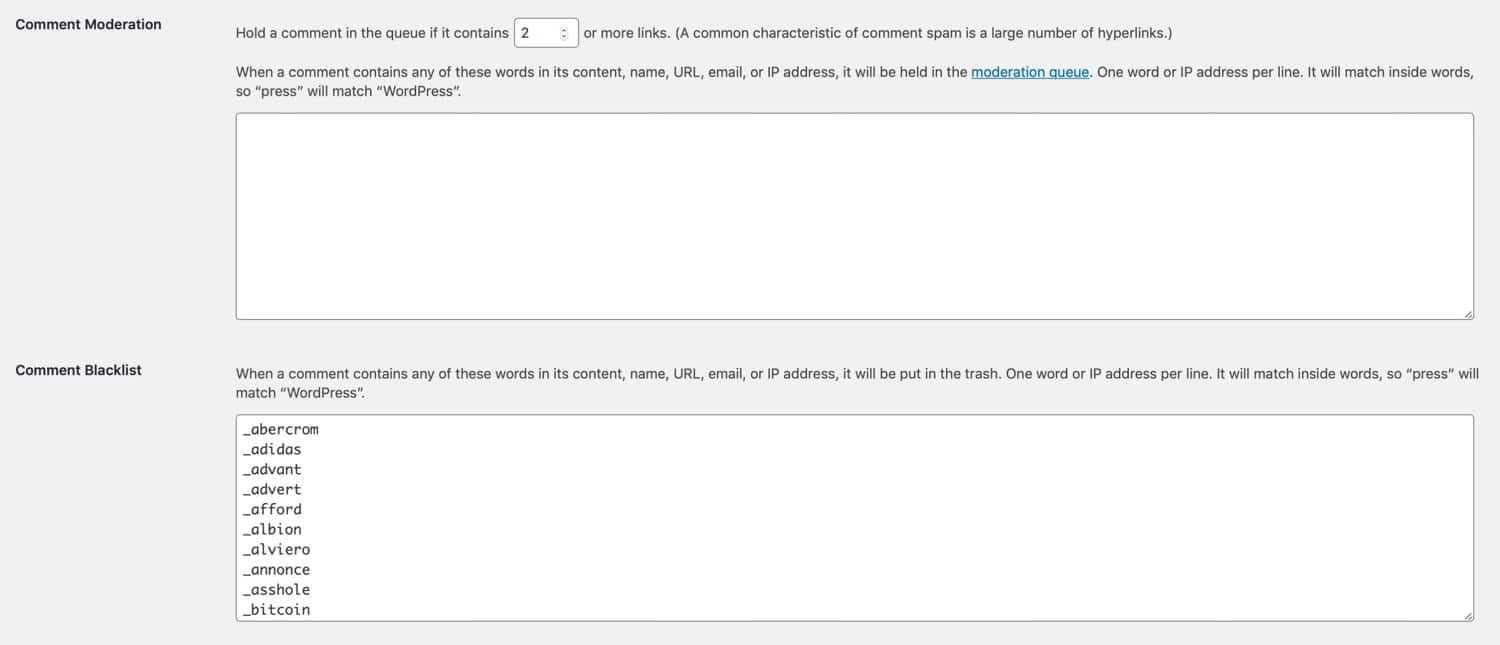
To expedite the process, you can leverage existing public lists of words frequently used by spammers. However, it is always wise to review such lists carefully beforehand, as they might contain words that are legitimate or even essential for your specific niche (e.g., if you run an accessories store, a word like 'handbag' would be problematic to ban). If your preference is not to ban comments containing these words outright but rather to hold them for moderation, you can simply add the list to the Comment Moderation field instead. This allows comments using those words to be reviewed before publication. Alternatively, you could implement a combination, placing some words in the blacklist and others in the moderation queue, based on their severity.
6. Reduce or Ban Links in Comments
Spam comments frequently include links, as their primary objective is often to drive traffic to a spammer's external website. You can effectively combat this by either banning comments containing links entirely or by setting a strict limit on the number of links permitted within a single comment.
In the Comment Moderation section, you can specify the maximum number of links a comment is allowed to have before it is automatically held for moderation. For example, to allow only a single link, you would select 2 (as the system counts 0 links as 0, 1 link as 1, and so on). To completely prevent any comments with links from being published without review, you would select 1. Conversely, if your policy allows for more than one link, you can adjust this number accordingly.

Any comment exceeding the specified number of links will be automatically flagged and held for moderation by an administrator, ensuring that only legitimate comments with appropriate links are published on your site.
7. Disable Comments for Individual Posts
There are instances where you might need to disable comments on specific posts, rather than across your entire site. This is particularly useful if you've globally disabled comments after publishing content, or if a certain post is attracting an excessive amount of spam or generating controversial discussions you prefer to manage. This allows for granular control over your comment sections.
To achieve this, navigate to Posts in your WordPress dashboard, locate the specific post you wish to modify, and click on its title to open the post editing screen.
Within the Document pane on the right side of the editor, scroll down until you find the Discussion tab and expand it. Here, simply uncheck the Allow comments option to disable commenting specifically for that post.
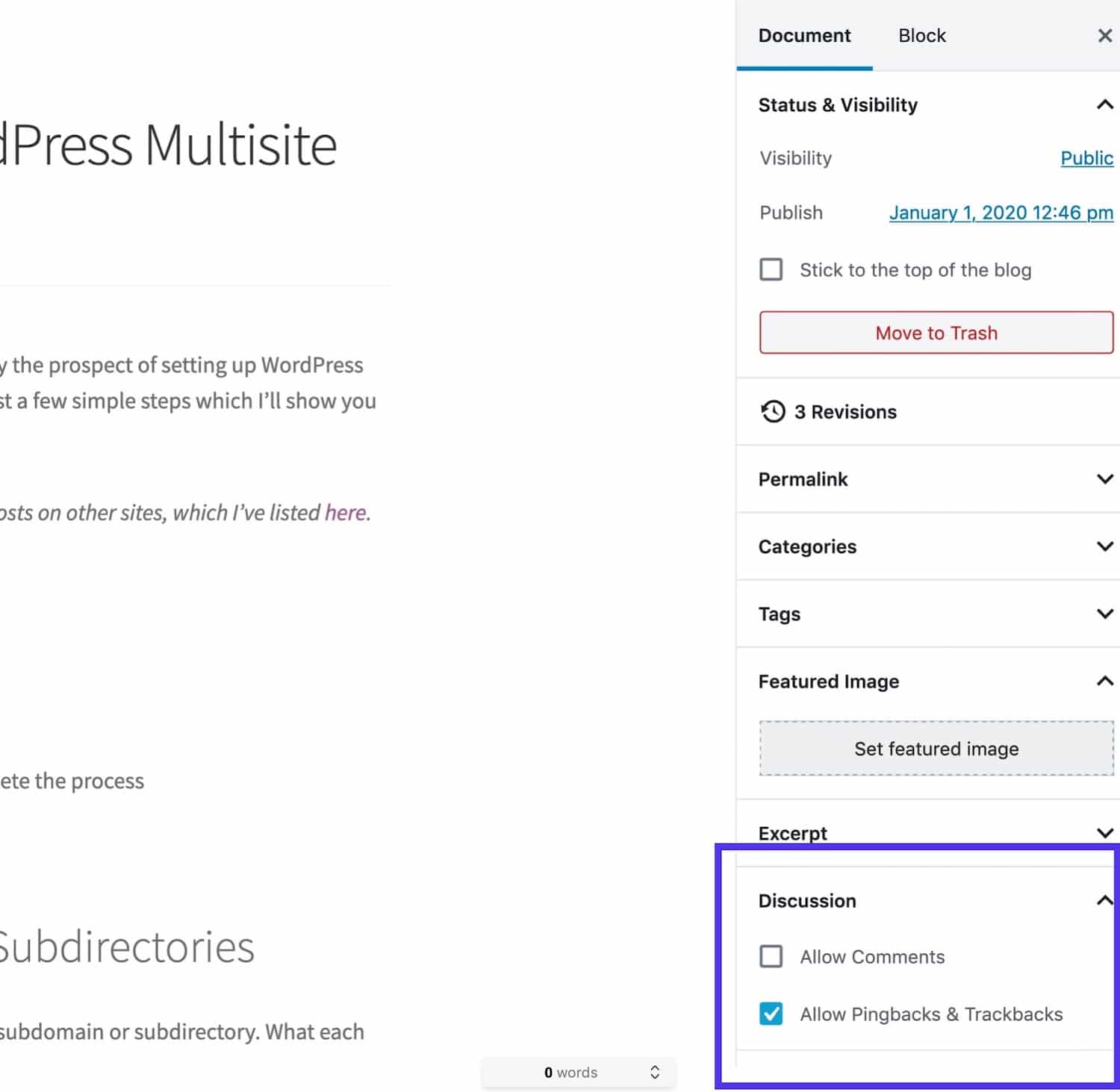
Once you've made this change, remember to save the post by clicking the Update button. Comments will then no longer be displayed or enabled on that particular article, providing you with precise control over your content's interaction features.
Stop WordPress Spam Comments with a Plugin
For a more advanced and often more automated solution to combat WordPress comment spam, integrating specialized plugins can be highly effective. These tools allow you to keep comments enabled on your site while significantly reducing the number of spam comments that reach your moderation queue or are published. They automate much of the filtering process, saving you considerable time and effort.
Here are some of the popular plugins you can consider to stop WordPress comment spam:
Akismet
The Akismet plugin is a widely recognized solution, included by default with every WordPress installation, and actively developed by a dedicated team. It leverages a vast network, analyzing data from millions of sites and communities in real-time, to provide robust protection for your WordPress site against spam. It’s revered as one of the most effective WordPress plugins for spam prevention, offering a free version for personal use.
Akismet currently boasts over 5 million active installs with a consistent 5 out of 5-star rating, reflecting its reliability and user satisfaction. You can easily download Akismet from the WordPress repository or by searching for it directly within your WordPress dashboard under Plugins > Add New (it’s often pre-installed). This plugin has a long-standing history of developing and refining spam rules and filters, doing an exceptional job of ensuring that you primarily see legitimate comments, not unwanted spam. If you're managing a commercial site, a license will be required, but it remains free for hobby bloggers, offering powerful protection that can eliminate over 99% of comment spam from your WordPress site.
Disable Comments
The Disable Comments plugin is a free, simple yet powerful tool that allows you to globally disable comments for specific post types. This is particularly useful if you've decided to disable comments on a WordPress site that already contains a significant amount of content, eliminating the need to manually adjust settings for each individual post. It provides a quick and efficient way to manage comment settings across your entire site.
How to Remove Comment Author Link with a Plugin
To further enhance the quality of your comments and discourage spam that is primarily left for backlink purposes, you can add a small code snippet to your WordPress site that removes the author comment links. This approach can subtly improve the commenting environment. If visitors observe that existing comment authors' names are not linked, they might be less inclined to leave comments solely for the purpose of gaining a link, encouraging more genuine engagement with your content.
To implement this, you can create your own lightweight plugin. Begin by creating a new PHP file within your wp-content/plugins directory. You might name it something descriptive like remove-comment-author-links.php.
Then, insert the following code into your new plugin file:
/*
Plugin Name: Remove Comment Author Links
Description: This plugin removes links to comment author websites, as a way of reducing the impact of comment spam.
*/

function custom_remove_comment_author_link( $return, $author, $comment_ID ) {
    return $author;
}
add_filter( 'get_comment_author_link', 'custom_remove_comment_author_link', 10, 3 );

function custom_remove_comment_author_url() {
    return false;
}
add_filter( 'get_comment_author_url', 'custom_remove_comment_author_url');
If you also wish to entirely remove the field for entering a website URL from the comment form, you can add this additional code to your plugin file:
function remove_website_field($fields) {
    unset($fields['url']);
    return $fields;
}
add_filter('comment_form_default_fields', 'remove_website_field');
After saving your plugin file, activate it from the Plugins screen in your WordPress administration area. It's important to note that this custom plugin might not be compatible with all themes, particularly those that utilize non-standard comment form coding. However, if your WordPress theme adheres to the standard comments form structure, this solution should function correctly. If you encounter issues, you might need to consult your theme's documentation or consider a third-party plugin solution. Always avoid directly editing core theme files unless you are the developer or using a child theme, as updates will overwrite your changes.
Other Spam Plugins
While Akismet is widely adopted, largely due to its default inclusion in most WordPress installations, it is by no means the sole option for spam protection. You might find one of these alternative plugins better suited to your specific needs:

Anti-spam offers both a free and a premium version, with the paid option providing advanced features such as spam checking on existing comments and dedicated technical support.
Antispam Bee stands out by effectively blocking comment spam for free, without the need to send your data to an external third-party service, offering a privacy-focused solution.
Spam protection, AntiSpam, FireWall is engineered to provide comprehensive protection, not only for comments but also for various forms, including popular form plugins. It offers website owners and administrators a reliable shield against spam and malicious bots. This solution utilizes protection methods that are entirely invisible to site visitors, enhancing user experience. By integrating with this service, websites can eliminate the need for CAPTCHA challenges, complex questions, or other cumbersome protection methods that can often complicate user interaction on the site.

All In One WP Security & Firewall is a versatile, all-encompassing security plugin that also incorporates robust features specifically designed to stop comment spam effectively, providing a unified security approach.
It is important to remember that these plugins are generally designed for compatibility with the default WordPress comments form. If you are using a third-party commenting system, you will typically need to rely on the spam-prevention features and tools provided by that specific system.
Stop WordPress Spam Comments with a Captcha
Another widely adopted and effective method to stop WordPress comment spam is to implement a CAPTCHA. A CAPTCHA, which stands for "Completely Automated Public Turing test to tell Computers and Humans Apart," presents a challenge that is easy for humans to solve but difficult for automated bots. This helps verify that the visitor is a real person, not a spam bot. While traditional CAPTCHAs, which often involved deciphering distorted text or identifying objects in images, could sometimes be unpopular with users, modern implementations are far more user-friendly. Increasingly, sites are adopting CAPTCHA fields with a simple 'I am not a robot' checkbox, which utilizes advanced techniques to verify humanity without creating friction for legitimate users.
Many excellent plugins are available to easily integrate this strategy into your WordPress site, and a significant number of them are completely free to use.
Google Captcha (reCAPTCHA) by BestWebSoft
Many users favor Google's interpretation of the CAPTCHA, known as reCAPTCHA, for its clean design and ease of use. Google's reCAPTCHA is arguably one of the most user-friendly options, designed to be effective without negatively impacting the user experience through puzzling questions or illegible characters. The goal is to avoid frustrating visitors to the point where they abandon your site due to a difficult CAPTCHA challenge. The Google Captcha (reCAPTCHA) by BestWebSoft plugin is an excellent tool for implementing this seamlessly on your WordPress site.
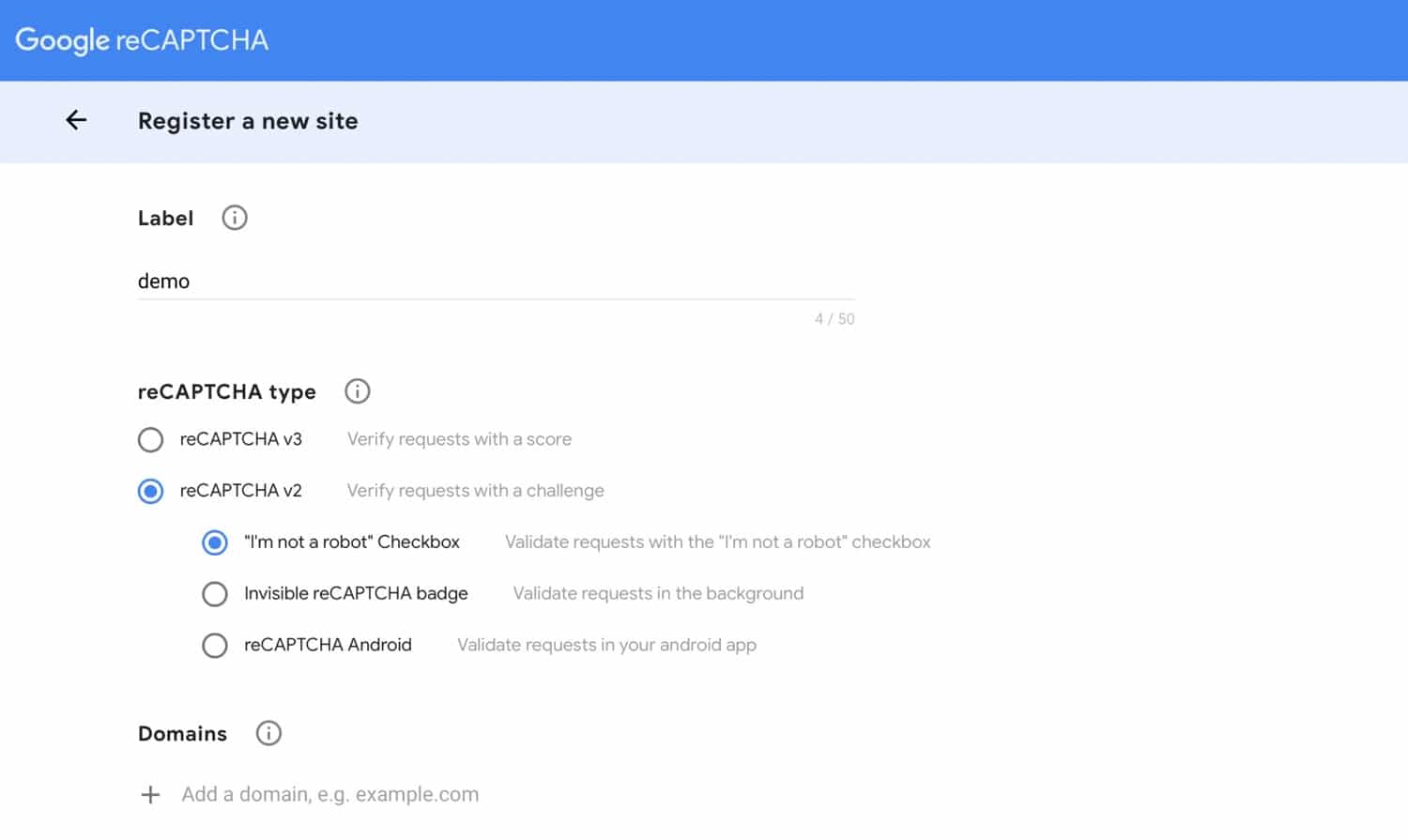
Instead of requiring users to read distorted letters and numbers or identify specific elements in photographs, this plugin typically asks the user to simply check a box confirming they are "not a robot." This seemingly simple action is backed by sophisticated technology that bots cannot easily replicate. To set it up, you'll need to use Google's Captcha API to register your site. You can choose reCAPTCHA v2 for the checkbox version or reCAPTCHA v3, which utilizes JavaScript to check for spam discreetly in the background without any direct user interaction.
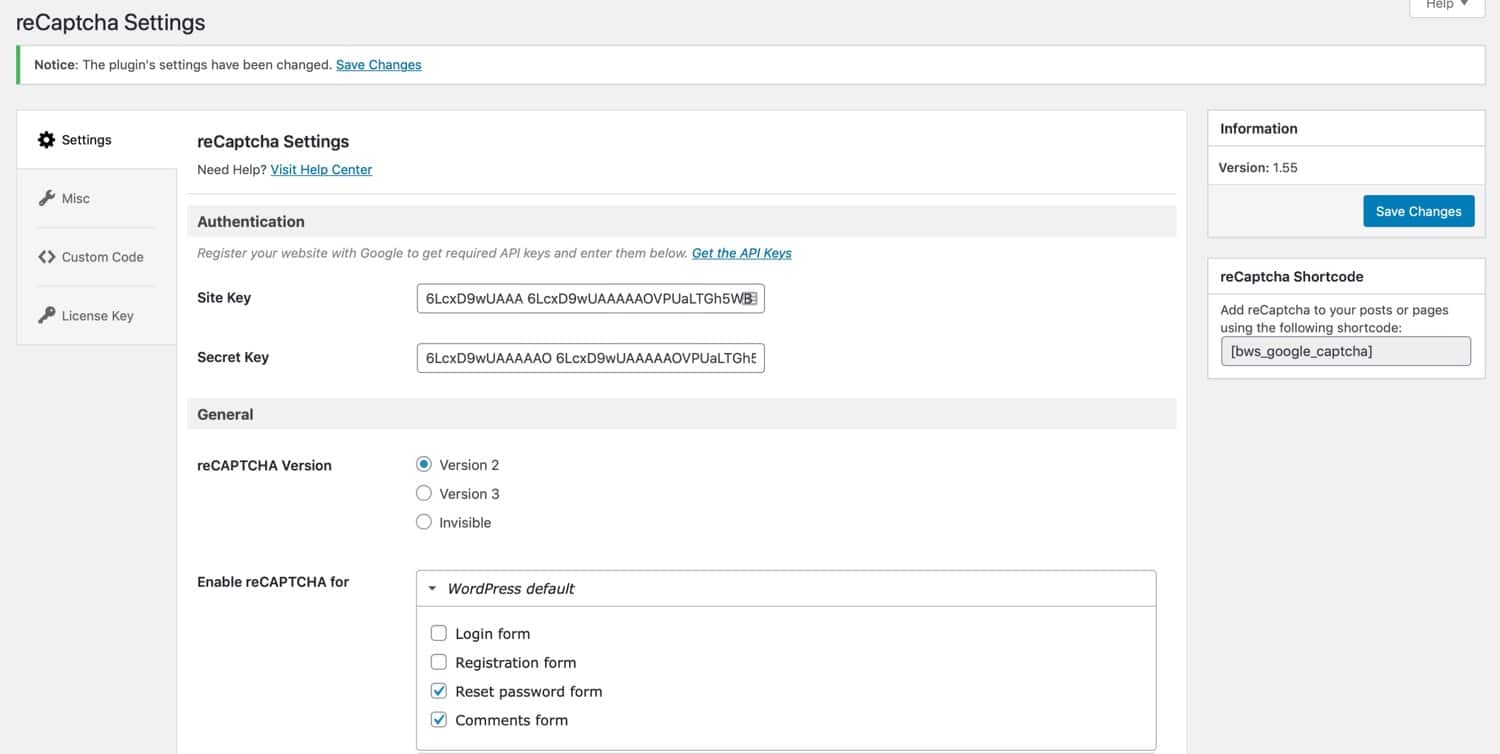
You can usually find a link to register your site directly within the plugin's settings screens. Upon registration, Google will provide you with a site key and a secret key. You will then copy these keys into the corresponding fields within the plugin's settings on your website. After selecting Comments Form in the "Enable ReCAPTCHA for" section, click the Save Changes button.
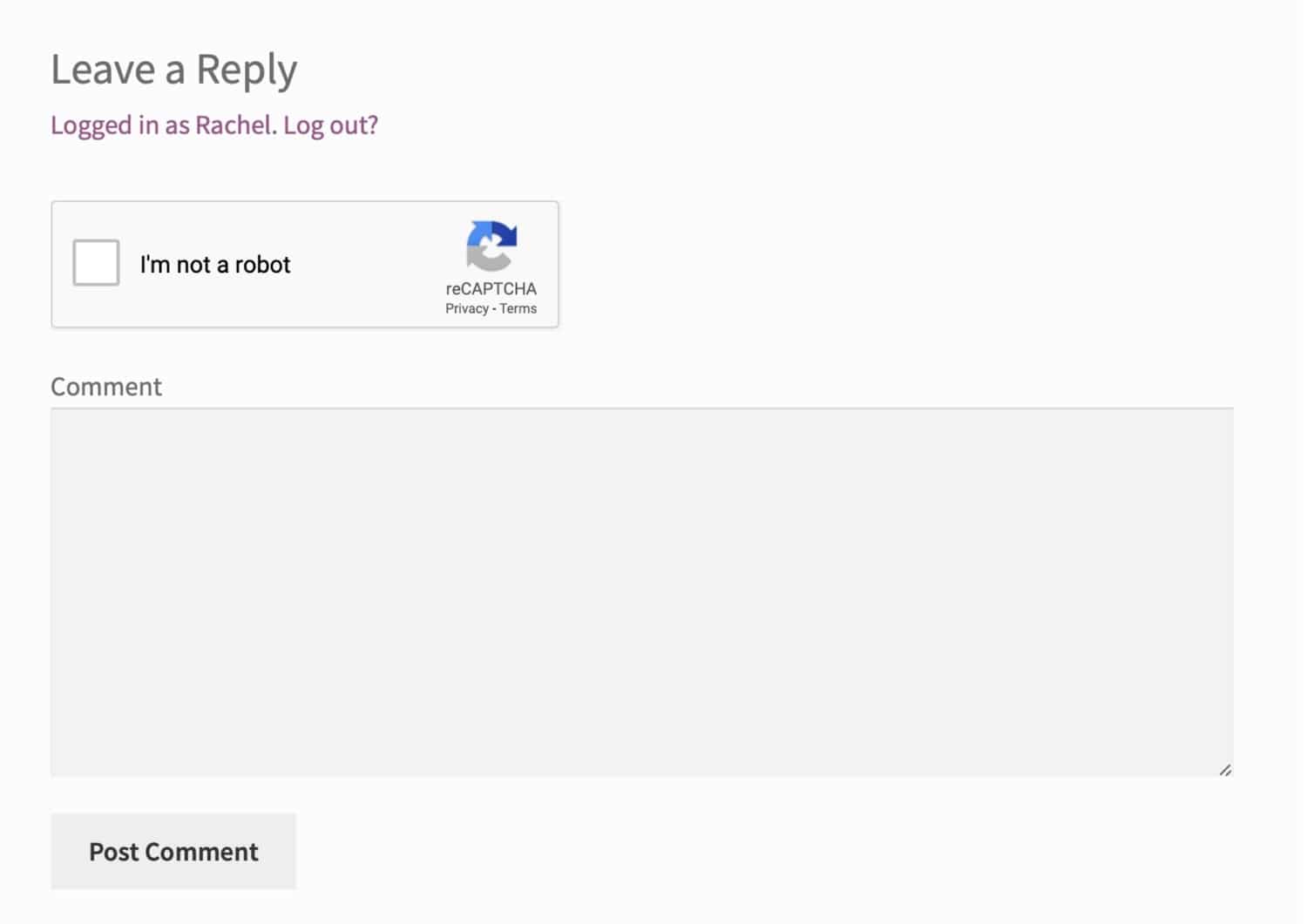
Now, when a user attempts to add a comment to your site, they will first need to check the I’m not a robot checkbox.
Other notable features of this plugin include:
- Compatibility with various forms, such as registration forms, login forms, and reset password forms.
- The ability to hide CAPTCHA for whitelisted IP addresses.
- Support for different visual themes to match your website's design.
- Full multilingual and RTL (Right-to-Left) readiness.
Other ReCaptcha Plugins
Beyond the BestWebSoft option, a plethora of reCAPTCHA plugins are available, some designed for specific integrations with third-party plugins like forms builders. Many of these also provide robust protection for your comment sections.
- Advanced noCaptcha & invisible Captcha (v2 & v3) allows you to implement invisible Captchas using version 3 of the reCAPTCHA API, providing seamless spam protection without user interaction.
- Stop Spammers is specifically designed to add Captcha protection to comments and other forms, while also actively preventing spam registrations on your website, offering a multi-faceted approach to spam prevention.
Stop WordPress Spam Comments Using a Third-Party Commenting System
Finally, an alternative and often highly effective method to mitigate WordPress comment spam is to move away from the default native commenting system and integrate a robust third-party comment platform. These systems often come with their own advanced spam filtering and moderation tools built-in, which can be significantly more powerful than WordPress's native capabilities.
For example, some site owners have found platforms like Disqus to be highly effective, reporting a reduction of spam by as much as 99%. This can virtually eliminate the time spent on manual spam cleanup.
However, it's worth noting that third-party systems can have their own considerations. Some platforms have introduced advertising, which might require a subscription to remove and could potentially affect your site's performance and perceived credibility.
Disqus Conditional Load
If you choose to use a platform like Disqus on your blog, a highly recommended solution is the free Disqus Conditional Load plugin. This plugin was developed as an intelligent way to lazy load comments, meaning comments only load when a user scrolls to that section of the page. This significantly prevents any negative impact on your WordPress site's overall performance and loading speed.
To use it, simply install the plugin in the standard WordPress manner, activate it, and then register with the third-party commenting platform. This plugin is often considered more stable and reliable than some official plugins provided by commenting platforms themselves, making it a preferred choice if you decide to integrate such a system.
Alternatives to Disqus
If the changes or features of platforms like Disqus are not ideal for your site, many alternative third-party commenting plugins are available. Some of these enhance the built-in comments system, while others replace it entirely with a different solution. Here’s a selection:
- Yoast Comment Hacks allows you to extensively customize your comment section, adding features such as disallowing comments below or above specific character lengths, redirecting first-time commenters to a thank-you page, and streamlining comment notification emails.
- The Comments – wpDiscuz plugin positions itself as a strong alternative, offering similar features and robust functionality.
- Super Socializer integrates social commenting into your site, enabling visitors to leave comments using their social media accounts, which can encourage engagement and often comes with its own spam filtering.
- The Jetpack plugin includes a range of features designed to bring functionalities often associated with hosted blog platforms to your self-hosted WordPress site. This includes its own commenting system, which typically utilizes a well-known spam protection service to filter out unwanted comments effectively.
Stop WordPress Spam Comments with a Web Application Firewall
Implementing a Web Application Firewall (WAF) can dramatically reduce the amount of spam traffic your WordPress site receives. WAFs act as a crucial intermediary layer between your WordPress hosting environment and your website, actively blocking and filtering out malicious proxy traffic, bot attacks, and other undesirable connections before they even reach your server.
Popular WAF services offer advanced protection and often include features that allow you to easily block entire countries with a single click, which can be highly effective against geographically targeted spam attacks. Beyond security, a WAF can also contribute to decreasing your site's bandwidth and visitor usage, potentially leading to cost savings on your monthly web hosting bills by preventing junk traffic from consuming your resources.
Summary
While WordPress offers a native commenting system out of the box, it often requires additional measures to effectively manage and prevent comment spam. Protecting your site from the deluge of unwanted comments is essential for maintaining security, credibility, and optimal performance.
The strategies outlined above provide a comprehensive toolkit for achieving this, including:
- Configuring WordPress's built-in settings to block or moderate comments.
- Installing specialized third-party comment and spam plugins that offer advanced filtering.
- Creating your own custom plugin for specific spam prevention needs on your site.
By diligently applying one or more of these methods, you can significantly reduce WordPress comment spam, thereby enhancing your site's security, improving its overall credibility, and ensuring a smoother, more engaging experience for your legitimate visitors.
