(1).svg)
 (1).png)


 (1).svg)
.svg)
When deploying web applications, users often have varying needs and technical proficiencies. To accommodate this, most hosting environments offer flexible methods for installing applications. Understanding these options allows you to choose the most suitable approach for your project.
Choosing Your Installation Method
Depending on your specific requirements and technical comfort level, you can typically select from the following installation methods:
Quick Installation
The quick installation method is designed for ease and speed, making it ideal for users who prefer a straightforward setup. When opting for this method, the system will perform a standard installation of the latest stable version of the chosen application. Default settings are automatically applied, meaning that common configurations—such as administrator credentials—will often be derived from your existing account information. While generally simple, some applications may still require you to input a few essential settings even during a quick installation.
Custom Installation
For users who require more control over their application deployment, the custom installation method provides the flexibility to tailor various settings. This option allows you to configure specific parameters such as administrator usernames and passwords, installation directory, and other crucial application settings. Custom installation is particularly beneficial if you need to manage the application's upgrade schedule, for example, by disabling automatic updates to ensure compatibility with other components or custom modifications.
Important Note on PHP Configuration: Many web applications depend on specific PHP configurations to function correctly. A common directive,
safe_mode, can sometimes prevent applications from operating as intended. It is advisable to verify your PHP settings within your hosting control panel, typically under a section like "PHP Settings," and ensuresafe_modeis disabled. If you encounter difficulties modifying these settings, please contact your hosting provider's technical support for assistance.
Steps to Install an Application
Follow these general steps to install your desired application:
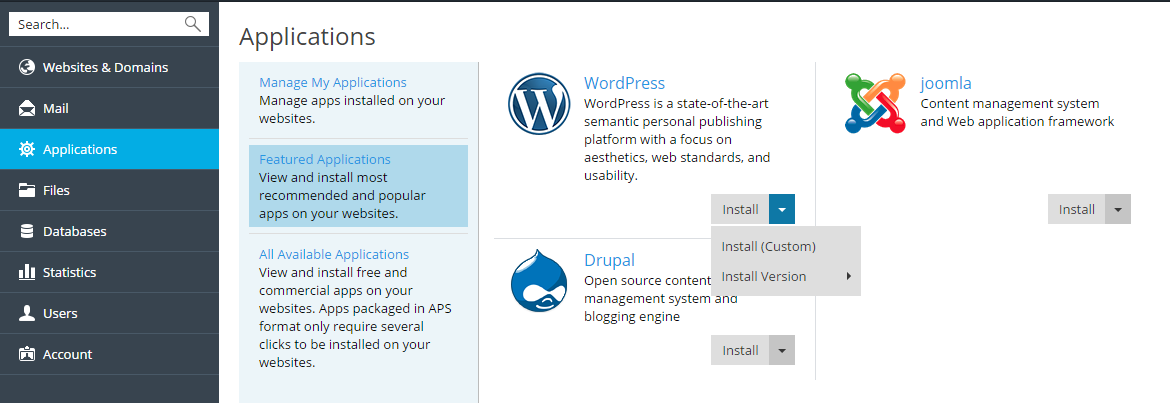
- Navigate to the "Applications" section within your control panel and locate the application you wish to install.
- Initiate the installation by clicking either the "Install" button for a quick setup or the "Install (Custom)" button for a personalized configuration.
(Optional) Configure Automatic Upgrades: If you prefer to manage application updates manually, ensure that the option "Automatically update this app when updates are available" is deselected on the installation settings page. Disabling automatic updates gives you control over when new versions are applied, which can be crucial for maintaining compatibility or testing updates before deployment.
(Optional) Select a Specific App Version: In certain scenarios, you might need to install an older or specific version of an application. This is common when utilizing extensions or plugins that are not yet compatible with the latest application release. To do this, click on the application's name, then select "Install version" to choose the desired version before proceeding with the installation.