
 (1).svg)
 (1).png)


 (1).svg)
.svg)
Introduction
WordPress is a widely recognized and utilized content management system (CMS) that empowers millions of websites, blogs, and online stores across the internet. Its popularity stems from its flexibility, user-friendliness, and extensive community support. For those looking to establish a web presence, installing WordPress is a fundamental first step. This article provides a clear, step-by-step guide on how to efficiently set up a WordPress site using cPanel and the Softaculous Apps Installer.
Understanding the Key Components
Before proceeding with the installation, it's beneficial to understand the core tools involved:
- cPanel: This is a popular web hosting control panel that simplifies the management and administration of websites and their associated services. It provides a graphical interface and automation tools designed to make the process of hosting a website easier. Through cPanel, users can manage domains, files, databases, email accounts, and much more. Its development began in 1996, and over the years, it has evolved significantly, incorporating features like Web Host Manager (WHM) for server administrators to manage user accounts and server configurations.
- Softaculous Apps Installer: As an auto-installer, Softaculous is a powerful tool that allows users to deploy a vast array of web applications and scripts with just a few clicks. It automates the entire installation process, handling all the technical requirements such as uploading files, creating databases, and configuring necessary settings. For platforms like WordPress, which traditionally require a LAMP stack (Linux, Apache, MySQL, PHP) installation, Softaculous drastically reduces the time and complexity involved, making the setup accessible to users of all technical levels.
- WordPress: At its core, WordPress is a free and open-source platform. It originated in 2003 as a new blogging system built upon an existing project, b2/cafelog. Thanks to continuous development by a global open-source community, it has grown into the world's most popular CMS, powering a substantial percentage of all websites today. It offers robust features for content creation, design customization through themes, and extended functionality via plugins, making it suitable for everything from personal blogs to complex e-commerce platforms.
By leveraging the combined power of cPanel and Softaculous, setting up your WordPress site becomes a streamlined and user-friendly experience.
Installing WordPress Using Softaculous
Follow these steps to quickly install WordPress on your hosting account via the Softaculous Apps Installer:
-
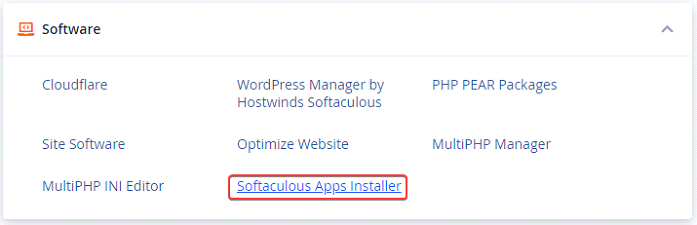
From within your cPanel interface, navigate to the Software section and click on Softaculous Apps Installer.
-
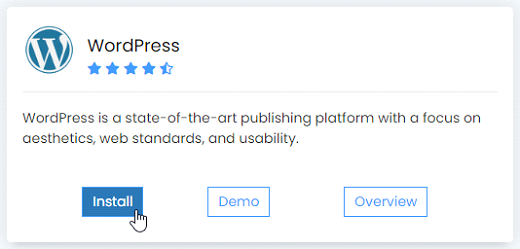
In the Softaculous dashboard, locate the WordPress category or search for WordPress, then select Install.
-
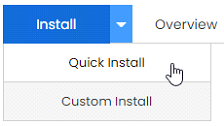
On the installation page, choose Quick Install from the available options. While a Custom Install offers more advanced configurations, Quick Install is generally sufficient for most users and simplifies the process significantly.
-
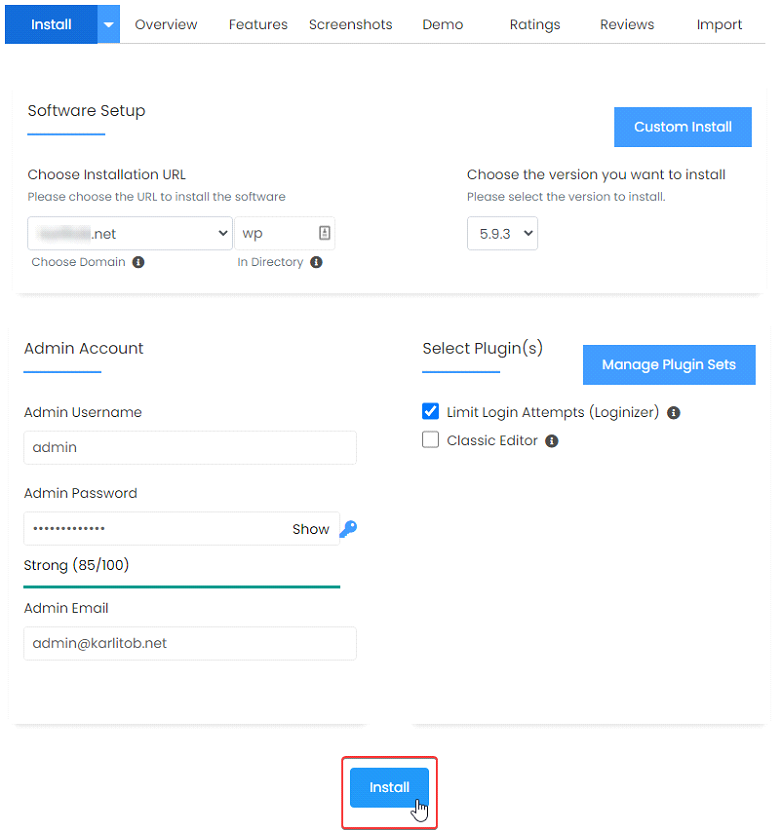
Carefully fill in all the required fields. Pay close attention to the following recommendations for enhanced security and management:
- Admin Username: It is highly recommended to change the default username from "admin" to something unique. Make sure to record your chosen username for future access.
- Admin Password: Create a strong, complex password for your administrator account. Use a combination of uppercase and lowercase letters, numbers, and symbols. Be sure to securely record this password.
- Limit Login Attempts (Loginizer): Ensure this option is checked. This feature helps protect your site against brute-force attacks by limiting the number of failed login attempts, thereby improving your site's security posture.
Once all fields are accurately completed, click Install to begin the WordPress installation process.
Upon successful completion, you will receive a confirmation message stating "Congratulations, the software was installed successfully," along with the URLs for your new WordPress site. You can then proceed to manage your site or begin creating content immediately. Enjoy building your website with WordPress!
