
 (1).svg)
 (1).png)


 (1).svg)
.svg)
Modern business operations increasingly depend on efficiency, which is often achieved by automating repetitive, time-based tasks. Within Odoo 19, this crucial automation is facilitated by Scheduled Actions, also commonly referred to as Cron Jobs. These actions execute predefined operations in the background without requiring any manual intervention, proving indispensable for tasks such as maintaining data consistency, generating periodic reports, and sending automated notifications.
This comprehensive guide will explore the fundamental concepts and practical implementation of scheduled actions in Odoo 19, offering a clear and detailed approach to enhancing the automation of your business processes.
The Scheduled Actions Menu
Odoo offers a centralized and user-friendly interface designed for the management of all automated tasks. Users can conveniently access this menu by navigating through:
Settings > Technical > Scheduled Actions
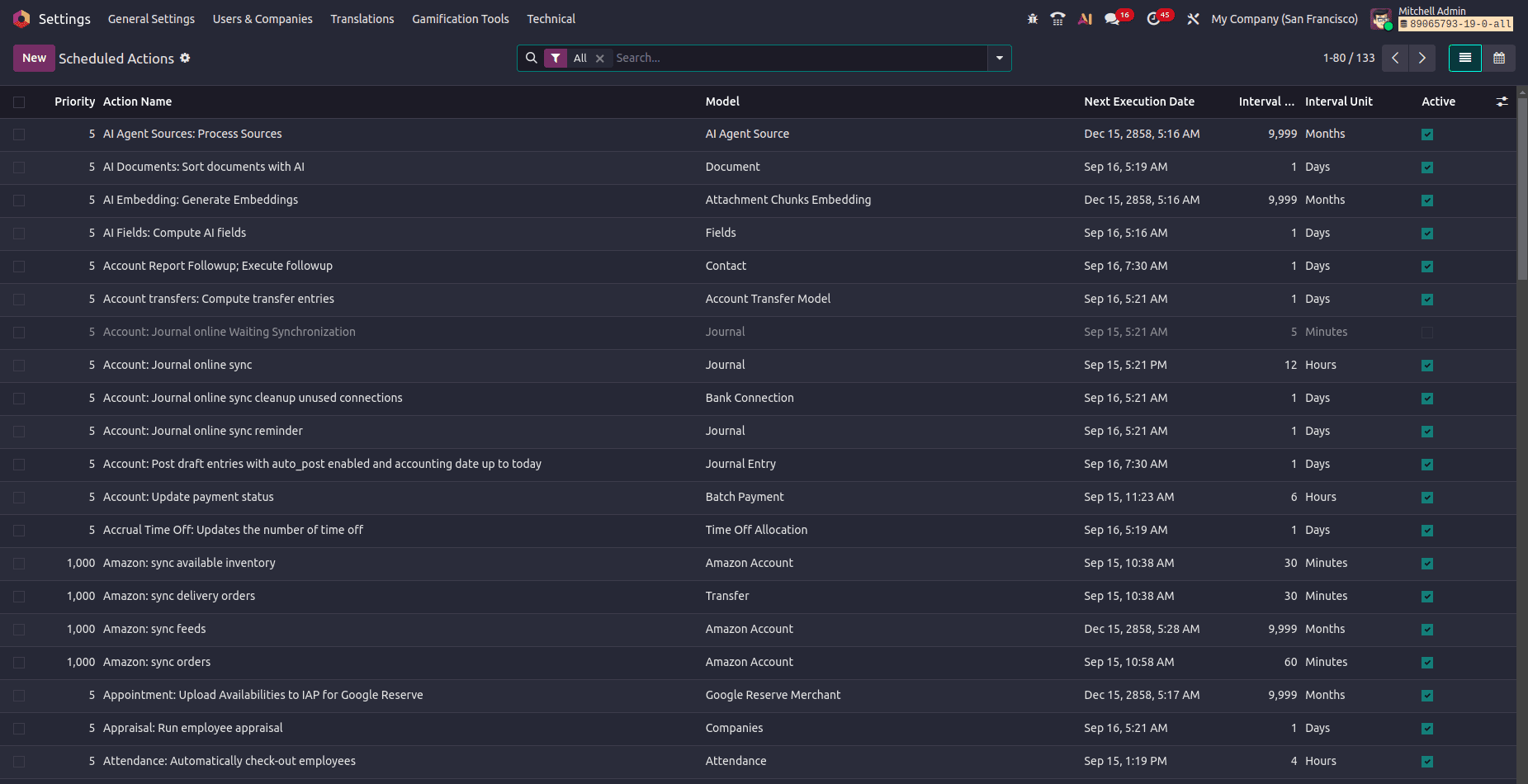
Upon accessing this menu, users will find a comprehensive list view of all configured scheduled actions. This view provides crucial information for each task, including:
- Action Name: A descriptive label for the task.
- Model: The specific Odoo model on which the action operates.
- Next Run: The scheduled date and time for the next execution.
- Interval: The defined frequency of the task (e.g., every 5 minutes, 1 day).
- Active: A toggle switch to enable or disable the task.
From this central interface, new scheduled actions can be effortlessly created by clicking the 'New' button. This action opens a dedicated configuration form, allowing users to define all necessary parameters and even embed Python code for execution.
Defining Cron Jobs via XML
While the graphical user interface provides a convenient way to manage scheduled actions, developers often find that defining these actions directly within a custom module's XML code offers the most robust and maintainable approach. This method ensures that automation configurations are seamlessly deployed and version-controlled as an integral part of your custom Odoo features.
To implement this, one typically creates an XML file, commonly located at data/ir_cron_data.xml within your custom module. Below is a detailed breakdown of a typical scheduled action definition in XML:
<?xml version="1.0" encoding="UTF-8"?>
<odoo>
    <data noupdate="1">
        <record id="cron_send_daily_reminder" model="ir.cron">
            <field name="name">Daily Customer Follow-up</field>
            <field name="model_id" ref="model_res_partner"/>
            <field name="state">code</field>
            <field name="code">model._send_daily_followup()</field>
            <field name="user_id" ref="base.user_root"/>
            <field name="interval_number">1</field>
            <field name="interval_type">days</field>
            <field name="nextcall" eval="(DateTime.now() + timedelta(days=1)).strftime('%Y-%m-%d 09:00:00')" />
            <field name="priority">5</field>
            <field name="active">True</field>
        </record>
    </data>
</odoo>
To fully understand the configuration, let's deconstruct the purpose of each key attribute within this XML definition:
<data noupdate="1">: This is a critical attribute that ensures the scheduled action record is created solely upon the initial installation of the module. Importantly, any subsequent updates to the module will not overwrite modifications made to this cron job directly in the database, thereby preserving its configured state.id&model: Theidattribute assigns a unique identifier to the record, which is essential for referencing. Themodel="ir.cron"attribute explicitly declares that the record being created is a Scheduled Action.name: This field provides a clear, human-readable label for the scheduled action, making it easily identifiable within the technical menu and administrative interfaces.model_id: This attribute establishes a reference to the specific Odoo model upon which the scheduled action will operate. Therefattribute typically uses the model's technical ID, such asmodel_res_partnerfor the Partner model.state&code: These two attributes function synergistically.state="code"instructs Odoo to execute a Python method, and thecodeattribute itself contains the actual method call, for instance,model._send_daily_followup(). In this context,modelrefers to the designated target model, and_send_daily_followup()is the custom Python method designed to perform the automated task.user_id: This attribute specifies the user context under which the Python code of the scheduled action will be executed. It is common practice to referencebase.user_root(the superuser) to mitigate potential permission-related issues during execution.interval_number&interval_type: These attributes precisely define the recurrence frequency of the scheduled action.interval_numberis a numerical value (e.g., 1), andinterval_typespecifies the unit of time, which can beminutes,hours,days,weeks, ormonths.nextcall: This attribute sets the exact timestamp for the initial execution of the scheduled action. Theevalattribute enables dynamic calculation of this timestamp using Python expressions. As demonstrated in the example, it can be used to schedule the first run for a specific time, such as 9:00 AM on the following day.priority: This numerical attribute determines the execution order within the queue when multiple scheduled actions are set to run concurrently. A lower numerical value indicates a higher priority, meaning it will be executed before actions with higher priority numbers.
Implementing the Business Logic: The Python Method
The XML definition of a scheduled action references a specific method that must be meticulously implemented within the corresponding Python model file. This Python method encapsulates the core business logic and instructions for the automated task.
from odoo import models, fields, api
class ResPartner(models.Model):
    _inherit = 'res.partner'
    def _send_daily_followup(self):
        """
        Automated method to send a follow-up email to partners.
        """
        # Example: Fetch all partners who are customers
        customer_records = self.search([('customer_rank', '>', 0)])

        # Get an email template from the system
        mail_template = self.env.ref('my_module.email_template_daily_followup')

        # Send the template to each customer
        for partner in customer_records:
            mail_template.send_mail(partner.id, force_send=False)  # force_send=False queues the email
Scheduled Actions stand as a fundamental pillar of automation within Odoo 19, adeptly transforming repetitive manual tasks into dependable, background processes. By effectively leveraging the ir.cron model, whether through its intuitive graphical interface or precise code-based definitions, developers are empowered to construct sophisticated automation solutions for a variety of tasks, including:
- Sending scheduled emails and notifications
- Performing nightly data clean-up or archiving operations
- Generating and distributing daily or weekly reports automatically
- Updating calculated fields or statuses based on elapsed time
Proficiency in utilizing this powerful feature enables businesses to cultivate a significantly more streamlined, efficient, and error-free operational workflow. This ensures that critical tasks are consistently executed without oversight, thereby freeing employees to concentrate their efforts on higher-value activities and strategic initiatives.
