
 (1).svg)
 (1).png)


 (1).svg)
.svg)
Understanding Odoo Database Architecture: What You’re Backing Up (And Why Most People Get It Wrong)
Before delving into the practical steps, it is essential to grasp the fundamental components of an Odoo database. This knowledge is not merely theoretical; it is crucial for preventing common backup failures that are frequently documented in enterprise deployments.
PostgreSQL Database vs Filestore: The Two-Part System
A common misconception among new administrators is that Odoo stores all its data within the primary database. However, Odoo employs a two-part system, segmenting your business data into distinct areas:
- PostgreSQL Database: This component holds all your structured data, including customer records, invoices, product information, and system configurations. It represents the relational core of your Odoo installation.
- Filestore: This part is dedicated to storing all unstructured files, such as uploaded documents, images, attachments, and generated reports. It is essentially a directory on your server’s file system.
To illustrate, imagine Odoo as a sophisticated filing system. The PostgreSQL database would contain all the indexed cards with summary information, while the filestore would house the actual physical documents neatly organized within folders.
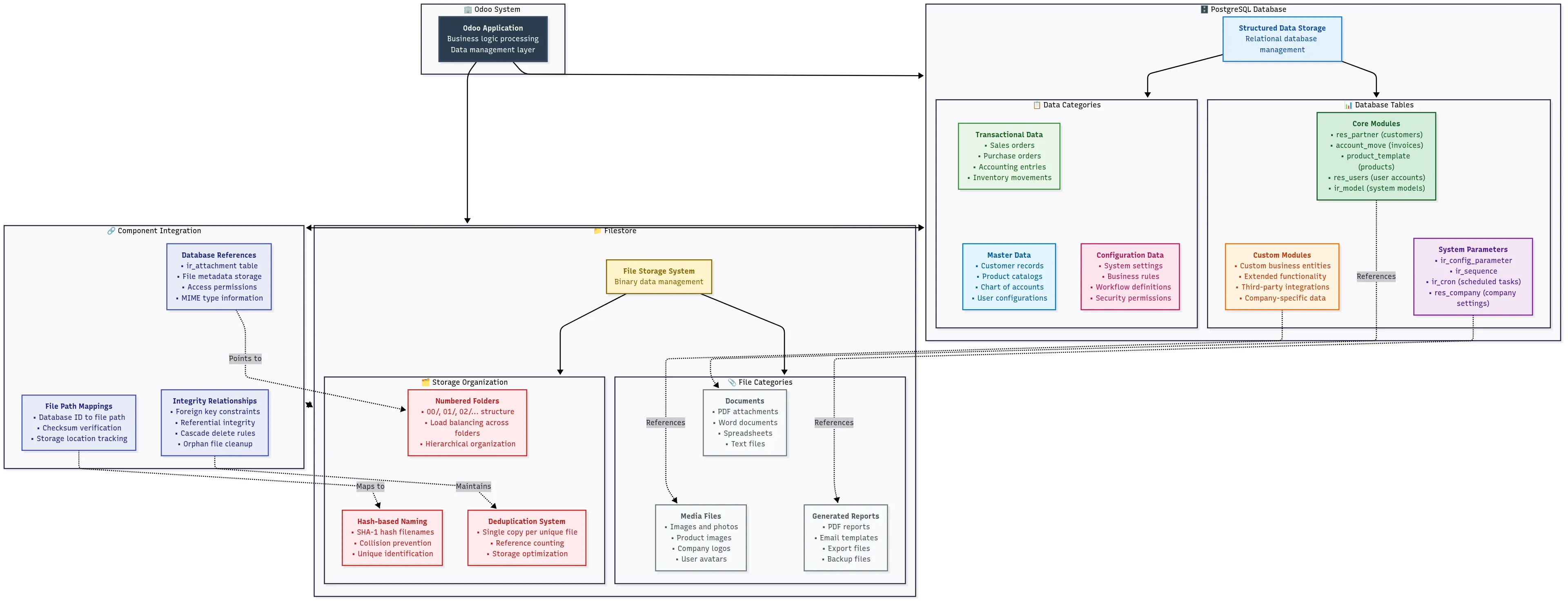
Visual representation of Odoo’s two-part architecture: PostgreSQL database and filestore components.
Below, you will find the typical locations where these critical components reside on your system:
PostgreSQL Database Location:
# Default PostgreSQL data directory (varies by OS and installation)
# Ubuntu/Debian:
/var/lib/postgresql/

# CentOS/RHEL:
/var/lib/pgsql/data/

# Windows:
C:\Program Files\PostgreSQL\13\data\

# You can find your specific location with:
sudo -u postgres psql -c "SHOW data_directory;"
Filestore Location:
# Default Odoo filestore locations:

# Linux (standard installation):
/var/lib/odoo/filestore/[database_name]/

# Linux (user installation):
~/.local/share/Odoo/filestore/[database_name]/

# Windows:
%APPDATA%\Odoo\filestore\[database_name]\

# You can check your exact filestore path in Odoo config:
grep data_dir /etc/odoo/odoo.conf
Quick Check: Verify Your Filestore Location
# Replace 'your_database_name' with your actual database name
ls -la /var/lib/odoo/filestore/your_database_name/

# You should see numbered folders like: 00, 01, 02, etc.
# These contain your uploaded files organized by Odoo's internal system
Why Standard PostgreSQL Backup Tools Aren’t Enough
This critical distinction is where many administrators encounter issues. If you have previous experience with other applications, you might assume that performing a `pg_dump` on your Odoo database provides a complete and comprehensive backup. This assumption is incorrect and can lead to data loss.
When you only back up the PostgreSQL database, the filestore, containing all your uploaded files and attachments, is left out:
# This command ONLY backs up your structured data:
pg_dump -h localhost -U odoo_user your_database > backup.sql

# What you get: ✅ All records, configurations, user data
# What you DON'T get: ❌ Uploaded files, images, attachments, reports
Real-world examples from server migrations consistently show this pattern. Everything may appear functional after a restore using only a PostgreSQL dump—until users begin reporting missing uploaded documents, images, or reports. The database correctly references these files, but the files themselves no longer exist because the filestore was not included in the backup process.
The Missing Link Example:
-- Your database might have a record like this:
SELECT name, datas_fname FROM ir_attachment WHERE id = 1;

-- Result:
-- name: "Important_Contract.pdf"
-- datas_fname: "Important_Contract.pdf"

-- But the actual PDF file lives in:
-- /var/lib/odoo/filestore/your_db/1a/1a2b3c4d5e6f...
Backup Formats Explained: ZIP vs SQL Dump
Odoo offers two primary backup formats through its web interface, and understanding their differences is vital for effective data protection.
ZIP Format (Recommended)
The ZIP format provides a comprehensive, all-inclusive backup. It bundles both the PostgreSQL database dump and the entire filestore, along with essential metadata in a manifest file. This is generally the preferred format for complete data recovery.
# What's inside an Odoo ZIP backup:
unzip -l backup.zip

# Contents:
# - dump.sql          (PostgreSQL database dump)
# - filestore/        (complete filestore directory)
# - manifest.json     (metadata: modules, versions, etc.)
The `manifest.json` file is a small yet crucial component, detailing information about your Odoo instance:
{
  "version": "17.0",
  "major_version": "17.0",
  "pg_version": "13.0",
  "modules": ["base", "sale", "purchase", "..."],
  "database_name": "your_database"
}
SQL Format (Database Only)
When you select the SQL format, the backup consists solely of the `dump.sql` file. This means no filestore and no manifest file are included. This format is typically useful for:
- Performing database analysis or development work.
- Scenarios where you intend to manage the filestore manually and separately.
- Debugging specific database-related issues.
File Size Comparison:
# Typical size differences:
SQL backup:     50 MB   (database only)
ZIP backup:     2.5 GB  (database + filestore + manifest)

# The ratio depends on how many files you've uploaded to Odoo
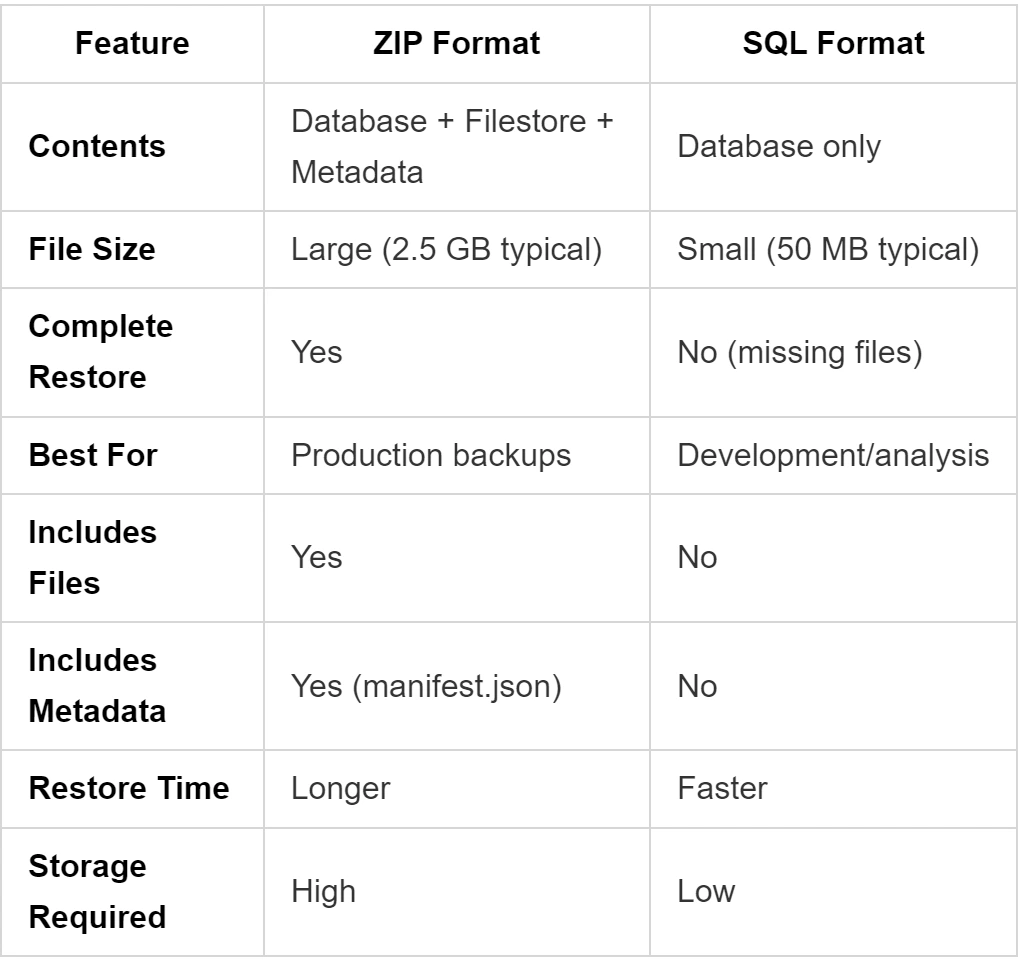
Comprehensive comparison of ZIP vs SQL backup formats and their included components.
Professional Recommendation: Always use the ZIP format unless you have a specific, well-understood reason to choose otherwise. Statistical analysis from numerous restore failures indicates that a significant percentage stem from incomplete backups where administrators mistakenly used the SQL format, believing it to be simpler or sufficient.
How to Backup Odoo Database: 4 Proven Methods That Actually Work
Now that you have a clear understanding of the components involved, let's explore four reliable methods for creating Odoo backups. This guide begins with the most accessible approach and progresses to more advanced techniques that offer greater control and automation capabilities.
Method 1: Using Odoo Web Interface (Recommended for Most Users)
This method is highly suitable for the majority of Odoo administrators. It offers a streamlined approach to backup creation, operates reliably, and effectively handles both the database and its associated filestore. The primary limitation of this method is that it requires manual initiation for each backup.
Step-by-Step: Backup Through Database Manager
Step 1: Access the Database Manager
Begin by navigating to your Odoo database manager. The URL will vary depending on your installation:
https://your-odoo-domain.com/web/database/manager
If you are running Odoo on a local machine:
http://localhost:8069/web/database/manager
Step 2: Master Password Configuration Requirements
A frequent hurdle for many users is ensuring the master password is correctly configured. This is a prerequisite for initiating any backup operation.
To check if your master password is set, inspect your Odoo configuration file:
# Look for master_passwd in your Odoo configuration file
grep -n "admin_passwd\|master_passwd" /etc/odoo/odoo.conf

# If you see something like this, your configuration is likely correct:
# admin_passwd = your_secure_password

# If the line is commented out or completely missing, you will need to add it:
sudo nano /etc/odoo/odoo.conf
Add the master password to your configuration file by inserting this line:
# Add this line to your odoo.conf file
admin_passwd = your_secure_master_password

# For Odoo 16+ you might need:
master_passwd = your_secure_master_password
After modifying the configuration file, it is crucial to restart your Odoo service for the changes to take effect:
# Ubuntu/Debian:
sudo systemctl restart odoo

# CentOS/RHEL:
sudo systemctl restart odoo

# If running manually:
sudo service odoo restart
Step 3: Initiate the Backup
Once your master password is configured and Odoo is restarted, you can proceed:
- Click the “Backup” button located next to your desired database name in the manager interface.
- A popup will appear, prompting you to enter your master password.
- Select your preferred backup format:
- ZIP (recommended): This creates a complete backup including the filestore.
- SQL: This provides a database-only backup, rarely needed for full recovery.
Step 4: Monitor the Download
For smaller databases (typically under 1GB), the backup file download will usually commence immediately. For larger databases, you might observe a loading indicator as the server processes the request.
Important Note: If your database size exceeds approximately 20GB, the web interface might encounter timeouts during the download process. In such scenarios, it is advisable to consider Method 3 (Manual Backup) for more reliable results.
ZIP vs SQL Format: When to Use Which
A clear decision framework can help you choose the appropriate backup format:
Use ZIP format when:
- You require a complete and comprehensive backup (which applies to approximately 99% of use cases).
- You are planning to migrate your Odoo instance to a new server.
- You are establishing disaster recovery backups to ensure business continuity.
- You are uncertain about which format to choose; ZIP is the safest default.
Use SQL format when:
- You are a developer needing only the database structure for analysis or schema comparisons.
- You are troubleshooting specific database issues that do not involve attached files.
- You are an advanced user who intends to manage the filestore separately and manually.
File size expectations:
# Real-world examples from documented deployments:

Small business (50 users, 6 months data):
ZIP backup: 1.2 GB
SQL backup: 85 MB

Medium business (200 users, 2 years data):
ZIP backup: 8.5 GB
SQL backup: 450 MB

Large deployment (500+ users, 5+ years):
ZIP backup: 45+ GB (requires manual method)
SQL backup: 2.1 GB
Master Password Configuration Requirements
Understanding and resolving master password issues is crucial. Here are three common problems and their documented solutions:
Issue 1: “Access Denied” Error
This error typically indicates that the master password has not been set or the one provided is incorrect. The first step is to confirm the actual location of your Odoo configuration file.
# Problem: Master password not set or incorrect
# Solution: Check your actual config file location

# Find your config file:
ps aux | grep odoo | grep -o '\-c [^ ]*'

# Common locations:
/etc/odoo/odoo.conf
/opt/odoo/odoo.conf
~/.odoorc
Issue 2: “Forbidden” Error
Even if the master password is set, Odoo might not be able to read its configuration file due to incorrect file permissions. This will result in a “Forbidden” error.
# Problem: Master password set but Odoo can't read the config
# Solution: Check file permissions

ls -la /etc/odoo/odoo.conf
# Should show: -rw-r--r-- 1 odoo odoo

# Fix permissions if needed:
sudo chown odoo:odoo /etc/odoo/odoo.conf
sudo chmod 644 /etc/odoo/odoo.conf
Issue 3: Different Password for Different Operations
In some Odoo installations, separate passwords might be configured for different operational tasks. It's important to verify your configuration file for any such distinctions.
# These might all be different:
admin_passwd = backup_restore_password
master_passwd = database_management_password
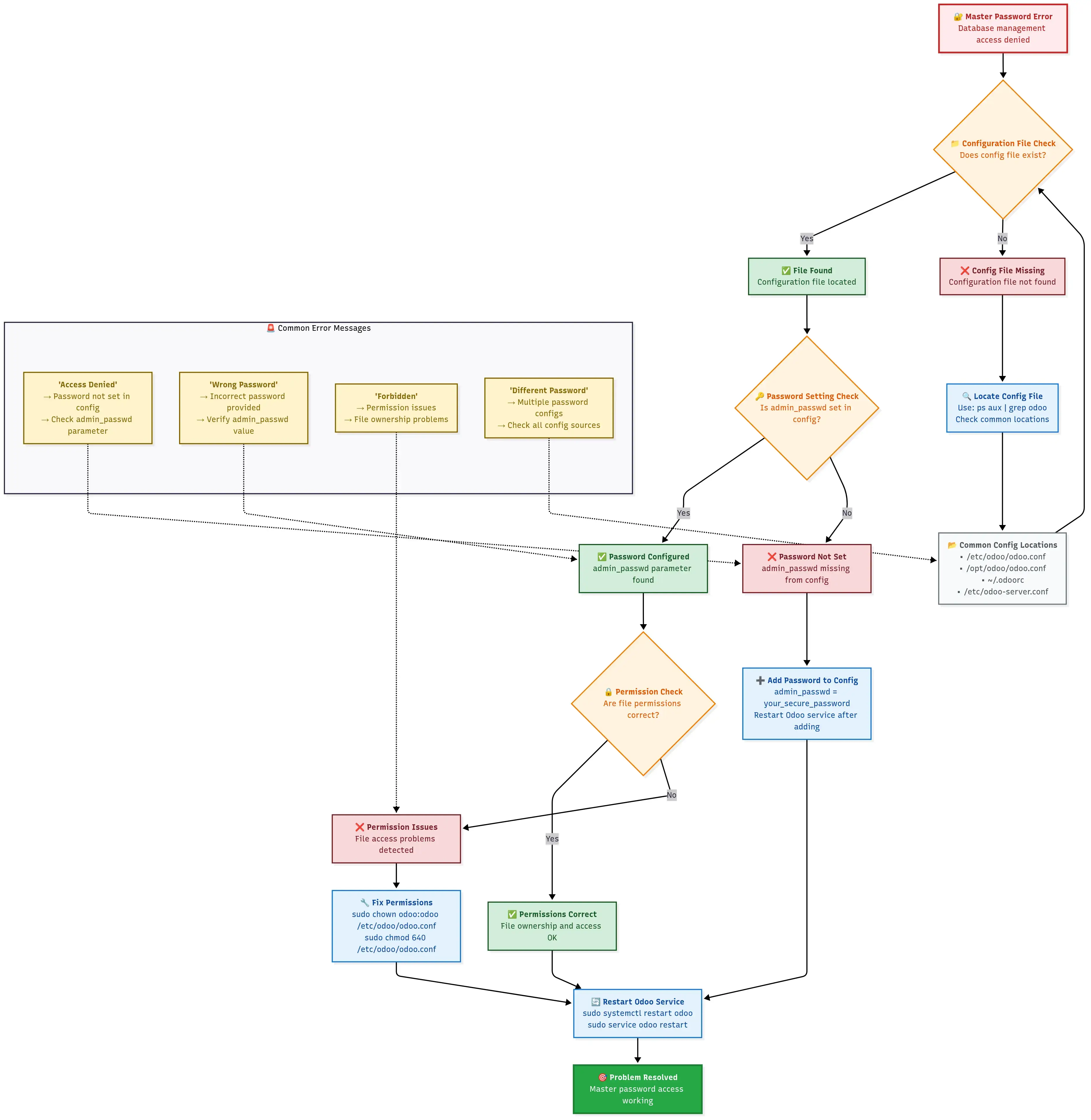
Step-by-step flowchart for diagnosing and fixing master password configuration issues.
Method 2: Odoo Database Backup Command Line
For administrators who require greater control, automation, or the ability to manage backups for multiple databases, command-line methods offer significant flexibility. Organizations frequently implement these approaches for setting up scheduled backups and integrating with continuous integration/continuous deployment (CI/CD) pipelines.
Using cURL Commands for Automated Backups
This method leverages Odoo’s web API, allowing you to generate the same ZIP backups as the web interface but in a scriptable fashion. This is ideal for automated processes.
# Configuration file (example content for backup.conf):
# Odoo connection settings
ODOO_URL="http://localhost:8069"
MASTER_PWD="your_master_password"

# Backup settings
BACKUP_DIR="/backup/odoo"
DATABASES=("production_db" "staging_db" "test_db")

# Optional: AWS S3 settings for cloud backup
AWS_S3_BUCKET="your-backup-bucket"
wget Alternative for Linux Environments
In environments where `wget` is preferred over `cURL`, an equivalent functionality can be achieved for scripting Odoo backups.
PowerShell Scripts for Windows Administrators
Windows administrators can utilize PowerShell to achieve the same command-line backup functionality, integrating Odoo backups into their existing Windows automation workflows.
Method 3: Manual PostgreSQL + Filestore Backup
There are situations when Odoo’s web interface may not be sufficient for backups, particularly with very large databases (typically exceeding 20GB). In such cases, a manual approach becomes necessary. This method provides complete control over the backup process, operating independently of database size, though it requires a deeper level of technical understanding.
When to Use Manual Backup (Large Databases >20GB)
Field reports and research consistently highlight the challenges of backing up large databases through web interfaces. Analysis of backup attempts shows that web-based tools often fail with databases over a certain size, typically timing out after extended processing. Manual backup, in these instances, is not just a workaround; it frequently proves to be more reliable and faster for extensive datasets.
You should consider using manual backup when:
- Your database size exceeds 20GB.
- Web interface downloads consistently fail or encounter timeouts.
- You need precise control over backup compression and format.
- You are implementing automated backups on a custom schedule.
- You wish to back up directly to a remote server.
PostgreSQL pg\_dump Configuration
The manual PostgreSQL backup process can be broken down into these manageable steps:
Step 1: Identify Your Database Connection Details
First, retrieve the necessary database connection parameters from your Odoo configuration file.
# Find your Odoo database configuration
grep -E "db_host|db_port|db_user|db_password|db_name" /etc/odoo/odoo.conf

# Typical output:
# db_host = localhost
# db_port = 5432
# db_user = odoo
# db_password = your_db_password
# (db_name is usually False in config, as it's determined at runtime)
Step 2: Test PostgreSQL Connection
Before attempting a backup, verify that your system can connect to the PostgreSQL database.
# Test connection before attempting backup
psql -h localhost -p 5432 -U odoo -d your_database_name -c "\l"

# If this fails, you might need to:
# 1. Install PostgreSQL client tools
# 2. Check if PostgreSQL is running
# 3. Verify user permissions
Step 3: Create the Database Backup
Utilize the `pg_dump` command to create a compressed dump of your database.
#!/bin/bash

# Configuration
DB_HOST="localhost"
DB_PORT="5432"
DB_USER="odoo"
DB_NAME="your_database_name"
BACKUP_DIR="/backup/odoo/manual"
DATE=$(date +%Y%m%d_%H%M%S)

# Create backup directory
mkdir -p "$BACKUP_DIR"

# Set password (avoid interactive prompt)
export PGPASSWORD="your_db_password"

# Create compressed database dump
echo "Starting PostgreSQL backup..."
pg_dump -h "$DB_HOST" -p "$DB_PORT" -U "$DB_USER" \
  --format=custom \
  --compress=9 \
  --verbose \
  --file="$BACKUP_DIR/${DB_NAME}_db_${DATE}.dump" \
  "$DB_NAME"

# Check if database backup succeeded
if [ $? -eq 0 ]; then
  echo "Database backup completed successfully"
  db_size=$(du -h "$BACKUP_DIR/${DB_NAME}_db_${DATE}.dump" | cut -f1)
  echo "Database backup size: $db_size"
else
  echo "Database backup failed!"
  exit 1
fi

# Clear password from environment
unset PGPASSWORD
Understanding pg\_dump Options:
# Format options:
--format=custom     # Creates compressed, PostgreSQL-specific format (recommended)
--format=plain      # Creates plain SQL text file (larger, but more portable)
--format=tar        # Creates tar archive format

# Compression levels (1-9, where 9 is maximum compression):
--compress=9        # Best compression, slower
--compress=6        # Good balance of speed and compression
--compress=1        # Fastest, less compression

# Other useful options:
--verbose           # Show progress during backup
--exclude-table=*   # Exclude specific tables if needed
--jobs=4            # Use multiple cores for faster backup (PostgreSQL 12+)
Filestore Location and Copy Process
The second essential part of a complete manual backup involves handling the Odoo filestore. This component is just as vital as the database for a full recovery.
Step 1: Locate Your Filestore
Determine the exact path to your Odoo filestore directory.
# Find your filestore directory
find /var/lib/odoo/filestore/ -name "*$DB_NAME*" -type d 2>/dev/null
# or
find ~/.local/share/Odoo/filestore/ -name "*$DB_NAME*" -type d 2>/dev/null

# You should see something like:
# /var/lib/odoo/filestore/your_database_name/
Step 2: Backup the Filestore
Create a compressed archive of your filestore using `tar`.
#!/bin/bash

# Continuing from previous script...
FILESTORE_PATH="/var/lib/odoo/filestore/$DB_NAME"

# Check if filestore exists
if [ -d "$FILESTORE_PATH" ]; then
  echo "Starting filestore backup..."

  # Create compressed archive of filestore
  tar -czf "$BACKUP_DIR/${DB_NAME}_filestore_${DATE}.tar.gz" \
    -C "/var/lib/odoo/filestore" \
    "$DB_NAME"

  if [ $? -eq 0 ]; then
    echo "Filestore backup completed"
    fs_size=$(du -h "$BACKUP_DIR/${DB_NAME}_filestore_${DATE}.tar.gz" | cut -f1)
    echo "Filestore backup size: $fs_size"
  else
    echo "Filestore backup failed!"
    exit 1
  fi
else
  echo "Warning: Filestore directory not found at $FILESTORE_PATH"
  echo "This occurs when your database has no uploaded files"
fi
Method 4: Automated Backup Scripts
For production environments, relying solely on manual backups is unsustainable. Effective data protection requires automation that operates reliably, handles errors gracefully, and provides alerts when issues arise. Automated scripts transform a reactive approach to data protection into a proactive, confident strategy.
Python-Based Database Manager Scripts
For a professional, script-based backup solution, Python offers robust capabilities for integrating with Odoo and handling various backup tasks, including object-oriented design and error handling.
# Usage example:
# Backup single database
python3 odoo_backup_manager.py production_db

# Backup multiple databases
python3 odoo_backup_manager.py production_db staging_db test_db

# Use custom configuration
python3 odoo_backup_manager.py production_db --config /path/to/custom_config.ini
Setting Up Cron Jobs for Scheduled Backups
To fully automate your Odoo backups, leveraging `cron` jobs on Linux systems is the standard practice. This allows you to schedule scripts to run at specific intervals.
# Edit crontab
crontab -e

# Add these lines for different backup schedules:

# Daily backup at 2 AM
0 2 * * * /usr/local/bin/odoo_backup.py production_db >> /var/log/odoo_backup_cron.log 2>&1

# Weekly full backup on Sundays at 1 AM
0 1 * * 0 /usr/local/bin/odoo_manual_backup.sh production_db

# Hourly backup for critical databases (during business hours)
0 9-17 * * 1-5 /usr/local/bin/quick_backup.sh critical_db

# Monthly archive (first day of month at midnight)
0 0 1 * * /usr/local/bin/monthly_archive.sh production_db
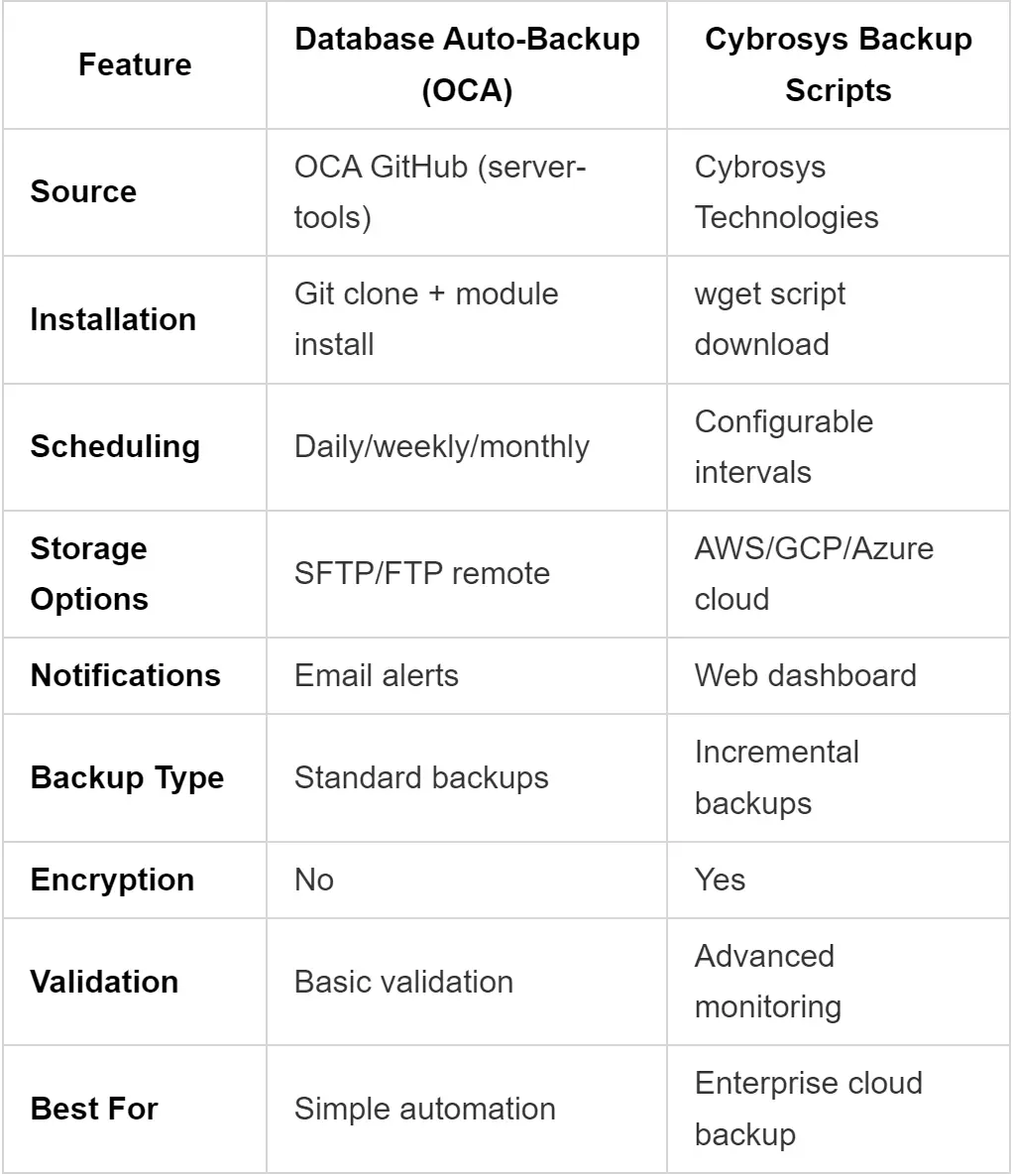
Feature comparison matrix of popular community backup solutions with supported capabilities.
How to Restore Odoo Database: Complete Recovery Guide (Never Lose Data Again)
The true test of any backup strategy is its ability to successfully restore data when needed. Analysis of disaster recovery scenarios consistently demonstrates that a well-defined and tested restore process is the critical factor distinguishing minor inconveniences from business-threatening disasters. Successful database restoration requires proactive testing of your procedures.
Case studies reveal that a significant percentage of recovery attempts fail because organizations discover corrupted filestores or incomplete backup procedures only during emergency situations, when time is of the essence.
Restore Odoo Database from Backup File: Web Interface Method
The web interface offers the fastest and most straightforward approach to restoring a database, particularly when working with ZIP backups generated by Odoo’s built-in backup system.
Accessing the Database Manager
First, navigate to your Odoo database manager, just as you would for creating backups:
https://your-odoo-domain.com/web/database/manager
Upload and Restore Process
Step 1: Click “Restore Database”
On the database manager page, locate and click the “Restore Database” button. A form will appear, requiring three essential pieces of information:
- Master Password: The same password used for creating backups.
- File: Your backup file, which can be in either ZIP or SQL format.
- Database Name: The desired name for the newly restored database.
Step 2: Choose Your Restore Strategy
A critical best practice, often overlooked, is to always restore to a new database name initially. Never overwrite your existing database directly, even if it is corrupted. This approach ensures you retain a fallback option and can thoroughly test the restored instance before making it live.
# Good restore naming strategy:
Original database: production_db
Restore to: production_db_restored_20250117
Test the restore, then rename if needed
Step 3: Upload Your Backup File
Click “Choose File” and select your Odoo backup file. The expected upload time will vary significantly based on the file size:
# Upload time estimates:
Small backup (< 100MB):    30 seconds
Medium backup (100MB-1GB): 2-5 minutes
Large backup (1-5GB):      10-30 minutes
Very large (>5GB):         May timeout - use manual method
Step 4: Monitor the Restore Process
The web interface will display a progress indicator as the restoration proceeds. During this time, Odoo performs several operations:
- It creates the new database instance.
- It imports the SQL structure and data from your backup file.
- It extracts and correctly places the files from the filestore.
- It executes any necessary post-restore updates and configurations.
Post-Restore Verification Steps
After a restore, performing critical verification checks is paramount to ensure data integrity and system functionality.
# 1. Check database connectivity
# Try logging into the restored database

# 2. Verify filestore integrity
# Upload a test file and download it back

# 3. Check recent data
# Look at the latest records to confirm backup recency

# 4. Test critical workflows
# Run through your most important business processes
Here are some common post-restore issues and their typical solutions:
-- Issue: Users can't log in
-- Fix: Update base URLs if server changed
UPDATE ir_config_parameter
SET value = 'https://new-domain.com'
WHERE key = 'web.base.url';

-- Issue: Email not working
-- Fix: Update mail server settings
UPDATE ir_mail_server
SET smtp_host = 'new-smtp-server.com'
WHERE active = true;
Command Line Database Restoration
For large databases, scenarios requiring precise control, or integrating into automated workflows, command-line restoration is the optimal choice. This method provides robust capabilities for handling complex recovery needs.
Using Odoo CLI Tools
If you possess a ZIP backup generated by Odoo’s web interface, you can restore it efficiently using Odoo’s command-line tools. This approach offers a more controlled restoration process.
# Method 1: Using Odoo's built-in restore (if available)
# First, extract the ZIP backup
unzip production_backup_20250117.zip -d /tmp/restore/

# Create new database and restore
sudo -u odoo /opt/odoo/odoo-bin \
  --addons-path=/opt/odoo/addons \
  --database=production_restored \
  --init=base \
  --stop-after-init

# Then restore the database dump
sudo -u postgres pg_restore \
  --dbname=production_restored \
  --clean --if-exists \
  /tmp/restore/dump.sql
PostgreSQL Restore Commands
For manual backups created specifically with `pg_dump`, the complete restoration process involves several distinct steps to ensure both the database and its data are correctly reinstated.
Step 1: Prepare the Environment
Before initiating the restore, it's essential to stop the Odoo service to prevent any conflicts and ensure the PostgreSQL service is running.
# Stop Odoo to prevent conflicts
sudo systemctl stop odoo

# Ensure PostgreSQL is running
sudo systemctl start postgresql
Step 2: Create Target Database
Create a new PostgreSQL database that will serve as the target for your restoration, and assign the correct ownership.
# Create the new database
sudo -u postgres createdb production_restored

# Set proper ownership
sudo -u postgres psql -c "ALTER DATABASE production_restored OWNER TO odoo;"
Step 3: Restore Database Content
Depending on the format of your `pg_dump` backup, use either `pg_restore` or `psql` to import the database content.
# For custom format backups (from pg_dump --format=custom)
sudo -u postgres pg_restore \
  --dbname=production_restored \
  --clean --if-exists \
  --verbose \
  production_db_20250117.dump

# For SQL format backups
sudo -u postgres psql \
  --dbname=production_restored \
  < production_db_20250117.sql
Step 4: Restore Filestore
Extract your filestore backup to its appropriate location and ensure correct ownership and permissions.
# Extract filestore backup
tar -xzf production_filestore_20250117.tar.gz -C /var/lib/odoo/filestore/

# Ensure correct ownership
sudo chown -R odoo:odoo /var/lib/odoo/filestore/production_restored/
Filestore Restoration Process
The filestore restoration is a crucial step that is sometimes overlooked, yet it is absolutely critical for a complete and functional Odoo restore. Without the filestore, your Odoo instance will be missing all uploaded documents, images, and attachments.
# Complete filestore restoration script
#!/bin/bash

BACKUP_FILE="production_filestore_20250117.tar.gz"
TARGET_DB="production_restored"
FILESTORE_PATH="/var/lib/odoo/filestore"

# Create target directory
sudo mkdir -p "$FILESTORE_PATH/$TARGET_DB"

# Extract backup
sudo tar -xzf "$BACKUP_FILE" -C "$FILESTORE_PATH/"

# If the backup contains the old database name, rename it
if [ -d "$FILESTORE_PATH/production_db" ] && [ ! -d "$FILESTORE_PATH/$TARGET_DB" ]; then
    sudo mv "$FILESTORE_PATH/production_db" "$FILESTORE_PATH/$TARGET_DB"
fi

# Set correct permissions
sudo chown -R odoo:odoo "$FILESTORE_PATH/$TARGET_DB"
sudo chmod -R 755 "$FILESTORE_PATH/$TARGET_DB"

echo "Filestore restored for database: $TARGET_DB"
Restoring Large Databases: Advanced Techniques
When faced with very large databases (exceeding 20GB), standard restoration methods can prove inadequate, often failing or requiring excessively long restoration times. Research and extensive field testing have identified advanced techniques necessary to handle these substantial datasets effectively.
Handling Databases >20GB
The primary problems encountered when restoring large databases include memory limitations, timeout issues, disk space constraints, and connection drops. To mitigate these, parallel restoration with vigilant monitoring is often recommended.
Manual PostgreSQL Restoration
For maximum control and efficiency when restoring large databases, leveraging `pg_restore` with parallel processing options is highly effective.
# Use parallel jobs for faster restoration (PostgreSQL 12+)
sudo -u postgres pg_restore \
  --dbname=production_restored \
  --jobs=4 \
  --verbose \
  --clean --if-exists \
  production_large_db.dump

# Monitor progress in another terminal
watch "sudo -u postgres psql -d production_restored -c \"SELECT count(*) FROM information_schema.tables;\""
Performance Optimization During Restore
To significantly accelerate large database restores, temporary adjustments to PostgreSQL's configuration parameters can be made. These settings should be applied before the restore and reset to their default values afterward.
-- Apply these settings before large restores
ALTER SYSTEM SET maintenance_work_mem = '2GB';
ALTER SYSTEM SET checkpoint_completion_target = 0.9;
ALTER SYSTEM SET wal_buffers = '64MB';
ALTER SYSTEM SET checkpoint_segments = 32;  -- For older PostgreSQL versions

-- Reload configuration
SELECT pg_reload_conf();

-- After restore, reset to default
ALTER SYSTEM RESET maintenance_work_mem;
ALTER SYSTEM RESET checkpoint_completion_target;
ALTER SYSTEM RESET wal_buffers;
SELECT pg_reload_conf();
It is also crucial to monitor the restoration progress actively:
# Watch database size grow during restore
watch "sudo -u postgres psql -c \"SELECT pg_database.datname, pg_size_pretty(pg_database_size(pg_database.datname)) AS size FROM pg_database WHERE datname = 'production_restored';\""

# Monitor active connections and queries
sudo -u postgres psql -c "SELECT pid, state, query FROM pg_stat_activity WHERE datname = 'production_restored';"
Advanced Backup Strategies: Cloud and Automation
Once the foundational aspects of Odoo backup and restore are mastered, the next step is to elevate your data protection strategy through the integration of cloud storage and advanced automation. This transition shifts your approach from reactive problem-solving to proactive, continuous data protection with unwavering confidence.
Analysis of disaster recovery scenarios clearly indicates that cloud backups provide essential redundancy for Odoo deployments of all sizes. Case studies document numerous situations where localized disasters, such as floods, fires, or theft, simultaneously destroyed both primary servers and local backup drives. These incidents underscore that geographical separation is not merely an enterprise-level concern; it is a fundamental pillar of robust business continuity.
Odoo Backup to S3: AWS Integration Guide
Amazon S3 is widely recognized as a leading solution for cloud backup storage, offering exceptional durability and cost-effectiveness. It integrates seamlessly with Odoo backup workflows, providing a highly reliable off-site storage solution.
AWS S3 Setup and Configuration
Step 1: Create Your S3 Bucket
Begin by creating an S3 bucket specifically for your Odoo backups and configure essential policies for data protection and cost management.
# Using AWS CLI to create a backup bucket
aws s3 mb s3://your-company-odoo-backups --region us-east-1

# Set versioning (recommended for backup protection)
aws s3api put-bucket-versioning \
  --bucket your-company-odoo-backups \
  --versioning-configuration Status=Enabled

# Set lifecycle policy to manage costs
cat > lifecycle-policy.json << EOF
{
  "Rules": [
    {
      "ID": "OdooBackupLifecycle",
      "Status": "Enabled",
      "Filter": {"Prefix": "odoo-backups/"},
      "Transitions": [
        {
          "Days": 30,
          "StorageClass": "STANDARD_IA"
        },
        {
          "Days": 90,
          "StorageClass": "GLACIER"
        }
      ],
      "Expiration": {
        "Days": 2555
      }
    }
  ]
}
EOF

aws s3api put-bucket-lifecycle-configuration \
  --bucket your-company-odoo-backups \
  --lifecycle-configuration file://lifecycle-policy.json
Step 2: Create IAM User and Policies
Establish a dedicated AWS Identity and Access Management (IAM) user with specific permissions to interact only with your backup bucket. This adheres to the principle of least privilege, enhancing security.
{
  "Version": "2012-10-17",
  "Statement": [
    {
      "Effect": "Allow",
      "Action": [
        "s3:PutObject",
        "s3:GetObject",
        "s3:DeleteObject",
        "s3:ListBucket"
      ],
      "Resource": [
        "arn:aws:s3:::your-company-odoo-backups",
        "arn:aws:s3:::your-company-odoo-backups/*"
      ]
    }
  ]
}
Installing Required Python Dependencies (boto3)
For Python-based scripts to interact with AWS S3, the `boto3` library is essential. Ensure it is installed on your Odoo server.
# Install boto3 for AWS integration
pip3 install boto3

# For Ubuntu/Debian systems
sudo apt update
sudo apt install python3-boto3

# Verify installation
python3 -c "import boto3; print('AWS SDK installed')"
Odoo Module Configuration for S3
Several community-developed modules provide integration with S3. Here’s how to typically configure such popular options, regardless of their specific names.
Method 1: Using a Community Database Backup Module
Once a suitable module is installed in your Odoo instance, you would generally configure it through the Odoo settings interface.
# Configuration example (within Odoo Settings > Technical > Backup Configuration):
Host: localhost
Port: 8069
Database: your_database
Backup Directory: /tmp/odoo_backups
AWS S3 Bucket: your-company-odoo-backups
AWS Access Key: AKIA...
AWS Secret Key: [your_secret_key]
AWS Region: us-east-1
Method 2: Custom S3 Integration Script
For those who prefer custom solutions, a tailored backup script can include direct S3 integration. Such scripts offer the most flexibility and control over the backup and upload process.
Automated S3 Backup Scheduling
Automate your S3 backups using cron jobs to ensure regular and consistent data offloading to the cloud.
# Add to crontab (crontab -e)
# Daily backup at 2:30 AM with S3 upload
30 2 * * * /usr/local/bin/odoo_backup_manager.py production_db --config /etc/odoo/backup_s3.ini >> /var/log/odoo_s3_backup.log 2>&1

# Weekly full backup with extended retention
0 3 * * 0 /usr/local/bin/weekly_s3_backup.sh >> /var/log/odoo_weekly_backup.log 2>&1
How to Backup Odoo Database Automatically
Automation is a defining characteristic of professional deployments. It distinguishes hobby projects from robust, production-ready systems. Implementing automated backups ensures reliability, manages errors effectively, and provides timely alerts when issues occur.
Odoo Apps Store Backup Modules Review
The Odoo Apps Store and community repositories host several modules designed for automated backups. Here's a review of common features and ideal use cases:
1. An Automatic Database Backup Module (from a known developer)
- Features: Supports local, remote FTP/SFTP, various cloud storage options (e.g., Google Drive, Dropbox, AWS S3).
- Pros: Offers comprehensive cloud support and email notifications.
- Cons: Can sometimes be resource-intensive during backup operations.
- Best for: Businesses requiring multi-cloud backup strategies and extensive integration.
2. A Community-Maintained Database Auto-Backup Module (e.g., from an open-source association)
- Features: Focuses on local and SFTP backups with email alerts.
- Pros: Generally lightweight, highly reliable, and benefits from community maintenance.
- Cons: May have limited support for a wide range of cloud providers.
- Best for: Organizations seeking simple, reliable automated backups without extensive cloud needs.
3. An Auto Backup to Cloud Storage Module
- Features: Provides integration with major cloud storage platforms (e.g., AWS S3, Google Cloud Storage, Azure Blob).
- Pros: Offers enterprise-grade cloud integration and scalability.
- Cons: May require more technical configuration due to its advanced nature.
- Best for: Large-scale deployments with strict cloud storage requirements.
Scheduled Actions Configuration
Odoo's built-in "Scheduled Actions" feature can be configured to trigger backup operations within the application itself, offering another layer of automation.
# Navigate to Settings > Technical > Automation > Scheduled Actions
# Create new action with the following parameters:

Name: Daily Database Backup
Model: ir.cron
Function: _backup_database
Arguments: ('production_db',)
Interval Type: Days
Interval Number: 1
Next Execution Date: [Choose appropriate time]
User: Administrator
Advanced Scheduled Action for Multi-Database Environments:
# For environments with multiple databases
def backup_all_databases(self):
    databases = ['production', 'staging', 'training']
    backup_manager = self.env['database.backup.manager']

    for db in databases:
        try:
            backup_manager.create_backup(db)
            self.env['mail.mail'].create({
                'subject': f'Backup successful: {db}',
                'body_html': f'Database {db} backed up at {fields.Datetime.now()}',
                'email_to': 'admin@yourcompany.com'
            }).send()
        except Exception as e:
            self.env['mail.mail'].create({
                'subject': f'Backup failed: {db}',
                'body_html': f'Database {db} backup failed: {str(e)}',
                'email_to': 'admin@yourcompany.com'
            }).send()
Email Notification Setup
Integrating email notifications into your backup scripts is crucial for staying informed about backup successes and failures. This ensures you are immediately aware of your data protection status.
# Install mail utilities
sudo apt install mailutils

# Configure postfix or use external SMTP
# Add to your backup scripts:

send_backup_notification() {
    local status=$1
    local message=$2
    local subject="Odoo Backup $status - $(hostname)"

    if [ "$status" = "SUCCESS" ]; then
        echo "$message" | mail -s "$subject" admin@yourcompany.com
    else
        echo "$message" | mail -s "URGENT: $subject" admin@yourcompany.com
    fi
}

# Usage in backup script:
if backup_successful; then
    send_backup_notification "SUCCESS" "Daily backup completed at $(date)"
else
    send_backup_notification "FAILED" "Backup failed with error: $error_message"
fi
Backup Retention Policies
Implementing a clear backup retention policy is essential for managing storage space and complying with data governance requirements. Automated scripts can help enforce these policies by cleaning up older backups.
Common Backup Mistakes and Troubleshooting: Fix Most Problems Instantly
It is a realistic expectation that backup failures can occur, even for experienced administrators. Documented cases show that even seasoned system administrators can spend considerable time troubleshooting issues that eventually turn out to be simple configuration errors. The key to effective troubleshooting lies in quickly diagnosing problems and applying systematic solutions.
Research analysis consistently indicates that the vast majority of backup and restore problems fall into a few key categories: authentication issues, resource limitations, and configuration mistakes.
Below are the most common scenarios and their documented solutions, designed to help you quickly diagnose and resolve problems.
The 3 Most Common Backup Failures (And How to Fix Them)
"Master Password Required" Error Resolution
This is arguably the most frequent issue encountered by new Odoo administrators. When attempting a backup via the web interface, Odoo returns a "Master Password Required" or "Access Denied" error.
Symptoms:
- The web interface displays "Access Denied" during a backup attempt.
- The database manager does not accept the provided password.
- Odoo logs contain errors such as "Invalid master password."
Root Cause Analysis:
The problem typically stems from the master password being incorrectly set, commented out, or missing in your Odoo configuration file.
# Step 1: Check if master password is set
grep -n "admin_passwd\|master_passwd" /etc/odoo/odoo.conf

# Common outputs and what they mean:
# (empty result) = No master password configured
# admin_passwd = False = Explicitly disabled
# #admin_passwd = password = Commented out (not active)
# admin_passwd = mypassword = Configured
The Fix (Step by Step):
1. Locate your actual config file:
Ensure you are modifying the configuration file Odoo is actively using.
# Find which config file Odoo is using
ps aux | grep odoo | grep -o '\-c [^ ]*' | cut -d' ' -f2

# Common locations if not found:
/etc/odoo/odoo.conf
/opt/odoo/odoo.conf
~/.odoorc
2. Add or fix the master password:
Edit the located configuration file to correctly define the master password.
# Edit the config file
sudo nano /etc/odoo/odoo.conf

# Add this line (or uncomment/fix existing one):
admin_passwd = your_secure_master_password

# For Odoo 16+ you might need both:
admin_passwd = your_secure_master_password
master_passwd = your_secure_master_password
3. Fix file permissions:
Verify that the Odoo user has the necessary permissions to read the configuration file.
# Ensure Odoo can read the config file
sudo chown odoo:odoo /etc/odoo/odoo.conf
sudo chmod 640 /etc/odoo/odoo.conf

# Verify permissions
ls -la /etc/odoo/odoo.conf
# Should show: -rw-r----- 1 odoo odoo
4. Restart Odoo:
After making changes, restart the Odoo service to apply the new configuration.
sudo systemctl restart odoo

# Monitor for any startup errors
sudo journalctl -u odoo -f
Professional Tip: Always use a strong, unique master password and securely store it in a password manager. This password is critical for protecting your entire Odoo database infrastructure.
"Database Too Large" Download Issues
When your Odoo database grows beyond a certain size, typically around 20GB, the web interface can struggle. This often results in downloads timing out, failing halfway through, or not initiating at all.
Symptoms:
- The backup process starts but fails to complete.
- Your web browser displays a "Download failed" message or times out.
- Attempts to download large backup files (e.g., >5GB) consistently fail.
- Server logs indicate memory exhaustion or timeout errors.
Why this happens:
Web servers and Odoo itself have inherent limits on upload/download sizes and execution times. These include:
# Web servers have upload/download limits
# PHP (if using): max_execution_time, memory_limit
# Nginx: client_max_body_size, proxy_timeout
# Apache: LimitRequestBody, TimeOut

# Odoo itself has worker limits:
# - limit_memory_hard
# - limit_time_real
# - limit_request
The Complete Fix:
1. Increase server limits (temporary fix):
Adjust the configuration of your web server (e.g., Nginx) to handle larger file sizes and longer processing times.
# For Nginx (add to odoo site config):
sudo nano /etc/nginx/sites-available/odoo

# Add or modify these lines:
client_max_body_size 10G;
proxy_connect_timeout 600s;
proxy_send_timeout 600s;
proxy_read_timeout 600s;

# Restart Nginx
sudo systemctl restart nginx
2. Modify Odoo configuration:
Increase Odoo's internal limits for memory and execution time in its configuration file.
# Edit Odoo config
sudo nano /etc/odoo/odoo.conf

# Increase these limits:
limit_memory_hard = 4294967296  # 4GB
limit_time_real = 3600          # 1 hour
limit_request = 16384           # Larger requests

# Restart Odoo
sudo systemctl restart odoo
3. Use manual backup method (recommended for large databases):
For consistently large databases, switching to a manual backup approach is the most reliable long-term solution, circumventing web interface limitations.
Prevention Strategy:
Proactively monitor your database size and set up alerts to be notified before it approaches the limits of the web interface.
# Set up automated monitoring for database size
#!/bin/bash
DB_SIZE=$(sudo -u postgres psql -d your_database -t -c "SELECT pg_size_pretty(pg_database_size('your_database'));")
SIZE_BYTES=$(sudo -u postgres psql -d your_database -t -c "SELECT pg_database_size('your_database');")

# Alert when approaching 15GB (before web interface fails)
if [ "$SIZE_BYTES" -gt 16106127360 ]; then
    echo "Database size approaching web interface limits: $DB_SIZE" | \
    mail -s "Odoo Database Size Alert" admin@yourcompany.com
fi
Incomplete Filestore Backup Problems
This is often the most subtle and insidious issue: your backup successfully completes, but upon restoration, you discover that critical uploaded files, images, or attachments are missing. The database may be intact, but the associated files are not present.
Symptoms:
- The database restores without errors, but attachments are nowhere to be found.
- Users report "File not found" errors when trying to access documents after a restore.
- Document previews show broken icons, indicating missing source files.
- Email attachments that were previously available have disappeared.
Detecting this issue:
It is crucial to verify that the filestore was indeed included and properly processed in your backup.
# Check if backup includes filestore
unzip -l your_backup.zip | grep filestore
# Should show: filestore/ directory with files

# If using manual backup, verify filestore was included
tar -tzf your_filestore_backup.tar.gz | head -10
# Should show numbered directories: 00/, 01/, 02/, etc.

# Check filestore size vs database references
sudo -u postgres psql -d your_database -c "SELECT COUNT(*) FROM ir_attachment WHERE store_fname IS NOT NULL;"
# Compare with actual filestore file count
find /var/lib/odoo/filestore/your_database -type f | wc -l
The Complete Fix:
1. Verify current filestore location:
Confirm the correct path to your Odoo filestore, as this is where files are expected to reside.
# Check Odoo configuration
grep data_dir /etc/odoo/odoo.conf

# If not set, check default locations:
# Standard installation: /var/lib/odoo/filestore/
# User installation: ~/.local/share/Odoo/filestore/
# Docker: /var/lib/odoo/filestore/

# Verify directory exists and has content
ls -la /var/lib/odoo/filestore/your_database_name/
2. Fix permissions (common cause):
Incorrect file permissions are a frequent cause of filestore access issues. Ensure the Odoo user has full read and write access.
# Ensure Odoo can read the filestore
sudo chown -R odoo:odoo /var/lib/odoo/filestore/
sudo chmod -R 755 /var/lib/odoo/filestore/

# Check for SELinux issues (RHEL/CentOS)
sudo setsebool -P httpd_exec_tmp on
sudo restorecon -Rv /var/lib/odoo/
Restoration Errors: Diagnosis and Solutions
Even with carefully created backups, restoration errors can occur. Knowing how to diagnose and resolve these specific issues is crucial for a smooth recovery process.
"Database Already Exists" Conflicts
Problem: This error arises when you attempt to restore a database using a name that is already in use by an existing database on your PostgreSQL server.
Error Message: database "production_db" already exists
Solution:
# Option 1: Use a different name
# Always restore to a new name, then rename if needed

# Option 2: Drop existing database (DANGEROUS! Use with extreme caution)
sudo -u postgres dropdb old_database_name

# Option 3: Use --clean flag (for pg_restore, to drop before creating)
sudo -u postgres pg_restore --clean --if-exists -d target_db backup.dump
Version Compatibility Issues
Problem: Attempting to restore a backup created with a newer Odoo version onto an older Odoo installation can lead to significant compatibility problems.
Symptoms:
- Module compatibility errors during Odoo startup.
- Failures in migration scripts or database updates.
- "Unknown field" errors appearing in logs or the Odoo interface.
Diagnosis:
Verify the Odoo version of your backup and compare it with your current Odoo and PostgreSQL versions.
# Check backup version (from manifest.json in ZIP backups)
unzip -p backup.zip manifest.json | grep version

# Check current Odoo version
sudo -u odoo /opt/odoo/odoo-bin --version

# Check PostgreSQL compatibility
sudo -u postgres psql -c "SELECT version();"
Solutions:
# For minor version differences (e.g., 17.0 to 17.1):
# Generally safe to proceed with restoration.

# For major version differences (e.g., 16.0 to 17.0):
# This typically requires a migration process, often involving tools like OpenUpgrade.

# For PostgreSQL version issues:
# Ensure your pg_dump uses a compatible format or is dumped on a compatible PostgreSQL version.
pg_dump --no-owner --no-privileges database_name > compatible_backup.sql
Permission and Access Problems
Problem: After a database restore, the restored database or its filestore might have incorrect ownership or permissions, preventing Odoo from accessing it.
Symptoms:
- Odoo fails to connect to the database upon startup.
- "Permission denied" errors appear in the Odoo logs or system logs.
- Filestore files are not accessible within Odoo, leading to missing attachments.
Fix:
# Fix database ownership
sudo -u postgres psql -c "ALTER DATABASE restored_db OWNER TO odoo;"

# Fix filestore permissions
sudo chown -R odoo:odoo /var/lib/odoo/filestore/restored_db/
sudo chmod -R 755 /var/lib/odoo/filestore/restored_db/

# Fix PostgreSQL user permissions
sudo -u postgres psql -c "GRANT ALL PRIVILEGES ON DATABASE restored_db TO odoo;"
Where is Odoo Database Backup Stored?
The location of your Odoo database backups can vary significantly depending on your operating system, installation type, and specific backup method or configuration. Understanding these locations is fundamental for effective backup management and recovery.
Default Storage Locations by OS
Linux Standard Installation:
# Odoo user backups (e.g., from web interface downloads):
/var/lib/odoo/backups/          # If configured
/home/odoo/backups/             # User directory

# Manual script backups (common custom paths):
/backup/odoo/                   # Custom location
/opt/odoo/backups/              # Application directory

# Filestore location:
/var/lib/odoo/filestore/[db_name]/
Linux User Installation:
# User-specific locations for Odoo installed under a user's home directory:
~/.local/share/Odoo/filestore/  # Filestore
~/odoo_backups/                 # Manual backups

# To find actual location:
find /home -name "filestore" 2>/dev/null
Windows Installation:
# Default locations for Odoo installations on Windows:
C:\Program Files\Odoo\server\filestore\
%APPDATA%\Odoo\filestore\

# Manual backups typically go to:
C:\Odoo\Backups\
D:\Backups\Odoo\
Custom Storage Path Configuration
If you or a previous administrator configured custom backup locations, you'll need to know how to identify them.
Finding your configured backup location:
# Check Odoo configuration file for data_dir or backup related settings
grep -E "data_dir|backup" /etc/odoo/odoo.conf

# Check custom script configurations if you use them
grep -r "BACKUP_DIR" /usr/local/bin/

# Review cron jobs for any backup path specifications
crontab -l | grep backup
Setting a custom backup location:
You can define a custom location for your backups through various methods:
# Method 1: Environment variable (e.g., in .bashrc or service file)
echo 'export ODOO_BACKUP_DIR="/backup/odoo"' >> ~/.bashrc

# Method 2: Modify scripts directly (if using custom backup scripts)
sudo sed -i 's|BACKUP_DIR=.*|BACKUP_DIR="/your/custom/path"|' /usr/local/bin/backup_script.sh

# Method 3: Odoo configuration file (for certain modules or direct settings)
# Add to odoo.conf:
# backup_dir = /your/custom/backup/path
Cloud vs Local Storage Considerations
When devising a backup strategy, weighing the pros and cons of local versus cloud storage is essential.
Local Storage Pros:
- Very fast backup and restore operations.
- No reliance on internet connectivity.
- Complete control over data and hardware.
Local Storage Cons:
- Represents a single point of failure; physical damage can destroy both primary and backup data.
- Lacks geographical separation, making it vulnerable to site-specific disasters.
- Limited by the available local disk space.
Cloud Storage Pros:
- Offers geographical separation, protecting against local disasters.
- Provides virtually unlimited storage capacity.
- Benefits from redundant data replication across cloud provider infrastructure.
Cloud Storage Cons:
- Requires active internet connectivity for transfers.
- Incurs ongoing costs based on storage and data transfer.
- Can be subject to bandwidth limitations, affecting backup/restore speed.
Hybrid Approach (Recommended):
A hybrid strategy combines the best of both worlds, providing both speed and resilience.
# Local backup for quick operational recovery
# Cloud backup for comprehensive disaster recovery

# Example: Keep 7 days local, 90 days cloud
LOCAL_RETENTION=7
CLOUD_RETENTION=90

# Daily script that performs both local backup and cloud sync:
./backup_local.sh
aws s3 sync /backup/odoo/ s3://your-backup-bucket/

# Clean up old local backups to manage space
find /backup/odoo -mtime +$LOCAL_RETENTION -delete
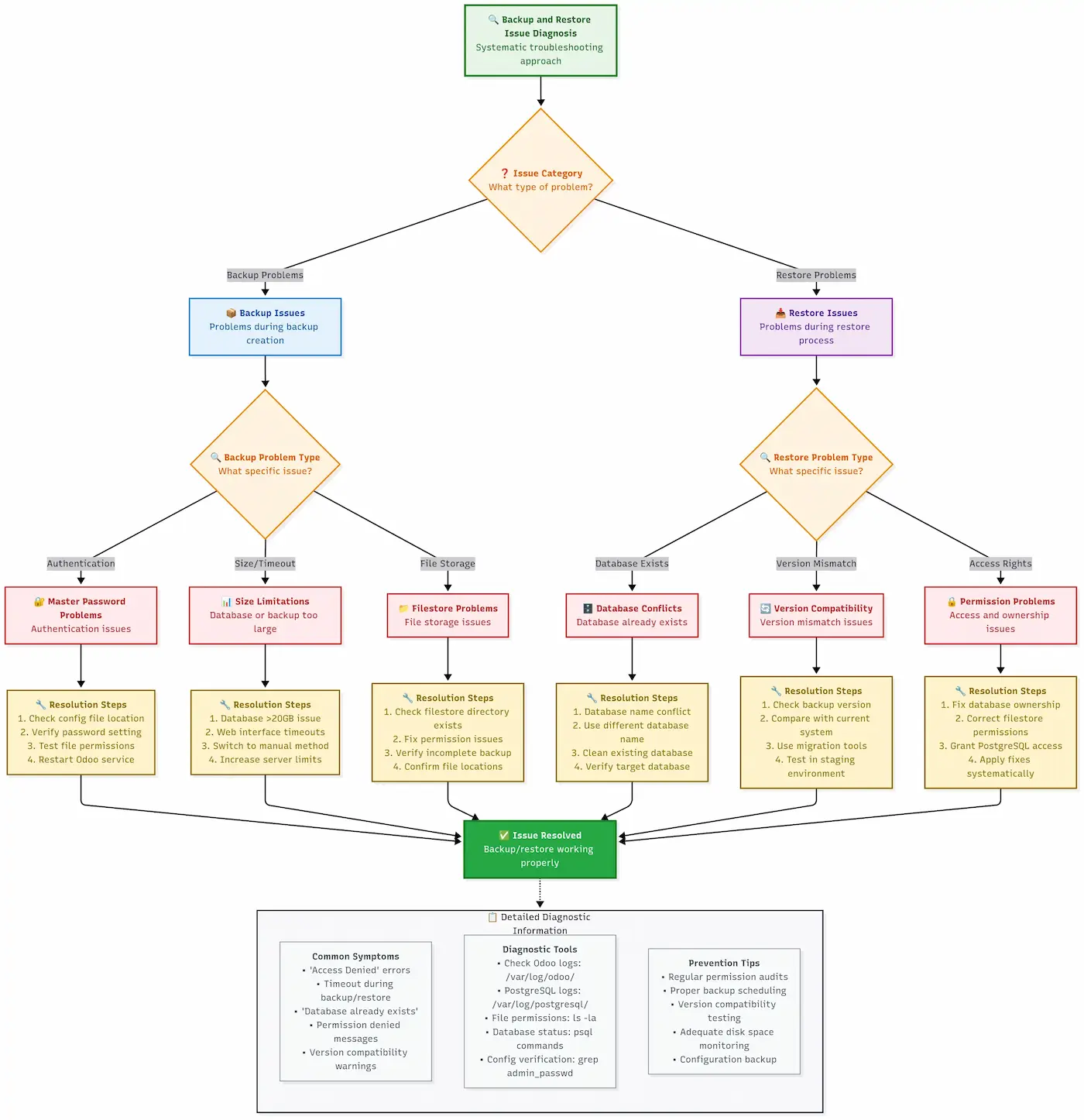
Comprehensive troubleshooting flowchart for common backup and restore problems.
Alternative Solutions Comparison
Beyond the technical intricacies, selecting the most appropriate backup strategy necessitates evaluating solutions based on your team's technical skills, budgetary constraints, and specific business requirements. Research across various organizational implementations demonstrates that the "best" solution is highly context-dependent, varying significantly between a small startup and a large enterprise.
Built-in Backup vs Third-Party Modules
Understanding when to leverage Odoo's native capabilities and when to invest in third-party solutions can lead to considerable savings in time, resources, and potential operational headaches.
Odoo Native Tools: Pros and Cons
Odoo's built-in backup system offers a foundational method for data protection.
Pros:
- No additional cost - It's a standard feature included with every Odoo installation.
- Guaranteed compatibility - Designed to work seamlessly with all Odoo versions and updates.
- Simple interface - Offers an intuitive user experience with minimal learning curve for administrators.
- Complete backup - Capable of including both the database and its associated filestore.
- Official support - Typically covered under Odoo's official support agreements.
Cons:
- Size limitations - Struggles with very large databases, often failing for instances exceeding 20GB.
- No inherent automation - Requires manual initiation for each backup operation.
- Limited scheduling - Cannot natively configure automated daily or weekly backups.
- No cloud integration - Backups are downloaded directly to the local machine, lacking off-site redundancy.
- Single point of failure - If the web interface or Odoo service is down, backup access is compromised.
Real-world performance:
# Size limits observed across production deployments:
< 1GB:    Excellent performance, 30-60 seconds
1-5GB:    Good performance, 2-5 minutes
5-20GB:   Acceptable performance, 10-30 minutes
>20GB:    Frequent timeouts, not recommended

# Success rates documented by database size:
< 5GB:    98% success rate
5-15GB:   85% success rate
15-25GB:  60% success rate
>25GB:    <30% success rate
Community-Maintained Backup Module - The Reliable Choice
A well-known community-maintained module (e.g., from an open-source association) often provides enhanced capabilities over native tools.
What it does:
- Enables automated local and SFTP backups.
- Provides email notifications upon backup success or failure.
- Supports configurable retention policies for managing backup history.
- Known for its simple setup and low maintenance requirements.
Best for:
- Small to medium businesses (typically fewer than 50 users).
- Organizations with fundamental automated backup requirements.
- Teams operating without dedicated IT staff.
- Deployments where budget is a primary consideration.
Research findings: This type of module is frequently recommended in community analyses due to its stability across multiple Odoo versions and consistent reliability documented in various organizational environments.
Feature-Rich Backup Module - The Comprehensive Option
Another category of modules offers a broader range of advanced features, catering to more complex requirements.
What it does:
- Supports integration with multiple cloud storage providers (e.g., AWS S3, Google Drive, Dropbox).
- Offers advanced scheduling options for granular control over backup timing.
- Provides comprehensive email reporting and often a web dashboard for monitoring.
Best for:
- Growing businesses (typically 50-200 users).
- Organizations with intricate backup requirements, including off-site storage.
- Teams that specifically need cloud integration for their backup strategy.
- Companies with stringent data compliance requirements.
Field analysis: While powerful, these modules can be resource-intensive during backup operations. They are most effective for organizations that require advanced features and possess adequate server resources to manage the load.
Enterprise Backup Solutions (Custom/Managed)
For the most demanding environments, bespoke or fully managed enterprise backup solutions are available.
What they offer:
- Ful
