(1).svg)
 (1).png)


 (1).svg)
.svg)
Efficient user management and robust access control are fundamental aspects for organizations of all sizes. The Odoo platform provides powerful tools to streamline user administration and significantly enhance data security. This comprehensive guide will meticulously walk you through the essential processes of setting up user accounts and configuring precise access control within Odoo 16, thereby empowering you to maintain full command over your system’s security protocols and organizational structure.
Managing User Accounts in Odoo
This section outlines the essential steps involved in the creation and effective management of user accounts within Odoo 16. Understanding these procedures is crucial for maintaining a well-organized and secure operational environment.
User Creation
The process of creating user accounts is paramount, as it grants individuals secure access to your Odoo 16 system, personalize settings, and track their activities. It provides authenticated access and enables users to perform their tasks efficiently.
- Log in to your Odoo 16 instance using an administrator account or an account with appropriate access rights.
- Navigate to the "Settings" module, then locate and select the "Manage Users" option.
- Initiate the creation of a new user by clicking on the "Create" button.
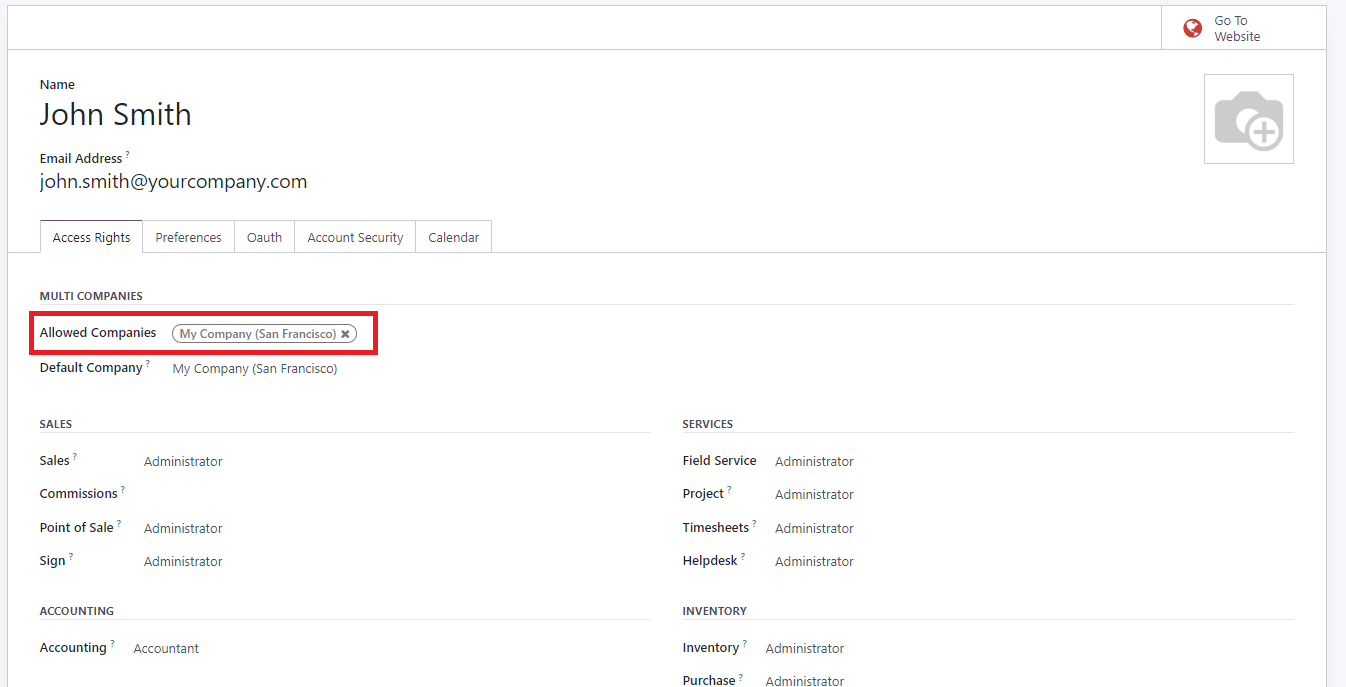
- Input the user’s essential details, such as their username and email address. Within the "Allowed companies" field, designate the specific organizational entities to which the user should have access. Additionally, optional information like the user's preferred language and time zone can be configured under the "Preferences" tab.
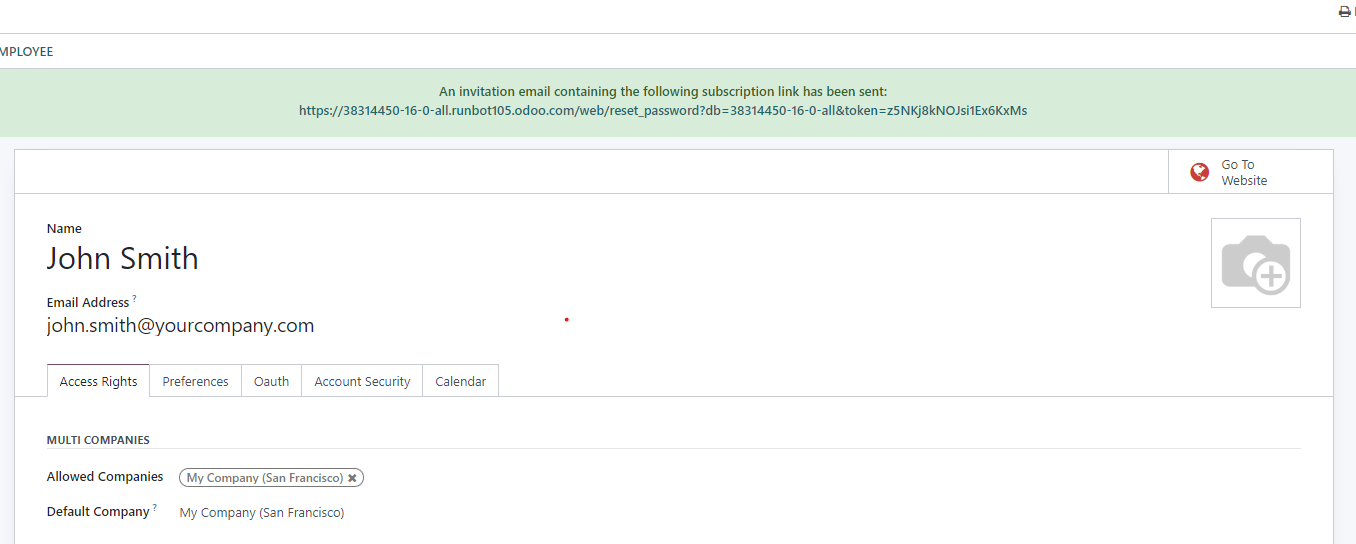
Once all details have been configured and the user record is saved, the newly created user will automatically receive an invitation email from Odoo. This email prompts them to accept the invitation and establish their login credentials to access the system.
Assigning User Types
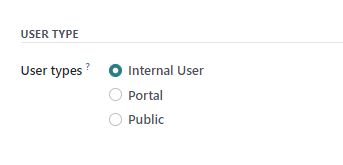
In Odoo, users are systematically categorized into distinct types, each reflecting specific roles and corresponding access levels within the system. Understanding these classifications is key to effective permission management:
- Internal Users: These are typically employees who require comprehensive access to a range of modules and features within the Odoo environment, enabling them to perform their daily operational tasks.
- Portal Users: This category includes external stakeholders such as customers or suppliers. They are granted restricted access to specific, relevant documents and information through a dedicated portal interface.
- Public Users: These users have access limited exclusively to publicly available website features, such as browsing product catalogs, reading blog posts, or submitting contact forms, without requiring full system login.
By meticulously assigning the appropriate user type in Odoo 16, administrators can ensure that each individual possesses the correct level of access and functionality, precisely tailored to their specific roles and operational requirements. This tailored approach enhances both security and user experience.
Configuring Portal Access for Customers and Suppliers via Related Partner Field
The "Related Partner" field offers a convenient mechanism to associate a user account with a specific partner record, which could be a customer or a supplier. This strategic connection facilitates seamless integration and enhanced collaboration across various Odoo modules, ensuring highly efficient communication flows and direct access to all pertinent associated records. This significantly streamlines business interactions.
For instance, consider the scenario where you create a new contact within Odoo’s contacts application for a new customer. If you wish to grant this customer access to your dedicated customer portal, you can achieve this with a straightforward process. Simply navigate to the Contact form, select "Action," and then choose "Grant portal access."
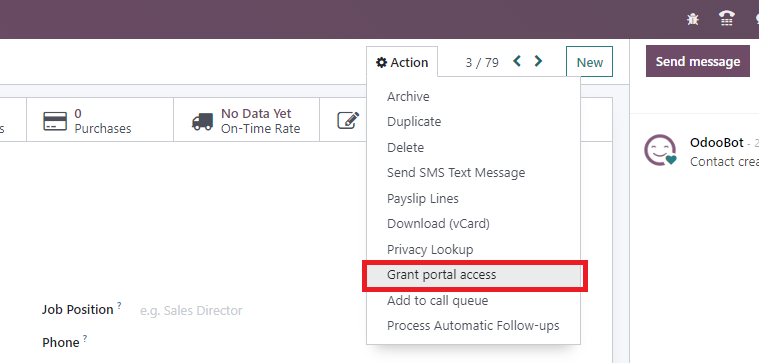
In the subsequent pop-up window, click "Grant Access" and then "Close." Afterward, return to the "Settings" menu, then proceed to "Companies & Users," and finally, "Users." You will observe that a new Portal User account has been automatically generated, and an email invitation for login creation has already been dispatched to the associated individual.
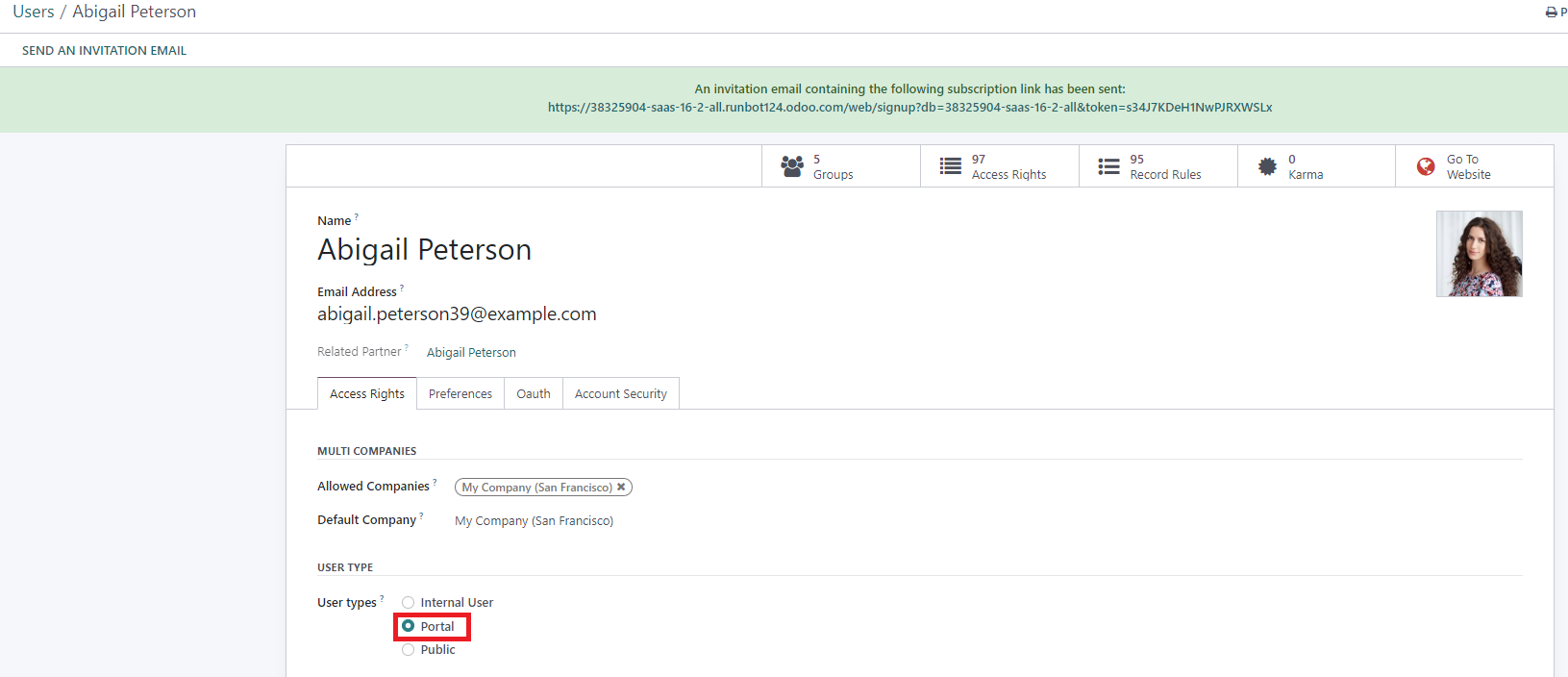
Assigning User Roles and Permissions
Odoo offers unparalleled flexibility in defining user access rights with remarkable precision. Within the "Access Rights" tab of each user's form, administrators can conveniently select the specific roles and granular access permissions required for every installed application. This ensures that users have exactly the functionalities they need, and no more, thereby enhancing security and operational focus.

Managing Passwords
Enabling password resets directly from the login page significantly improves user experience and reduces administrative overhead. To activate this functionality for your users, please follow these steps:
- Navigate to the "Settings" module.
- Select the "Permissions" section.
- Locate and activate the "Password Reset" option.
- Finally, save the changes to apply the new setting.

Should a user require password reset instructions, Odoo provides a straightforward method to send these directly. Follow these simple steps:
- Access the "Settings" module, then navigate to "Users & Companies," and finally, "Users."
- From the displayed list, locate the specific user for whom you wish to send reset instructions and open their individual user form.
- Within the user form, click on the "Send Password Reset Instructions" option.

An automated email will be promptly dispatched to the user. This email will contain comprehensive instructions detailing the process of resetting their password, along with a convenient, secure link that directly redirects the user to an Odoo login page specifically configured for password resetting. This ensures a guided and secure process for password recovery.

To manually change an existing user’s password within Odoo, an administrator can follow these straightforward steps:
- Navigate to "Settings," then "Users & Companies," and finally, "Users."
- Select the specific user whose password you intend to modify to access their detailed user form.
- Click on the "Action" button, and from the dropdown menu, select "Change Password."
- Input the desired new password and confirm the alteration by clicking "Change Password."

Important Note: It is crucial to understand that this password modification exclusively applies to the user’s local password within your specific Odoo system instance. It does not affect or alter their separate odoo.com account credentials. If a password change is required for their odoo.com account, the recommended procedure is to utilize the "Send Password Reset Instructions" functionality.
Upon successfully clicking "Change Password," the system will redirect you to an Odoo login page. Here, you will be able to reaccess your database using the newly updated password, ensuring the change has been successfully implemented.
Managing Multi-company Access
The multi-company access feature in Odoo 16 is particularly beneficial for organizations that operate with several distinct entities, all of which need to be centrally managed within a unified system. Within the "Access Rights" tab of each user's form, the "Allowed Companies" field provides the capability to precisely define which of the various company databases a user is permitted to access. This allows for granular control, enabling administrators to grant access to a single company or multiple companies as required by the user's role.

Managing User Groups
User groups in Odoo 16 are a powerful mechanism designed to significantly simplify access control and permissions management across your organization. These groups enable the categorization of users based on their specific roles, departments, or functional responsibilities, thereby providing highly efficient and centralized control over access to various modules, features, and critical data. By strategically assigning users to relevant groups, administrators can effortlessly manage permissions for multiple individuals concurrently, ensuring that each user has appropriate access rights and, in turn, substantially enhancing the overall data security posture within your Odoo 16 system.
Configuring User Groups
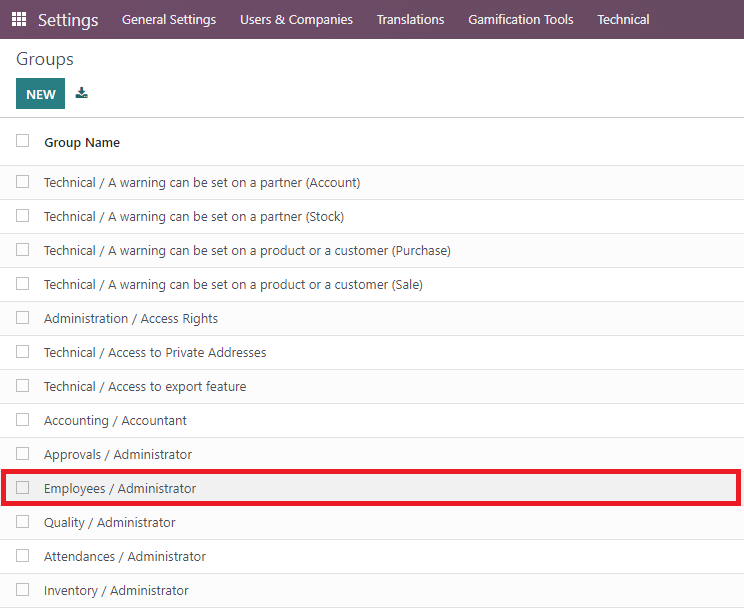
To access and manage User Groups within your Odoo 16 interface, it is first necessary to activate the developer mode. Once developer mode is enabled, navigate to the "Settings" module, then proceed to "Users & Companies," and finally select "Groups."

This section provides a comprehensive overview of all existing user groups and their respective types. From here, administrators have the flexibility to either create new user groups tailored to specific needs or configure the settings of existing groups. To modify an existing group, simply select it from the list and click to open its configuration details.
User Tab
Each access group in Odoo is designed for precise configuration through a series of dedicated tabs, enabling administrators to define granular rules for models across every installed Odoo application. To begin, the "Users" tab provides a clear and concise list of all individuals currently assigned to that particular group, offering an immediate overview of its membership.

Inherited Tab
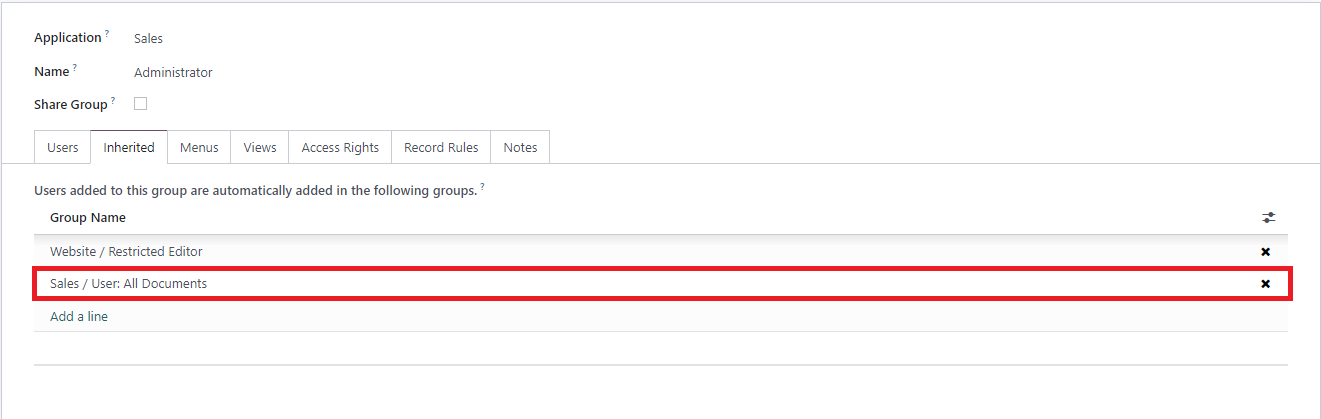
When a user is assigned to an application access group configured with "inherited" settings in Odoo, this action automatically extends their membership to other directly related groups. For example, if a user is granted access to the "Employees / Administrator" group, they will subsequently also gain access to associated groups such as "Fleet / Administrator" and "Employees / Officer: Manage all employees." This powerful inheritance mechanism significantly streamlines user management by ensuring that permissions and access rights consistently cascade down through interconnected groups, thereby providing seamless and efficient access control across diverse functionalities within the Odoo system.

Menus Tab
The "Menus" tab within Odoo provides a critical interface for precisely specifying which menus or data models a user is authorized to access. Through careful configuration of this tab, administrators gain complete control over which sections and features of the system are presented and made available to each user. This functionality is instrumental in customizing the user’s interface, ensuring it is tailored to their role, and ultimately determining their specific level of access to various functionalities throughout the Odoo platform.

Access Rights Rules Tab
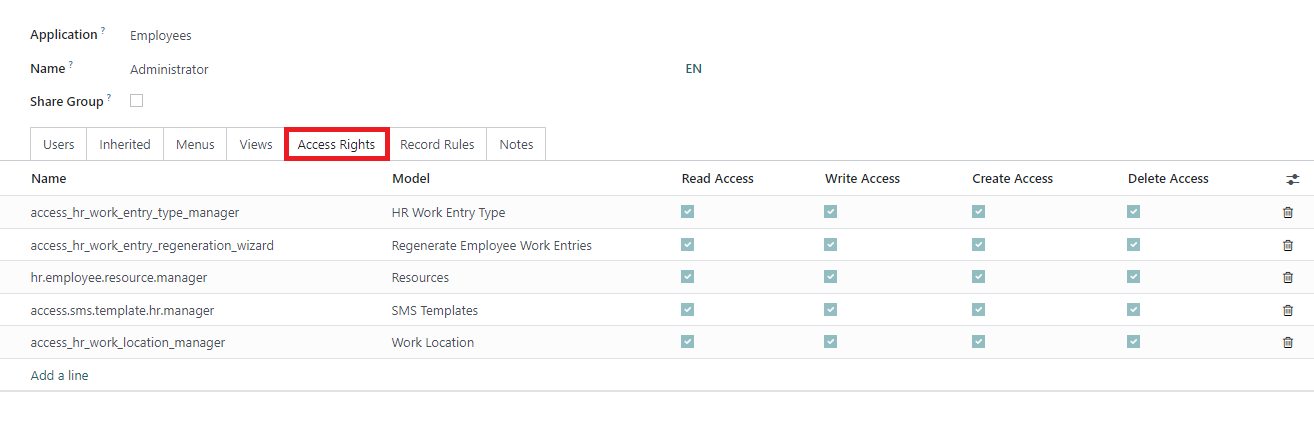
Access Rights rules in Odoo constitute the foundational layer for managing and controlling user permissions. Each individual rule is specifically designed to correspond with a distinct object or data model present within the system. By carefully enabling the appropriate options for each rule, administrators can precisely define the user’s access level concerning that particular object. The fundamental access levels include:
- Read: This permission grants the user the ability to view the values and data associated with the object, but explicitly prohibits any modifications.
- Write: Users with this permission are authorized to edit and update the existing values of the object, allowing for data modification.
- Create: This permission empowers the user to generate and add new values or records related to the specific object, expanding the dataset.
- Delete: Granting this permission enables the user to permanently remove or delete values and records associated with the object from the system.
These granular options collectively offer extensive flexibility in defining and customizing a user's precise level of access and operational control over individual objects or data models throughout the Odoo platform. This detailed control is essential for maintaining data integrity and security.
Records Rules Tab
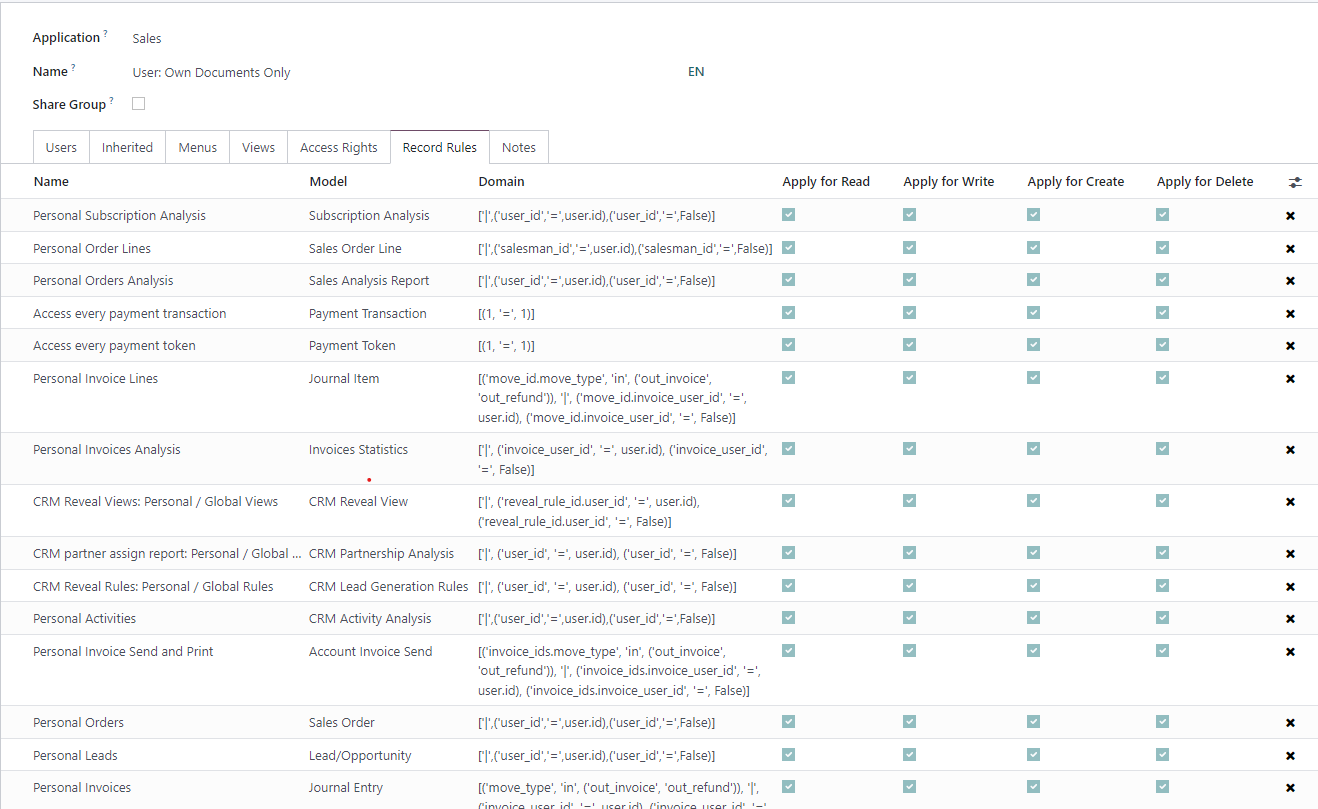
Record Rules in Odoo function as an advanced, supplementary layer for meticulously defining both editing and visibility parameters, which can either override or further refine the broader Access Rights settings. These rules precisely govern access to individual records within a given model, determining which specific records can be accessed by which users. During the configuration of a record rule, administrators can select from comprehensive options such as Read, Write, Create, and Delete to specify the exact permissions applicable to values associated with that particular rule. This intricate level of control provides significantly more granular management over user access and their permissible actions on specific records throughout the system, ensuring data security and operational accuracy.
To illustrate this concept more clearly, let’s examine a practical example:
Consider the User Group designated as "Sales / Own documents." Within this group, a range of Record Rules are meticulously established. The "Personal" rules, for instance, are configured to restrict members of this group to accessing exclusively their own sales orders and any sales orders that are currently unassigned. Concurrently, users within this group are granted complete and unrestricted access to all records pertaining to other data models within the system.
In stark contrast, the "All Documents" group is configured to grant universal access to all records. This is achieved by utilizing the domain [(1,'=',1)], a condition that is always logically true, thereby ensuring unrestricted visibility to all documents.
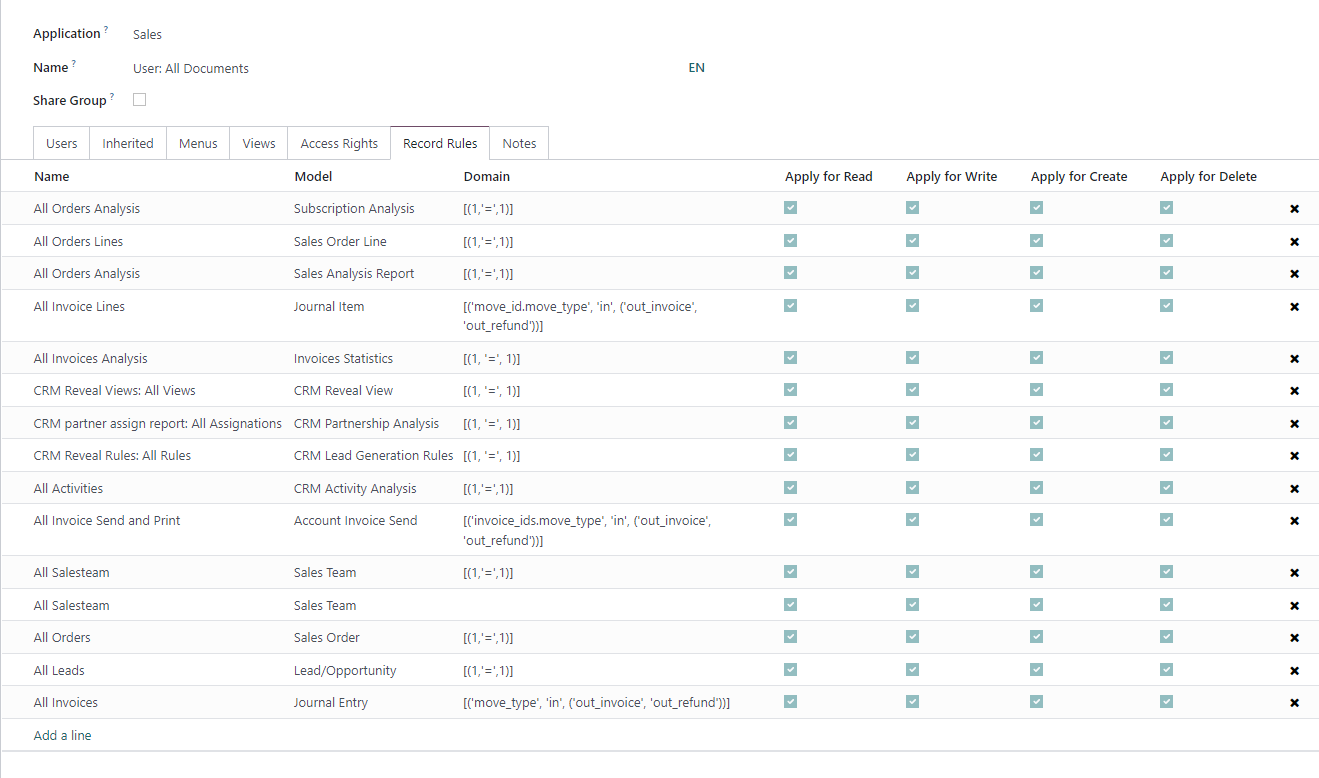
Consequently, the "Sales > Administrator" group does not necessitate the assignment of additional, explicit access privileges. This is because it inherently inherits comprehensive, full access to all documents by virtue of its membership in the "All Documents" group, simplifying its permission structure.