
 (1).svg)
 (1).png)


 (1).svg)
.svg)
Imagine the frustration of a crashed WordPress website, only to discover your last backup is months old, or worse, non-existent. All your recent content, customer data, and critical site updates could be irretrievably lost. This scenario, unfortunately, is more common than many website owners realize. While manual backups offer a sense of security, they are often inconsistent. The best intentions to perform weekly backups frequently give way to busy schedules, leaving your valuable digital assets vulnerable.
This is precisely why automatic backups are an indispensable solution for any WordPress site. They operate seamlessly in the background, continuously safeguarding your site without requiring constant attention. The good news is that implementing a robust system for automatic backups is straightforward. By following a few key steps, you can ensure your WordPress website remains protected against unforeseen events, providing invaluable peace of mind.
To summarize the core principles:
- WordPress does not offer native backup functionality: To automate the process and shield your site from crashes, data corruption, or malicious attacks, a dedicated backup plugin is essential.
- Tailor your backup frequency: Implement hourly, daily, weekly, or monthly schedules, adjusting the frequency based on your website's update rate and traffic volume.
- Utilize cloud storage for enhanced security: Integrate with third-party cloud services such as Dropbox, Google Drive, or Amazon S3 to store your backups securely off-site.
- Leverage custom templates for efficiency: Create personalized backup templates to include only the specific files and database tables you require, or opt for a comprehensive full-site backup.
- Achieve true "set it and forget it" protection: Once properly configured, automatic backups will run silently, ensuring your site is continuously secured without further manual intervention.
Why Automatic Backups Are Essential for Your WordPress Site
For any WordPress website owner, implementing a strategy for regular backups is not merely a recommendation; it's a critical security imperative. Your website is a dynamic asset, constantly evolving with new content, user interactions, and system updates. Without a proper backup regimen, a single unexpected event could lead to significant data loss and operational disruption.
Consider the myriad of threats that could impact your site: server crashes, malicious software (malware) infections, hacking attempts, accidental deletions, or even critical updates that go awry. In such scenarios, having a recent and reliable backup means you can quickly restore your website to a fully functional state, minimizing downtime and protecting your brand's reputation and user trust.
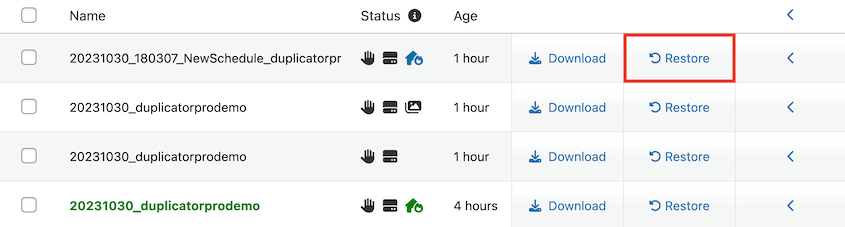
While manual backups can be performed, they are inherently prone to human error and inconsistency. Remembering to meticulously download your site files and database at regular intervals can be a challenge, especially for busy individuals or growing businesses. It's simply too easy for these crucial tasks to slip through the cracks, leaving your website exposed during critical periods.
This is where the power of automated backups truly shines. By setting up an automated schedule, your website’s files and database are consistently saved without ongoing manual effort. Whether you require monthly, weekly, daily, or even hourly backups, the flexibility to customize the frequency ensures your data protection strategy perfectly aligns with your site's activity level and importance. Automated backups act as a continuous safety net, protecting your digital investment and allowing you to focus on content creation and business growth with confidence.
Here’s a concise overview of the steps involved in establishing an automatic backup system:
- Install a robust backup plugin: Choose a plugin that enables you to schedule backups at your desired intervals.
- Develop a backup template: Define precisely which data should be included in your backups.
- Integrate cloud storage solutions: Set up secure, off-site storage locations to safeguard your backup files.
- Configure a comprehensive backup schedule: Specify the frequency, storage destination, and template to automate the entire process seamlessly.
Step-by-Step Guide: How to Automate WordPress Backups
Step 1: Select and Install a Reliable Backup Plugin
A common misconception is that WordPress inherently provides backup capabilities. In reality, the core WordPress software does not include a built-in backup service. To effectively safeguard your data and implement automated routines, integrating a dedicated WordPress backup plugin is essential. These plugins extend WordPress functionality, offering robust features for both manual and automatic site protection.
When selecting a backup solution, look for one that offers comprehensive features. Many leading tools provide functionalities beyond simple backups, often including migration capabilities. This means you can not only back up your site but also easily move your WordPress installation to a different host, server, or domain name, or even clone it to a staging environment for testing new features or updates.
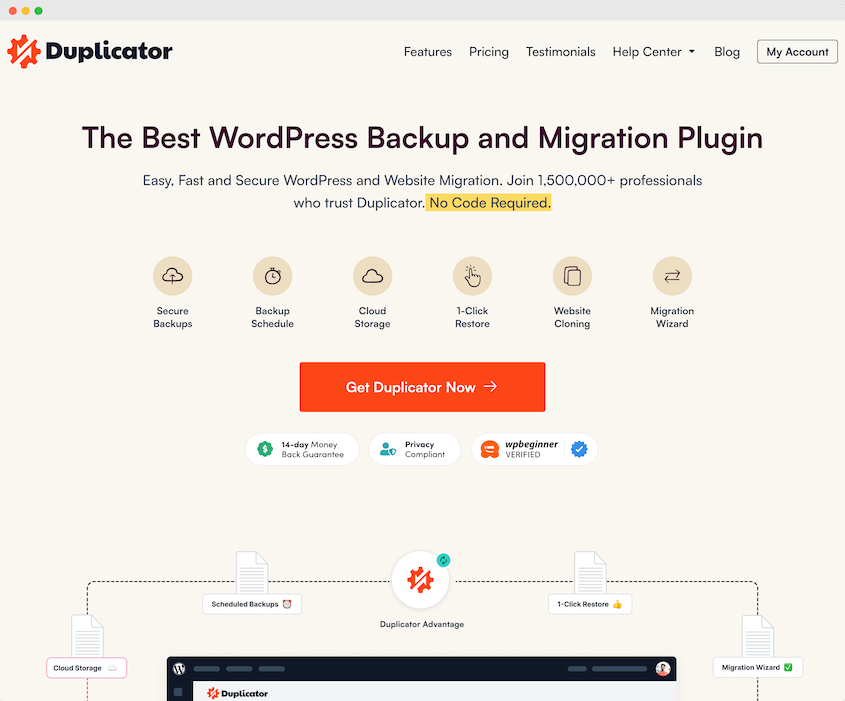
Key features to prioritize in a professional backup plugin include:
- One-click restoration processes to quickly recover your site.
- Robust disaster recovery options for critical situations.
- Support for large websites and multisite networks.
- Integration with cloud storage services for off-site backups.
- Capabilities for remote restoration from cloud storage.
- User-friendly migration tools, such as drag-and-drop functionality.
- Intuitive step-by-step migration wizards.
- Email summaries and notifications for backup statuses.
To initiate the automatic backup process, you will typically need to acquire and install a premium version of a chosen backup plugin. While free versions may offer basic manual backups, premium options almost always provide essential features like scheduled backups and remote storage integrations. After obtaining your chosen solution, proceed with the standard WordPress plugin installation and activation procedure.
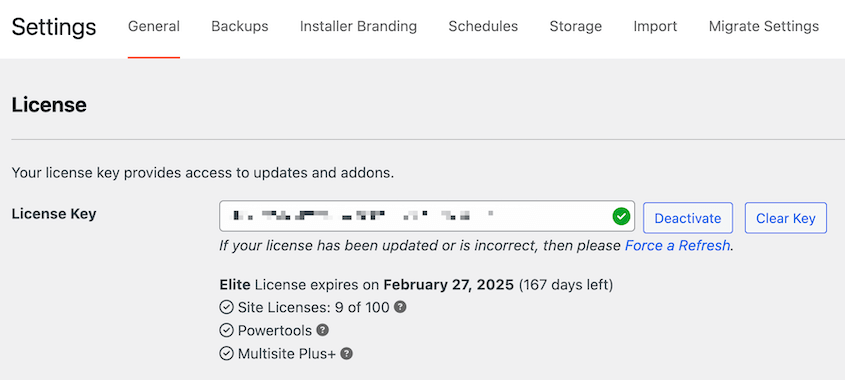
Once installed, navigate to the plugin's settings within your WordPress dashboard. Locate the general settings area, where you will usually find a field designated for a license key. Paste the license key provided with your purchase into this field and click on the 'Activate' button to complete the setup. This step typically unlocks all premium features, including the automation capabilities.
Step 2: Configure Backup Templates
Before establishing an automated backup schedule, it's highly beneficial to define a backup template. In many advanced backup solutions, templates dictate precisely how a backup is constructed. This feature allows for granular control, enabling you to customize which specific files and database tables are included in your backups.
Typically, upon navigating to the 'Tools' or 'Templates' section within your plugin's interface, you'll find a default template pre-configured. This default option is usually designed to create a comprehensive, full backup of your entire WordPress site, including all its files and database entries. If your goal is to always capture a complete snapshot of your site, this default template will often suffice, and you can proceed to the next step.
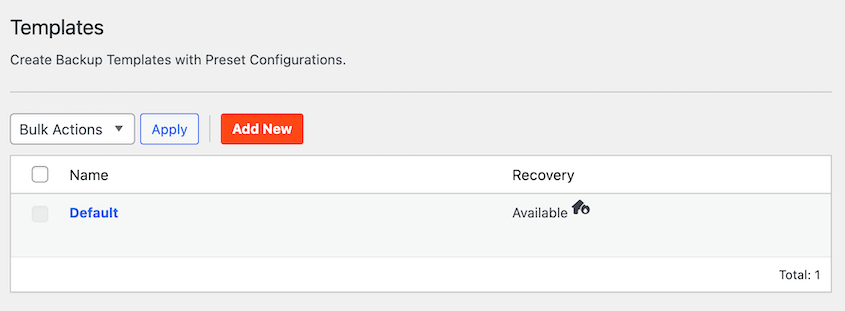
However, for more tailored backup strategies, creating custom templates is invaluable. To do this, look for an 'Add New' or 'Create New Template' option. You will then be prompted to give your new template a recognizable name, providing a clear identifier for its purpose.
Within the custom template editor, you can meticulously select the data you wish to include. For instance, you might opt for a database-only backup, which is useful for highly dynamic sites where content changes frequently but static files remain largely the same. This can significantly reduce backup size and time.
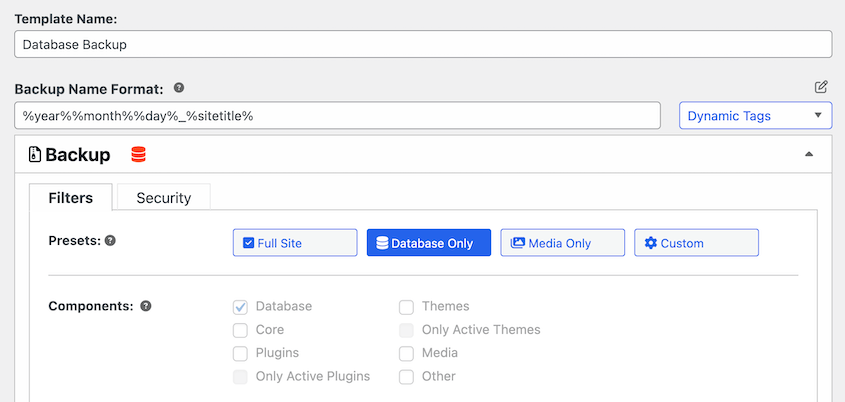
Alternatively, you can craft optimized backup templates that include a custom combination of files. This might involve backing up only your active themes and plugins, excluding large non-WordPress files, or even omitting your entire media library if it's already stored and managed externally. This level of customization allows you to create efficient backups that only capture what's most critical for specific recovery scenarios.
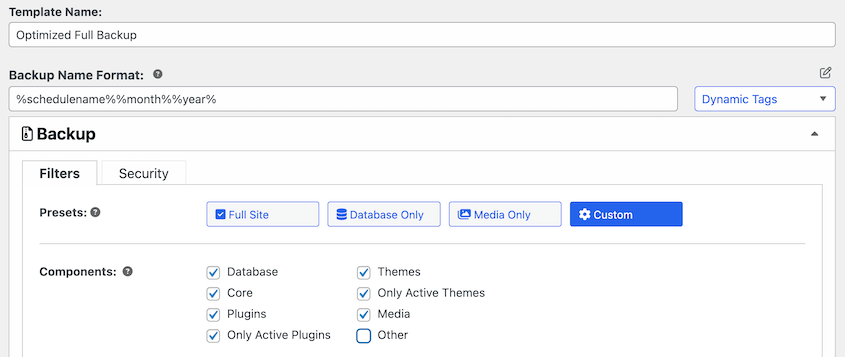
Once you are satisfied with your template's settings, remember to save the changes. The ability to create multiple templates is a powerful feature, allowing you to establish different backup schedules for various parts of your site, ensuring the right data is backed up at the optimal time.
Step 3: Establish Cloud Storage Connections
While most backup solutions will, by default, save your website backups to your local server, relying solely on local storage presents a significant security vulnerability. If your server experiences a catastrophic failure, or if your entire hosting account is compromised, your local backups could be lost along with your live site. This underscores the critical importance of utilizing off-site cloud storage for your backups.
Leading backup plugins typically offer extensive support for a variety of external backup locations, ensuring your data is stored securely away from your primary hosting environment. These often include:
- FTP/SFTP
- Google Drive
- Dropbox
- Microsoft OneDrive
- Amazon S3
- Wasabi
- Google Cloud Storage
- DreamObjects
- Vultr Object Storage
- DigitalOcean Spaces
- Cloudflare R2
- Backblaze B2
To integrate any of these third-party storage locations, you will need to connect them within your backup plugin's settings. Navigate to the 'Storage' or 'Destinations' section and select the option to 'Add New' storage location.
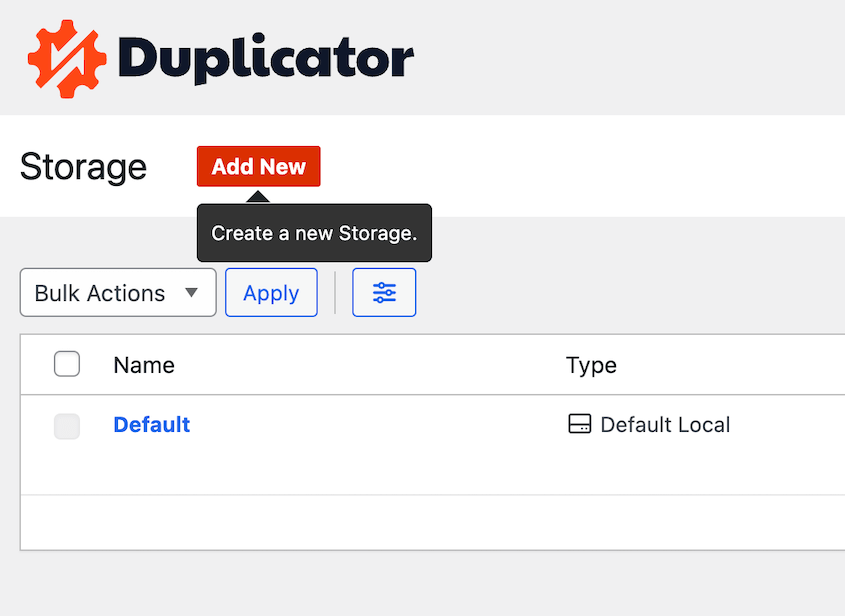
You'll then be prompted to give this new storage connection a recognizable name. From a dropdown menu, select the specific cloud service you intend to use. For example, if you choose Dropbox, the interface will guide you through the authorization process.
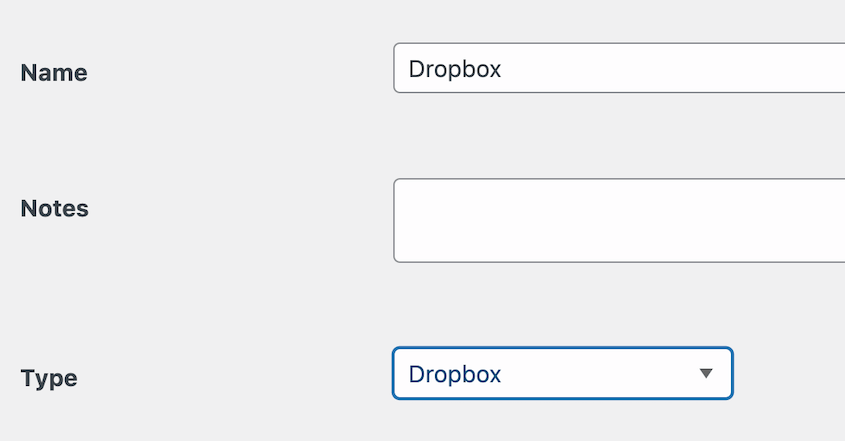
After selecting your service, typically you'll click a 'Connect' or 'Authorize' button specific to that cloud provider.
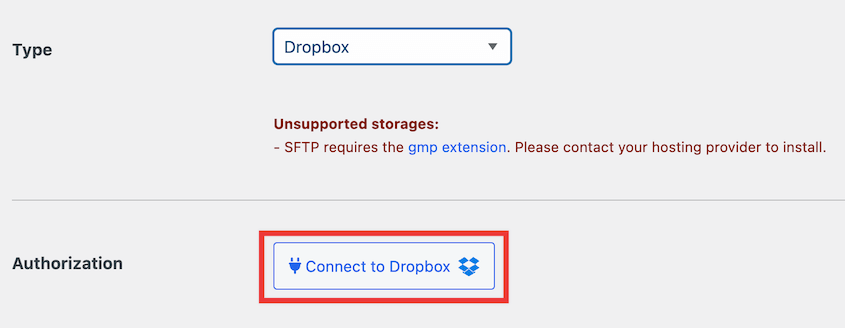
This action usually initiates a secure authorization flow. For services like Dropbox, this will involve opening a new browser tab or window, where you'll be asked to log into your cloud account (if not already logged in) and grant permission for the backup plugin to access certain folders or functionalities. You will often receive an authorization code.
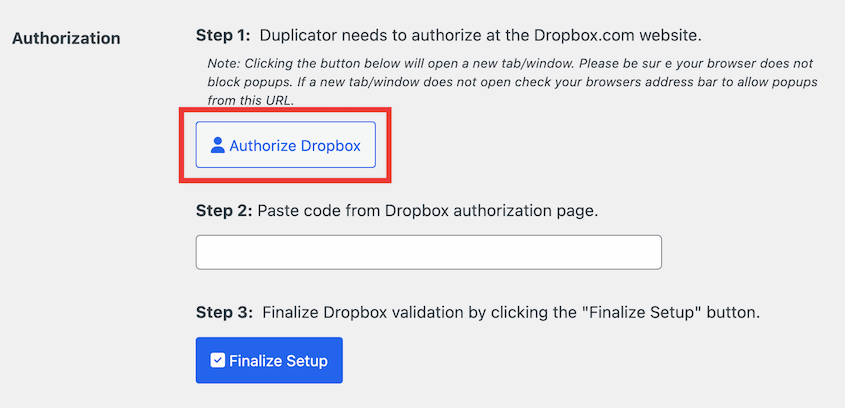
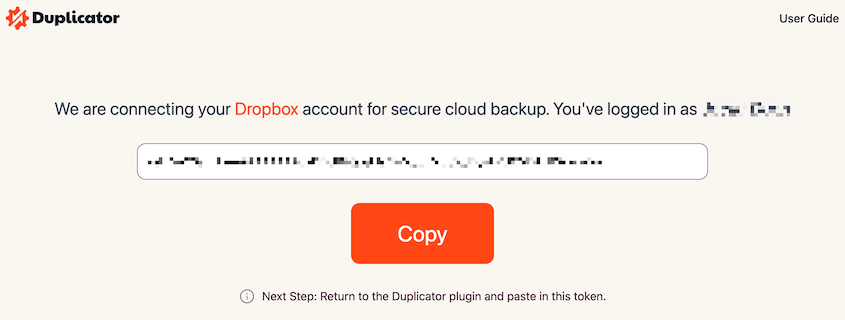
Once you have the authorization code, return to your WordPress dashboard. Paste the code into the designated field within your plugin's setup process, and then click to 'Finalize Setup' or 'Complete Connection'.
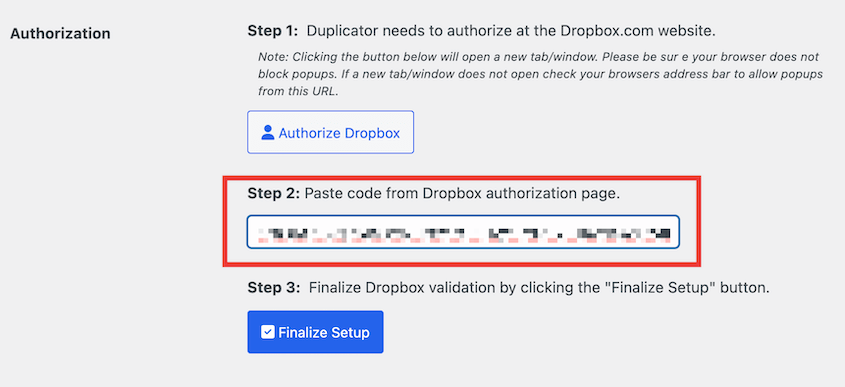
Upon successful completion, your backup solution will be securely linked to your chosen cloud storage service, enabling automatic, off-site saving of your website backups. This significantly enhances your site's security and disaster recovery capabilities.
Step 4: Create Your Automatic Backup Schedule
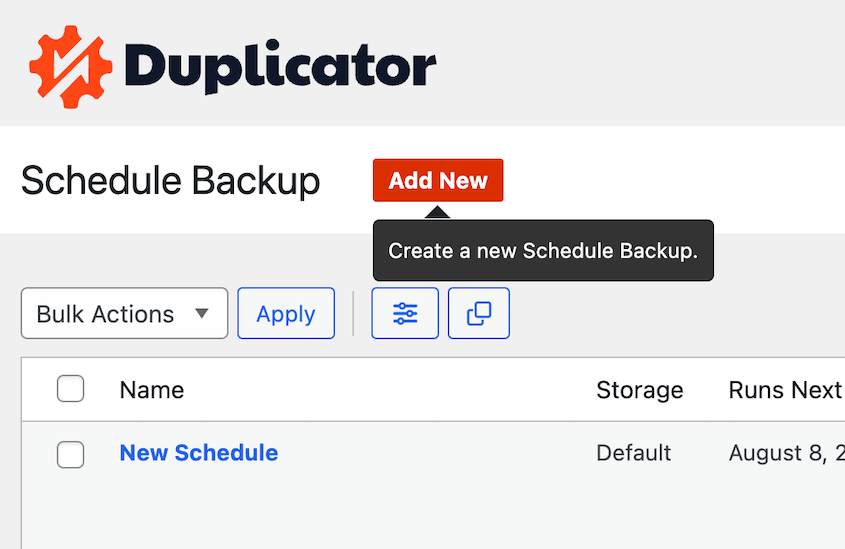
With your backup plugin installed, templates configured, and cloud storage connected, the final step is to create and activate your automatic backup schedule. This is where you define the frequency and parameters for your ongoing site protection. Begin by navigating to the 'Schedule Backup' or 'Schedules' section within your plugin and selecting the option to 'Add New' schedule.
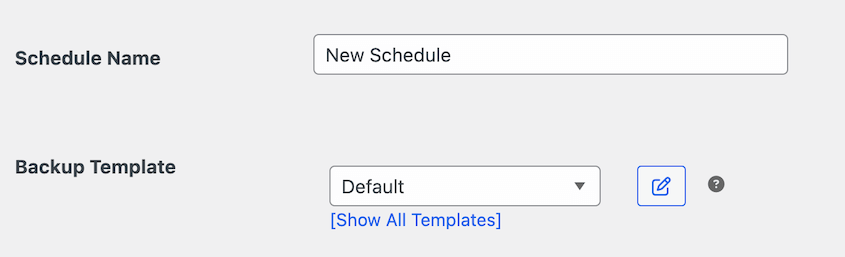
On the new schedule creation page, the first step is to give your backup schedule a descriptive name. This will help you easily identify its purpose later. Next, you'll select a backup template from a dropdown menu. You can choose the 'Default' full-site template or any custom templates you created in the previous step, allowing you to fine-tune what data is backed up.
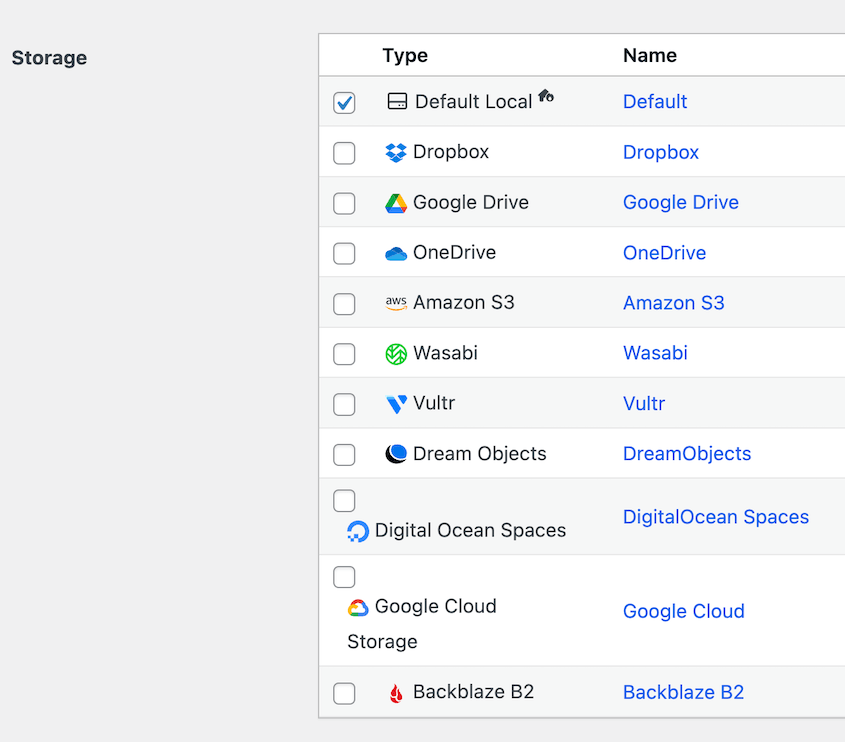
Following this, you will specify the storage location for your backups. The dropdown list will display all the external cloud storage services you've previously authorized and connected. Selecting an off-site location here is crucial for robust disaster recovery.
Now, it's time to customize the frequency of your automated backups. Most advanced backup solutions offer flexible options, including monthly, weekly, daily, or even hourly backups. Choose a frequency that aligns with how often your website content changes and how critical recent data is to your operations.
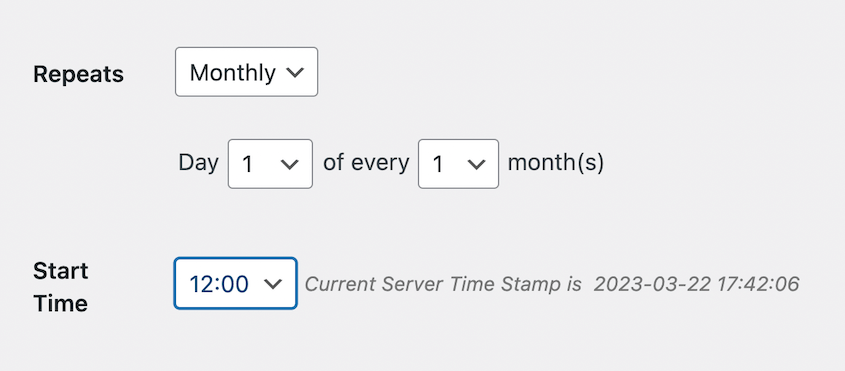
You will also need to select a 'Start Time'. This determines the specific time of day your automated backup process will commence. It's often advisable to select a time when your website typically experiences lower traffic to minimize any potential impact on user experience or server resources.
Once all these parameters are set, scroll to the bottom of the page and ensure that the option to 'Enable This Schedule' is checked. This crucial step activates your new automated backup routine.
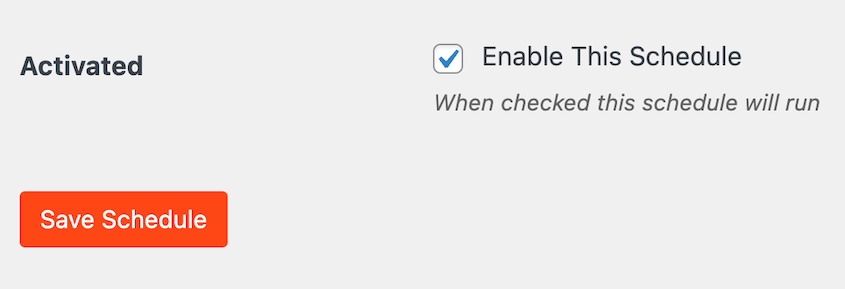
Finally, save the schedule. Your newly configured automatic WordPress backup will now appear on the 'Schedule Backup' or 'Schedules' page within your plugin's interface.
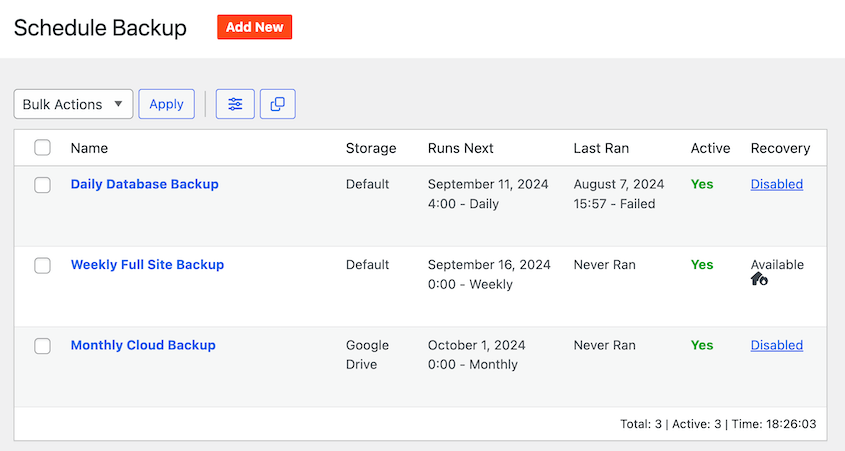
This overview will typically display important details such as when the schedule was last executed and when the next backup is planned. When the specified time arrives, your website's backup archive, along with any necessary installer files, will be automatically generated and saved to your chosen storage location, usually available as downloadable zip files.
Frequently Asked Questions About WordPress Backups
Does WordPress include a built-in backup feature?
No, WordPress does not come with a native, built-in backup service. Its core functionality focuses on content management. Therefore, to ensure your website's data is regularly saved and recoverable, you must implement an external solution. This typically involves installing a dedicated WordPress backup plugin, manually downloading your site's files and database, or relying on backup services provided by your web hosting provider.
Which is the most effective WordPress backup solution?
The "best" WordPress backup solution often depends on individual needs, but a highly effective option for scheduling automatic website backups and securely storing them in off-site cloud storage services (such as Dropbox, Google Drive, or Amazon S3) is generally recommended. Solutions that offer comprehensive features like one-click restores and customizable backup templates are highly regarded, providing peace of mind through robust data security.
Considered Alternatives: There are several reputable backup plugins available, including UpdraftPlus, BackWPup, WPVivid, Jetpack Backup (VaultPress), BackupBuddy, and BlogVault. Each offers a unique set of features and capabilities for backing up your WordPress site. Researching and comparing these options based on your specific requirements for features, ease of use, and support will help you determine the most suitable choice.
Is it possible to back up a WordPress website without using plugins?
Yes, it is possible to back up your WordPress website without installing a plugin, though these methods often require more technical expertise. Your web hosting provider typically offers backup solutions accessible through your hosting control panel (like cPanel or Plesk). Alternatively, you can manually download your website files via an FTP client or your hosting's file manager, and export your WordPress database using tools like phpMyAdmin. While viable, these manual approaches can be time-consuming and prone to error, especially if performed inconsistently.
How can I set up daily backups for my WordPress site?
To implement daily backups for your WordPress site, the most efficient method is to use a capable backup plugin. After installing and activating your chosen premium backup solution, navigate to its scheduling interface. From there, you will create a new backup schedule and explicitly set the frequency option to 'Daily'. This ensures that your site's data is automatically backed up once every 24 hours.
Are there free options for backing up my WordPress site?
Yes, several free options are available for backing up your WordPress site. Many backup plugins offer a 'Lite' or free version that allows you to perform manual backups. These typically enable you to compile all your WordPress files, themes, plugins, media files, and database information into a single downloadable archive, usually a zip file. You can then download this file to your local computer for safekeeping. While free tools provide a good starting point, remember that premium versions often unlock automated scheduling and cloud storage integrations, which are crucial for a truly hands-free and secure backup strategy.
What's the process for performing a full backup of my WordPress site?
Performing a full backup of your entire WordPress site is a straightforward process when using a comprehensive backup plugin. After initiating a new backup operation within your plugin's interface, you will typically be presented with various backup scope options. To ensure all elements of your site are included, select the 'Full Site' or equivalent preset. This option is designed to capture all essential data, including your core WordPress files, themes, plugins, uploads (media library), and the complete database, into a single, restorable archive.

How frequently should I back up my WordPress site?
The ideal frequency for backing up your WordPress site is highly dependent on its activity level and the rate at which its content changes. For static websites or blogs that are updated infrequently, a monthly backup might be sufficient. However, for dynamic websites, such as e-commerce stores (WooCommerce sites), active membership platforms, or frequently updated blogs that experience high traffic and constant modifications, significantly more frequent backups are recommended. In these cases, consider increasing your backup schedule to once a week, daily, or even hourly to minimize any potential data loss. Regularly assessing your site's operational tempo will help you determine and maintain an optimal backup frequency.
Conclusion: Ensure Your WordPress Site is Always Protected
You have now explored the comprehensive process of safeguarding your WordPress site through the implementation of automatic backups. The days of manual backup reminders and the anxiety of potential data loss can be confidently left behind. By leveraging a robust backup solution to manage your backups automatically, you gain the freedom to channel your energy into what truly matters: enhancing your business, developing compelling content, and fostering your online presence.
One of the most appealing aspects of this approach is its 'set it and forget it' nature. Once your backup schedules are meticulously configured, the system operates discreetly in the background. It diligently saves your site's critical data precisely when needed, without demanding any further ongoing attention.
Regardless of your specific requirements – whether it's the granular security of daily backups for a bustling e-commerce platform or the consistent protection of weekly backups for a straightforward blog – establishing an automated backup system provides invaluable peace of mind. Knowing that your hard work, valuable content, and user data are continuously protected allows you to operate your WordPress site with a renewed sense of security and confidence, ensuring your digital investment is always safe.
