
 (1).svg)
 (1).png)


 (1).svg)
.svg)
The Importance Of Backing Up Your Website
Establishing a robust backup system for your website is a critical step that should be undertaken immediately after installing WordPress. Unfortunately, it is a task many tend to overlook. Often, this oversight occurs because website owners mistakenly rely solely on their web hosting provider's “daily backup” services, entrusting their entire online presence to a third party. This reliance can prove to be a significant misstep, one that many come to regret. Let's explore why proactive website backups are indispensable.

Website disasters manifest in numerous forms. It could be a sudden server crash that renders your site inaccessible, a malicious hacker attack that compromises your data, or even the accidental deletion of vital files from your WordPress database. In any of these scenarios, having a recent and reliable backup is the only way to ensure the continued security and swift recovery of your website. It acts as your ultimate safety net, protecting your digital assets.
To highlight the paramount importance of maintaining regular backups, consider the experience of a friend who operates a news publishing website powered by WordPress. This individual hosted their website with a popular web hosting provider and, like many other bloggers, did not prioritize backing up their own website, confident in the “free daily backups” service included with their VPS hosting plan.
They felt assured that their website was safe and secure. However, one day, several servers within the web hosting company’s data centers suffered significant damage. Our friend’s website happened to reside on one of those affected servers.
“In 2014, attackers used a vulnerability in a plugin to hack 50,000 WordPress websites.”
The hosting company eventually replaced the damaged servers and restored the website using a previous backup they possessed. Yet, upon checking the restored site, our friend discovered that nearly 200 articles were missing. It turned out that the most recent backup performed by the web hosting company was over a month old. Our friend was then faced with the arduous task of manually restoring all the lost articles, one by one, using cached website pages.
“More than 12,000 phishing sites analyzed by Netcraft are hosted on compromised WordPress installations; these websites were also used to serve malicious code.”
The crucial lesson from such incidents is that complete reliance on web hosting companies for your website’s security may not be sufficient. While they offer backup services, their primary responsibility is managing infrastructure for thousands of clients, and their level of concern for your individual website’s integrity may not match your own. For true peace of mind and to ensure your website's safety, it is highly recommended to take personal responsibility for your own backup strategy.
Best WordPress Auto Backup Plugins
The excellent news for WordPress users is that you don’t need extensive technical knowledge to establish a robust backup system. Numerous plugins are available specifically designed to simplify this process.
Here are some of the most effective WordPress backup plugins to help you get started.
The Premium Options
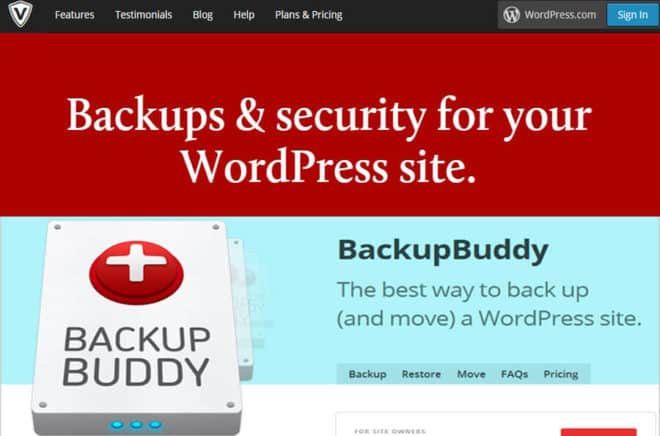
For those willing to invest in a comprehensive solution, tools like VaultPress and BackUpBuddy offer excellent, hassle-free backup systems for keeping your website secure. Both provide a wide array of features designed to facilitate smooth automatic backups, making them highly recommended for beginners seeking a reliable and straightforward approach.
The FREE Plugins
If you prefer a do-it-yourself approach and are looking for cost-effective digital solutions, BackWPup and UpdraftPlus stand out as impressive free alternatives to premium options. These free plugins not only enable you to set up automatic backups but also offer the flexibility to store your backups on popular cloud services such as Dropbox, Amazon S3, or Google Drive, providing an additional layer of security and accessibility.
How To Backup A WordPress Site
While BackWPup is a strong contender, many appreciate the straightforward nature of UpdraftPlus. UpdraftPlus is widely considered one of the best free WordPress backup plugins available. It is particularly noted for its user-friendly Restore function, which simplifies the recovery process. With thousands of five-star reviews and installations on over 800,000 websites, it has proven to be a reliable and beginner-friendly choice for securing WordPress sites.
Follow the steps below to see how easy it is to set up backups on WordPress.
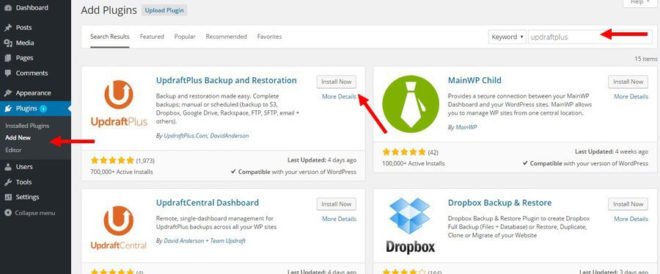
Step 1: Search for the UpdraftPlus plugin through your WordPress dashboard. Click Install and then Activate the plugin.
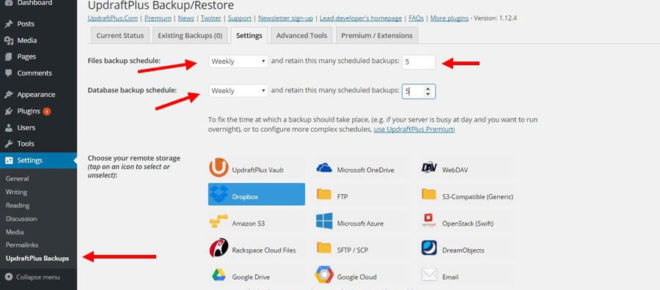
Step 2: Navigate to the plugin dashboard and select the Settings tab.
Step 3: Choose your preferred files backup schedule (e.g., daily, weekly). Select the same option for the Database backup schedule. It is recommended to set the number of retained backups to 5, meaning five of the most recent backups will be kept.
Note: If you frequently update your blog or receive daily comments, opting for the Daily backup schedule is advisable. Otherwise, a Weekly backups option may suffice.
Step 4: Scroll down and select your Remote Storage option. Popular and reliable choices include Dropbox or Amazon S3. Certain services, such as OneDrive, may require additional components. For the purpose of this demonstration, we will choose Dropbox.
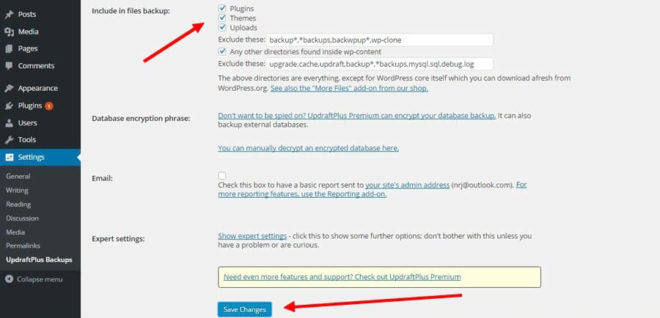
Step 5: Check all the boxes within the Include in Backup section. The remaining settings can generally be left at their default values. Optionally, you can choose to receive email notifications upon the completion of each backup.
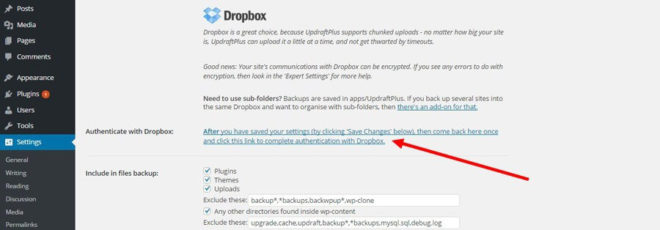
Step 6: Click Save Changes and then scroll back up to the Authenticate Dropbox link. Click on this link to grant UpdraftPlus access to your Dropbox account.

Step 7: Click on the Allow button to confirm authentication.
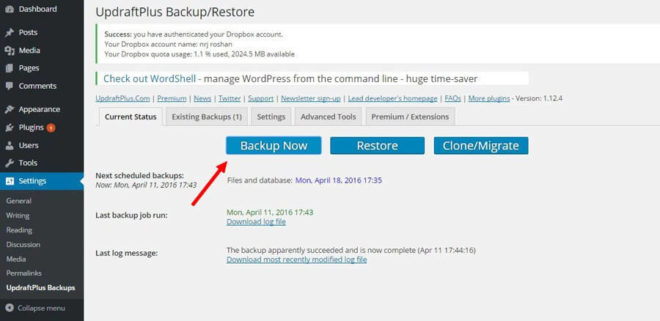
Step 8: Return to the main tab and click Backup Now to initiate the backup process for your site. The schedule for your website’s next automatic backup will also be displayed directly below this button.
Your automatic backup system is now fully set up!
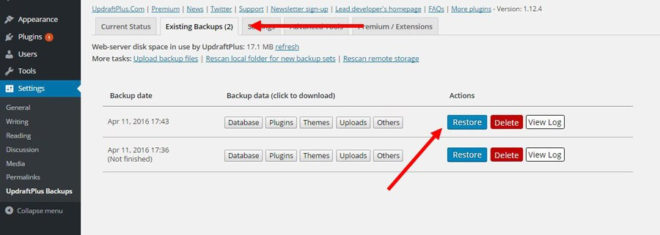
To restore your WordPress site from a backup, simply click the Restore button. Then, select the specific backup you wish to restore and click the Restore button adjacent to it.
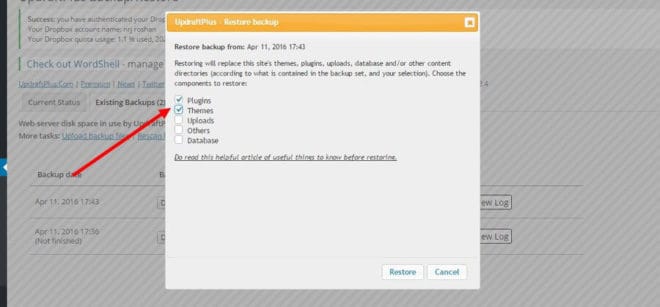
Subsequently, you will be able to select which specific components you want to restore, such as plugins, themes, or the database. Indeed, backing up and restoring a WordPress website can be a remarkably straightforward process.
How To Backup WordPress Site To Computer
While WordPress offers a built-in export function, it is primarily designed for backing up blog posts and media content. This function does not comprehensively copy other essential data of your website, including themes, the database, and plugins. Therefore, it is generally not recommended as a complete backup solution.
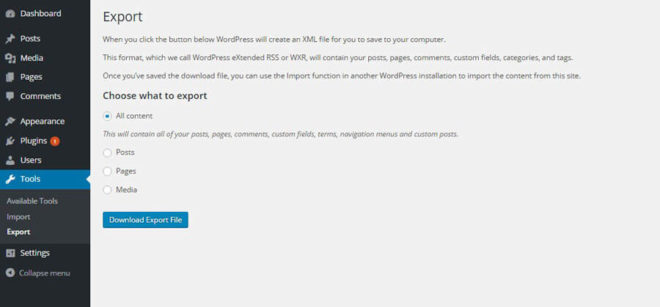
However, for more advanced internet users, it is possible to back up your entire website directly from its hosting environment and download the backup to your local computer. This can be achieved by accessing your site via the File Manager in your CPanel or by utilizing an FTP client software, such as FileZilla, to manually download a copy of your website files and database. The primary drawback of this method is the inability to automate the process, requiring manual execution each time you wish to create a backup.
Regardless of the method you choose, the few minutes invested in setting up an automatic backup system will undoubtedly prove to be one of the most judicious investments you make for your WordPress blog. One day, this proactive measure could very well safeguard your entire online business from unforeseen data loss or disruption.
