
 (1).svg)
 (1).png)


 (1).svg)
.svg)
This comprehensive guide details the process of managing File Transfer Protocol (FTP) accounts within Plesk. You will learn how to create new FTP accounts, modify existing ones, and securely delete them, ensuring precise control over file access for your website. A video demonstration is also available to walk you through each step.
Understanding FTP in Plesk
File Transfer Protocol (FTP) is a foundational network protocol used for transferring files between a client and a server. It enables users to upload or download files to and from a web server using an FTP client application. Numerous FTP clients are available across all major operating systems, such as FileZilla, and some web browsers also offer integrated FTP functionalities. For transferring a significant volume of files, using a dedicated FTP client is generally the most efficient and recommended approach.
Plesk empowers you to establish FTP accounts, allowing designated external users to access specific, restricted sections of your website. This functionality is crucial for collaboration or for granting controlled access to developers or content managers.
Important Consideration: It is vital to remember that FTP inherently grants external users the ability to modify files on your website. While access can be restricted to specific directories, users with granted access can upload, download, and delete files within those designated areas. Exercise caution and consider security implications when setting up FTP accounts for external users.
For a visual guide demonstrating the following procedures, please refer to the video below:
(Video demonstration would be embedded here if provided)
Creating an FTP Account
Follow these steps to establish a new FTP account within your Plesk environment:
- Log in to your Plesk account.
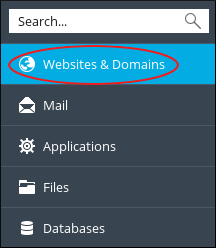
- In the left sidebar, click Websites & Domains:
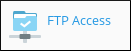
- Locate the specific domain for which you wish to add an account, then click on FTP Access:
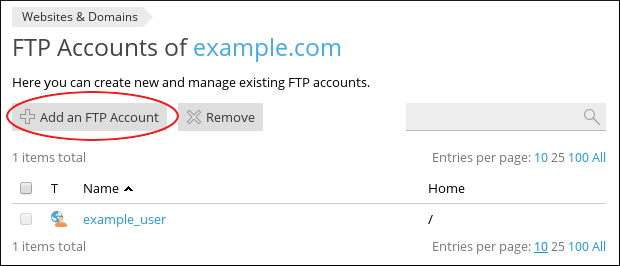
- On the FTP Accounts page, select Add an FTP Account:
- On the Add an Additional FTP Account page, under the General section, enter a unique username for the account in the FTP account name text box:
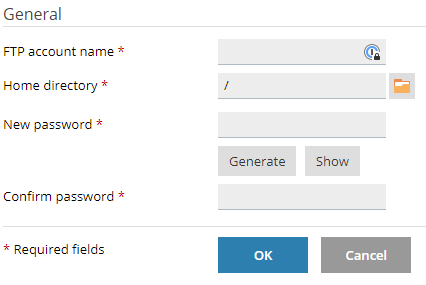
- In the Home directory text box, specify the root (home) directory for this user. Alternatively, click the folder
 icon to browse and select the desired directory.
Security Warning: Designating the top-level directory of your website (represented by a slash, /) will grant any user with valid credentials full access to add, edit, and delete all files across your entire website. It is strongly recommended to restrict FTP account access to a specific subdirectory to enhance security.
- Enter the desired password for the account in the New password text box.
- Re-enter the password in the Confirm password text box to verify it.
Tip: You can utilize the Generate button to have Plesk automatically create a strong, random password for enhanced security.
- Click OK to finalize the creation process. Plesk will then establish the new FTP account.
Modifying an Existing FTP Account
Regularly updating FTP account settings, such as changing passwords for security purposes, is a recommended best practice. Use the following steps to modify an existing FTP account:
- Log in to your Plesk account.
- In the left sidebar, click Websites & Domains:
- Locate the domain associated with the account you wish to modify, then click on FTP Access:
- On the FTP Accounts page, click the name of the specific account you intend to modify:
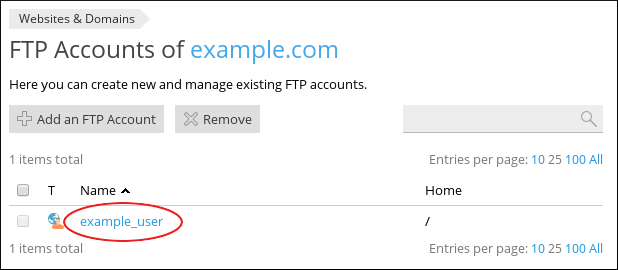
- Adjust the values in the fields as required. For instance, to change the user's password, input a new password in both the New password and Confirm password text boxes.
- Click OK to save all modifications to the account.
Deleting an FTP Account
To remove an FTP account that is no longer needed, follow these instructions:
- Log in to your Plesk account.
- In the left sidebar, click Websites & Domains:
- Locate the domain where the account you want to delete resides, then click on FTP Access:
- On the FTP Accounts page, find the account(s) you wish to delete and select the checkbox positioned next to its name:
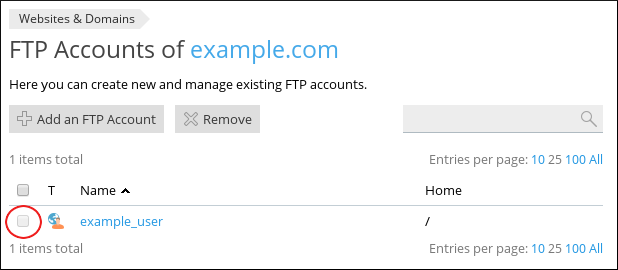
Note: You can select multiple checkboxes to delete several FTP accounts simultaneously.
- Click the Remove button.
- When prompted with "Remove the selected FTP accounts?", click Yes to confirm the deletion. Plesk will then remove the chosen account(s).
Conclusion
Effectively managing your FTP accounts in Plesk is fundamental for maintaining security and controlling access to your website's files. By following these clear steps for creating, modifying, and deleting FTP accounts, you can ensure that file transfers are conducted securely and efficiently, granting access only to authorized individuals for designated purposes. Regular review and updates of your FTP account settings are crucial for robust website security.
