
 (1).svg)
 (1).png)


 (1).svg)
.svg)
Effectively managing email can be a complex task, especially for individuals and businesses dealing with numerous email addresses and domains. Fortunately, cPanel offers robust tools for setting up and managing email aliases and forwarders, which can significantly simplify email administration. This comprehensive guide will walk you through the fundamental steps of configuring and leveraging email aliases and forwarders within cPanel, detailing their creation, removal, and advanced functionalities such as autoresponders and domain-wide forwarding. By mastering these features, you can streamline your communication workflows and maintain a high level of organization across all your email interactions.
What are Email Forwarders?
An email forwarder is a powerful cPanel feature designed to automatically redirect incoming emails from one specified email address to another. This means that any messages sent to the initial address will be instantly and seamlessly delivered to the designated forwarding address. This process happens behind the scenes, ensuring smooth email delivery without intervention.
Email forwarders prove invaluable for individuals and organizations managing multiple email accounts and striving for streamlined communication. For example, if you maintain separate email addresses for various functions such as sales, customer support, and personal correspondence, setting up forwarders allows all emails intended for these distinct accounts to converge into a single, unified mailbox. This significantly simplifies email administration, as you can efficiently monitor one primary account rather than having to check several, boosting productivity and ensuring no important messages are missed.
Understanding Email Aliases
An email alias shares similarities with a forwarder but introduces a crucial distinction: it enables you not only to receive emails at the alias address but also to send messages from it. Fundamentally, an alias functions as an additional email address that shares the same inbox, sent items, drafts, and trash folders as your primary email account, offering extended functionality.
Email aliases are ideally suited for businesses that need to employ multiple email addresses for various departmental or functional roles (e.g., [email protected], [email protected]) without the necessity of creating entirely separate mailboxes for each. This approach not only substantially simplifies email management by reducing the number of accounts to oversee but also fosters consistency in brand communication, as all outgoing emails can appear to originate from a unified address.
Key Benefits of Utilizing Email Forwarders and Aliases
- Enhanced Efficiency: Consolidate all your incoming emails into a single, central account, saving valuable time and reducing the effort required to manage multiple inboxes.
- Improved Organization: Maintain highly organized email accounts, significantly minimizing the risk of overlooking critical communications and ensuring all messages are easily accessible.
- Unmatched Convenience: Facilitate seamless redirection of emails to specific colleagues, departments, or alternate addresses as required, enhancing internal communication and workflow management.
Step-by-Step Guide to Creating an Email Forwarder or Alias
The ability to create an email forwarder or alias is a robust function that automatically directs emails from one specified address to another. This capability is exceptionally beneficial in numerous situations, such as when it's crucial for multiple team members to receive customer inquiries simultaneously, or when you aim to manage several email addresses efficiently without the burden of constantly checking separate inboxes. This section will provide a detailed walkthrough on how to set up an email forwarder or alias effectively within your cPanel environment.
It's important to note that an email forwarder or alias does not retain copies of emails. Instead, its primary function is to redirect incoming messages to another designated email address. This mechanism makes it an exceptionally efficient tool for streamlined email management, preventing inbox clutter and ensuring messages reach their intended destination promptly.
Step 1: Access Your cPanel Account
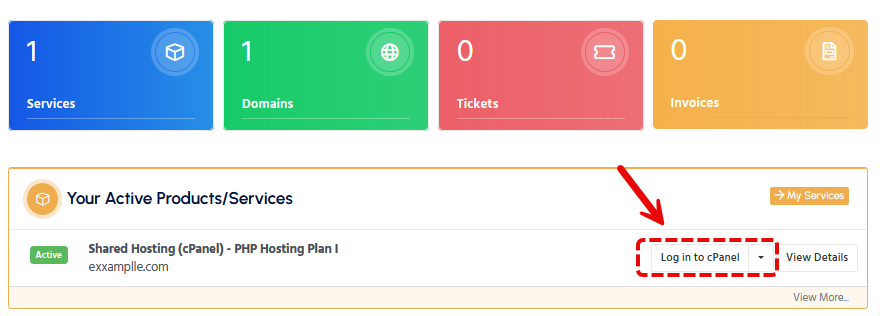
To begin, you will need to log into your cPanel account. Typically, you can access cPanel through your hosting provider's client area. Locate the Services section and select your specific hosting account. Within its details, you should find a direct link or button to log into cPanel. Ensure you have your login credentials ready.
Step 2: Locate the Email Forwarders Section
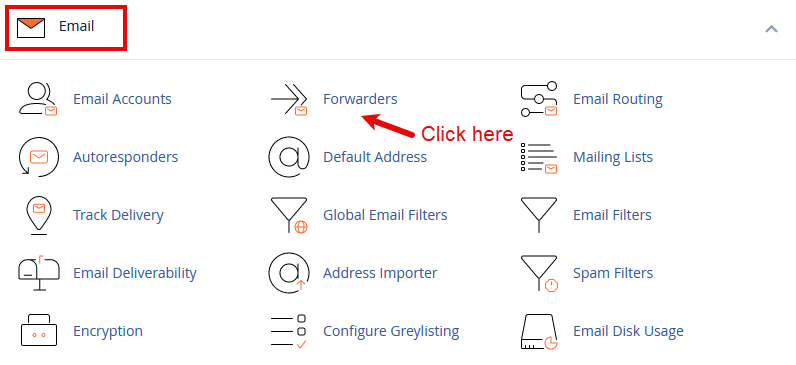
After successfully logging into your cPanel dashboard, scroll down the page until you find the **Email** section. Within this section, click on the **Forwarders** option. This action will redirect you to a dedicated page where you can comprehensively view and manage all your existing email forwarders.
Step 3: Initiate the Creation of a New Forwarder
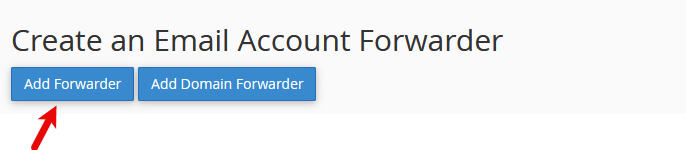
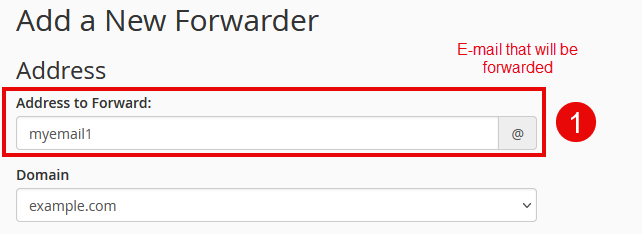
On the Forwarders page, click the **Add Forwarder** button to begin the setup process. You will then be prompted to specify the email address from which you wish to forward emails. For instance, if your objective is to forward all emails sent to [email protected], you would typically enter "info" into the initial input field and then select the appropriate domain from the adjacent dropdown menu. This defines the source of the emails to be redirected.
Important Consideration: Before finalizing your setup, ensure that the email address for which you are establishing a forwarder does not already exist as a standalone mailbox on your server. If it does, and you do not specifically intend for emails to be simultaneously received by that mailbox and forwarded, it could lead to unexpected behavior or duplicate deliveries. Proceed with caution to avoid configuration conflicts.
Step 4: Define the Email Destination
Next, within the **Destination** field, you are required to specify the target email address where all incoming messages will be redirected. This destination can be any valid email address of your choice, whether it resides within your current domain or is an external address, such as a Gmail, Outlook, or other third-party email account. This flexibility allows for consolidation into virtually any inbox.
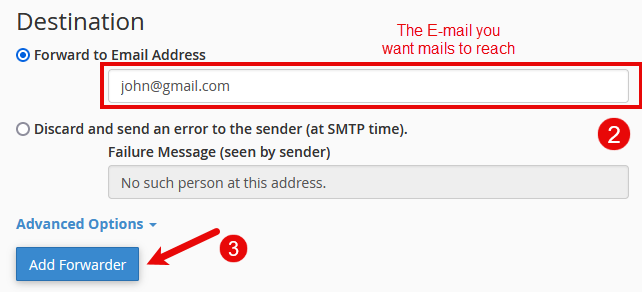
Once you have accurately entered the desired forwarding address, proceed by clicking on the **Add Forwarder** button to finalize the configuration. Upon successful completion, your newly created forwarder should appear in the list on the **Forwarders** page, signifying that it is now active and ready to redirect emails. This confirmation ensures your setup is operational.
Success Confirmation: Congratulations! You have successfully configured an email forwarder or alias. All emails sent to the original email address will now be automatically and reliably redirected to the designated forwarding address you provided, ensuring continuous and effortless delivery.
Following the successful creation, you will have the ability to review the complete details of the forwarder. This includes its assigned name, the specific target email address, and available options to either trace the email delivery path or delete the forwarder should it no longer be needed. This oversight ensures you maintain full control over your email redirection settings.
Important Considerations and Best Practices
Critical Warning: Although email forwarders and aliases are exceptionally powerful and convenient tools, their implementation requires careful consideration. Excessive or poorly managed use can potentially lead to confusion, communication breakdowns, or even missed important messages. Furthermore, it is imperative to ensure that all forwarded emails comply strictly with relevant privacy policies and anti-spam regulations to avoid legal issues and maintain a good sender reputation. Adhere to best practices to maximize benefits and mitigate risks.
- Data Privacy: Exercise extreme caution regarding who has access to forwarded emails, particularly within a business or organizational setting, to safeguard sensitive information and adhere to privacy standards.
- Spam Filter Management: Carefully configure your forwarding rules to prevent them from inadvertently triggering spam filters at the destination email account. This vigilance is crucial to ensure that important communications are not misclassified as spam and subsequently missed.
- Ongoing Organization: Establish a routine for regularly reviewing and updating your email forwarding and alias configurations. This proactive approach ensures that your settings remain aligned with your current operational needs and communication strategies, preventing outdated or irrelevant redirections.
How to Delete an Email Alias in cPanel
Should you need to remove an existing email alias from your cPanel account, the process is straightforward. Follow these detailed steps to successfully delete an email alias:
- Access cPanel Dashboard: Begin by logging into your cPanel account. You can typically find the login portal through your hosting provider's client area, where you will enter your designated credentials.
- Proceed to Email Section: Once inside your cPanel dashboard, navigate to the "Email" section. Within this category, locate and click on the "Forwarders" option, which manages all your email redirection settings.
- Identify Alias for Deletion: On the Forwarders page, you will see a comprehensive list of all the email aliases and forwarders currently configured. Carefully scan this list to identify the specific alias you intend to remove.
- Execute Deletion: Next to the identified email alias, you will find a "Delete" option. Click on it, and crucially, confirm your decision when prompted by the system. This final confirmation step prevents accidental deletions.

Critical Warning: It is imperative to understand that once an email alias is deleted, all subsequent emails sent to that address will cease to be forwarded to any destination. Before proceeding with the deletion, thoroughly verify that the alias is no longer required or that appropriate alternative arrangements have been made for incoming communications. Irreversible loss of communication could occur if this step is not carefully considered.
Upon successfully deleting the email alias, it is a recommended best practice to verify that your overall email setup continues to function as expected. If the alias played a role in redirecting important communications, take the necessary steps to update any internal records or promptly notify all relevant parties about the change to ensure uninterrupted communication flows.
Successful Removal: You have now successfully removed an email alias that was no longer necessary, contributing to a more streamlined and efficient email management system for your domain.
Implementing Domain-Wide Email Forwarding
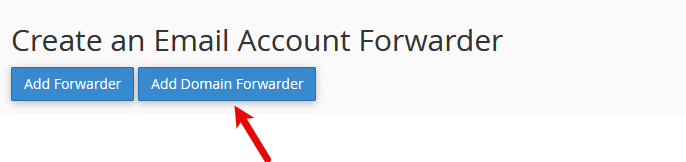
For users who manage multiple domains, cPanel provides a highly convenient feature that enables the forwarding of all emails from one entire domain to another. This functionality is particularly advantageous for consolidating emails originating from several different domain names into one centralized inbox, significantly simplifying email oversight. To configure this domain-wide forwarding, follow these instructions:
- Within the main **Forwarders** section of cPanel, look for and select the **Domain Forwarders** option. This specific area is dedicated to managing domain-level email redirection.
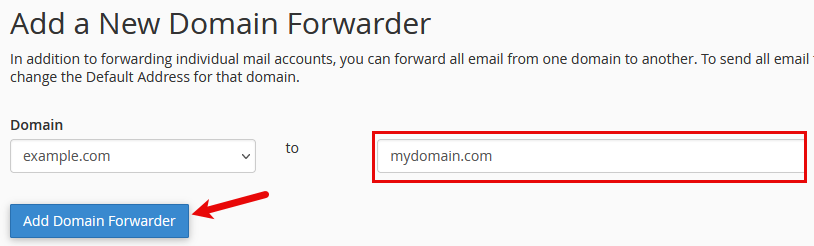
- From the provided list, carefully choose the specific domain from which you intend to forward all incoming emails. This selection defines the source domain for the redirection.
- In the designated input field, accurately enter the target domain name. This is the destination domain where all emails sent to any address at the original domain will be uniformly redirected.
- Finally, confirm your selection to apply the domain-wide forwarding. This action establishes a rule ensuring that every email sent to any existing or future address within the original domain is automatically and appropriately redirected to its corresponding address at the target domain, maintaining consistency.
What is an Email Autoresponder?
An **autoresponder** is an automated email message system designed to automatically send a predefined response to incoming emails. This feature is exceptionally valuable for promptly informing senders when you are temporarily unavailable, such as being out of the office or on vacation, or simply to acknowledge that their message has been successfully received and will be attended to in due course. Autoresponders ensure that correspondents are always kept informed, maintaining professional communication even when you cannot reply immediately.
Configuring Autoresponders for Email Aliases
Setting Up Autoresponders for Email Aliases
To enhance the functionality of your email aliases, you can configure autoresponders to automatically reply to incoming messages. Follow these detailed steps to successfully set up autoresponders for your email aliases within cPanel:
- Access Your cPanel Dashboard: Begin by logging into your cPanel dashboard. This is typically done through your hosting provider's client area, where you will navigate to your specific hosting account.
- Locate Forwarders Section: Once logged into cPanel, find the **Email** section. Within this section, click on the **Forwarders** option. This is the central hub for managing all your email aliases and forwarding rules.
- Establish or Oversee Aliases: If you have not yet created the necessary email alias, proceed by clicking **Add Forwarder**. Here, you will enter the desired alias name and specify the email account(s) to which incoming messages for this alias should be redirected. Ensure your aliases are correctly configured before proceeding to autoresponder setup.
Critical Warning: When setting up autoresponders, it is absolutely essential to ensure that the email alias is not configured to forward emails back to the very same account that is designated to send the autoresponse. Such a configuration creates an infinite email loop, which can severely disrupt email delivery, potentially leading to bounced messages or even a temporary suspension of your email services. Double-check your forwarding rules to prevent this scenario.
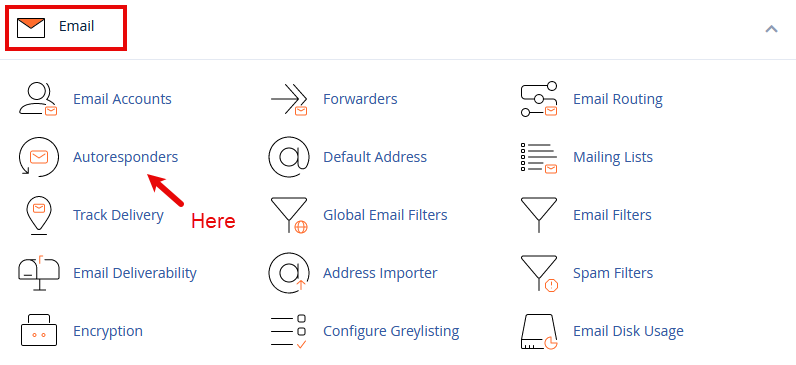
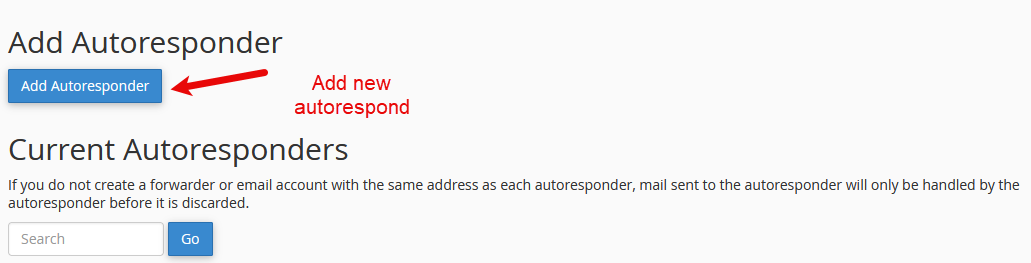
- Initiate Autoresponder Setup: After configuring your alias, navigate to the **Autoresponders** section, also found within the **Email** area of cPanel. Click on the **Add Autoresponder** button to commence the process of creating a new automated response specifically for your email alias.
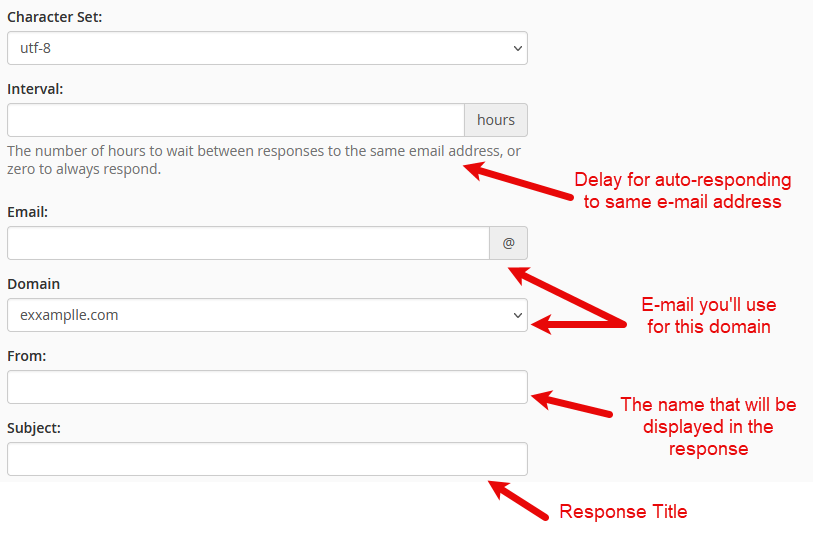
- Define Autoresponder Parameters: In the autoresponder configuration interface, you generally have the option to leave the **Character Set** dropdown at its default setting. Proceed to fill in the crucial details: specify the **Interval** (which determines how frequently an autoresponse is sent to the same sender within a defined period), enter the email address (your configured alias), provide clear **From** and **Subject** lines for the automated reply, and meticulously compose the body of your autoresponse message. This message should convey your intended information to the sender.
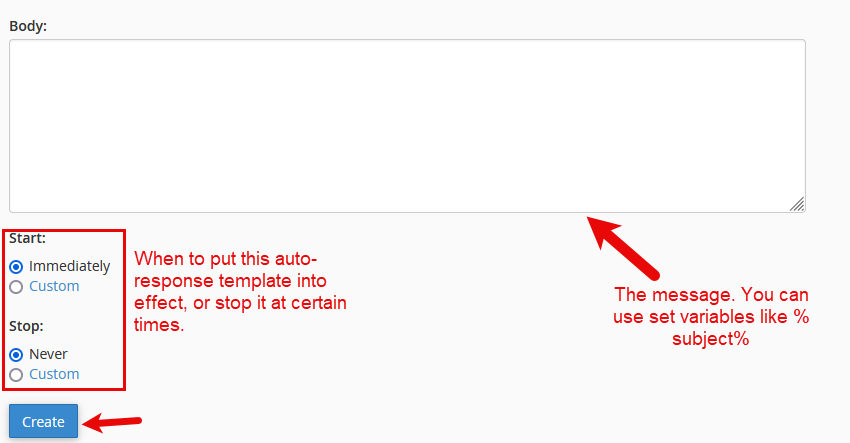
Configuration Success: You have successfully established an autoresponder for your email alias. From this point forward, all emails directed to your alias will automatically activate and send the predefined response message you have meticulously configured. This ensures automated and consistent communication.
Helpful Insight: cPanel's integrated Email Trace tool is an invaluable utility designed to assist you in diagnosing and resolving various email delivery issues. It achieves this by furnishing comprehensive and granular details regarding an email's complete journey, from its initial dispatch by the sender to its ultimate reception by the intended recipient. This transparency is crucial for troubleshooting.
The Email Trace tool is particularly useful for diligently monitoring the status of your email forwarders and effectively troubleshooting any potential delivery issues that might arise during their operation. It acts as a diagnostic window into your email system.
To effectively utilize the Email Trace tool within your cPanel interface, follow these concise steps:
- Access Your cPanel Account: Begin by logging into your **cPanel account** using your provided credentials.
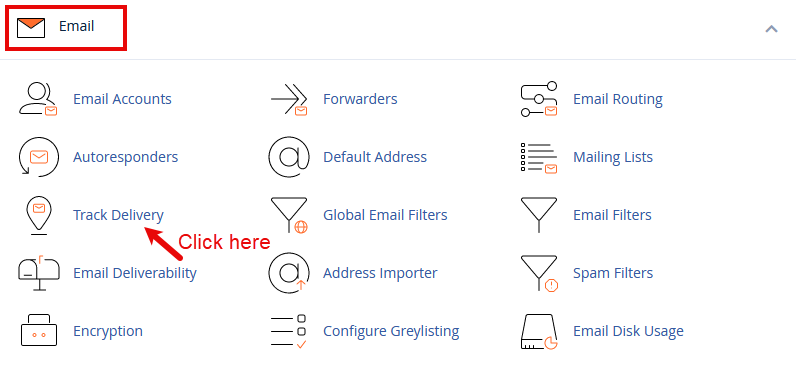
- Locate Email Tracking Tool: Navigate to the **Email** section of your cPanel dashboard. Depending on your cPanel version, you will either click on **Track Delivery** or **Email Trace**. Both options lead to the same diagnostic functionality.
- Search for Email Status: Once in the tracking interface, you can enter specific email addresses to retrieve comprehensive status reports for messages sent to or from those addresses. This allows for precise monitoring and troubleshooting.
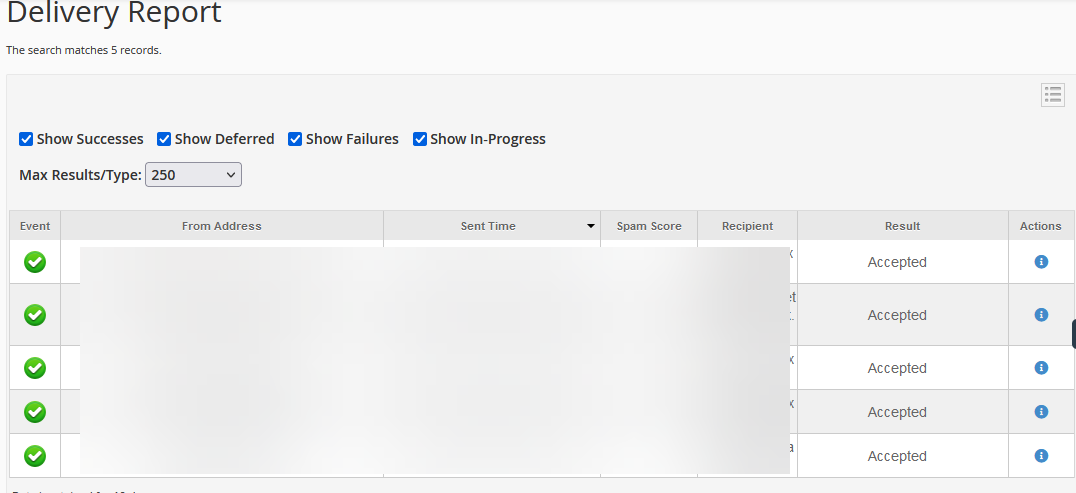
Verification Insight: The Email Trace tool is particularly advantageous for confirming that your email forwarders are operating precisely as configured. It enables you to quickly ascertain whether emails are being successfully redirected to their designated destination addresses, providing critical feedback on your email system's health.
Leveraging the Email Trace Tool for Diagnostics
Upon engaging the Email Trace tool, you will be presented with a comprehensive display of detailed logs. These logs offer invaluable insights into the journey of your emails and typically include critical information such as:
- Timestamp: The precise date and time when the email was processed by the server, providing a chronological record.
- Sender and Recipient Details: Clear identification of the original sender and the intended recipient(s) of the email, crucial for understanding communication paths.
- Delivery Status: An explicit indication of the email's delivery outcome, specifying if the message was successfully delivered, temporarily deferred (meaning it encountered a transient issue), or definitively failed to be delivered.
The wealth of information provided by the Email Trace tool is indispensable for effectively troubleshooting any issues related to email forwarding. For example, if you observe that an email directed to a forwarded address is explicitly marked as "failed" within the logs, this provides a clear starting point for further investigation, allowing you to pinpoint and resolve the underlying problem efficiently.
Alert: It is crucial to pay meticulous attention to any email messages within the logs that are specifically marked with a "deferred" or "failed" status. These indicators signal potential problems, which can range from transient server issues to more significant misconfigurations in your email forwarder setup. Prompt investigation of such statuses is vital to prevent ongoing communication disruptions.
Troubleshooting Common Email Forwarding Issues
Even with careful configuration, you might occasionally encounter issues with email forwarders. Should you experience any problems with email redirection, consider these effective troubleshooting tips to diagnose and resolve the situation:
- Verify Forwarder Configuration: Revisit the forwarder settings within your cPanel to meticulously confirm that the destination email address is absolutely correct and free of any typographical errors. A simple typo can halt delivery.
- Examine Email Trace Logs: Diligently review the detailed Email Trace logs for any explicit error messages or warnings. These logs often contain specific clues that can directly help in identifying the root cause of the forwarding issue.
- Confirm Destination Mailbox Capacity: Ascertain that the destination mailbox, where emails are being forwarded, has sufficient storage capacity. A full mailbox will reject incoming emails, thereby preventing forwarded messages from being successfully delivered.
Critical Danger: Be aware that improperly configured email forwarders pose a significant risk of leading to irreversible lost communications. This can mean vital messages never reach their intended recipients. Therefore, it is absolutely essential to always double-check and meticulously verify your settings whenever you are experiencing any issues or making changes to your forwarding rules to safeguard against communication failures.
In conclusion, the judicious use of email aliases and forwarders within cPanel offers an exceptionally flexible and powerful approach to managing your email communications with enhanced efficiency. Whether your goal is to significantly simplify email management across diverse departments, establish automated response systems for improved client interaction, or consolidate emails from several different domains into a cohesive single inbox, cPanel furnishes all the indispensable tools required. By diligently adhering to the comprehensive, step-by-step instructions provided in this guide, you are now well-equipped to proficiently create, oversee, and deploy email aliases and forwarders, thereby optimizing your communication strategies and fostering a more organized digital workflow.
