
 (1).svg)
 (1).png)


 (1).svg)
.svg)
Plesk is a comprehensive tool designed for efficiently running websites and applications in cloud environments. It delivers relevant functionalities that benefit a diverse range of web professionals, including developers, system integrators, and web hosting providers. Developers, in particular, can concentrate on creating innovative applications without being burdened by concerns about the underlying infrastructure.
With its dynamic capabilities, Plesk Onyx, the latest version, introduces enhanced possibilities for developers and other web professionals. It facilitates the building and running of powerful, secure applications through advanced features like Git integration and robust Docker support. Docker, in particular, stands out as one of the fastest-growing and most successful open-source platforms for containerizing distributed applications.
Plesk integrates Docker as a core component, enabling users to run and manage containers based on specific Docker images. This functionality extends beyond the local host, allowing for deployment on defined remote machines. The Docker support within Plesk, available as an extension, offers several key advantages:
- Access to a diverse range of modern technologies such as MongoDB, Redis, Memcached, and many others, broadening development possibilities.
- Direct deployment and streamlined management of Docker containers directly from the Plesk interface, significantly simplifying workflows.
- Effortless and direct installation to any local server or a node already registered within Plesk, ensuring flexible deployment options.
- Availability of a vast array of Docker images, coupled with the flexibility to upload and utilize custom images tailored to specific project needs.
Management of Docker Containers and Application Deployment with Plesk
The Plesk Docker extension significantly simplifies the process of deploying and managing Docker containers, making it straightforward to host web applications within them. Docker containers operate on a principle of shared resources, where each container efficiently utilizes the underlying resources of the Docker host. Developers leverage this by building specific images for their applications, which can then be scaled effectively according to demand.
Using the Docker Extension
The Docker extension is readily available and free with Plesk. It can be selected during the initial Plesk installation. If it wasn't installed initially, you can easily enable it by navigating to: Home > Tools & Settings > Updates & Upgrades. Once enabled, you can access the Docker management interface by selecting 'Docker' from the left-hand navigation menu.
Navigating the Docker Image Catalog
To explore available Docker images, navigate to Docker > Docker Image Catalog. Here, Plesk presents a catalog of default images sourced from https://hub.docker.com/explore. For a broader selection, you can search or filter for additional images from Docker Hub using the icon conveniently located near the search box. Simply enter the image name or repository to locate the desired image.

Once you have identified the specific Docker image you wish to use, proceed as follows:
- If you require a particular application version, click the arrow adjacent to the Run button to select it.
- To deploy the latest version, simply click Run. (Note: Images stored locally will display Run (Local) on the button).
Plesk provides options to configure essential container settings before deployment, ensuring your application runs optimally:
To modify container settings, navigate to either Settings or Details > Settings.
a) Automatic start after System Reboot
Enabling the automatic start option for your container ensures that any websites or services relying on it remain operational continuously, without requiring manual intervention after a system reboot. This enhances application availability and reduces downtime.
b) Automatic port mapping
By default, this feature is active. It automatically maps the internal port of your container to a randomly assigned external port on the host system. Should you need to specify a particular external port, deselect this checkbox and input your preferred port number.
c) Volume mapping
Volume mapping is a crucial best practice that safeguards your application data. By storing data in a designated server directory outside the container, your information remains accessible even if the container itself is deleted or re-created. This is particularly beneficial for applications like WordPress, where data persistence and ease of migration are paramount.
To configure volume mapping, specify the following:
- In the first (left) box, provide the absolute path to the server directory that will be mounted into the container.
- In the right box, indicate the corresponding directory path inside the container.

3. Upon successful creation, your new container will be visible in the list of containers, conveniently located at the top of the Docker catalog page.
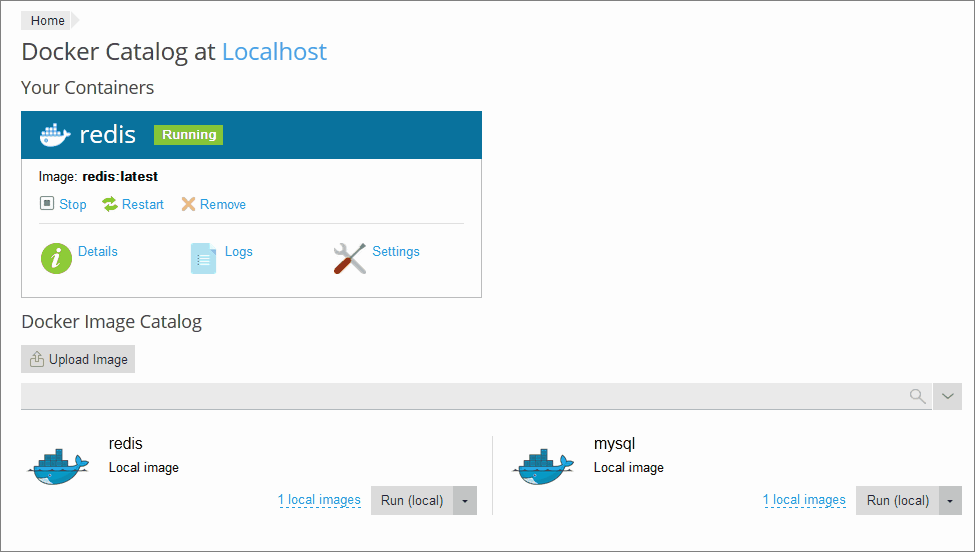
It's also possible to adjust configuration settings after a container has been created. Plesk will then rebuild the container with the newly applied settings, ensuring all changes are implemented effectively.
Managing Deployed Containers
Plesk offers a comprehensive set of tools for efficient container management:
- You have the flexibility to Stop, Restart, or Recreate your containers as needed.
- Detailed information, including resource consumption metrics and operational logs, can be easily viewed for each container.
- Container settings can be modified at any time to adapt to evolving requirements.
- Containers can be effortlessly recreated using either the same image or a different image version.
- To create a snapshot of a container for backup or migration purposes, navigate to Details >> Download a container.
- Containers can also be removed when they are no longer required.
Recreating Containers
Container recreation becomes necessary when you need to update an application to a newer version or switch to an alternative version. To ensure data integrity during this process, it is highly recommended to specify Volume mapping prior to recreation.
To recreate a container, follow these steps:
- Navigate to the Docker section and select Details for the specific container you wish to recreate.
- Within the container settings, choose the Recreate option. Here, you can specify the desired image version and indicate whether default environment variables should be applied.
Using Remote Docker
While Plesk utilizes a Docker instance installed as a core component by default, it also supports the use of one or more external Docker services (though only one can be active at a time). This capability for remote Docker services typically requires an additional license key. Before using an external Docker server, it must be properly configured within Plesk.
To set up and use a remote Docker service (applicable for both Linux and Windows environments):
- In Tools & Settings, locate and select Docker under Server Management.
- Choose Add Server and input the necessary server settings.
- Finally, select “Set Active” to begin utilizing this remote Docker service.

Managing Local Docker Images
Local images are conveniently available directly within the Docker catalog, eliminating the need for special downloads. These images are automatically saved when you select a version or tag of an image and either initiate a run or cancel the process. Plesk also provides an option to upload custom images to the catalog. Furthermore, images that you build using command-line interfaces will also appear in this section.
All custom-created images are stored locally within the catalog, making them easily accessible for future use. (Refer to the next section to learn how to create custom images.)
Creating Custom Docker Images
Whenever you introduce changes to a container, you have the option to save it as a new image. By utilizing the 'save as image' function, the system captures a snapshot of your modifications, and this new image will then be displayed in your image catalog.
You can further define the name and version for your custom image. By default, the system generates a new name and typically saves the latest version of the container's state.
In essence, creating and running applications within Docker containers is significantly streamlined and made effortless, thanks to the robust integration offered by Plesk.
Limitations of Docker with Plesk
While highly versatile, there are certain limitations to consider when using Docker with Plesk:
- Plesk provides Docker support for specific operating systems, including RedHat 7, CentOS 7, Ubuntu 18.04, Debian 9, AlmaLinux 8.x, and Rocky Linux 8.x. For Windows environments, Docker can be installed on a remote machine. Docker itself is exclusively supported on x64 systems.
- Plesk does not extend Docker support to Windows Server 2008.
- It is not possible to use Docker that is already deployed within another Docker container through Plesk.
- Accessing Plesk’s remote Docker services typically requires an additional license.
- Direct migration or backup of Docker containers within Plesk is not supported. However, Plesk does allow for backing up the data utilized by containers (as discussed in Volume Mapping) and downloading container snapshots.
- Virtuozzo 7 is supported from Update 1 Hotfix 1 (version 7.0.1-686) or later. With this update, new containers based on CentOS 7 are built with a firewall enabled by default, enhancing security. The Plesk administrator is responsible for manually configuring this firewall to ensure that all necessary ports for operation are open.
Should you have any further questions regarding this article, please feel free to share them in the comments section below. Our experts are always ready to assist you.
