
 (1).svg)
 (1).png)


 (1).svg)
.svg)
Two-factor authentication (2FA) provides an essential secondary layer of security when accessing applications, services, or websites, including WordPress. While the concept has existed for many years, its widespread adoption has grown significantly in recent times, with numerous platforms now making this robust security measure a standard or even mandatory requirement. This increased emphasis underscores its proven effectiveness in protecting digital assets.
Renowned technology companies universally recognize 2FA as an exceptionally effective security measure, increasingly making it a mandatory feature for user accounts. For website owners, implementing 2FA on WordPress sites is highly recommended and easily achievable using various security plugins available in the ecosystem. This additional step significantly fortifies your site against unauthorized access.
This article will delve into the fundamentals of what two-factor authentication entails and specifically how it functions within a WordPress environment. We will guide you through the comprehensive setup and configuration process for enabling 2FA, and provide recommendations for reliable plugins to help you enhance your website's security posture.
What is Two-Factor Authentication?
Two-factor authentication introduces a crucial secondary verification step to your WordPress login process. This typically involves providing a one-time code generated by an authenticator application, sent via SMS or email, or provided by a hardware security key. This means that even if your password were to be compromised or leaked, unauthorized individuals would be unable to access your dashboard without this additional, time-sensitive code.
To illustrate, consider the common experience of withdrawing money from an ATM. This process inherently uses 2FA: your bank card serves as the initial layer of authentication, while your secure Personal Identification Number (PIN) acts as the indispensable second layer.
Similarly, implementing 2FA for WordPress functions by requiring your username and password as the primary authentication factor, followed by a unique 2FA code as the secondary factor. Although seemingly straightforward, this method significantly bolsters security. It complements other foundational security practices, such as selecting a robust hosting provider. The fundamental advantage is that even if your primary login credentials are exposed, it is highly improbable that your dynamic 2FA code will also be compromised, thereby preventing unauthorized access to your WordPress website.

How Does Two-Factor Authentication Work on WordPress?
Two-factor authentication integrates an additional verification step directly into the WordPress login procedure. Once a user successfully enters their username and password on the designated login page, a dedicated 2FA plugin will then prompt them to provide a one-time code or a physical security key. Access to the WordPress dashboard is granted only after this secondary factor has been accurately verified.
It is important to note that WordPress core functionality does not natively include 2FA. Therefore, enabling this security feature requires the installation and configuration of a specialized plugin. Effective 2FA plugins not only safeguard the standard WordPress login page but can also extend protection to custom login forms, such as those used for e-commerce platforms or membership sites, although specific support may vary among plugins.
Common authentication methods utilized in 2FA systems include:
- TOTP apps (recommended): These applications generate time-based one-time passwords (TOTPs) that refresh every few seconds. Popular examples include authenticator apps available on smartphones.
- Passkeys/Security Keys (WebAuthn/FIDO2): This advanced method employs a physical hardware key or leverages built-in biometric features of a device, offering a high level of security and convenience.
- Email or SMS codes: These codes are sent to a registered email address or mobile phone number. They serve as reliable fallback options, particularly useful when access to an authenticator app is unavailable.
- Backup codes: These are a set of single-use recovery codes that users generate and store securely offline. They are invaluable for regaining access in situations where other 2FA methods are inaccessible.
A plugin's ability to support a wider array of authentication methods generally facilitates broader user adoption of 2FA. For instance, many plugins offer both TOTP and email/SMS options, ensuring that users without smartphone access can still benefit from 2FA protection.
A common concern regarding 2FA is the risk of lockouts – for example, due to a lost phone, a dead battery, or a lack of signal. To mitigate these risks, it is advisable to select a plugin that provides multiple sign-in methods and robust administrator recovery options. Users should be strongly encouraged or required to generate and securely store offline backup codes. Additionally, enabling a secondary factor, such as email or SMS, can provide a critical alternative when the primary TOTP method is unavailable. During the initial rollout of 2FA, consider implementing a short grace period to allow users to enroll without facing immediate access restrictions. Furthermore, always establish and document a clear recovery path, including an emergency administrator bypass, for critical accounts.
Pro Tip
Some advanced authentication applications allow users to specify their preferred two-factor authentication method, with time-based one-time passwords (TOTPs) and mobile push notifications being frequently chosen options. Similarly, some secure digital vaults may prompt users to generate and store backup codes as a precautionary measure, should they ever lose access to their primary authentication credentials.
How to Set Up WordPress Two-Factor Authentication
This guide will walk you through the process of configuring two-factor authentication for your WordPress website using a popular and user-friendly security plugin. The chosen plugin is designed for ease of use, enabling anyone to enhance their website's security with 2FA without requiring extensive technical expertise.
The plugin provides an intuitive wizard that guides you through the entire setup and configuration journey, ensuring a smooth implementation. Should you encounter any questions or require assistance, support resources, often including email support, are typically available.
Many such plugins offer both free and premium versions. The free versions usually provide all the essential features needed to establish effective 2FA. Premium editions, however, often unlock advanced functionalities designed to further enhance your security and user experience. These may include:
- Expanded Authentication Methods: Premium versions often include additional options like SMS codes, email one-click login links, and specialized push notification services for authentication.
- Custom Branding Capabilities: Advanced features may offer extensive white-labeling options, allowing you to tailor the 2FA configuration wizard and related elements to align with your specific branding guidelines.
- Trusted Device Recognition: This feature enables trusted users to designate their devices as secure, thereby reducing the frequency with which they need to enter a 2FA code during subsequent logins.
- Seamless E-commerce Integration: For sites running e-commerce platforms, premium versions often provide one-click integration, ensuring 2FA extends effortlessly to customer logins.
- Diverse Backup Options: Beyond standard backup codes, premium offerings might provide additional backup authentication methods, such as email-based recovery.
1. Configuring the Two-Factor Authentication Plugin
To begin, we will configure the chosen two-factor authentication plugin. This step-by-step guide is designed to be straightforward, leveraging the plugin's intuitive wizard to simplify the setup process without requiring specialized technical knowledge.
First, access your WordPress website's admin area and navigate to Plugins → Add New Plugin. Use the search box in the top-right corner to find your preferred 2FA plugin. Once located, click Install Now and then Activate to enable it on your site.

Upon activation, the plugin's setup wizard should launch automatically. Click on the designated button, typically labeled LET’S GET STARTED!, to commence the configuration process.

The initial step involves selecting the 2FA methods you wish to make available for both yourself and other users on your website. Many plugins, even in their free versions, offer fundamental options like an authenticator app (similar to popular services) and email-based 2FA. It is often beneficial to select multiple options to provide users with flexibility in choosing the method that best suits their needs. You can deselect any methods you prefer not to offer. After making your selections, click CONTINUE SETUP to proceed.
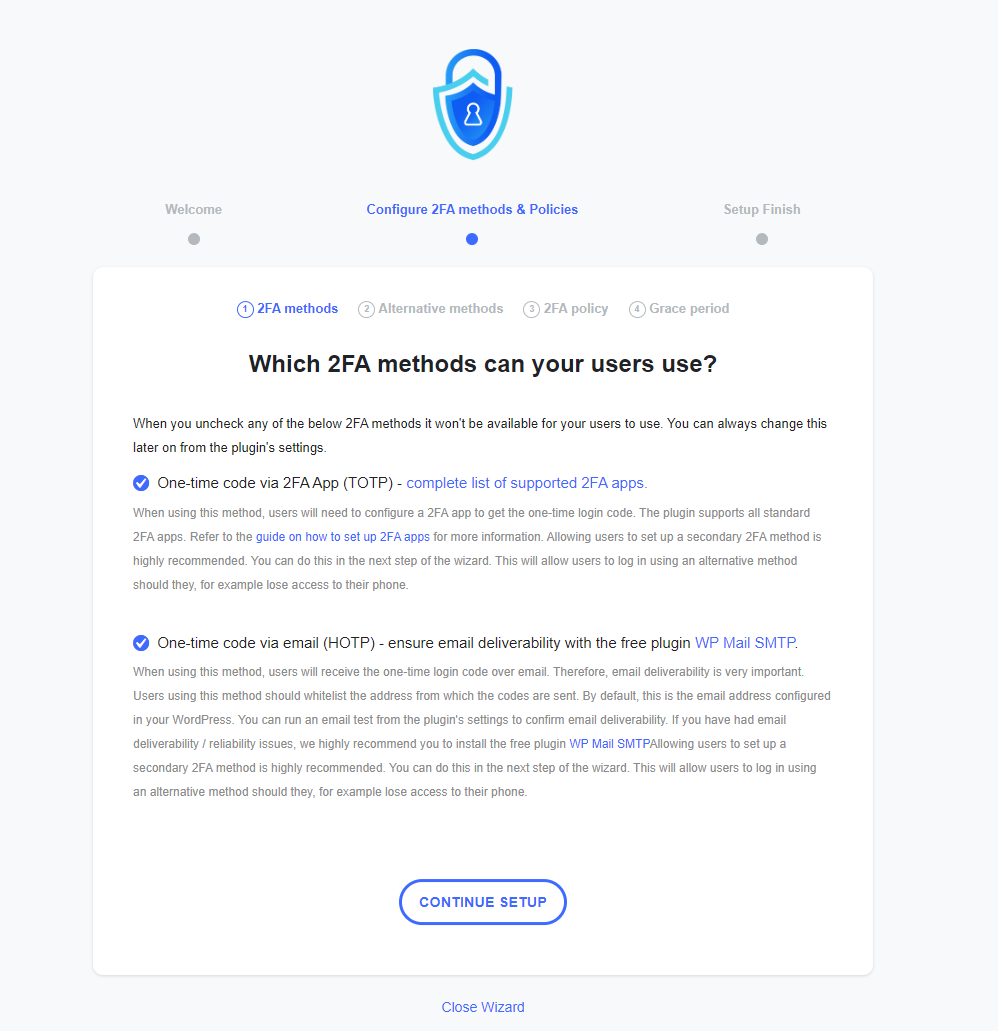
Following this, you will typically be prompted to choose alternative 2FA methods. A common option, often included in free versions, is the provision of backup codes. Select this option and click CONTINUE SETUP.
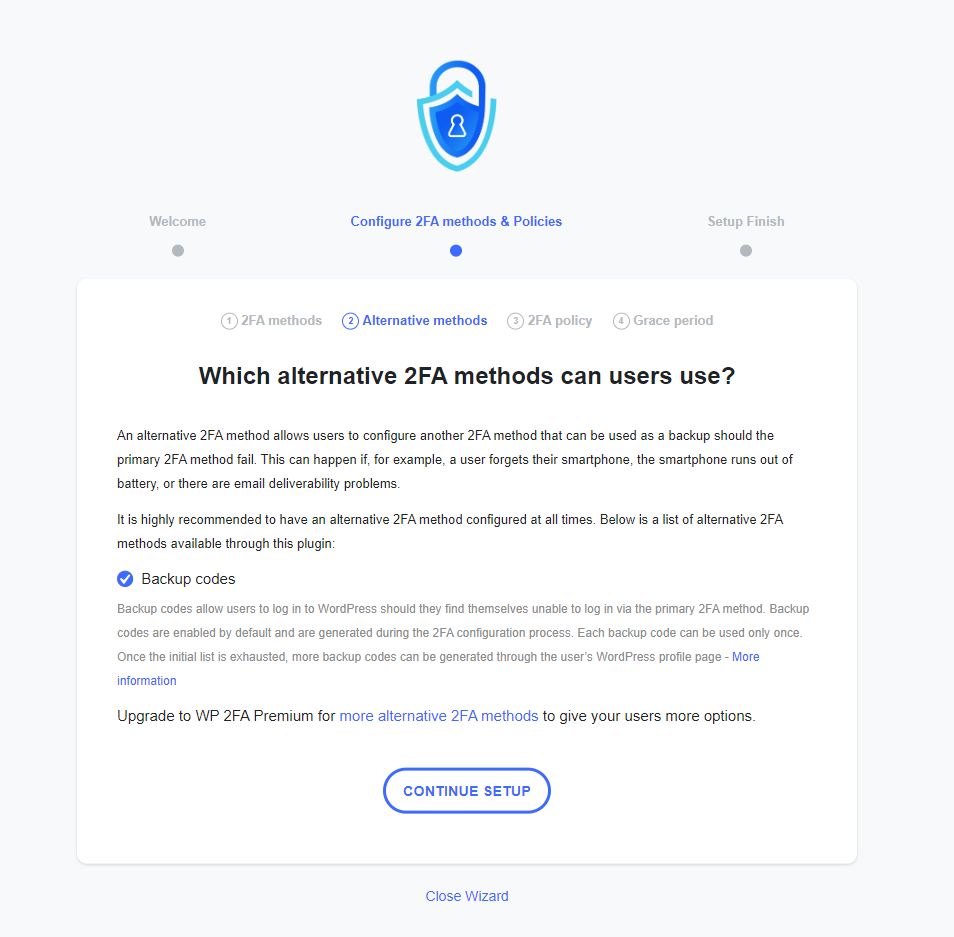
The plugin will then likely present options for defining policies regarding 2FA enforcement. These policies determine which users are required to set up 2FA, which can enable it optionally, and which may be entirely excluded. By default, 2FA might be enforced across all user accounts. However, you retain the flexibility to enforce it on a subset of users or to disable blanket enforcement. Once your desired enforcement policy is selected, click CONTINUE SETUP.
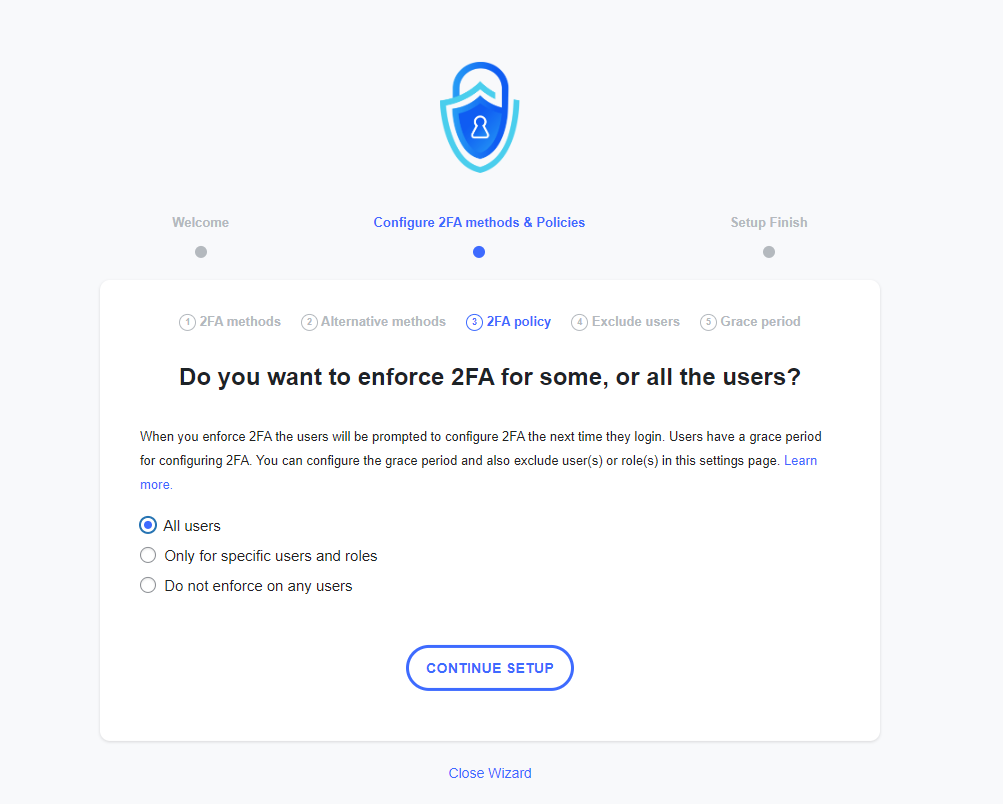
Even when 2FA is enforced for most users, most plugins allow for the exclusion of specific individuals or user roles. This can be useful for particular administrative tasks or specific user groups. If no exclusions are necessary, leave these fields empty. Then, click on CONTINUE SETUP.

The final stage of the setup wizard often involves setting a grace period for users to complete their 2FA enrollment or mandating immediate setup. You may also be able to configure how the plugin should handle various scenarios, such as users failing to set up 2FA within the allocated grace period.
Note on Settings
Please be aware that any configurations made during this wizard can typically be modified later through the plugin's main settings page within your WordPress dashboard.
Once you are satisfied with your choices, click a button, often labeled ALL DONE, to complete the wizard and proceed to the next phase of setting up 2FA for individual user accounts.

2. Setting Up User Two-Factor Authentication
With the initial plugin configuration complete, the next crucial step is to set up 2FA for your own WordPress user account. This process mirrors what all other users on your site will experience when they enable their individual two-factor authentication.
Typically, the user-specific 2FA setup wizard will launch immediately after you finish the plugin's configuration wizard. Alternatively, you can always initiate this process by navigating to your WordPress user profile page at any time.
In the first step of this personal setup, you will select your preferred 2FA method. For instance, if you choose an authenticator app, you would then click NEXT STEP to proceed.

The wizard will then display a unique QR code, which you will need to scan using your chosen authenticator application on your smartphone or other device. If scanning is not feasible, an option to manually enter a provided code is usually available. Once your authenticator app successfully registers the QR code, click a button such as I’M READY to continue.

Pro Tip
Some advanced password management tools offer functionality to store your two-factor authentication codes. This method allows you to centralize both your password and one-time passwords (OTPs) within a single secure application, streamlining your login process while maintaining high security.
Your authenticator app should now be actively displaying a dynamic, time-sensitive code specific to your WordPress website. These codes typically refresh every 30 seconds, a key feature contributing to 2FA's enhanced security. Enter the currently displayed code into the designated Authentication Code field on your WordPress setup screen, then click VALIDATE & SAVE.
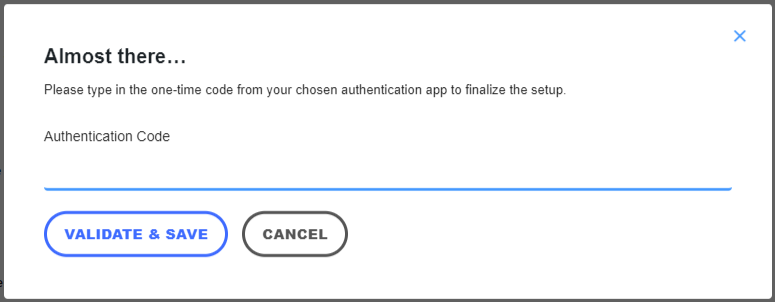
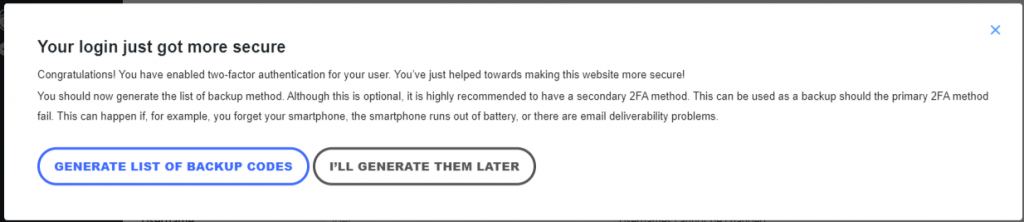
The subsequent step involves generating a list of backup codes. While this step is often optional, it is highly recommended as these codes serve as critical recovery options should you ever lose access to your primary 2FA device. Click on GENERATE LIST OF BACKUP CODES to create them.
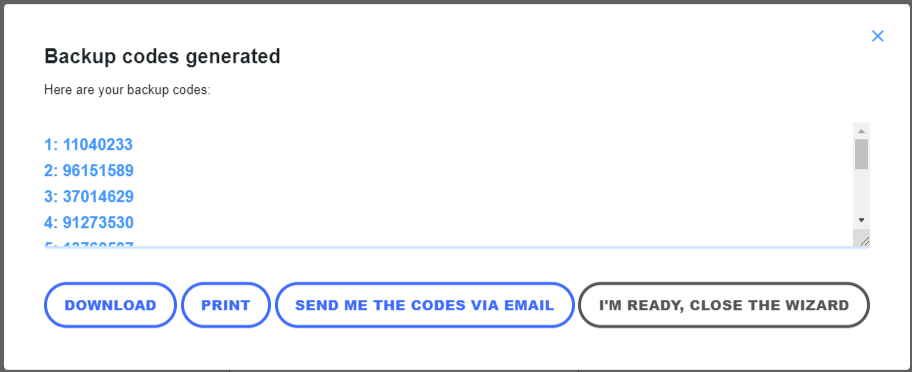
A set of unique, single-use backup codes will then be presented on your screen. It is imperative to store these codes in a secure, offline location. Options for saving them typically include downloading a text file, printing them, or having them sent to your email address. Once these codes are safely stored, click a button such as I’M READY, CLOSE THE WIZARD to finalize the setup.
To verify the successful implementation of 2FA, attempt to log in to your WordPress account. You should now be prompted to enter your 2FA code after submitting your username and password, confirming the additional layer of security is active.
3. Setting Up Email Two-Factor Authentication
Configuring email-based two-factor authentication largely follows the same procedure as setting up an authenticator app. However, there are minor distinctions in the initial two steps, which are outlined below.
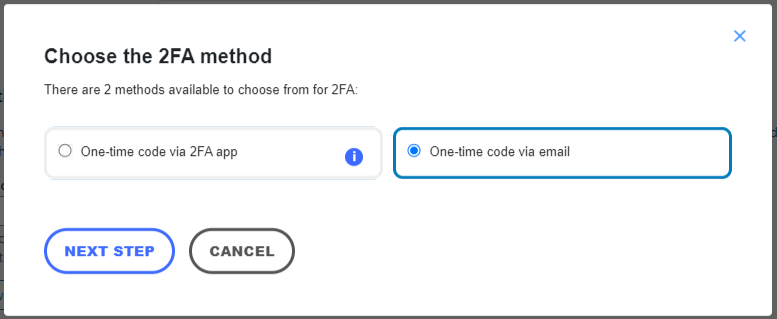
During the first stage of the 2FA setup wizard, you will select the option for a One-time code via email as your preferred method. Then, click NEXT STEP to advance.
The second step requires you to confirm the email address that is currently associated with your WordPress user profile. After verifying the address, click I’M READY. The plugin will then automatically dispatch a one-time verification code to this specified email address.
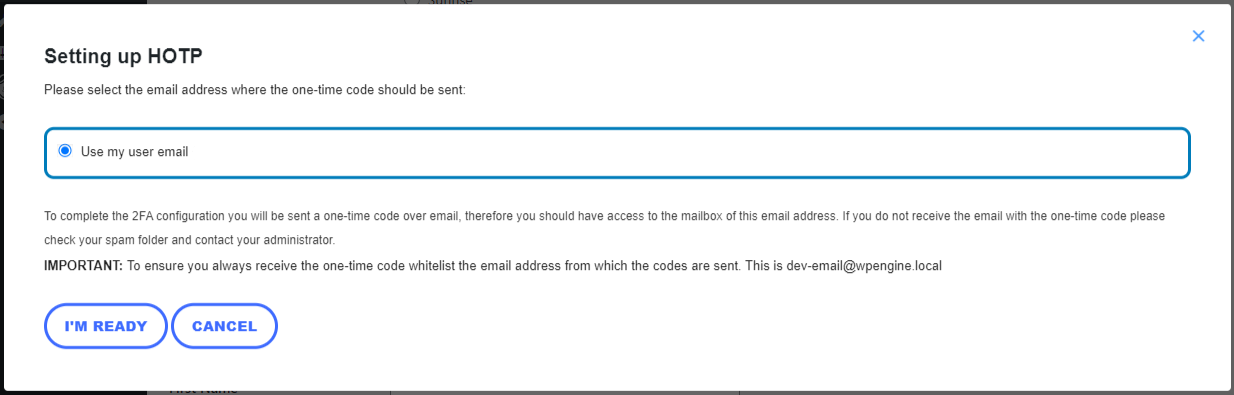
Should you not receive the email containing the code, first check your spam or junk folder. A common issue is that the WordPress installation itself might not be configured correctly to send out emails. If this is the case, it is advisable to consult relevant documentation or support resources to resolve any email sending problems before continuing with the 2FA setup. Once you have received the code, complete the remaining steps of the wizard as described in the previous section for authenticator app setup.
Recommended WordPress Two-Factor Authentication Plugins
While the plugin demonstrated in this tutorial offers a user-friendly and feature-rich solution for WordPress 2FA, designed for security and ease of use with ample customization options and support, it is not the only option available. Several other reputable plugins provide robust two-factor authentication capabilities. Here are some alternatives worth considering:
- Two-Factor: This plugin offers support for Universal 2nd Factor (U2F) and even includes a dummy method for testing purposes. It is often praised for its simplicity and operational efficiency.
- Google Authenticator by miniOrange: The free version of this plugin typically supports a limited number of users at no cost. It uniquely incorporates security questions as an additional 2FA method.
- A comprehensive security suite: Some well-known security plugins integrate two-factor authentication alongside broader defense mechanisms, such as web application firewalls and malware scanning, providing an all-encompassing security solution.
- Another all-in-one security solution: Certain security plugins combine 2FA with advanced features like a web application firewall (WAF), offering a consolidated approach to safeguarding your website.
Each of these plugins offers distinct two-factor authentication features tailored to varying user needs, all with the overarching goal of significantly improving your WordPress site's protection against unauthorized access.
Conclusion
Implementing two-factor authentication may appear to be a minor adjustment to your login routine, but its impact on the overall security and safety of your website is profoundly significant. By introducing this additional layer of defense, 2FA acts as a powerful deterrent against unauthorized access, substantially reducing the risk of security breaches.
With the selection of an appropriate and reputable plugin, you can seamlessly integrate 2FA into your WordPress site. This vital step is instrumental in fortifying your online presence and protecting it from a wide array of potential cyber threats and attacks.
To recap, the process of enabling two-factor authentication for your WordPress website typically involves these key actions:
- Acquire and install a reliable 2FA WordPress plugin.
- Carefully follow the guided setup wizard to configure two-factor authentication settings according to your site's needs.
- For optimal security, ensure that 2FA is enforced for all user accounts, including site administrators, editors, and any other collaborators with access to your WordPress dashboard.
It is crucial to remember that robust website security is not a one-time setup but an ongoing commitment. Beyond enabling 2FA, consistently maintain your site's security by diligently updating all core WordPress files, themes, and plugins. Furthermore, remain vigilant in adopting and adhering to established best practices to defend against evolving security threats and vulnerabilities.
WordPress Two-Factor Authentication FAQ
Do I have to enable two-factor authentication for WordPress?
While enabling two-factor authentication (2FA) is not a mandatory requirement for WordPress websites, it is unequivocally and highly recommended. Implementing 2FA significantly enhances your website's overall security posture. It introduces a vital extra layer of protection by requiring not only your password but also a unique, time-sensitive code for successful login, making it much harder for unauthorized parties to gain access.
What should I do if I lose my two-factor authentication device or backup codes?
Should you find yourself in a situation where you have lost your 2FA device or misplaced your backup codes, there's no need for immediate concern. The standard procedure to regain access is to contact your WordPress administrator. The administrator possesses the necessary privileges to temporarily disable 2FA for your account, allowing you to log in and reconfigure the authentication methods with a new device or generate a fresh set of backup codes.
Can I use two-factor authentication with the WordPress mobile app?
Yes, absolutely! Two-factor authentication is fully compatible with and highly encouraged for use with the WordPress mobile application. Integrating 2FA with the mobile app ensures that your user account is consistently protected, whether you are logging in via the app on your mobile device or through a web browser. This seamless integration provides robust security across all access points.
