
 (1).svg)
 (1).png)


 (1).svg)
.svg)
Two-factor authentication (2FA) represents a crucial secondary layer of security when accessing applications, services, or websites, including WordPress. While the concept has existed for many years, its popularity has surged recently, with an increasing number of platforms now requiring this security measure. The proven effectiveness of 2FA has led major technology companies to implement it as a mandatory feature for user accounts. Similarly, WordPress website owners can significantly enhance their site's security by integrating 2FA through various robust security plugins.
This comprehensive guide will explore the fundamentals of two-factor authentication, detailing its operational mechanisms specifically within the WordPress environment. We will also provide a thorough, step-by-step walkthrough of the setup and configuration process, concluding with a selection of recommended plugins to help you implement this vital security feature.
What is Two-Factor Authentication?
Two-factor authentication introduces an essential second layer of identity verification to your WordPress login process. This typically involves a one-time code generated by an authenticator application, sent via SMS or email, or provided by a hardware security key. This additional step ensures that even if your password is compromised or leaked, unauthorized individuals cannot gain access to your WordPress dashboard without possessing this second authentication factor.
To illustrate, consider the familiar process of withdrawing money from an ATM. This transaction inherently uses a form of 2FA: your bank card serves as the initial layer of authentication, while your secure Personal Identification Number (PIN) acts as the second, crucial layer. Without both, access to your funds is denied.
WordPress two-factor authentication operates on a similar principle, significantly bolstering your website's security. It requires users to provide their username and password as the first authentication factor, followed by a unique 2FA code as the second. While seemingly straightforward, this mechanism is remarkably effective, complementing other security best practices such as selecting a reputable and secure web hosting provider. The likelihood of an attacker simultaneously acquiring both your login credentials and your real-time 2FA code is exceedingly low, thereby effectively preventing unauthorized infiltration of your WordPress website.

How Two-Factor Authentication Functions on WordPress
Two-factor authentication introduces an additional verification step to the WordPress login procedure. After a user successfully enters their username and password on the dedicated login page, a 2FA plugin then prompts for a dynamic one-time code or requires interaction with a security key. Access to the user's account is only granted once this secondary authentication factor has been successfully verified.
It's important to note that the core WordPress installation does not inherently include 2FA capabilities. Therefore, implementing this crucial security feature requires the installation and activation of a specialized plugin. Effective 2FA plugins not only safeguard the standard WordPress login page but can also extend protection to custom login forms, such as those used for e-commerce platforms like WooCommerce or membership areas, although the extent of this support can vary between different plugins.
The most widely adopted authentication methods for 2FA include:
- TOTP apps (recommended): These applications, such as Google Authenticator, Microsoft Authenticator, or Authy, generate time-based one-time passwords (TOTPs) that refresh at regular intervals.
- Passkeys/security keys (WebAuthn/FIDO2): This modern approach utilizes a physical hardware key or leverages built-in device biometrics (like fingerprint or facial recognition) for authentication.
- Email or SMS codes: These methods deliver a one-time code directly to a registered email address or mobile phone via text message. They serve as excellent fallback options, particularly when an authenticator app is not accessible.
- Backup codes: These are a set of unique, single-use recovery codes that should be generated and stored securely offline. They provide a crucial lifeline if other authentication methods become unavailable.
A plugin that supports a broader range of authentication methods generally facilitates easier adoption of 2FA across a diverse user base. For instance, many plugins offer both TOTP and email/SMS options, ensuring that users who may not have access to a smartphone can still utilize 2FA.
A common concern with 2FA is the risk of lockouts, perhaps due to a lost phone, a drained battery, or lack of network signal. To mitigate this risk, it is advisable to select a plugin that offers multiple sign-in methods and robust administrator recovery options. Furthermore, users should be encouraged or required to generate and store offline backup codes. Enabling a secondary factor, such as email or SMS, can provide an alternative when TOTP is unavailable. During the initial rollout, implementing a brief grace period allows users to successfully enroll without immediate access blocks. Additionally, documenting a clear recovery path – including an emergency admin bypass for critical accounts, is paramount for maintaining uninterrupted access.
Pro Tip
Many applications allow users to select their preferred two-factor authentication method, with time-based one-time passwords (TOTPs) and mobile push notifications being popular choices. Some password managers also offer the convenience of generating and storing backup codes, which can be invaluable should you ever forget your master password.
Setting Up Two-Factor Authentication for WordPress
In this section, we will walk through the configuration process for a widely used WordPress two-factor authentication plugin. This plugin is known for its robust security features and user-friendly interface, making it straightforward for any website owner to integrate 2FA into their site.
The plugin is designed to guide users through each step of the setup and configuration process, ensuring a smooth experience. Additionally, email support is typically available should you encounter any questions or require assistance.
This particular plugin is available in both free and premium versions. The free version provides all the fundamental functionalities necessary for setting up 2FA. However, a premium edition often offers an expanded suite of features to further enhance your 2FA implementation. These advanced capabilities can include:
- Expanded Authentication Methods: Premium versions frequently offer additional authentication choices, such as SMS delivery, one-click email links, and push notification options through various authenticator services.
- Custom Branding: Comprehensive white-labeling features allow for extensive customization of the 2FA configuration wizard, ensuring it aligns perfectly with your specific branding guidelines.
- Trusted Device Recognition: This feature enables trusted users to register their devices, eliminating the need to re-enter 2FA codes during subsequent logins from those specific devices.
- Seamless E-commerce Integration: Many premium versions provide effortless integration with popular e-commerce platforms, such as WooCommerce, to secure customer logins.
- Diverse Backup Options: Beyond standard backup codes, premium editions might offer alternative backup methods, such as email-based recovery.
1. Configuring the 2FA Plugin
Now, let's proceed with configuring your chosen 2FA plugin using this detailed, step-by-step guide. The plugin's integrated setup wizard is designed for ease of use, ensuring that no prior technical expertise is required to get started.
Begin by downloading the plugin. Once logged into your WordPress website, navigate to the Plugins menu and select Add New Plugin. In the search box located in the top-right corner, type "2FA" or the specific plugin name. Locate the desired plugin in the search results and initiate the download by clicking Install Now, followed by Activate.

Upon successful activation of the plugin, its setup wizard should automatically launch. To commence the configuration process, click on the LET’S GET STARTED! button.

The initial step of the wizard prompts you to select the 2FA methods you wish to make available for yourself and other users. Many free versions of such plugins typically include options for an authenticator app (similar to Google Authenticator) and email-based 2FA. For maximum flexibility, it is often advisable to select both options, allowing users to choose the method that best suits their needs. You retain the ability to restrict available options by simply unticking any method you do not wish to offer. Once your selections are complete, click CONTINUE SETUP to proceed.
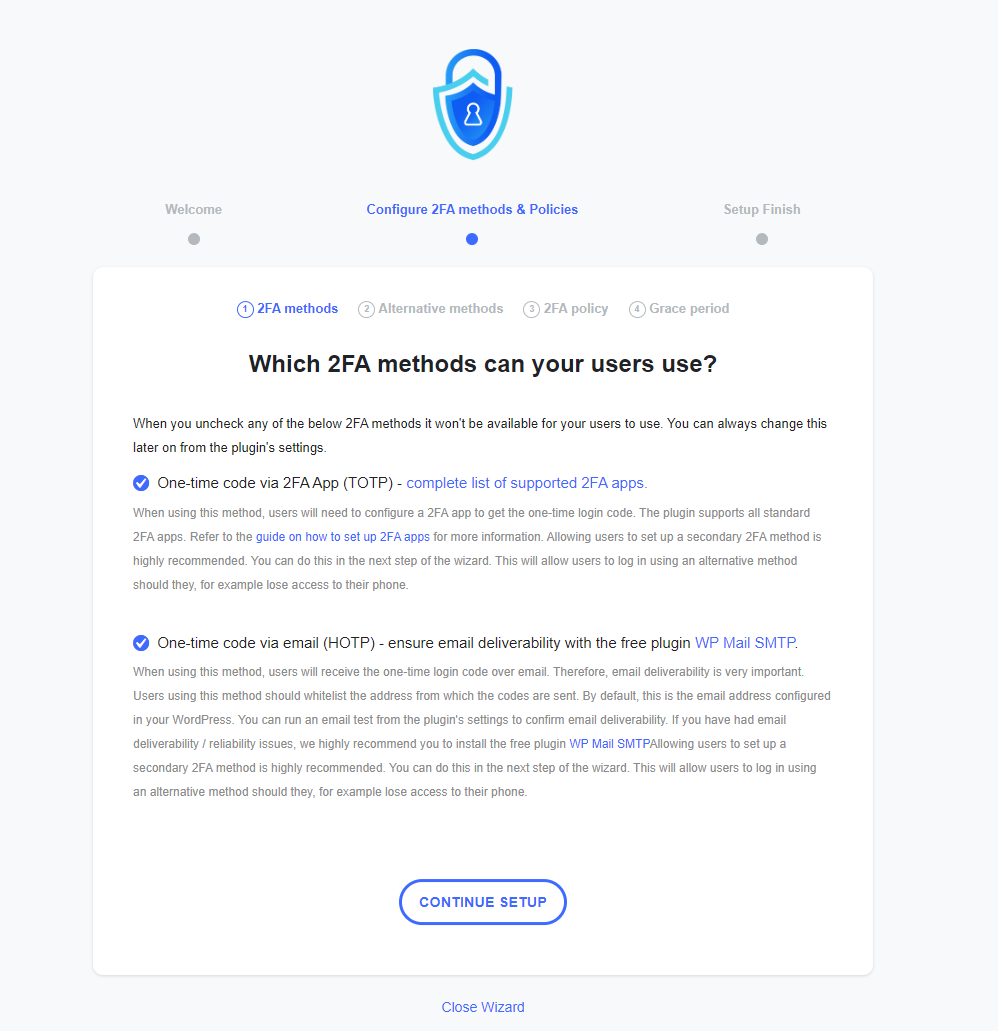
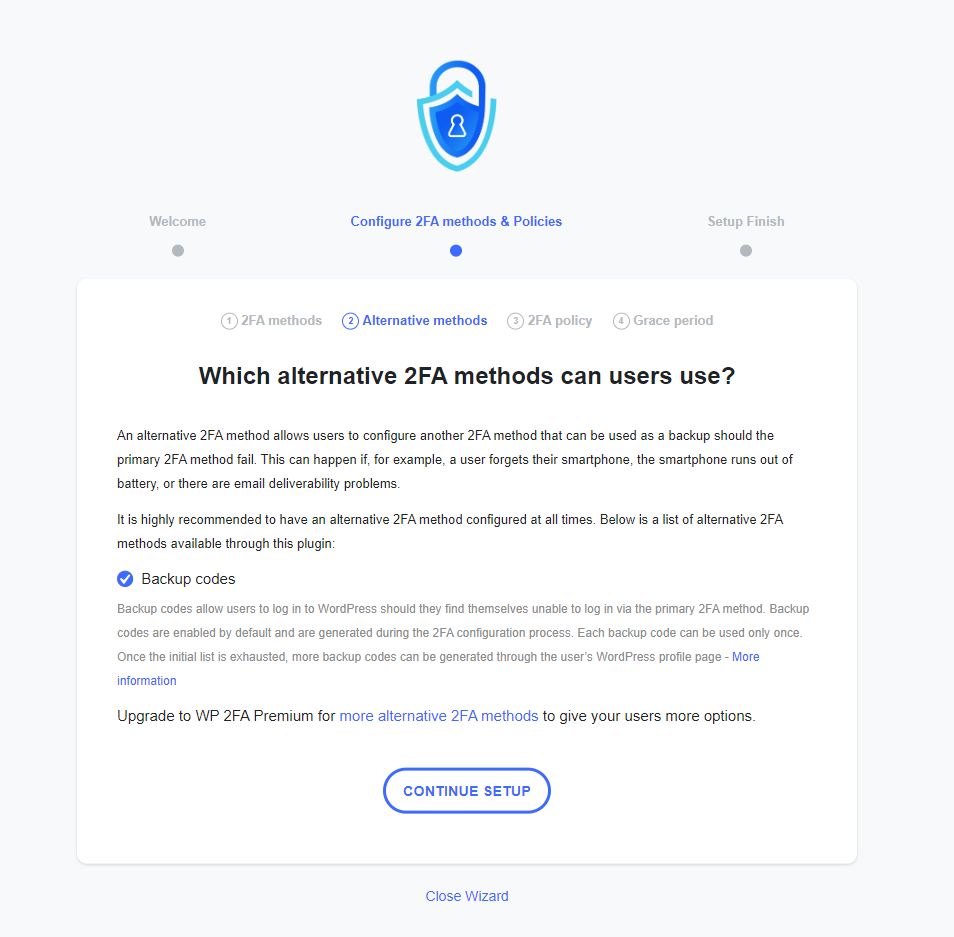
Following this, you will be prompted to choose alternative 2FA methods. Most free versions of 2FA plugins include the crucial option of backup codes. Select this option and then click CONTINUE SETUP.
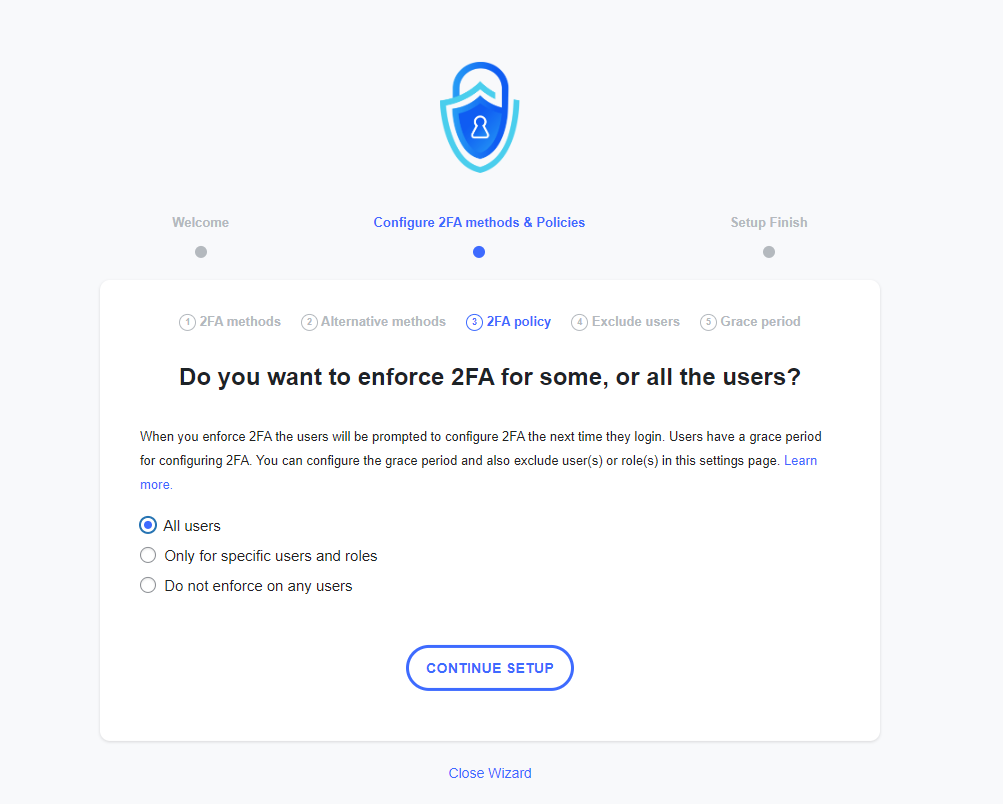
2FA plugins often employ policies to define which users are required to set up 2FA, which users have the option to set it up, and which users are entirely excluded. By default, 2FA might be enforced across all users. However, you have the flexibility to enforce it selectively for certain user groups or not at all. After making your selection, click CONTINUE SETUP.
Even when 2FA is enforced for all users, most plugins provide options to exclude specific individuals or user roles from this requirement. If you do not wish to exclude anyone, simply leave both fields empty. Then, click CONTINUE SETUP.

In the final stage of the setup wizard, you can opt to provide users with a grace period to configure their 2FA, or you can choose to mandate its immediate setup. You can also specify how the plugin should behave in various scenarios, for example, if a user fails to set up 2FA within the allotted grace period.
Unsure About the Settings?
There's no need to worry – all configurations made during the wizard can be easily modified later through the plugin's main settings panel at any time.
Once you are satisfied with your choices, click ALL DONE to finalize the wizard and proceed to the next critical step: setting up 2FA for your own user account.

2. Setting Up User Two-Factor Authentication
Having completed the initial plugin configuration, the next crucial step is to set up 2FA for your own WordPress user account. This exact process will be followed by all other users on your website when they configure their individual 2FA settings.
Typically, the 2FA setup wizard will launch automatically immediately after you complete the initial configuration wizard. However, you can always access and initiate this process at any time directly from your WordPress user profile page.
In the first step of this personal setup, you will choose your preferred 2FA method. For this illustration, we will proceed with the authenticator app option. Click NEXT STEP to continue.

The wizard will then display a QR code, which you need to scan using your chosen authenticator application (e.g., Google Authenticator, Microsoft Authenticator). Should scanning not be feasible, an option to manually enter a provided code is also available. Once your authenticator app successfully registers the QR code, click I’M READY to proceed.

Pro Tip
Some advanced password managers, such as 1Password, offer the convenient functionality of storing your two-factor authentication codes directly within the application. This method allows you to centralize both your passwords and one-time passwords (OTPs) in a single, secure app.
Your authenticator app should now be actively displaying a unique, time-sensitive code specifically for your WordPress website. A key security feature of 2FA is that this code refreshes approximately every 30 seconds. This constant change significantly enhances security by minimizing the window of opportunity for unauthorized use.
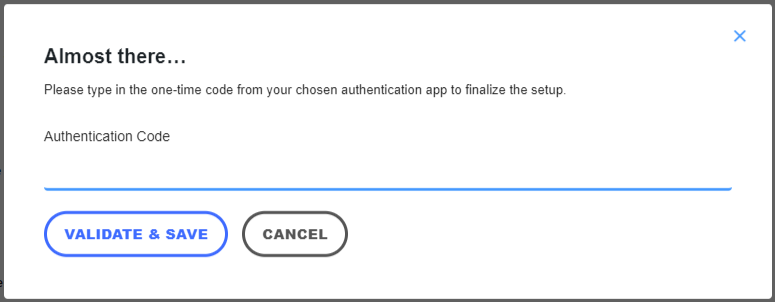
Carefully enter the currently displayed code from your authenticator app into the designated Authentication Code field and then click on VALIDATE & SAVE.
The subsequent step involves generating backup codes. While this step is marked as optional, it is very strongly recommended for your security. These backup codes are crucial for regaining access to your account if your primary 2FA device is lost, stolen, or inaccessible.
Each individual backup code can be used only once. You can generate a fresh set of new codes at any time from your WordPress profile page if needed. Click on GENERATE LIST OF BACKUP CODES to proceed.
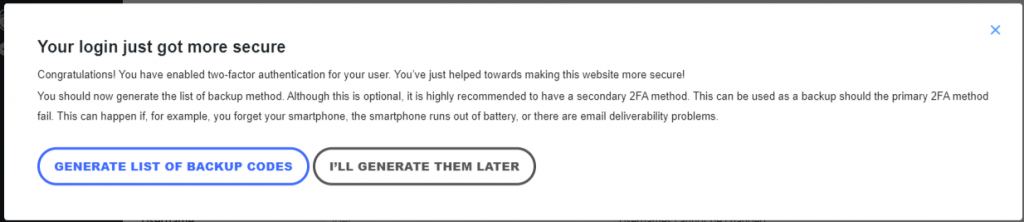
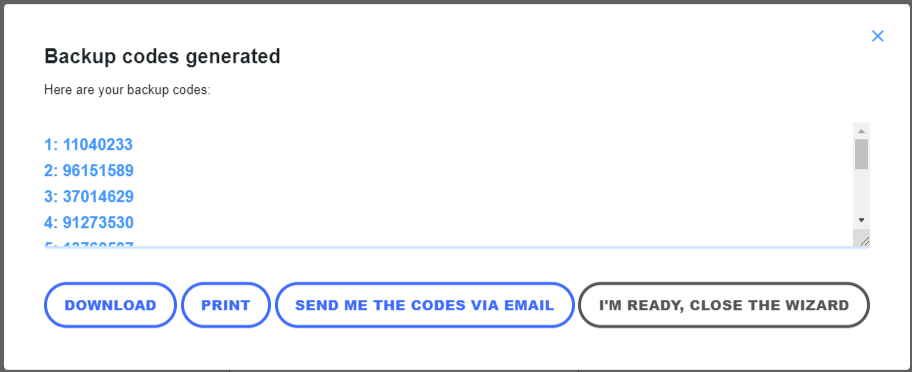
A list of unique backup codes will then be displayed on your screen. It is paramount that you store these codes in an extremely secure location, separate from your primary devices. Options typically include downloading the list, printing it for physical storage, or having them sent to a secure email address. Once you have safely secured these codes, click I’M READY, CLOSE THE WIZARD to complete the setup.
To confirm that your 2FA setup was successful, attempt to log in to your WordPress account. The login page should now prompt you for your 2FA code, indicating that the additional security layer is active.
3. Setting Up Email Two-Factor Authentication
The process for setting up email-based 2FA largely mirrors the authenticator app method. However, there are minor differences in the initial two steps, which we will detail here.
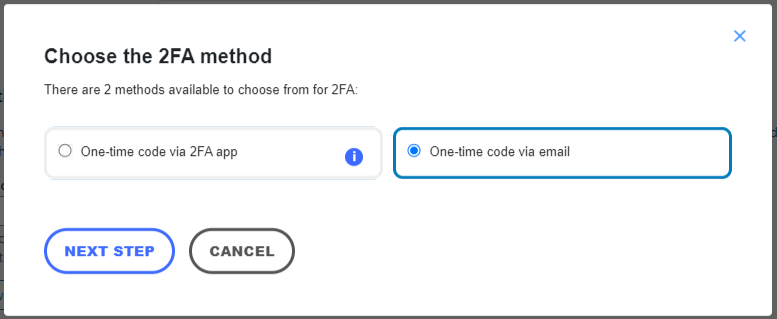
During the first step of the 2FA setup process, you will select the option for One-time code via email. Click NEXT STEP to continue.
In the wizard's second step, you will be asked to confirm your email address. This should be the same email address that is configured within your WordPress user profile. Once you click I’M READY, the plugin will automatically dispatch a unique one-time code to this email address.
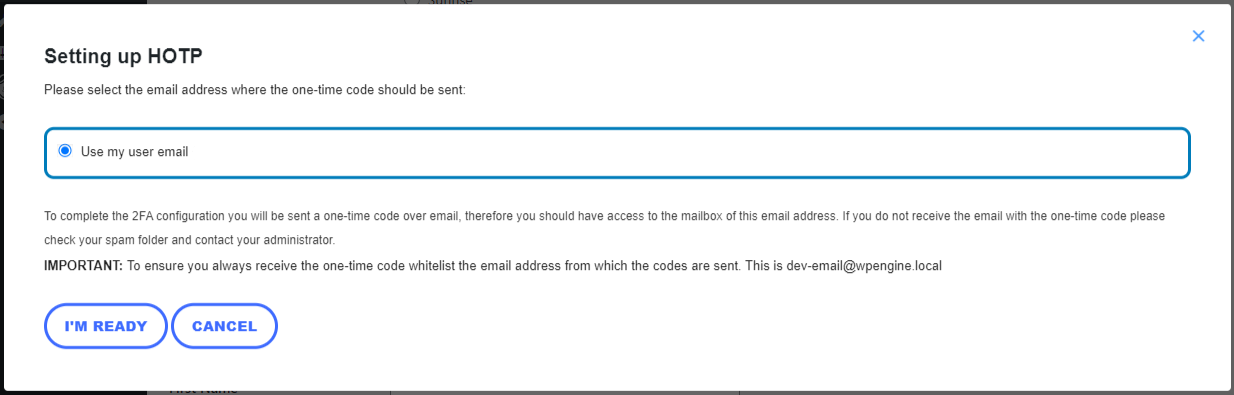
Should you not receive the email containing the code, please first check your spam or junk folder. It is also a common issue for WordPress installations to experience problems with sending emails. If this persists, consult resources on troubleshooting WordPress email delivery issues before continuing with the 2FA setup.
Following these initial steps, complete the remainder of the wizard by following the instructions outlined in the previous section for generating backup codes and finalizing the setup.
Recommended Two-Factor Authentication Plugins for WordPress
While various plugins offer robust 2FA capabilities for WordPress, a particular plugin, often referred to as "2FA Plugin X", stands out for its straightforward usability, comprehensive feature set aimed at enhancing security, user-friendliness, and extensive customization options. It typically includes dedicated email support to assist with any queries or issues that may arise. Nevertheless, several other excellent alternatives are available, and you may wish to consider these based on your specific requirements:
- Two-Factor: This plugin offers support for Universal 2nd Factor (U2F) and even includes a testing method for developers. It is highly regarded for its simplicity and operational efficiency by its user base.
- Authenticator Plugin Y: The free version of this plugin often provides generous user limits and supports additional authentication methods like security questions, adding another layer of versatility to 2FA.
- Security Plugin Z: Beyond two-factor authentication, this comprehensive security solution fortifies your WordPress site's defenses against unauthorized access through advanced firewalls and thorough malware scanning.
- All-In-One Security (AIOS): This powerful plugin integrates 2FA alongside a sophisticated web application firewall (WAF), providing a consolidated security solution within a single package.
These diverse plugins each offer distinct two-factor authentication features and functionalities, catering to a range of needs to ensure superior protection for your WordPress website.
Conclusion
Implementing two-factor authentication might appear to be a minor adjustment, but its positive impact on the overall safety and integrity of your website is profoundly significant. By introducing an additional, critical layer of security, 2FA serves as a robust barrier, effectively safeguarding your digital assets against unauthorized access and potential breaches.
With the selection of an appropriate and reputable plugin, you can seamlessly integrate 2FA into your WordPress site, thereby establishing a fortified defense against a wide array of potential cyber threats and malicious attacks.
Here’s a concise summary of the key steps to effectively enable two-factor authentication for your WordPress website:
- Acquire and install a reliable 2FA WordPress plugin.
- Diligently follow the plugin's setup wizard to configure two-factor authentication according to your site's needs.
- For the highest level of security, ensure 2FA is enforced for all user accounts, critically including all site administrators and collaborators.
It is important to remember that maintaining an excellent standard of website security is not a one-time task but rather an ongoing commitment. In addition to enabling 2FA, consistently update all third-party applications, themes, and plugins, and always adhere to best practices to protect your site against evolving online threats.
Frequently Asked Questions About WordPress Two-Factor Authentication
Do I Have to Enable Two-Factor Authentication for WordPress?
While two-factor authentication (2FA) is not a mandatory requirement for WordPress websites, it is unequivocally and highly recommended. Implementing 2FA significantly enhances your website's security posture by introducing an additional layer of protection. This crucial security measure demands that, in addition to your password, you must also provide a unique, time-sensitive code to successfully log in.
What Should I Do if I Lose My Two-Factor Authentication Device or Backup Codes?
Should you find yourself in the unfortunate situation of losing your 2FA device or misplacing your crucial backup codes, there's no need to be concerned. Your primary course of action should be to contact your WordPress administrator immediately. The administrator possesses the necessary privileges to assist you in regaining access to your account. They can typically facilitate the temporary disabling of 2FA for your account, allowing you to then reconfigure it with a new device or generate new backup codes.
Can I Use Two-Factor Authentication with the WordPress Mobile App?
Absolutely! Two-factor authentication is fully compatible with and, indeed, highly encouraged for use with the WordPress mobile application. Integrating 2FA with the mobile app provides seamless and enhanced security for your user account, irrespective of whether you are logging in via the application itself or through a web browser on a desktop or mobile device. This ensures consistent protection across all access points.
