
 (1).svg)
 (1).png)


 (1).svg)
.svg)
A well-structured navigation menu is fundamental for guiding visitors through your website and ensuring they can easily find the information they need.
Whether you are setting up your first website or striving to improve the user experience on an existing one, understanding how to effectively add and customize a navigation menu is an invaluable skill.
WordPress provides an intuitive drag-and-drop menu interface, empowering users to effortlessly create various menu types, including header menus, menus with dropdown options, and much more. This flexibility allows for highly tailored site navigation.
Over time, we have developed a deep understanding of designing effective menu styles, learning which types of menus best serve different purposes, what links and pages to prioritize, and how to optimize navigation for a superior user experience.
This comprehensive, step-by-step guide will walk you through the process of easily adding a navigation menu in WordPress.
Understanding Navigation Menus in WordPress
A navigation menu functions as a curated list of links that direct users to important areas of a website. These menus are typically displayed as a horizontal bar of links located at the top of every page on a WordPress site, though their placement can vary.
Such menus are crucial for providing your site with a clear structure, which in turn helps visitors quickly locate the content they are seeking. Here is an illustrative example of a navigation menu in action:

WordPress simplifies the process of adding both main menus and sub-menus. You can integrate links to your essential pages, categories or topics, individual blog posts, and even custom links, such as those pointing to your social media profiles.
The precise location where your menu appears will depend on your chosen WordPress theme. Most themes offer several placement options, allowing you to create distinct menus for different areas of your site. For instance, the majority of WordPress themes include a primary menu prominently positioned at the top. Some themes may also feature a secondary menu, a footer menu, or a dedicated mobile navigation menu.
With this understanding, let's proceed to explore how you can create a custom navigation menu in WordPress.
Creating Your First Custom Navigation Menu
To begin creating a navigation menu, navigate to the Appearance » Menus page within your WordPress admin dashboard.
Note: If you do not see the ‘Appearance » Menus‘ option on your site and instead only see ‘Appearance » Editor‘, this indicates that your theme has Full Site Editing (FSE) enabled. In this case, you can refer to the section below dedicated to FSE for relevant instructions.
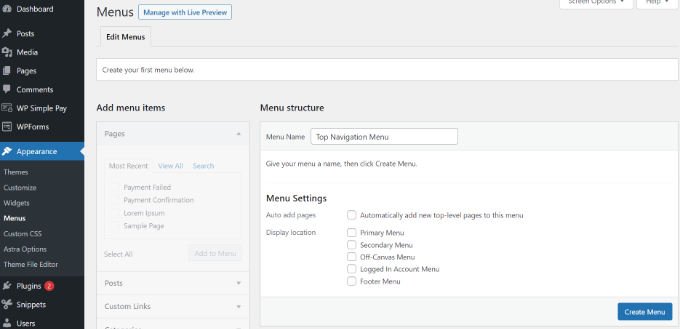
Once on the Menus page, provide a descriptive name for your new menu, such as ‘Main Navigation’ or ‘Top Menu’, and then click the ‘Create Menu’ button. This action will expand the menu configuration area, presenting you with the options to begin adding items.
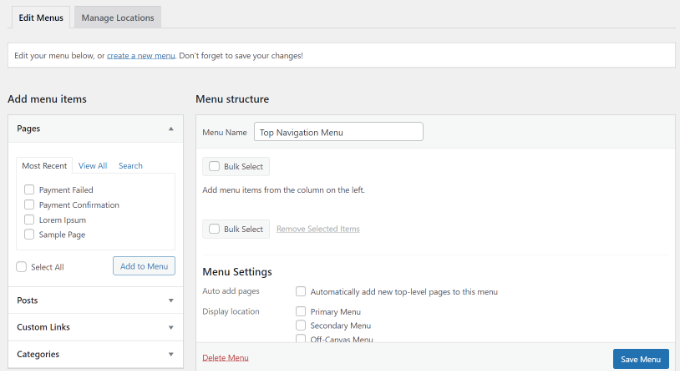
Next, you can select the pages you wish to include in your menu. You have the option to either automatically add all newly created top-level pages or to manually select specific pages from the left column. To view all available pages, first click the ‘View All’ tab. After that, check the box next to each page you intend to add to your menu, and then click the ‘Add to Menu’ button.
Once your chosen pages have been added, you can easily reorder them by dragging and dropping them within the ‘Menu Structure’ section. This intuitive interface allows you to change their sequence and rearrange them according to your preferred navigation flow.
Note: While all menu items are displayed in a vertical (top to bottom) list within the menu editor, their live appearance on your site will be either vertical or horizontal (left to right), depending on the specific location you select for the menu.
Most themes offer several different locations where you can display your menus. For instance, a popular theme might provide 5 distinct locations for menu placement.
After successfully adding pages to your menu and arranging them as desired, select the location where you want to display it on your website, then click the ‘Save Menu’ button.
Tip: If you are uncertain about the exact placement of each location, experiment by saving the menu in various spots and then visit your site to observe how it renders. While you may not utilize every available location, you might find it beneficial to employ more than one for different navigational purposes.
For more detailed guidance on this, consider exploring tutorials on how to create a vertical navigation menu in WordPress.
Here is an example of a completed menu displayed on a demo site:

Creating Drop-Down Menus in WordPress
Drop-down menus, often referred to as nested menus, are navigation menus that feature both parent and child menu items. When a user hovers their cursor over a parent item, all associated child items will elegantly appear beneath it in a sub-menu, offering a more organized navigation structure.
To create a sub-menu, simply drag an item directly below its intended parent item, and then indent it slightly to the right. As an illustration, we have implemented this with three sub-items positioned beneath a ‘Services’ entry in our example menu:

You can even establish multiple layers of dropdowns, allowing a sub-menu to contain its own sub-menu. However, it's worth noting that this can sometimes lead to a cluttered appearance, and many WordPress themes may not fully support multi-layer dropdown menus. It's advisable to check your theme's capabilities if considering such a complex structure.
For more detailed instructions on this feature, please refer to dedicated tutorials on how to create a dropdown menu in WordPress.
Here is how a sub-menu typically appears live on a demonstration website:

Adding Categories to WordPress Menus
If you are utilizing WordPress to manage a blog, incorporating your blog categories as a dropdown within your WordPress menu can significantly enhance content organization. Many blogs use this approach, featuring multiple categories such as news, themes, tutorials, and more, to help users navigate diverse content efficiently.
You can easily add categories to your menu by clicking the ‘Categories’ tab located on the left side of the menu screen. You might also need to click the ‘View All’ tab to display all your available categories.
Simply select the categories you wish to add to the menu, and then click the ‘Add to Menu’ button. The selected categories will then appear as regular menu items at the bottom of your current menu list.
Subsequently, you can drag and drop them into their desired positions. For instance, you might choose to group all these categories under a dedicated ‘Blog’ menu item, creating a neat and accessible structure for your readers.
For further detailed instructions, please refer to beginner’s guides on how to add topics to WordPress navigation menus.
Here’s an illustration of how different categories might appear within the navigational menu on a demonstration site:

Adding Custom Links to Your WordPress Navigation Menus
Beyond pages and categories, WordPress offers immense flexibility by allowing you to effortlessly add custom links to your menu. This feature is incredibly useful for connecting to external resources such as your social media profiles, an associated online store, or other websites you manage, thereby centralizing your digital presence.
To implement this, you will utilize the ‘Custom Links’ tab available on the Menu screen. Simply input the desired URL along with the accompanying link text you wish to display in your menu, and then click the ‘Add to Menu’ button.
Furthermore, you can unleash your creativity by integrating social media icons directly into your menu or adding compelling call-to-action buttons to boost user engagement and conversions, making your navigation not just functional but also a powerful marketing tool.
Editing or Removing a Menu Item in WordPress Navigation Menus
When you add pages or categories to your custom navigation menu, WordPress typically uses the page title or category name as the default link text. However, you have the flexibility to modify this text if desired.
Any existing menu item can be easily edited by clicking on the downward arrow icon positioned next to it. This action will reveal additional options.
From this expanded interface, you can readily change the menu item’s display name. Additionally, if you decide that a link is no longer needed, you can simply click ‘Remove’ to delete it from your menu entirely.
Should you find the drag-and-drop interface challenging for precise positioning, you can also move menu items using the dedicated ‘Move’ links, offering an alternative method for arrangement.
Adding Navigational Menus in Full Site Editor (FSE)
The innovative full site editor empowers you to customize your WordPress themes comprehensively using the block editor. Introduced with WordPress 5.9, this editor enables you to seamlessly integrate various blocks into your templates, facilitating the creation of truly unique and dynamic designs across your entire website.
To add a navigational menu using the full site editor, access the Appearance » Editor section from your WordPress dashboard.
For the purpose of this tutorial, we will be referencing a default theme such as Twenty Twenty-Three. For more comprehensive insights, you might consult resources on the best WordPress full site editing themes, many of which are freely available.
Once you are within the editor interface, proceed by clicking on the ‘Navigation’ tab to expand its settings. This will reveal new configuration options in the left column.
From this point, simply click the ‘Edit’ icon located at the top of the panel. This action will launch the full site editor on your screen, where you can then click the ‘+’ icon to begin adding a navigation menu item.
A prompt will subsequently appear, allowing you to select an option from a dropdown menu. If your intention is to add a custom link, you can input a label and URL for the navigation menu item directly into the block panel. You also have the option to enhance user experience by integrating a search function into your menu.
Once you have successfully added an item, transition to the ‘Styles’ tab located in the column on the right. Here, you gain granular control over the visual presentation of your menu items. You can adjust the typography, overall appearance, height, spacing, letter casing, and text decoration to perfectly match your site’s aesthetic.
Additionally, the block toolbar provides an icon specifically for adding a submenu, enabling you to build hierarchical navigation structures with ease.
Upon completing your modifications, it is recommended to preview the changes to see how the menu appears in real-time on your site. Finally, remember to click the ‘Save’ button at the top of the editor to apply all your adjustments.
Adding WordPress Menus in Sidebars and Footers
You are not limited to your theme's default display locations for menus. WordPress offers the flexibility to incorporate navigation menus into any widget-enabled area, such as your website's sidebar or footer, providing additional opportunities for user guidance.
To achieve this, navigate to Appearance » Widgets. From there, click the ‘Add Block’ (+) button located at the top of the screen and then add the ‘Navigation Menu’ widget block to your desired widget area, such as the sidebar.
Next, provide a suitable title for the widget and select the correct menu from the ‘Select Menu’ dropdown list. This ensures that the appropriate menu is displayed in that specific widget area.
Once you have configured these settings, simply click the ‘Update’ button to save your changes and activate the menu in the chosen widget area.
Here’s an example of a custom WordPress footer menu as seen on a prominent website, showcasing how menus can be effectively used in alternative locations.

Going Further with Navigation Menus
If your aim is to construct a truly expansive menu featuring a multitude of links, exploring advanced techniques for creating a mega menu in WordPress can be highly beneficial. This allows for the creation of rich, multi-column dropdowns that can even incorporate images, transforming simple navigation into a dynamic content display.
Mega menus are an excellent solution for websites with extensive content, such as large online stores or comprehensive news portals. This sophisticated type of menu is widely adopted by major digital platforms to manage and present vast amounts of information effectively, enhancing user engagement and content discoverability.
Frequently Asked Questions About WordPress Menus
Here are some of the most common questions beginners often ask regarding WordPress navigation menus, along with concise answers to help clarify key aspects.
1. How do I add a homepage link to a WordPress menu?
To include your homepage in a navigation menu, you will first need to click the ‘View All’ tab located under the Pages section on the menu editor screen. From there, you should easily locate your homepage. Check the box next to ‘Home’ and then click ‘Add to Menu.’ Always remember to save your changes after making any modifications.
2. How do I add multiple navigation menus in WordPress?
WordPress provides the flexibility to create an unlimited number of menus. To display a menu on your website, you must assign it to one of your theme’s designated menu locations or to an available widget area, as demonstrated in the sections above. If you intend to implement multiple navigation menus on your WordPress site, begin by creating each menu following the steps outlined in this tutorial.
To assign them to specific areas on your site, click on the ‘Manage Locations’ tab within the menu editor. From this interface, you can select which menu you would like to display in each of the menu locations that are provided by your active theme. If you wish to introduce a new menu location to your site that isn't pre-defined by your theme, you can consult tutorials on how to add custom navigation menus to WordPress themes for more advanced guidance.
