
 (1).svg)
 (1).png)


 (1).svg)
.svg)
Scheduled Actions in Odoo 17 are a powerful feature designed to automate various operations within your ERP system on a predetermined schedule. This functionality is crucial for ensuring that routine and recurring tasks are executed precisely without the need for manual intervention. By leveraging scheduled actions, organizations can significantly optimize resource utilization, enhance data consistency, and streamline critical business processes within their Odoo environment. Whether the goal is to dispatch automated reminders, update records based on specific criteria, or trigger complex multi-step workflows, Scheduled Actions provide a robust and flexible framework for time-driven automation.
Understanding Scheduled Actions in Odoo 17
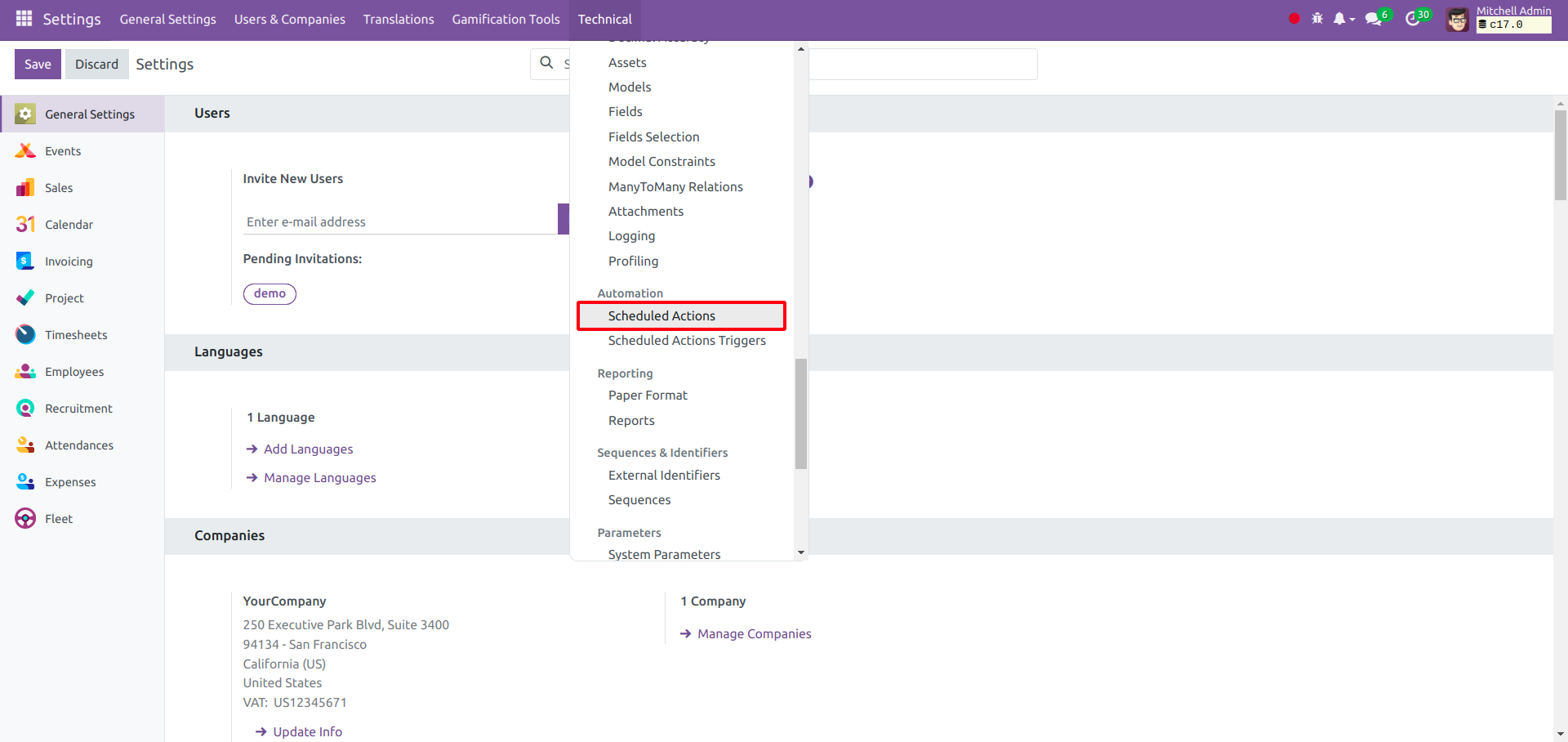
To view all existing scheduled actions, navigate to the Settings module, then select Technical, and finally click on Scheduled Actions. This section provides a comprehensive overview of all configured automated tasks.
Creating a New Scheduled Action via XML
For developers or those needing to deploy scheduled actions as part of a custom module, defining them within an XML file is a common practice. You can create a new scheduled action by adding a record to the ir_cron_data.xml file located in the data directory of your Odoo module. Below is a sample XML code snippet illustrating this process:
<data noupdate="1">
    <record id="ir_cron_action_to_do" model="ir.cron">
        <field name="name">Test Action To Do</field>
        <field name="model_id" ref="base.model_res_partner"/>
        <field name="state">code</field>
        <field name="code">model.action_cron_test_method()</field>
        <field name="user_id" ref="base.user_root"/>
        <field name="interval_number">1</field>
        <field name="interval_type">days</field>
        <field name="numbercall">-1</field>
    </record>
</data>
Dissecting the Scheduled Action XML Configuration
Each line and attribute within the provided XML code plays a vital role in defining the behavior of your scheduled action:
<data noupdate="1">: Thenoupdate="1"attribute within the<data>tag is crucial. It ensures that once this record is created during module installation or update, it will not be modified or overwritten by subsequent module updates, preserving any user-made changes or preventing unintended resets.idandmodelof<record>tag: Theidattribute provides a unique identifier for this specific record within your Odoo system. This record will be saved in their.cronmodel, which is Odoo's core model for managing scheduled tasks.<field name="name">: This field assigns a human-readable name to the cron job, in this example, "Test Action To Do." This name is primarily used for display purposes within the Odoo interface, making it easier to identify the scheduled action.<field name="model_id" ref="base.model_res_partner"/>: This attribute links the scheduled action to a specific Odoo model. By referencingbase.model_res_partner, we indicate that the action will operate in the context of the "res.partner" (Contacts) model. The Python code defined for the action will then have access to methods of this model.<field name="state">code</field>: Thestatefield specifies the implementation method for the cron job. Setting it to "code" indicates that the scheduled action will execute a Python method. Other options might exist for different types of actions.<field name="code">model.action_cron_test_method()</field>: This is the core of the scheduled action. It contains the Python code that will be executed. In this instance, it calls theaction_cron_test_method()on themodelobject, which refers to an instance of the model specified inmodel_id.<field name="user_id" ref="base.user_root"/>: This field defines the user under whose permissions the scheduled action will be executed. It is often set to the "root" user (administrator) to ensure it has the necessary access rights to perform its tasks.<field name="interval_number">1</field>: This parameter dictates the numerical part of the interval. Here, "1" signifies that the action should run every one unit of the specifiedinterval_type.<field name="interval_type">days</field>: This field defines the type of interval for the scheduled execution. Setting it to "days" means the cron job is configured to run daily. Other options include "minutes", "hours", "weeks", "months", etc.<field name="numbercall">-1</field>: This parameter sets the maximum number of times the automated action should run. A value of "-1" is used to indicate that the cron job should run indefinitely, without any limit on the number of executions.
After successfully adding this XML code to your ir_cron_data.xml file, it is essential to remember two crucial steps:
- Ensure that this XML file is included in the
'data'list within your Odoo module's__manifest__.pyfile. - Implement the
action_cron_test_methodmethod within the corresponding Python model (in this example,res.partner) to define the specific logic to be executed by the scheduled action.
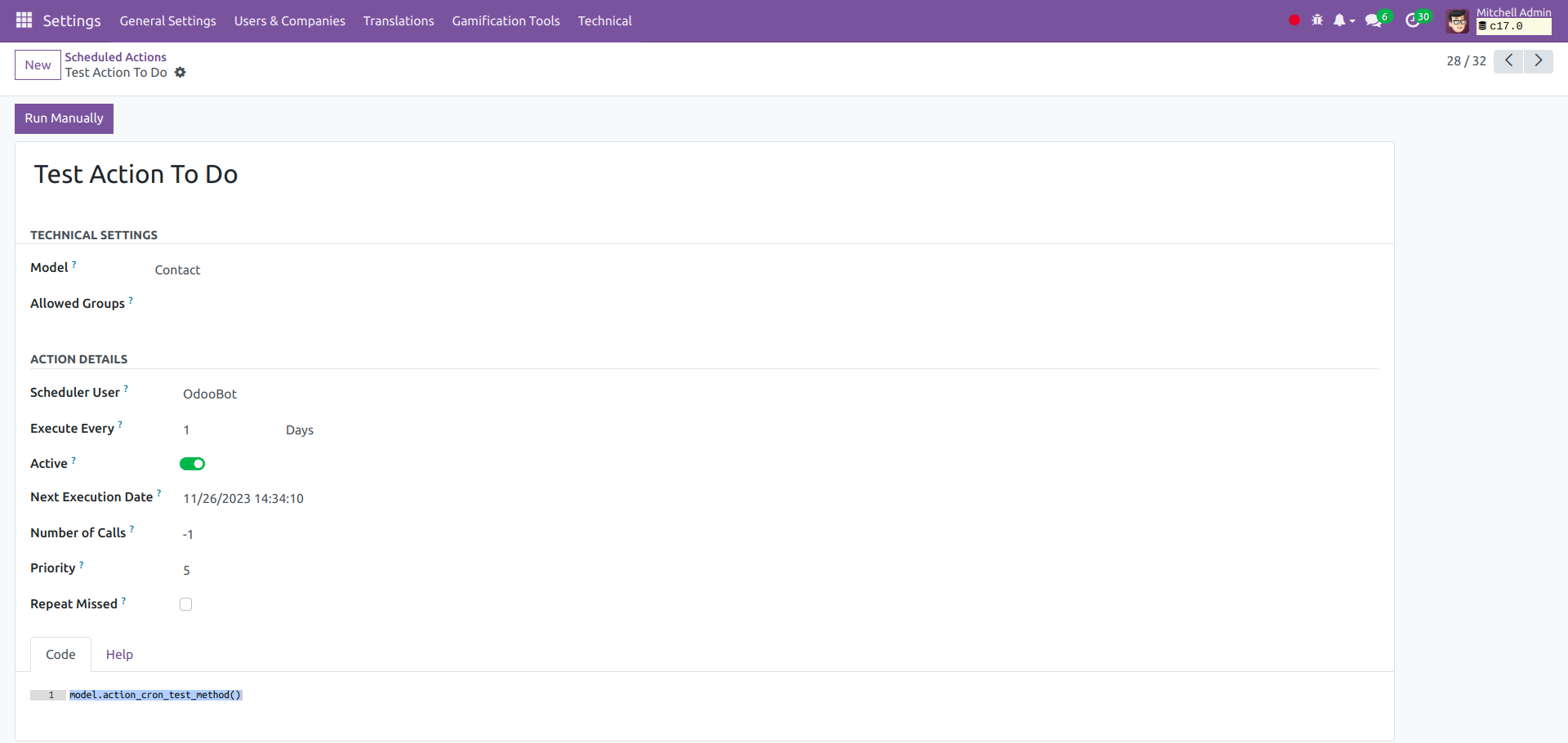
Once your module is upgraded or installed with these changes, the newly configured scheduled action will be visible and manageable within the Scheduled Actions menu under the Technical settings.
Configuring Scheduled Actions Through the User Interface
Beyond XML configuration, Odoo also provides the flexibility to create and modify scheduled actions directly from the user interface. This method is often preferred for simpler configurations or for making quick adjustments to existing actions without delving into code. The same fields and parameters discussed above can be configured directly from the "Scheduled Actions" view.
Scheduled Actions in Odoo are indispensable for automating recurring tasks, thereby ensuring operational consistency and enhancing overall efficiency within the ERP environment. Whether you're sending automated reminders, performing routine data updates, or orchestrating complex workflows, mastering scheduled actions empowers your Odoo system to work smarter.
For those interested in previous Odoo versions, you can also learn how to set up scheduled actions in Odoo 16 by exploring our related documentation.
