
 (1).svg)
 (1).png)


 (1).svg)
.svg)
Managing a website often involves collaboration, whether you're working with a team, external developers, or providing hosting for subdomains to other users. In such scenarios, granting individual access to specific parts of your website without compromising overall security is crucial. Creating separate FTP (File Transfer Protocol) accounts is an effective way to manage these access permissions, allowing different users to upload, download, and manage files within designated directories. This guide details the process of adding, modifying, and removing FTP accounts within Plesk Obsidian, ensuring you can efficiently manage access for all your collaborators.
Creating a New FTP Account
To establish a new FTP account within Plesk Obsidian, follow these straightforward steps:
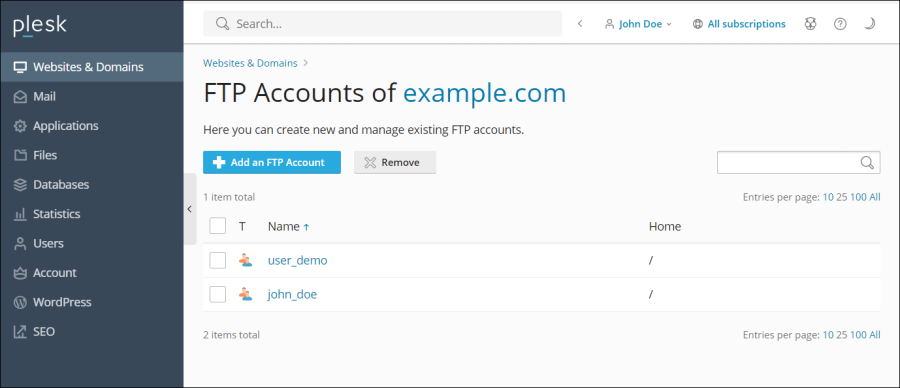
- Navigate to Websites & Domains, then select your specific domain, and finally click on FTP.
- Click the Add an FTP Account button to initiate the creation process.
- Provide the necessary details for the new FTP account:
- FTP account name: Enter a unique and descriptive name for the FTP account. This will be the username the individual uses to connect.
- Home directory: Choose the specific directory that the FTP user will access upon successful connection. This sets the root directory for their file operations, ensuring they can only interact with files within this designated path.
- FTP password: Set a strong and secure password for the FTP account. Remember to communicate this securely to the intended user.
- Hard disk quota (Applicable for Windows hosting): If you need to limit the amount of server disk space this FTP user can utilize, deselect the Unlimited checkbox next to the Hard disk quota field. Then, specify the maximum disk space in megabytes.
- Read permission (Applicable for Windows hosting): To grant the FTP user the ability to view the contents of their designated home directory and download files from it, ensure the Read permission checkbox is selected.
- Write permission (Applicable for Windows hosting): To allow the FTP user to perform operations such as creating new directories, viewing existing ones, renaming files and directories, or deleting content within their home directory, select the Write permission checkbox.
Note: On Windows hosting environments, if neither Read nor Write permissions are granted, the user will still be able to connect to the FTP account. However, they will not be able to see or interact with the contents of the home directory.
- Click OK to finalize the creation of the new FTP account.
Modifying an Existing FTP Account
Should you need to adjust the settings of an FTP account, such as its home directory, password, or permissions, follow these steps:
- Access Websites & Domains, select your domain, and then navigate to the FTP section.
- From the list of existing FTP accounts, click on the name of the specific account you wish to modify.
- Apply the desired changes to the account properties and click OK to save your updates.
Removing an FTP Account
If an FTP account is no longer needed, you can easily remove it from your Plesk environment:
- Go to Websites & Domains > your domain > FTP Access.
- Locate the FTP account you wish to remove in the list, select the corresponding checkbox, and then click the Remove button.
Important Note: The primary FTP account associated with a subscription cannot be removed, as it is essential for the core functionality of your hosting service.
- A confirmation prompt will appear. To proceed with the deletion, click Yes, remove.
Effectively managing FTP accounts in Plesk Obsidian allows for greater control over file access and streamlines collaborative website development. By following these guidelines for creation, modification, and removal, you can ensure secure and efficient operations for all users interacting with your website's files.
