
 (1).svg)
 (1).png)


 (1).svg)
.svg)
Description
This module provides a comprehensive guide to managing users within your WordPress website, covering how to add, edit, and remove user accounts. While it introduces the various user roles available in WordPress, the primary focus is on the practical aspects of user management, rather than the strategic decisions involved in assigning specific roles and permissions.
Objectives
Upon completing this lesson, students will possess the skills to:
- Update their personal user profile.
- Customize the columns displayed in the Users table for better viewing.
- Create a new user account with appropriate details.
- Enable or disable the option for visitors to register their own accounts.
- Utilize the search, filter, and bulk modification tools within the Users table to efficiently manage existing users.
- Adjust user permissions through WordPress Roles and Capabilities.
- Reset a user's password securely.
- Disable a user's access without permanently deleting their account.
- Delete a user account from the system.
- Reassign content authored by a deleted user to another active user.
Prerequisite Skills
To get the most out of this module, it's beneficial to have:
- Basic familiarity with the WordPress Administrative Dashboard.
Assets
You will need:
- A user account with the "Administrator" Role.
Screening Questions
Consider the following questions to gauge your readiness for this module:
- Are you comfortable navigating the WordPress administrative Dashboard?
- Do you understand the importance of user accounts and security in a shared technological environment?
- Are you familiar with the roles of subscribers, authors, and editors within a typical publishing workflow?
Teacher Notes
For instructors delivering this lesson, please consider the following:
- Performing a live demonstration of the user management steps is highly recommended to ensure students fully grasp the concepts.
- Although a sandboxed or development site is not strictly required for this lesson, it is strongly advised. Students should ideally avoid modifying permissions or adding/removing actual users on a live, actively used website.
- This lesson is optimally designed for a WordPress site that does not have advanced user management plugins installed (e.g., plugins for custom roles and capabilities).
- This module specifically excludes coverage of the "Super Admin" role, which is utilized in the Network Admin Screen for WordPress Multisite installations.
Hands-on Walkthrough
Introduction to User Management
Welcome to the User Management section! In this walkthrough, you will learn the essential processes for adding, removing, and updating user accounts within your WordPress website. This includes addressing advanced topics such as securely changing a user's username. Effective user management is crucial for several key reasons:
- You may need to add additional users to your website without enabling public registration for new accounts.
- It might be necessary to promote an existing user to a role with content creation privileges, demote a user, or completely remove their account.
- Perhaps your website was initially set up with the default administrator username "admin," and you now wish to change it for improved security.
- As your website expands, it's considered a best security practice to disable or remove old and unused user accounts.
Understanding Roles and Capabilities
As you delve into user management, you will frequently encounter various user roles. While this module does not provide an in-depth exploration of each role's specific capabilities or the strategic reasoning behind assigning them, it is vital to have a foundational understanding of what each role entails. The WordPress Codex succinctly describes each role as follows:
Administrator – An individual who possesses full access to all administration features within a single site.
Editor – An individual capable of publishing and managing posts, including those created by other users.
Author – An individual who can publish and manage their own posts.
Contributor – An individual who can write and manage their own posts but lacks the ability to publish them directly.
Subscriber – An individual whose permissions are limited to managing their own profile.
For the purposes of this lesson, it is essential that the user account you are using to access your WordPress site holds the "Administrator" role. For more detailed information regarding the capabilities associated with each role type, please consult the complete Roles and Capabilities article in the WordPress Codex.
Navigating User Management Tools
To effectively manage users, you will primarily utilize the tools found within the "Users" menu on your WordPress Dashboard, in conjunction with the "General Settings" area.
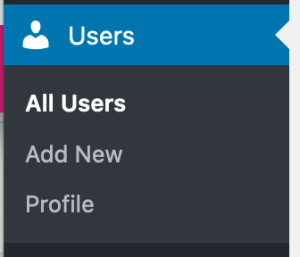
- Users > All Users: This table provides a comprehensive list of all users registered on your WordPress site, including your own account. From this listing, you can access bulk actions, allowing you to modify multiple users simultaneously.
- Users > Add New: This option enables you to manually create a new user account. This is particularly important if public registration for new accounts is disabled, requiring administrators to create all new user accounts.
- Users > Your Profile: This is where you can update your own profile information. If you are guiding another logged-in user to update their profile, the same URL structure applies (e.g., yourwebsite.tld/wp-admin/profile.php).
- Settings > General: Within the Settings menu, the General section offers an option to permit users to register their own new accounts. By default, this option is disabled in fresh WordPress installations. However, for websites with numerous users, you might choose to enable this feature and then use your administrator account to promote specific users to roles with greater capabilities.
In the subsequent sections, we will explore each of these screens in detail and cover the important tasks you can perform within them.
All user-related tasks commence with logging into your WordPress administrative area:
yourwebsite.tld/wp-admin/
Updating Your Own Profile
To update your personal profile information in WordPress, follow these steps:
- On the WordPress Toolbar, located in the upper-right corner of the screen, hover over your username and select Edit My Profile. Alternatively, from the Dashboard, navigate to the User menu and choose Your Profile.
- Scroll down to the "Name" section. Here, you can complete your first and last name, specify a nickname, add contact information, write a biographical statement, and manage your profile picture.
Your Display Name
Your display name is the name that is publicly shown when visitors browse content on your website. This typically appears as an author attribution on posts, as well as next to comments on posts or pages. You have the flexibility to choose how your name is displayed:
- You can select your WordPress username.
- Any combination of your first and last name.
- Your specified nickname.
Important notes:
- If you have not populated the "First Name" or "Last Name" fields, these options will not be available in the display name dropdown. Similarly, if your chosen nickname is identical to your username, only one instance will appear.
- It's worth noting that some WordPress themes may be configured to hide author information from posts or pages.
Your Profile Picture
By default, the profile picture associated with your WordPress account is linked to your Gravatar account. To learn more about creating and utilizing a Gravatar, please visit the official Gravatar website.
Your Email Address
Your email address is a mandatory field in WordPress, serving vital functions such as receiving system notifications and enabling password recovery should you ever need to regain access to your account. Please be aware of the following:
- If you modify a user's email address, including your own, WordPress automatically dispatches a "Notice of Email Change" message to the previously registered email address. This serves as a crucial security feature, allowing the user to report any unauthorized or suspicious activity.
- When a user's email address is updated, the Gravatar associated with their profile will typically update to reflect a photo linked to the new email address. If both the old and new email addresses happen to use the same photo within Gravatar, this change might not be immediately noticeable.
Adding a New User Account
To manually add a new user to your WordPress website, follow these steps:
- From the Dashboard, navigate to the "User" menu and select Add New.
- On the "Add New User" page, proceed to create the new user by providing a unique username (this will be their login credential), a valid email address, and any other relevant optional details.
- Carefully select an appropriate role for this new user based on their intended permissions and responsibilities within the website. More information on roles is discussed below.
- Once all the necessary details have been entered, click the Add New User button at the bottom of the page to finalize and save the new user account.
Important: Once a user account is created, its username cannot be altered.
Password Creation Considerations
By default, WordPress generates a strong password automatically for new users, which remains hidden from you. If you require knowledge of the user's password, or if you prefer to set a custom password, you can utilize the "Show Password" button. This is an optional step and is not always necessary for the user creation process. Please also note:
- WordPress automatically dispatches a welcome email to the new user, containing their login credentials, including the generated password. The user will then be prompted to log in and encouraged to change their password to one of their choosing. Even if you assigned a custom password, they will still have the option and encouragement to update it.
- Should you wish to suppress this welcoming email, you can uncheck the "Send the new user an email about their account" option. While generally not recommended, this can be useful when adding multiple users in preparation for a website that is not yet ready for public access. Be aware that even without a welcoming email, users can still use their email address to recover their login credentials.
Assigning User Roles
A user's role fundamentally defines their capabilities and permissions within the WordPress website. For instance, a role determines whether a user can only view content or also has the ability to edit it. To gain a deeper understanding of the various user roles, please refer to the comprehensive Roles and Capabilities article in the WordPress Codex. Key points include:
- The default role assigned to a newly created user is typically "Subscriber," unless this preference has been modified within Settings > General > New User Default Role.
Modifying Existing User Roles
There are instances where changing an existing user's role within WordPress becomes necessary. Common scenarios include:
- Temporarily disabling a user account without permanently deleting it.
- Promoting a valued user within the WordPress website from a more restricted role, such as a Subscriber, to a role that grants content editing capabilities.
Updating a Single User's Role
To modify an individual user's role, begin by locating their profile within the Users table:
- From the Dashboard, navigate to the "User" menu and select All Users.
- Within the Users table, you can locate a specific user by utilizing the "Search Users" function, manually browsing through the list, or by filtering the list of users according to their current role. To filter, simply click on the relevant role (e.g., Administrator, Subscriber) displayed above the Users table.
- Once the desired user is found, click on their username to access their profile for editing, or hover over their name and click the "Edit" link that appears.
- On the profile editing screen, scroll down to the "Role" dropdown menu and select the new role you wish to assign to the user.
- Finally, at the bottom of the page, click the Update User button to save and apply the changes.
Important security note: You cannot downgrade or restrict the access of your own administrator account while you are actively logged into it. To modify your own administrator account, you must either create a new administrator account or use an existing one to log in and then adjust the permissions of your original administrator account.
Disabling a User by Downgrading Their Role
To disable a user's access without removing them entirely from the users list, follow the same procedure as changing a user's role, but select "No role for this site" as the new role. While users assigned this role can still log into the WordPress site, they will be unable to access the administrative area. This effectively freezes their account and preserves their authored content on the website. Please be aware:
- If the user's email address is changed during this process, they will receive an automated "Notice of Email Change" message. This notification will not disclose the new email address, but it will make the user aware that their account has been disabled.
- To achieve complete prevention of account access, it is necessary to change both the user's email address and password. While altering the password temporarily blocks login, changing the email address prevents them from recovering access to their account through the password recovery process.
Changing Roles for Multiple Users
The Users table also provides functionality to modify the roles of multiple users simultaneously. This is accomplished using the checkboxes located to the left of each user in the list:
- Select the checkboxes next to all users for whom you intend to change the role.
- Above the user list, use the "Change role to" dropdown menu to select the desired new role for these users.
- Click the Change button to the right of the selected role to apply the bulk modification.
Deleting User Accounts and Reassigning Content
When the time comes to remove a user from your WordPress website, a crucial decision involves determining the fate of any content they have authored, including posts, pages, comments, or other custom post types.
- Locate the user you wish to remove. Hover over their username and click the "Delete" link that appears.
- On the subsequent screen, you will be prompted to confirm the deletion.
Security Reminder: You are unable to delete your own administrator account while actively logged into it. To delete your own administrator account, you must first create a new administrator account or log in with another existing administrator account, and then proceed with the deletion.
Reassigning a User's Content
If the user being deleted has created content associated with their account, it's important to decide how to reassign this content to another active user as the new author. The deletion screen presents you with two primary options:
- Delete all content – This option will permanently remove all pages, posts, or comments that this user has created. This choice is generally less common in most operational scenarios.
- Attribute all content to [another user] – This option allows you to select an existing user on your WordPress website to whom all of the deleted user's content will be reassigned. Choosing this will update the author of all pages and posts from the deleted user to the user you select from the provided dropdown menu.
Bulk Deletion of Users
Similar to changing roles, you also have the capability to delete multiple users simultaneously from the Users table and reassign all of their content to a single designated user. Follow these steps for bulk deletion:
- From the Users table, select the checkboxes next to each user you intend to delete. (Note: You cannot select your own user account for deletion.)
- Using the "Bulk Actions" dropdown menu located at the top of the Users table, select "Delete."
- Click the Apply button to be directed to the deletion confirmation screen, where any applicable options will be presented.
- Finally, click the Confirm Deletion button to apply the changes.
You may be presented with the options to reassign all content to an existing user. This selection will be applied uniformly to all users you have marked for deletion. If your intention is to assign different deleted users' content to different existing users, you will need to perform separate bulk actions for each grouping. For example, you might select a group of users for deletion and assign their content to User A, then return to the Users table, select another group, and assign their content to User B.
Resetting User Passwords
To manually reset a user's password, or to change your own, the process mirrors that of editing a user's profile. You have the flexibility to change a user's password at any time.
- Locate the user whose password you wish to reset within the Users table.
- Click on their username, or hover over it and click the "Edit" link.
- Scroll down to the password section and click the Generate Password button to be provided with a new, randomly generated strong password.
- Optionally, you can customize this password by typing directly into the password field, replacing the generated one with your preferred password.
- If your chosen new password is flagged as "Very Weak" or "Weak," it indicates that the password is too simple and could present a security vulnerability. To proceed with a weak password, you will need to enable the "Confirm Password" option. For optimal security practices, it is always highly recommended to use a "Strong" password.
- Click Update User to save the new password.
Additional Important Notes:
- When a user's password is changed, WordPress automatically dispatches a notification email to them, alerting them of this modification. This email will not disclose either the old or the new password but serves as a crucial security measure to inform the user and provide an avenue for them to contact an administrator if they suspect any suspicious activity.
- If you are changing the password for your own profile, an additional option will be available to "Log out of all other devices." This is a highly recommended step, especially when updating your password, to ensure your account is only active on your current device.
Customizing the Users Table View
To tailor the display of the Users table, including which columns are visible or adjusting the number of users listed per page, utilize the "Screen Options" panel located in the upper-right corner of the screen.
- Click on Screen Options to expand the panel.
- You can optionally uncheck any columns you prefer to hide from the Users table display.
- You can also optionally modify the number of users to be listed per page within the paginated results.
- Click Apply to save your display preferences.
These "Screen Options" can be updated at any time to either reveal previously hidden columns or adjust the number of user rows displayed. For more extensive modifications to the viewing and management capabilities of the Users table, numerous plugins are available through WordPress.org.
Enabling User Self-Registration
You can configure your WordPress website to allow visitors to register their own accounts, thereby reducing the administrative overhead of manually creating new users. Follow these steps to enable this feature:
- From the Dashboard, navigate to Settings > General.
- On the General Settings page, scroll down to the "Membership" section.
- Check the box next to the "Anyone can register" option.
- Scroll to the bottom of the page and click Save Changes to apply your settings.
- Instruct users to visit
yourwebsite.tld/wp-login.php?action=registerto create their own accounts.
Important considerations:
- Depending on your active WordPress theme, a "Register" link might automatically appear on your website, inviting visitors to the registration URL. This link could be located in your footer, within a sidebar widget, or elsewhere.
- If you are currently logged into WordPress with any account (including your own), you will not see the "Register" link displayed on the public-facing website when previewing it. To verify the presence of the "Register" link, either log out of your account, or access your WordPress website in a different web browser where you are not logged in.
- If you choose to allow users to register their own accounts, it is strongly recommended that the default user role for new registrations be set to "Subscriber." This recommendation stands unless new users are explicitly intended to have content creation privileges immediately upon registration.
Crucial Security Warning: Never configure your WordPress site to automatically assign new users the "Administrator" role upon registration, as this would grant them full control, including the ability to disable or delete your own administrator account.
Quiz
Test your understanding of WordPress user management with the following questions:
Which account role is required for comprehensive user account management in WordPress?
- Editor
- Administrator
- Manager
- Any authorized account
Correct Answer: 2.
Which of the following statements is FALSE regarding WordPress user management?
- An editor can manage the posts and pages of other users.
- It is possible to delete a user account and reassign all of their authored posts and pages to a different user.
- You are unable to change the public display name of your account on posts and pages.
- You have the ability to force a reset of a user’s password.
Correct Answer: 3.
What is the immediate consequence when you change the email address associated with a user account in WordPress?
- The user's username will automatically be updated to match the new email address.
- WordPress dispatches a "Notice of Email Change" message to the previous email address.
- The user will no longer be able to log in with their old username.
- WordPress does not allow email addresses to be changed on existing accounts.
Correct Answer: 2.
If you enable visitors to register for their own accounts on your WordPress website, what is the most appropriate default role they should be assigned?
- Subscriber
- Editor
- Administrator
- It depends on the desired level of engagement you wish for them to have.
Correct Answer: 4.
