
 (1).svg)
 (1).png)


 (1).svg)
.svg)
When you host your email on your own domain with an SMTP server, you gain significant control and flexibility. This approach allows you to select an email address that perfectly aligns with your business or personal brand. All your valuable data is securely stored privately on a server or hosting account, accessible only by you. Furthermore, this independence means you are not tied to a specific hosted service, providing the freedom to migrate to a different hosting provider whenever you choose.
So, if self-hosted email offers so many advantages, why don't more individuals and businesses adopt it? The primary reason often stems from the perceived complexity of setting up an email server without specialized assistance. It typically requires a deep understanding of concepts like SMTP, IMAP, Exim, mail routing, and more. However, for users leveraging cPanel & WHM, the process is streamlined. These platforms provide the essential tools needed to quickly establish and connect to email accounts via SMTP. For the majority of cPanel users, the act of sending mail through their server is as straightforward as creating an email account and then configuring their preferred email application.
In this comprehensive guide, we will walk you through the precise steps required to achieve this. We'll detail how to set up an email account and demonstrate how to configure your email applications using cPanel's SMTP settings. Additionally, we will explore some of the most frequently encountered errors and provide practical solutions to resolve them, ensuring a smooth and reliable email experience.
What is SMTP?
SMTP, which stands for Simple Mail Transfer Protocol, is a fundamental communication protocol used by email applications to transmit emails across the internet to mail servers. When you click the “send” button within your email application—be it Apple Mail®, Microsoft Outlook®, Thunderbird®, or any other email client—it initiates contact with an outgoing mail server. The application authenticates itself and then attempts to deliver the messages from its outbox. The server responsible for receiving these messages from the email client is known as the outgoing mail server, and the software it connects to is called a Mail Transfer Agent (MTA).
The MTA on the server plays a crucial role. It accepts the messages from your email application, places them into a queue, and then proceeds to send them to the recipient’s MTA. Once received by the recipient's MTA, the messages are then delivered to their respective inboxes. cPanel integrates a robust mail transfer agent called Exim. Like all MTAs, Exim utilizes SMTP to facilitate communication with both mail clients and other MTAs. This is precisely why MTAs are often referred to as SMTP servers.
For most cPanel users, there's no need to delve into the intricate configurations of Exim or the complexities of SMTP, as cPanel efficiently handles these underlying details automatically. Nevertheless, it may become necessary to adjust certain configuration settings if you or your users encounter email-related errors. Before we proceed to troubleshoot these potential issues, let’s first establish the foundational steps for setting up an email account on your server and configuring your email client to send messages to the MTA using SMTP.
How to Set Up SMTP in cPanel
The process of setting up SMTP in cPanel is designed to be user-friendly and involves two primary steps:
- Creating an email account directly on your server.
- Entering the necessary server and authentication information into your chosen email client.
Let's begin by creating a new email account. In your cPanel interface, navigate to the Email Accounts interface. You will typically find this within the Email section of the main page menu.
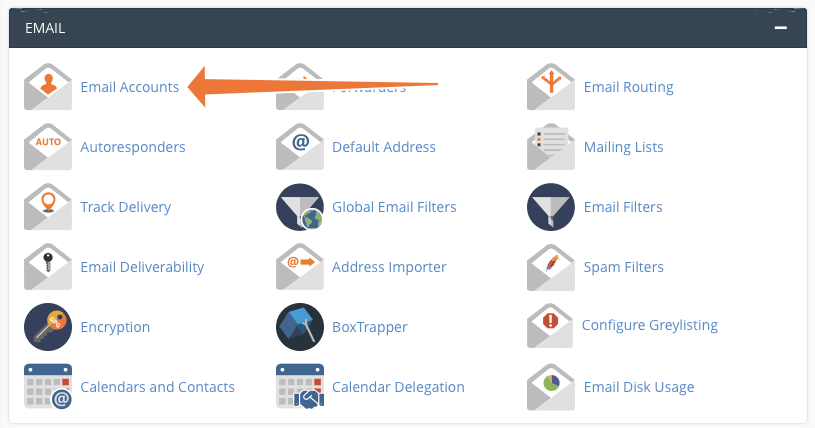
Once on the Email Accounts page, locate and click the “Create” button to initiate the account creation process.
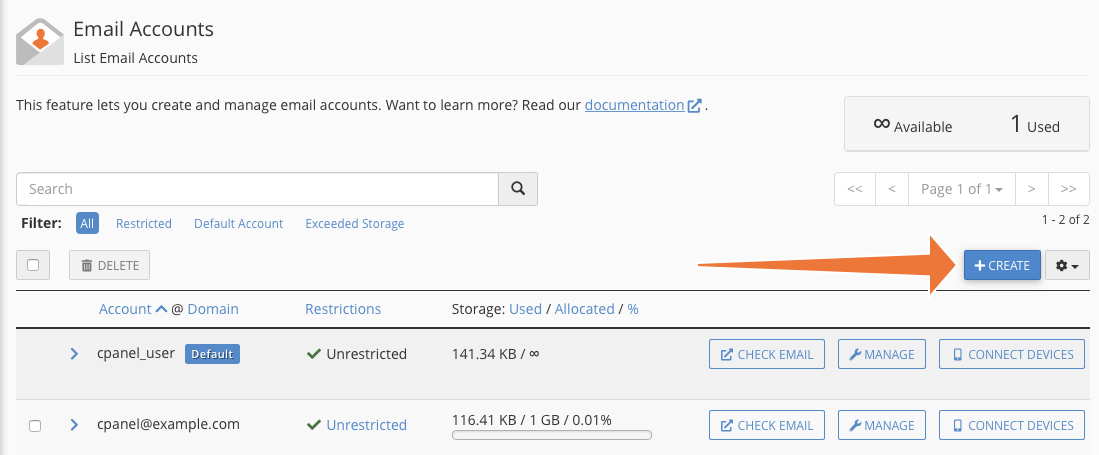
On the subsequent page, you will be prompted to select a domain for the email account, define a unique username, and establish a strong password. After entering these details, click the Create button at the bottom of the page, and cPanel will swiftly generate your new email account.
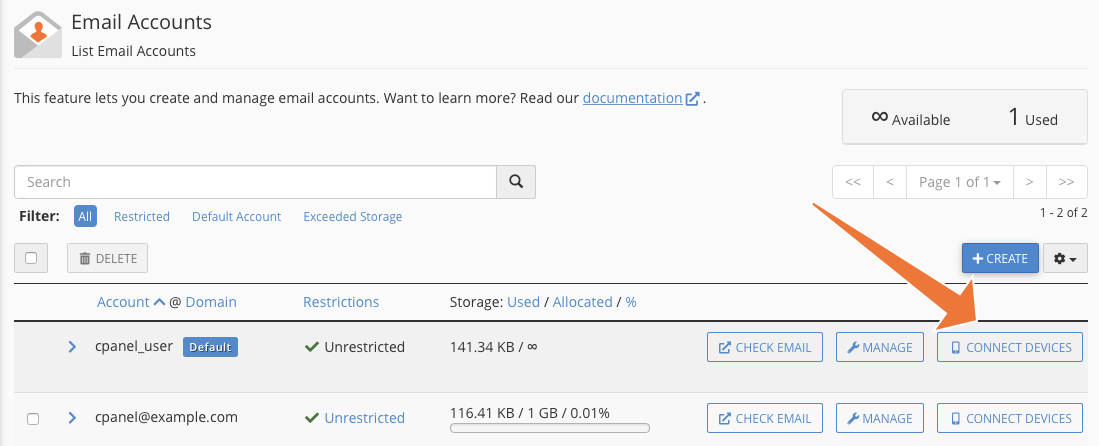
The next crucial step involves configuring your email client so it can successfully connect to your server and authenticate. The specific cPanel SMTP settings you require are conveniently located in the Connect Devices interface. This section provides all the essential details for manual configuration.
Within this page, you will find critical information such as the username, the URL of the outgoing server, and the corresponding SMTP port number. These are the exact details you will need to input into your email application to enable it to send messages.
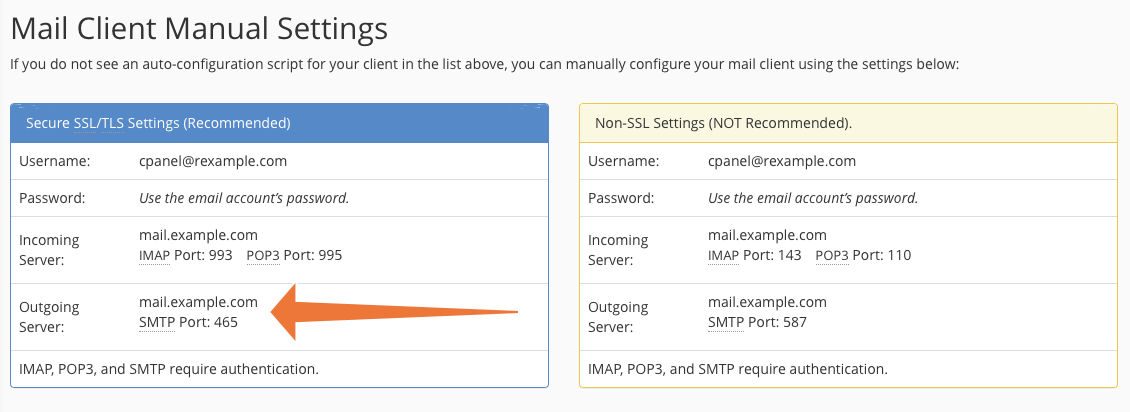
It is highly recommended that you utilize the more secure SSL/TLS settings rather than the less secure Non-SSL options. Using SSL/TLS encrypts your communication, protecting your credentials and message content during transmission.
While there is a wide array of mail clients available, the general procedure for configuring them to send emails via your server remains largely consistent and straightforward. For your convenience, here are links to the official setup documentation for popular clients like Apple Mail on macOS and Thunderbird, which can guide you through their specific configuration steps.
Troubleshooting Common SMTP Errors in cPanel
Ideally, you should now be able to send messages effortlessly from your personalized email address using your server. However, email systems can be intricate, and it’s not uncommon for misconfigurations to lead to authentication failures or mail delivery issues. When such problems occur, SMTP errors often manifest as undelivered messages. You might attempt to send an email only to receive a rapid response containing an often cryptic error message accompanied by a numerical code. In the remainder of this article, we will examine how you, or your hosting provider, can effectively diagnose and resolve some of the most prevalent SMTP errors.
Error 421 – Too Many Concurrent SMTP Connections
Exim, cPanel's integrated Mail Transfer Agent, implements a limit on the number of simultaneous SMTP connections it permits. This critical measure prevents the server from becoming overwhelmed by excessive requests, which could lead to performance degradation or even crashes. While the default cPanel setting of 100 concurrent connections is often sufficient, on a very busy server with a high volume of email traffic, this limit might prove to be too low, triggering Error 421.
This connection limit is controlled by the “smtp_accept_max” directive within Exim’s configuration file. You can adjust this value through WHM (WebHost Manager) by navigating to the Exim Configuration Manager, which is located under the Service Configuration section in the sidebar menu.
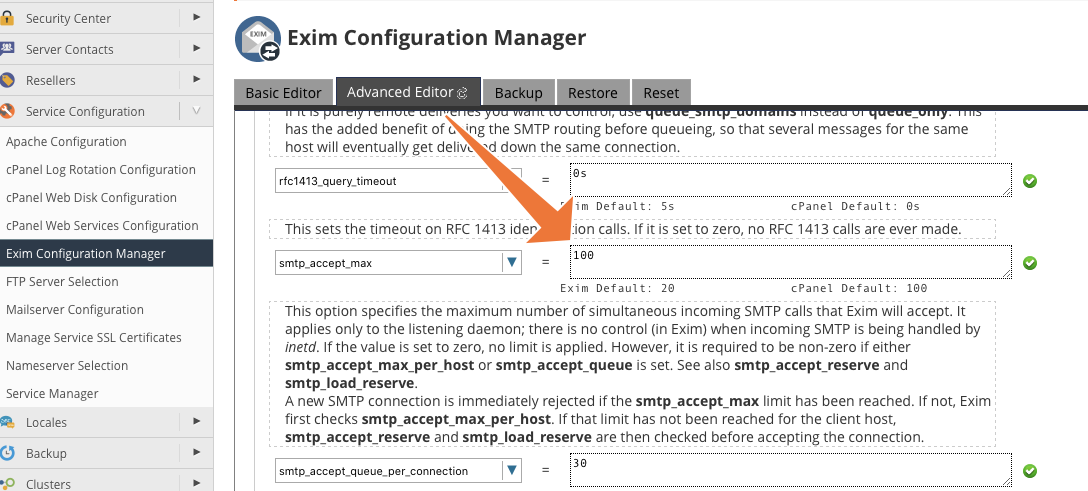
Once in the Exim Configuration Manager, select the Advanced Editor tab and use the search function to find “smtp_accept_max.” Carefully adjust this value upwards to accommodate more concurrent connections. However, it is vital to exercise caution when increasing this limit, as setting it too high can paradoxically cause the mail server to exhaust its available memory resources and potentially crash. Monitor your server's performance closely after making any changes.
Error 550 – Please Turn on SMTP Authentication in Your Mail Client
When your mail client attempts to send messages, it must provide valid authentication credentials over a secure connection to the server. This authentication step is a crucial security measure. Without it, any client could connect and send messages, which would quickly turn your server into a target for spammers. Therefore, the client must unequivocally prove its legitimacy as an authorized sender for that specific email account.
An Error 550 message typically indicates that something has gone wrong during this essential authentication process. There are several potential causes that can lead to this particular error.
Misconfigured SMTP Client Authentication
Most frequently, Error 550 arises due to either an incorrect configuration in the email client itself or, less commonly, the use of an outdated client that lacks the capability to establish a secure SMTP connection. This is often the likely culprit if the error is experienced by only a single user or a limited number of users rather than across the board.
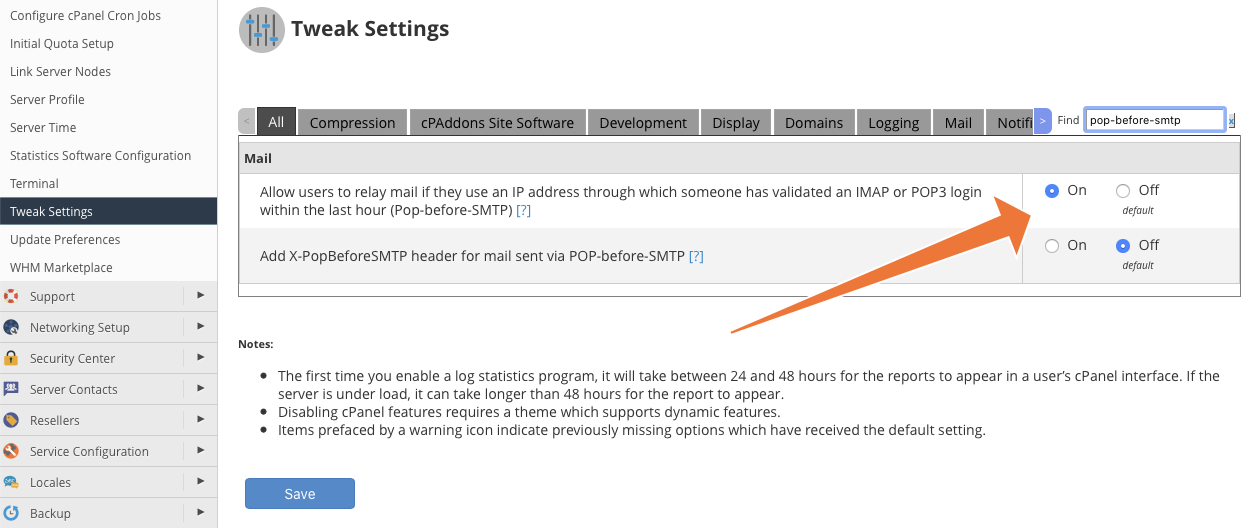
The most effective solution is to ensure you are using a modern email client with the correct authentication details meticulously entered. If upgrading the client or correcting its settings isn't immediately feasible, WHM offers a specific tweak to allow SMTP connections from users who have previously authenticated using POP or IMAP, which are the protocols employed to retrieve messages from the server. This is often referred to as "POP-before-SMTP".
To enable this tweak, navigate to the Tweak Settings interface, found under Server Configuration in the WHM sidebar menu. Search for “Pop-before-SMTP” and then activate this option to potentially resolve the authentication issue.
Incorrect Email Routing for the Domain
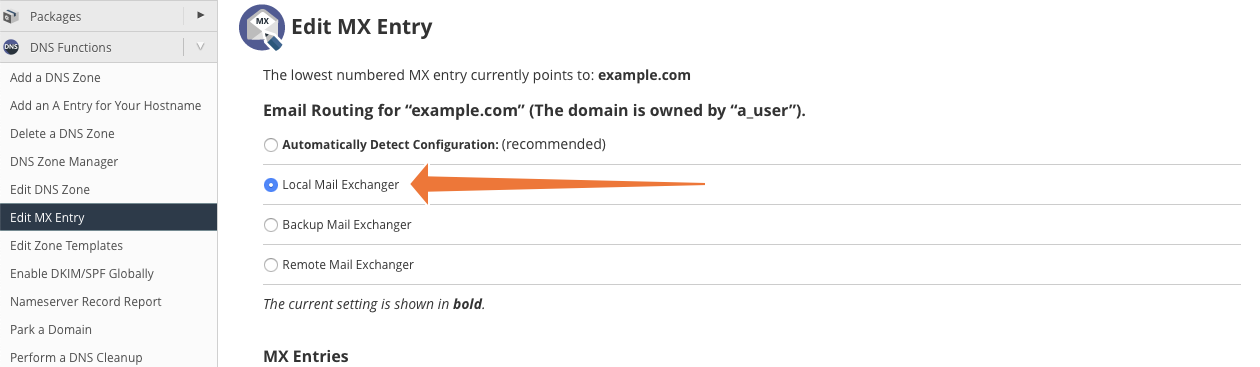
If a user encounters a 550 error when attempting to send a message to an email account hosted on your server, the problem likely lies within the domain’s routing configuration. This often occurs because the domain is mistakenly configured to utilize a remote mail exchanger instead of the local one hosted on your server. When this happens, the server doesn't recognize itself as the final destination for the email, thus rejecting it.
To ensure that emails for the domain are correctly processed by the local mail exchanger, navigate to Edit MX Entry within the DNS Functions section of the WHM sidebar menu. Select the relevant domain from the list and click Edit. On the subsequent screen, verify that the Local Mail Exchanger option is selected. This tells the server that it is responsible for delivering mail to its own hosted accounts for that domain.
Another potential cause for routing errors is misconfigured MX (Mail Exchanger) records for the domain. These are special DNS records that precisely indicate which servers are responsible for accepting email for a domain. You can employ the “dig” command-line tool, a powerful DNS lookup utility, to verify if these records correctly point to the expected IP address of your mail server.

In the example shown above, we first use the `dig` command to query the MX records for our specific domain, revealing where mail is directed. Following that, we use `dig` again to confirm that the domain name's A record resolves to the anticipated IP address of our mail server, ensuring consistency and correct routing.
While we have thoroughly covered the most prevalent causes of 550 errors, there are a few less common culprits that could also be at play. For a more exhaustive understanding and additional troubleshooting steps, we recommend consulting our dedicated SMTP authentication error troubleshooting tutorial.
Take Control of Your Email with cPanel
Email is an indispensable component of your brand identity and serves as a vital communication link with your customers, colleagues, and other key contacts. By hosting your own email, you regain complete control over your brand messaging and the privacy of your valuable data. With the powerful combination of cPanel & WHM, the process of setting up and efficiently managing a private email account is made remarkably straightforward and accessible, eliminating much of the complexity typically associated with self-hosting.
As always, we highly value your feedback and comments. Please do not hesitate to reach out and let us know your thoughts or if you require any assistance. Our team is dedicated to helping you in every way we can. You can find us and engage with our community on Discord, the official cPanel forums, and Reddit.
