
 (1).svg)
 (1).png)


 (1).svg)
.svg)
Plesk stands as a robust web hosting control panel, renowned for its user-friendly graphical interface and a diverse array of features designed to streamline various web management tasks. It simplifies complex operations, making it accessible for both novices and experienced webmasters.
This comprehensive guide aims to demystify Plesk, providing a step-by-step understanding of its functionalities. We will walk you through the process of installing and effectively utilizing this control panel to manage your websites, domains, and email accounts with ease. Furthermore, we will delve into essential best practices, empowering you to maximize efficiency and optimize your overall website management workflow.
Understanding Plesk: Installation and Initial Setup
This section details the process of installing Plesk on your Virtual Private Server (VPS) and getting started with its powerful features. You will learn how to integrate Plesk with your VPS hosting to efficiently manage your websites, domains, and email accounts from a centralized interface.
1. Getting Started with Plesk Installation
As Plesk operates on a license-based model, it is essential to acquire both the control panel license and a suitable web hosting plan before proceeding with its installation on your servers. Many hosting providers offer direct integration, allowing you to select Plesk during the initial VPS plan setup.
Important: Always create a complete backup of your VPS files before initiating any changes to its operating system, as the installation process will typically overwrite all existing data.
If your hosting plan does not include Plesk by default, you can usually follow these general steps to change your VPS operating system and install it:
- Access your hosting provider’s control panel.
- Navigate to the VPS management section.
- Select the specific VPS instance you wish to configure and proceed to its Management interface.
- Within the sidebar, locate and select the OS & Panel section, then choose Operating System.
- Search for Plesk or select it from the list of available operating systems with pre-installed panels. Confirm your selection by clicking Change OS.
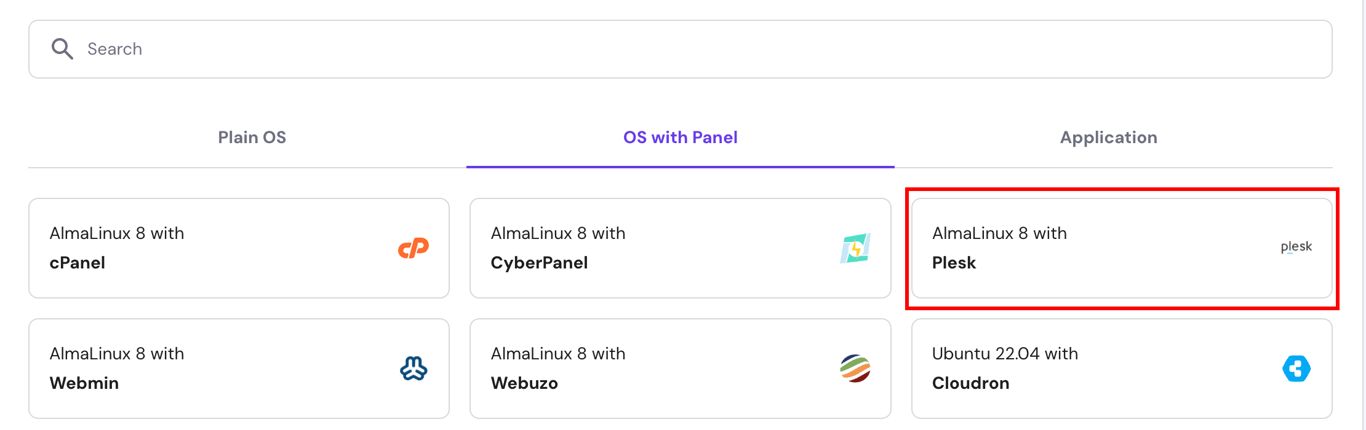
Should you need to purchase a Plesk license, this option is often available directly within your hosting provider's panel, typically under an OS & Panel → Licenses menu. After purchase, you can often verify license assignment or reset control panel passwords through your provider's support or automated systems.
Once Plesk is successfully installed, you can access your control panel by entering https://example:8443 into your browser’s address bar. Remember to replace example with your server’s actual domain name or IP address. This critical server information is readily available within your hosting provider's VPS management portal.
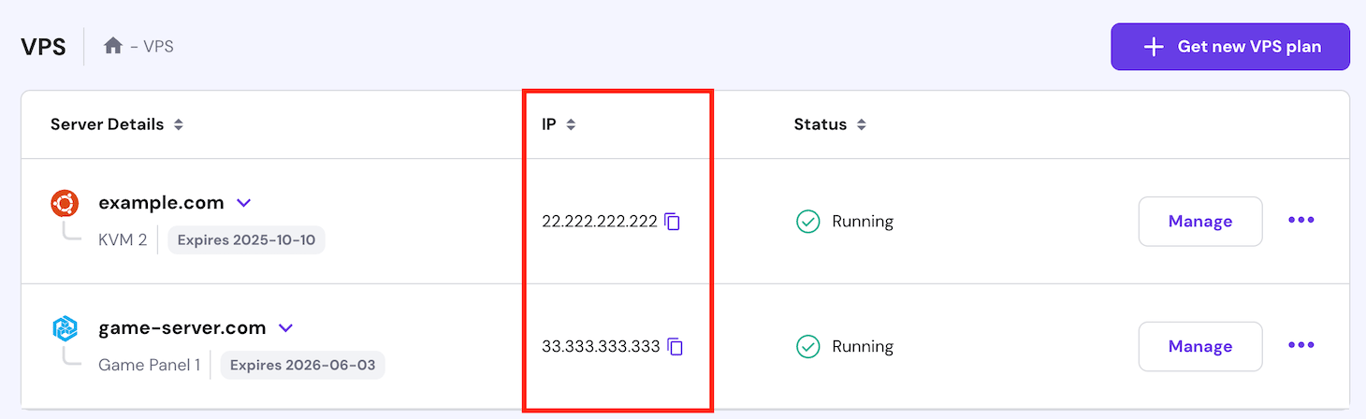
Upon successfully entering your VPS username and password, you will be directed to the Plesk main dashboard. The Plesk interface offers two distinct viewing modes, which can be selected from the Interface Management menu to suit your specific needs.
The Service Provider view is tailored for managing multiple clients, service plans, and reseller accounts, making it ideal for web hosting companies. For individual users focused on managing their own websites, the Power User interface is recommended due to its streamlined design for personal use.
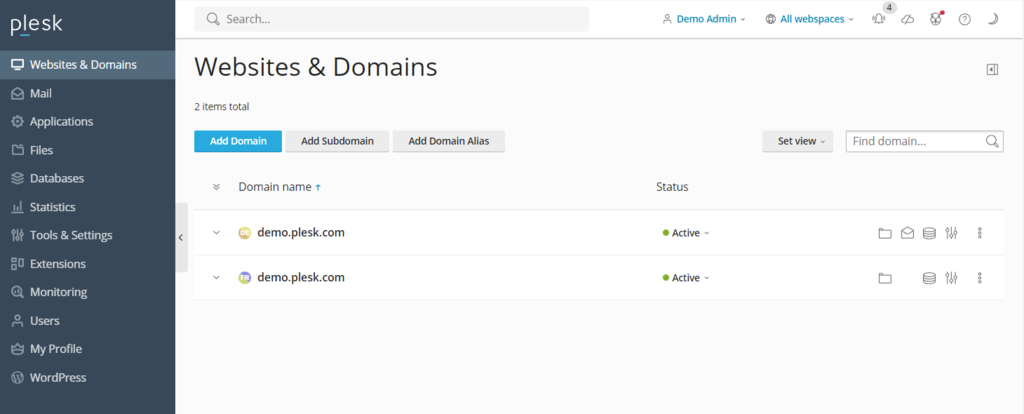
Regardless of the chosen interface, the Plesk dashboard consistently features the following key areas:
- Sidebar – Provides quick access to all manageable items, including websites, domains, email accounts, applications, and general Plesk settings.
- Main Menu – Displays specific settings and shortcuts related to the item currently selected in the sidebar, such as database management, file manager, and security options for your website.
- Top Bar – Contains essential tools like a search bar for quick navigation, the logged-in username for account management, notifications for important alerts, and a help button for accessing documentation.
2. Managing Domains and Email Accounts in Plesk
Once your Plesk server is operational, the next crucial step is to add your domain. If you do not yet have a domain name, you can acquire one through various domain registrars. After securing your domain, proceed to add it within the Plesk control panel by following these instructions:
- From the sidebar, click on Websites & Domains.
- Select Add Domain, then choose the Blank Website option.
- Input the necessary domain information, including your domain name and webspace settings. Confirm your entries by clicking Add Domain.
- Plesk will present the configuration menu for your newly added domain. Navigate to Hosting & DNS and then select DNS.
- Utilize the information provided in the Records tab to point your domain to your VPS hosting. It's important to note that DNS propagation can take up to 24 hours for your domain to become fully accessible across the internet.
Plesk streamlines the management of multiple domains, allowing users to configure them from a consolidated interface. By clicking on a specific domain name, you gain access to a range of management options, including SSH access controls, security feature configurations, and settings for domain-based email accounts.
To establish a new email account associated with your domain, simply click the Mail tab, then navigate to Mail Accounts, and select Create Email Address. You will be prompted to enter your desired local part (e.g., "info" for [email protected]), set a strong password, and click OK to finalize the creation process.
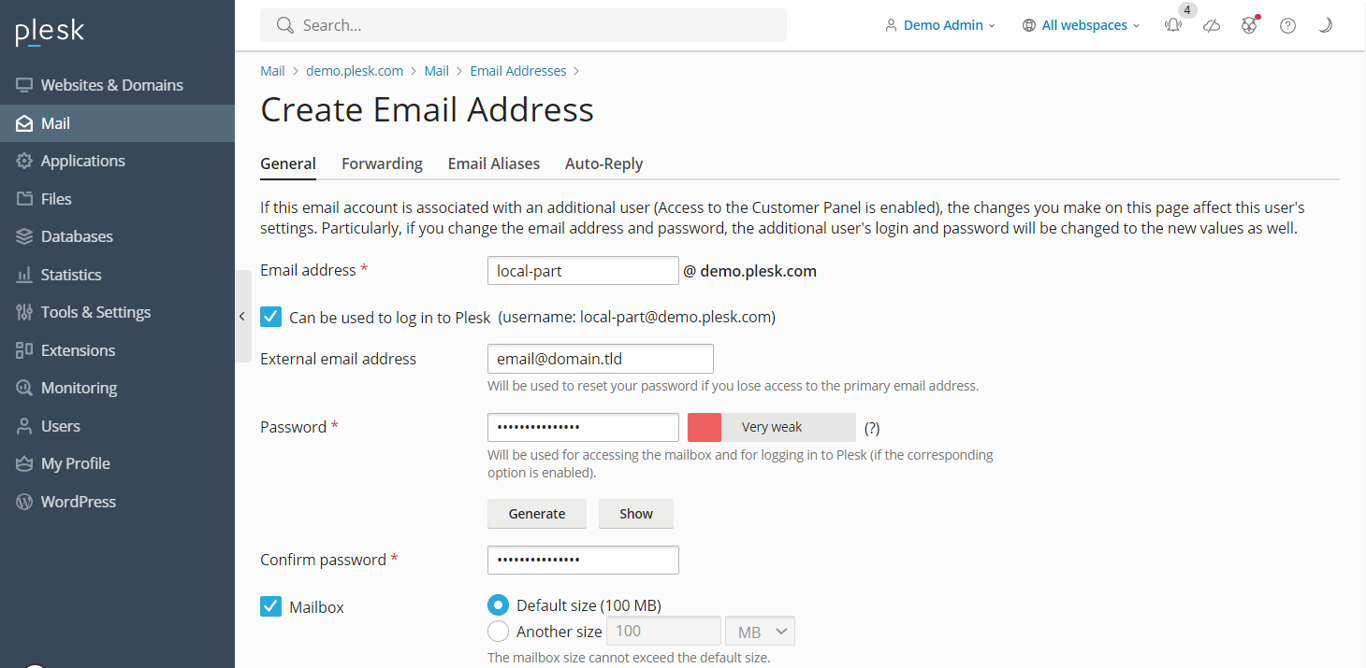
Within the same menu, you can also modify various mail settings, such as enabling or disabling the service and applying Secure Sockets Layer (SSL) certificates for enhanced email security. For managing email accounts across different domain names, the main Mail section on the sidebar provides centralized access.
3. Managing Websites with Plesk
Setting up a website in Plesk can be approached through various methods, depending on your preferred development workflow. These include manual coding, utilizing a built-in site editor, or employing popular Content Management Systems (CMSs).
Plesk offers extensive support for a wide range of content management systems, such as WordPress, Joomla, and Drupal. For this guide, we will focus on WordPress due to Plesk’s specialized toolkit, which automates the creation of databases and admin accounts, significantly accelerating the setup process.
If you prefer to install a different CMS, you can typically do so via the Applications section in the sidebar. Otherwise, follow these steps to deploy a new WordPress website on your Plesk server:
- From the sidebar, select Websites & Domains. Then, choose the specific domain name where you intend to establish your website.
- Click on PHP settings and ensure the PHP support box is checked. Apply these changes and click OK. You can skip this step if PHP support is already enabled.
- Return to the domain settings menu and select Install Application, then choose WordPress.
- Provide the necessary installation details and click Install.
- Once the installation is complete, you will be redirected to the WordPress configuration page. Click Log in to access your website’s administrative area.
To access the comprehensive WordPress Toolkit, simply click on the WordPress icon associated with your domain name. From this dedicated menu, you can efficiently manage various aspects of your WordPress installation, including databases, plugins, themes, and SSL certificates, all from a centralized location.

Furthermore, Plesk integrates a robust File Manager, enabling you to effortlessly modify your website’s files directly within the control panel, eliminating the need for a separate FTP client. It also features a powerful website staging tool, which is invaluable for testing changes in a secure environment before pushing them live to your production site.
Pro Tip: Beyond creating new websites, Plesk also facilitates the migration of existing sites. For detailed instructions on this process, refer to the official Plesk documentation on website migration.
4. Advanced Plesk Server Settings Management
Plesk empowers users to directly manage and fine-tune various server settings through its intuitive control panel. A notable feature is the Restricted Mode Settings, which allows administrators to define and modify user permissions. This is a critical security measure designed to prevent unauthorized alterations to your Plesk server configurations.
This powerful setting provides granular control, enabling you to selectively activate or limit features for administrators. These include managing the action log, remote API access, server reboot functionality, and IP restriction management. Furthermore, you can meticulously configure permissions related to hosting, PHP versions, web server functionalities, mailing services, and DNS management, ensuring a tailored and secure environment.
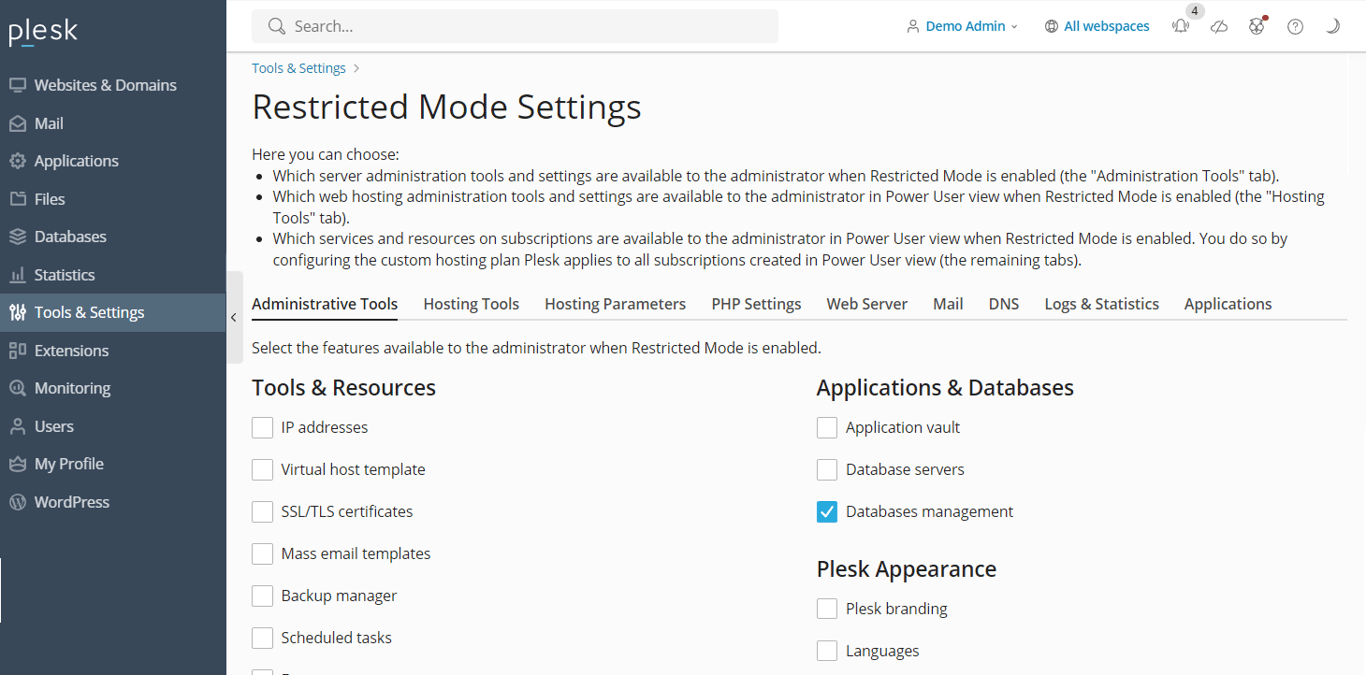
To activate this mode, navigate to Tools & Settings in the sidebar, and under the Plesk category, select Restricted Mode Settings. Here, you can check the specific features you wish to enable or restrict for the administrator and then activate the Enable Restricted Mode option.
Plesk also simplifies data protection with its robust Backup Manager, allowing you to effortlessly create backups of your server's configurations and user data. To access this essential feature, proceed to Tools & Settings → Tools & Resources → Backup Manager.
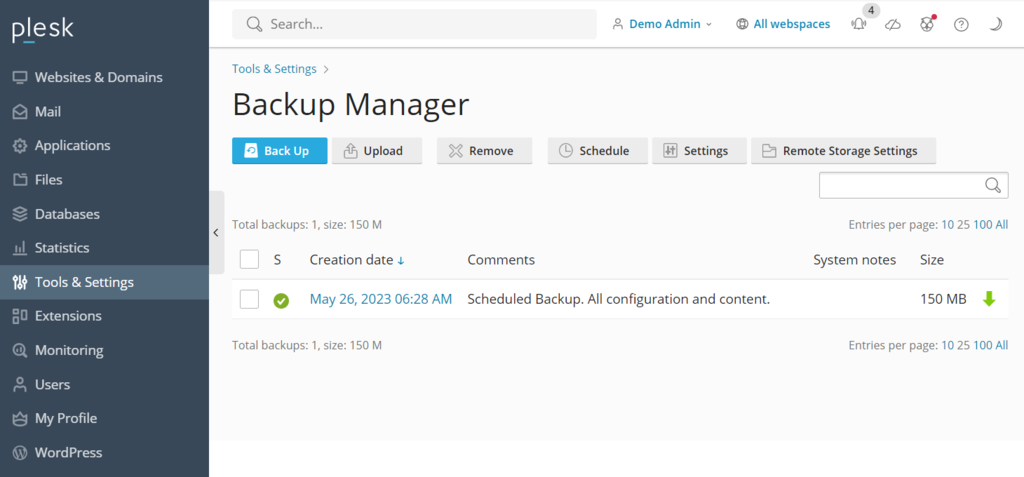
Within the Backup Manager interface, you will find a comprehensive list of your previous backups, each available for restoring data as needed. To initiate a new backup, click on Back Up, then specify the data you wish to include, the desired storage directory, and the backup type. Conclude the process by clicking OK.
For enhanced server optimization and insights, Plesk integrates with two powerful website analytics tools: Grafana and Plesk 360. While Plesk 360 requires account sign-in and connection, Grafana can be installed directly from your Plesk server dashboard for immediate use.
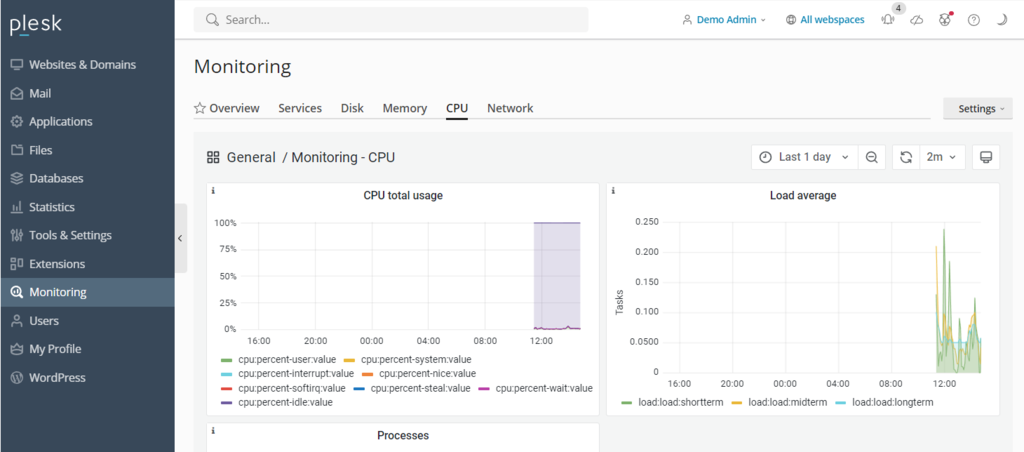
To install Grafana, navigate to Monitoring in the sidebar and select Use Built-In Monitoring at the bottom of the screen. This dashboard provides real-time insights into your server’s disk usage, running services, memory consumption, and network load, enabling proactive performance management.
5. Integrating Advanced Plesk Features
The Plesk extensions catalog is a vast marketplace, providing access to over a hundred add-ons designed to significantly expand the control panel's inherent functionality. These extensions span diverse categories, including specialized tools for web development, enhanced security measures, advanced server utilities, and sophisticated site editing capabilities, allowing users to tailor their Plesk environment to their exact requirements.
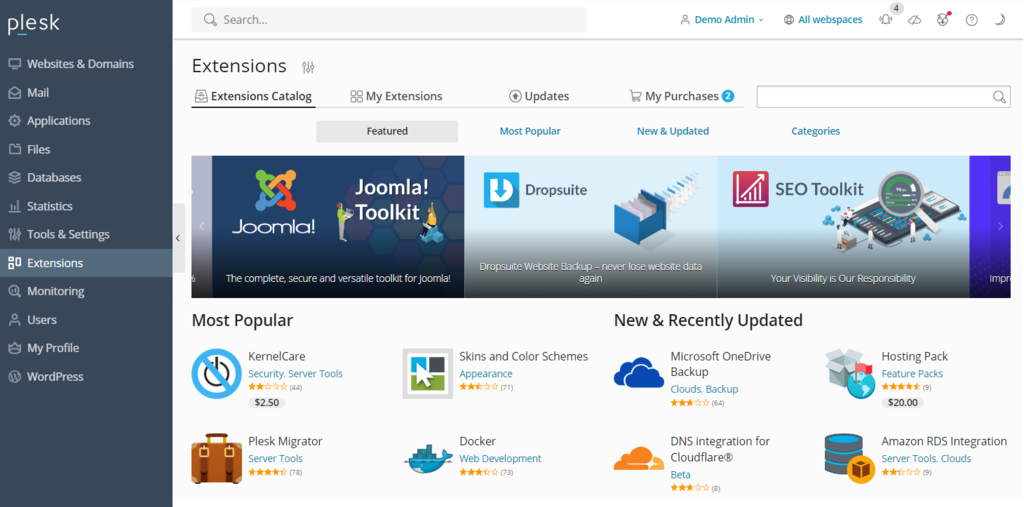
Installing an add-on is straightforward: navigate to Extensions on the sidebar, use the search function to locate the desired tool, and click Get it Free for complimentary options. For premium extensions, the purchase process can be completed directly from within the Plesk dashboard, ensuring a seamless integration experience.
Beyond its graphical interface, Plesk also incorporates a powerful command-line interface (CLI), which is indispensable for integrating and managing third-party applications. The CLI provides a robust method for advanced users to manage server settings, accounts, websites, and various services with precision and efficiency.
On Linux-based servers, the Plesk CLI is typically located in the /usr/local/psa/bin directory. To utilize it, establish an SSH connection to your Plesk server and execute the desired command utility using the following general syntax:
plesk bin <utility name> [parameters] [options]Alternatively, you can run the utility from any directory by specifying the full path:
/usr/local/psa/bin/<utility name> [parameters] [options]For instance, to retrieve all action log entries from a specific date up to the present day in JSON format, you would use a command similar to this:
plesk bin action-log --show -since YYYY-MM-DD -jsonBest Practices for Effective Plesk Utilization
To maximize efficiency and maintain optimal performance and security for your websites, adhering to certain best practices when using Plesk is highly recommended. These guidelines will help you leverage the control panel's capabilities to their fullest.
Maintain an Up-to-Date Plesk Installation
Plesk regularly releases critical patches, security updates, and new features. Ensuring your Plesk installation is consistently up to date is paramount for several compelling reasons:
- It eliminates the need for infrequent, larger major version upgrades, simplifying maintenance.
- You gain immediate access to the latest features, tools, and performance enhancements.
- Critical security vulnerabilities are promptly addressed and patched in the newest versions, safeguarding your server.
- Benefits include noticeable improvements in speed and overall system performance.
- Keeps user data protected with the most current security protocols.
Depending on your web hosting provider, you might encounter different Plesk versions, primarily Onyx or Obsidian. Plesk Obsidian, being the more current version, offers a significantly improved user interface, expanded features, and consistent updates compared to its deprecated predecessor, Onyx. Many providers ensure their users are on Obsidian to guarantee optimal security and performance, and users with Onyx licenses can often upgrade to Obsidian without additional cost.
Leverage Plesk's Automation Capabilities
Plesk’s integrated automation features are powerful tools for managing your servers efficiently. Users can schedule routine tasks known as cron jobs, which can include running PHP scripts, executing custom commands, or fetching URLs at predefined intervals. This automation saves considerable time and effort, allowing you to dedicate your focus to more strategic tasks.
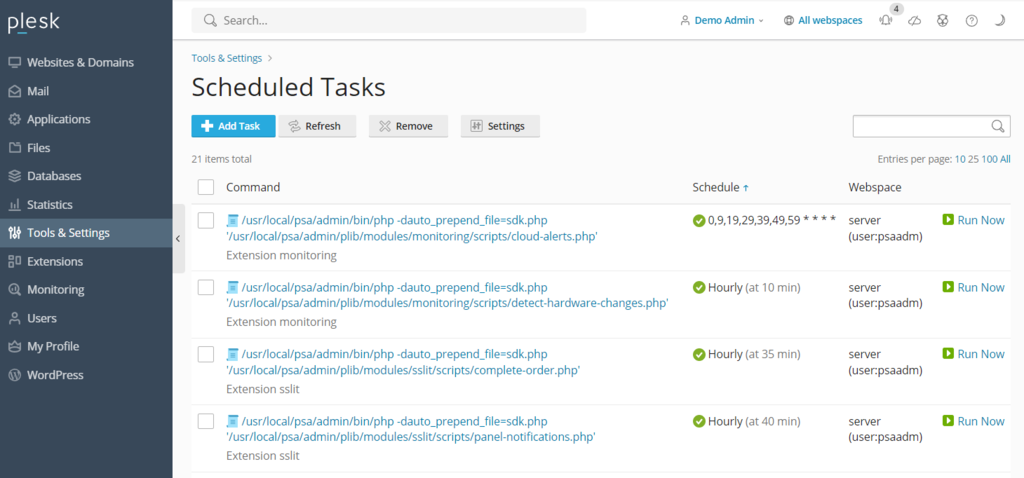
Beyond cron jobs, Plesk enables the automation of essential operations such as updating software and backing up data. Automating these crucial tasks ensures that your server always benefits from the latest security patches and that reliable data reserves are available, offering critical protection against potential cyber threats or data loss.
Furthermore, Plesk extends its automation to other software components within your VPS environment, including the ability to automatically update WordPress plugins and themes, ensuring your entire web ecosystem remains current and secure.
Utilize Comprehensive Plesk Security Features
A virtual private server, if not adequately managed, can be susceptible to various security vulnerabilities. Plesk is equipped with a suite of features designed to help users significantly enhance their server security with minimal administrative overhead. Key security offerings include:
- SSL It! – A convenient tool that facilitates the acquisition and installation of SSL certificates directly from the Plesk control panel, encrypting data transmission for your websites.
- Firewall – An essential component that actively monitors and controls incoming and outgoing network traffic, blocking unauthorized connections to your VPS that could compromise its security.
- Server Name Indication (SNI) – Enhances the security of email communications by enabling multiple SSL certificates to be hosted on a single IP address, preventing unauthorized parties from intercepting sensitive email data.
- Self-Repair Kit – A diagnostic and repair tool that automatically detects and resolves common issues related to the VPS, mailing clients, DNS configurations, and databases, maintaining system integrity.
Customize Your Plesk Dashboard for Optimal Workflow
Plesk is designed with an intuitive and user-friendly interface right out of the box. However, its customization capabilities allow you to fine-tune the dashboard to better align with your specific needs and workflow preferences. To personalize your Plesk environment, navigate to Tools & Settings and then select Plesk Appearance.
For a truly tailored user experience, Plesk offers several customization options, such as:
- Adjusting the default language of the administrator interface to your preferred setting.
- Adding custom buttons that can redirect users to other internal or external web pages, improving navigation.
- Replacing the default Plesk logo and title with your own branding, for a more integrated feel.
Advanced users can also modify Plesk’s CSS stylesheet to alter decorative elements like color schemes, background visuals, and font styles, allowing for extensive visual customization. Detailed instructions on implementing custom themes are available in the official Plesk documentation.
Engage with Plesk's Community and Official Resources
For ongoing support and to deepen your understanding of Plesk, a wealth of resources is available. If you encounter uncertainties or specific challenges, the Plesk community forum is an excellent starting point. Here, users can post questions, find solutions to common issues, and engage in discussions across various topics, including Plesk for different operating systems, WordPress toolkits, and extensions.
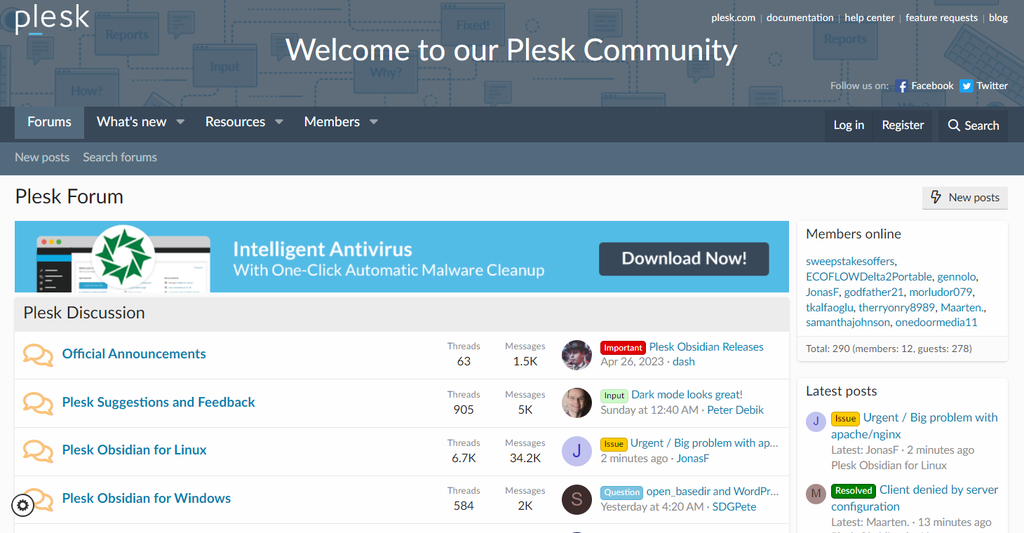
These community resources offer invaluable assets and practical instructions on a wide array of management tasks within Plesk. Additionally, Plesk maintains comprehensive official documentation, which provides in-depth explanations and guides on effectively utilizing every aspect of the control panel.
Conclusion
Plesk stands out as a highly effective web hosting control panel, providing a comprehensive suite of features designed to significantly simplify the complexities of website management. Its intuitive interface and powerful capabilities make it an invaluable tool for maintaining an online presence.
Accessing the Plesk dashboard is straightforward: simply enter https://example:8443 into your web browser, ensuring you replace example with your specific VPS domain or IP address. After inputting your username and password, you will gain access to the control panel's full functionality.
Once inside, the sidebar serves as your primary navigation hub, allowing you to easily locate and configure various essential elements such as websites, domains, and email accounts. The main dashboard then provides the necessary tools to modify their settings and save any changes, ensuring seamless management.
Beyond its integrated features, Plesk offers remarkable expandability through its extensions catalog, allowing users to install a wide array of add-ons directly from the dashboard. For more advanced integrations or custom solutions, the command-line interface (CLI) provides a robust method for installing and managing third-party applications.
To optimize your website management efficiency, it is highly recommended to leverage Plesk’s powerful automation features, customize its appearance to match your workflow, and actively engage with its vibrant community forums and comprehensive documentation for any troubleshooting or further learning.
Plesk truly empowers users with a flexible and user-friendly platform, transforming intricate server and website administration into a more manageable and efficient process.
