
 (1).svg)
 (1).png)


 (1).svg)
.svg)
Understanding WordPress Comment Spam
WordPress comment spam is a common challenge that website owners frequently encounter. The proliferation of spam comments can negatively impact your website's perceived quality among visitors and may even lead search engines to flag your site as untrustworthy. Effectively managing and reducing these unsolicited comments is crucial for preserving your website's integrity and reputation. This article will delve into several practical methods to mitigate and prevent comment spam on your WordPress platform.
Comment spam refers to unsolicited comments, often left by automated bots, that are irrelevant to your content. These comments typically aim to exploit your site for advertising purposes, promote other websites, or even facilitate phishing attacks. Spammers often embed hyperlinks within these comments, intending to trick unsuspecting visitors into clicking them, thereby artificially boosting their own search engine rankings or driving traffic to malicious sites. Safeguarding your site from comment spam begins with configuring settings within your WordPress admin dashboard, where we will explore various options for managing your comment section effectively using WordPress's native features.
Leveraging WordPress's Built-in Features for Spam Prevention
Restricting Comments to Registered Users
An effective strategy to combat spam comments is to introduce an additional barrier for spammers by restricting commenting privileges solely to registered users. This helps ensure that only legitimate, engaged visitors can interact with your content.
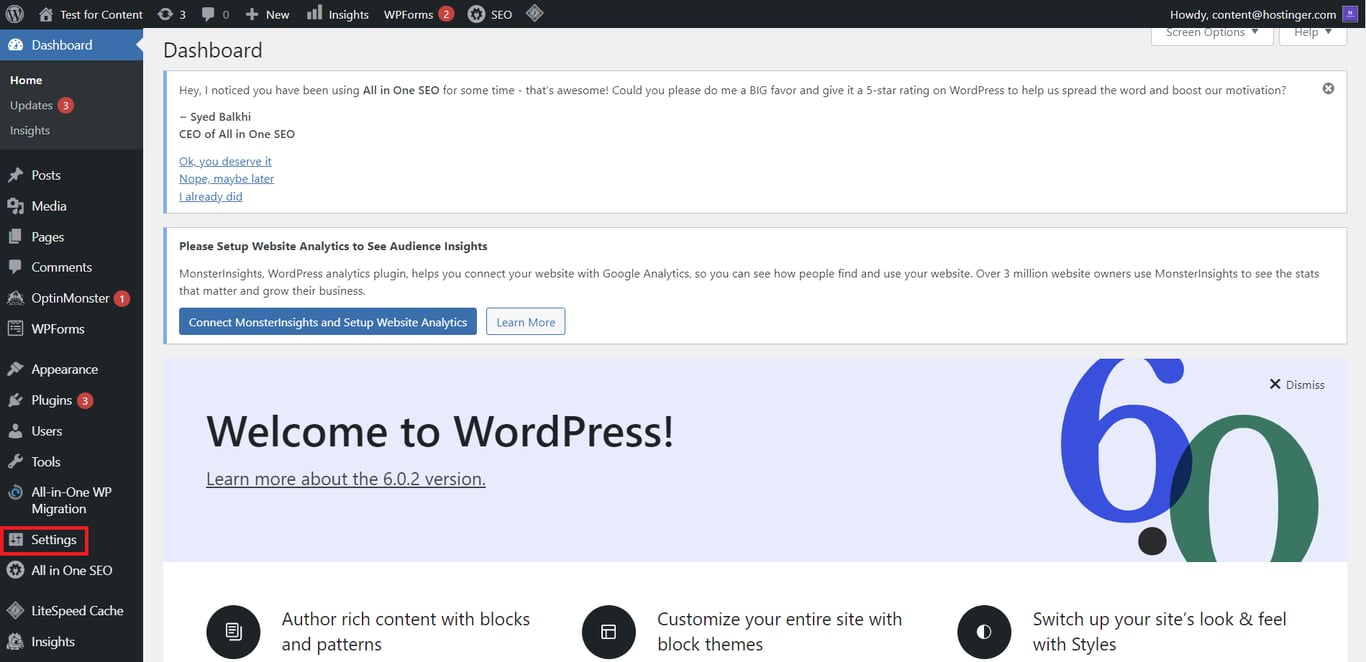
- To implement this, navigate to the Settings menu on your Dashboard.
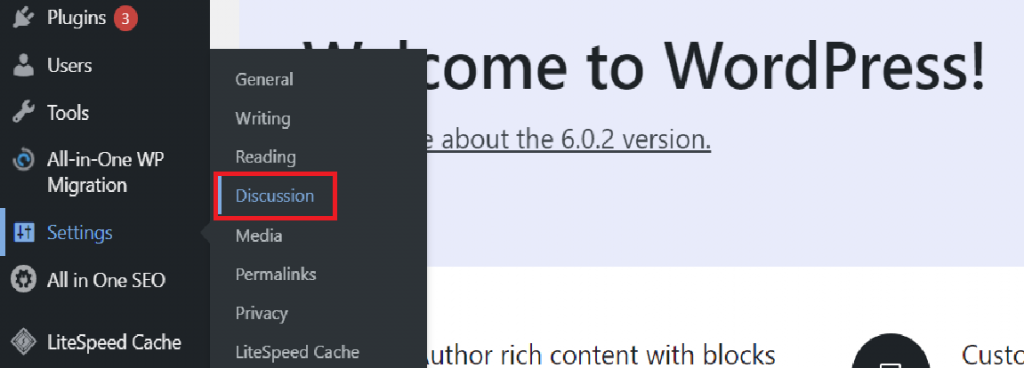
- Then, proceed to the Discussion page.
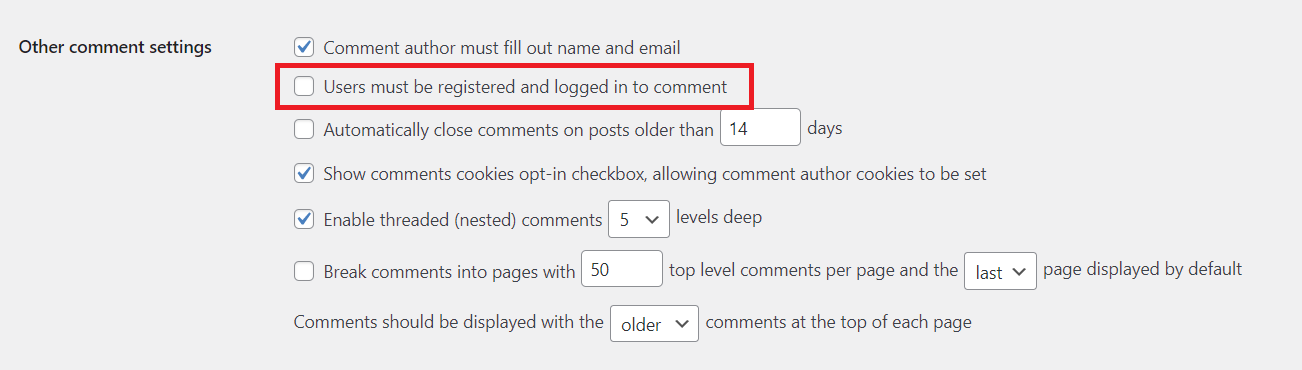
- Under the Other comment settings section, check the Users must be registered and logged in to comment option. Remember to save your changes to apply this setting.
Implementing Manual Comment Moderation
Proactively managing your comments is an excellent method for protecting your website from spam. WordPress's built-in comment moderation feature grants you comprehensive control over all comments posted on your site, serving as a robust defense against spam.
Enable comment moderation by going to Settings → Discussion and scrolling down.
Within these settings, you can configure WordPress to send email notifications whenever a new comment is submitted, allowing you to promptly review and determine its legitimacy before it goes live. This ensures you stay informed about all interactions on your site.
Alternatively, you can choose to manually approve every comment before it appears on your site. Activate this by selecting the Comment must be manually approved option. This provides the highest level of control over what gets published.
For increased efficiency, you can also allow comments from authors who have had a previous comment approved without further manual review by checking the Comment author must have a previously approved comment option. This trusts returning, legitimate commenters while still screening new ones.

Creating a Blocklisted Words List
Certain spam comments on your site might consistently feature specific keywords or phrases. WordPress allows you to automatically move such comments to the trash, saving valuable time in moderation.
By compiling a list of blocklisted keywords, any comments containing these terms will be automatically deleted. Exercise caution when selecting these words to avoid inadvertently removing legitimate comments from genuine users. Consider words commonly used in spam, such as "Viagra," "casino," "loan," or suspicious URLs.
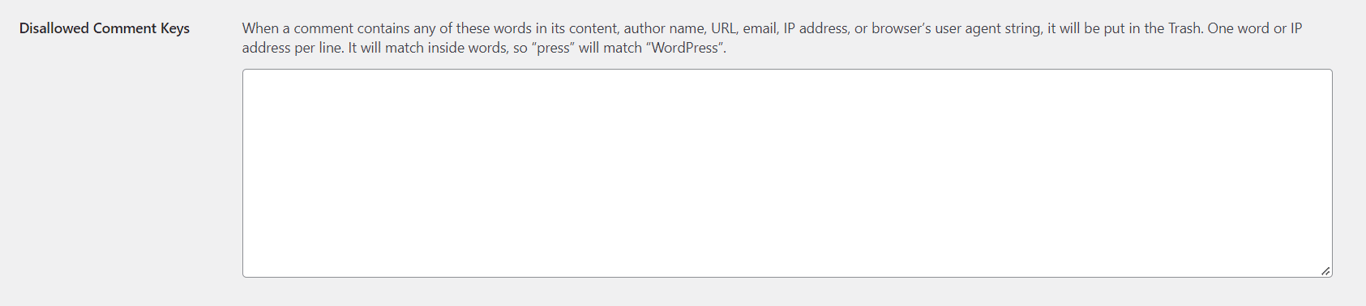
Under the WordPress Discussion menu, scroll down until you see the Disallowed Comment Keys option. Then, fill it with keywords you wish to block.
If you prefer to monitor specific keywords without immediate deletion, WordPress can be configured to flag these comments for your review instead. This is useful for potentially benign but suspicious terms.

When keywords are added to the Comment Moderation section, comments containing them will be held in a moderation queue rather than being sent directly to the trash. This ensures you are alerted to potential spam while safeguarding authentic comments from accidental deletion, giving you the final say.
Controlling the Number of Links in Comments
A common hallmark of spam comments is the inclusion of numerous hyperlinks, which spammers use to drive traffic to their sites. To counter this, WordPress allows you to configure a threshold for the number of links permitted in a comment, sending any exceeding this limit to the moderation queue for review before publication.

Disabling Comments Entirely
Completely disabling the comments section will undoubtedly prevent all spam messages from appearing on your website. However, this approach also means forfeiting valuable feedback, questions, and engagement opportunities from your legitimate visitors. Consider this option carefully if direct user interaction is not a priority for your content.
Be aware that this setting will prevent all future comments on new posts. You also have the option to remove all existing comments if desired, effectively wiping the slate clean.

To disable comments entirely for new posts, scroll down on the Discussion page until you see the Default post settings section. Then, deselect the Allow people to submit comments on new posts option.
It's important to note that this setting only applies to new posts. To disable comments on previously published content, you will need to adjust the settings for each individual post, page, or media item manually through their respective editing screens.
Utilizing CAPTCHA to Deter Spam Bots
A significant portion of comment spam originates from automated bots, making CAPTCHA an invaluable tool for defense. CAPTCHA systems present a challenge or question designed to verify that the user interacting with your site is human, not a bot, thereby blocking automated spam submissions.
Integrating CAPTCHA functionality into your WordPress site is readily achievable through the use of a dedicated plugin. Among the most highly regarded options is the implementation of Google reCAPTCHA.
Traditional CAPTCHAs, which often require deciphering distorted text or selecting specific images, can sometimes be cumbersome for users. When Google reCAPTCHA is integrated into WordPress, users typically only need to check a simple box to confirm they are human, providing a smoother user experience. Should the system detect any suspicious activity or patterns, it will then present a more complex challenge, such as identifying specific objects within a series of images, ensuring robust protection.
Plugins designed for CAPTCHA integration are widely available and can be installed directly from your WordPress Dashboard → Plugins section. Search for "reCAPTCHA" to find suitable options.

Deploying Anti-Spam Plugins for Enhanced Protection
Combating comment spam in WordPress can be significantly streamlined by installing a dedicated anti-spam plugin. These plugins often provide advanced features and automation to keep your comment section clean. Consider these effective options:
Akismet Spam Protection
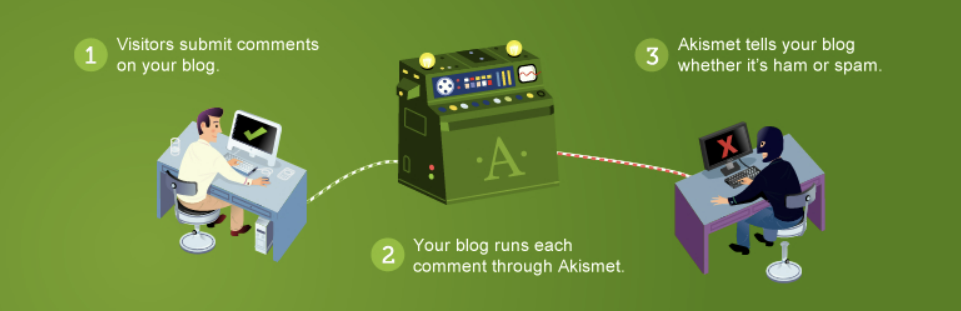
Akismet Spam Protection is a widely used plugin that offers powerful spam filtering. This plugin diligently examines all incoming comments, automatically filtering out those identified as spam before they ever reach your moderation queue. Given that spam comments frequently include multiple hyperlinks, Akismet conveniently displays URLs within the comment body, helping to expose hidden or deceptive links. For enhanced moderation efficiency, the plugin also indicates the number of previously approved comments for each user, allowing moderators to quickly gauge the credibility of repeat commenters.
Disable Comments Plugin
As previously discussed, WordPress offers a built-in feature to disable comments via the Discussion settings page. However, it's crucial to remember that this native setting does not deactivate comment sections on posts published prior to the change. To comprehensively disable comments across all your posts, a plugin like 'Disable Comments WordPress' can be highly effective. This plugin offers granular control, allowing you to selectively enable or disable comments for specific posts, pages, or media files, providing flexibility while ensuring complete spam prevention where desired.

Implementing a Web Application Firewall (WAF)
A Web Application Firewall (WAF), such as a prominent service, plays a critical role in safeguarding web applications by continuously monitoring HTTP traffic between the application and the internet. It acts as a protective barrier for your website and its hosting environment, effectively filtering and blocking malicious proxy traffic and automated bots. Given that a significant portion of spam comments are generated by bots exhibiting suspicious traffic patterns, employing a WAF can substantially reduce unwanted comments by preventing these bots from even reaching your site, adding an extra layer of security beyond WordPress's internal controls.
Conclusion
Effectively mitigating comment spam is paramount for preserving your website's credibility and authority. This article has outlined several practical and effective strategies to combat comment spam, ensuring a cleaner and more professional online presence:
- Utilizing built-in WordPress features. Take proactive control over your comment section using the native moderation tools available within WordPress.
- Enabling CAPTCHA security. Implement CAPTCHA methods, such as Google reCAPTCHA, to verify human users and prevent automated spam bots from posting comments.
- Installing anti-spam plugins. Enhance your website's defense by downloading and activating a third-party anti-spam plugin to automate and streamline comment section moderation.
- Employing a Web Application Firewall. Integrate a WAF to filter out malicious traffic and bots at a broader level, preventing them from even reaching your site.
For those interested in further enhancing their WordPress website's performance and security, additional resources are available.
