
 (1).svg)
 (1).png)


 (1).svg)
.svg)
Email generation is one of the most powerful features available in Odoo, enabling users to send emails directly to customers and other contacts without the need to log into external email accounts separately. To leverage this functionality fully, it is essential to successfully configure the email server within the Odoo platform.
Configuring Email Servers in Odoo
This comprehensive guide will walk you through the process of configuring both your outgoing and incoming mailing servers within Odoo, ensuring seamless email communication directly from your system.
Setting Up the Outgoing Mail Server
To begin, let's configure the outgoing mail server in Odoo. This setup enables the system to send emails to external recipients.
First, ensure that the 'Fetchmail' add-on is installed on your Odoo instance. Access to these settings is typically restricted to administrator users, so please log in with an administrator account.
Follow these steps to navigate to the outgoing mail server configuration:
- Settings
- Technical
- Outgoing Mail Servers
Upon navigating to this section, you will be presented with a form where you can input the necessary details for your outgoing mail server.
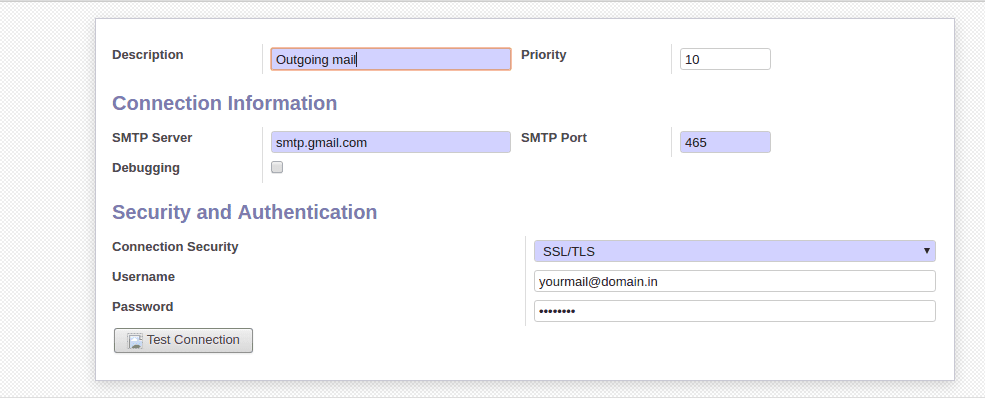
Populate the fields with the following information, as depicted in the example screenshot:
-
SMTP Server: Enter the address of your Simple Mail
Transfer Protocol (SMTP) server (e.g.,
smtp.gmail.comfor Gmail). This server is responsible for sending outgoing emails. - Connection Security: Select the appropriate security protocol for your server, such as SSL/TLS. This encrypts the connection between Odoo and your mail server, protecting your communication.
- Username: Provide the full email address of the account you wish to use for sending emails.
- Password: Enter the password associated with the provided email account. Ensure this password is correct to establish a successful connection.
- Priority: Assign a numerical priority to this server. A lower number indicates a higher priority. If multiple outgoing servers are configured, Odoo will attempt to use the server with the highest priority first.
- SMTP Port: Specify the port number used by your SMTP server for communication. Common ports include 465 for SSL/TLS or 587 for TLS.
To verify that your configuration is correct, click the "Test Connection" button available within the window. A successful test will display a "Connection successful" message, confirming that Odoo can communicate with your outgoing mail server.
Configuring the Incoming Mail Server
Once your outgoing mail server is configured, the next step is to set up the incoming mail server. This allows Odoo to fetch emails from an external mailbox, enabling features such as processing replies or creating new records from inbound messages.
Navigate to the incoming email configuration window by following these steps:
- Settings
- Technical
- Incoming Mail Servers
You will then see a form similar to the one shown in the following screenshot:
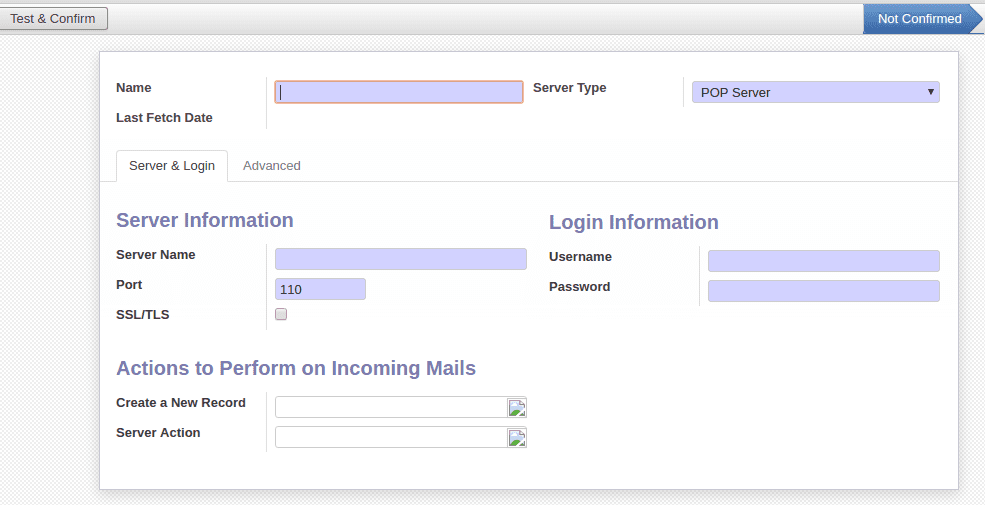
Provide the following essential details to set up your incoming mail server:
- Server Type: Choose the protocol for retrieving emails. Common options include POP (Post Office Protocol), which downloads emails from the server to a single client and removes them from the server, or IMAP (Internet Message Access Protocol), which synchronizes emails across multiple devices, leaving copies on the server. POP is widely used for fetching emails to a client application like Odoo.
-
Server Name: Enter the hostname for your incoming mail
server (e.g.,
pop.gmail.comfor Gmail). - Port: Specify the port number used by your incoming mail server. Common ports include 995 for POP3 with SSL/TLS or 993 for IMAP with SSL/TLS.
- SSL/TLS: Check this option to enable encryption for messages exchanged between Odoo and your incoming mail server. This ensures the security and privacy of your email communications.
- Username: Input your full email address, which Odoo will use to log into the mail server to fetch emails.
- Password: Enter the password associated with your email account. This credential allows Odoo to authenticate and access your mailbox.
By diligently following these steps, you can successfully configure both outgoing and incoming email functionalities in Odoo, significantly enhancing your system's communication capabilities and integrating email management directly into your business processes.
