
 (1).svg)
 (1).png)


 (1).svg)
.svg)
Efficient user management and robust access control are absolutely essential for businesses of every size. In Odoo 16, you gain the power to streamline user administration processes and significantly enhance data security across your operations. This comprehensive guide is designed to walk you through the precise steps involved in setting up user accounts and meticulously configuring access control within your Odoo 16 environment, ultimately empowering you to take complete control of your system’s security infrastructure and overall organizational structure.
Managing User Accounts in Odoo 16
This section outlines the essential steps for effectively creating, configuring, and managing user accounts within your Odoo 16 system. Understanding these processes is fundamental to maintaining a secure and organized environment.
User Account Creation
The process of creating user accounts is crucial as it grants individuals secure access to your Odoo 16 system, personalize their settings, track their activities, and efficiently perform their assigned tasks through authenticated access.
- To begin, log in to your Odoo 16 instance using an administrator account or a user account with adequate access rights.
- Navigate to the “Settings” module from the main dashboard and then click on the “Manage Users” option.
- Proceed by clicking the “Create” button to initiate the process of setting up a new user account.
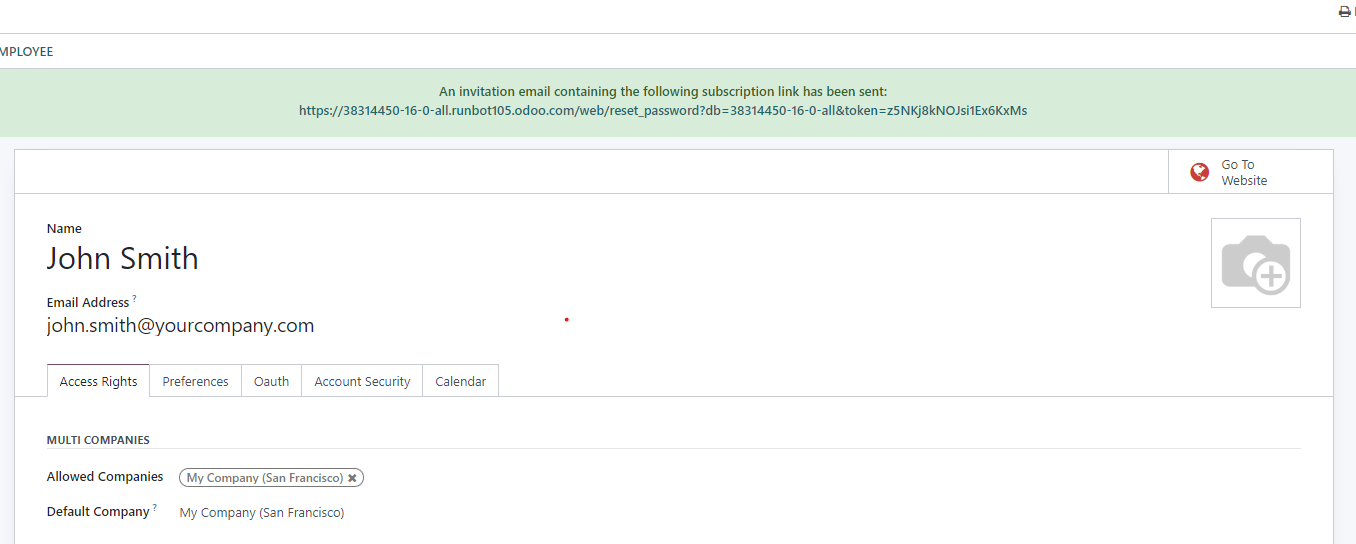
- Carefully enter the required user details, including their username and email address. In the “Allowed companies” field, specify which company entities you wish to grant this user access to. Additionally, you can provide other optional information such as the user’s preferred language and time zone under the “Preferences” tab.
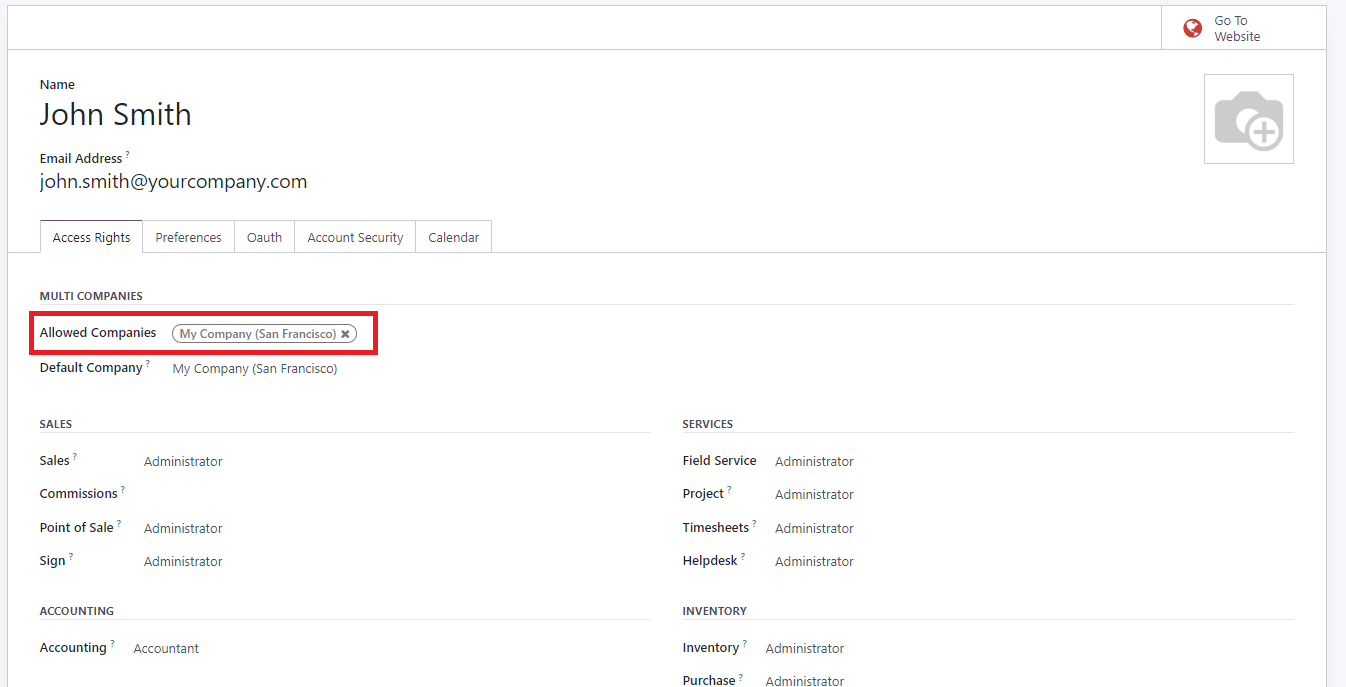
Once all details are accurately entered and the page is saved, the newly created user will automatically receive an invitation email from the system. They must then accept this invitation to establish their login credentials and gain access.
Assigning User Types
Odoo effectively categorizes users into distinct types, each defined by specific roles and corresponding access levels. Understanding these classifications is key to efficient system management:
- Internal Users: These are typically employees who require broad access to various modules and a wide range of features within the system.
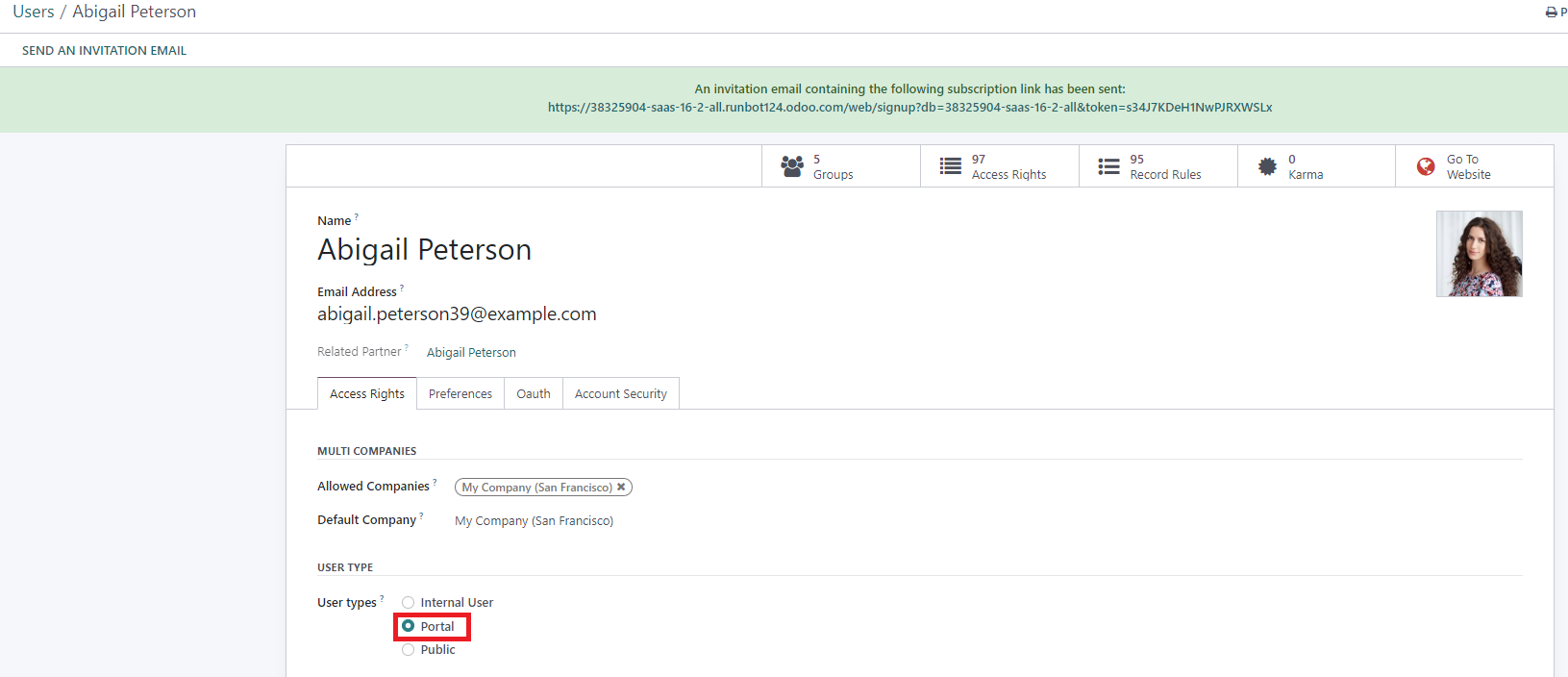
- Portal Users: This category includes external stakeholders like customers or suppliers. They are granted restricted access, primarily to relevant documents and information accessible through a dedicated portal interface.
- Public Users: These users have access limited exclusively to website features that are publicly available. Examples include browsing product catalogs, reading blog posts, or submitting contact forms, without requiring specific login credentials for deeper system access.
By judiciously assigning the most appropriate user type in Odoo 16, you can ensure that each individual is provided with precisely the right level of access and functionality, carefully tailored to their specific roles and operational requirements within your organization.

Related Partner Field: Streamlining Portal Access for External Stakeholders
The “Related Partner” field in Odoo offers a powerful capability to associate a user directly with a specific partner record, such as an existing customer or supplier. This fundamental connection facilitates seamless integration and fosters efficient collaboration across various modules within Odoo, thereby ensuring streamlined communication and immediate access to all associated records and relevant information.
For instance, imagine you are creating a new contact within Odoo’s dedicated contact application for a new customer. If you intend to grant this customer access to your customer portal, the process is remarkably straightforward. Simply navigate to the Contact form, locate the “Action” menu, and then select “Grant portal access.”
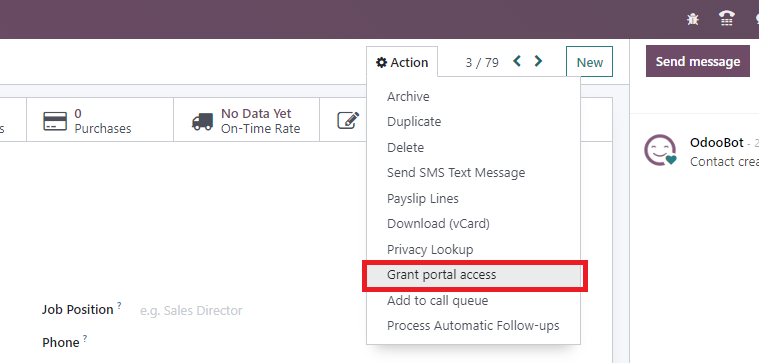
Once the pop-up window appears, click on “Grant Access” and then “Close.” Subsequently, return to the “Settings” menu, navigate to “Companies & Users,” and then select “Users.” You will observe that a new Portal User has been automatically generated, and an email invitation for login creation has already been dispatched to this new user.
Assigning User Roles and Permissions
Odoo provides extensive capabilities to define user access rights with exceptional precision. Within the “Access Rights” tab of each user’s form, you have the flexibility to conveniently select the exact role and specific access permissions for every installed application. This granular control ensures that users only have access to the functionalities and data relevant to their responsibilities.

Managing User Passwords
Effective password management is a critical component of user security. Odoo 16 provides several straightforward methods for managing user passwords, including enabling self-service resets and manual changes by administrators.
Enabling Password Resets from the Login Page
To empower your users to reset their passwords directly from the login page, thereby reducing administrative overhead, follow these steps:
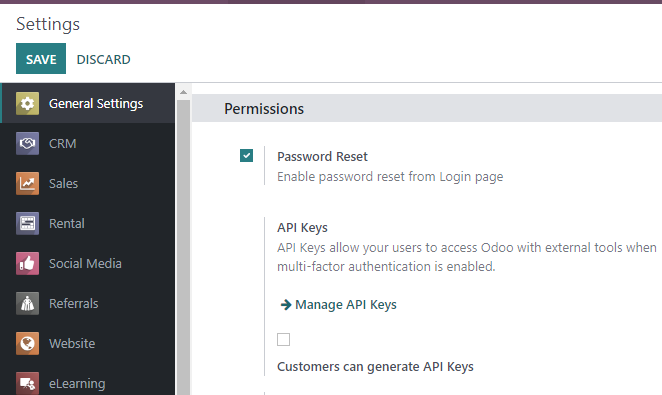
- Navigate to the main “Settings” dashboard and select the “Permissions” configuration option.
- Locate and activate the “Password Reset” feature.
- Ensure you save the changes to apply the new setting across your system.
Sending Password Reset Instructions to Users
Should a user require assistance with a forgotten password, you can easily send them reset instructions by following these simple administrative steps:
- Access the “Settings” menu, then proceed to “Users & Companies,” and finally select “Users.”
- Identify and locate the specific user from the displayed list, then open their individual user form.
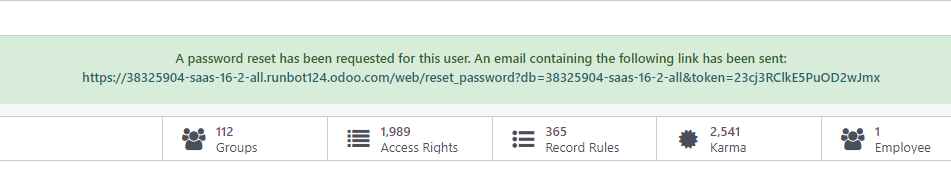
- Within the user form, click on the “Send Password Reset Instructions” option.

An automated email will be promptly dispatched to the user. This email will contain comprehensive instructions on how to securely reset their password. Crucially, it will also include a convenient, direct link that redirects the user to an Odoo login page specifically configured for the password resetting process.
Changing a User’s Password as an Administrator
For situations where an administrator needs to manually change a user's password, follow these straightforward steps:
- Navigate to “Settings” > “Users & Companies” > “Users.”
- Select the specific user whose password you wish to modify to access their detailed user form.
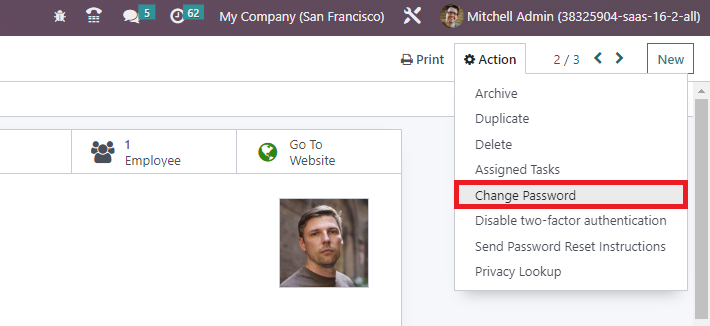
- Click on the “Action” button, typically found at the top of the form, and then select “Change Password.”
- Enter the desired new password in the designated fields and confirm the change by clicking on “Change Password” once more.
Please note: This particular change exclusively affects the user’s local password within your Odoo system and does not have any impact on their external odoo.com account. If a password modification for their odoo.com account is required, it is strongly recommended to utilize the "Send Password Reset Instructions" method to ensure proper synchronization and security.
After successfully clicking on “Change Password,” you will typically be redirected to an Odoo login page, allowing you to reaccess your database using the newly updated password for the specified user.
Managing Multi-Company Access in Odoo 16
The multi-company access feature in Odoo 16 is particularly beneficial for organizations operating with multiple distinct entities that require centralized management within a single system. This functionality streamlines operations and enhances oversight across different business units.
Within the “Access Rights” tab of individual user forms, you will find the crucial “Allowed Companies” field. This field provides the capability to precisely define which of your organization's multiple company databases a particular user is authorized to access. You have the flexibility to grant access to a single company or multiple companies as per their roles and responsibilities.

Managing User Groups for Enhanced Access Control
User groups in Odoo 16 are fundamental for simplifying access control and streamlining permissions management. This powerful feature enables you to logically group users based on their specific roles, departments, or functions, providing highly efficient control over their access to various modules, features, and sensitive data within the system. By assigning users to relevant groups, administrators can effortlessly manage permissions for multiple users concurrently, ensuring that each individual has appropriate access while significantly enhancing overall data security within your Odoo 16 environment.
Configuring User Groups in Odoo 16
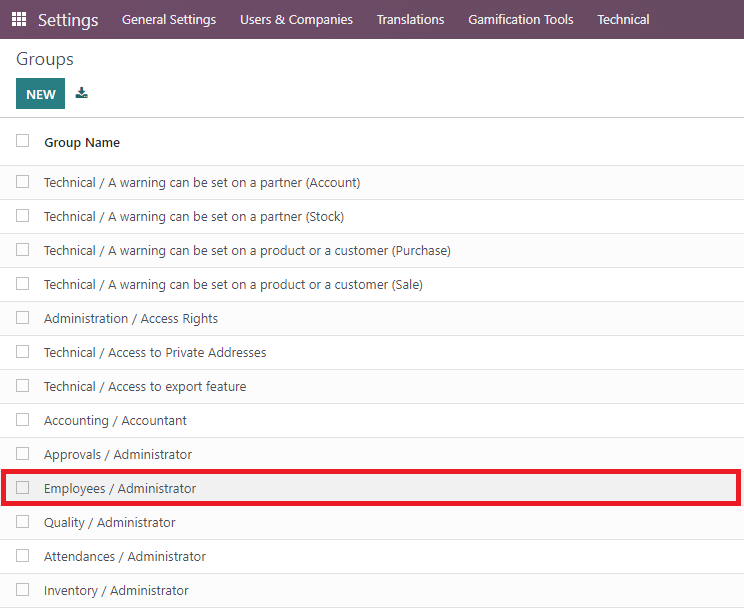
To access and manage user groups within your Odoo 16 interface, it is first necessary to activate the developer mode. Once enabled, navigate through the system by going to “Settings,” then selecting “Users & Companies,” and finally clicking on “Groups.”
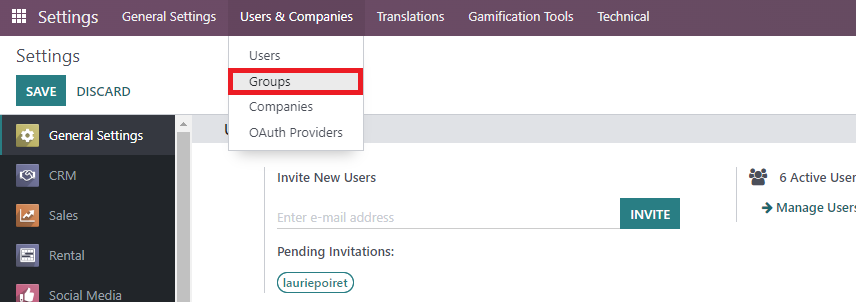
This section provides a comprehensive overview of all your various user groups and their respective types. From here, you have the flexibility to create entirely new groups or meticulously configure existing ones to meet your operational needs. To configure an existing group, simply select it from the list and click to open its detailed settings.
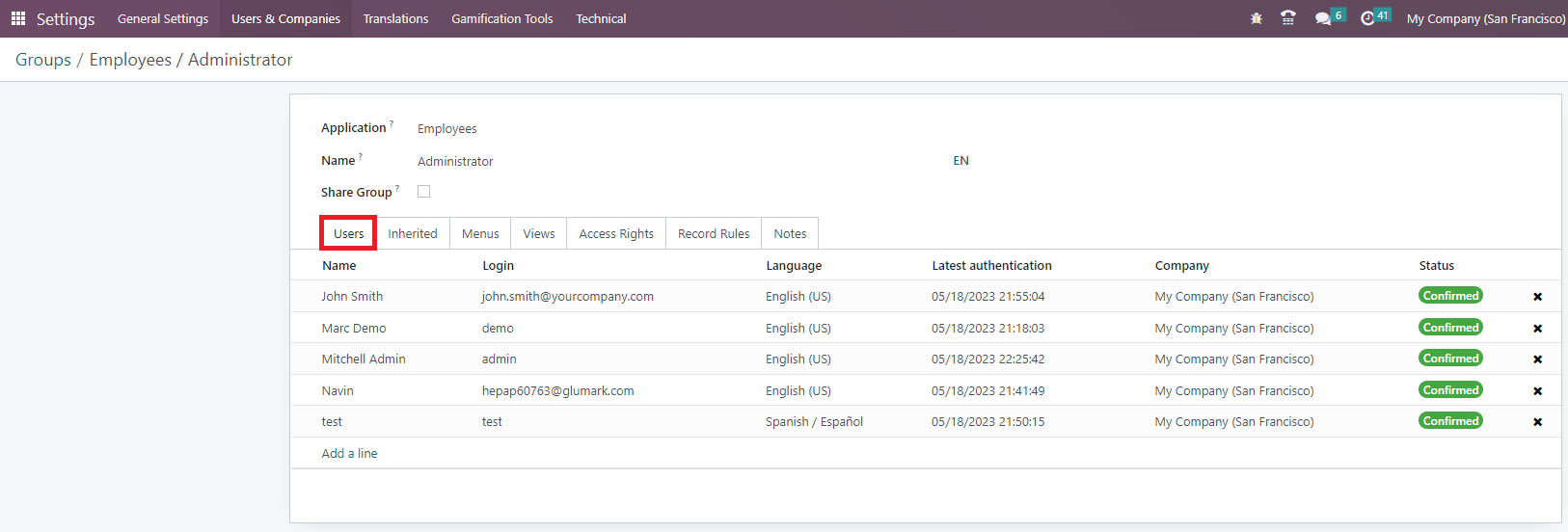
The User Tab
Each access group within Odoo 16 can be precisely configured through a variety of dedicated tabs, enabling you to define exact rules and permissions for specific models across all your Odoo applications. To begin exploring the configuration options, the “Users” tab provides a clear and comprehensive list of all individuals currently assigned to that particular group.
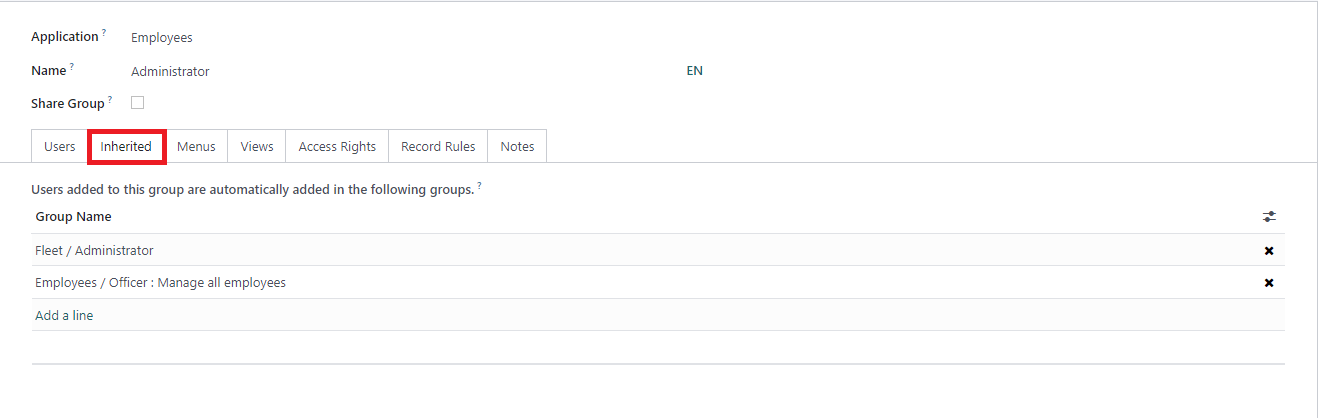
The Inherited Tab
The “Inherited” tab in Odoo highlights a powerful aspect of user group management. When a user is assigned to an application access group that includes “inherited” settings, it signifies that they will also be automatically added to other closely related groups. For example, if a user is granted access to the “Employees / Administrator” group, they will inherently gain access to additional groups such as “Fleet / Administrator” and “Employees / Officer: Manage all employees.” This intelligent cascading mechanism significantly simplifies user management by ensuring that permissions and access rights are automatically propagated through interconnected groups, thereby providing seamless and consistent access control across various functionalities and modules within Odoo.
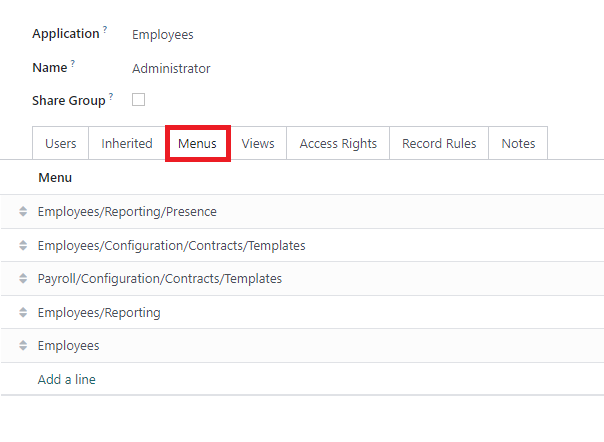
The Menus Tab
The “Menus” tab within Odoo provides a crucial interface for administrators to precisely specify which menus or specific data models a user group is authorized to access. By carefully configuring this tab, you gain comprehensive control over which sections and features of the Odoo system are visible and available to users within that group. This tab essentially serves as a powerful tool for customizing each user’s interface and meticulously determining their precise level of access to various functionalities and data sets within the Odoo environment.
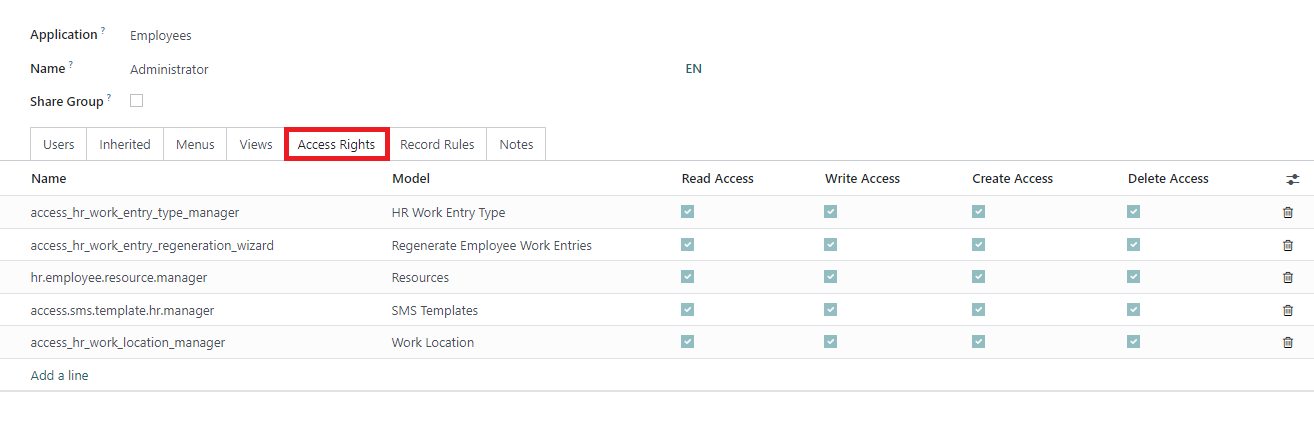
The Access Rights Rules Tab
The “Access Rights Rules” tab in Odoo establishes the foundational layer for controlling user permissions across the system. Each individual rule within this tab is directly linked to a specific object or data model. By carefully enabling the appropriate options, administrators can precisely determine the user's access level for that particular object, offering detailed control:
- Read: This permission allows the user to view the values and data associated with the object but explicitly prevents them from making any modifications.
- Write: Granting this permission enables the user to edit and update the values of the object, reflecting changes as needed.
- Create: This option permits the user to generate new values or create entirely new records for the specified object.
- Delete: With this permission, the user is authorized to remove or delete values and records associated with the object, providing full control over its lifecycle.
These distinct options collectively provide administrators with significant flexibility in defining the granular level of access and control users have over individual objects or data models within the Odoo environment, ensuring a robust security posture.
The Record Rules Tab
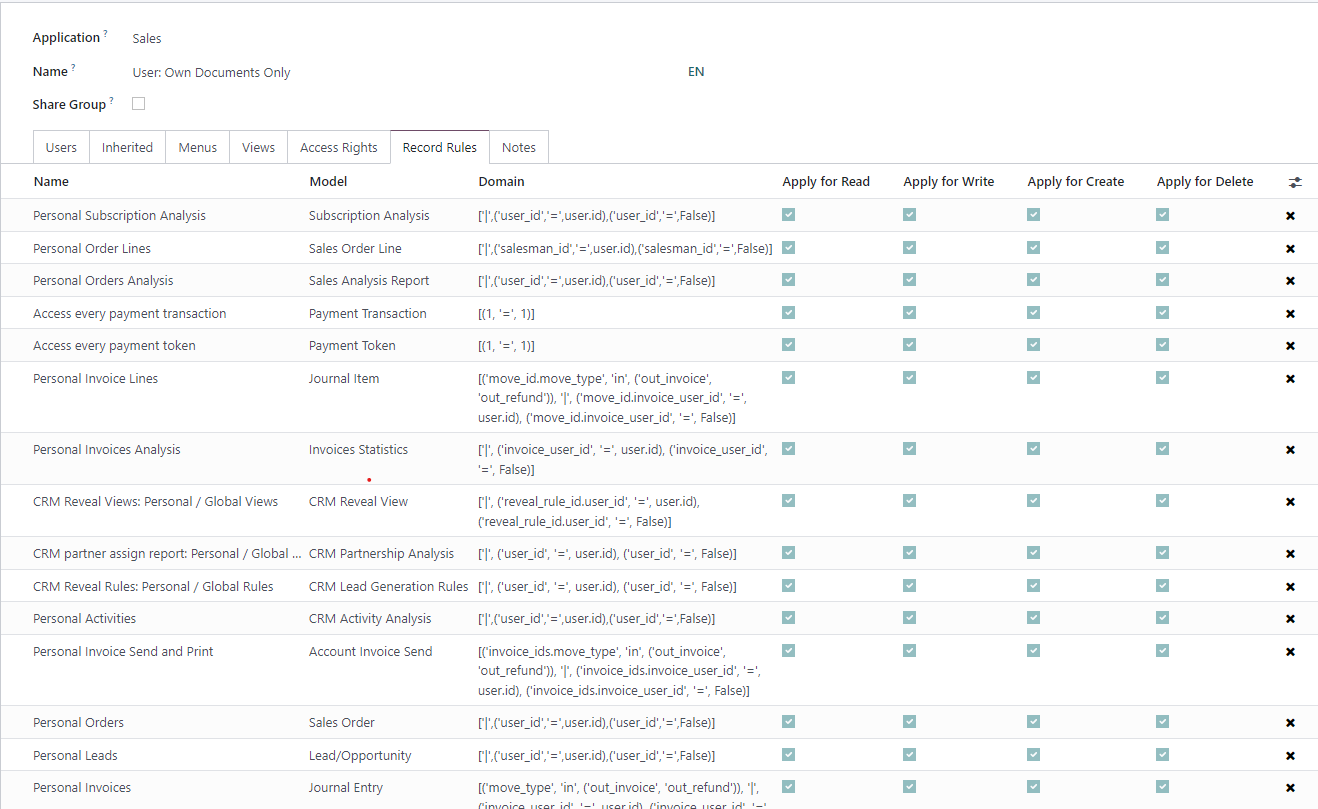
Record Rules in Odoo represent an advanced, additional layer of control, specifically designed for defining granular editing and visibility permissions. These rules are capable of either refining or even overriding the broader "Access Rights" settings. Essentially, they govern which specific records within a particular data model can be accessed by designated users. When configuring a record rule, you can select from the familiar options—Read, Write, Create, and Delete—to precisely define the permissions for the values associated with that rule. This capability provides a highly granular level of control over user access and actions on individual records throughout the system, ensuring data integrity and security.
To illustrate this concept more clearly, let's consider an example:
Within the user group designated as “Sales / Own documents,” you will observe a diverse set of Record Rules that have been configured. The “Personal” rules, for instance, are specifically designed to restrict this group’s access solely to sales orders that they have personally created or any unassigned orders. Despite these specific restrictions on sales orders, members of this group retain complete access to all records belonging to other models.
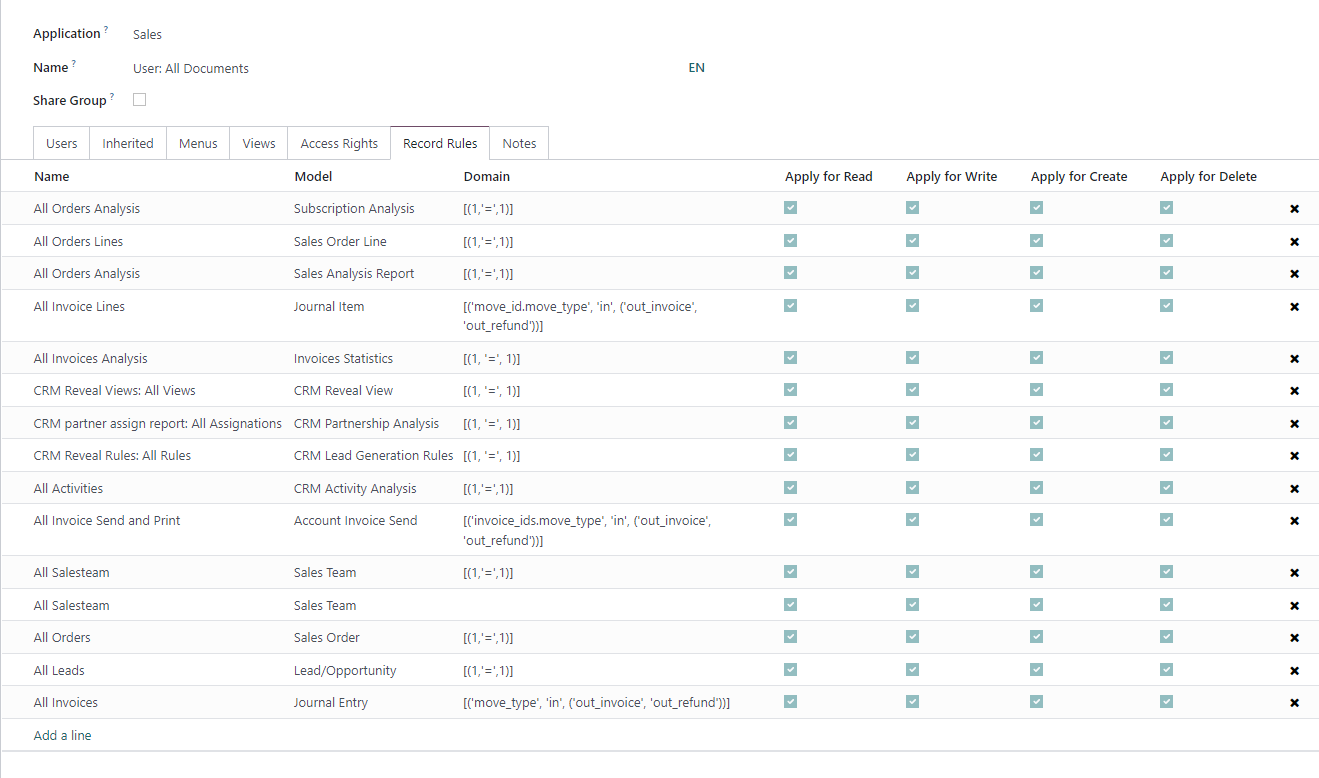
In stark contrast, the user group designated as “all documents” is granted unrestricted access to all records within the system. This comprehensive access is achieved by utilizing the domain [(1,'=',1)], a logical expression that is inherently always true, thereby encompassing all records.
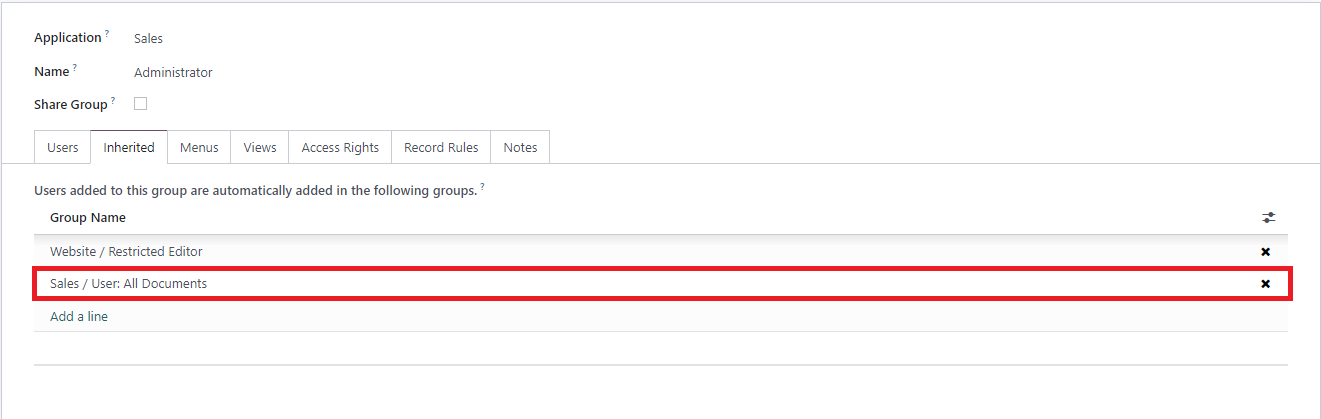
Consequently, the “Sales > Administrator” group does not necessitate any additional, explicit access privileges for records. This is because it automatically inherits full and complete access from the broader “All Documents” group, simplifying its permission structure.
Effective management of users and access control in Odoo 16 is undeniably crucial for ensuring smooth, secure, and efficient operations within any organization. By carefully implementing the strategies and configurations discussed in this guide, businesses can significantly enhance their data security, maintain operational integrity, and streamline administrative tasks. Establishing a robust access control framework not only protects sensitive information but also optimizes user productivity by granting appropriate permissions tailored to specific roles. Regularly reviewing and updating user accounts and group settings is a best practice to adapt to evolving organizational needs and security challenges, ensuring your Odoo environment remains both secure and highly functional.
