
 (1).svg)
 (1).png)


 (1).svg)
.svg)
Deploying Odoo 16 within a Dockerized environment on Plesk can present unique challenges, especially when configuring database connections and managing persistent data. Many users encounter difficulties during the initial setup, ranging from issues with volume allocation to critical database connection errors.
Common Deployment Challenges for Odoo 16 with Docker on Plesk
Users frequently report hurdles when attempting to run Odoo 16 via Docker containers on Plesk. One of the initial roadblocks often surfaces during the configuration of volume allocation. When attempting to run the Docker container, the process may appear to halt, leaving users uncertain about the necessary information to provide for volume allocation.
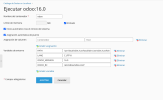
Leaving the volume allocation fields blank often leads to automatic population, but this doesn't always guarantee a successful setup, as issues with unmounted addresses can still arise, preventing the Odoo application from accessing necessary files or configurations.
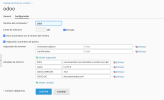
A frequent error encountered is the indication that a specified address is not properly mounted, which is crucial for data persistence and configuration. Without correct mounting, the Odoo container cannot function as expected.
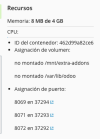
Furthermore, database connection errors are a prevalent issue. Despite confirming that the PostgreSQL service is operational, the Odoo container may fail to establish a connection, often citing problems with port 5432 or general database access.
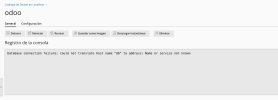
Even when PostgreSQL is confirmed to be running correctly, as shown in diagnostic outputs, the Odoo application might still report connection failures, indicating a misconfiguration in how the Odoo container is attempting to interact with the database.

These challenges highlight the need for a precise and well-understood configuration process when integrating Odoo 16 with Docker on Plesk.
Essential Setup for Odoo 16 and PostgreSQL in Docker
A critical insight for successfully deploying Odoo in a Docker environment is understanding its architecture: the Odoo container does not operate autonomously; it requires a separate PostgreSQL container for its database. Attempting to run Odoo without a properly connected, dedicated PostgreSQL instance will inevitably lead to database connection errors.
Configuring a Dedicated PostgreSQL Container
The first step involves setting up a standalone Docker container specifically for PostgreSQL. This container will host Odoo's database, ensuring data integrity and performance. Key considerations include:
- Image Selection: Use a stable PostgreSQL Docker image.
- Volume Mapping: Implement persistent volumes for the PostgreSQL data directory to prevent data loss upon container restarts or removal. This is crucial for maintaining your Odoo data.
- Environment Variables: Configure essential environment variables such as
POSTGRES_DB,POSTGRES_USER, andPOSTGRES_PASSWORDto set up the initial database and user credentials. - Port Exposure: Ensure that the PostgreSQL container exposes its default port, 5432, to other containers within the Docker network, but not necessarily to the host directly unless required for external tools.
Connecting the Odoo Container to PostgreSQL
Once the PostgreSQL container is running, the Odoo container must be configured to connect to it. This involves:
- Network Configuration: Both Odoo and PostgreSQL containers should reside within the same Docker network to facilitate communication.
- Environment Variables for Odoo: Set the following environment variables within your Odoo container configuration:
HOST: The service name or IP address of your PostgreSQL container (e.g., the container name if they are in the same Docker network).PORT: The port PostgreSQL is listening on, typically5432.USER: The PostgreSQL user defined in the PostgreSQL container (e.g.,POSTGRES_USER).PASSWORD: The password for the PostgreSQL user (e.g.,POSTGRES_PASSWORD).DB_NAME: The name of the database Odoo should connect to (e.g.,POSTGRES_DB).
- Service Linking (Deprecated, but concept applies): While direct linking is less common in modern Docker Compose setups, the principle of allowing containers to discover each other via their service names within a shared network is vital.
Troubleshooting Database Connectivity for Odoo
If you encounter persistent database connection errors, consider the following troubleshooting steps:
- Verify Container Status: Confirm that both your Odoo and PostgreSQL Docker containers are running and healthy. You can usually check this through the Docker interface in Plesk or via command-line tools if you have SSH access.
- Examine Container Logs: Review the logs of both containers for specific error messages. The Odoo container logs will likely show connection attempt failures, while PostgreSQL logs might indicate issues with client connections or authentication.
- Check Network Configuration: Ensure that the containers are correctly networked and can resolve each other's hostnames. If they are on different networks or improperly configured, communication will fail.
- Confirm Credentials: Double-check that the database credentials (username, password, database name) specified in the Odoo container's environment variables precisely match those configured for the PostgreSQL container.
- Firewall Rules: Ensure that no firewall rules (either on the host system or within Plesk's settings) are blocking communication between the Odoo container and the PostgreSQL container on port 5432.
By carefully addressing these configuration points and systematically troubleshooting any issues, you can successfully deploy Odoo 16 within a Dockerized environment on Plesk, ensuring stable and reliable operation.
