
 (1).svg)
 (1).png)


 (1).svg)
.svg)
The Automatic Database Backup module for Odoo 18 is an essential tool designed to automate the process of backing up your Odoo databases. This module provides significant flexibility by supporting various storage locations, including local servers, remote servers, and leading cloud storage services such as Google Drive, Dropbox, OneDrive, Nextcloud, and Amazon S3. Implementing this module helps ensure robust data safety and streamlines your disaster recovery strategy.
Key Features
- Automated Backups: Schedule regular and consistent backups of your databases, ensuring continuous data safety without the need for manual intervention. This proactive approach helps protect against unexpected data loss.
- Redundancy Management: Efficiently manage storage space by automatically removing older backups. This feature helps optimize storage utilization and keeps your backup repository clean and relevant.
- Notifications: Stay informed about the status of your data protection measures with timely alerts on the success or failure of backup operations. This allows for prompt action in case any issues arise.
- Flexible Storage Options: Benefit from a wide array of storage destinations, offering you the choice between local servers, remote servers, and various cloud platforms to best suit your infrastructure and compliance needs.
- Backup Frequency: Define specific backup destinations and frequencies. You can choose how often backups should run, with options for daily, weekly, or monthly intervals, providing tailored data protection.
Setting Up the Automatic Database Backup Module
1. Installation of External Dependencies
Before proceeding with the module installation, it is crucial to ensure that all necessary Python packages are installed in your environment. These dependencies are required for the module to function correctly, especially when integrating with various cloud services.
pip install dropbox
pip install pyncclient
pip install nextcloud-api-wrapper
pip install boto3
pip install paramiko
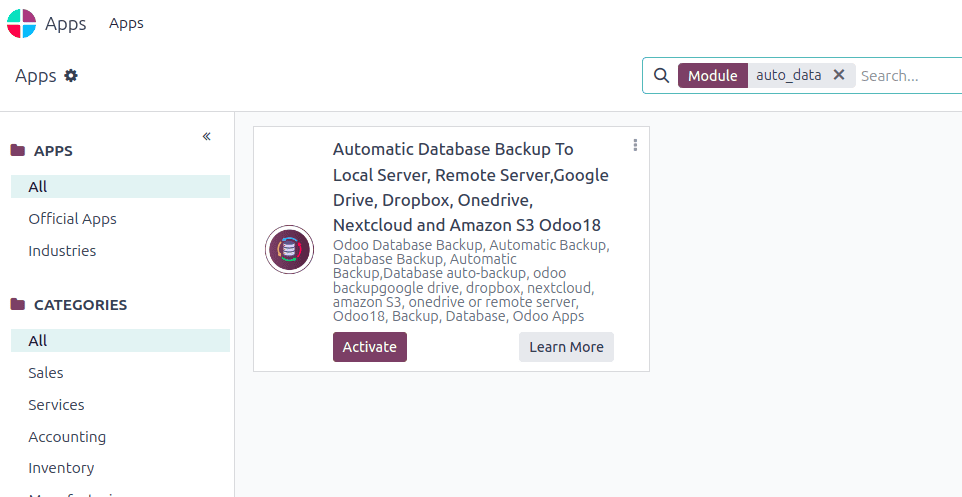
2. Module Installation
Once all the external dependencies have been successfully installed, you can proceed with the installation of the Automatic Database Backup module within your Odoo environment. This step integrates the module directly into your Odoo instance, making its functionalities available.
3. Configuration
After installing the module, the next critical step is to configure your backup preferences. This involves setting up the parameters that dictate how and where your Odoo databases will be backed up.
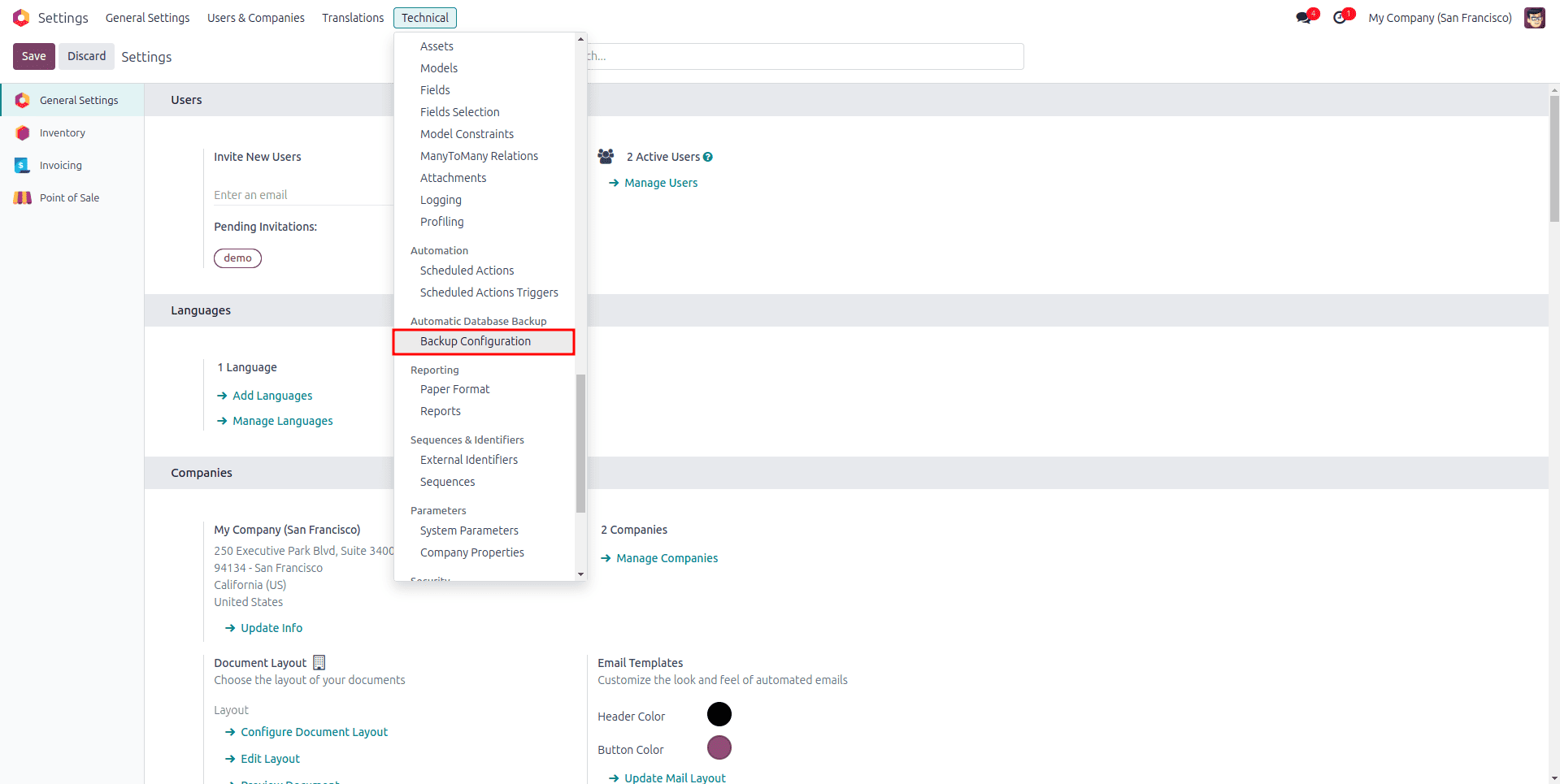
- Access Backup Configuration: Navigate to Settings > Technical > Backup Configuration to access the dedicated section for setting up your backup preferences.
- Database Name: Clearly specify the name of the Odoo database you intend to back up.
- Master Password: Enter the master password associated with your Odoo instance. This is crucial for accessing and backing up the database.
- Backup Destination: Select your preferred location for storing backups from the available options, which include various local and cloud services.
- Backup Directory Path: Provide the exact path to the directory where the backup files will be stored. If the specified directory does not already exist, the system will automatically create it.
- Backup Frequency: Determine how often the backup process should occur. Options typically include daily, weekly, or monthly schedules to align with your data retention policies.
- Notify User: Enable this option and select a specific user to receive notifications. An email alert will be sent to the chosen user upon both successful completion and failure of backup operations, ensuring constant oversight.
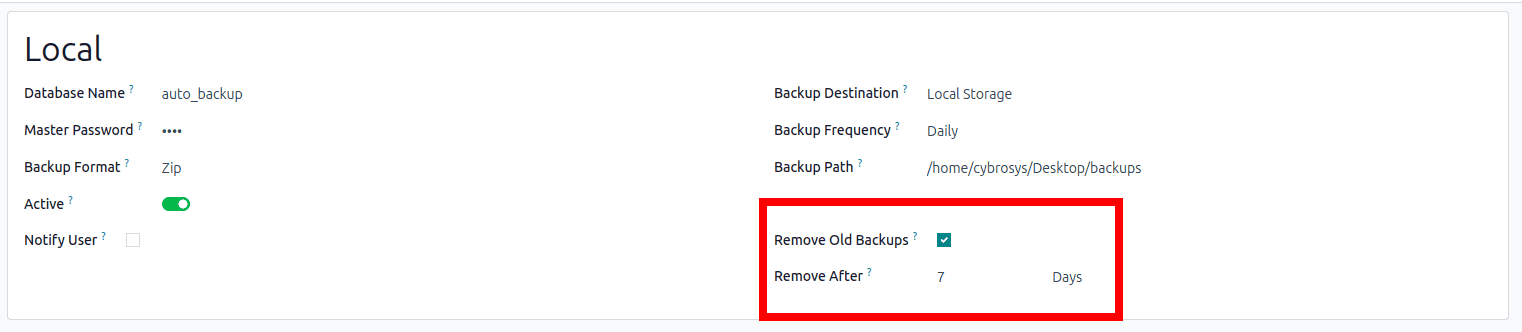
- Remove Old Backups: Activate the auto-remove option and specify the number of days after which old backups should be automatically deleted. This helps maintain optimal storage usage.
- Backup Format: Choose the desired format for your backup files, typically either ZIP or Dump format, depending on your restoration requirements.
Configuring Backup to Different Destinations
The Automatic Database Backup module offers robust integration with a variety of storage services, providing flexibility in where your crucial Odoo data is stored. Below are the general steps to configure backups for each supported platform.
Local Server
To configure backups to your local server, select "Local Storage" as the backup destination. You will then need to provide the specific path to the directory on your local server where you wish to store the backup files. This ensures that a copy of your database is readily available within your own infrastructure.

FTP Server
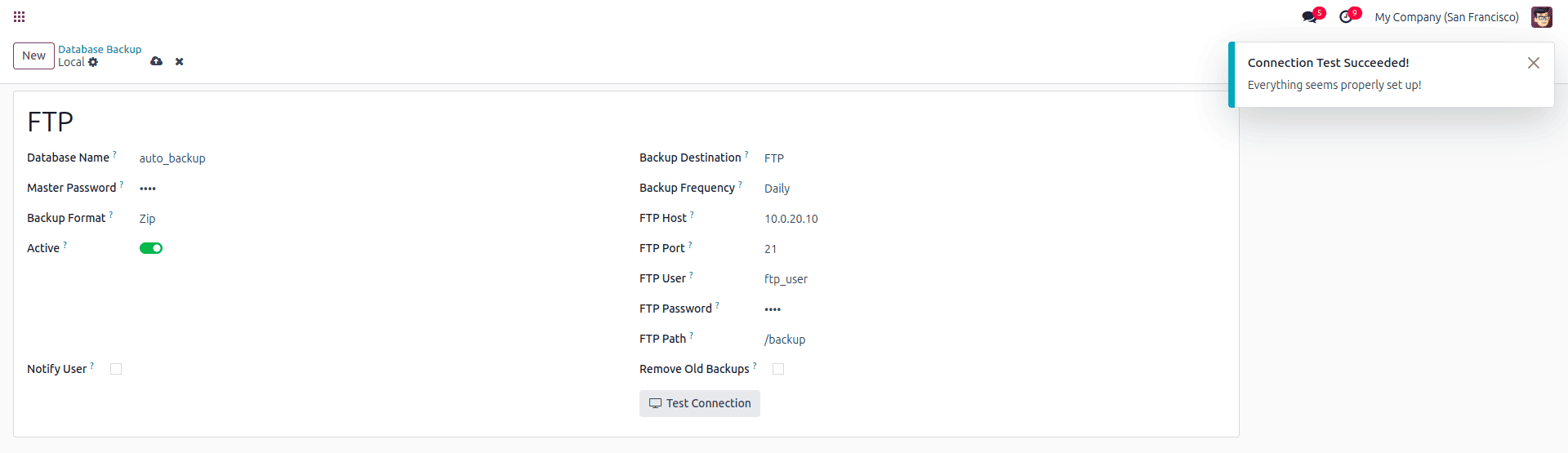
To configure backups to an FTP server, follow these steps:
- Select FTP as your chosen backup destination.
- Enter the necessary FTP Host, Port, Username, and Password for authentication.
- Provide the specific FTP Path where the backup files should be securely stored.
- Always test the connection after entering the details to ensure proper setup and accessibility.
SFTP Server
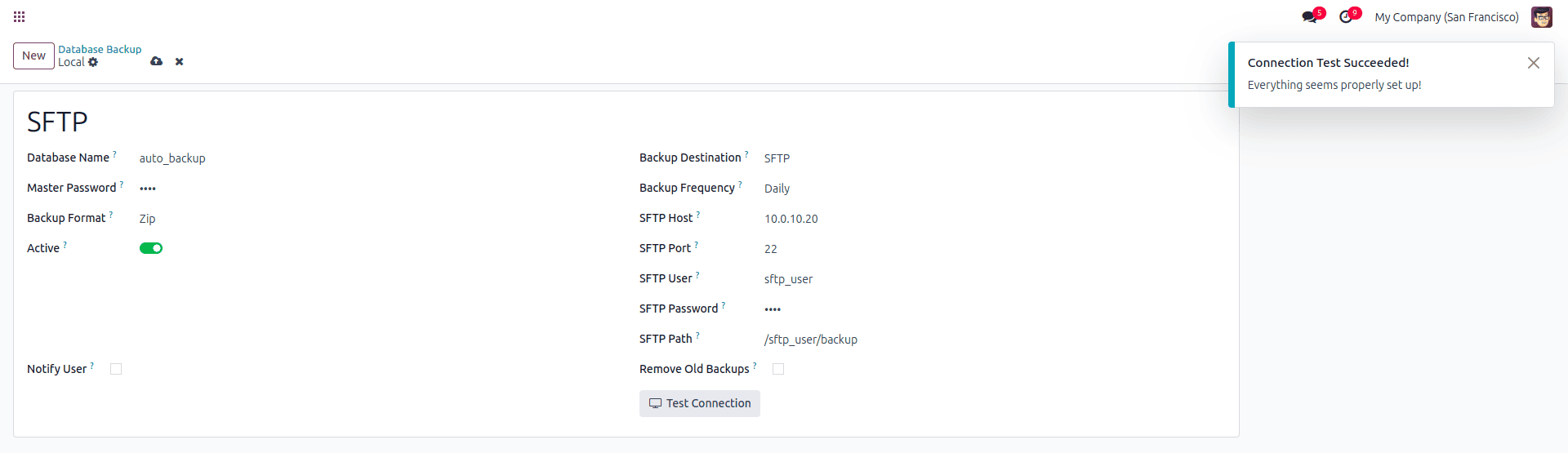
For configuring backups to an SFTP server, the process is similar to FTP but with an added layer of security:
- Select SFTP as the backup destination.
- Enter the SFTP Host, Port, Username, and Password to establish a secure connection.
- Specify the SFTP Path where your backup files will be securely stored.
- It is highly recommended to test the connection to verify that the setup is correct and secure.
Google Drive
To integrate Google Drive as a backup destination, you need to set up API credentials and configure Odoo accordingly.
Step 1: Create a Google API Project
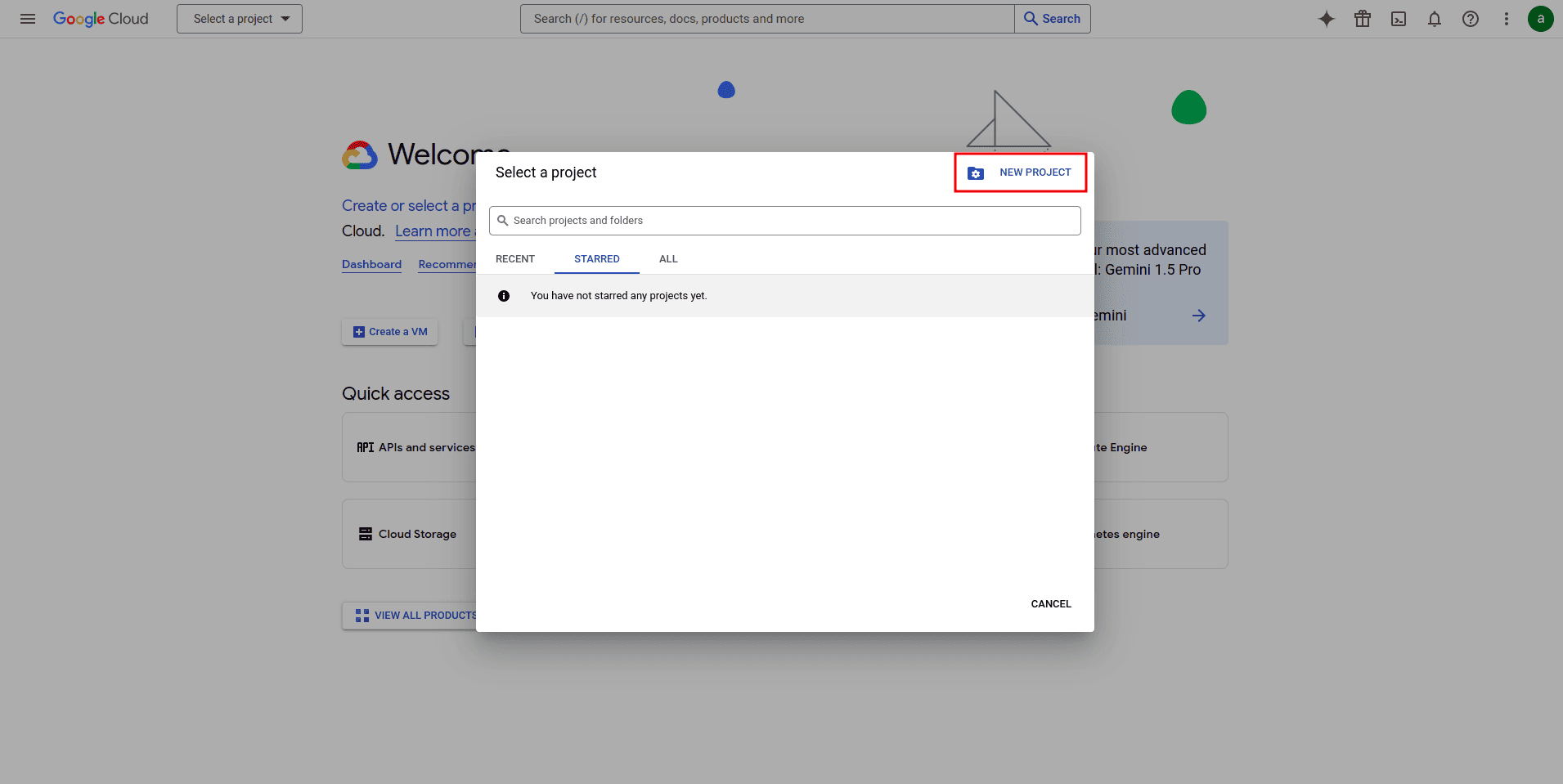
- Log in to the Google Cloud Console and initiate the creation of a new project.
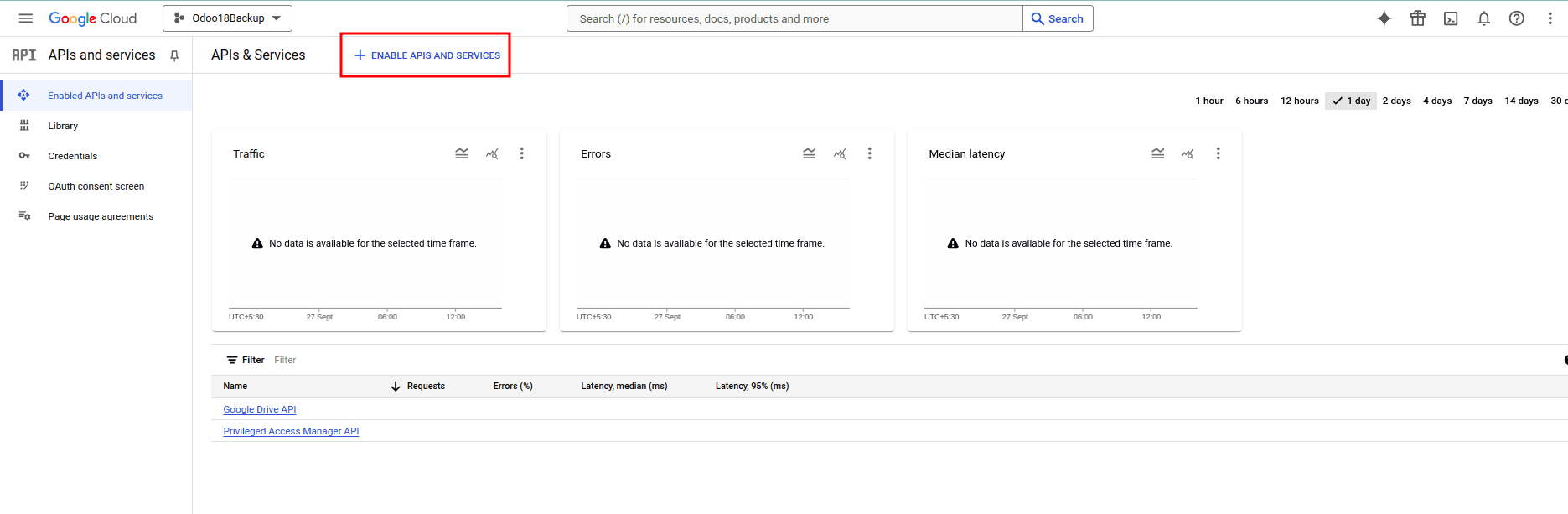
- Once the project is created, proceed to enable the Google Drive API for this project.
Step 2: Create Credentials
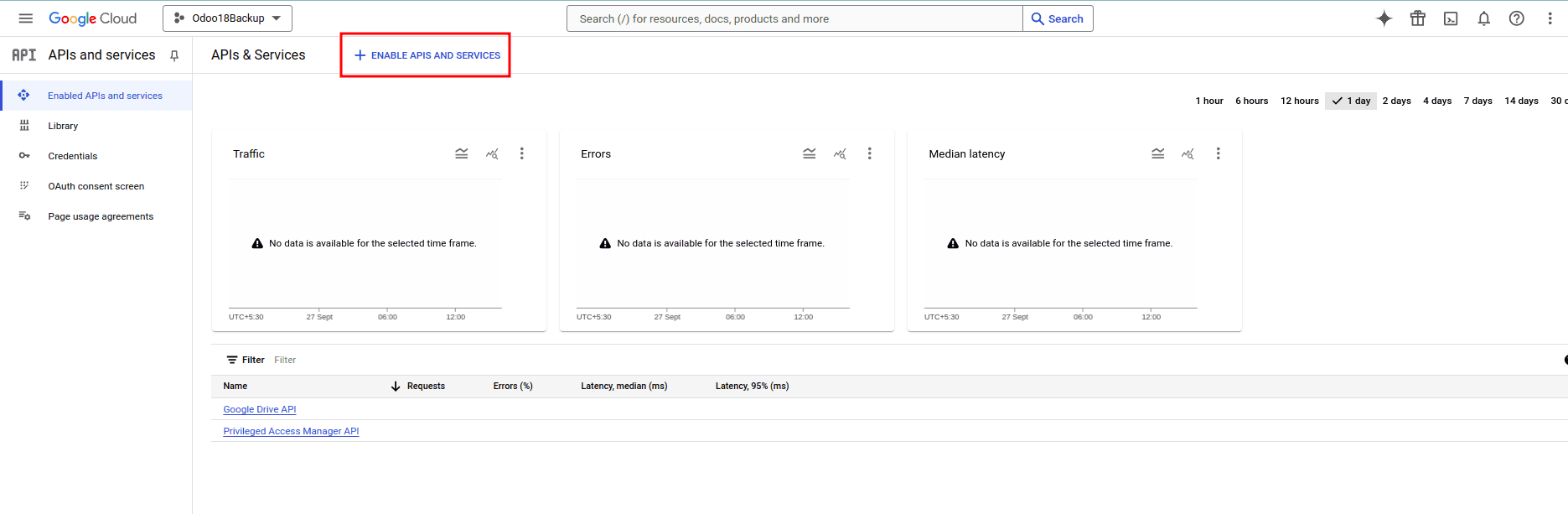
- From the project dashboard, navigate to "Enable API and Services".
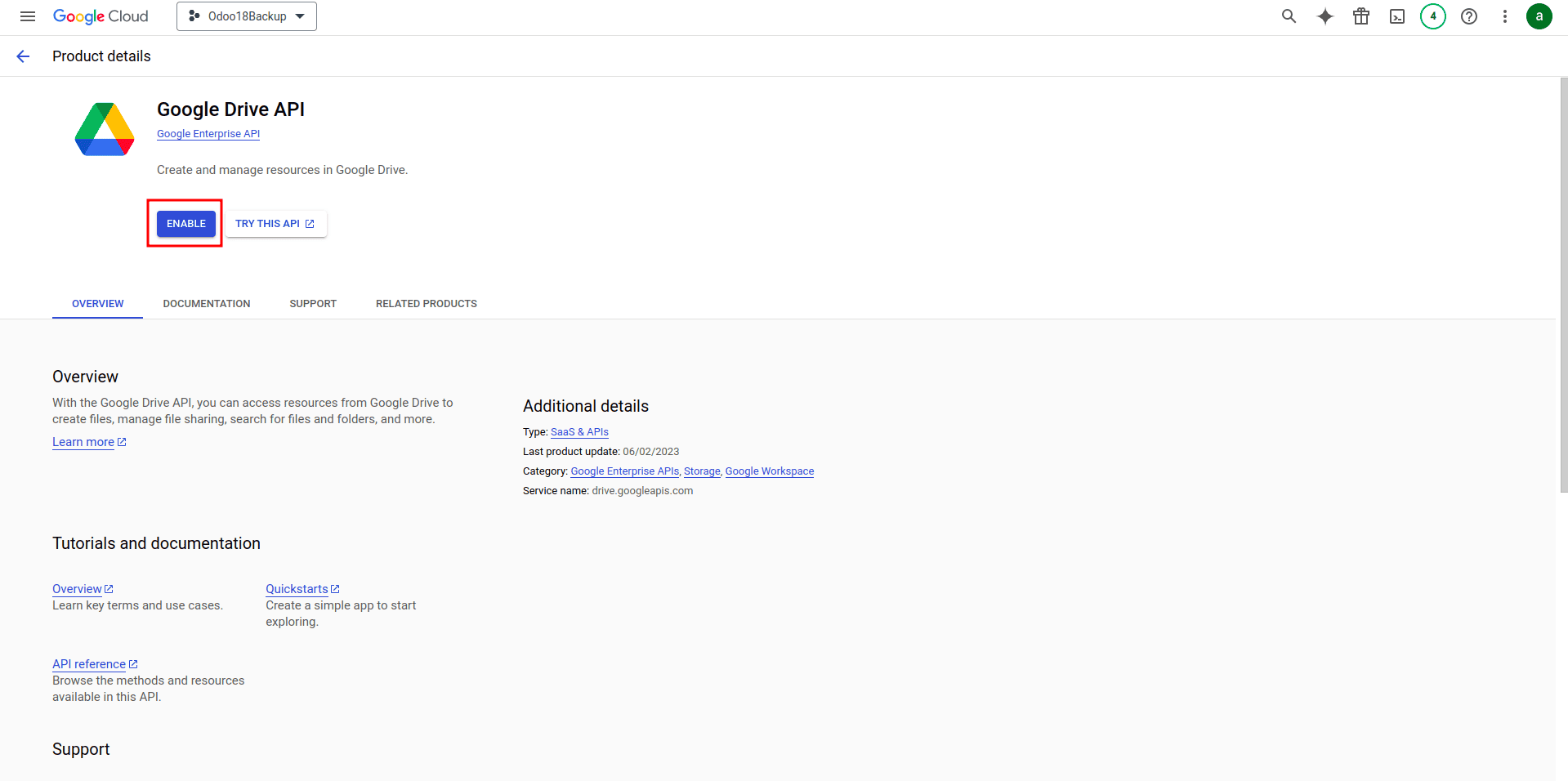
- Ensure the Google Drive API is enabled.
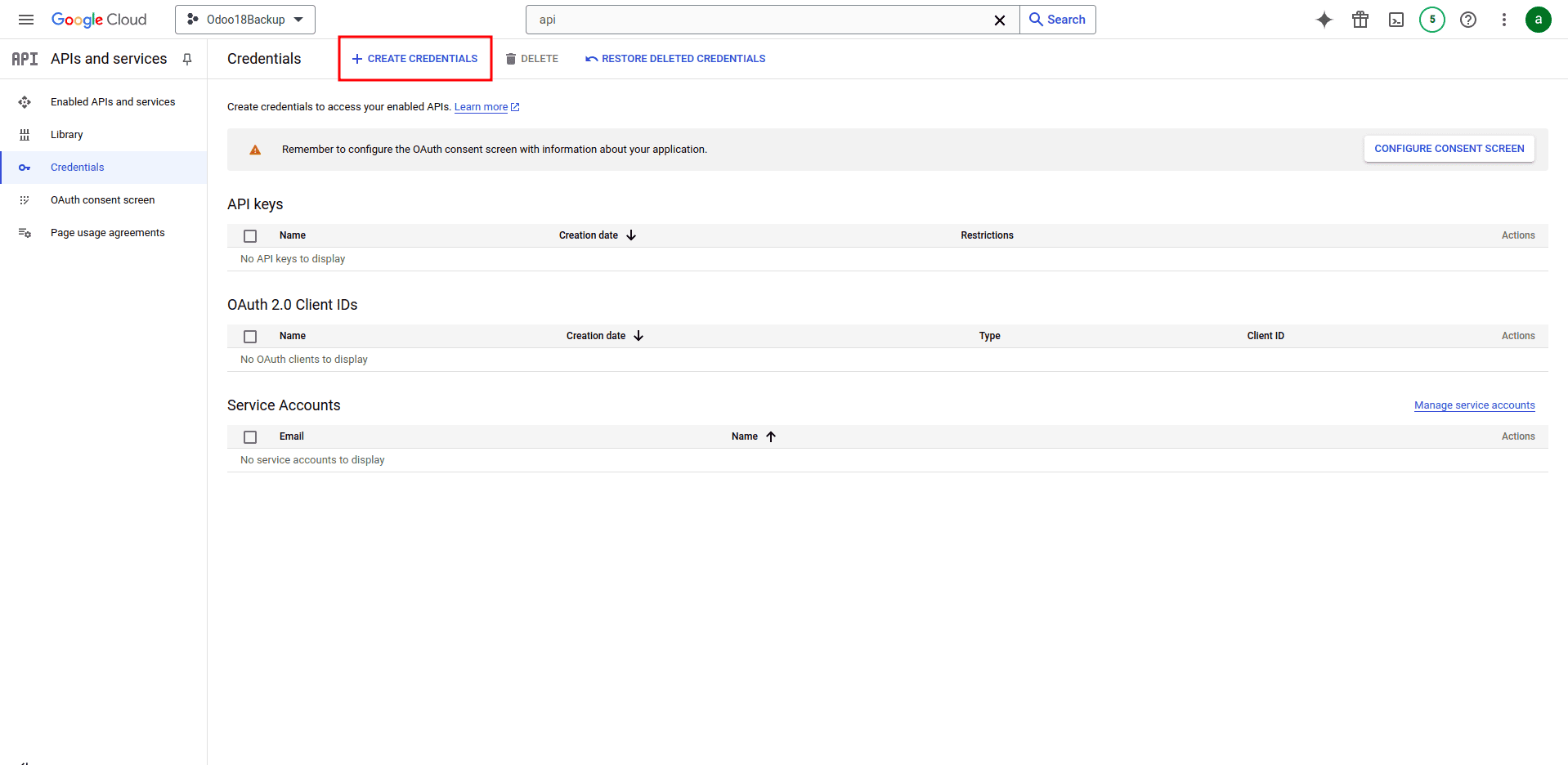
- Proceed to the "Credentials" section and create new credentials by selecting "OAuth Client ID".
Step 3: Configure Authorized Redirect URI
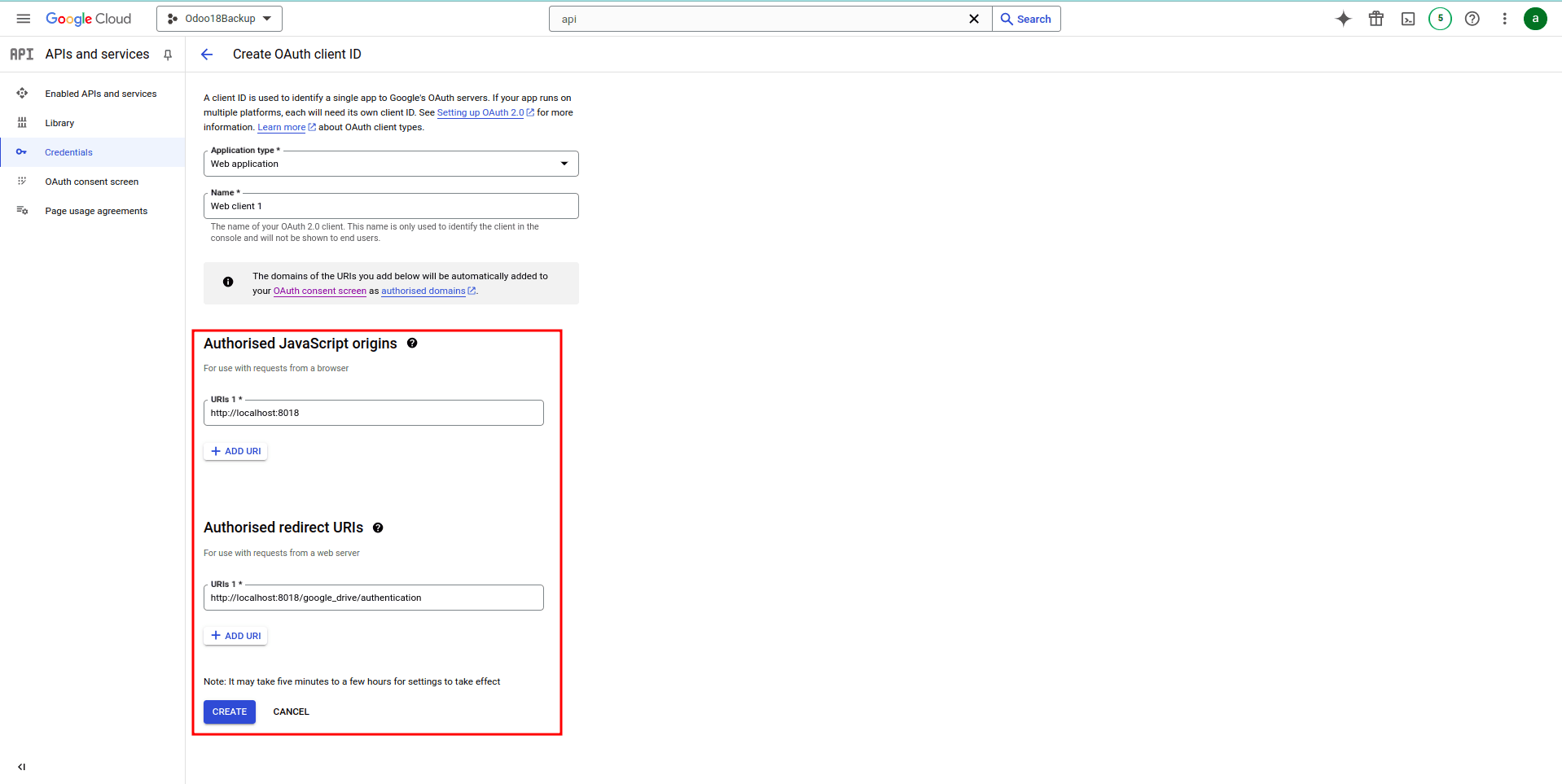
- Set the Application Type as "Web Application".
- Under "Authorized JavaScript Origins", add your Odoo instance's URL.
- For "Authorized Redirect URIs", add your Odoo URL followed by
/google_drive/authentication.
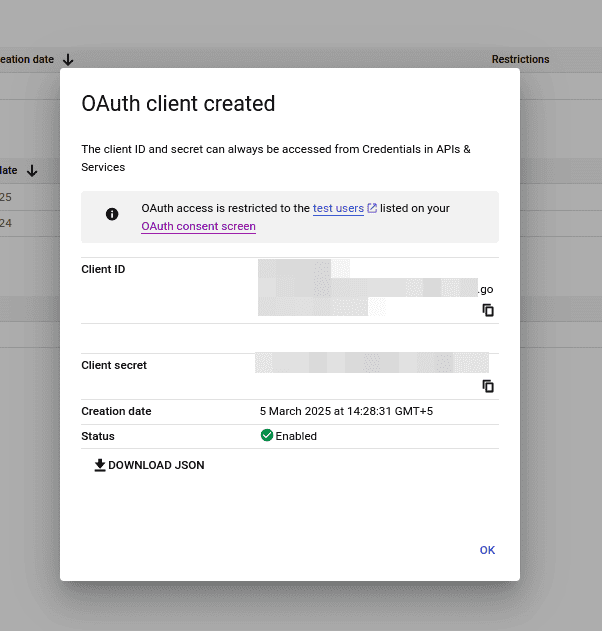
- Upon completing these steps, a Client ID and Client Secret will be generated. Make sure to copy these credentials as they are essential for Odoo integration.
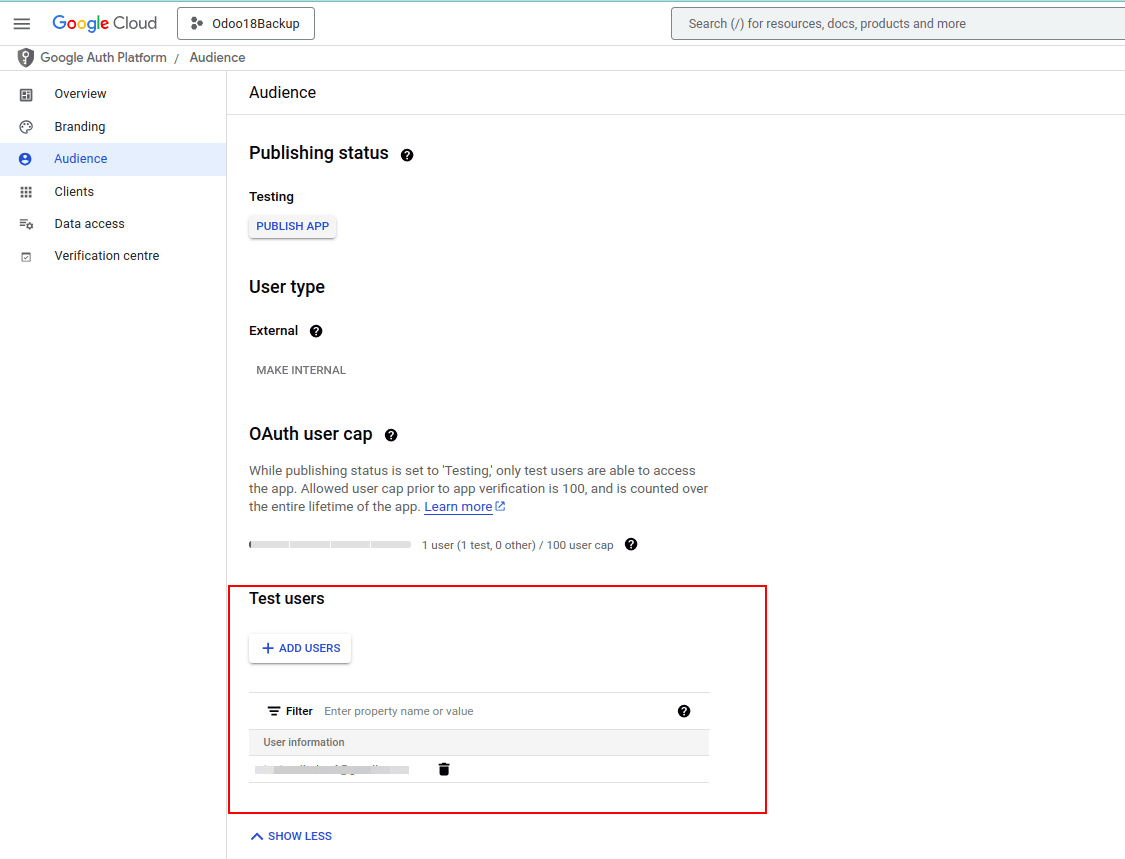
- Subsequently, access the OAuth consent screen and, under "Audience", add the current login email as a Test User to permit access to the application, or complete the full app publishing process.
Step 4: Configure Odoo Backup Settings
- Enter the obtained Client ID and Client Secret into their respective fields within the Odoo Backup Configuration.
- Input the Drive folder ID, which can be extracted from the URL of your desired Google Drive folder.
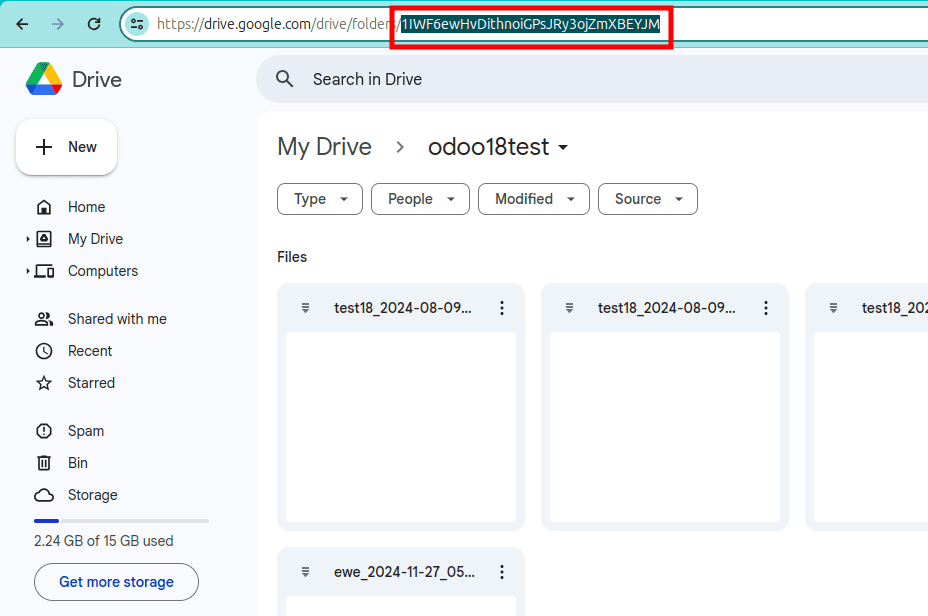
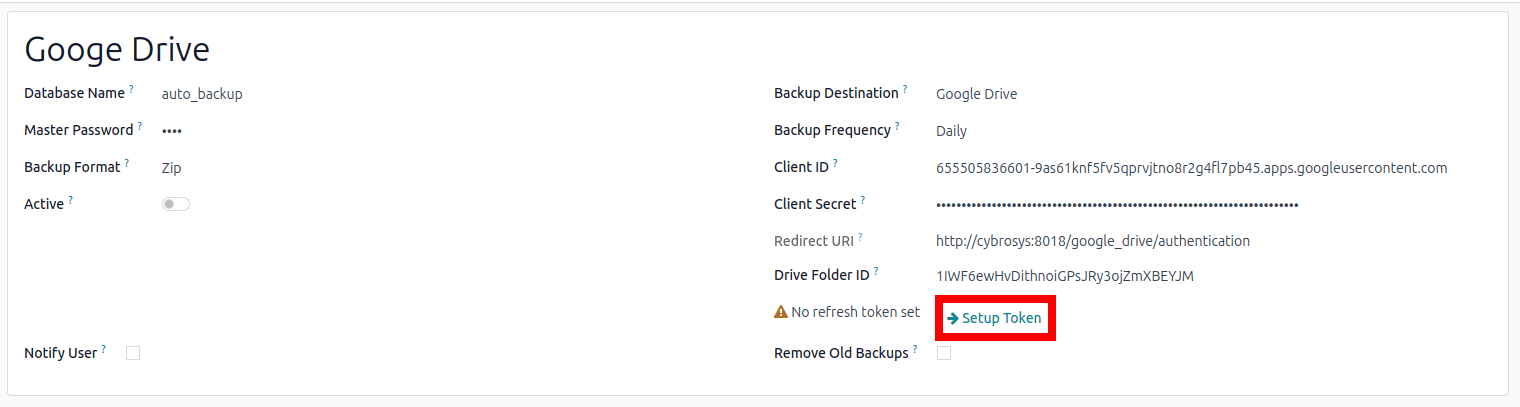
- After completing the configuration, click on "Setup Token", which will redirect you to a Google authorization page.
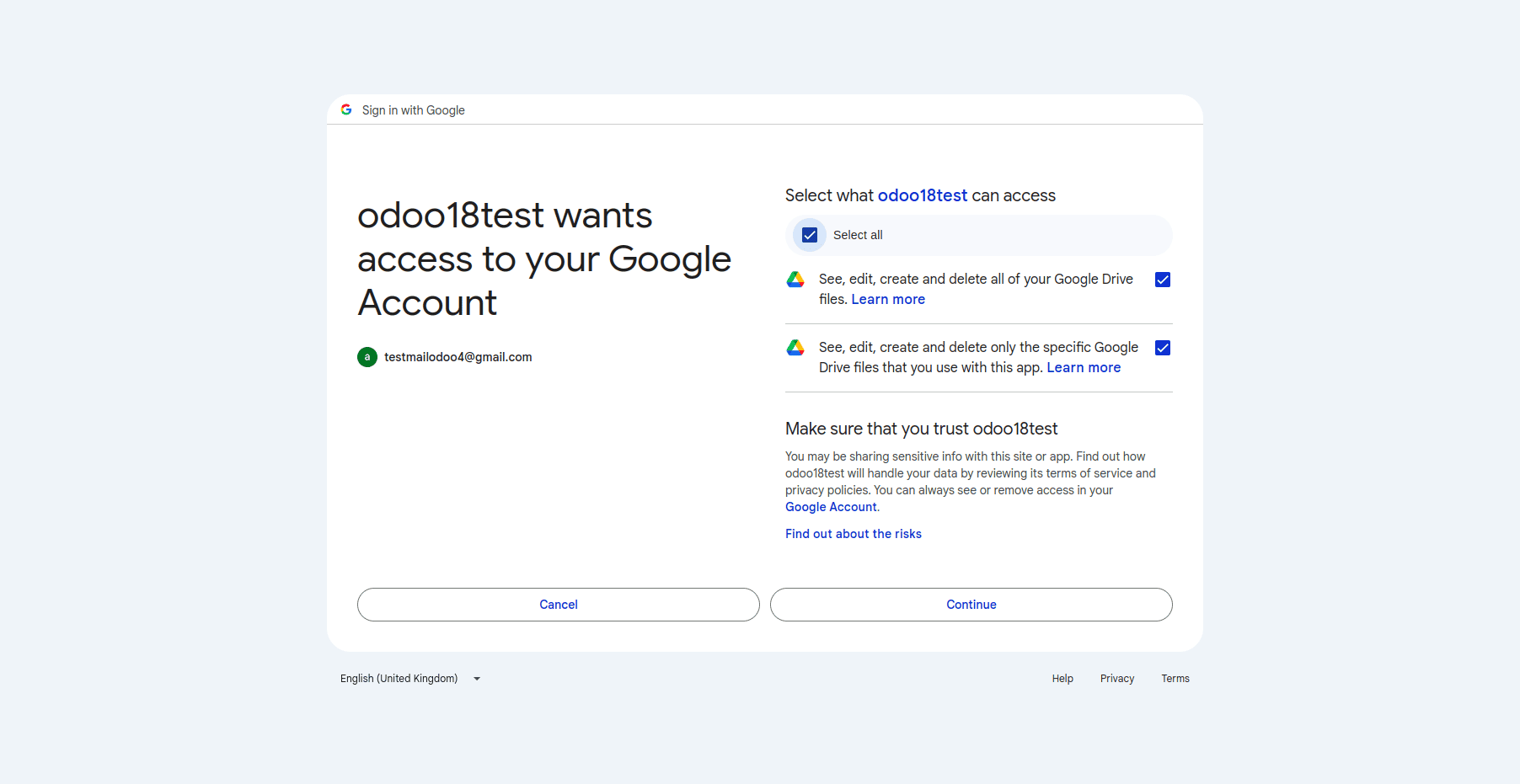
- Grant the necessary access permissions and continue the process.
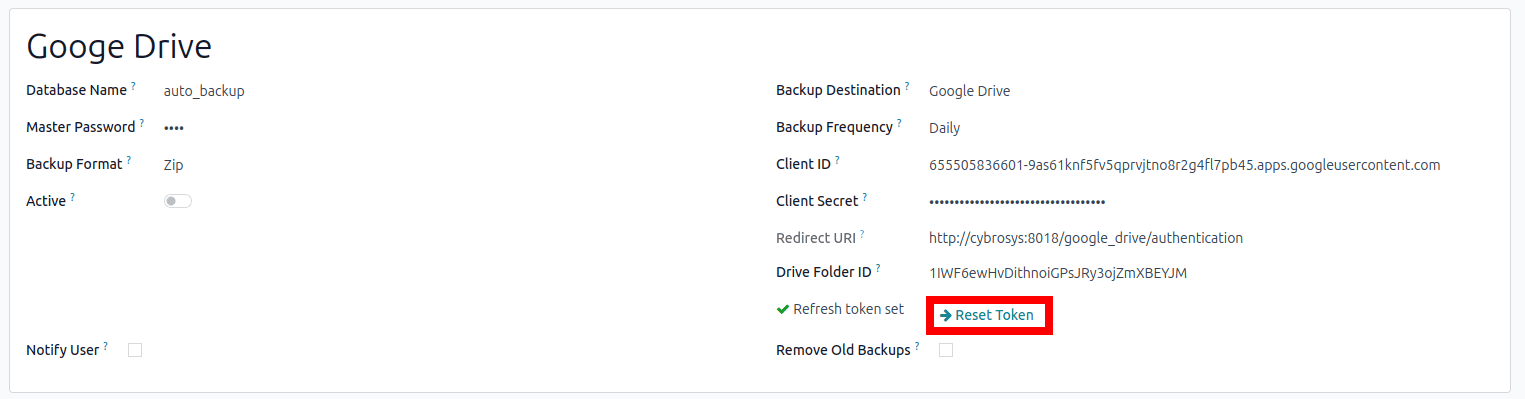
- Once the token is successfully generated, your Odoo backups will be automatically uploaded to Google Drive according to your defined schedule.
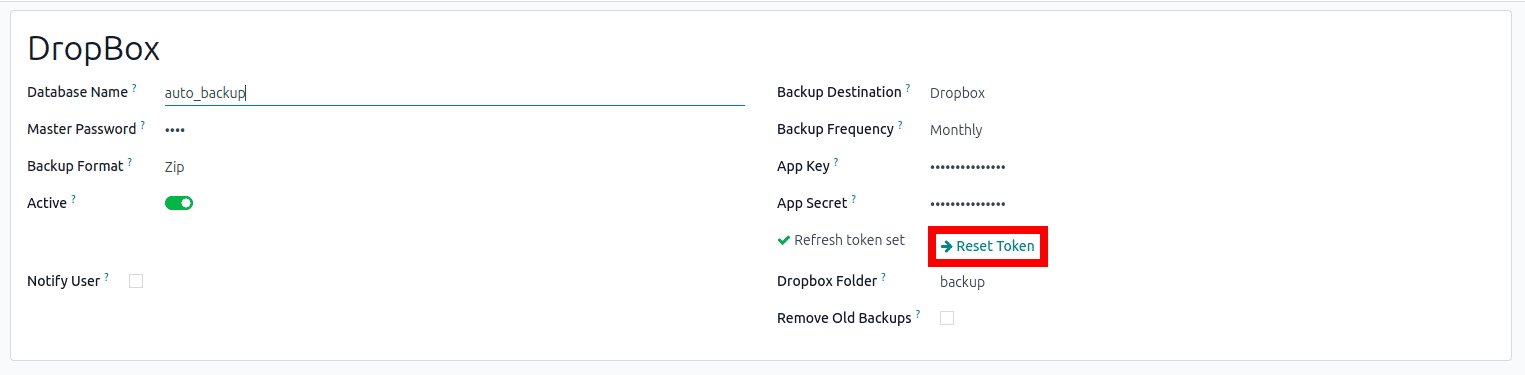
- A "Reset Token" button will be available, allowing you to refresh the authentication token if needed.
Dropbox
To configure Dropbox as a backup destination, you'll need to create an application in the Dropbox Developers App Console and obtain the necessary credentials.
Step 1: Create a New App
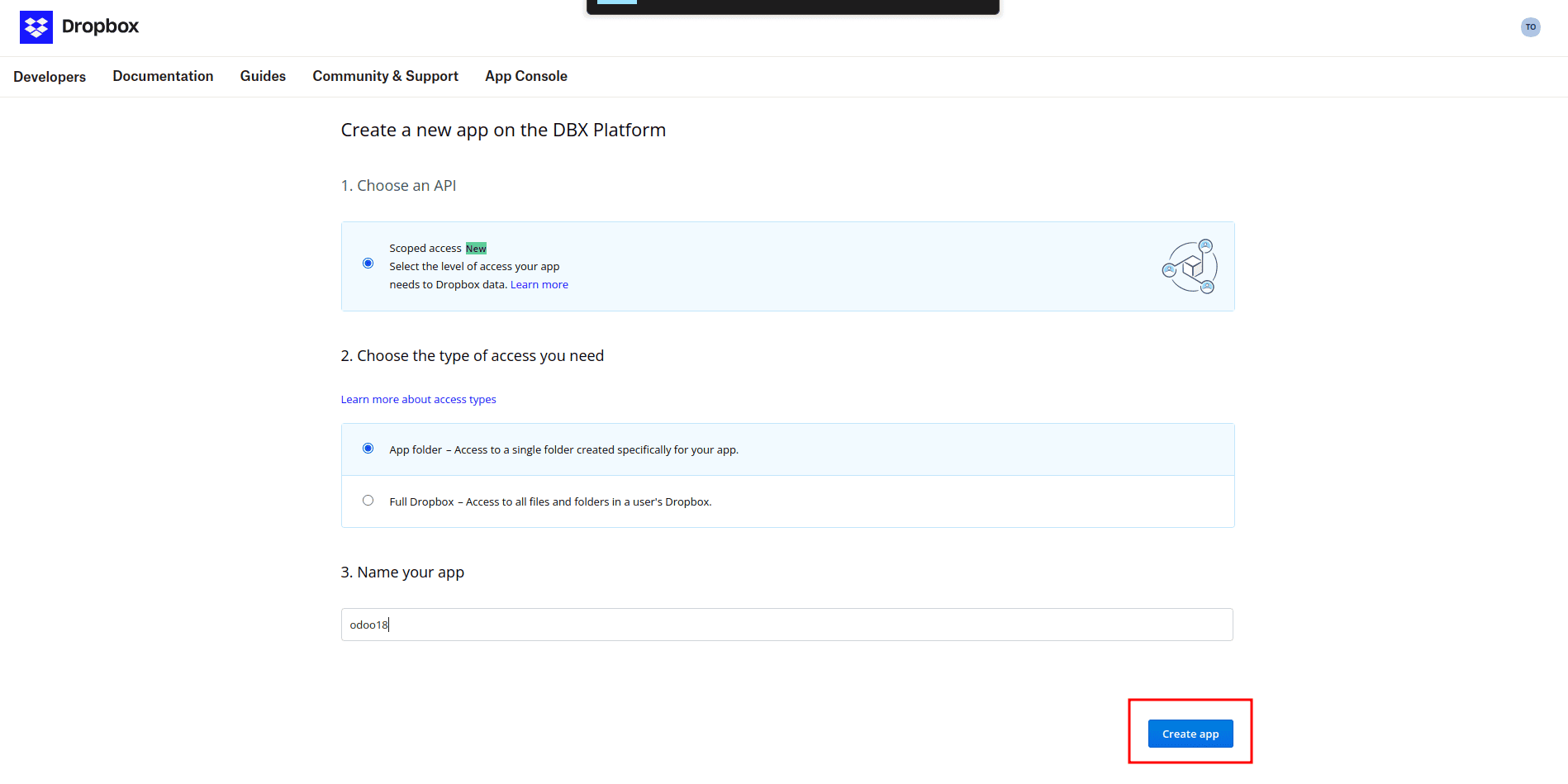
- Navigate to the Dropbox Developers App Console and begin by creating a new application.
Step 2: Retrieve App Key and Secret
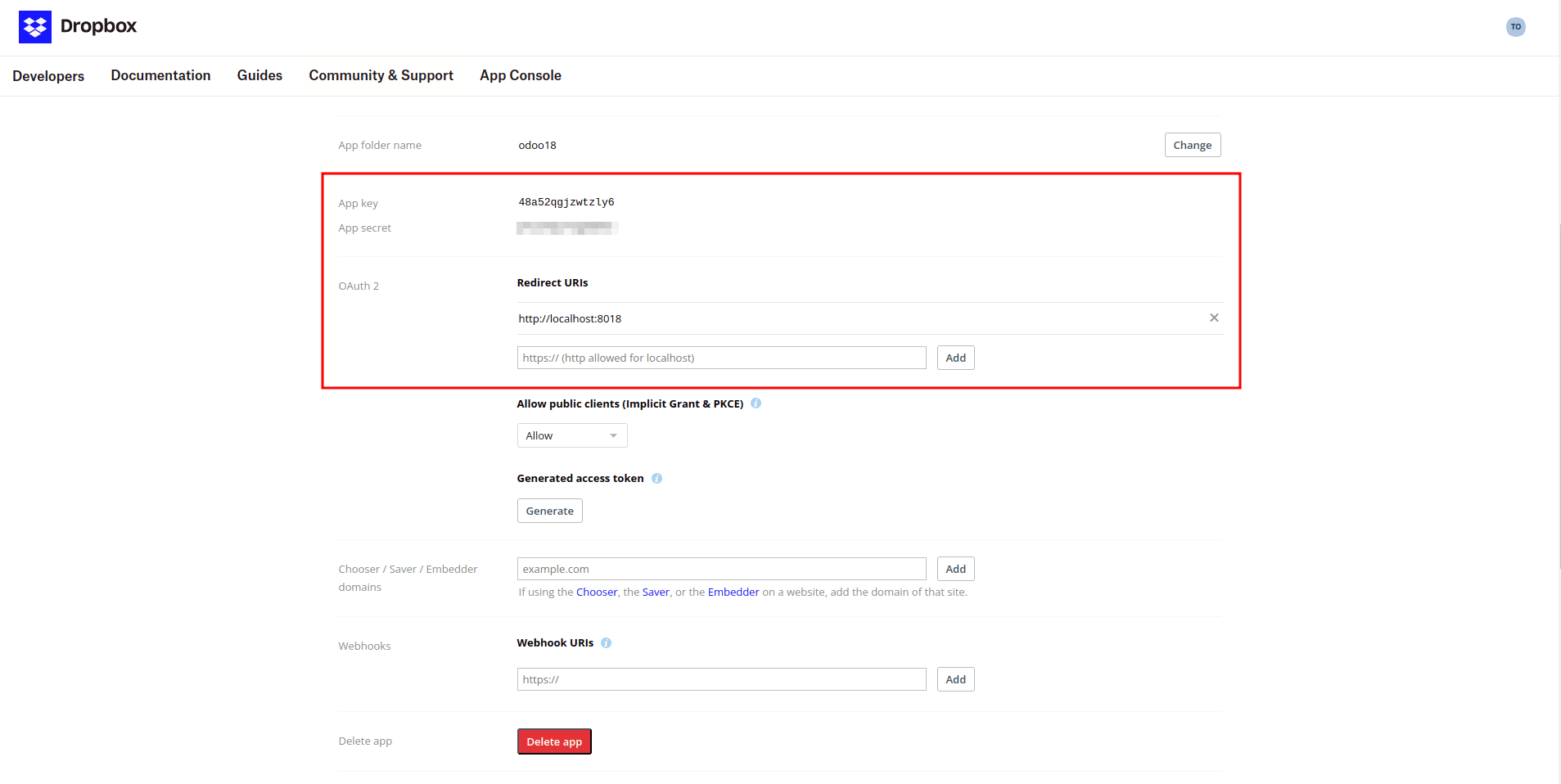
- After successfully creating the app, you will be provided with an App Key and an App Secret. These are crucial for authenticating your Odoo instance with Dropbox.
Step 3: Set Permissions
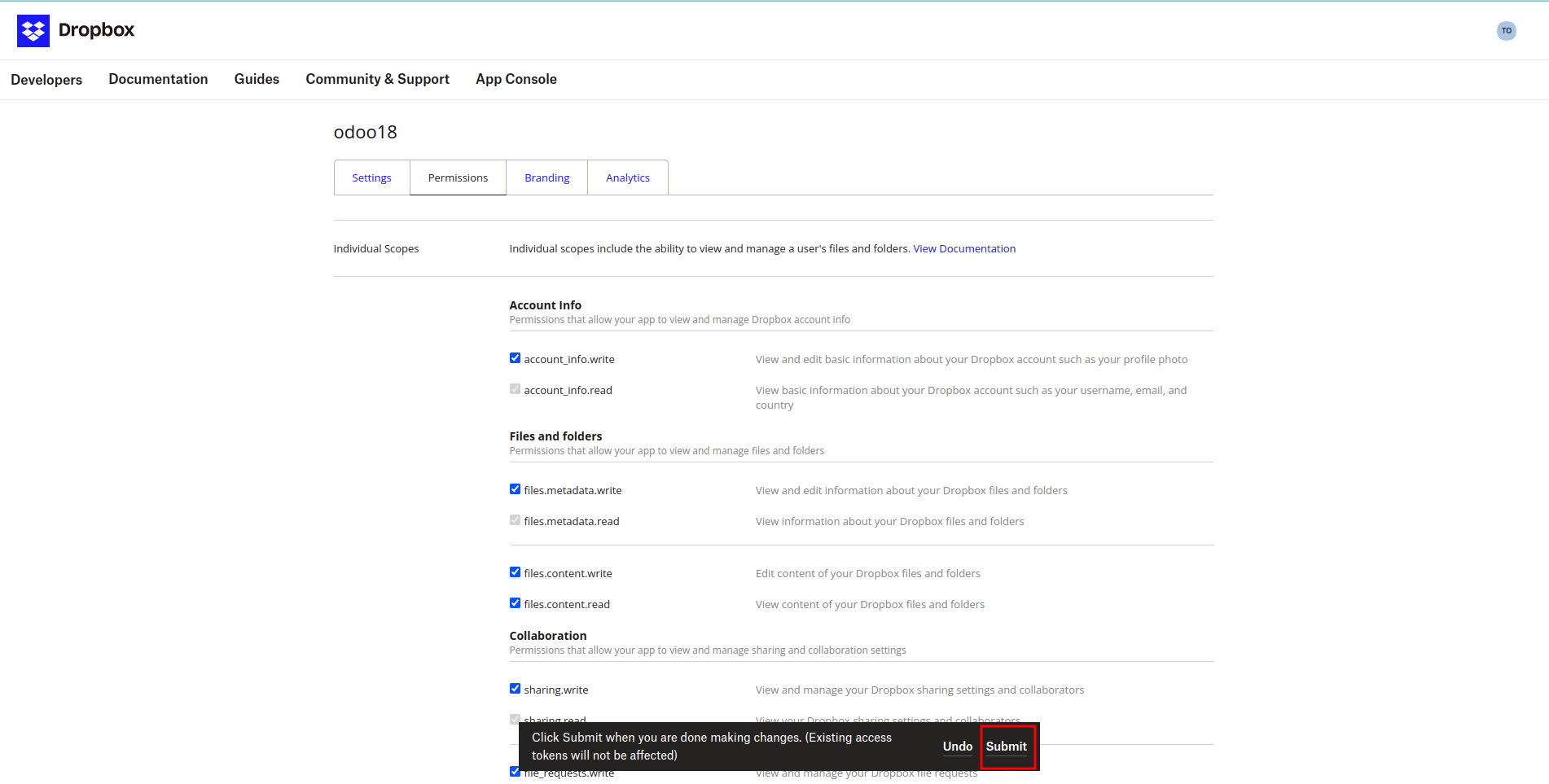
- Carefully choose the appropriate permissions for your application and click "submit" to save the changes. Ensure the permissions grant necessary access for file operations.
Step 4: Configure Backup in Odoo
- In your Odoo instance, go to Backup Configuration and select Dropbox as the backup destination.
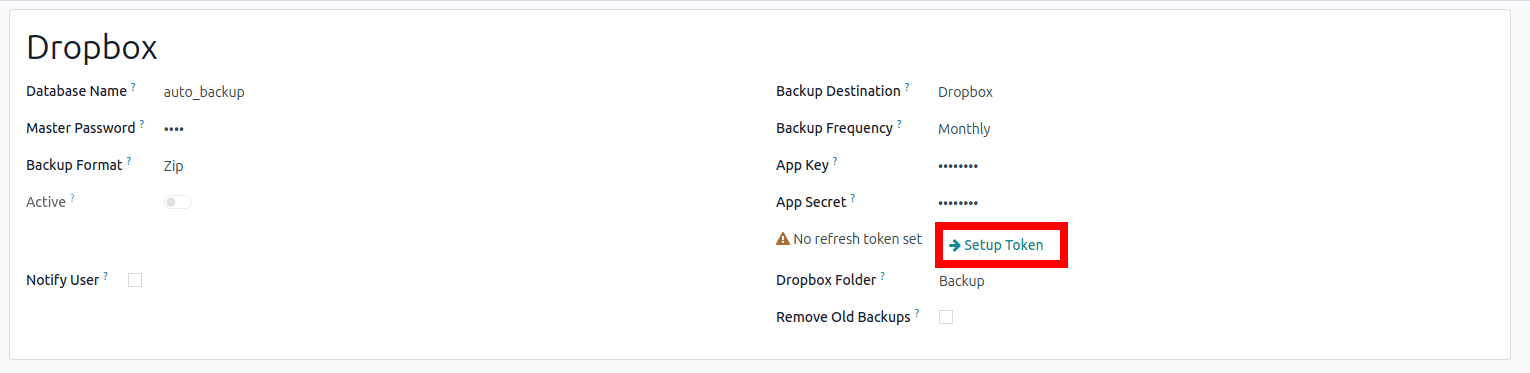
- Enter the App Key, App Secret, and the desired Dropbox Folder Name (this should match the folder name you intend to use in Dropbox).
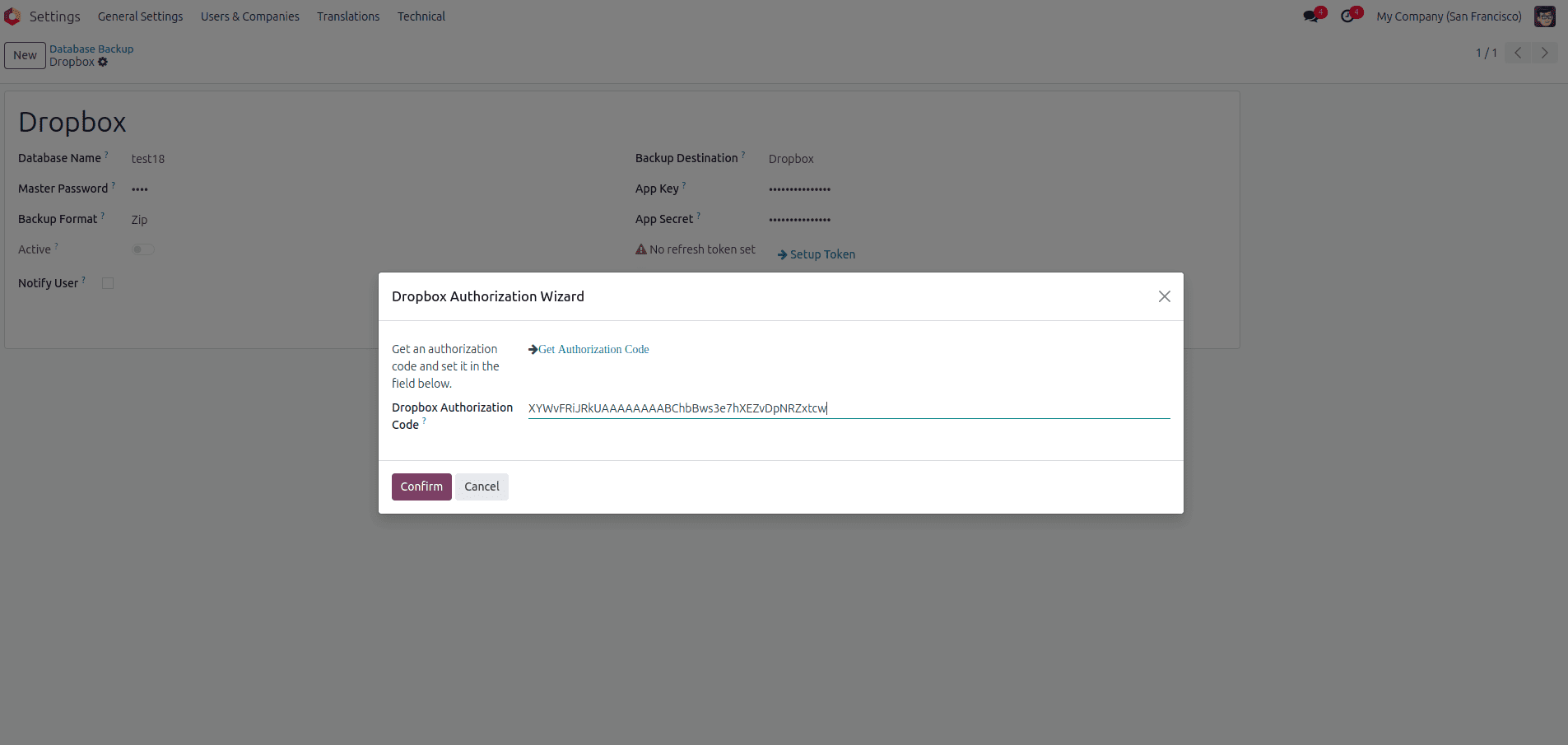
- Click on "Setup Token" to initiate the token generation process.
Step 5: Get the Authorization Code
- Click on "Get Authorization Code" and then paste the generated code into the "Dropbox Authorization Code" field within the wizard. This step links your Odoo with your Dropbox app.
Step 6: Reset Refresh Token (If Required)
- If necessary, click the "Reset Token" button to refresh the authentication token, ensuring continued access and smooth backup operations.
OneDrive
To configure your Odoo backup to store files on Microsoft OneDrive, you need to register an application in the Microsoft Azure Portal and define its permissions.
Step 1: Register a New App in Microsoft Azure
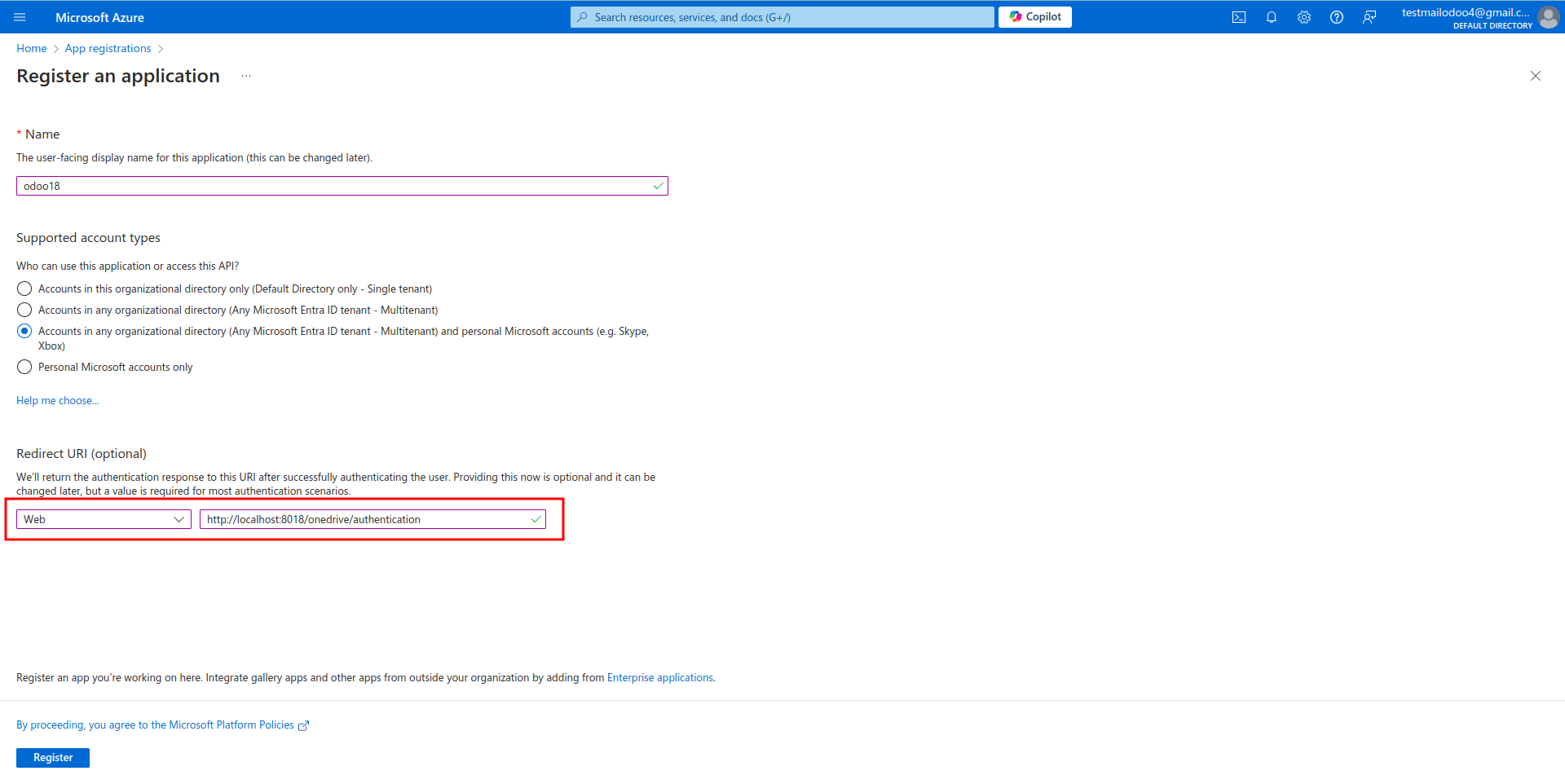
- Access the Microsoft Azure Portal and proceed to register a new application.
- For Redirect URI restrictions, input your Odoo database URI followed by
/onedrive/authentication. For example:https://your-odoo-instance.com/onedrive/authentication.
Step 2: Obtain Credentials
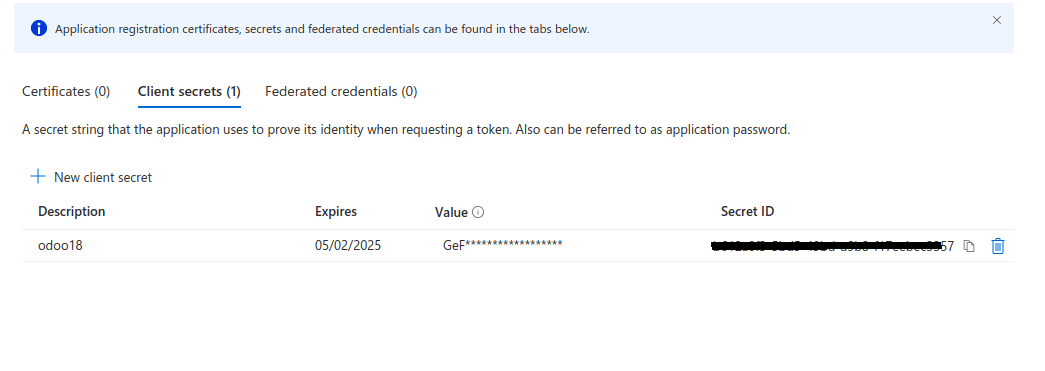
- Copy the Client ID generated for your registered application.
- Generate a Client Secret from the registered app credentials.
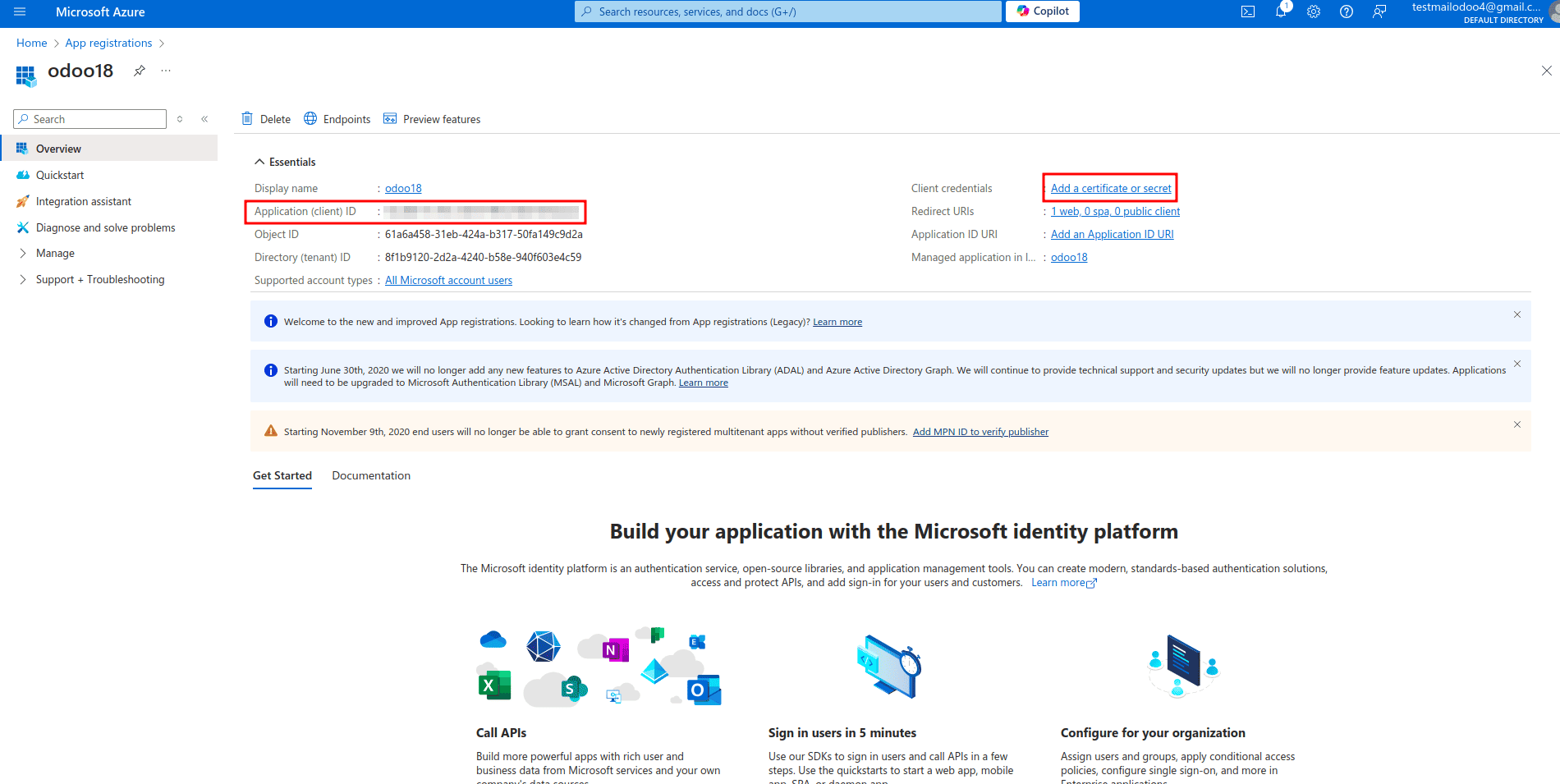
- Ensure you securely obtain the client secret.
Step 3: Set Permissions
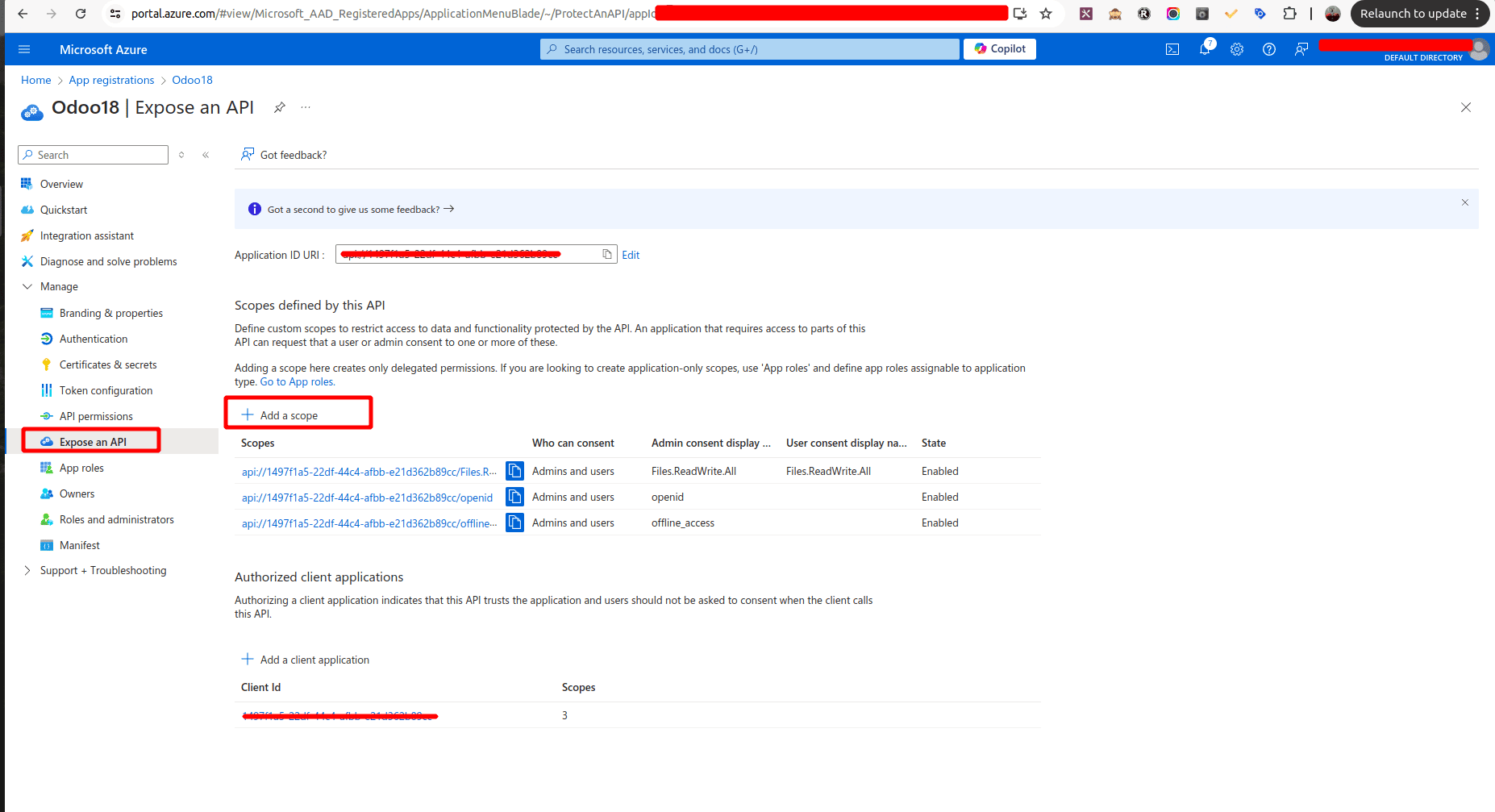
- In the "Expose an API" section, add the necessary Scopes for your application to access OneDrive. These typically include:
Offline_accessopenidFiles.ReadWrite.All
Step 4: Retrieve OneDrive Folder ID
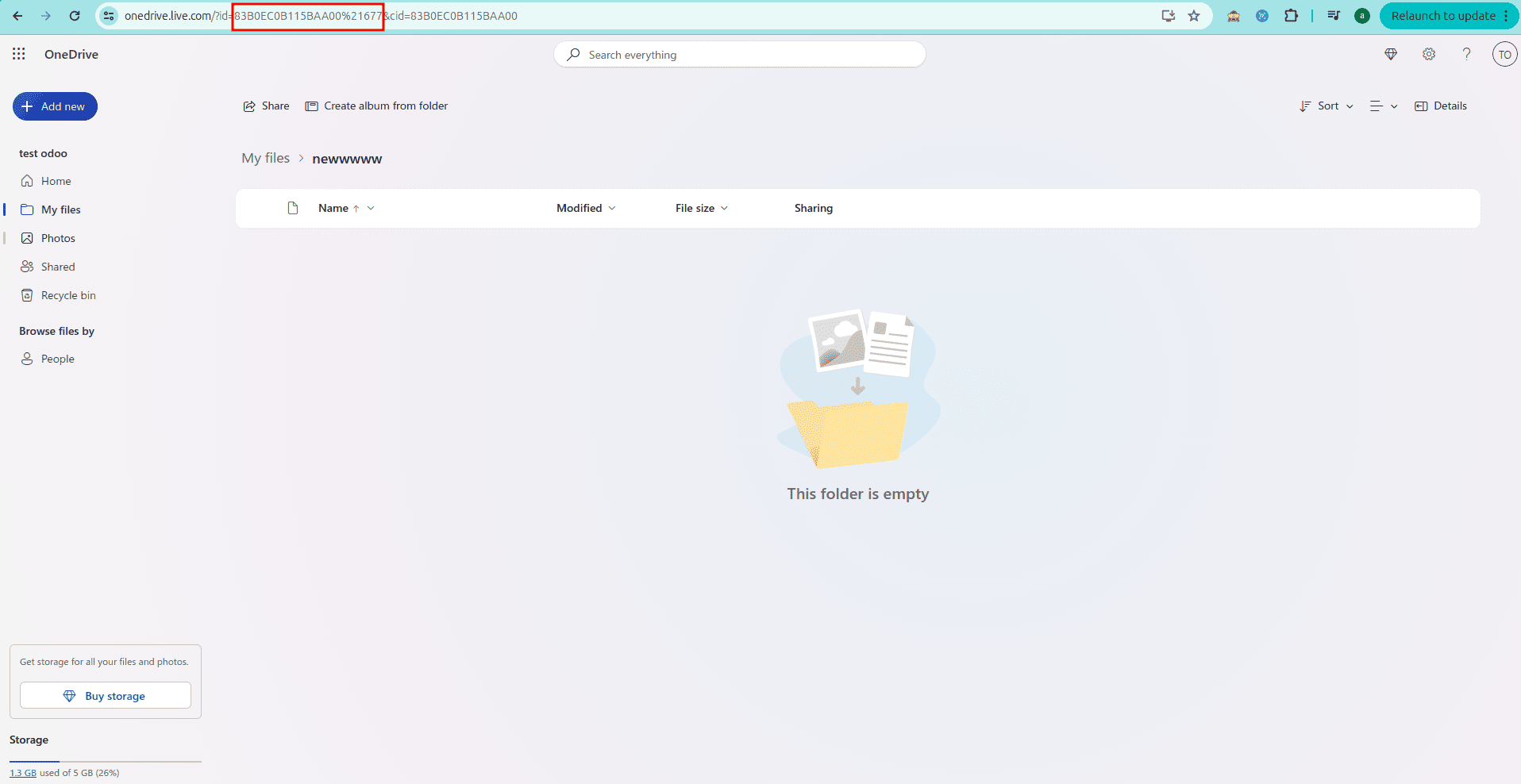
- Obtain the OneDrive Folder ID from the URL of the specific folder in OneDrive where you wish to store your backup files.
Step 5: Configure Backup in Odoo
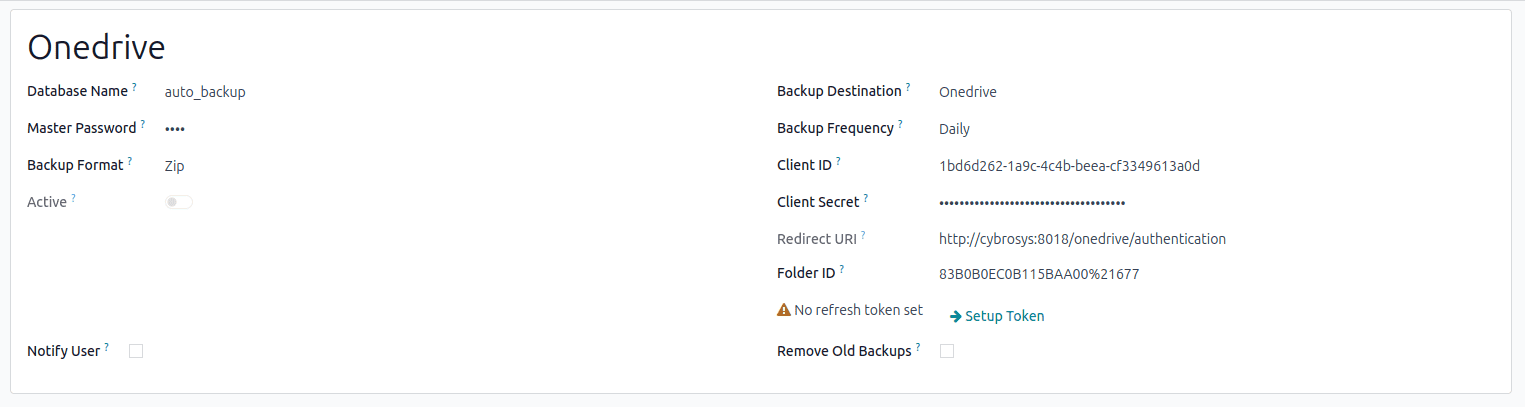
- Within the Backup Configuration settings in Odoo, select OneDrive as your backup destination.
- Enter the App Key (Client ID), App Secret (Client Credentials), and the OneDrive Folder ID into the respective fields.
Step 6: Authenticate & Generate Token
- Click on "Setup Token" to initiate the authentication process.
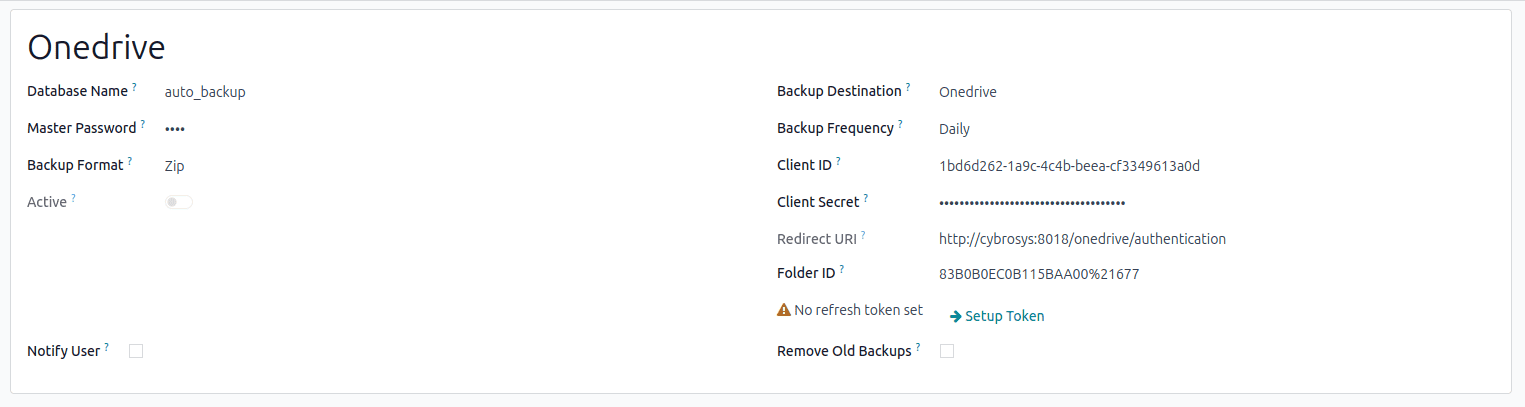
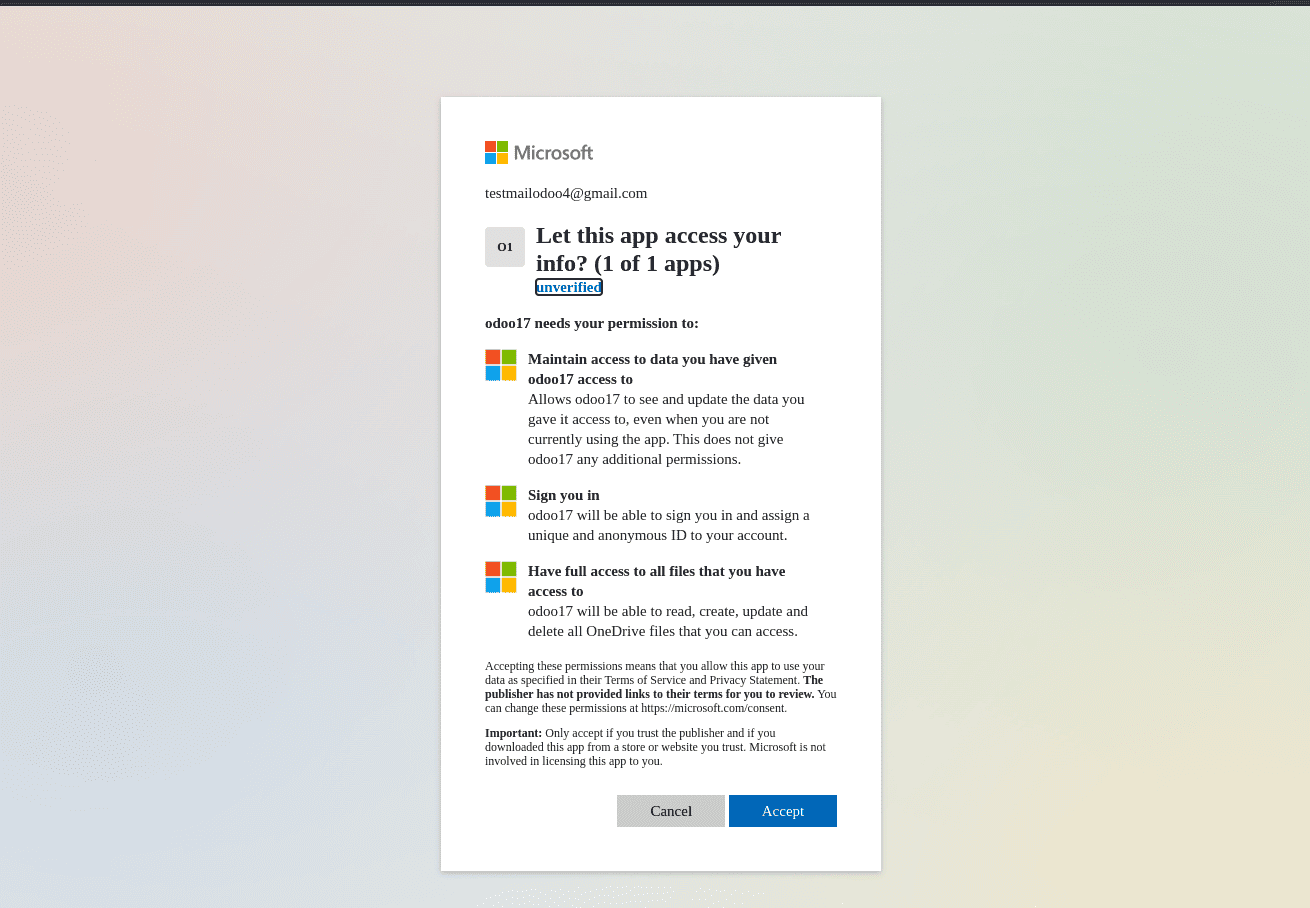
- You will be redirected to an authorization page where you must grant the necessary permissions for Odoo to access your OneDrive.
Nextcloud
To configure your Odoo backup to store files on Nextcloud, you need to set up a Nextcloud account and gather specific domain information.
Step 1: Create a Nextcloud Account
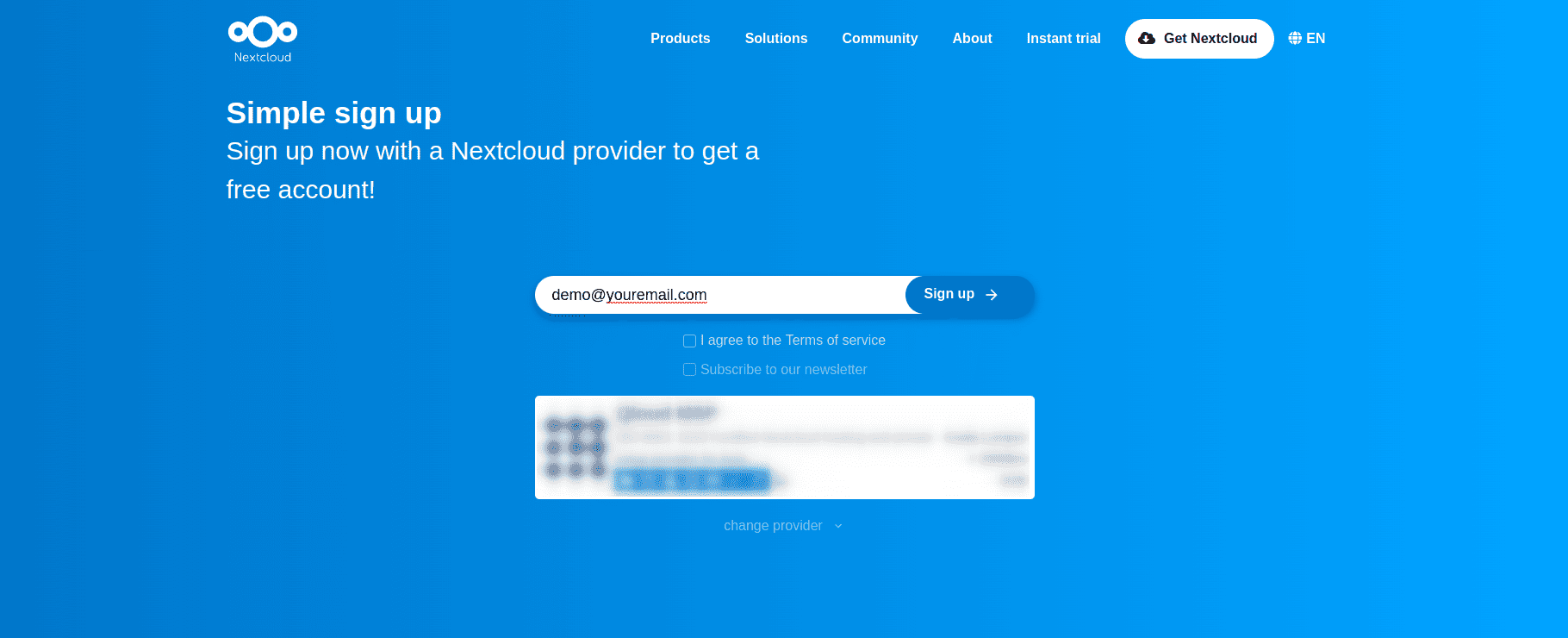
- Visit the Nextcloud sign-up page.
- Enter your email address and click "Sign Up" to create your account.
Step 2: Log in to Nextcloud
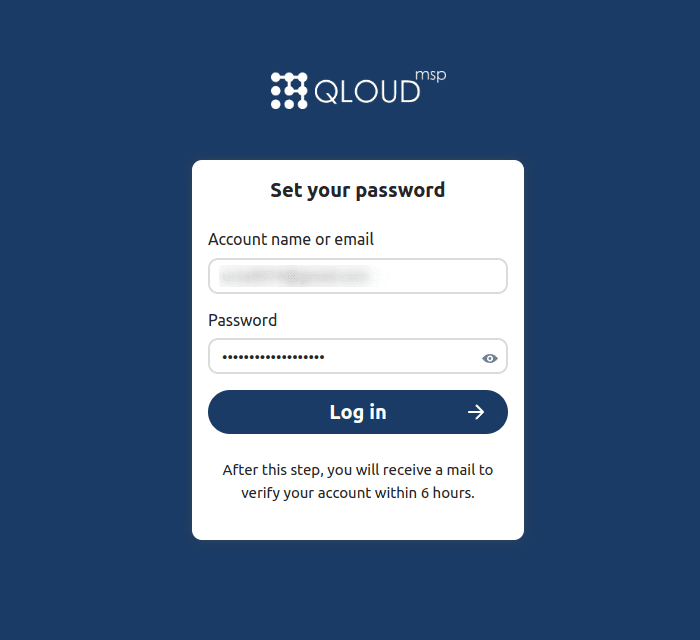
- After successfully signing up, you will be directed to a login page.
- Enter your registered email and password to access your Nextcloud account.
Step 3: Retrieve Your Nextcloud Domain
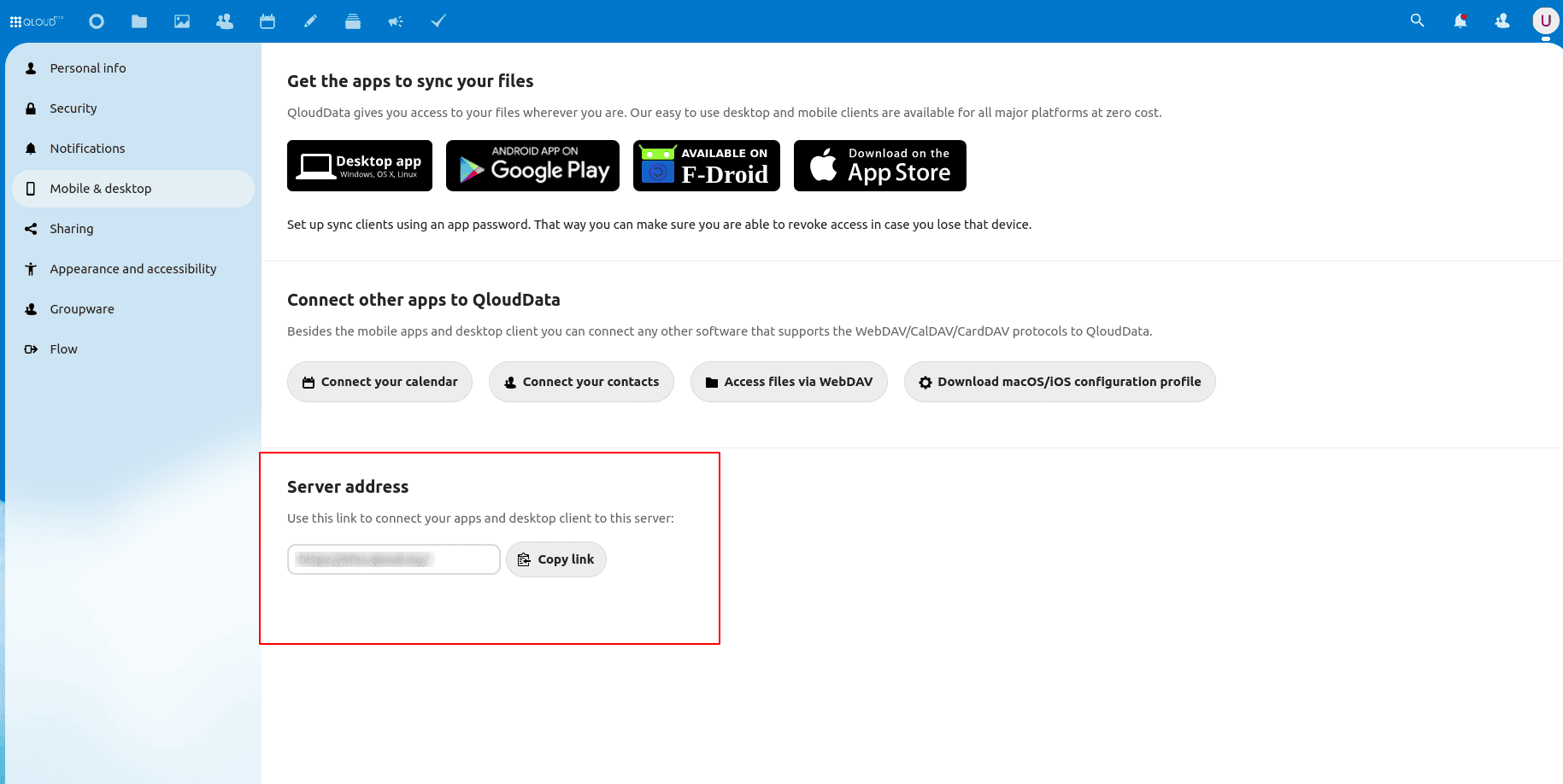
- Go to the "Settings" within your Nextcloud interface.
- Click on "Mobile & Desktop".
- Locate the "Server Address", copy the provided link, and then paste it as your Domain Name in the Odoo configuration.
Step 4: Configure Backup in Odoo
- In Odoo's Backup Configuration, select Nextcloud as the backup destination.
- Enter the following essential details:
- Domain Name (retrieved in Step 3)
- Username for your Nextcloud account
- Password for your Nextcloud account
- Folder Name (the specific folder within Nextcloud where backups will be stored)
- Click "Test the Connection" to verify that Odoo can successfully connect to your Nextcloud instance.
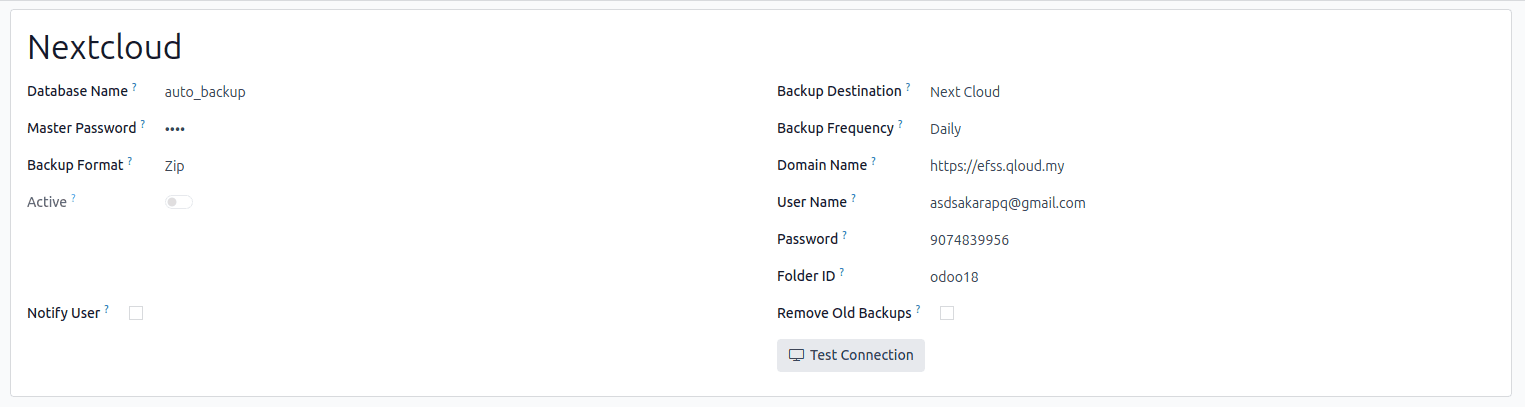
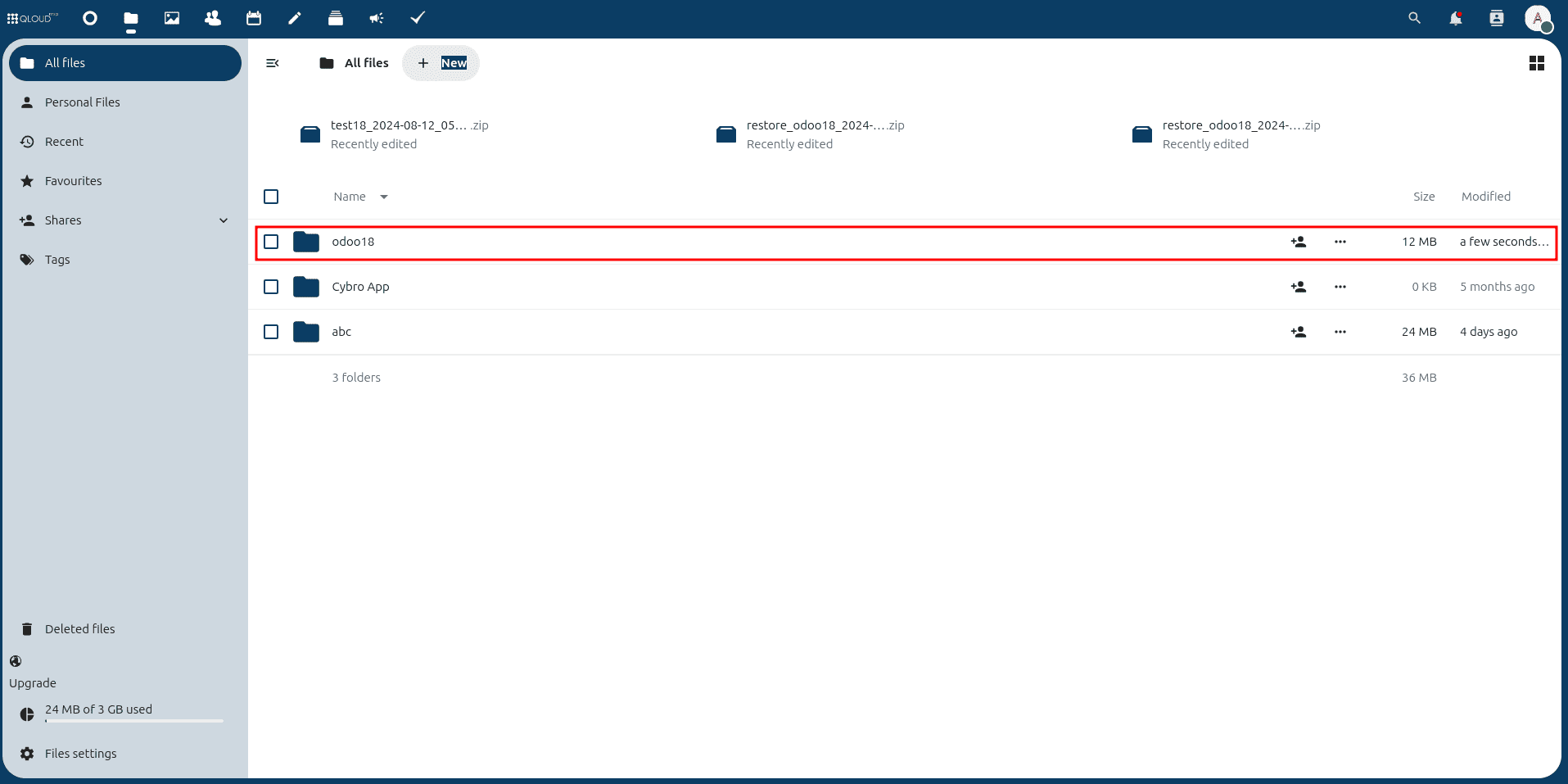
Once configured, backups will be automatically created in the specified folder within Nextcloud, adhering to your defined backup frequency.
Amazon S3
To configure Amazon S3 as your backup destination, you'll need to set up an AWS account, generate access keys, and create an S3 bucket.
Step 1: Create an Amazon S3 Account
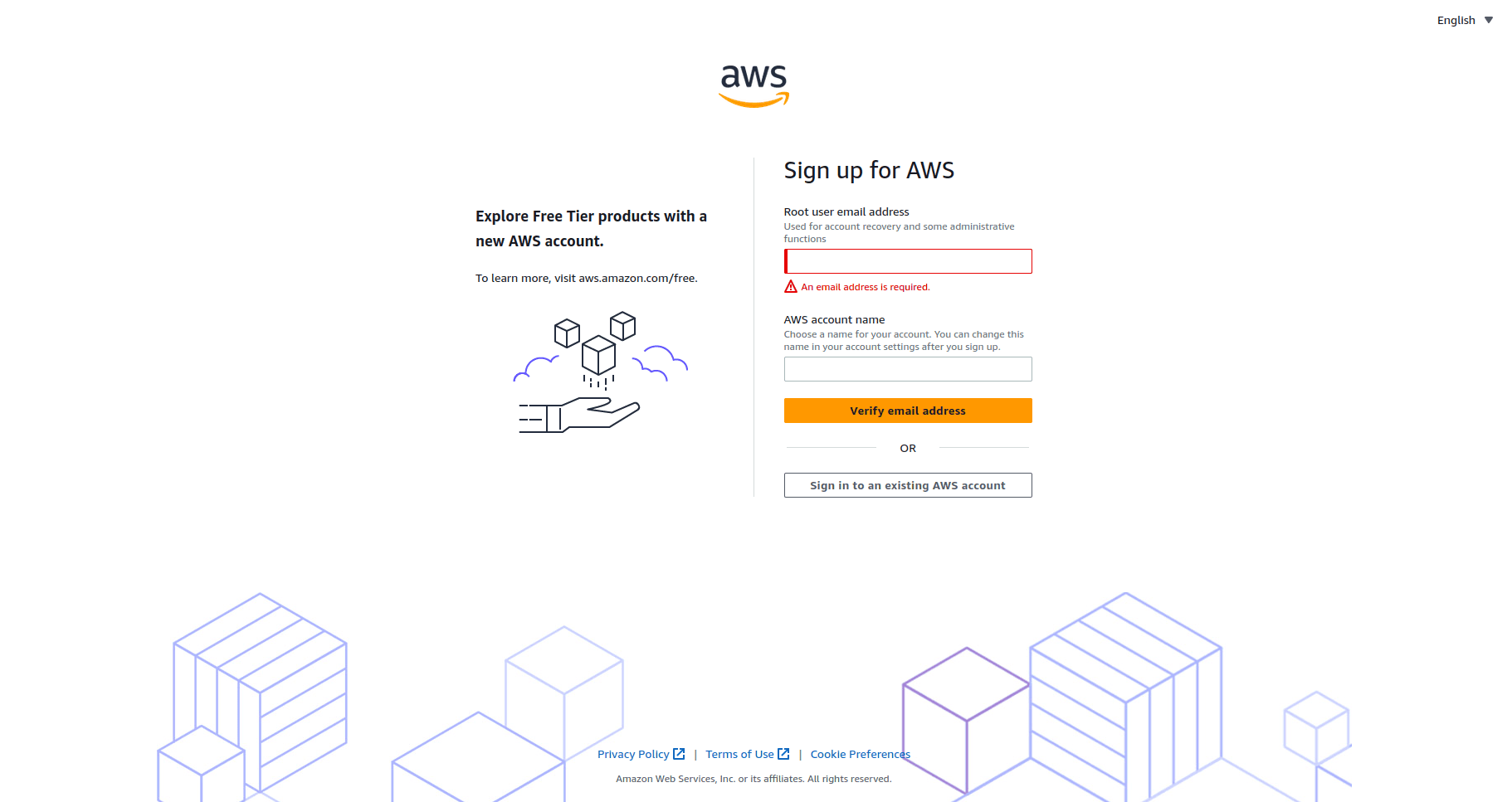
- Visit the Amazon S3 sign-up page.
- Enter your email address and complete the sign-up process to create your AWS account.
Step 2: Generate Access Keys
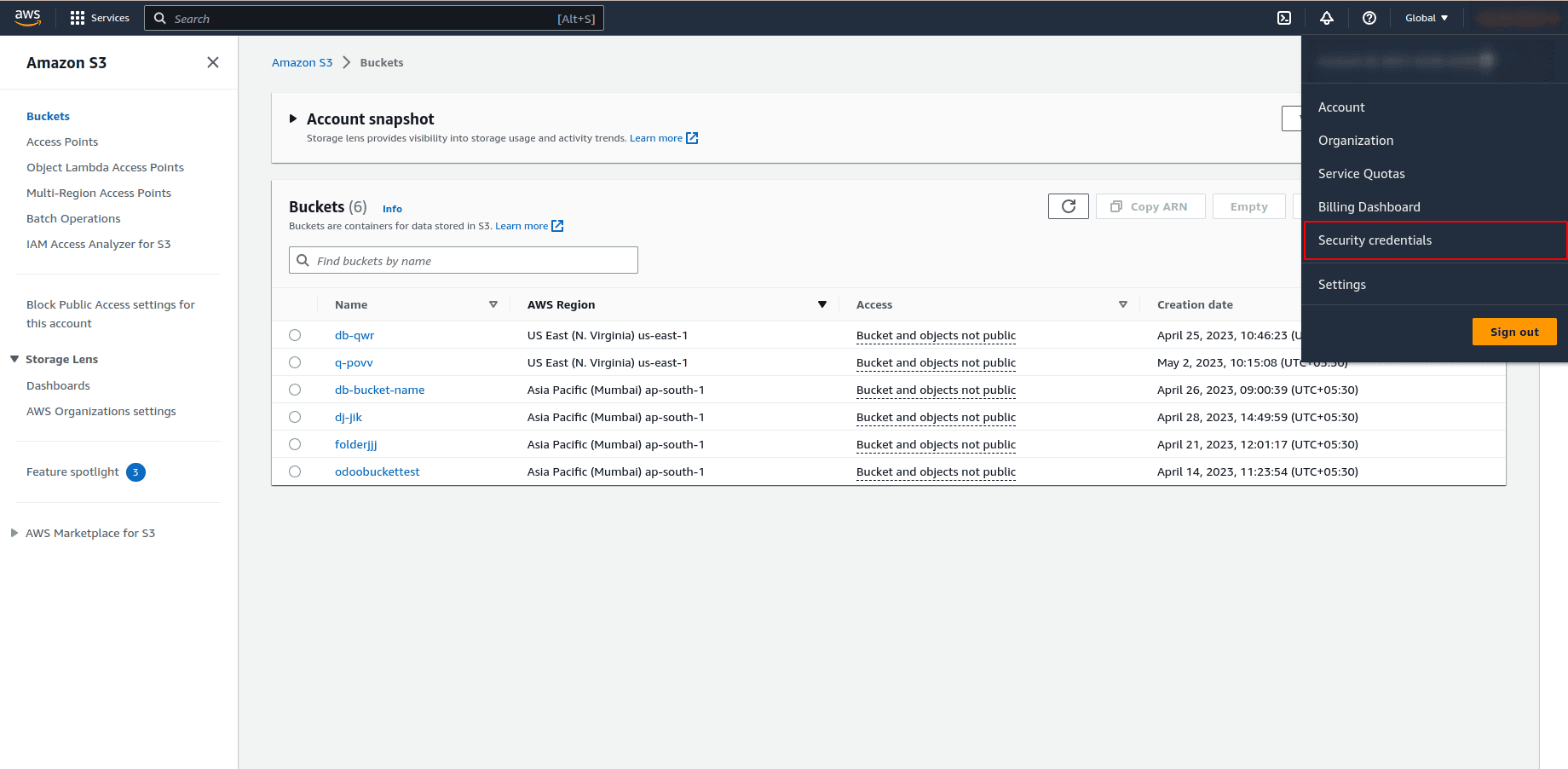
- After successfully creating your account, navigate to "Account Security Credentials".
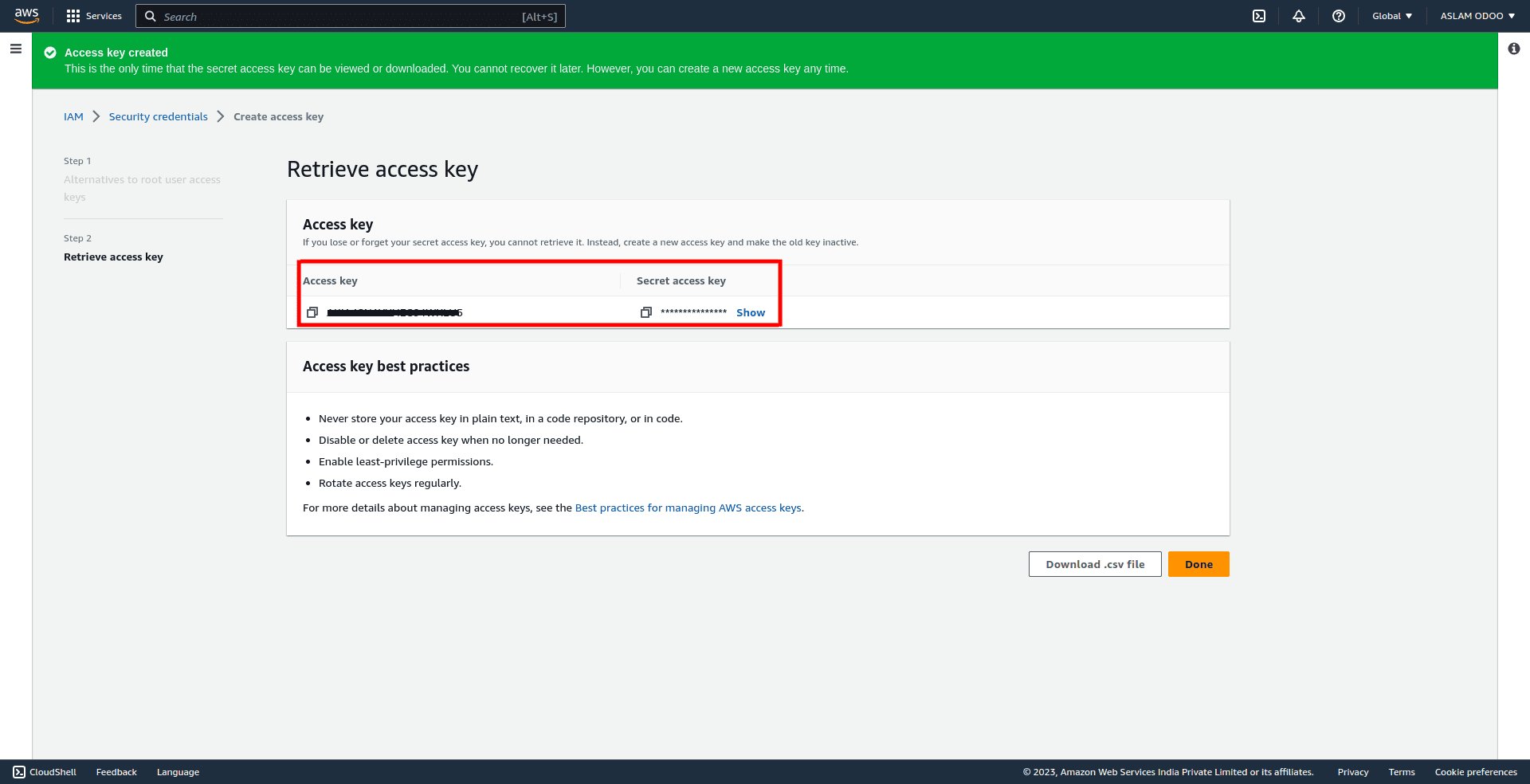
- Proceed to "Access Keys" and create a new access key.

- Copy both the Access Key and Secret Key, as these will be required for configuring Odoo. Store them securely.
Step 3: Create an S3 Bucket
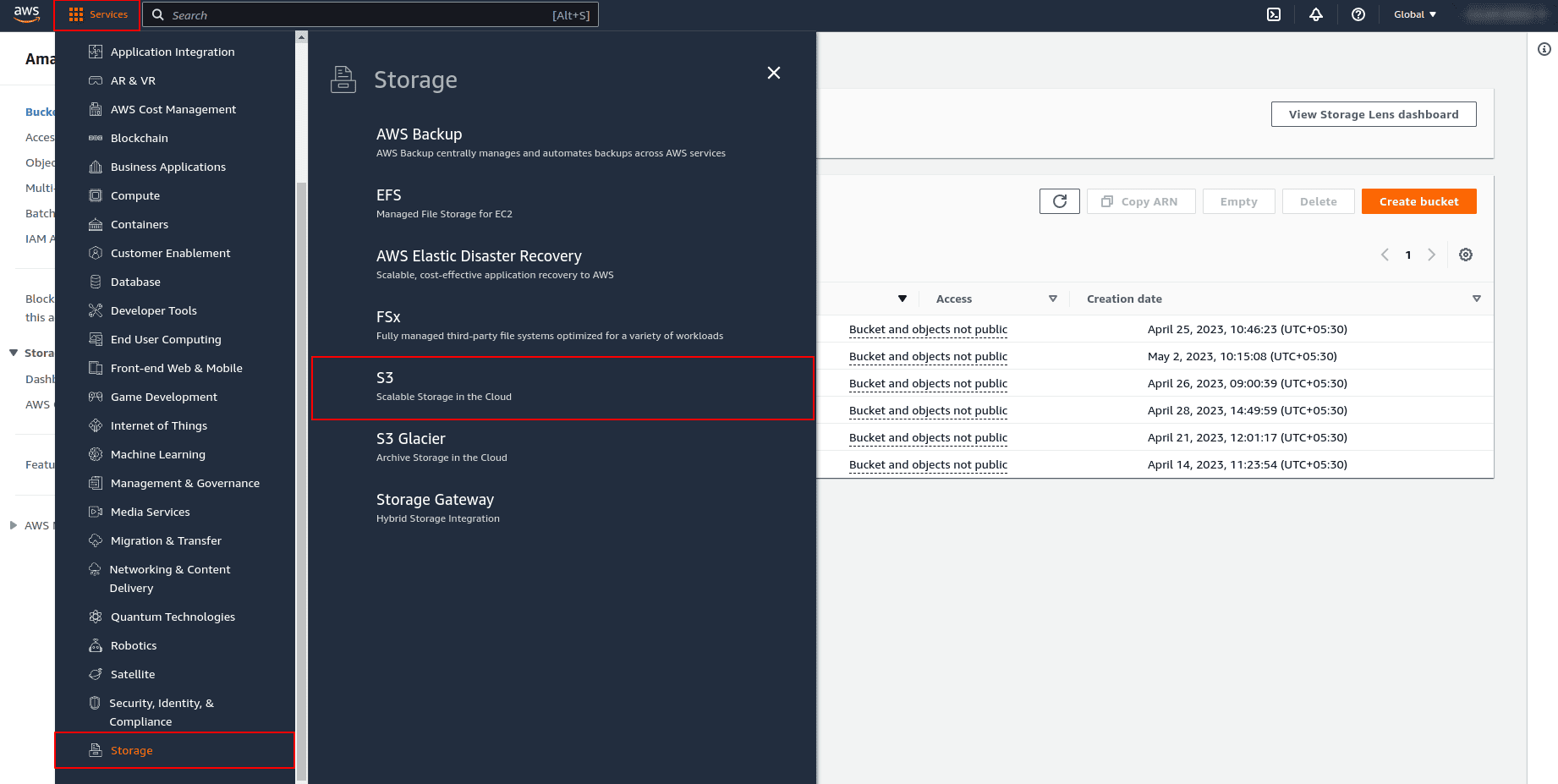
- In the AWS Management Console, click on "Services" (usually found at the top-right).
- Navigate to Storage > S3.
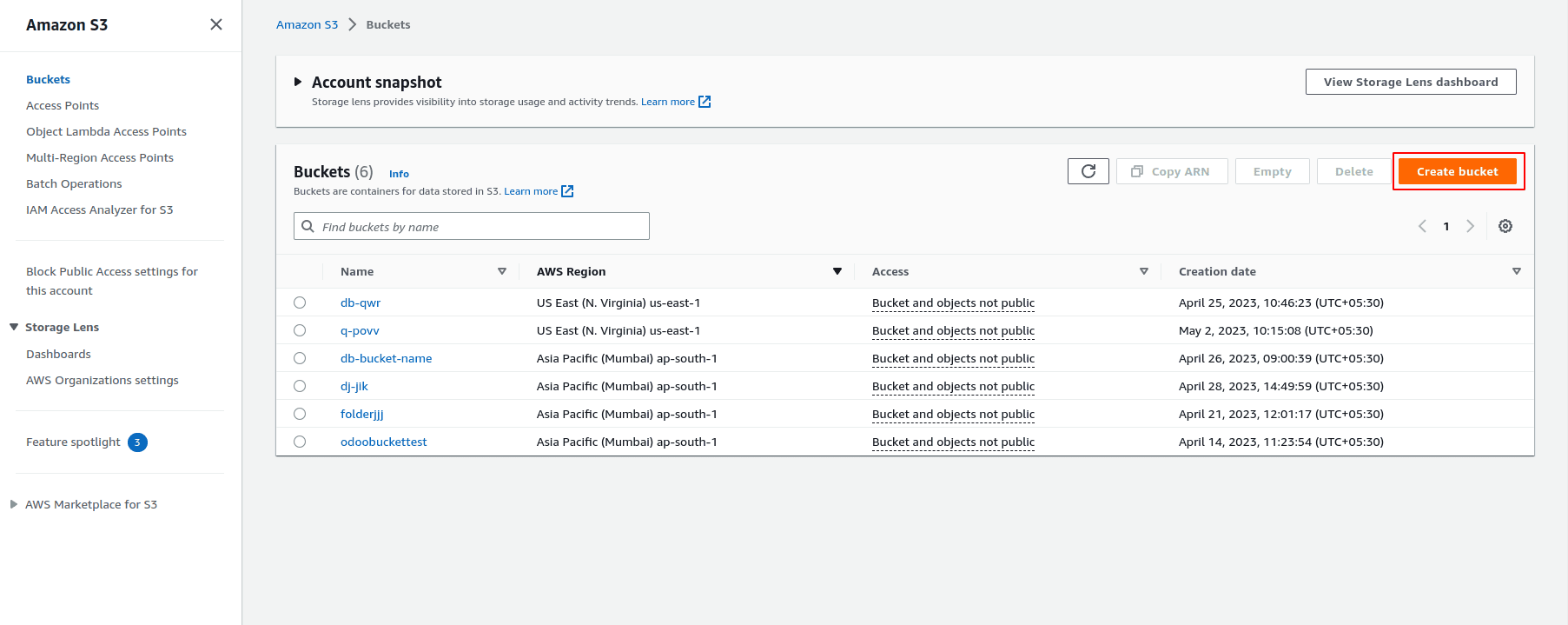
- Click on "Create Bucket".
- Follow the bucket naming rules and select the AWS region where you wish to store your backups to ensure compliance and optimal performance.
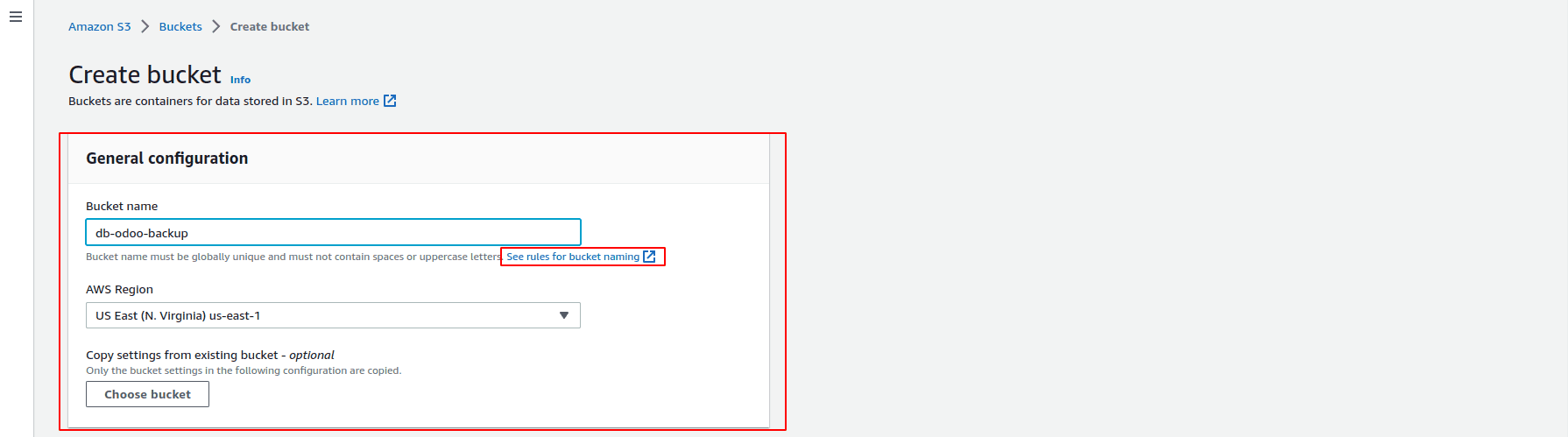
- Click "Create Bucket" to finalize the setup. You will then see the newly created bucket folder listed.
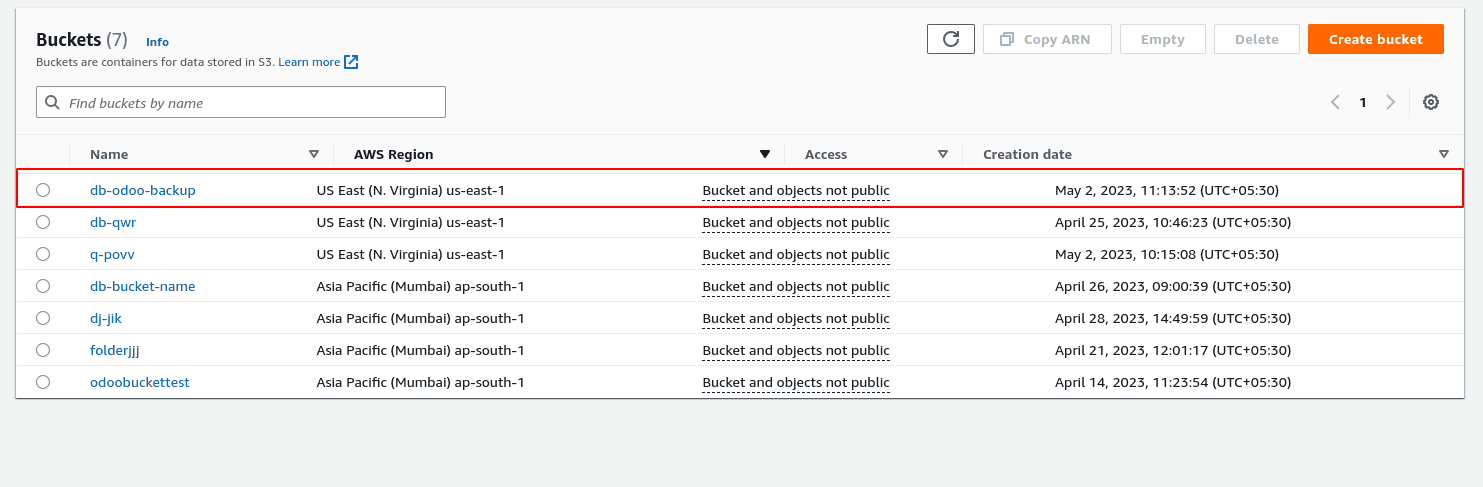
Step 4: Configure Backup in Odoo
- In Odoo's Backup Configuration, select Amazon S3 as the backup destination.
- Enter the following details:
- Amazon S3 Access Key
- Amazon S3 Secret Key
- Bucket Name (the name of the bucket you created in Step 3)
- File Name (the folder name where the backup files will be stored inside the S3 bucket)
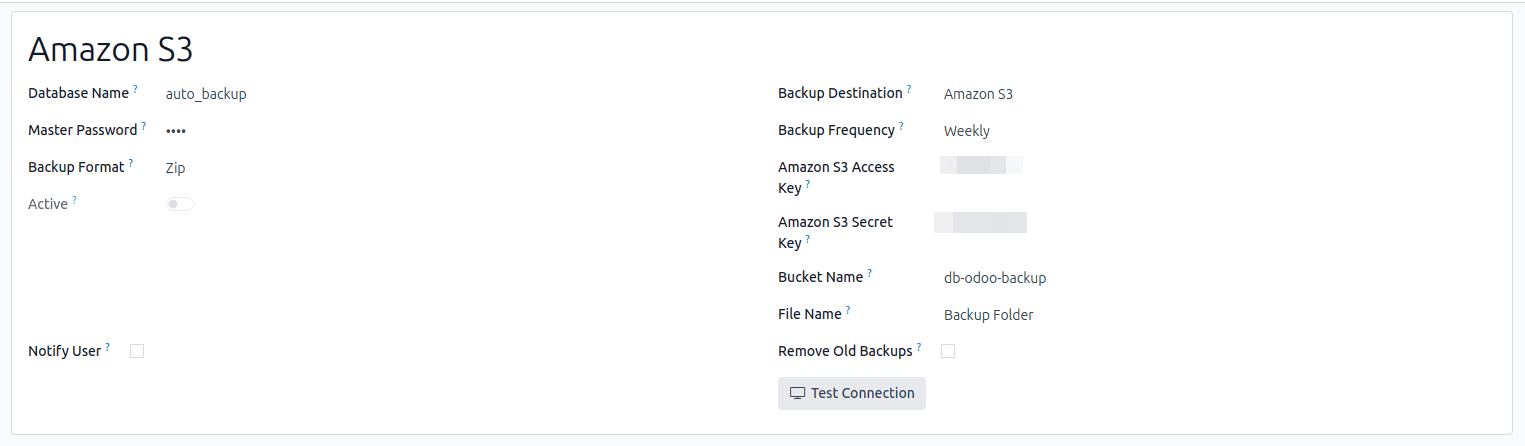
Step 5: Test Connection
- Click on the "Test Connection" button to verify that the setup is correct and that Odoo can communicate successfully with your Amazon S3 bucket.
Automatically Remove Old Backups
Enabling the auto-remove option for backups is a crucial feature that ensures old backup files are automatically deleted after a specified number of days. This proactive management strategy is vital for efficiently handling storage space, preventing the accumulation of unnecessary disk space consumption, and ensuring that your backup repository contains only the most relevant and recent backups. This helps in maintaining a streamlined and cost-effective backup solution.
Notify the User of Backup Generation Status
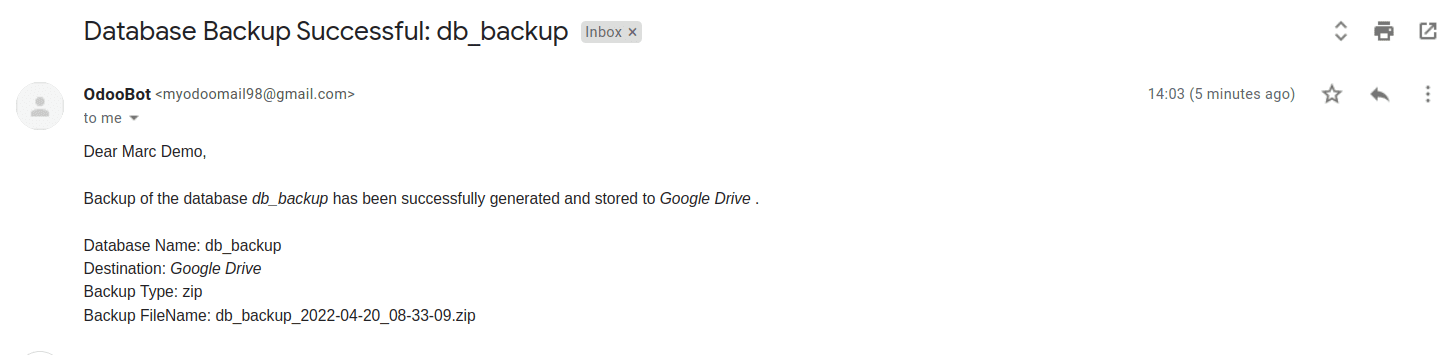
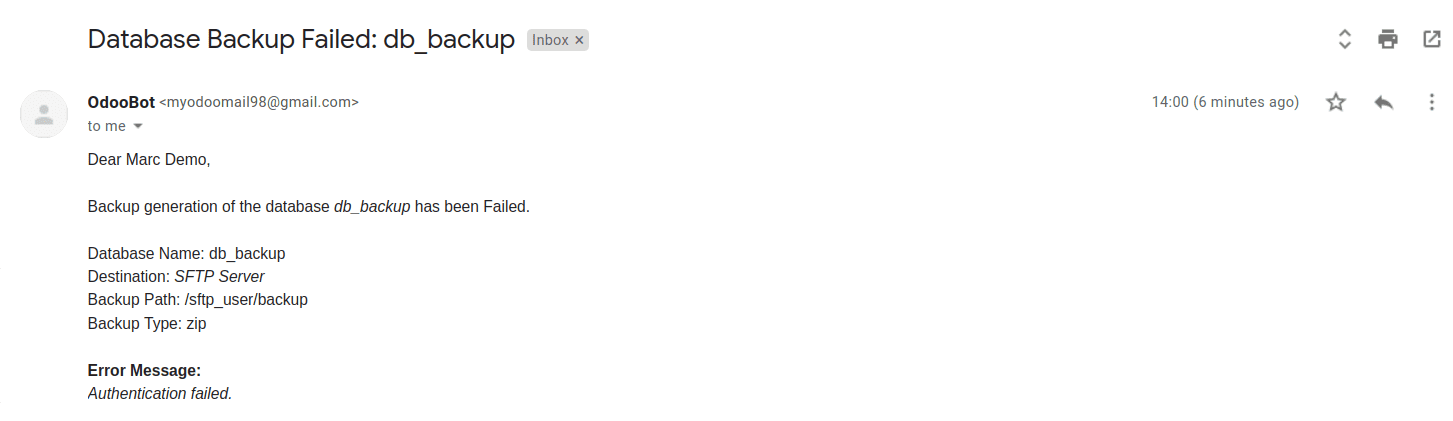
Activating the "notify user" option is essential for real-time monitoring of your backup processes. This feature ensures that a designated user receives email alerts whenever a backup operation either succeeds or fails. Such notifications are invaluable for administrators, enabling them to respond promptly to any failures and take immediate corrective action, thereby minimizing potential data recovery delays.
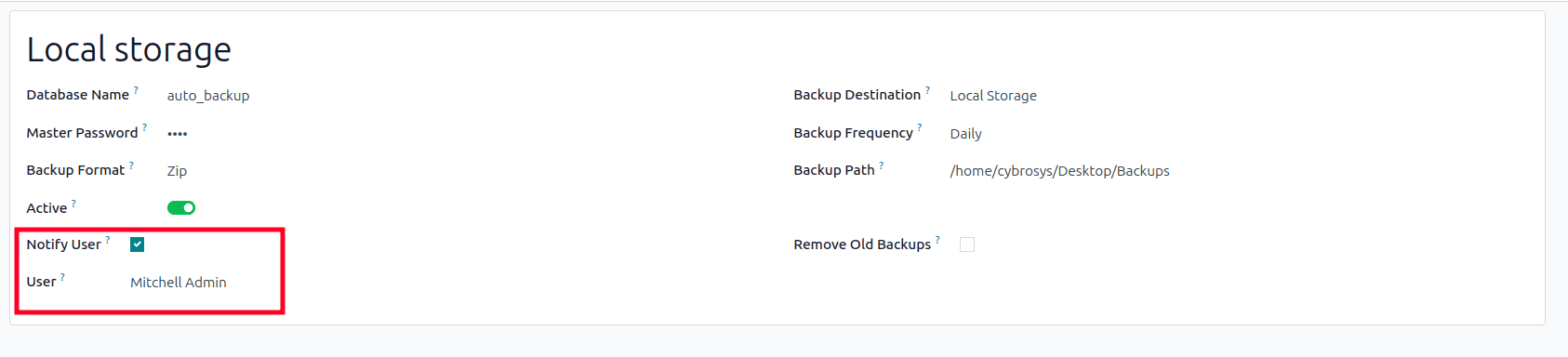
- Successful Backup Notification Email:
- Failed Backup Notification Email:
Scheduled Actions for Automatic Database Backup
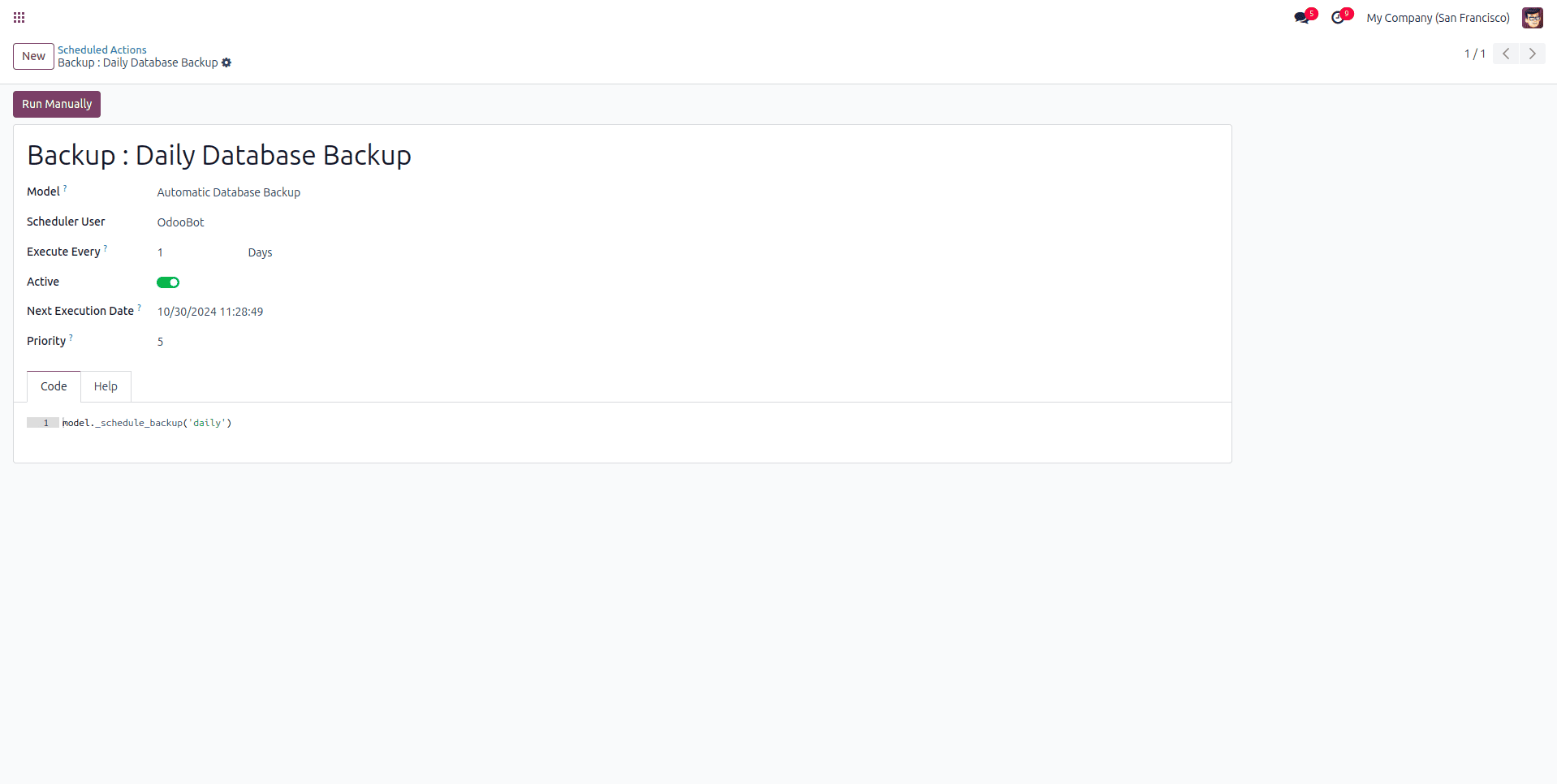
The Automatic Database Backup module configures three distinct scheduled actions to manage the backup process at your specified location, based on predefined intervals:
- Daily Backup: This action runs every day, ensuring that you have the most up-to-date data available for recovery, minimizing data loss risk.
- Weekly Backup: Executed once a week, this provides periodic data protection, maintaining a consistent record of your database state over time.
- Monthly Backup: This action runs once a month, supporting long-term backup retention and providing historical data snapshots for compliance or archival purposes.
To ensure reliable and automated data protection, it is crucial to enable these scheduled actions. They will execute backups precisely as per the defined backup frequency in your configuration, establishing a robust and hands-free data protection strategy.
Select the scheduled action that corresponds to your desired backup frequency.
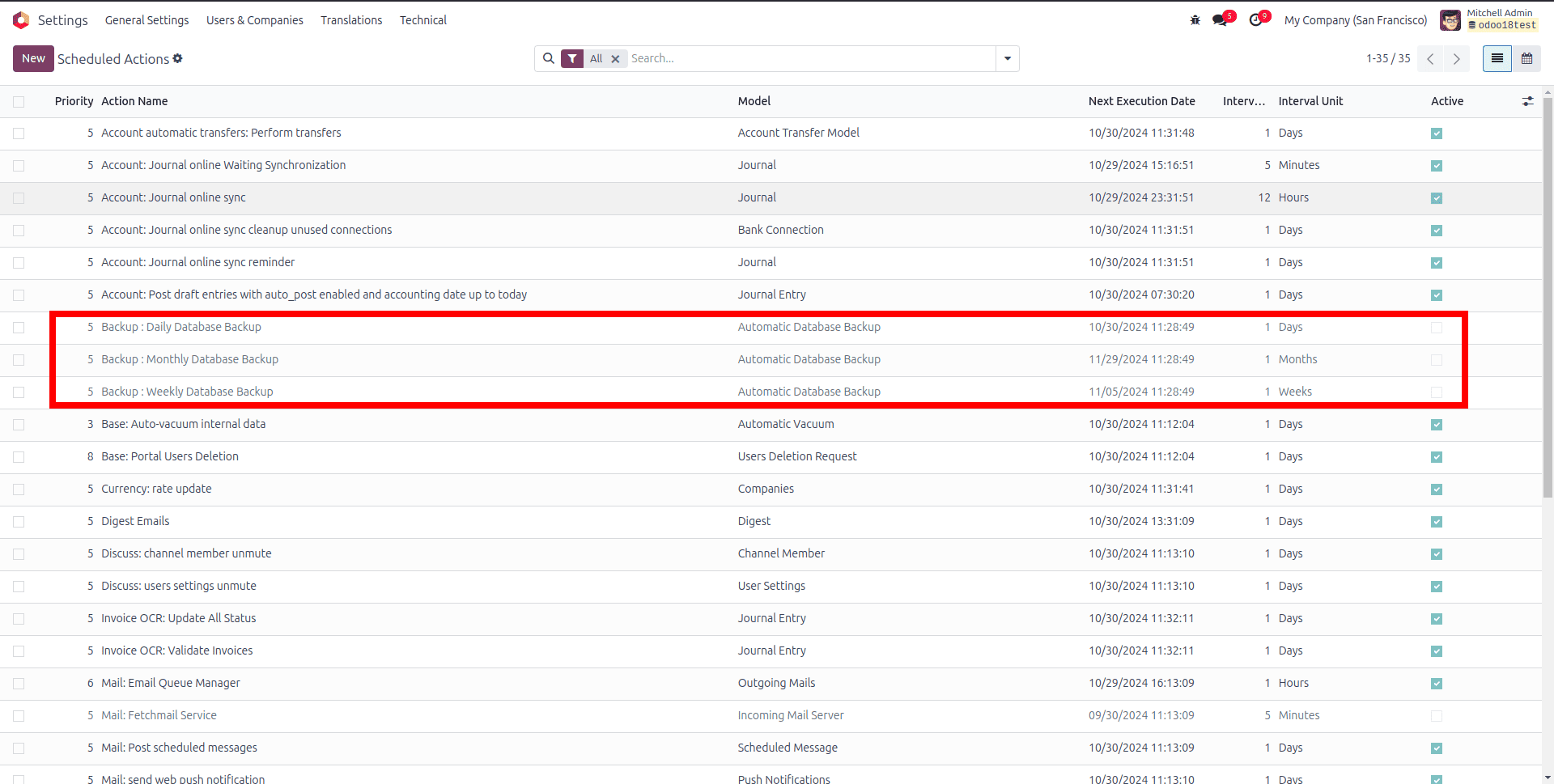
Activate the chosen scheduled action to enable its automatic execution. You also have the option to click 'Run Manually' to perform an immediate backup.
The Automatic Database Backup module for Odoo 18 provides seamless and reliable backup management by automating the entire backup process across numerous storage destinations. With comprehensive support for local servers, remote servers, and leading cloud services such as Google Drive, Dropbox, OneDrive, Nextcloud, and Amazon S3, businesses can effectively safeguard their critical data.
This powerful module significantly enhances data security, optimizes storage utilization, and improves disaster recovery readiness. It achieves this by enabling highly customizable scheduled backups (daily, weekly, and monthly), facilitating the automatic removal of old backup files, and providing real-time notifications on backup status. Whether you operate a large enterprise or a small business, this feature-rich solution ensures that your Odoo database remains consistently protected, thereby drastically minimizing the risk of data loss and potential downtime. Implementing this module offers unparalleled peace of mind, knowing that your essential data backups are automated, secure, and readily accessible whenever they are needed for restoration or auditing.
