
 (1).svg)
 (1).png)


 (1).svg)
.svg)
Odoo 19 stands as a powerful and highly adaptable platform, designed for managing and customizing a diverse array of business applications. It empowers developers to effortlessly create tailored solutions that address specific needs, from data management and process automation to the development of unique workflows. A core feature of Odoo 19 is its web controller framework, which enables developers to craft bespoke front-end views and efficiently handle HTTP requests. These web controllers are essential for bridging Odoo's robust backend with external applications or custom web pages, facilitating real-time data integration and seamless management. By leveraging web controllers, businesses can significantly extend Odoo’s capabilities beyond standard ERP configurations, offering dynamic and interactive experiences for partners, suppliers, and customers alike.
At their core, controllers in Odoo function as the critical link between your website's front-end and the backend modules, effectively managing and configuring front-end interactions. They are instrumental in designing smooth, dynamic website experiences, allowing you to establish unique URLs that seamlessly connect your web pages to powerful backend functions and data.
To begin working with controllers, the first step is to establish a dedicated controllers folder within your custom module. This folder will house the necessary Python files, including an __init__.py file, to organize your web logic.
# -*- coding: utf-8 -*-
from . import controllers
Once created, this new controllers folder will become an integral part of your module structure, providing a specific and organized area for defining unique web routes and extending Odoo's native website functionalities.
Creating a Controller File
Developing a controller in Odoo grants you the flexibility to create unique web routes, enabling the acquisition and presentation of backend data on the front end. To achieve this, you will need to import the required modules and define your controller class within a controller file. Let's create an example controller designed to display all relevant sales order information.
# -*- coding: utf-8 -*-
from odoo import http
from odoo.http import request

class SaleOrderController(http.Controller):
    @http.route(['/saleorders'], type="http", auth="user", website=True)
    def display_sale_orders(self, **kwargs):
        sale_orders = request.env['sale.order'].sudo().search(
            [], order="date_order desc"
        )
        return request.render(
            "custom_module_name.sale_order_website_custom_layout",
            {
                'orders': sale_orders
            }
        )
The @http.route decorator is a fundamental component when defining a URL route in Odoo, specifying where a particular controller function should respond. This decorator provides a comprehensive way to configure how your web pages interact with the Odoo system.
@http.route(['/saleorders'], type="http", auth="user", website=True)
Understanding Route Decorator Elements
Each element within the @http.route decorator serves a distinct and crucial function in defining the behavior of your web controller:
'/saleorders': This defines the specific URL path. When a user navigates to this URL (e.g.,<your_domain>/saleorders), Odoo executes the associated function beneath this decorator to generate and display the corresponding webpage.type='http': This parameter indicates that the route is intended for standard HTTP requests. It signifies that the route is designed to be accessed directly by web browsers. Alternatively,'json'is used for API endpoints that primarily return data in JSON format, often for client-side applications.auth='user': This parameter dictates the level of authentication required for users to access the specified route. The primary choices include:'public': Allows anyone, including visitors who are not logged in, to view the page.'user': Restricts access to authenticated users only, meaning only those who are logged into Odoo can access the page.'bearer': Utilizes an API token for user verification, typically transmitting credentials via basic authentication, common for secure API integrations.'none': Requires no authentication, making the route fully accessible to all, similar to 'public' but often used for very specific, non-sensitive endpoints.
website=True: This option determines whether the controller is explicitly linked to the Odoo website. A value ofTruedesignates it for website-integrated pages, whileFalseis typically used for non-website functionalities or internal routes.methods: If you do not explicitly specify the allowed HTTP methods, the route will accept all methods by default. Commonly used methods include:['GET']: Primarily used to retrieve information without making any alterations to the data.['POST']: Employed for submitting data or making modifications to existing records.
sitemap: This parameter facilitates the creation of sitemap links. Sitemaps act as a directory for accessible pages, significantly enhancing website navigation and discoverability for search engines.cors: Cross-Origin Resource Sharing (CORS) is a mechanism that makes it easier for servers and browsers to safely exchange data across different origins and manage secure requests.multilang: This functionality enables front-end translations, allowing the inclusion of multiple languages on the website, which is crucial for internationalization.csrf: Cross-Site Request Forgery (CSRF) security is implemented by generating a unique token for each user session, protecting against malicious attacks where unauthorized commands are transmitted from a trusted user.
Within the controller function, the sale_orders variable now holds all the retrieved sales order information. In controllers, request.env is the standard method for accessing the Odoo environment, which provides access to all models and services. This differs from models, where self.env is typically used for database interactions.
It is good practice to employ the sudo() method before performing any operations like search or create when working with records. This approach helps to gracefully handle potential access permission issues, ensuring that your operations proceed without encountering restrictions when retrieving or modifying records.
With the data secured, we can now generate a webpage to effectively display the sales order details:
  return request.render(
            "custom_module_name.sale_order_website_custom_layout",
            {
                'orders': sale_orders
            }
        )
Should there be a need to redirect the user to a different URL rather than rendering a page, the request.redirect method can be utilized. For example, to direct a user to the /shop page, you would simply write:
return request.redirect('/shop')
Creating the View
The next essential step involves creating the sale_order_website_custom_layout XML template within your module's views folder. This template is crucial because our controller has been configured to reference and render this specific view, thus defining the front-end presentation of our data.
<?xml version="1.0" encoding="utf-8"?>
<odoo>
    <template id="sale_order_website_custom_layout" name="Sale Orders Custom Layout">
        <t t-call="website.layout">
            <div class="container mt-4">
                <h3>Sale Orders</h3>
                <table class="table table-bordered table-striped mt-3">
                    <thead>
                        <tr>
                            <th>Order</th>
                            <th>Date</th>
                            <th>Customer</th>
                            <th>Status</th>
                            <th class="text-end">Untaxed</th>
                            <th class="text-end">Tax</th>
                            <th class="text-end">Total</th>
                        </tr>
                    </thead>
                    <tbody>
                        <t t-foreach="orders" t-as="order">
                            <tr>
                                <td>
                                    <t t-esc="order.name"/>
                                </td>
                                <td>
                                    <t t-esc="order.date_order"/>
                                </td>
                                <td>
                                    <t t-esc="order.partner_id.name"/>
                                </td>
                                <td>
                                    <t t-esc="order.state"/>
                                </td>
                                <td class="text-end">
                                    <t t-esc="order.amount_untaxed"/>
                                </td>
                                <td class="text-end">
                                    <t t-esc="order.amount_tax"/>
                                </td>
                                <td class="text-end">
                                    <t t-esc="order.amount_total"/>
                                </td>
                            </tr>
                        </t>
                    </tbody>
                </table>
                <t t-if="not orders">
                    <div class="alert alert-info mt-3">
                        No sale orders found.
                    </div>
                </t>
            </div>
        </t>
    </template>
</odoo>
After successfully implementing the controller and view, navigating to the /saleorders page will now dynamically display all available sales orders, as illustrated below.
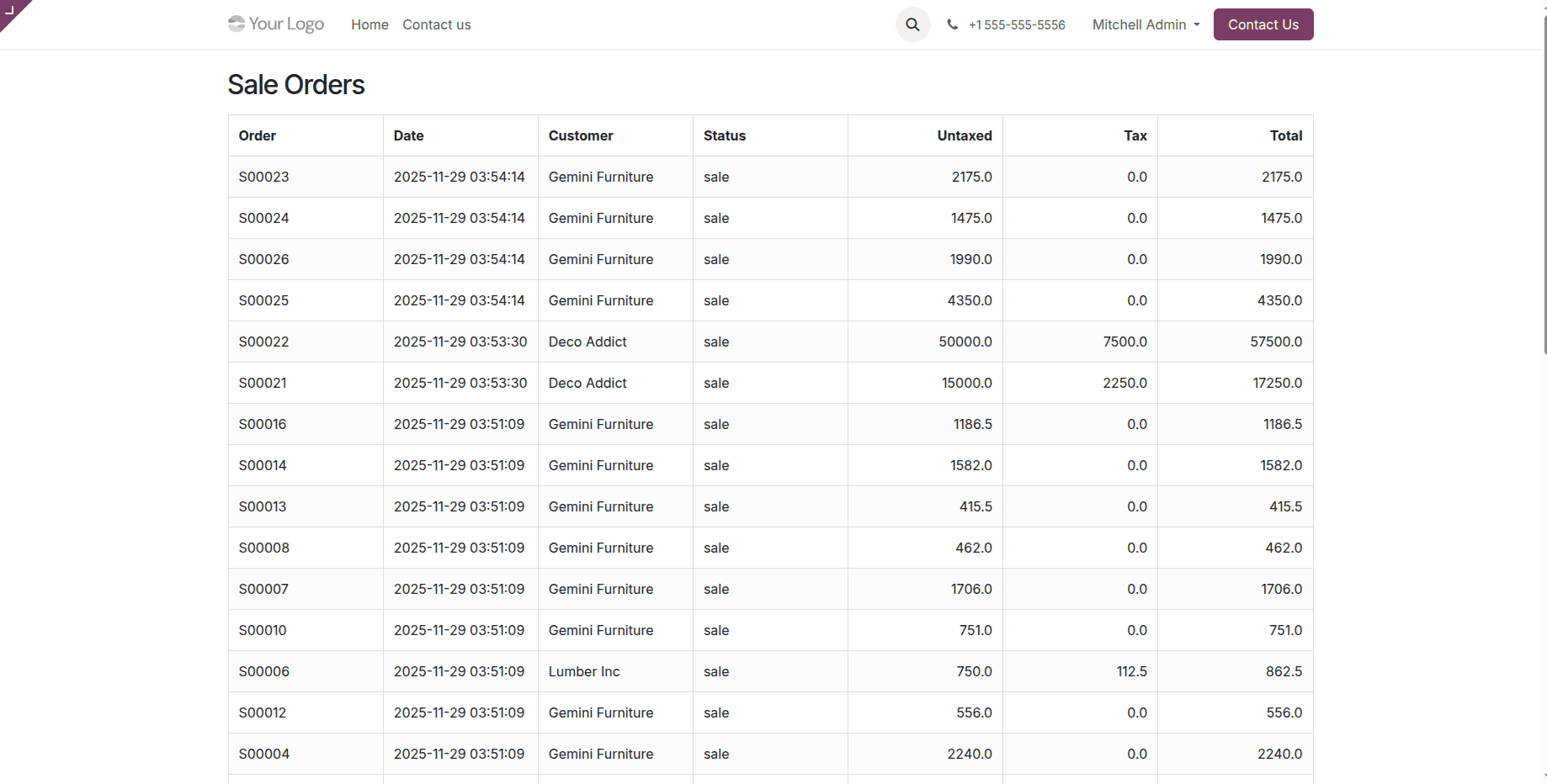
In conclusion, web controllers in Odoo 19 provide developers with powerful tools to customize web interactions, enabling them to define routes, implement business logic, and manage responses effectively. These flexible tools are fundamental for building unique and dynamic online experiences, seamlessly integrating custom web functionalities with the robust Odoo backend.
