
 (1).svg)
 (1).png)


 (1).svg)
.svg)
This guide will walk you through the straightforward process of installing the popular WordPress Content Management System (CMS). We will focus on utilizing the Softaculous Apps Installer, a common feature within many hosting environments. With just a few simple clicks, you can establish a secure and robust WordPress installation, ready for all your content creation endeavors. This installation method is designed to be convenient for both new and experienced users, offering an efficient way to launch your new WordPress project.
Accessing Softaculous for WordPress Installation
The initial step to installing WordPress through the Softaculous Apps Installer involves locating it within your hosting control panel, typically referred to as cPanel. You will usually find Softaculous situated under the Software section.
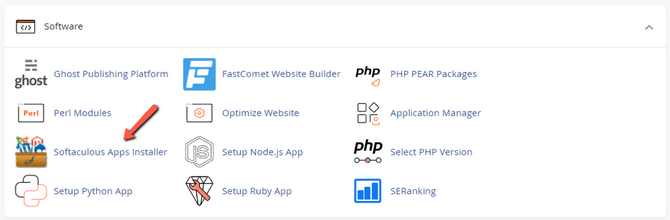
Upon opening Softaculous, you will be greeted by its intuitive home page. This central hub provides access to a wide array of applications available for installation, along with various options and functions to manage your software effectively. Familiarizing yourself with this interface can streamline your website management tasks.
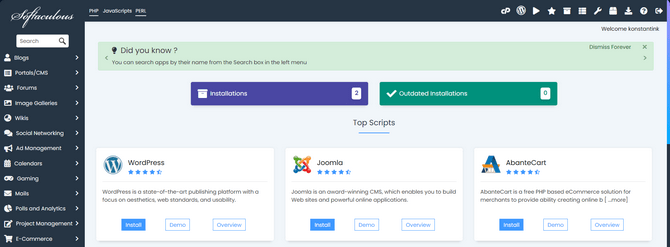
The next crucial step is to find WordPress. Given its immense popularity, WordPress is typically prominently displayed on the Softaculous home page, often appearing as one of the top applications. Should you not immediately spot it, you can utilize the search bar located at the top left of the interface. Alternatively, WordPress is generally categorized under the Blogs section. To commence the installation process, simply click the Install button. Softaculous also provides Demo or Overview buttons for those who wish to explore more about the software before proceeding.
Regardless of your chosen method, you will ultimately arrive at the application's dedicated installation page. Here, you will be presented with two distinct installation choices: Quick Install and Custom Install. These options can be selected from a drop-down menu adjacent to the Install button. The Quick Install offers the fastest route to getting started, with minimal customization options. In contrast, the Custom Install provides a more comprehensive set of choices, allowing you to predefine numerous aspects of your website setup.
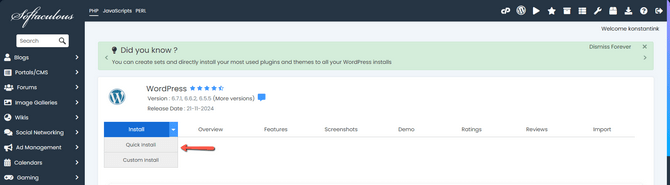
Configuring Your WordPress Installation
With Softaculous accessed, it's time to select your preferred installation type: either a Quick Installation or a Custom Installation. It's important to note that the foundational WordPress software remains identical regardless of the method you choose. The primary distinction lies in the level of control and customization offered. The Custom Installation provides the flexibility to alter specific website attributes and even pre-install certain plugins, which can be advantageous for users with particular requirements. To ensure you make an informed decision, we will now detail both installation types.
Quick Installation Method
The Quick Install method is designed for speed and efficiency, enabling you to launch a functional website in mere seconds. With its streamlined approach and minimal customization options, you are just a few clicks away from a brand new WordPress website. It's worth remembering that this method results in a barebones installation, meaning you will need to undertake most of the customization and configuration from scratch directly within the WordPress dashboard after the installation is complete.
Let's delve into the specific options available through the Quick Install method:
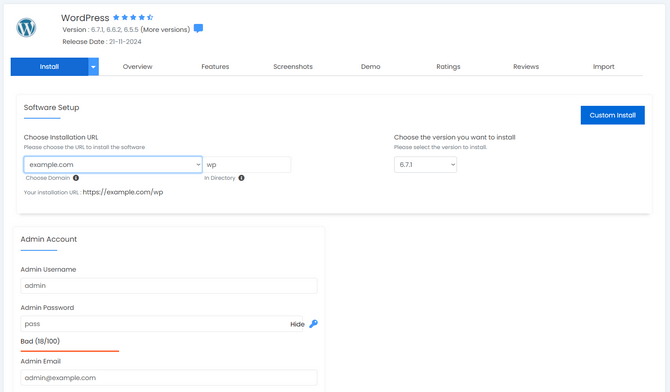
- Choose Installation URL: This section allows you to designate the domain where WordPress will be installed. This will be the address visitors use to access your WordPress website. You have the option to install it in a subdirectory (as shown in the example screenshot, within the wp subdirectory), or directly in the root directory of your domain. For most users and for ease of access and SEO purposes, installing in the root directory is generally recommended.
- Choose the Version you Want to Install: Here, you select your starting WordPress version. It is strongly advised to always choose the latest available version. This ensures you benefit from the most recent security patches, performance enhancements, and new features, safeguarding your website and providing the best user experience.
- Admin Username: This field is for defining the username for your administrative account. Choose a unique and memorable username that is not easily guessable to enhance security.
- Admin Password: Enter a strong password for your admin user. The strength of your password is critical for website security. Utilize a combination of uppercase and lowercase letters, numbers, and special characters. Many online password generators can assist you in creating a highly secure password.
- Admin Email: Provide a valid email address for the admin user. This email will be used to send important notifications regarding your website, including updates, security alerts, and password recovery options.
Once you are satisfied with your selected settings, proceed by clicking the Install button at the bottom of the page. The installation process typically takes only a few moments. During this time, Softaculous efficiently downloads and installs the core WordPress software into your specified directory. Concurrently, it creates a dedicated database for your WordPress site and configures WordPress's essential configuration file to seamlessly connect with this new database.
However, if you require more granular control, such as the ability to custom-name your database or configure additional advanced options, the Custom Installation method described next will be more suitable for your needs.
Custom Installation Method
The Custom Install option encompasses all the functionalities provided by the Quick Install, while also offering an extended range of choices for more detailed customization. These additional options are conveniently organized into several sections, allowing you to fine-tune your WordPress installation. Let's explore what each of these sections offers:
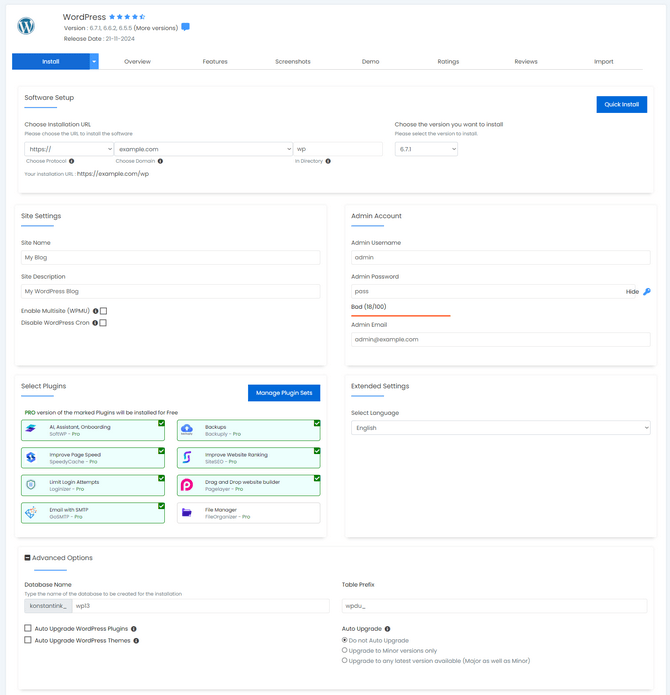
- Choose Protocol: If your website is secured with an SSL certificate and uses HTTPS, you should select https:// or https://www. as your protocol. It is highly recommended to use HTTPS for all live websites, as it encrypts data transferred between the user's browser and your site, improving security and boosting search engine rankings. Only choose http:// if you are operating in a local development environment.
- Choose Domain: Similar to the Quick Install section, here you select the domain that will host your new WordPress website. You retain the flexibility to install it either in a specific subdirectory or directly within the root directory of your chosen domain.
- Site Name: In this field, you can enter the desired name for your website. While Softaculous may provide a default name, you have complete freedom to customize it to accurately reflect your brand or content.
- Site Description: This section allows you to provide a concise description of your website. This description is often used by search engines and can play a role in your site's visibility and overall SEO strategy. Craft a clear and engaging summary of what your website offers.
- Enable Multisite (WPMU): By checking this box, Softaculous will configure your WordPress platform with WPMU (Multiuser) enabled. This feature is exclusively necessary if your intention is to manage and run multiple independent WordPress websites from a single core WordPress installation, often used for networks of blogs or sites.
- Disable WordPress Cron: Ticking this option deactivates the native WP-Cron functionality. The WP-Cron job is responsible for automating various WordPress tasks, such as checking for core, plugin, and theme updates, as well as scheduling posts. Disabling it here will typically result in a more robust system where a server-level cron job is added to your cPanel, executing these tasks at regular intervals (e.g., twice an hour). This can sometimes offer better performance and reliability compared to the default WordPress cron.
- Admin Username: Enter the desired username for your WordPress administrator account. It's crucial to choose a strong, non-obvious username for enhanced security, avoiding common choices like "admin".
- Admin Password: Set a highly secure password for your administrator user. Always aim for a "Strong" password as indicated by the strength meter, combining complexity with length for optimal protection against unauthorized access.
- Admin Email: Provide the actual email address where you wish to receive all administrative notifications concerning your website, including security alerts, update notifications, and contact form submissions.
- Select Language: Choose the primary language for your website from the available options. This setting affects the language of the WordPress dashboard and default themes.
- Select Plugins: This section offers a list of optional plugins that can be pre-installed alongside the core WordPress software. While this can save initial setup time, remember that if a specific plugin you need isn't listed, you can easily install it later directly from your WordPress dashboard.
- Database Name: Softaculous automatically generates a database name for your installation. However, for better organization and easier management, you have the option to customize this name to something more descriptive and recognizable.
- Table Prefix: When hosting multiple WordPress installations within a single database (though often not recommended), each installation requires a unique table prefix to maintain data separation and prevent conflicts. If you are installing a single WordPress site, the default prefix is usually sufficient, but changing it to a random string can offer a minor security benefit by making it harder for automated attacks to target your database.
- Auto Upgrade: This option enables the Softaculous installer to automatically apply WordPress core updates as they become available, based on your chosen preferences. While convenient, it is generally recommended to exercise caution with automated core upgrades. Manually performing upgrades allows you to create backups and verify compatibility, giving you greater control over your website's stability and preventing potential issues.
- Auto Upgrade WordPress Plugins: Checking this box will enable automated upgrades for your installed WordPress plugins whenever new versions are released or upon a platform version update. Similar to core upgrades, automated plugin updates are often not recommended without prior testing, as they can sometimes lead to conflicts or breakages.
- Auto Upgrade WordPress Themes: Ticking this checkbox facilitates automatic theme upgrades when updates for your active theme become available. Consistent with plugins and core, it's generally advised against enabling automatic theme upgrades without a proper staging environment for testing, to ensure website integrity.
Once you have meticulously configured all the desired settings for your WordPress installation, proceed by clicking the Install button located at the bottom of the page. This action will initiate the comprehensive installation process, bringing your new WordPress website to life.
Completing the WordPress Installation
Upon the successful completion of the installation process, regardless of whether you opted for the Quick or Custom method, you will be presented with a confirmation page. This page signifies that your WordPress application has been successfully deployed using the Softaculous Apps Installer.
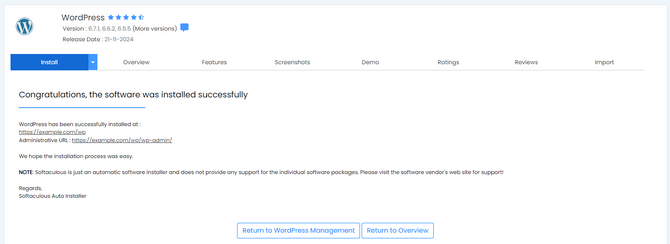
Congratulations! You can now access your newly created WordPress website. The confirmation page will typically provide two important links: one to your live website, allowing you to see it as your visitors would, and a second link that directs you to your website's administrative dashboard. Here, using the admin username and password you established during the installation, you can log in and begin the exciting process of customizing your site, adding content, and configuring its various features to suit your specific needs and vision.
