
 (1).svg)
 (1).png)


 (1).svg)
.svg)
If you have recently installed Odoo or are starting a free trial, your immediate question might be: "How do I begin using this powerful platform?" The foundation of every operation within Odoo is its database. This database serves as your company's central digital workspace, diligently storing all your critical business data, installed applications, user information, and essential configurations. This comprehensive, beginner-friendly tutorial will guide you through the process of setting up your very first Odoo database, clarify its fundamental role, and help you navigate the Odoo interface with confidence.
Understanding the Odoo Database
In the Odoo ecosystem, a database functions as a self-contained and isolated environment designed to house all of your company's vital information. This includes everything from your product catalogs and customer records to invoices, employee details, and much more. When you initiate Odoo, the very first action you'll perform is either selecting an existing database or creating a new one. Conceptually, you can consider it the primary digital "filing cabinet" or central repository for your entire business operation.
A key advantage of Odoo is the flexibility to manage multiple databases on a single instance. This capability allows for distinct operational environments:
- One database can be dedicated to testing new customizations, upgrades, or experimental features without impacting your live operations.
- Another database can serve as your production environment, containing your live, crucial business data.
It's important to remember that whenever you log into Odoo, you are always interacting with the data and applications contained within one specific, active database.
Creating Your Odoo Database
Once your Odoo instance is successfully installed and running locally on your system, open your preferred web browser and navigate to the local database manager by entering the following URL:
http://localhost:8069/database/manager
You will then be presented with the Odoo database manager interface, where you can initiate the creation of a new database.
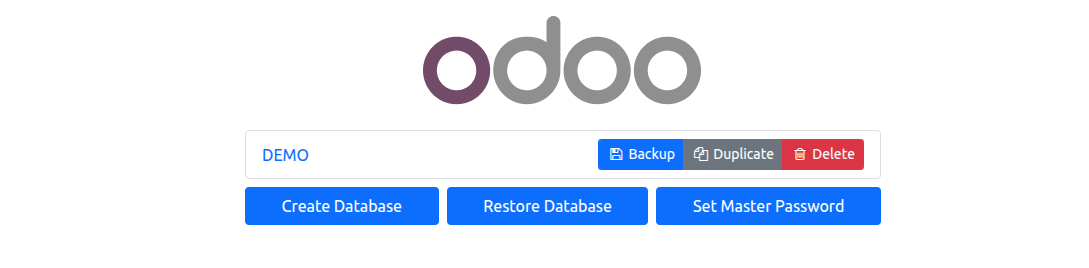
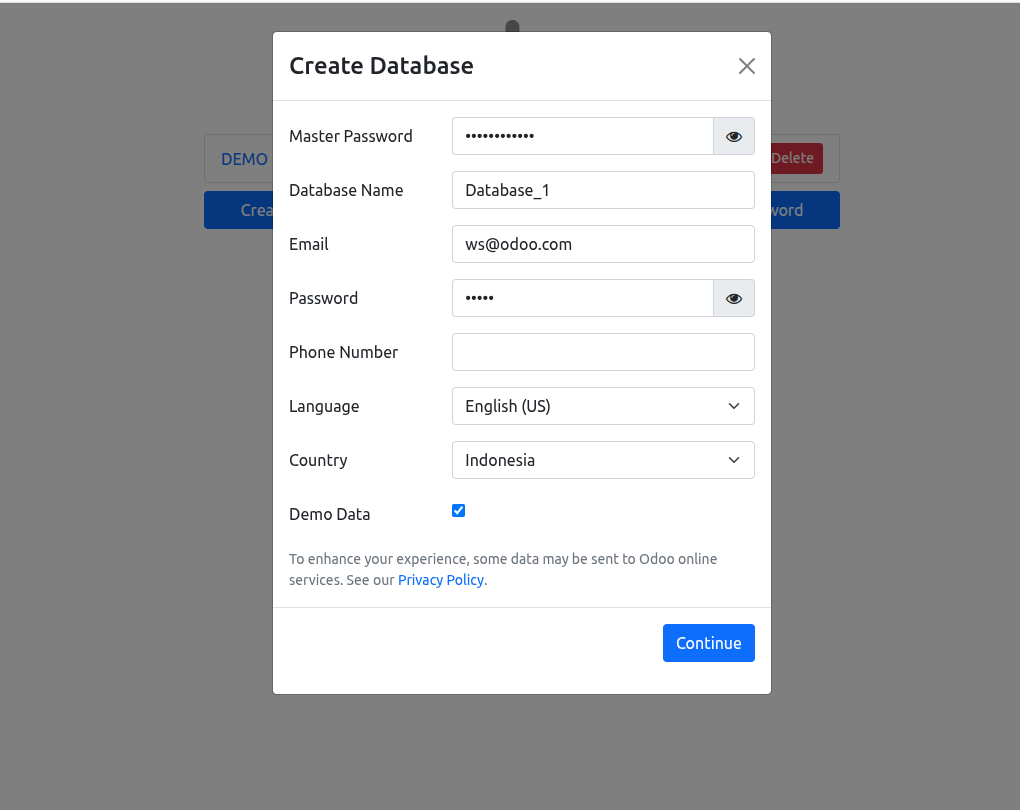
On this page, you will find the "Create Database" form, which requires you to input several key pieces of information.

Carefully fill out the required fields:
- Master Password: Enter the Master Password that was established during your Odoo installation process. If you need to verify it, you can often find this password within your
odoo.conffile. - Database Name: Select a clear and straightforward name for your database (e.g.,
my_company_db,production_2024, ortest_env). - Email: This email address will serve as the primary administrative login for your new database.
- Password: Choose a strong and secure password for the admin user associated with this email.
- Language: Select your preferred language for the Odoo interface.
- Country: Specify your country, which helps Odoo apply region-specific settings and localization.
- Load Demo Data: This is a critically important decision, especially for new users.
- ☑ Check this box: If selected, Odoo will automatically populate your database with sample data, including example products, customers, sales orders, and more. This option is highly recommended for your initial database, as it provides a practical environment to explore and understand how various Odoo modules function with pre-filled examples, making the learning curve much smoother.
- ☐ Uncheck this box: If left unchecked, the database will be created as a completely blank canvas. This is the ideal choice for setting up a clean, production-ready database once you have become proficient with Odoo and are ready to input your actual business data.
Building and Logging Into Your Database
Once all the fields on the "Create Database" form are accurately completed, click the "Create Database" (or "Continue") button. Odoo will then begin the process of generating your new workspace. This involves several technical steps:
- Odoo will create a new, empty PostgreSQL database using the name you provided.
- It will then install the foundational Odoo schema into this new database.
- If you opted to "Load Demo Data," the system will proceed to populate the database with the pre-configured sample records.
This entire process may take a few moments, during which you will typically see a loading screen. Upon successful completion, you will be automatically redirected to the login page for your newly created Odoo database.
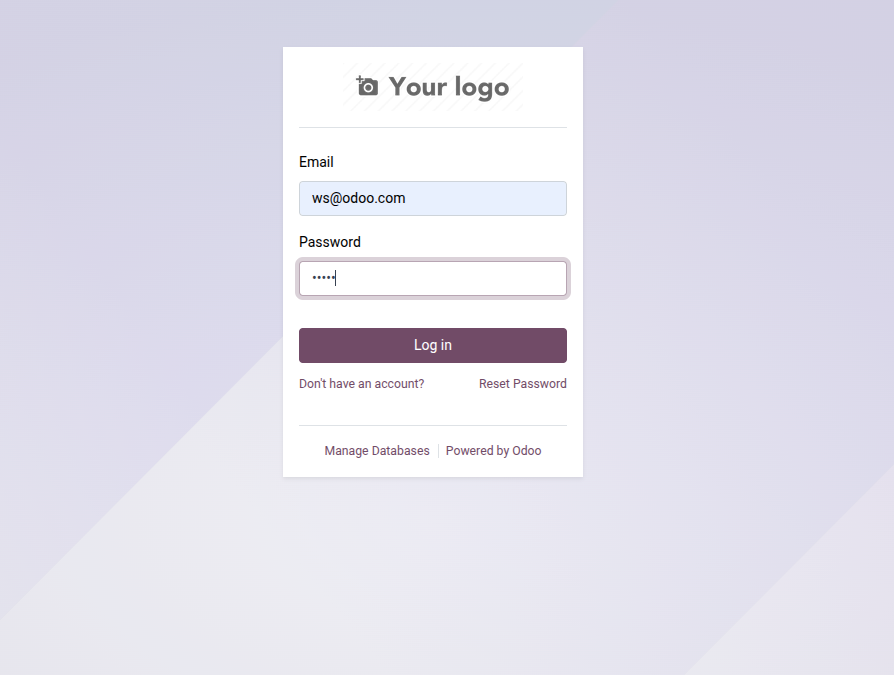
On the login screen, enter the email address and password you configured during the database creation process. After clicking "Log In," you will be welcomed by the Apps menu, which is your gateway to installing and managing your initial Odoo applications.
Exploring the Odoo Apps Dashboard
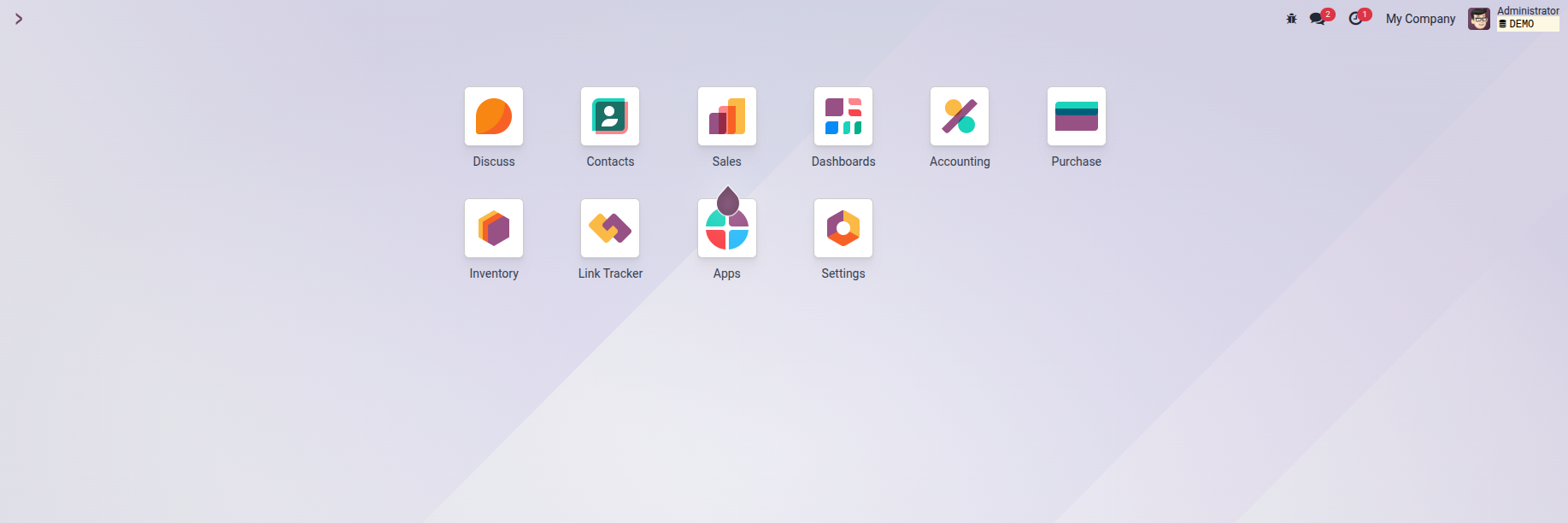
Immediately after logging in and completing the database setup, you will arrive at the Odoo Apps Dashboard. This central hub provides an overview of popular business modules that are readily available for installation. You'll find applications crucial for various business functions, such as:
- ???? Inventory: For comprehensive stock management.
- ???? Accounting: To handle all financial transactions and reporting.
- ???? Sales: To manage customer relationships, sales orders, and quotations.
- ???? Invoicing: For creating and tracking customer invoices.
- ???? Website: To build and manage your online presence.
The modular nature of Odoo means you can click on any desired app to install it instantly. Odoo is designed to configure everything automatically in the background, minimizing the need for extensive manual setup. For newcomers, a useful tip is to start by installing the Sales or Inventory modules. Engaging with these core applications will provide a foundational understanding of how Odoo's interconnected system operates and how different modules interact to streamline business processes.
Common Pitfalls and Solutions for Local Setup
When setting up Odoo locally, users may occasionally encounter certain issues. Here are some common problems and their effective solutions:
-
Error: "Database creation error."
Cause: This error typically occurs if a database with the exact name you specified already exists within your PostgreSQL instance.
Solution: Navigate back to the Database Manager (
/web/database/selector), where you can either select the existing database if it's the one you intend to use or, more commonly, choose a unique and distinct name for your new database. -
Issue: I forgot my Master Password!
Solution: The Master Password is crucial for database management. You will need to locate your Odoo configuration file, typically named
odoo.conf. Within this file, search for a line similar toadmin_passwd = your_master_password. If you are unable to locate it, you might need to stop the Odoo service, manually set a new master password in the configuration file, and then restart the Odoo service for the changes to take effect. -
Issue: The page
http://localhost:8069won't load.Cause: This usually indicates that the Odoo server application is not currently running on your local machine.
Solution: Open your terminal or command prompt, navigate to your Odoo installation directory, and manually start the server. This can often be done with commands such as
./odoo-binor by utilizing your system's service manager if Odoo was configured as a service.
Conclusion
Setting up an Odoo database on a local installation grants you unparalleled control over your environment and opens the door to extensive customization and development possibilities. While the process may involve a few more technical steps compared to cloud-hosted versions, it remains straightforward and manageable once you understand the key procedures. By diligently following the instructions outlined in this guide, you have successfully established the foundational groundwork for your robust, self-hosted business management system, ready for further configuration and growth.
