
 (1).svg)
 (1).png)


 (1).svg)
.svg)
Plesk serves as a comprehensive platform for deploying and managing websites and applications in cloud environments. It offers valuable functionalities that benefit a wide range of web professionals, from developers to system integrators.
Developers can concentrate on innovating and enhancing applications without being concerned about the underlying infrastructure. To augment its dynamic capabilities, Plesk Onyx – the latest version – introduces advanced features for developers and other web professionals. It empowers them to build and operate robust, secure applications with integrations like Git and native Docker support.
Docker itself is a rapidly expanding and highly successful open-source platform designed for containerizing distributed applications, facilitating efficient deployment and scaling.
Plesk includes Docker as an integrated component, allowing users to run and manage containers based on specific Docker images. This functionality extends beyond the local host to include defined remote machines. The Docker support within Plesk, as an extension, provides several key advantages:
- Access to a wide array of modern technologies such as MongoDB, Redis, Memcached, and others.
- Direct deployment and management of Docker containers directly from the Plesk interface.
- Simple and straightforward installation on any local system or a node registered within Plesk.
- Availability of an extensive range of Docker images, with the added option to upload custom images for specific needs.
Management of Docker Containers and Running Applications with Plesk
Leveraging the Plesk Docker extension, users can effortlessly deploy and manage Docker containers, and run web applications within them.
Docker containers are founded on a sharing paradigm, where each container utilizes the underlying resources of the Docker host. Developers typically create a specific image of their application and then scale it according to demand, optimizing resource usage and deployment efficiency.
Using Docker
The Docker extension is provided free with Plesk. It can be selected during the initial Plesk installation process. If it wasn't installed initially, you can easily enable it by navigating to:
Home > Tools & Settings > Updates & Upgrades.
Once enabled, you can access Docker from the left-hand side navigation menu to begin utilizing its features.
Image Catalog
To access available Docker images, navigate to Docker > Docker Image Catalog.
Here, Plesk presents a catalog of default images sourced from https://hub.docker.com/explore. You can broaden your search by filtering for more images from Docker Hub using the icon conveniently located near the search box. Simply enter the desired image name or repository to locate it.

After you have selected a specific Docker image from the catalog, you can proceed with running it. Follow these steps:
- If you wish to run a particular version of the application, click the arrow located next to the Run button to select the desired version.
- To deploy the latest available version of the image, simply click the Run button directly. (Note: Images that are already stored locally will display Run (Local) on the button).
Before running a container, Plesk provides options to define specific container settings, allowing for tailored configurations:
To modify these settings, go to either Settings or Details > Settings within the Docker interface.
a) Automatic Start After System Reboot
Enabling the automatic start option for your container ensures that any websites or applications reliant on it will operate continuously, 24/7, without requiring manual intervention after a system reboot. This enhances reliability and uptime for your services.
b) Automatic Port Mapping
By default, this option is activated. It automatically maps the internal port of the container to a randomly assigned port on the host system. This simplifies initial setup by abstracting port management.
Should you need to use a specific port, deselect this checkbox and manually specify any external port that meets your requirements, providing precise control over network access.
c) Volume Mapping
Volume mapping is a crucial feature that allows you to store your application's data in a secure location external to the container. This means that even if the container itself is deleted or recreated, your valuable data remains persistent and accessible. This practice is highly recommended as it separates data from the container's lifecycle, improving data integrity and facilitating backups. It is particularly beneficial for content management systems and dynamic applications that rely on persistent storage.
To configure volume mapping, specify the following:
- In the first (left) input field, provide the absolute path to the server directory that you wish to mount into the container.
- In the second (right) input field, specify the corresponding directory path inside the container where the server directory will be accessible.

Once created, the new container will appear in the list of containers, conveniently located at the top of the Docker catalog page.
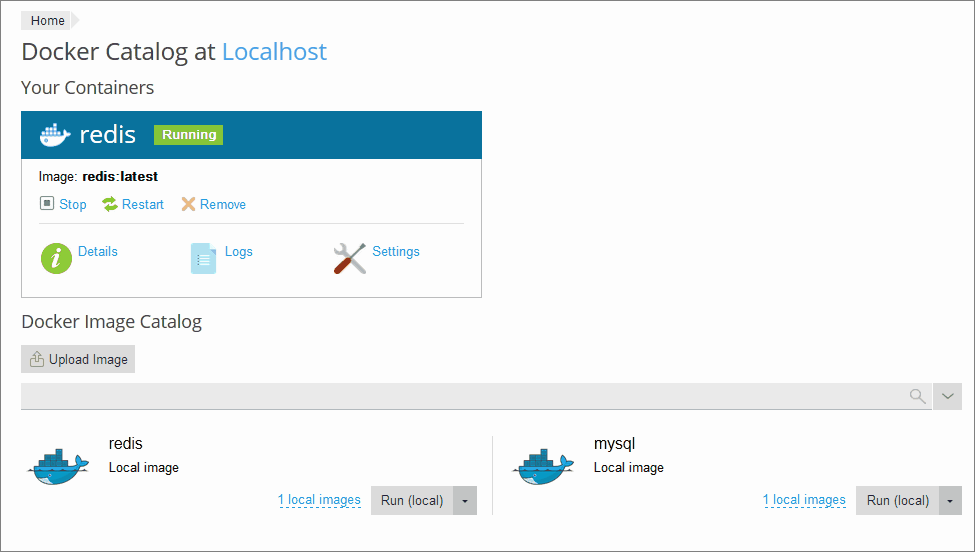
It is also possible to adjust the configuration settings after a container has been deployed. Plesk will then rebuild the container with the newly specified settings, applying your changes effectively.
Managing Containers
Plesk provides a comprehensive set of tools for managing your Docker containers:
- You can easily Stop, Restart, or Recreate containers as needed to manage their lifecycle.
- Detailed information such as resource consumption and operational logs are readily available for monitoring and troubleshooting.
- Container settings can be modified at any time to adapt to changing requirements or optimizations.
- Containers can be seamlessly recreated, either utilizing the original image or by selecting a new image version.
- You have the option to take a snapshot of a container (accessible via Details >> Download a container) for backup or versioning purposes.
- Containers that are no longer needed can be removed efficiently from the system.
Recreating Containers
Recreating containers becomes necessary when updating an application to a newer version or switching to an alternative version. To ensure data persistence during this process, it is essential to define Volume mapping before initiating the recreation.
To recreate a container:
- Navigate to the Docker section and select Details beneath the specific container you wish to recreate.
- Within the container settings, choose the Recreate option. Here, you will be prompted to specify the desired image version and indicate whether default environment variables should be applied.
Using Remote Docker
By default, Plesk utilizes the Docker instance installed as one of its core components. However, for more flexible deployments, you have the option to integrate one or more external Docker services that operate outside the Plesk environment, though only one remote service can be active at a time. This functionality requires a specific license key for Plesk as an add-on. Before it can be used within Plesk, this remote server must be properly configured.
To configure and use a remote Docker service (applicable for both Linux and Windows environments):
- In Tools & Settings, locate and select Docker under the Server Management section.
- Choose the Add Server option and proceed to specify the necessary connection settings for your remote Docker instance.
- Finally, select "Set Active" to enable and begin utilizing this remote service within Plesk.

Managing Local Images
Local images are those readily available within the Docker catalog on your Plesk installation, eliminating the need for special downloads. These images are automatically saved when you select any specific version or tag of an image and either run it or cancel the operation. Plesk also offers the convenience of uploading images directly to the image catalog. Additionally, images that you build using command-line interfaces will seamlessly appear in this local catalog.
All custom-created images are also stored locally within the catalog, providing a centralized location for all your Docker images. (Refer to the next section for instructions on how to create custom images).
Creating Images with Custom Settings
Whenever you make modifications to a Docker container, Plesk allows you to capture these changes by selecting the "Save as Image" option. This action essentially creates a snapshot of the container's current state, including all your custom adjustments. The newly created image, reflecting these changes, will then be displayed in your image catalog.
You can further customize this saved image by specifying a unique name and version. By default, the system will generate a new name for the image and typically saves the latest version of the changes. This process makes it straightforward to version control your custom container configurations and share them for consistent deployments.
Ultimately, creating applications and deploying them within Docker containers is significantly simplified, thanks to the integrated functionalities provided by Plesk.
Limitations
While Plesk offers robust Docker management, it's important to be aware of certain limitations:
- Plesk supports Docker on specific operating systems, including RedHat 7, CentOS 7, Ubuntu 18.04, Debian 9, AlmaLinux 8.x, and Rocky Linux 8.x. For Windows environments, Docker can be installed on a remote machine. Docker itself is exclusively supported on x64 systems.
- Plesk does not provide Docker support for Windows Server 2008.
- It is not possible to use Docker that has been deployed within another Docker container through Plesk.
- Utilizing Plesk's remote Docker services requires an additional license.
- Docker containers cannot be directly migrated or backed up using Plesk's native backup features. However, Plesk does allow you to back up the data utilized by the containers (as discussed in Volume Mapping) or to download container snapshots.
- Virtuozzo 7 is supported with Update 1 Hotfix 1 (7.0.1-686) or a later version. With this update, new containers built on CentOS 7 have a firewall enabled by default for enhanced security. A Plesk administrator will need to manually configure this firewall to ensure that all necessary ports for operation are open.
